Students Missing Year-Specific Documents in PASI
Students Missing Year-Specific Documents in PASI
This report will help identify students who are missing having year specific document types (Progress Reports/Report Cards, Reg Forms, etc) uploaded for a given year (uses current year specified in SIS)
1. Navigate to https://prsd8.ca/admin/home.html
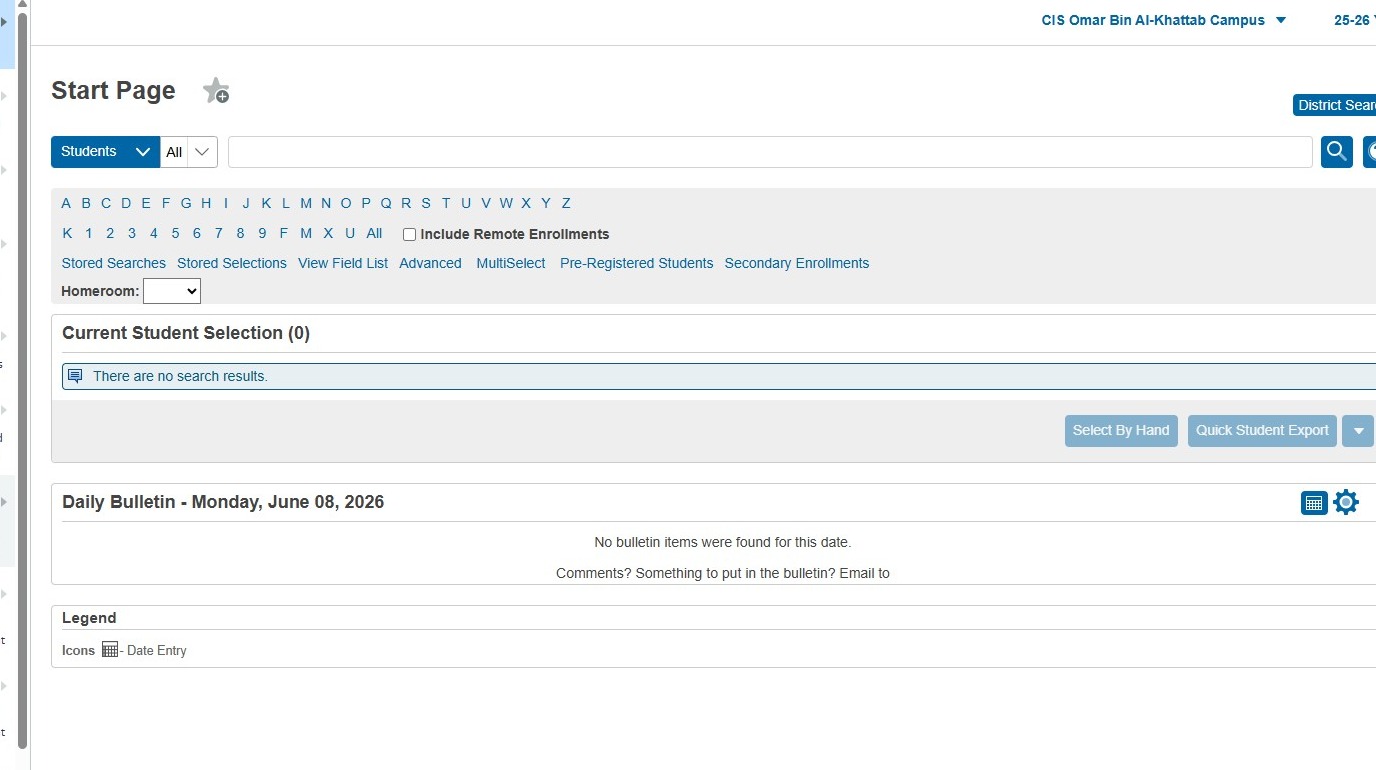
2. Click "Data and Reporting"
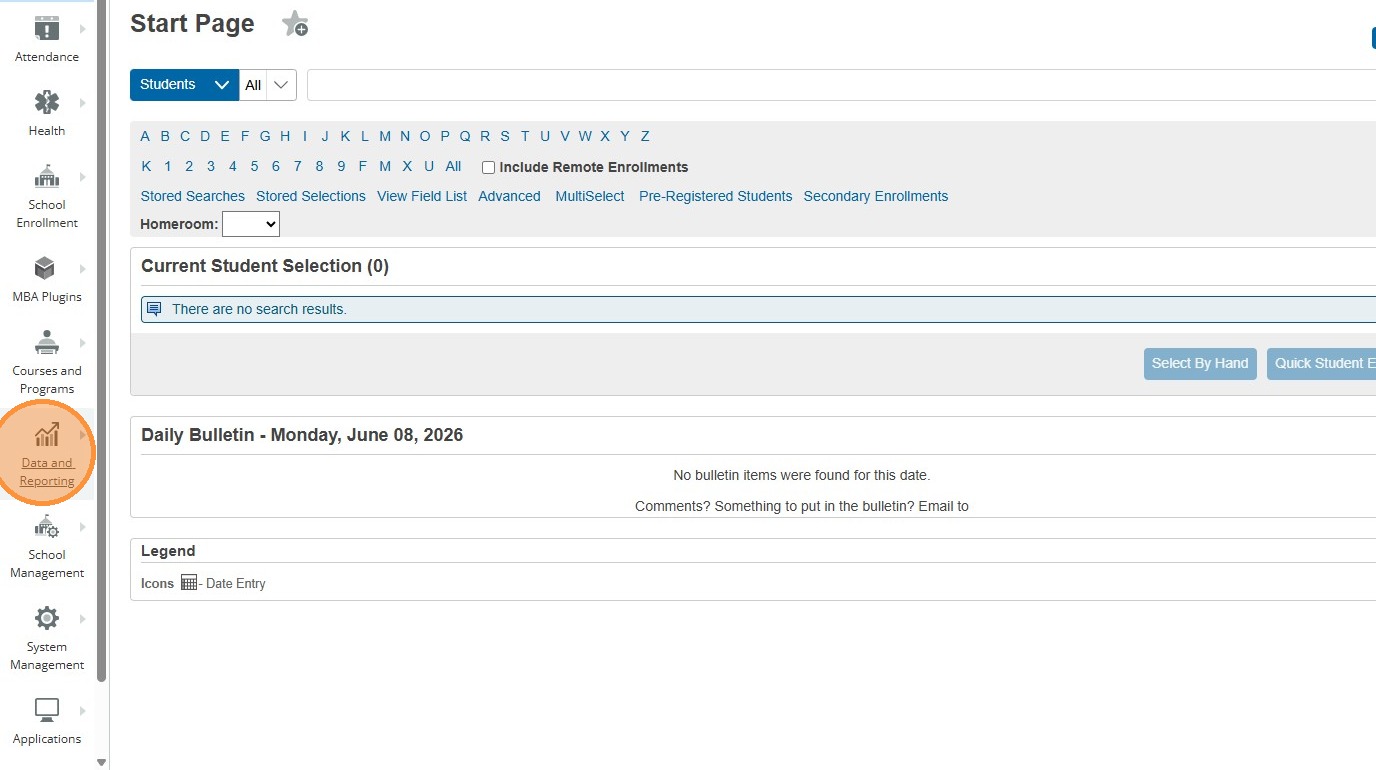
3. Click "Reports"
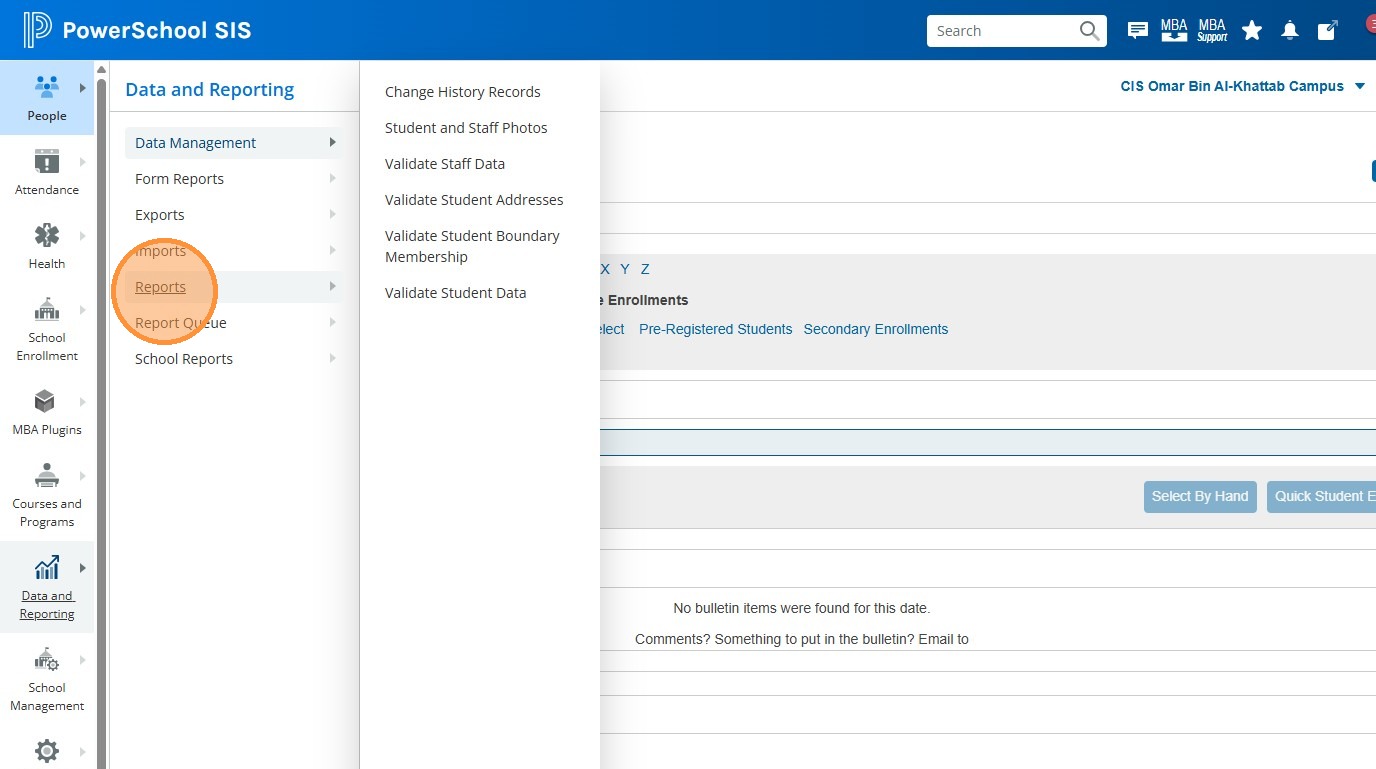
4. Click "AB Reports"
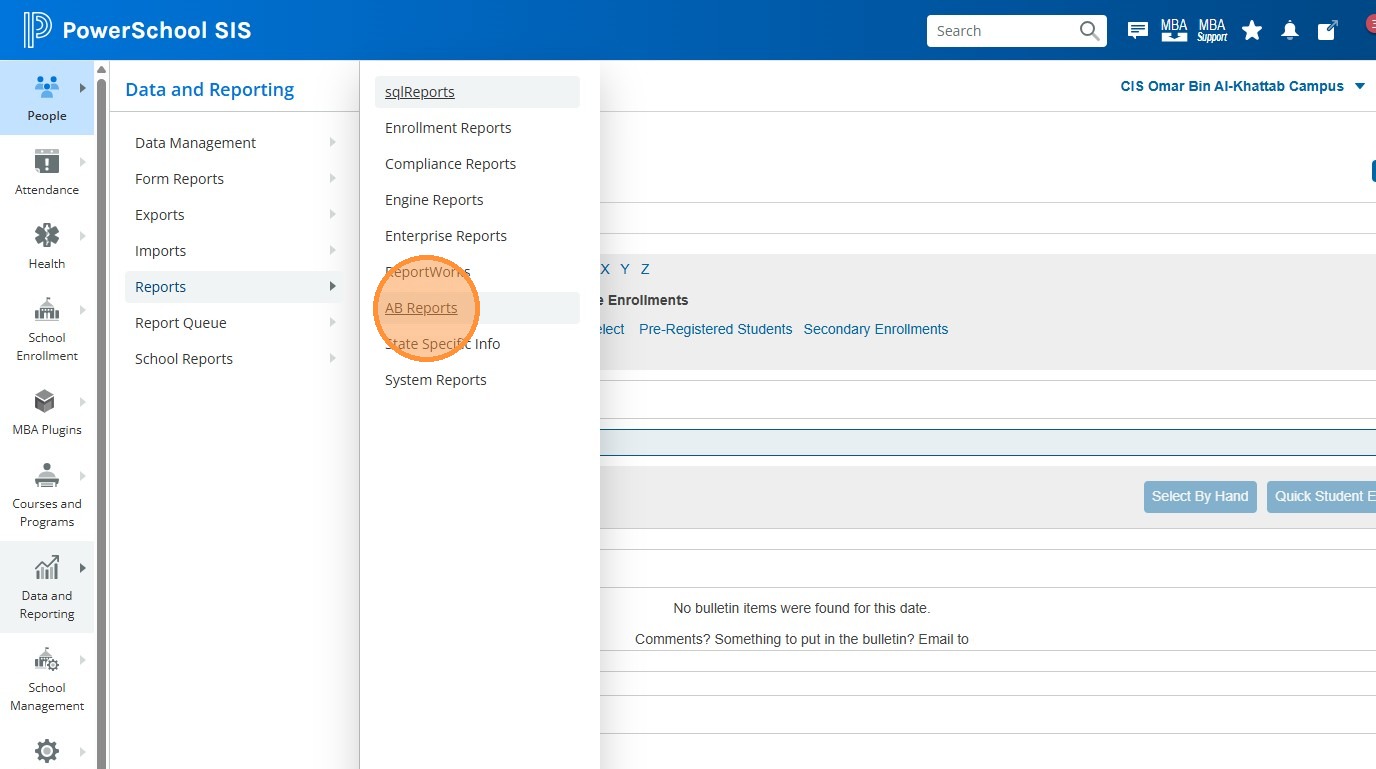
5. Click the drop down next to "AB Reporting"
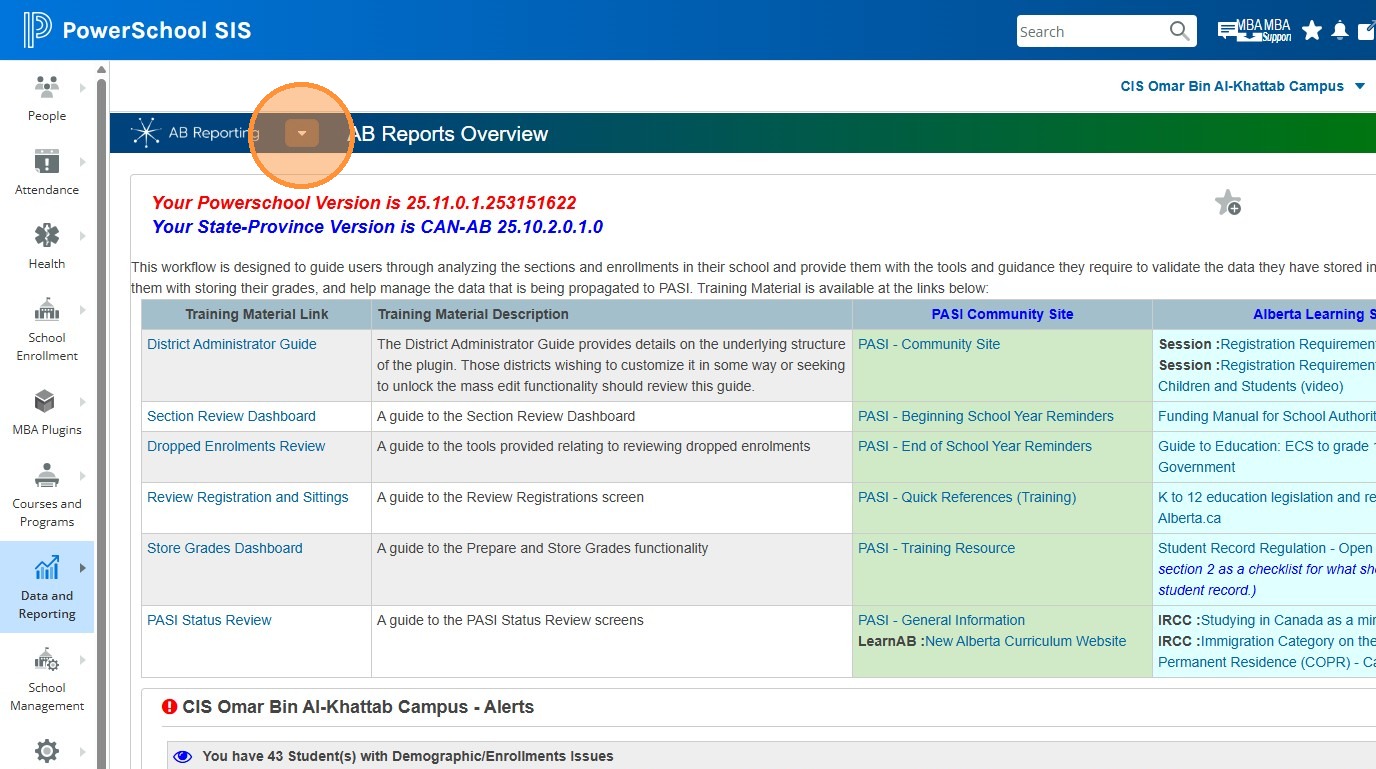
6. Click "Expand All"
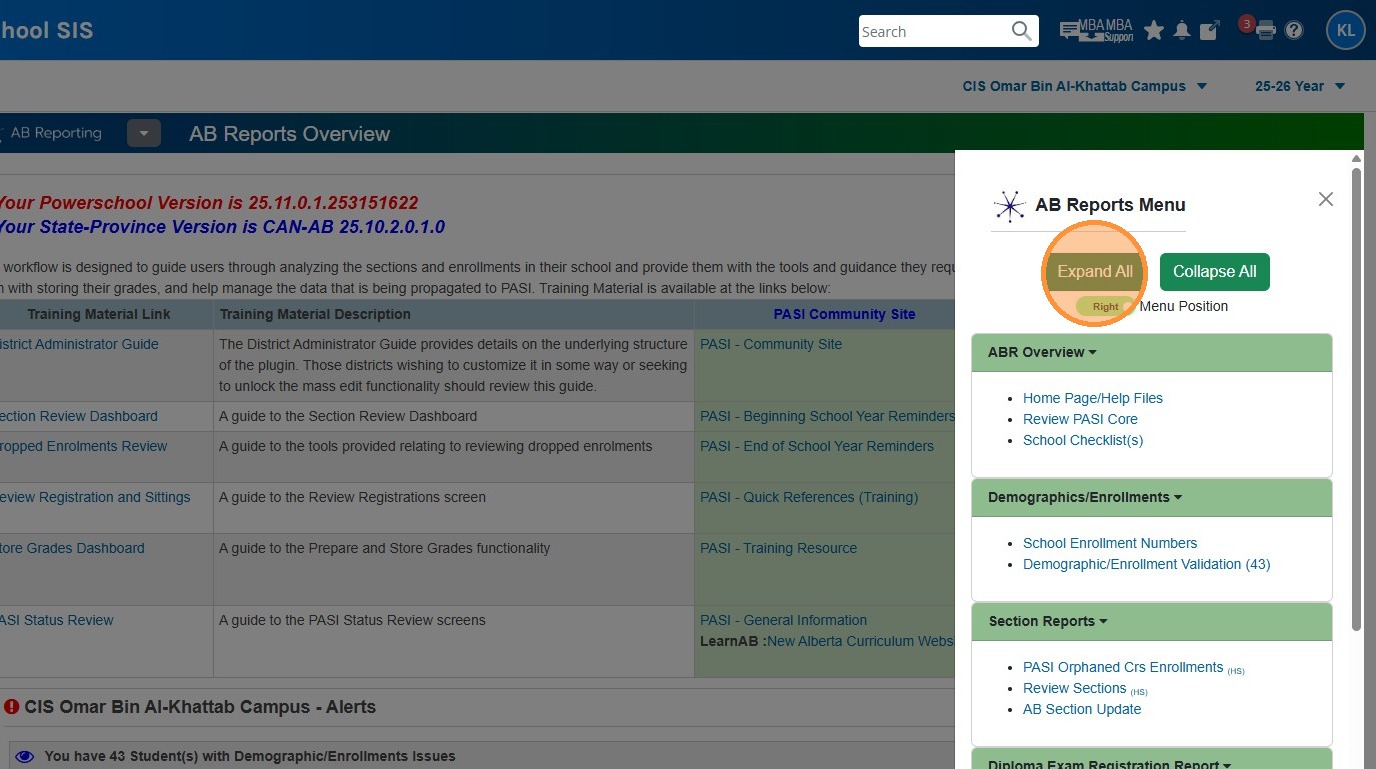
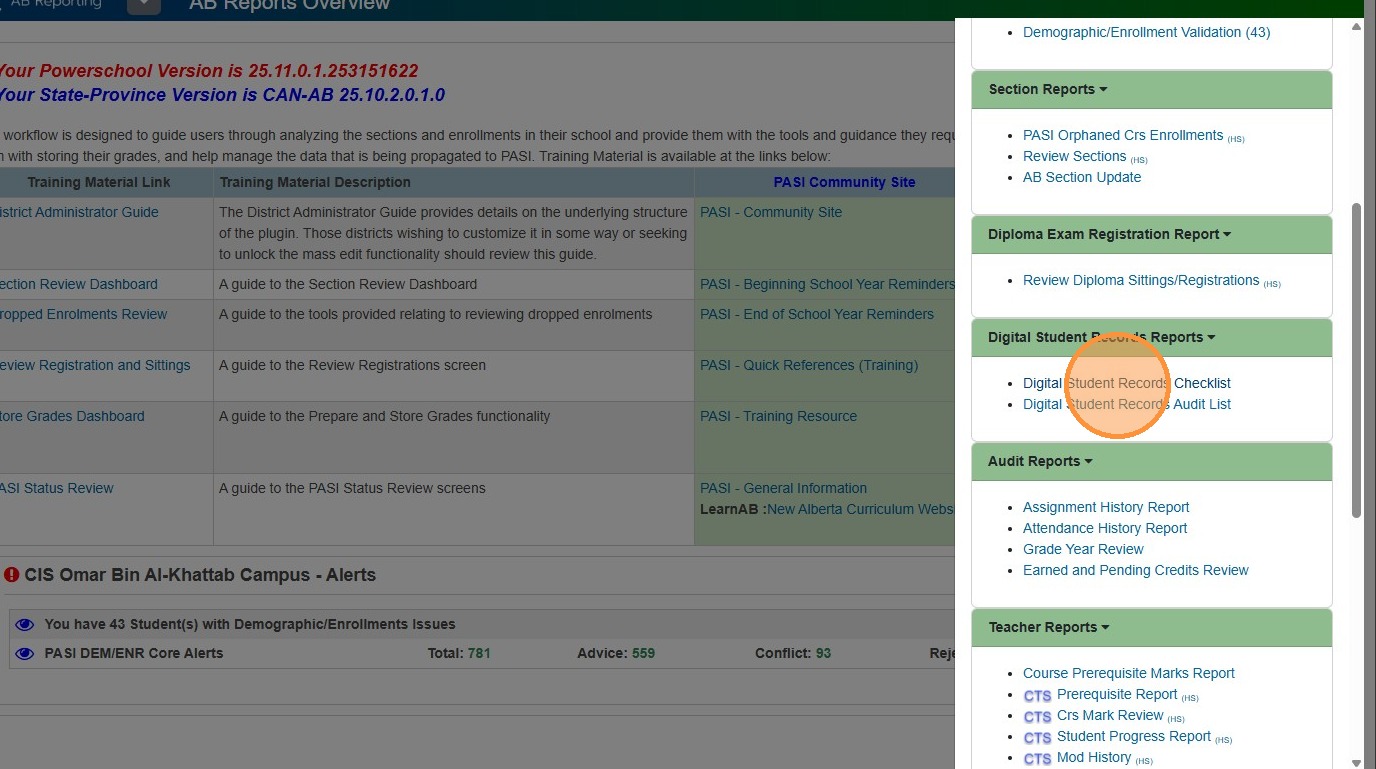
7. Click "Digital Student Records Checklist"
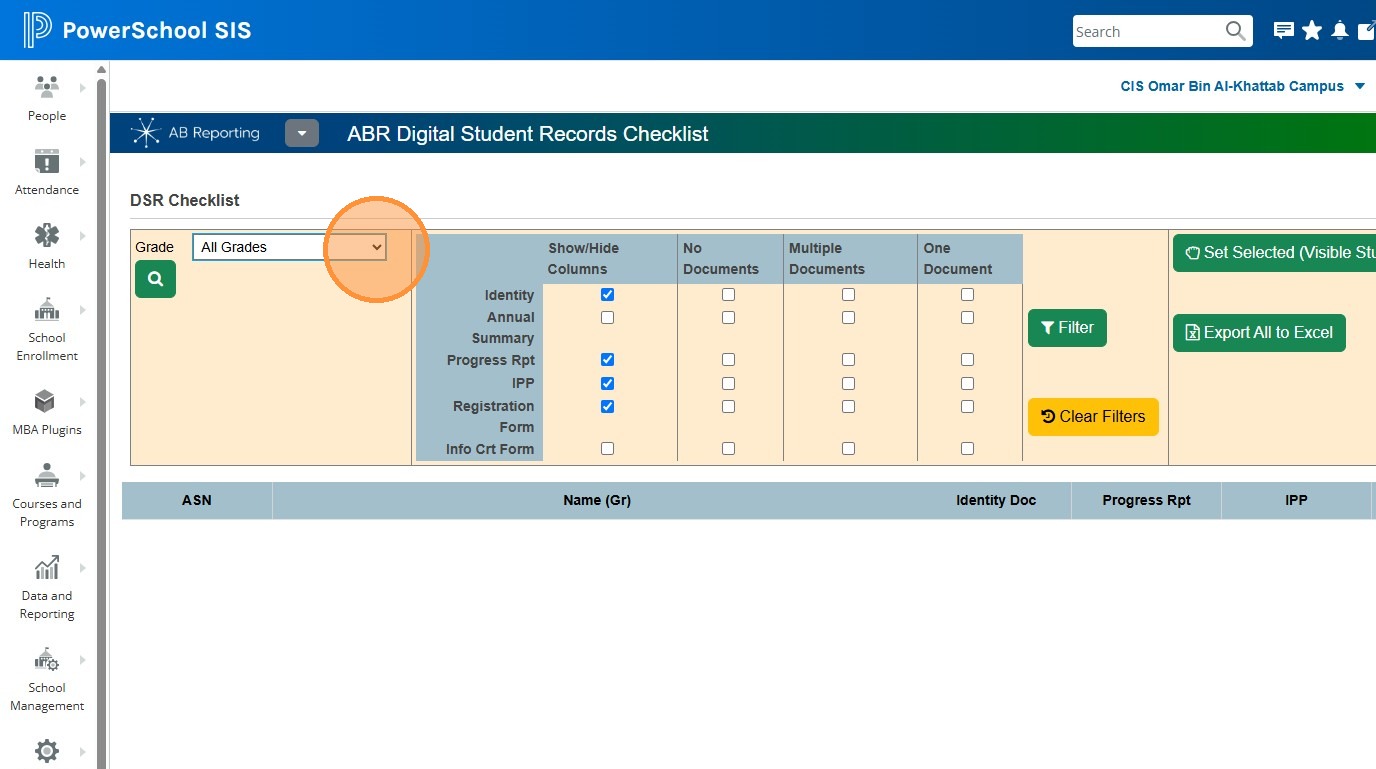
8. Select the "Grades" drop down and choose either a grade, current selection, or All Grades (depending on what group of students you want to search)
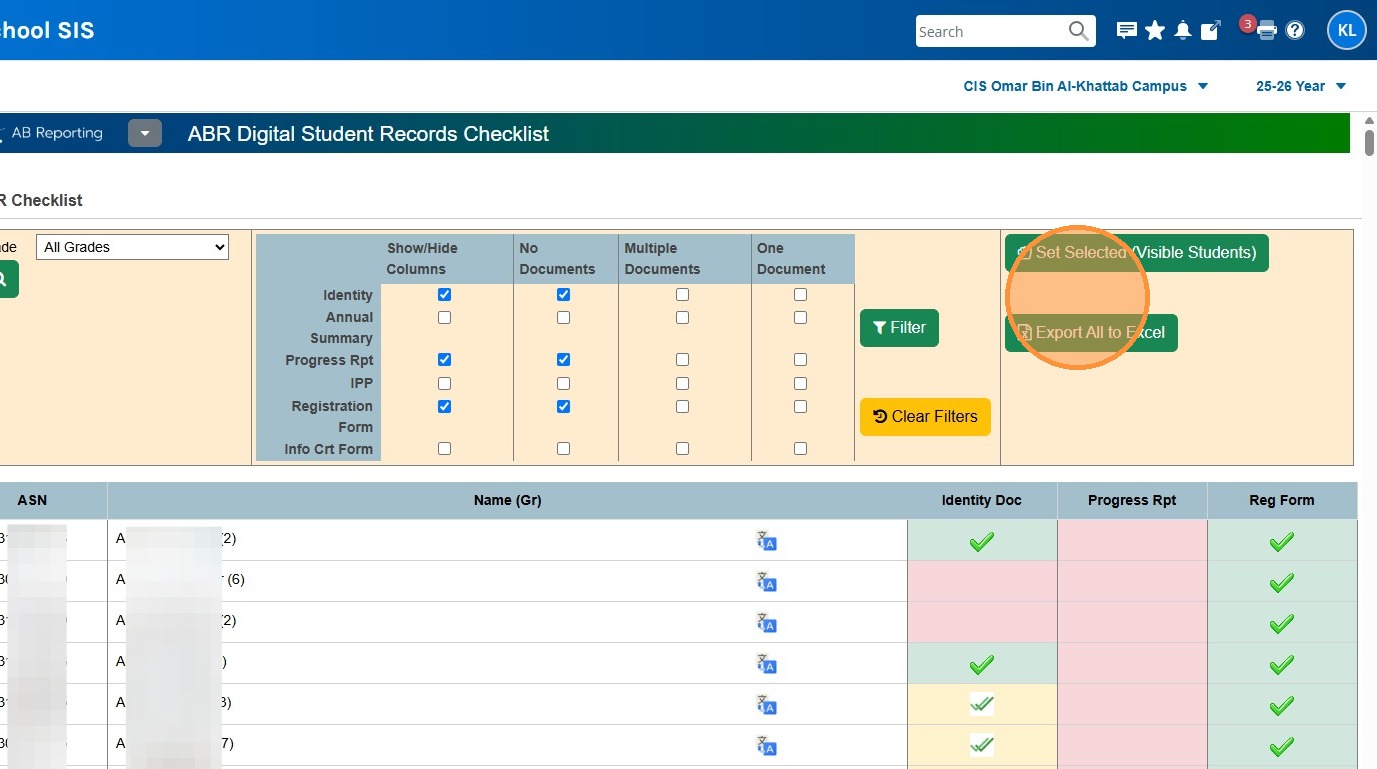
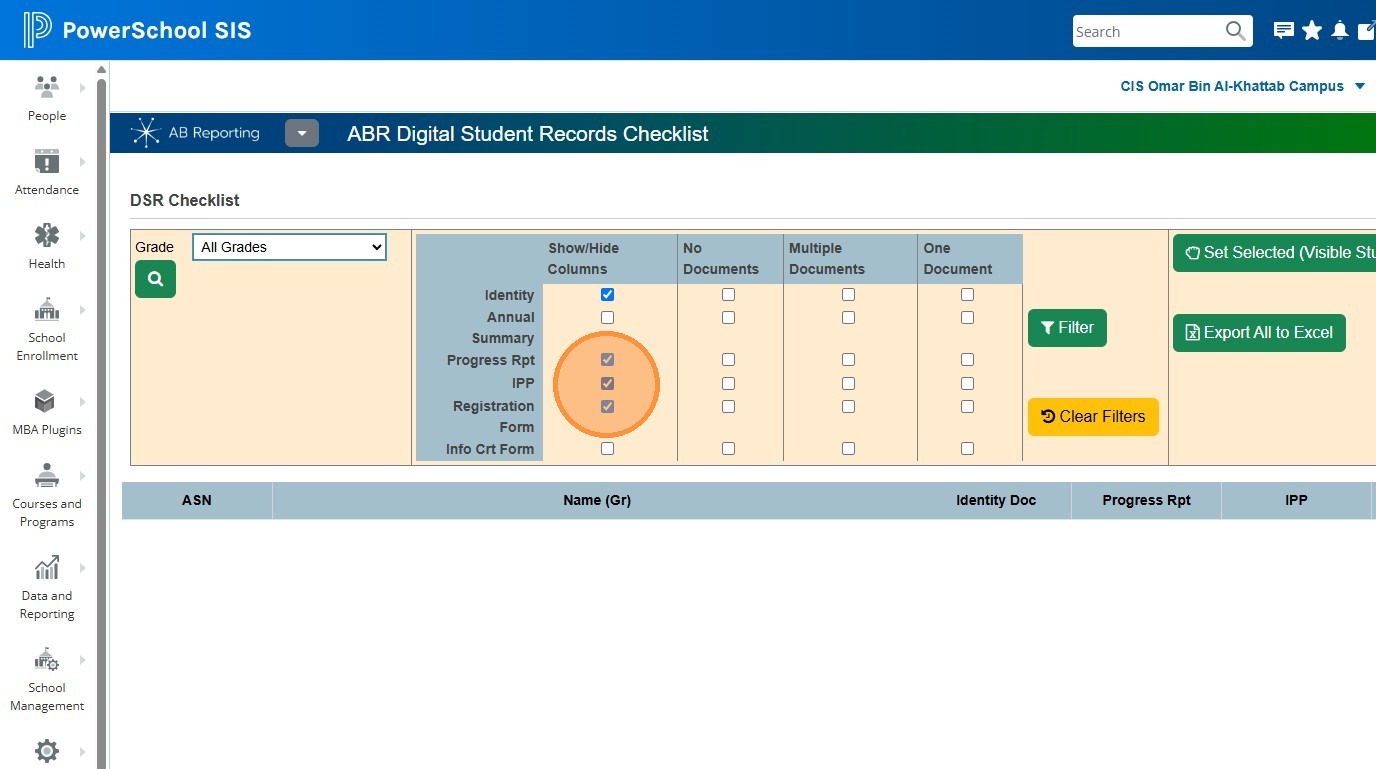
9. Use the checkboxes in the "Show/Hide Columns" column to indicate which year-specific doc types you want to look for
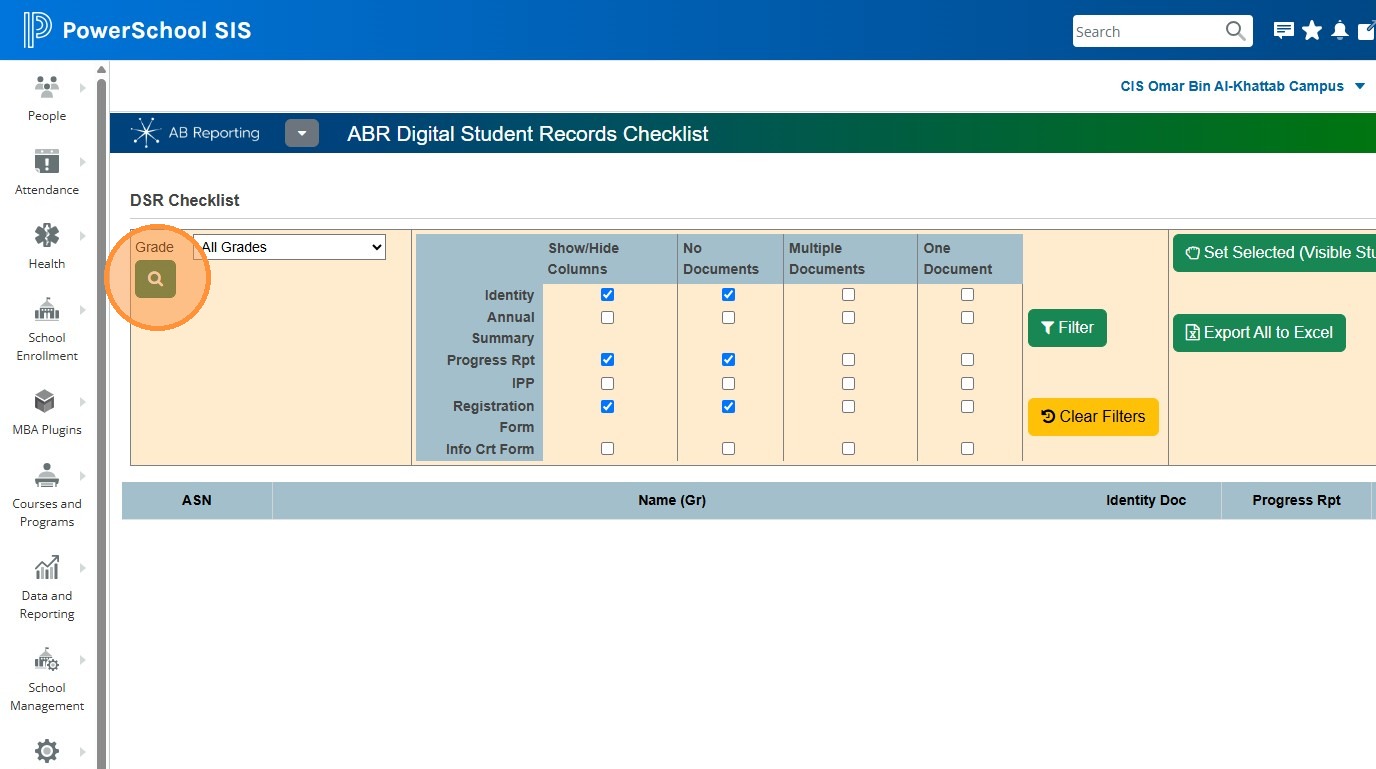
10. Click the Search icon
11. If you want to filter and display only students who are missing the specified document types, check the boxes in the No Documents column (you could also decide to look for students who have Multiple of these documents, or One Document using the other columns).
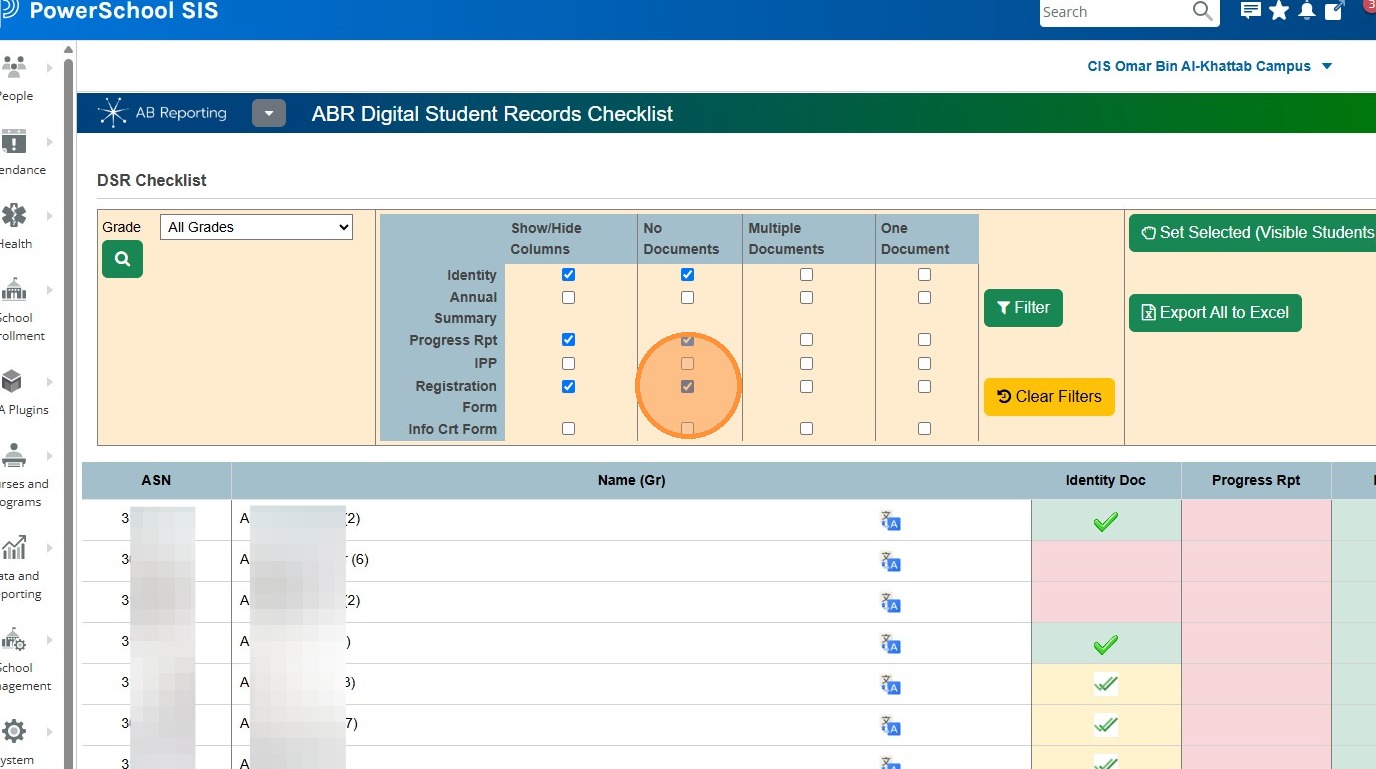
12. Click "Filter"
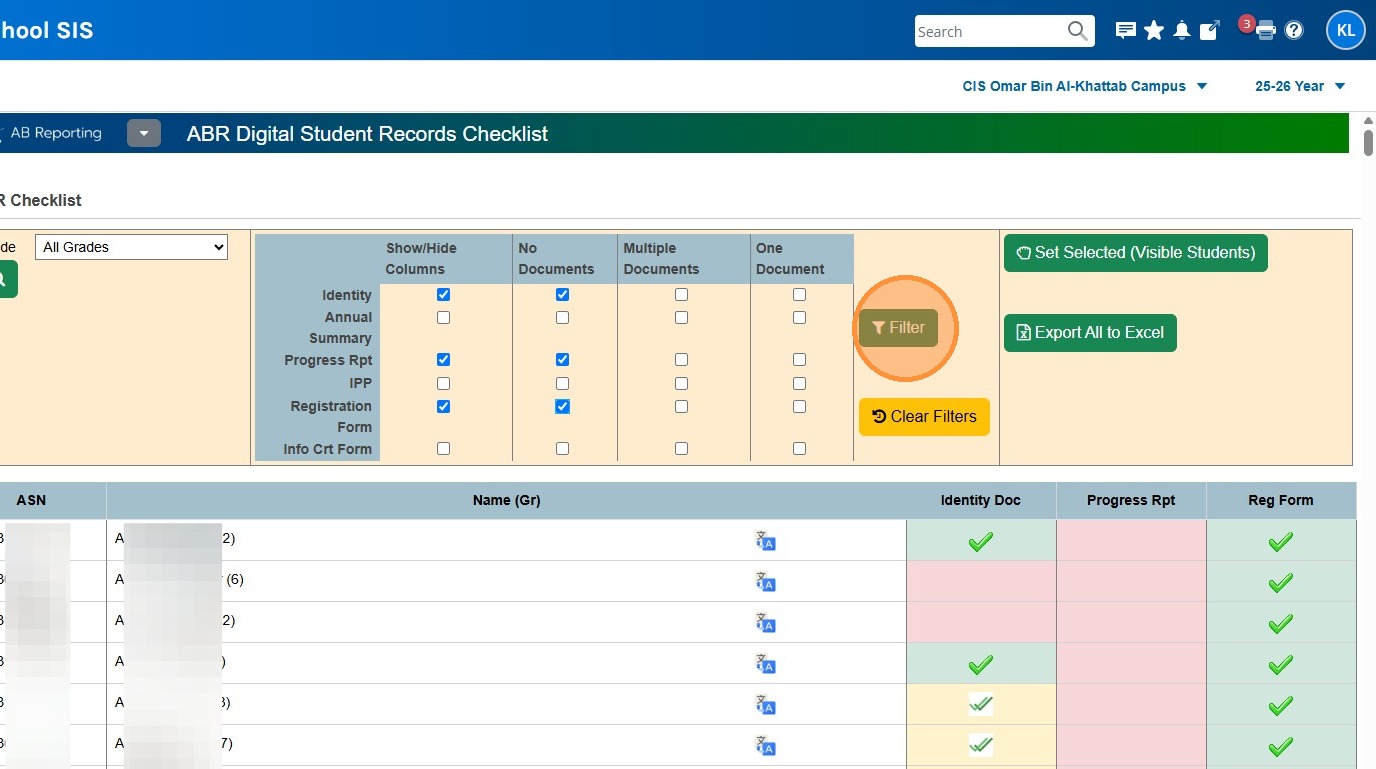
13. You can hover over the various symbols to see what they mean. The solid checkmark indicates the student has a the specified document uploaded for the current year. The double checkmarks indicate 2 or more of that document. If the cell is red, the student is missing that document for the specified year.
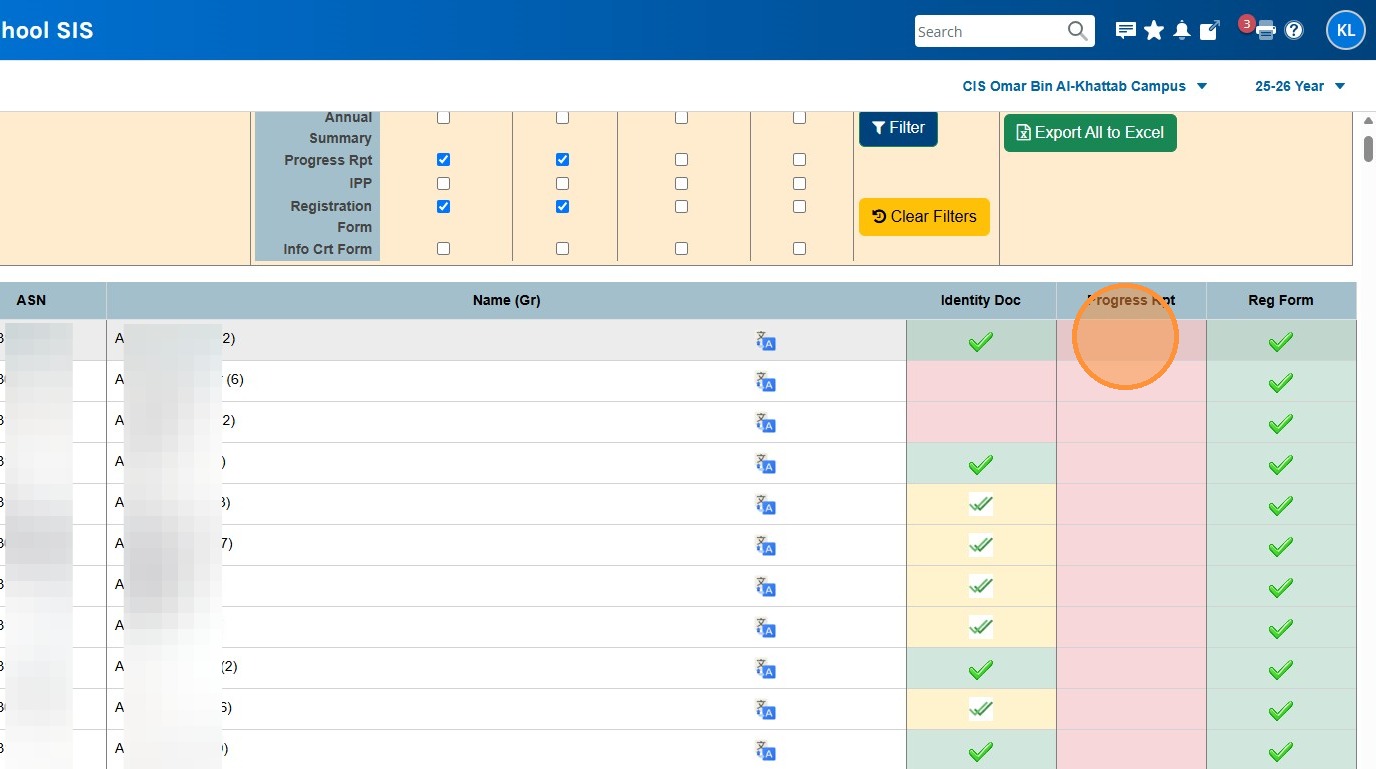
14. You also have the ability to set the students displayed as a selection on the Start Page, or to export the results to Excel.