
How To: Archive MBA Report Cards
How To: Archive MBA Report Cards
Archiving report cards is a process that puts a digital copy of report card not only into our records on the admin side, but also puts a copy into the Parent/Student portal for the parents and students to view whenever they like. This is not the same as pushing the report cards to PASI, but it is an important step. It presumes you have already RUN the report cards (there is a how-to on this in the knowledgebase).
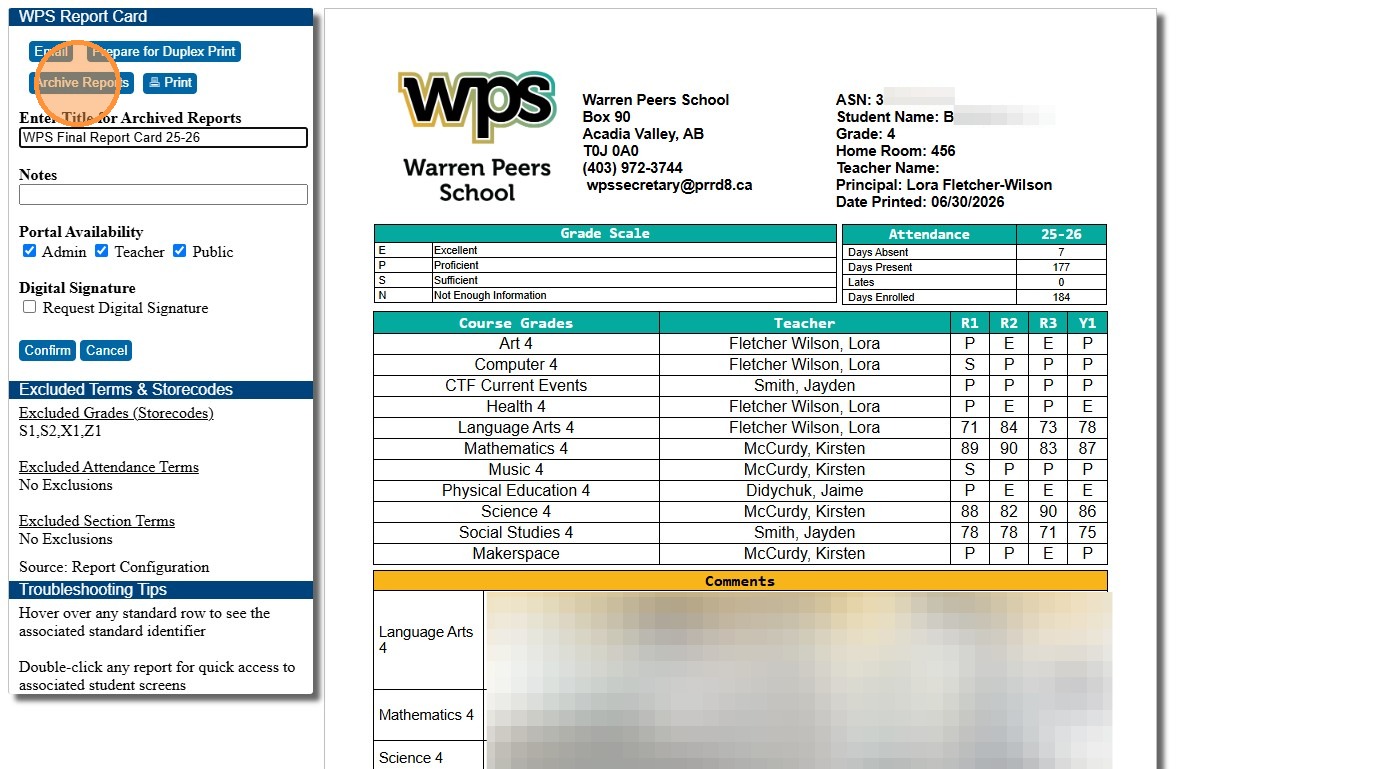
1. After you run the report cards, you will see them on your screen in their own tab, like below.
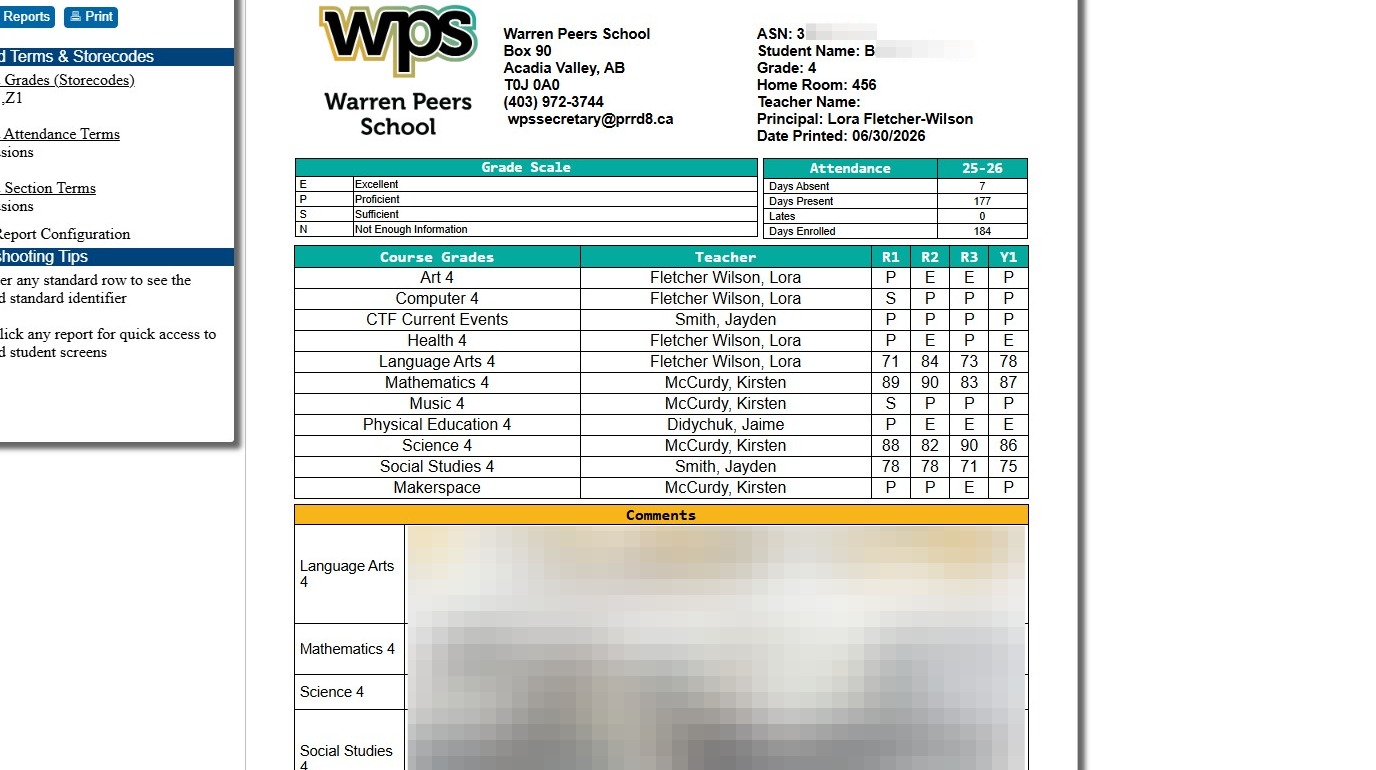
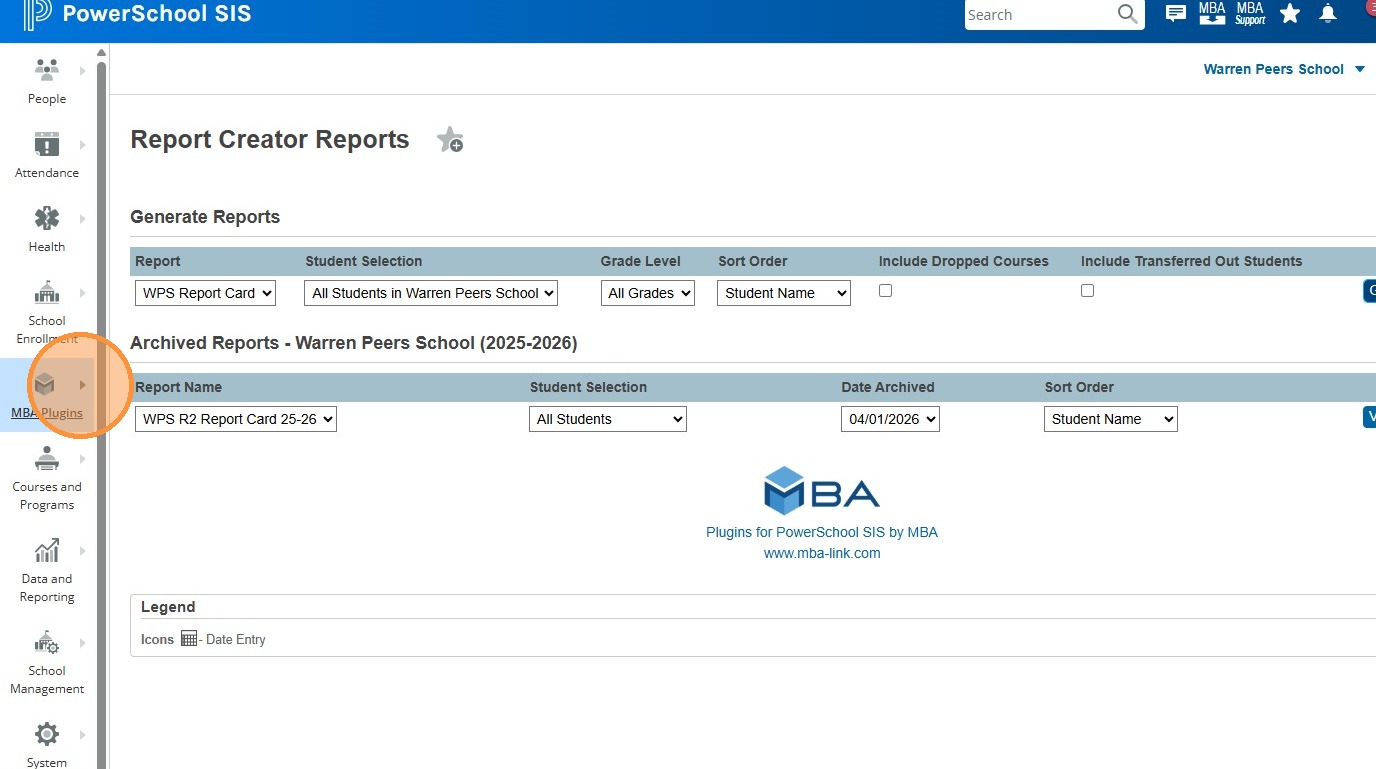
2. Before we complete the Archive process, we need to make sure we follow the naming convention already established by previous archives. Go back to your main PowerSchool Tab in your browser, and click "MBA Plugins".
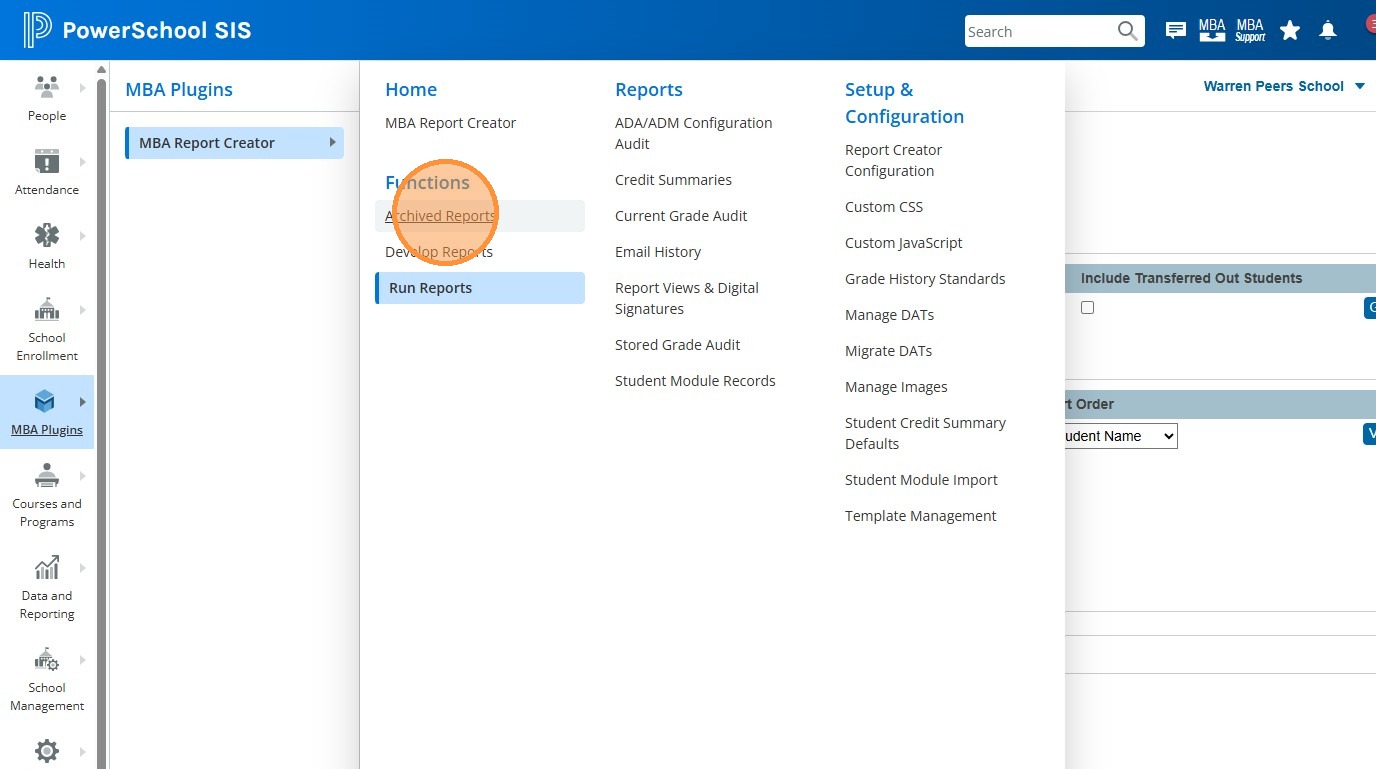
3. Click "Archived Reports"
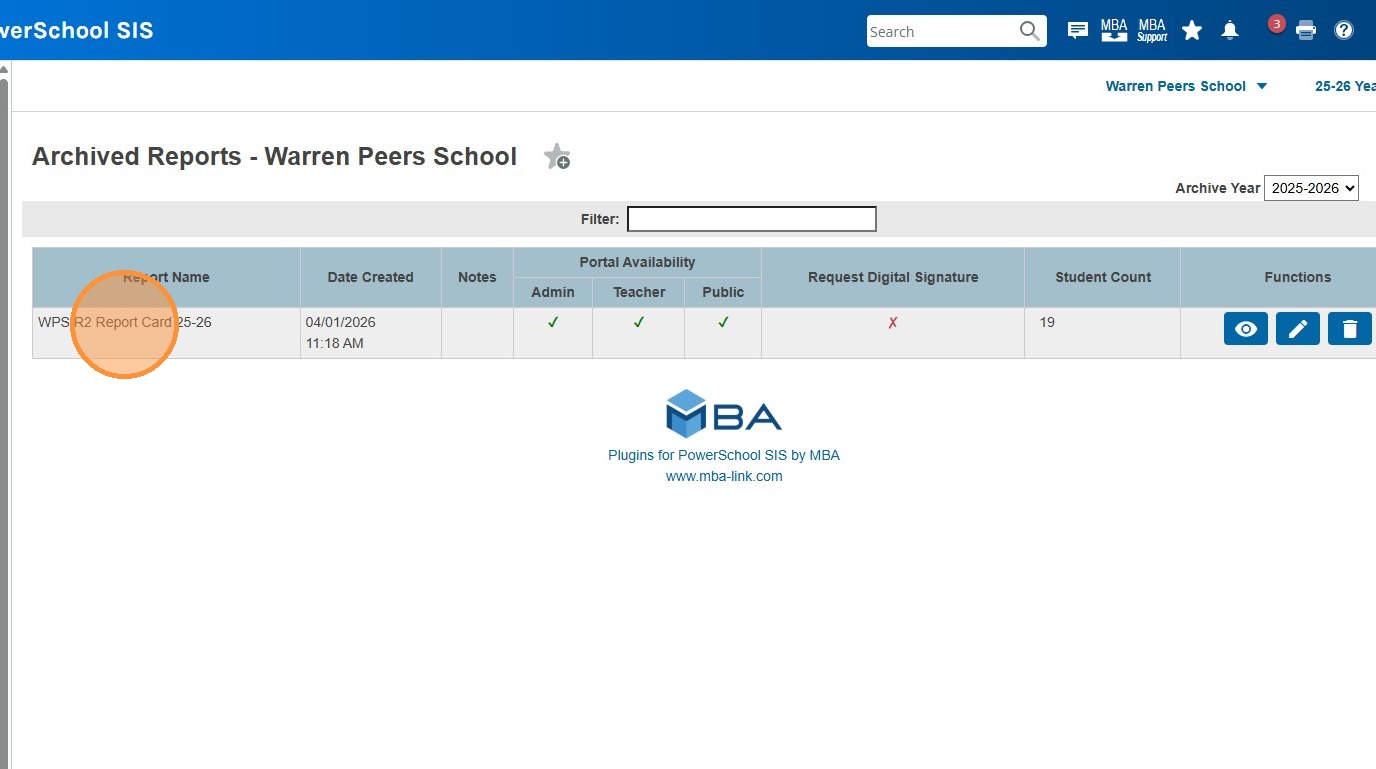
4. Look at the previous archived reports. Highlight, then copy the name of the previous archived report card (if you have more than one, choose the closest match. You can also click on the Archive Year on the right and look at archives from previous years).
5. Switch back to your "MBA Report Creator" tab, where the report cards are open
6. Click "Archive Reports"
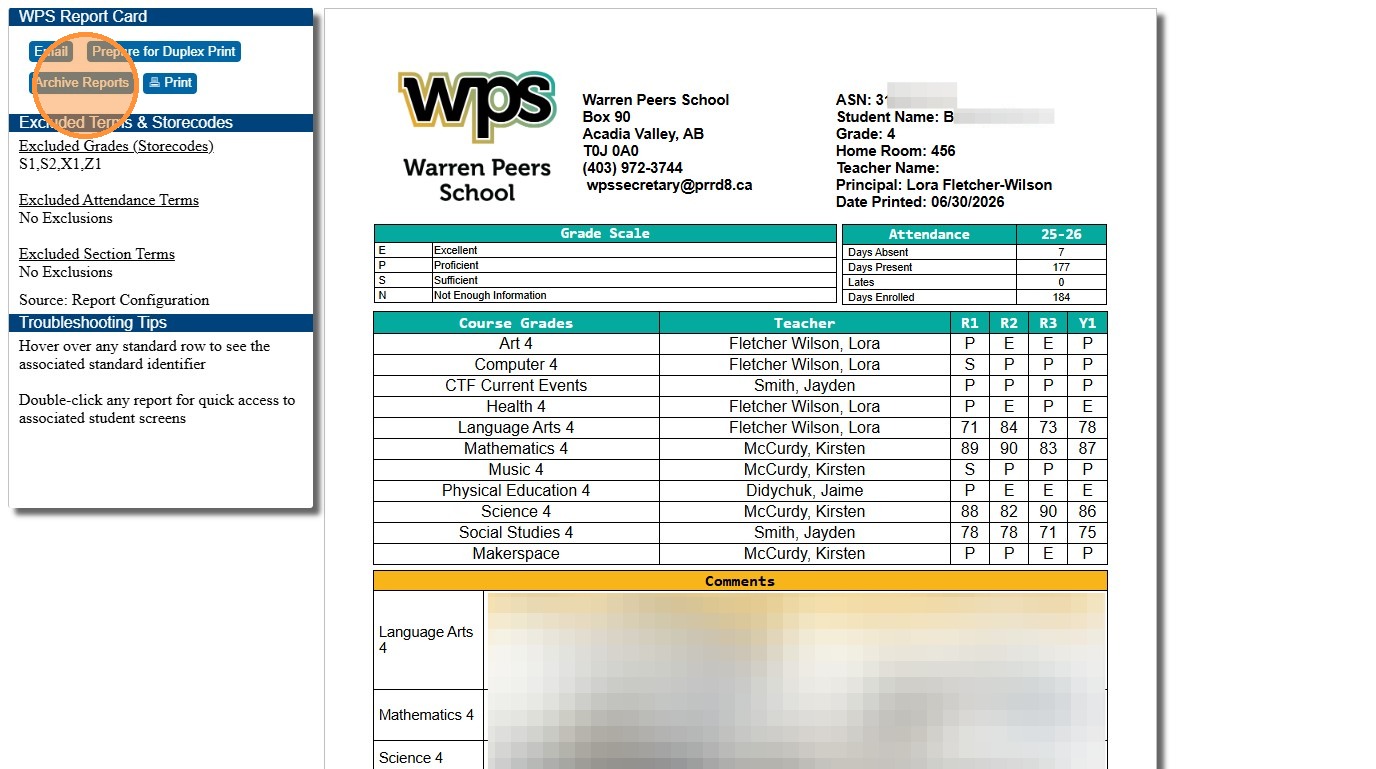
7. Click in the "Enter Title for Archived Reports" field.
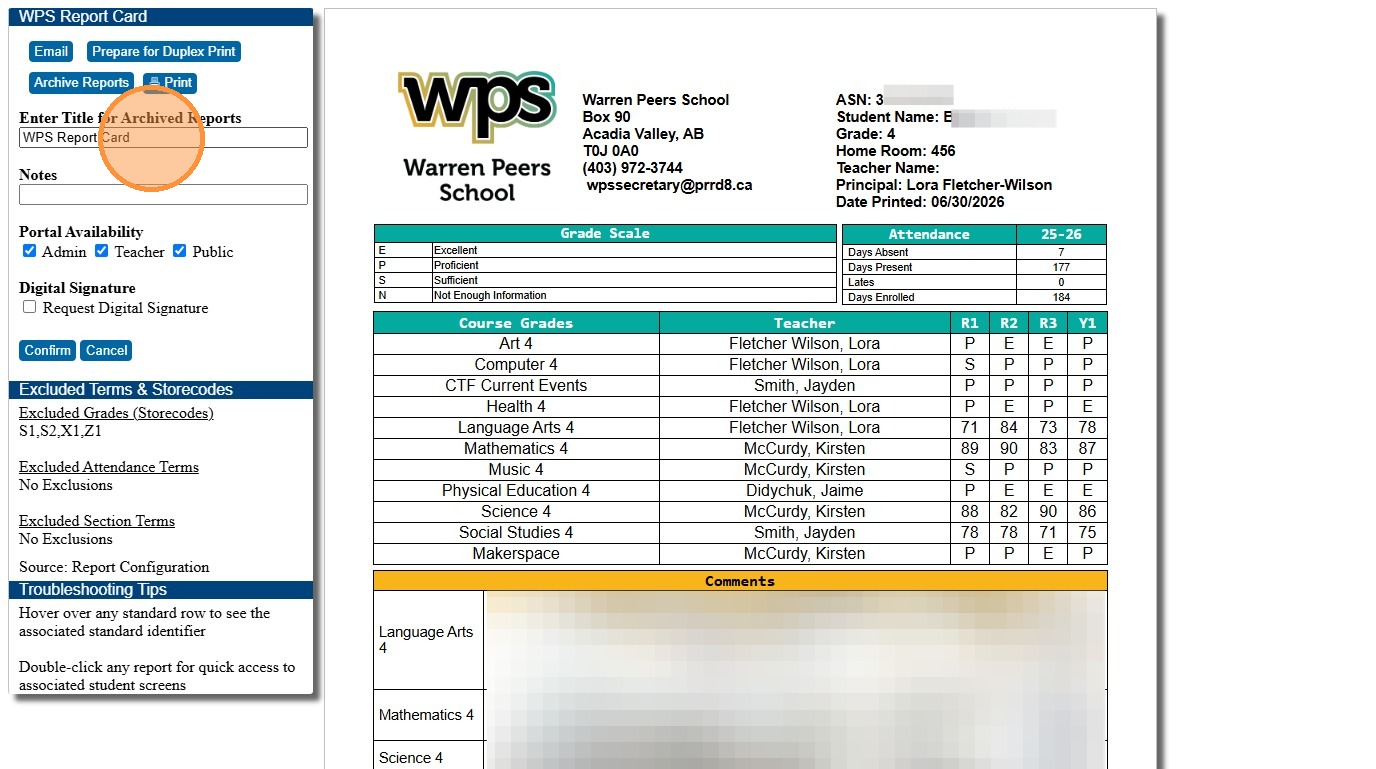
8. Delete the default title, and paste the copied title from Step 4.
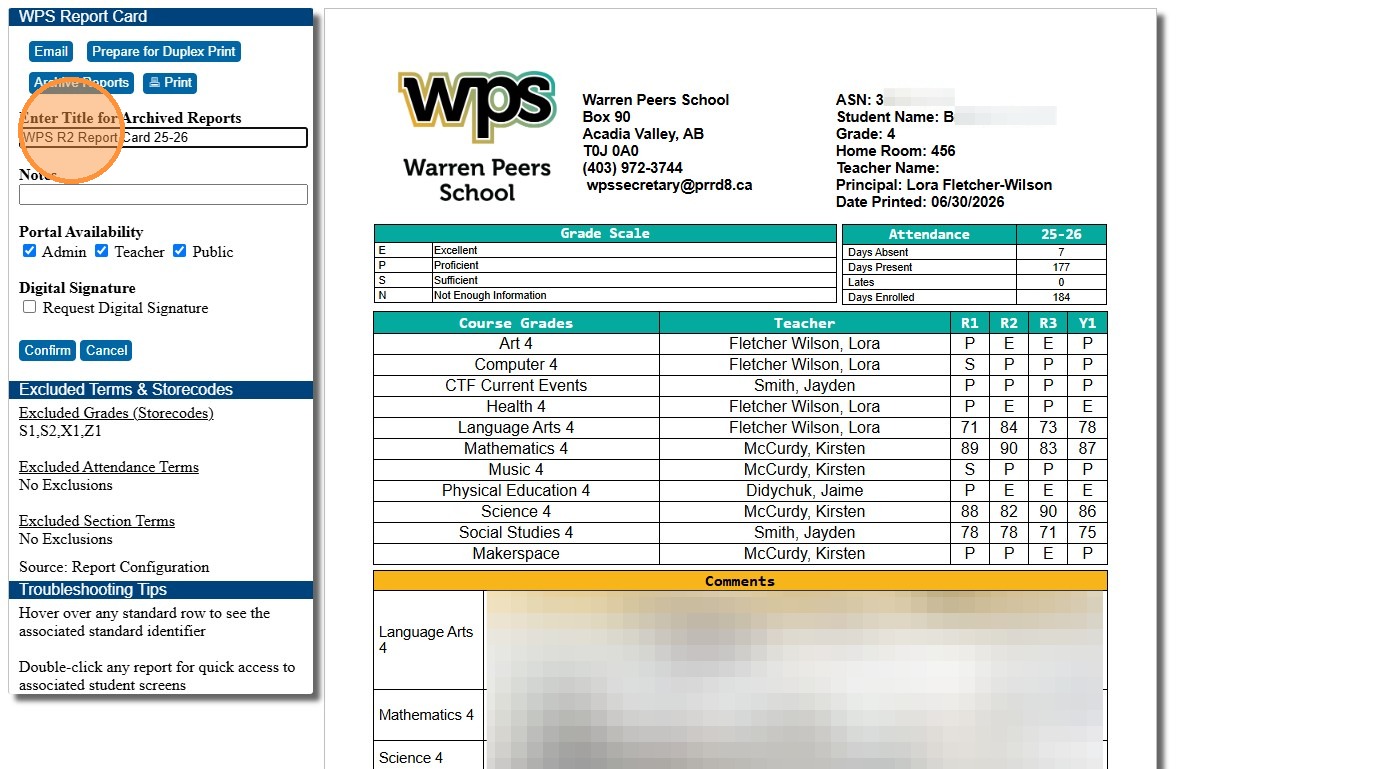
9. Edit the title as needed. In our case, I've replaced "R2" with "Final", because I copied a title from second report period, but I'm Archiving for Final report cards.
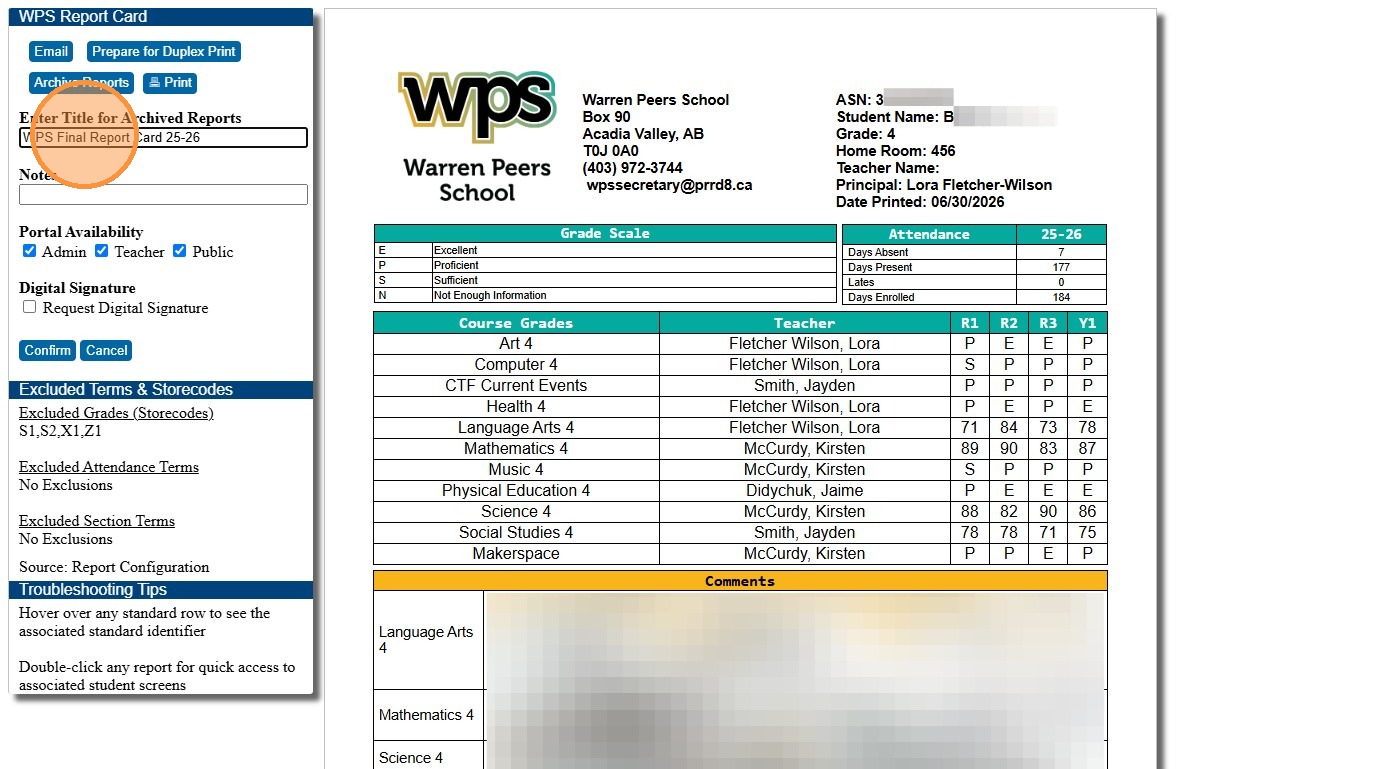
10. Click Archive Reports.
11. You're done!