How to Set Up and Access your PRPS Outlook E-Mail via Mobile Device
How to Set Up and Access your PRPS Outlook E-Mail via Mobile Device
Learn how to quickly sign in to your Microsoft account and set up your Microsoft Authenticator using your Mobile Device.
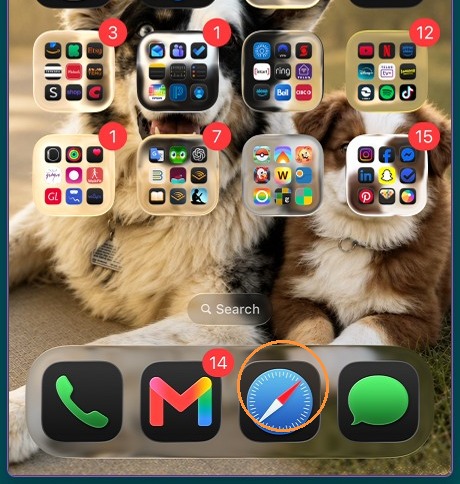
1. Launch a browser session on your Mobile Device. My example is an iPhone and using Safari. If you're on an Android device, you're likely launching a Chrome browser.
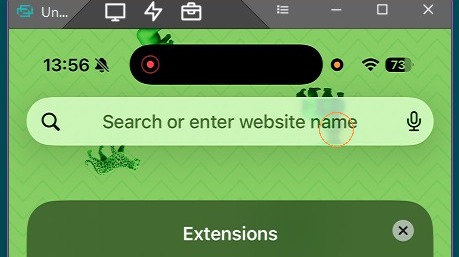
2. Go to myprps.com, or to your school's website
3. Click the waffle menu in the upper right
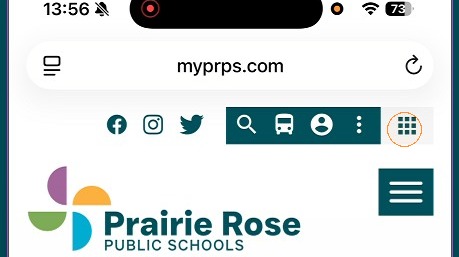
4. Click on the "Office 365 Login" icon
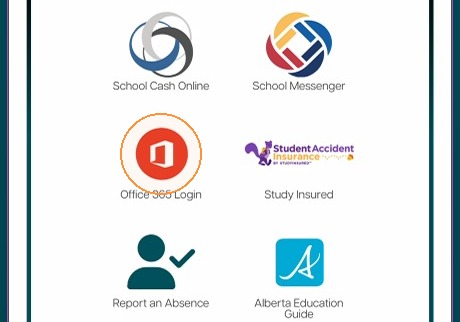
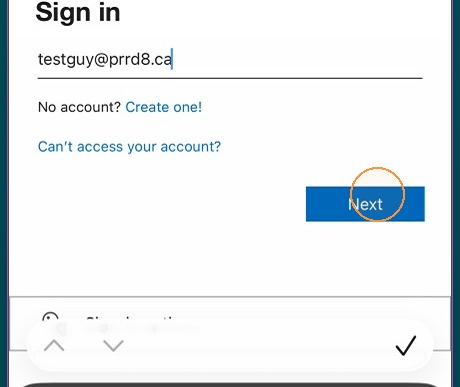
5. Enter your PRPS email and click "Next"
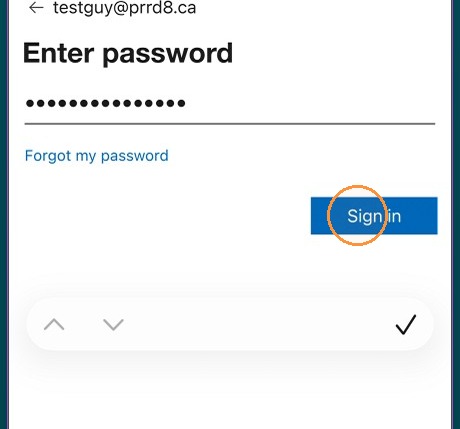
6. Enter the default/temporary password you were assigned, and click "Sign In"
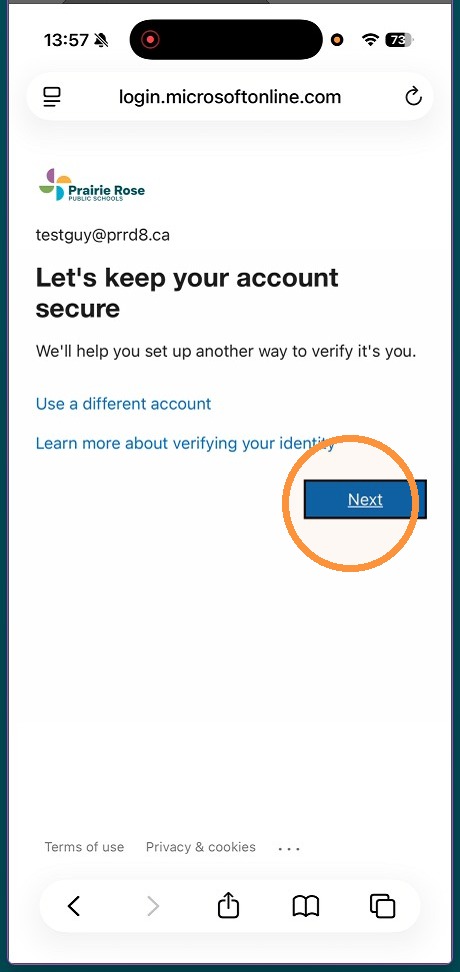
7. Click "Next"
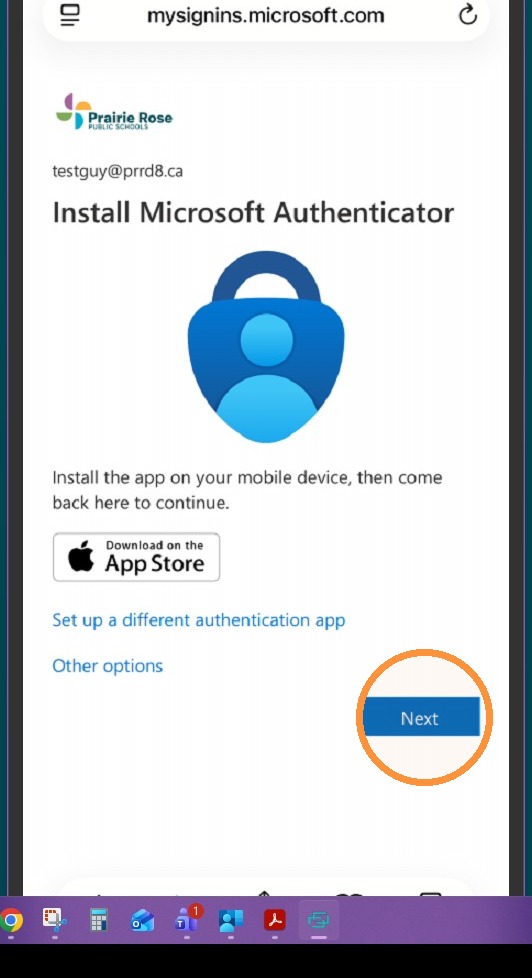
8. You will be prompted to download the Microsoft Authenticator App on your Mobile Device. Make sure you download the correct app:
You can click the App Link as shown below for your phone's app store, or the direct links are below.
Apple App Store: https://apps.apple.com/us/app/microsoft-authenticator/id983156458
Google Play Store: https://play.google.com/store/apps/details?id=com.azure.authenticator&pcampaignid=web_share
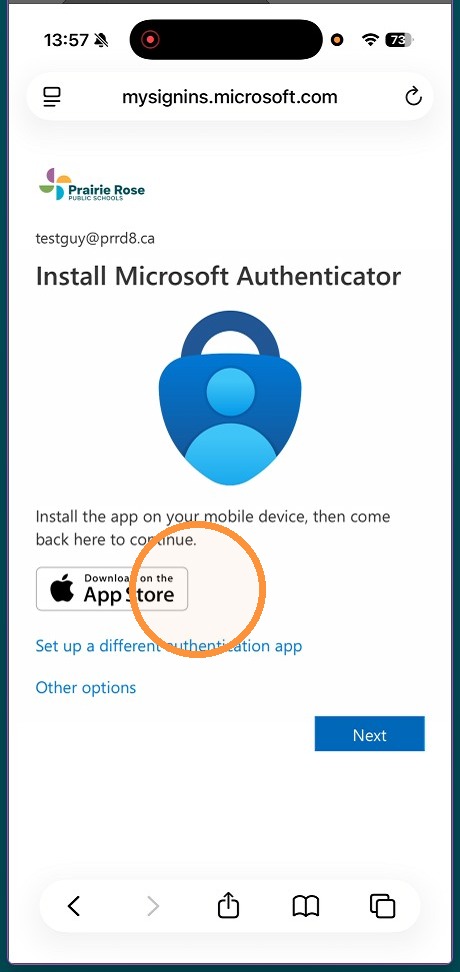
Alert: Alert! Alert! Ensure the App is the correct one from Microsoft. The top sponsored results in the App Store is a scam app. The correct app costs nothing, will never charge you and has no ads.
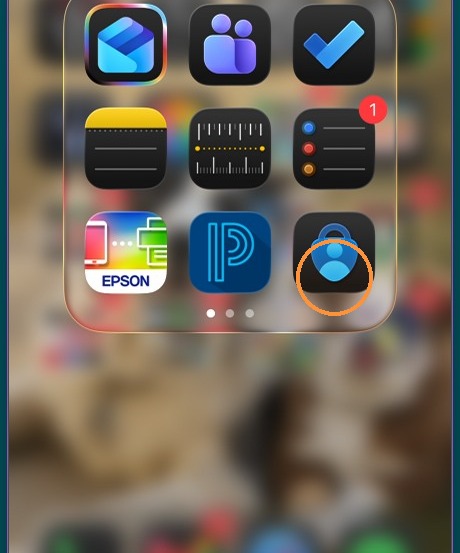
9. Once the Microsoft Authenticator app is downloaded, open it
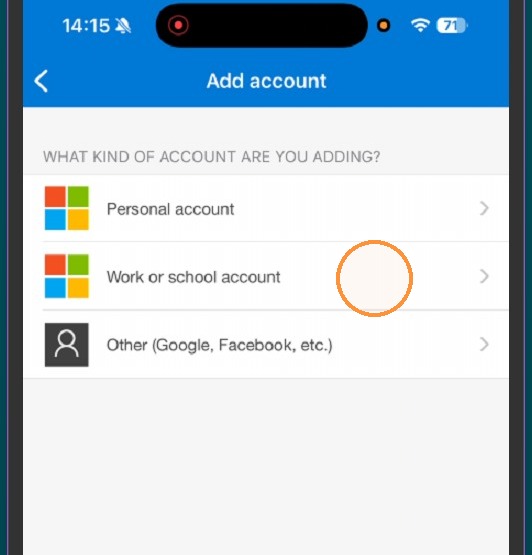
10. Click "Work or school account"
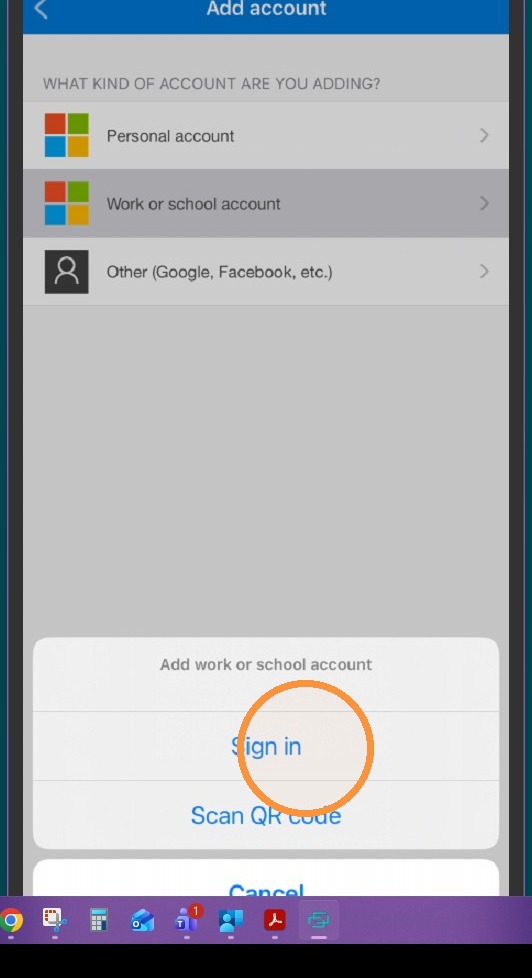
11. Click "Sign In"
12. Enter your PRPS email address
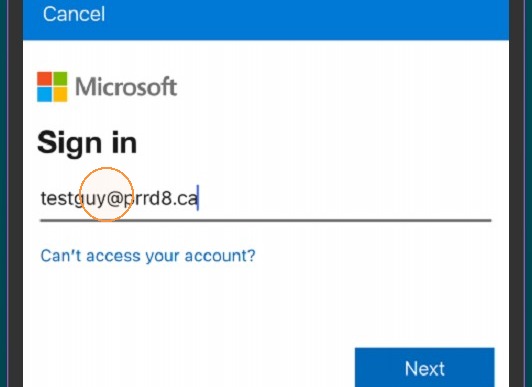
13. Click "Next"
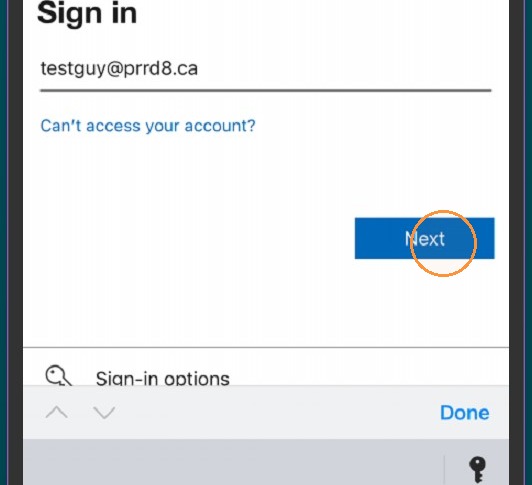
14. Enter your default/temporary password
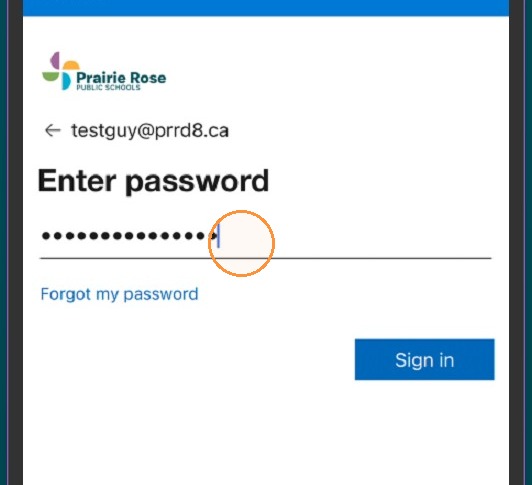
15. Click "Sign In"
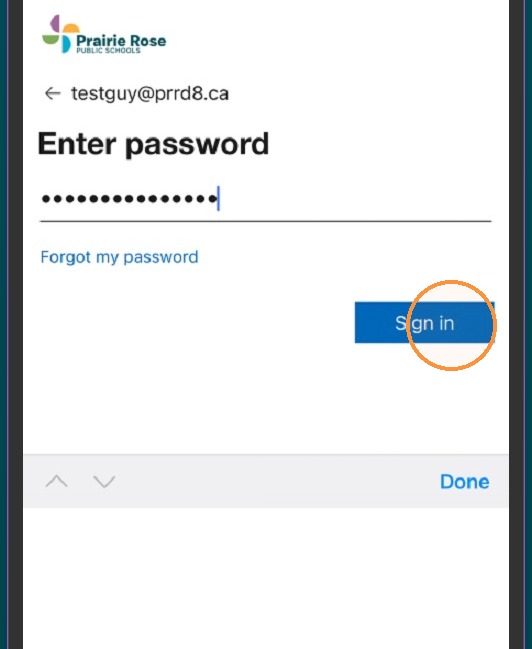
16. Enter your default/temporary password for Current Password, and enter a new password as your choosing for New Password. Then click "Sign In"
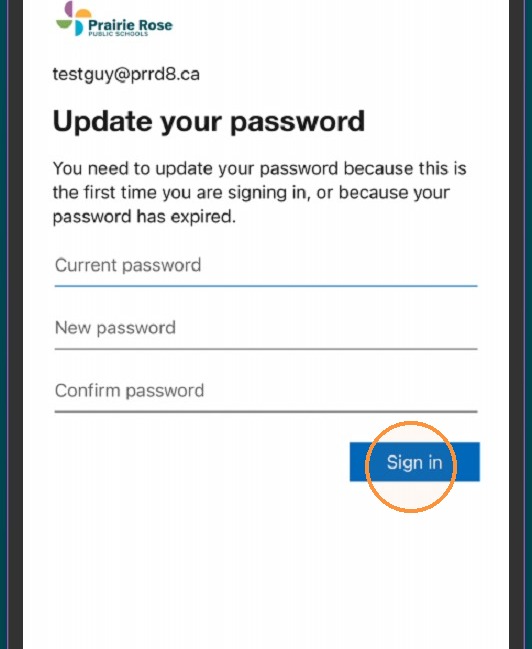
Tip: Tip! Your password must be at least 8 characters long and include at least 3 of these: uppercase letters, lowercase letters, numbers, and symbols. It can't be a commonly used password or contain your name.
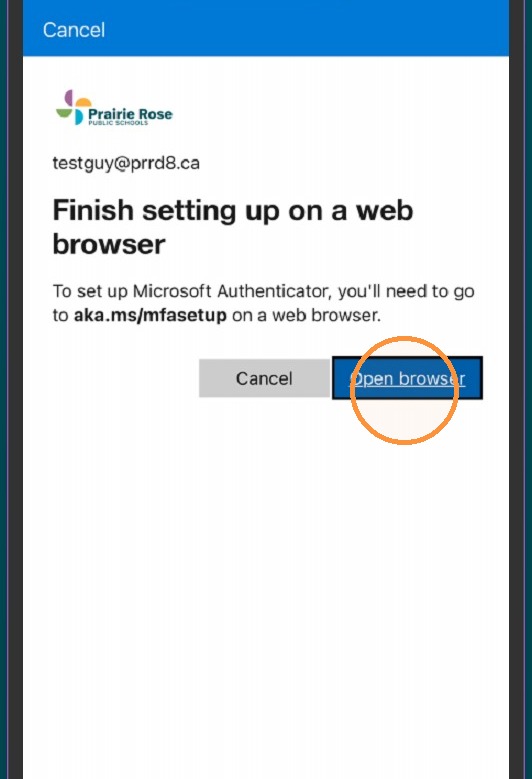
17. Click "Open Browser"
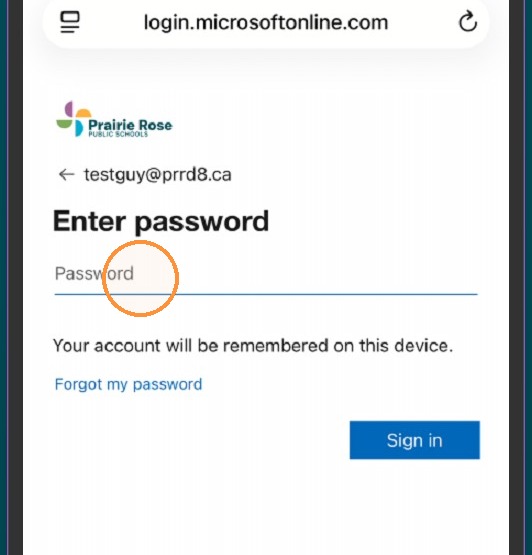
18. Enter your new password that you set up in Step 16 and click "Sign In"
19. Click "Next"
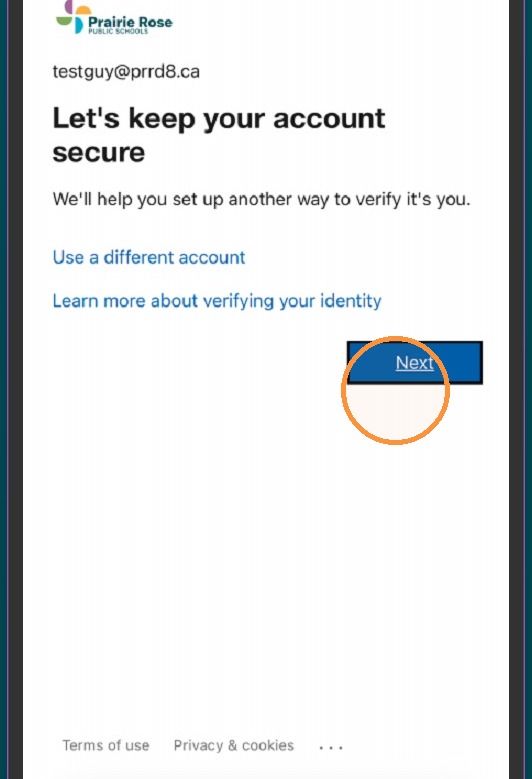
20. Click "Next", as you've already set up your Authenticator
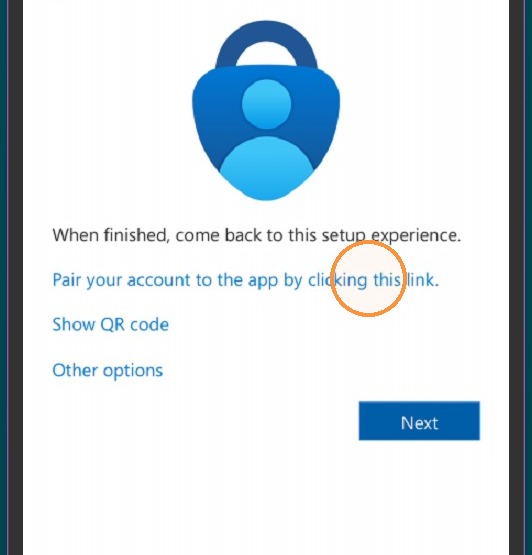
21. Click "Pair your account to the app by clicking this link"
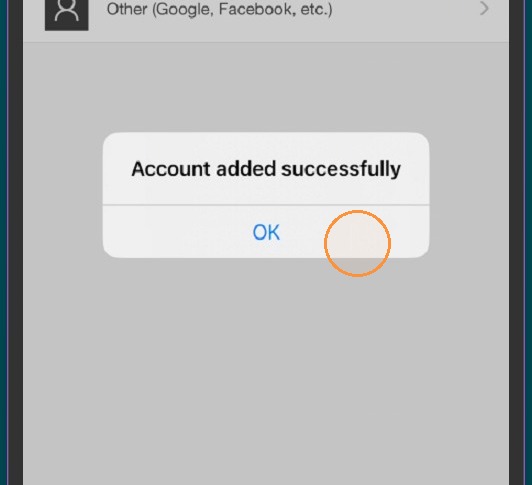
22. You should receive a message saying "Account added successfully"
23. You should be able to see this account now in your Authenticator App.