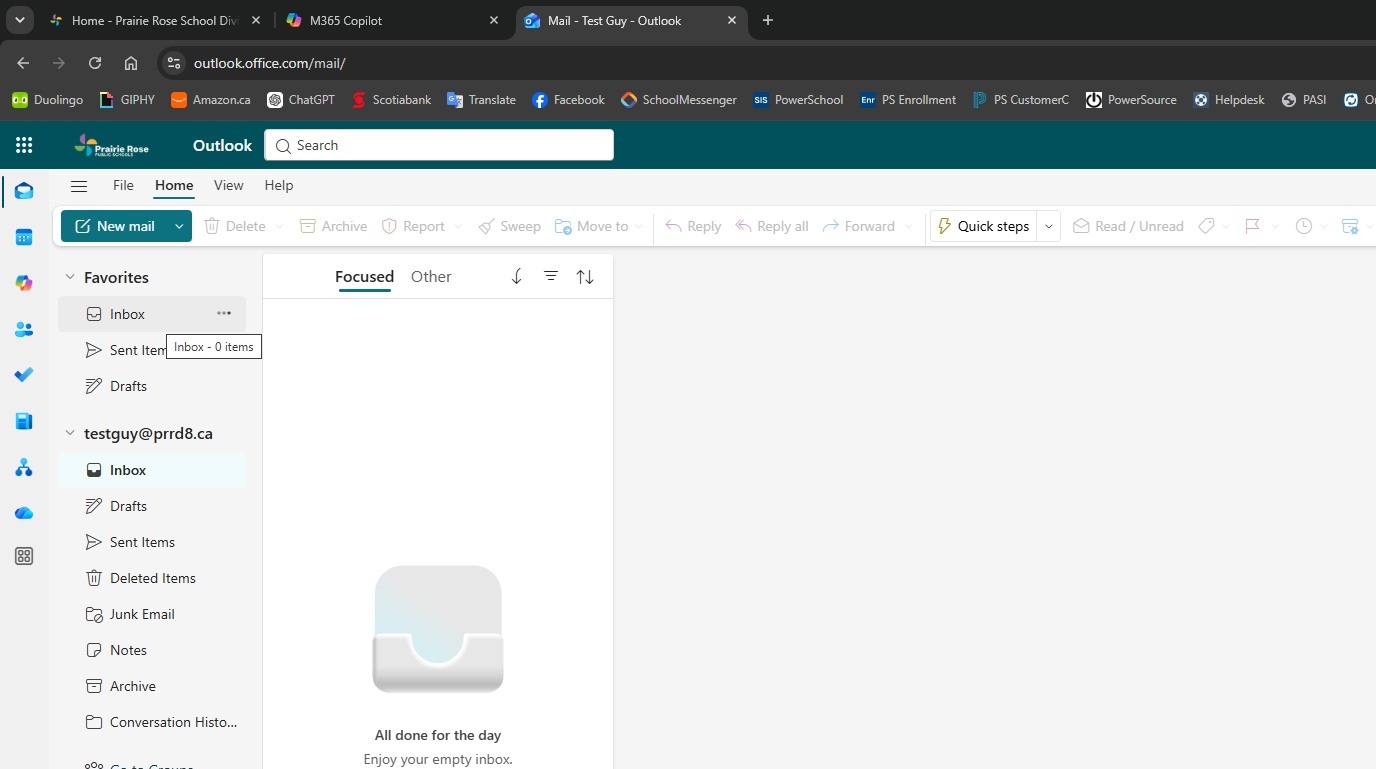
How to Set Up and Access your PRPS Outlook E-Mail via Browser
How to Set Up and Access your PRPS Outlook E-Mail via Browser
Learn how to quickly sign in to your Microsoft account and open the Outlook web application through your browser. This guide provides a seamless walkthrough for accessing your inbox efficiently.
1. Click "Address and search bar" and go to www.myprps.com, or your school's website
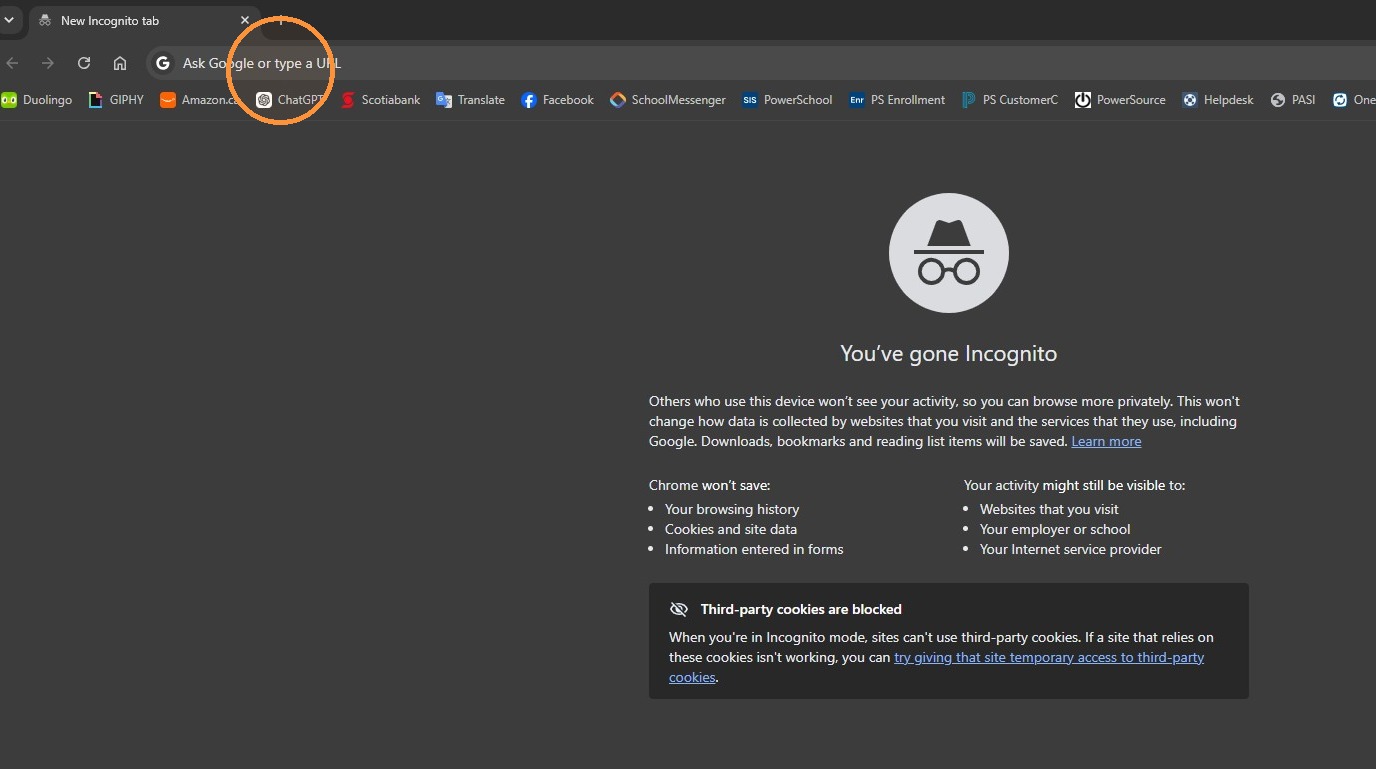
2. Click the "USEFUL LINKS" waffle icon in the upper right
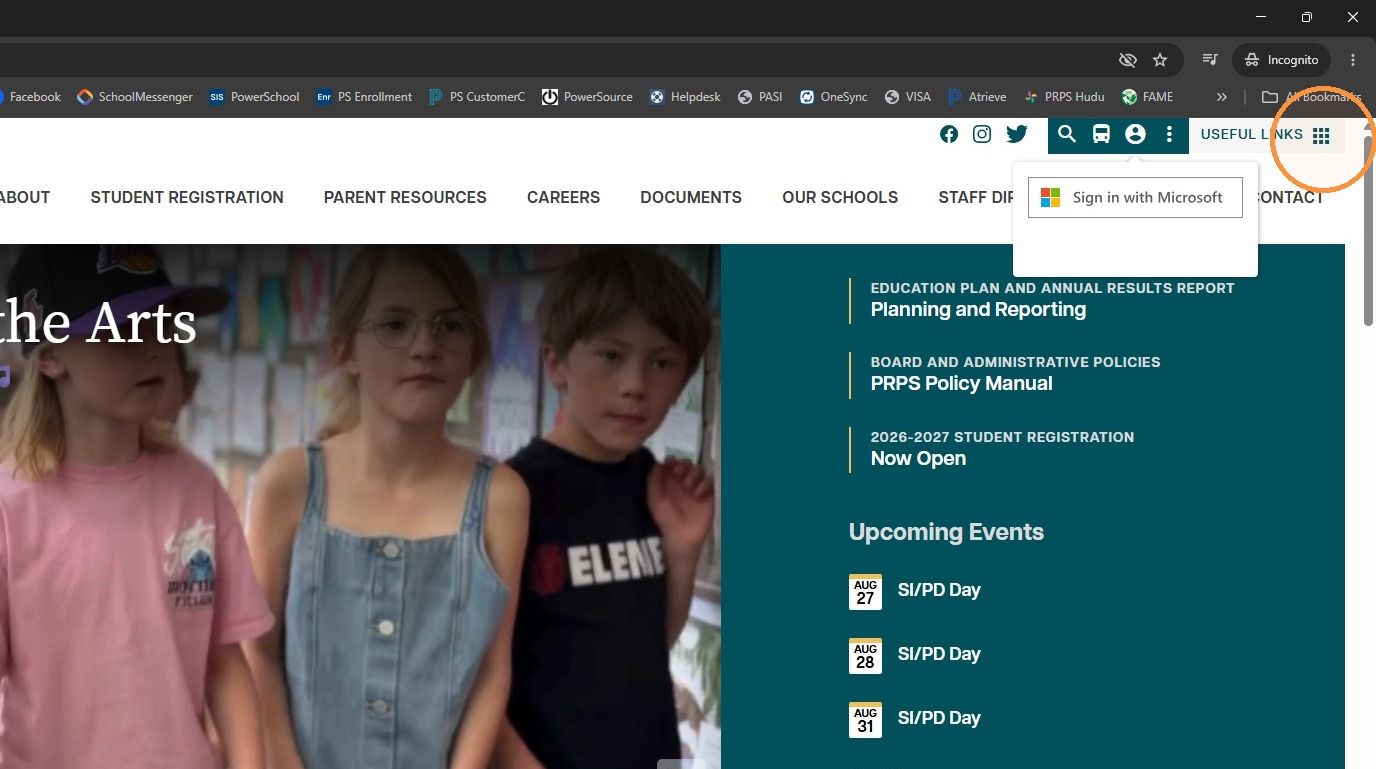
3. Click the "Office 365 Login" Icon
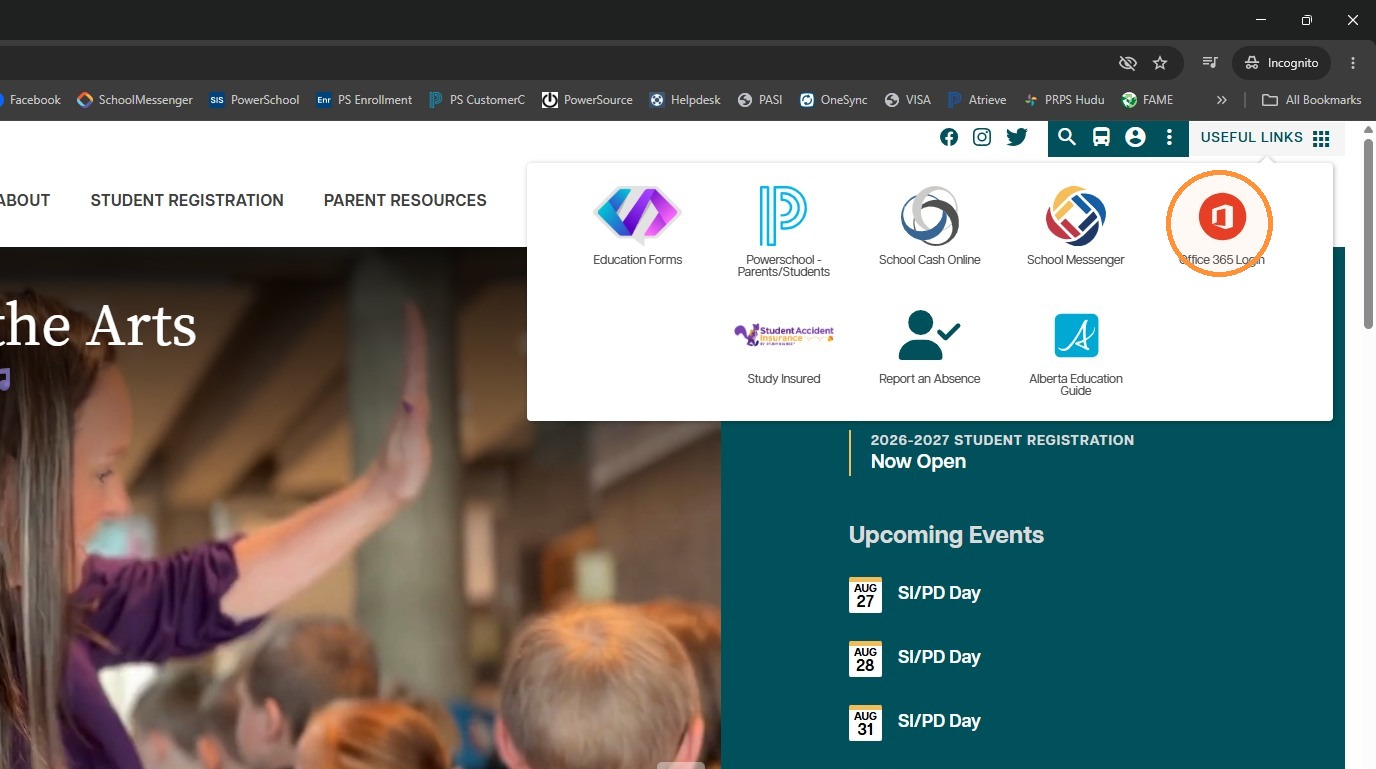
4. Enter your PRPS email address
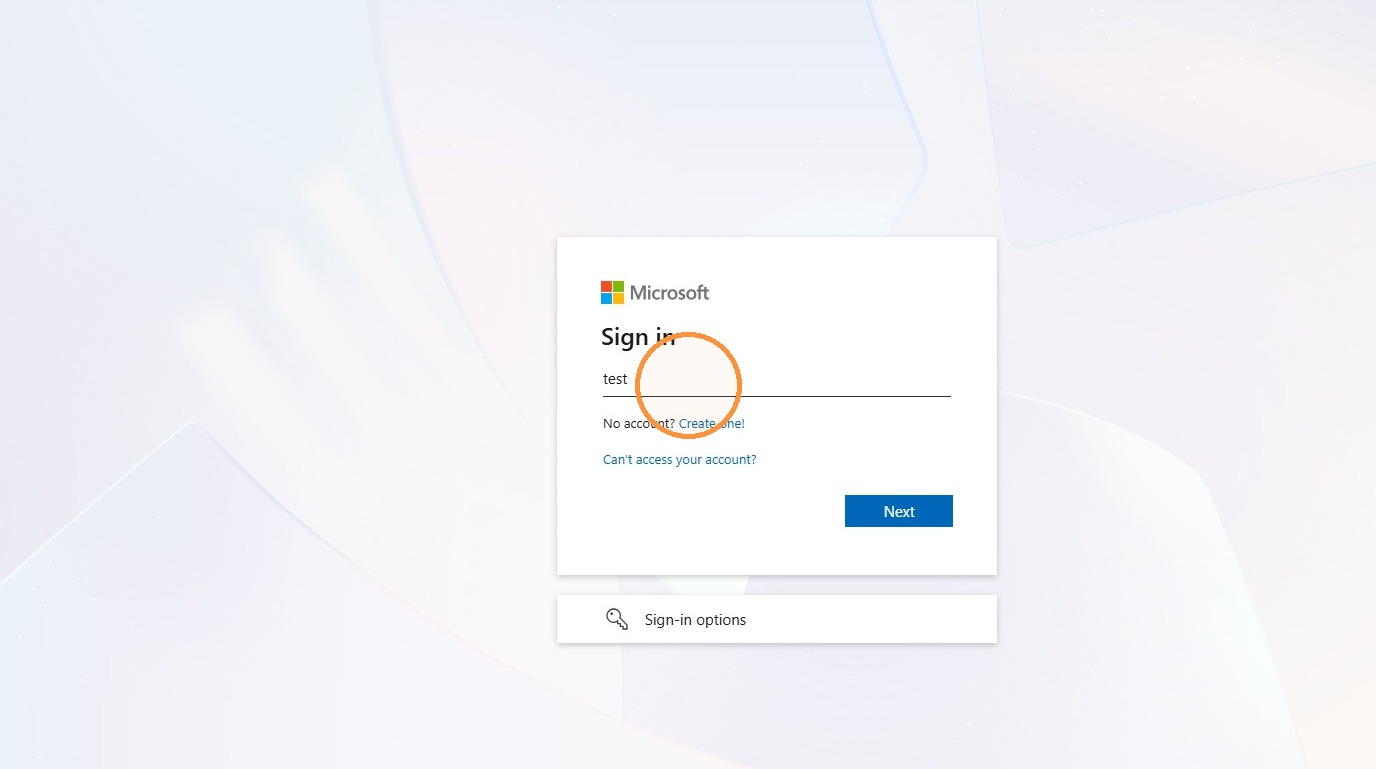
5. Click "Next"
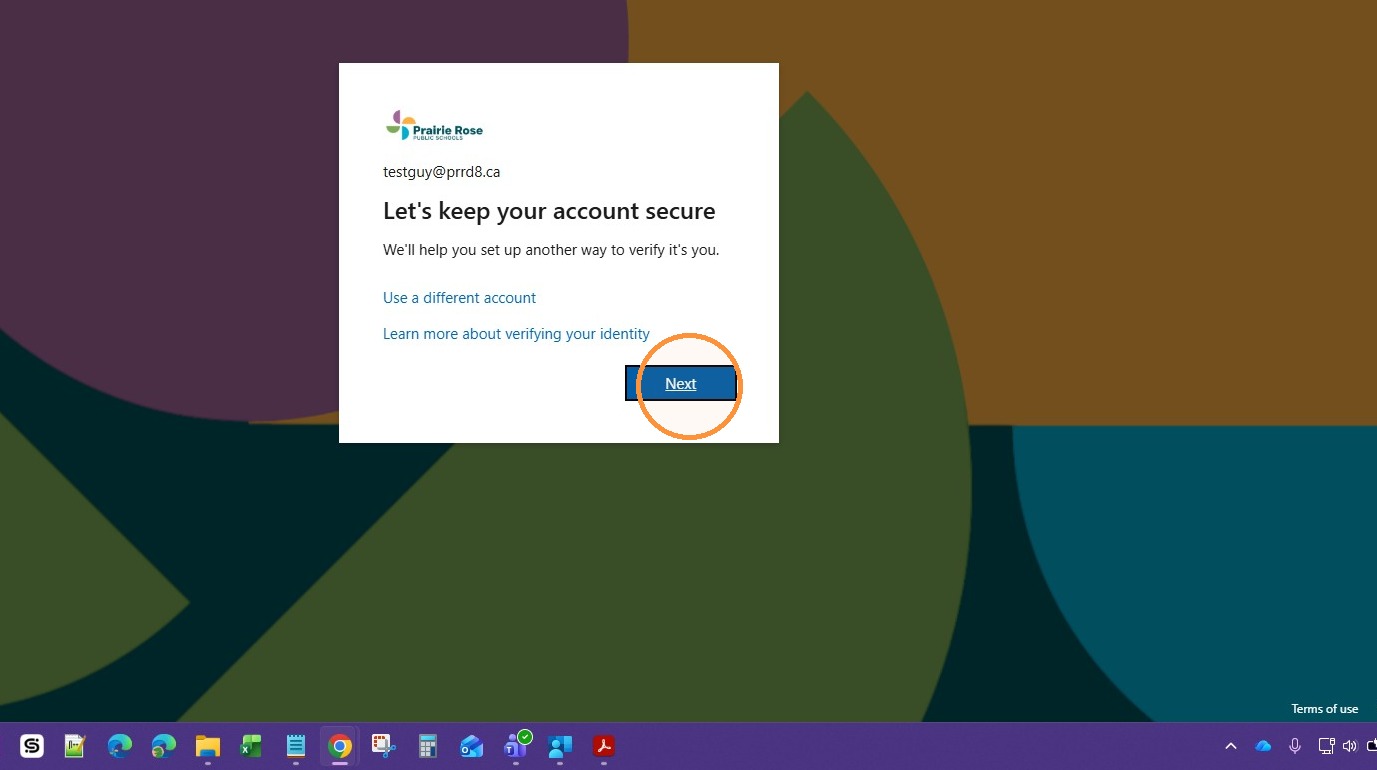
6. You will be prompted to download the Microsoft Authenticator App on your Mobile Device. Make sure you download the correct app:
Apple App Store: https://apps.apple.com/us/app/microsoft-authenticator/id983156458
Google Play Store: https://play.google.com/store/apps/details?id=com.azure.authenticator&pcampaignid=web_share
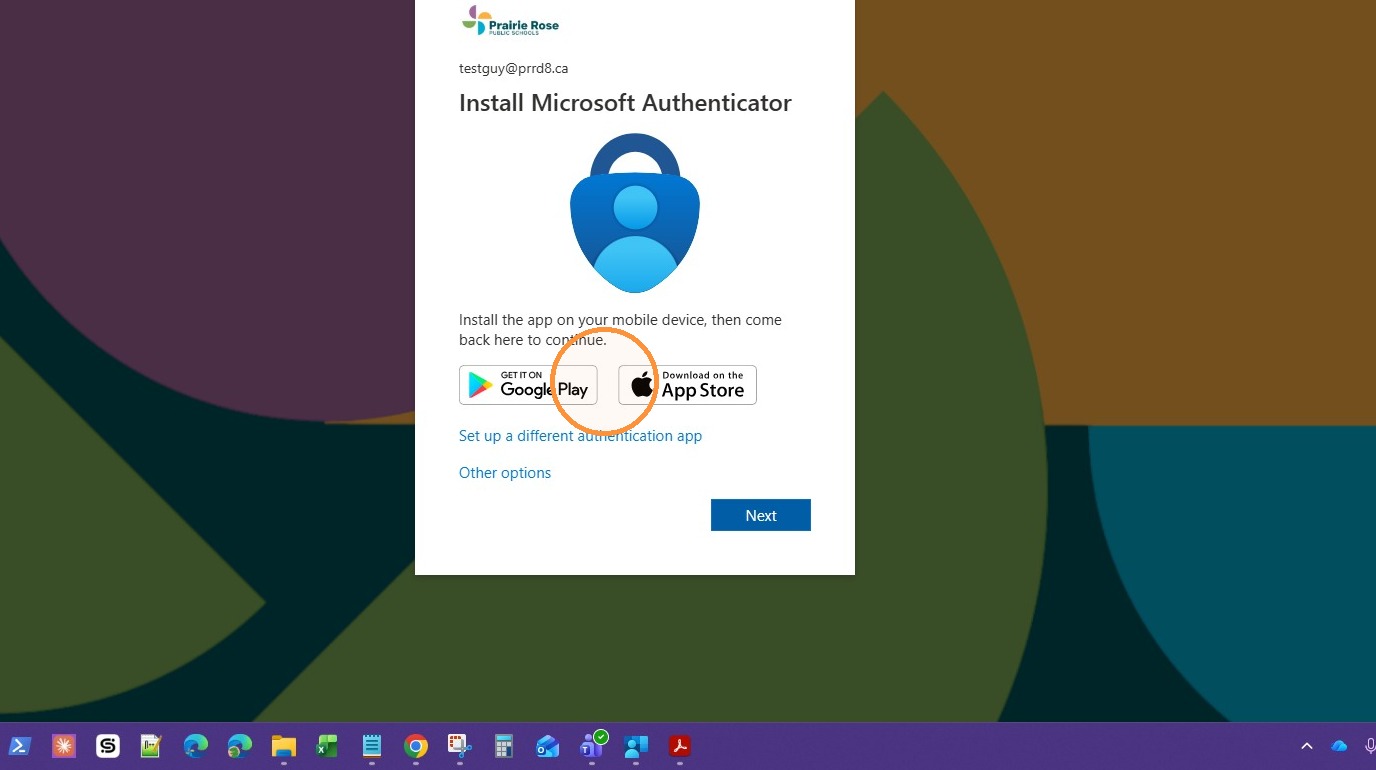
Alert: Alert! Ensure the App is the correct one from Microsoft. The top sponsored results in the App Store is a scam app. The correct app costs nothing, will never charge you and has no ads.
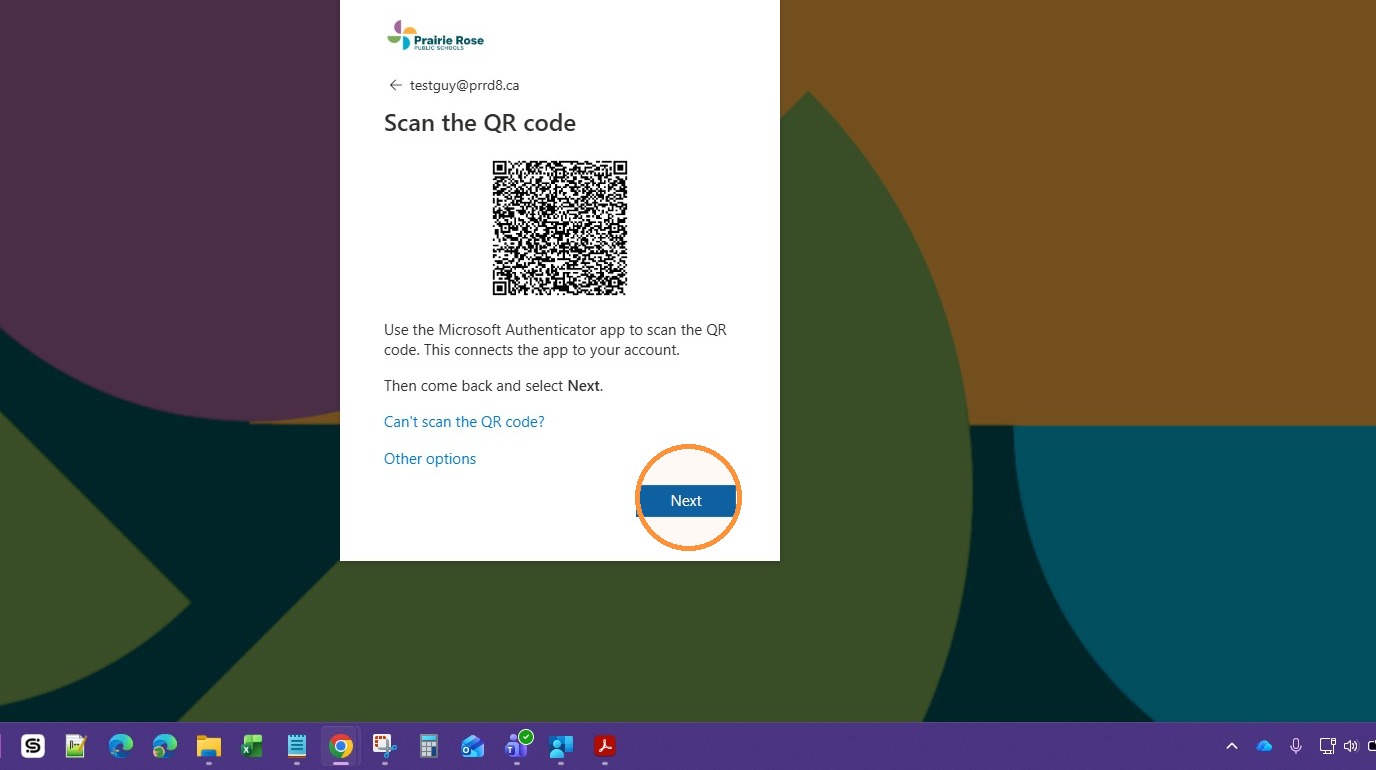
7. Click "Next"
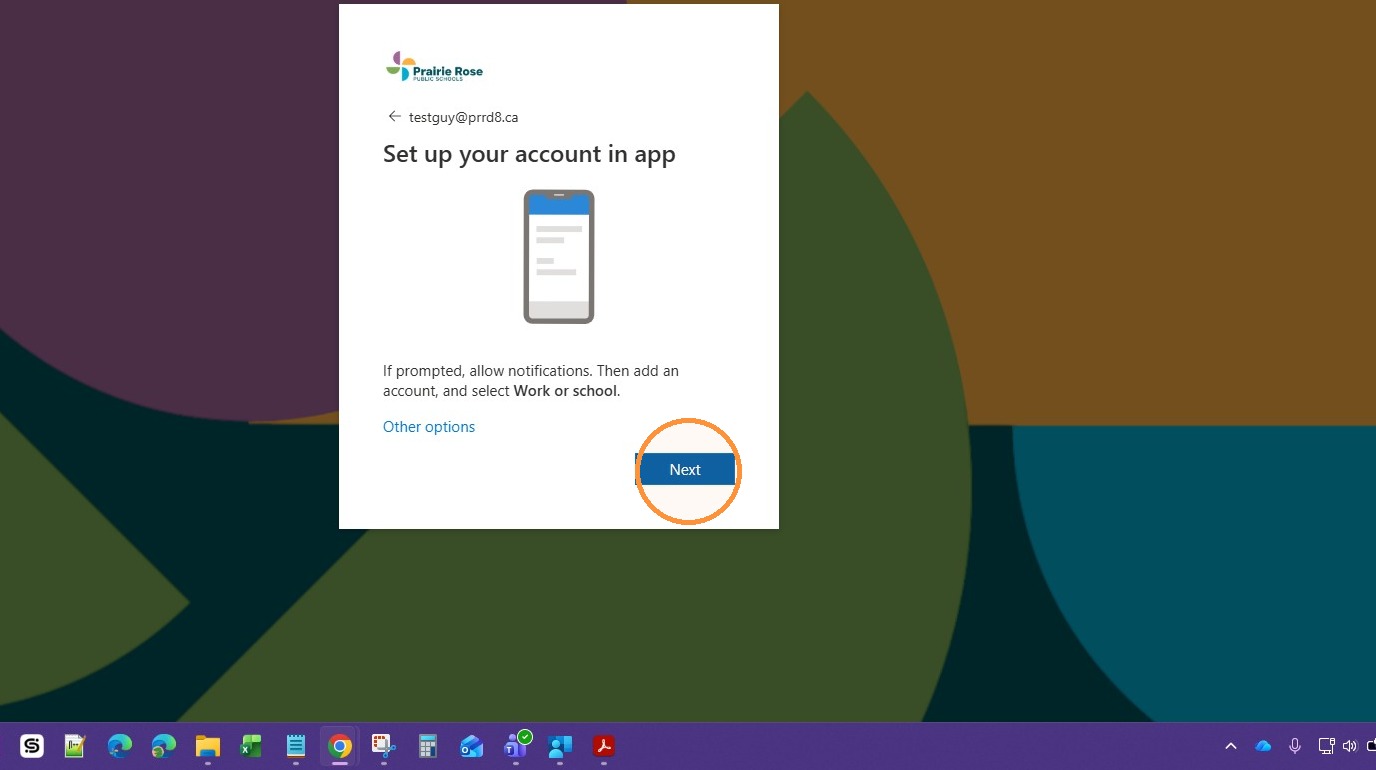
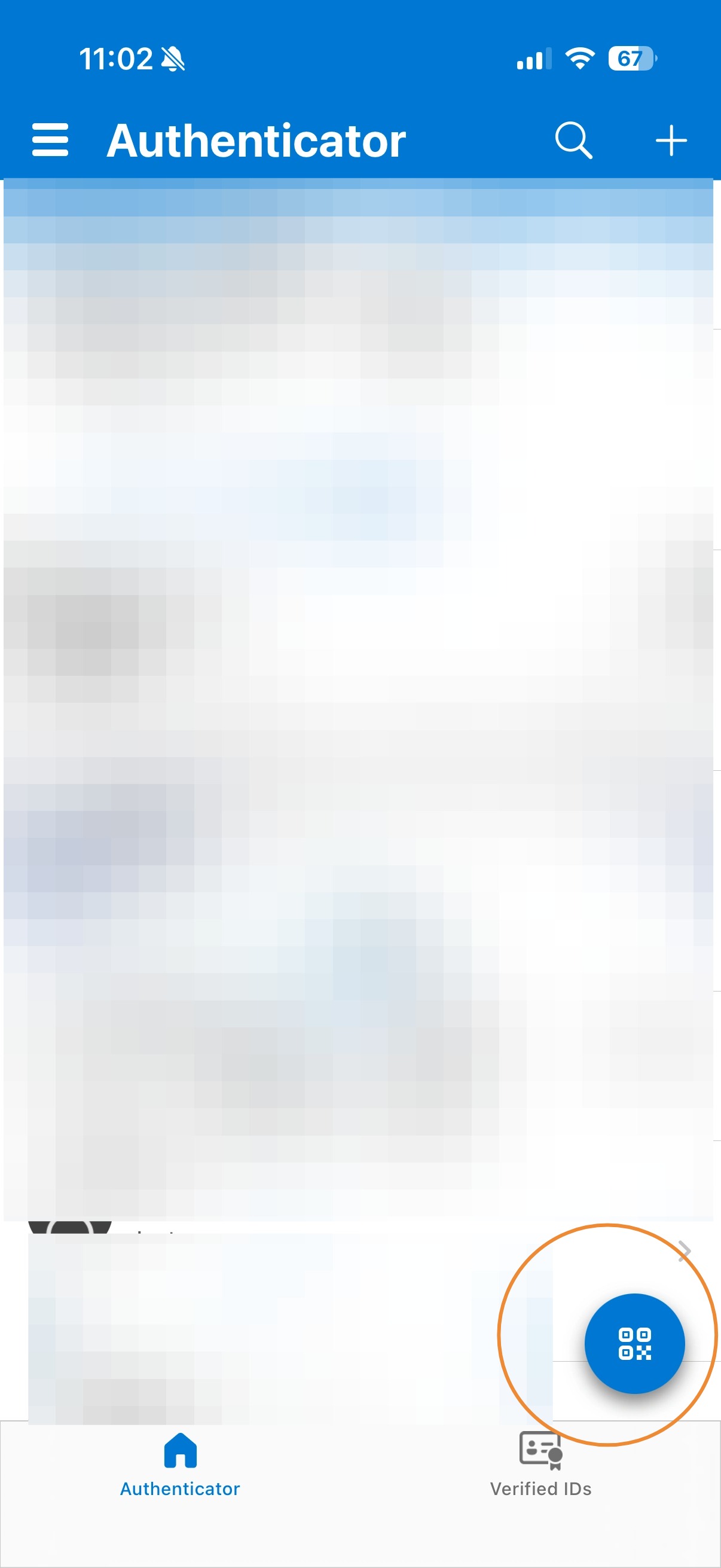
8. Open the Microsoft Authenticator App, and click the QR code button
9. This will open a camera screen
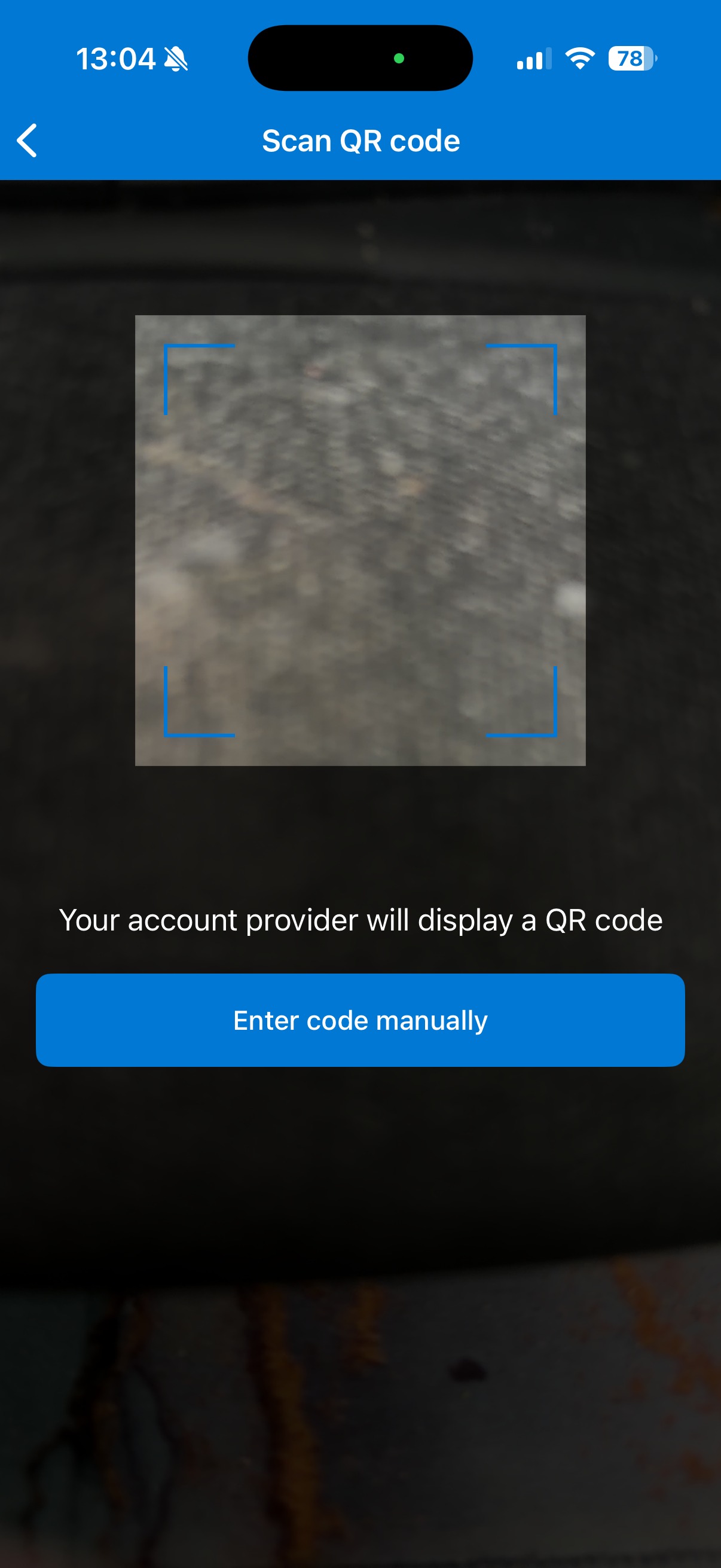
10. Use that camera to scan the QR code on the computer screen
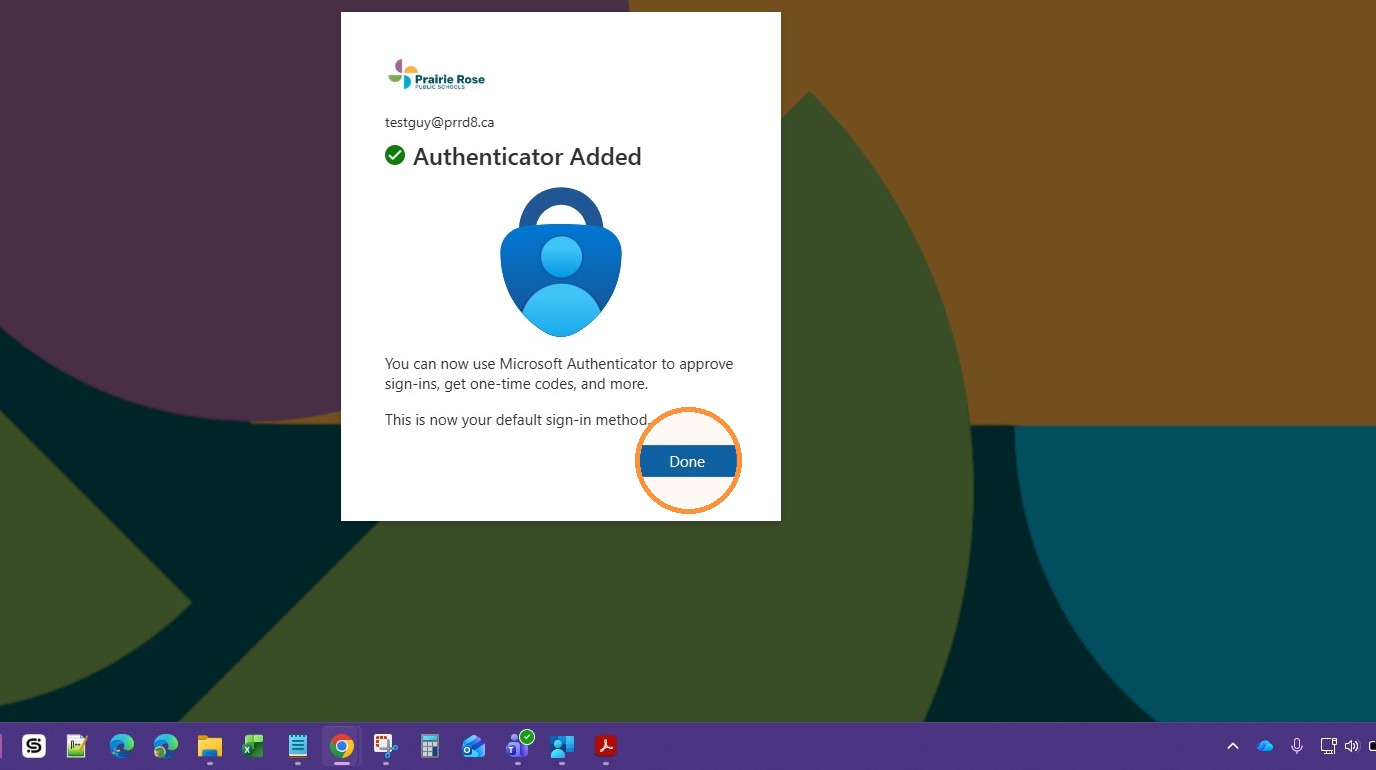
11. Click "Done"
12. You'll be prompted to enter your default password, then to enter a new password of your own choice. Then click Sign In.
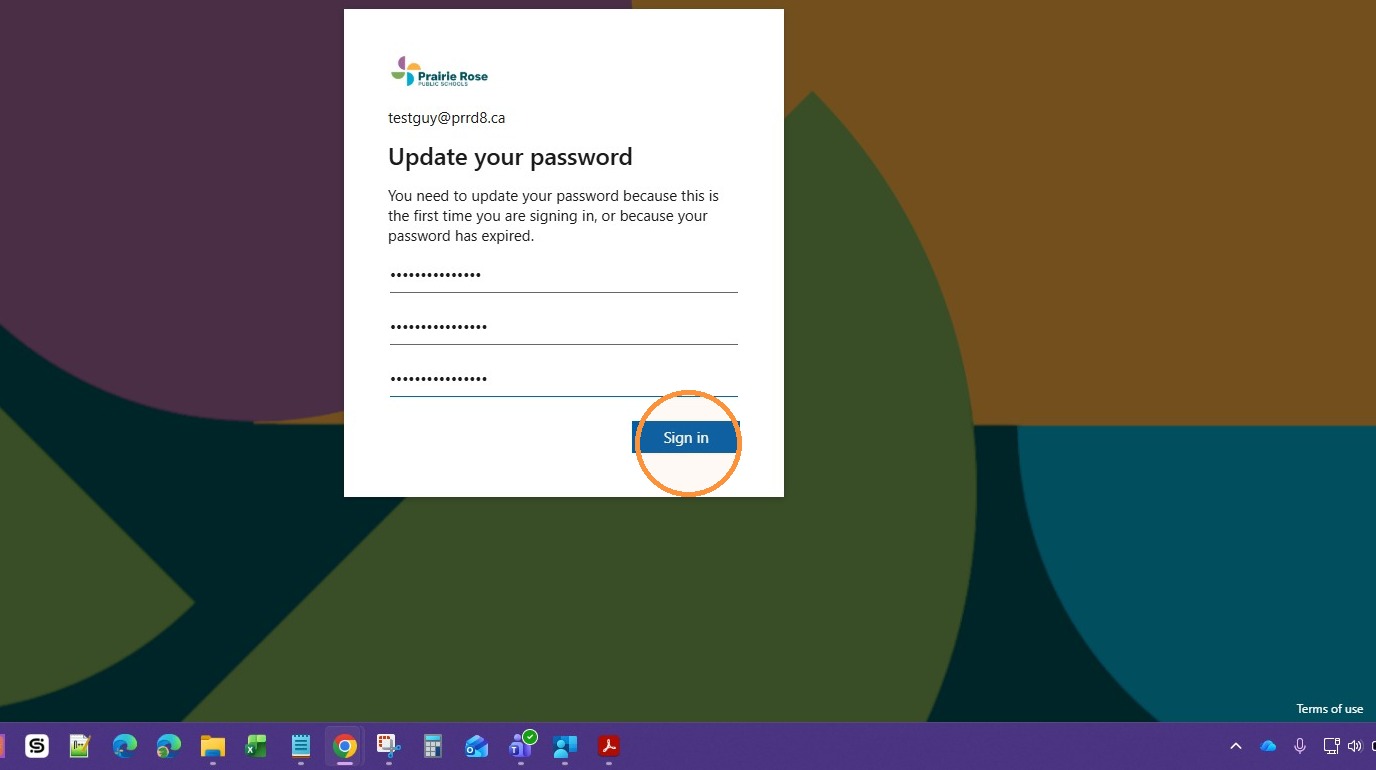
Tip: Tip! Your password must be at least 8 characters long and include at least 3 of these: uppercase letters, lowercase letters, numbers, and symbols. It can't be a commonly used password or contain your name.
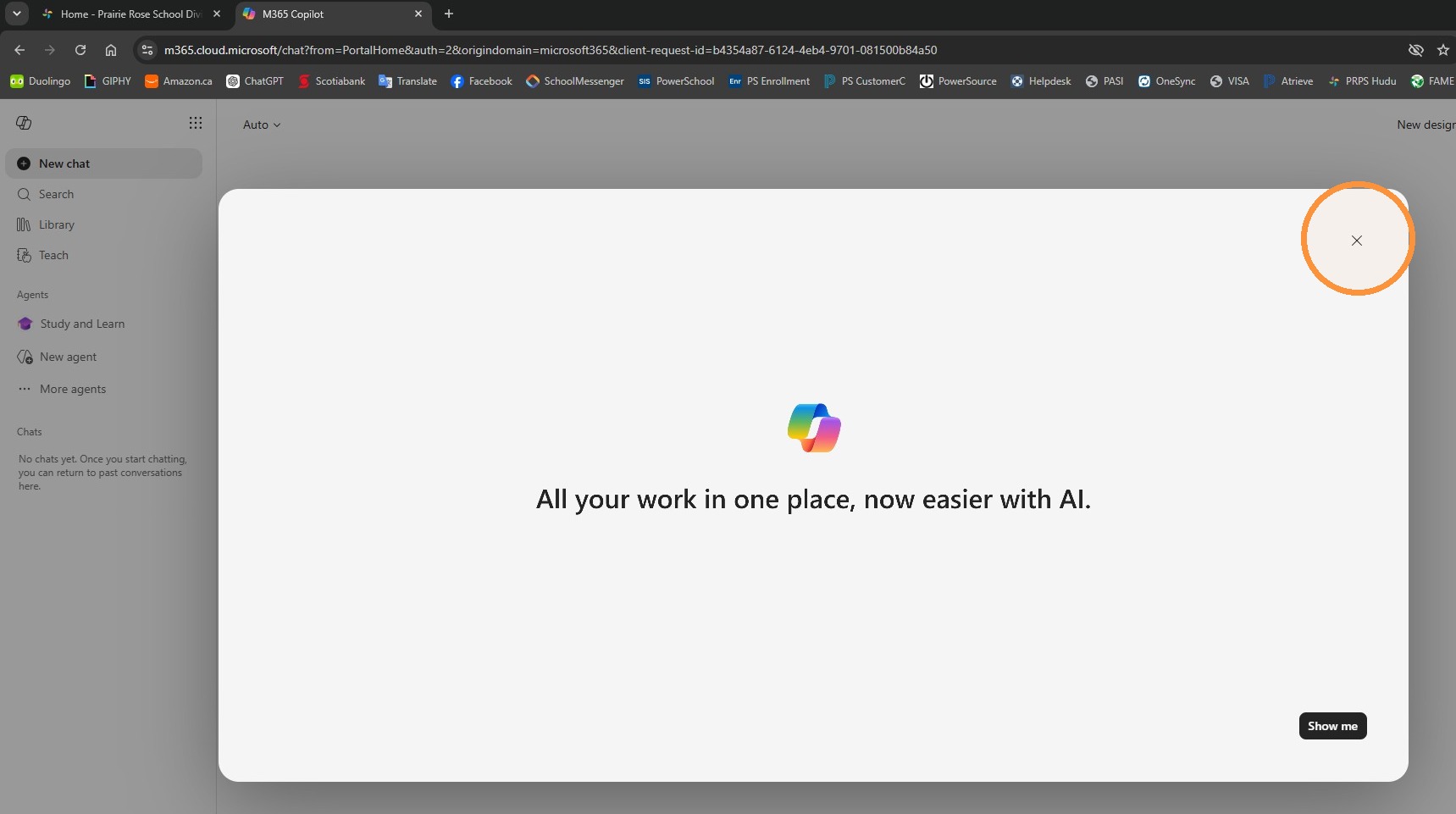
13. You'll be taken to the Microsoft 365 Landing page. You can choose to go through the tutorial, or click the "x" to close it.
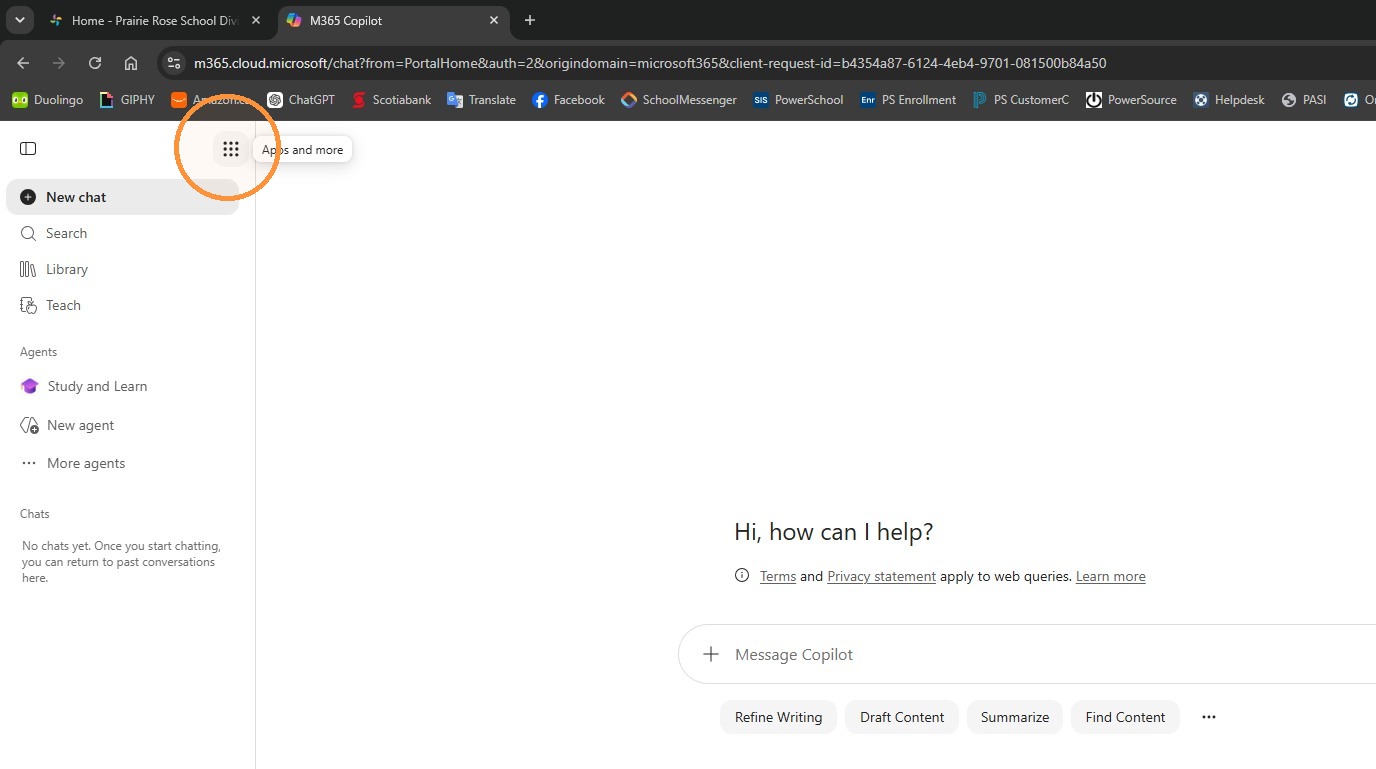
14. Click the waffle menu in the upper left
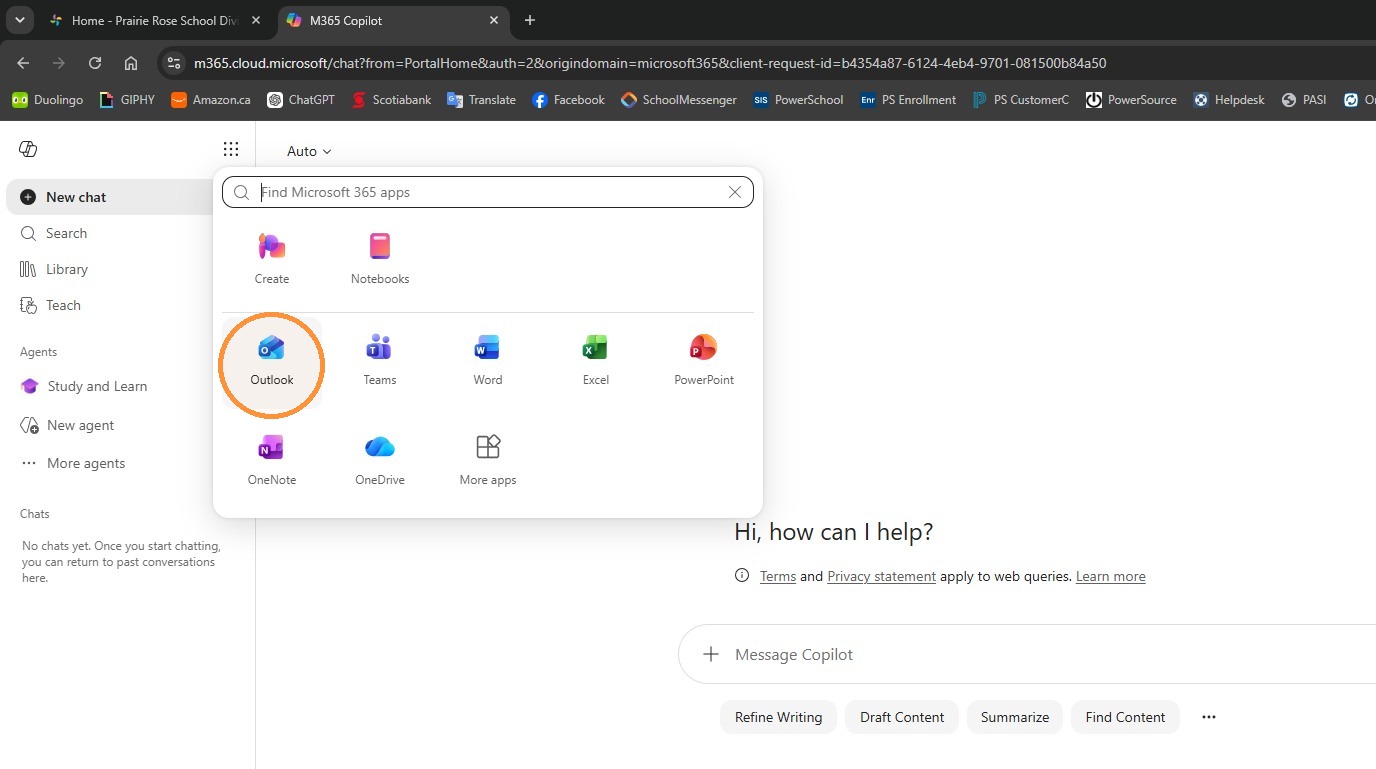
15. Click the "Outlook" app to access your Email
16. Here you'll see your inbox and the rest of your email folders/options.