
Set Substitute Password for PowerSchool Sub Portal
Set Substitute Password for PowerSchool Sub Portal
Learn how to update the substitute sign-in credentials for your school through the administrative portal. This guide provides a quick walkthrough to help staff members securely manage and reset access codes for substitute teachers.
1. Navigate to https://prsd8.ca/admin/home.html
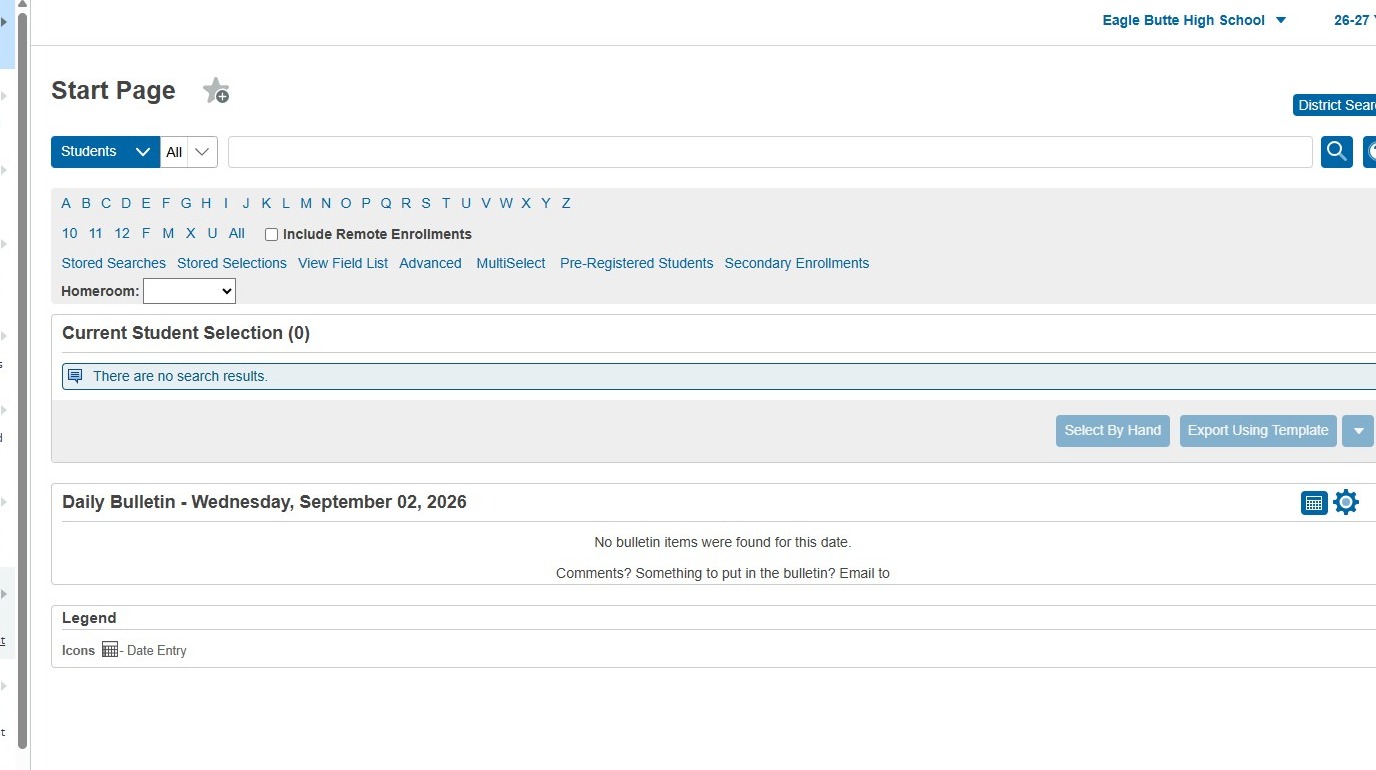
2. Click "School Management"
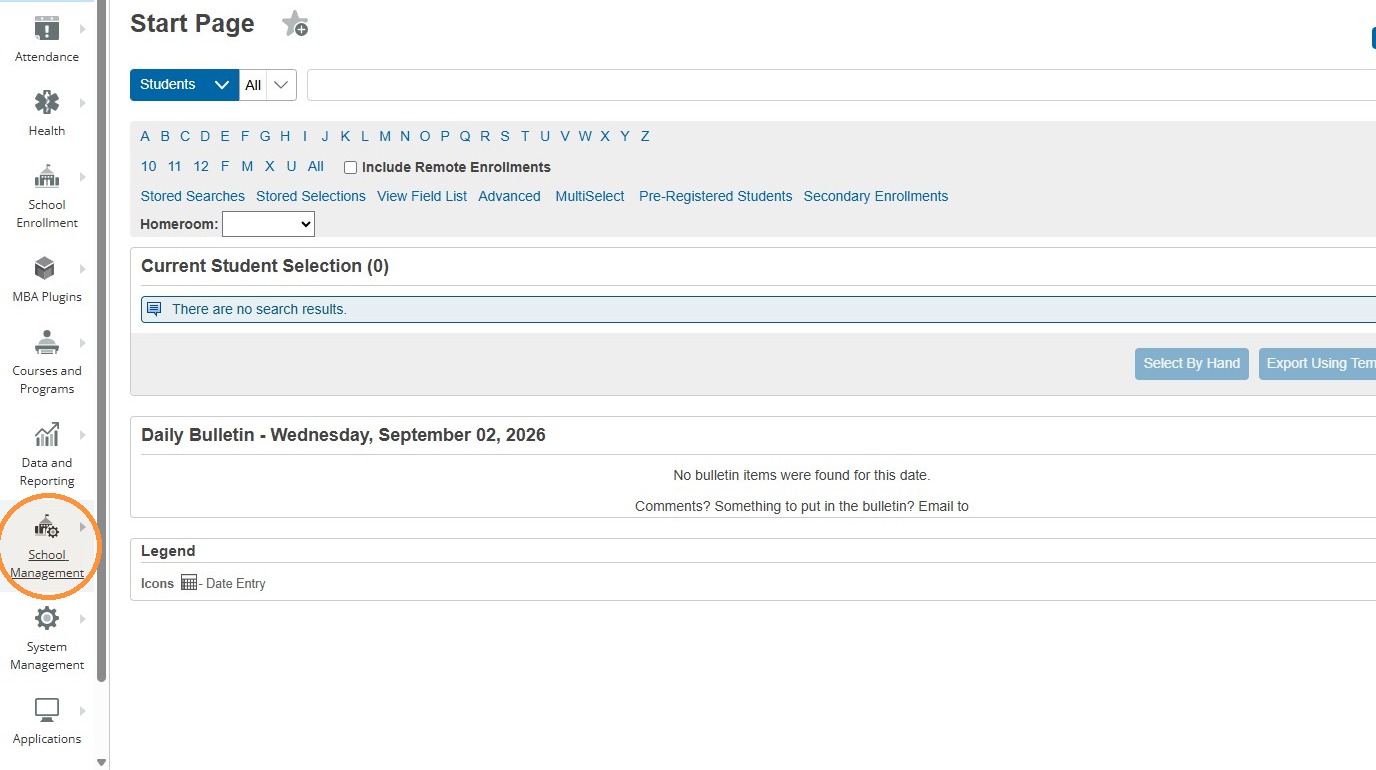
3. Click "User Access"
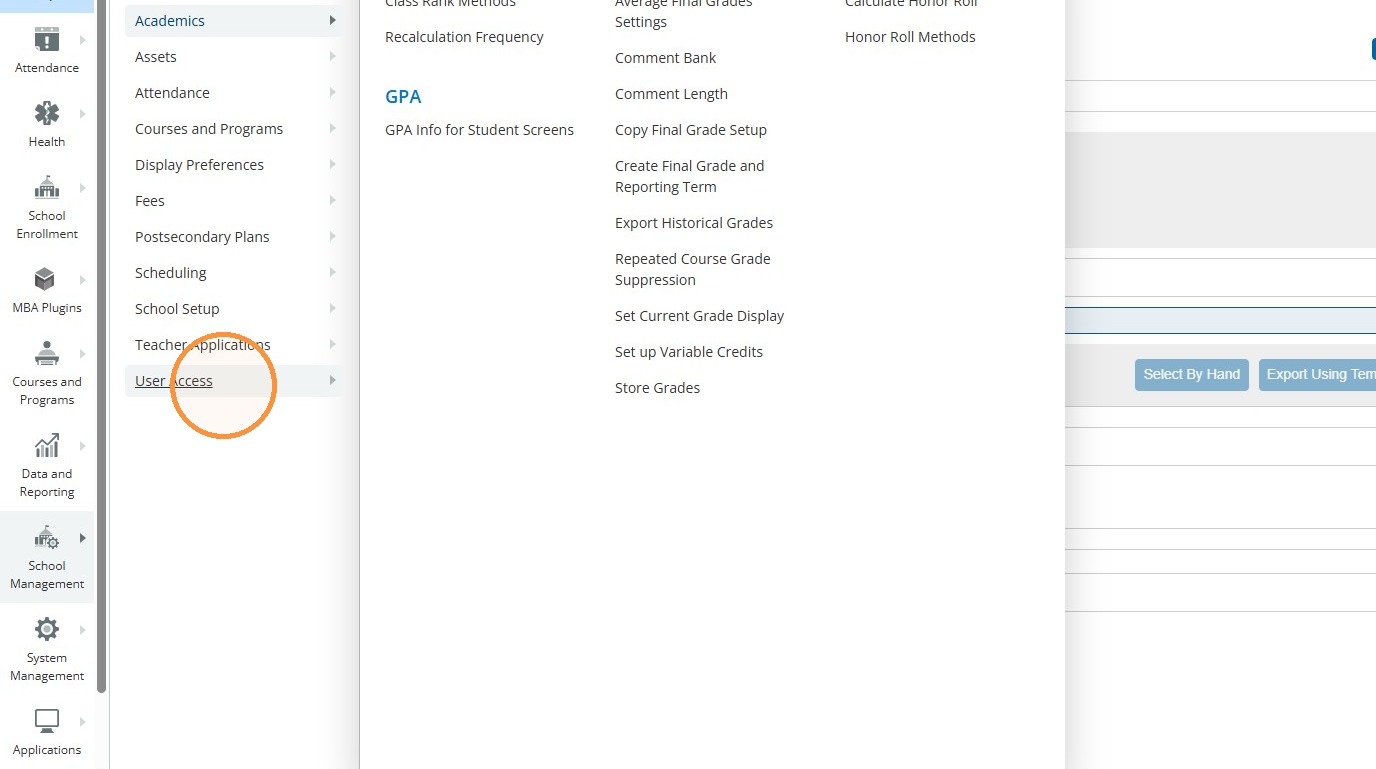
4. Click "Define Substitute Password"
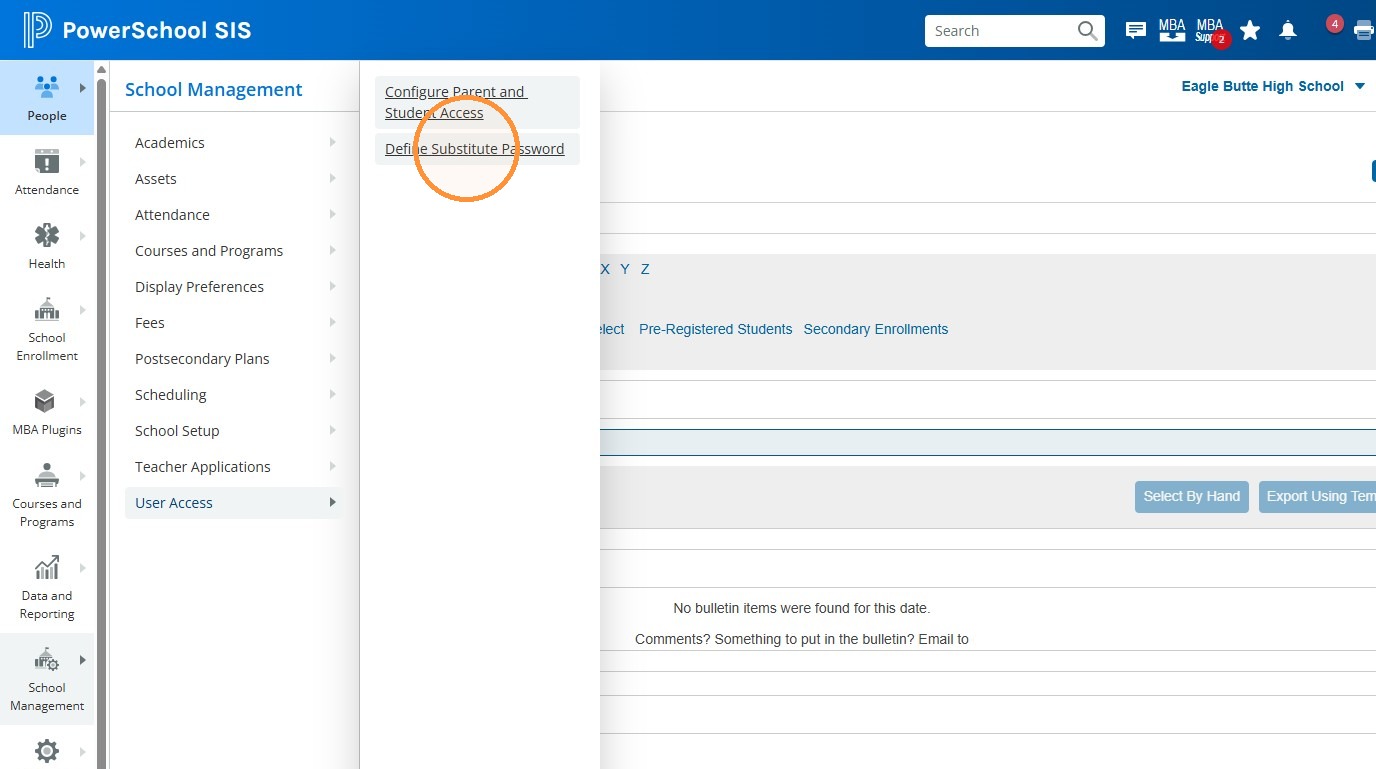
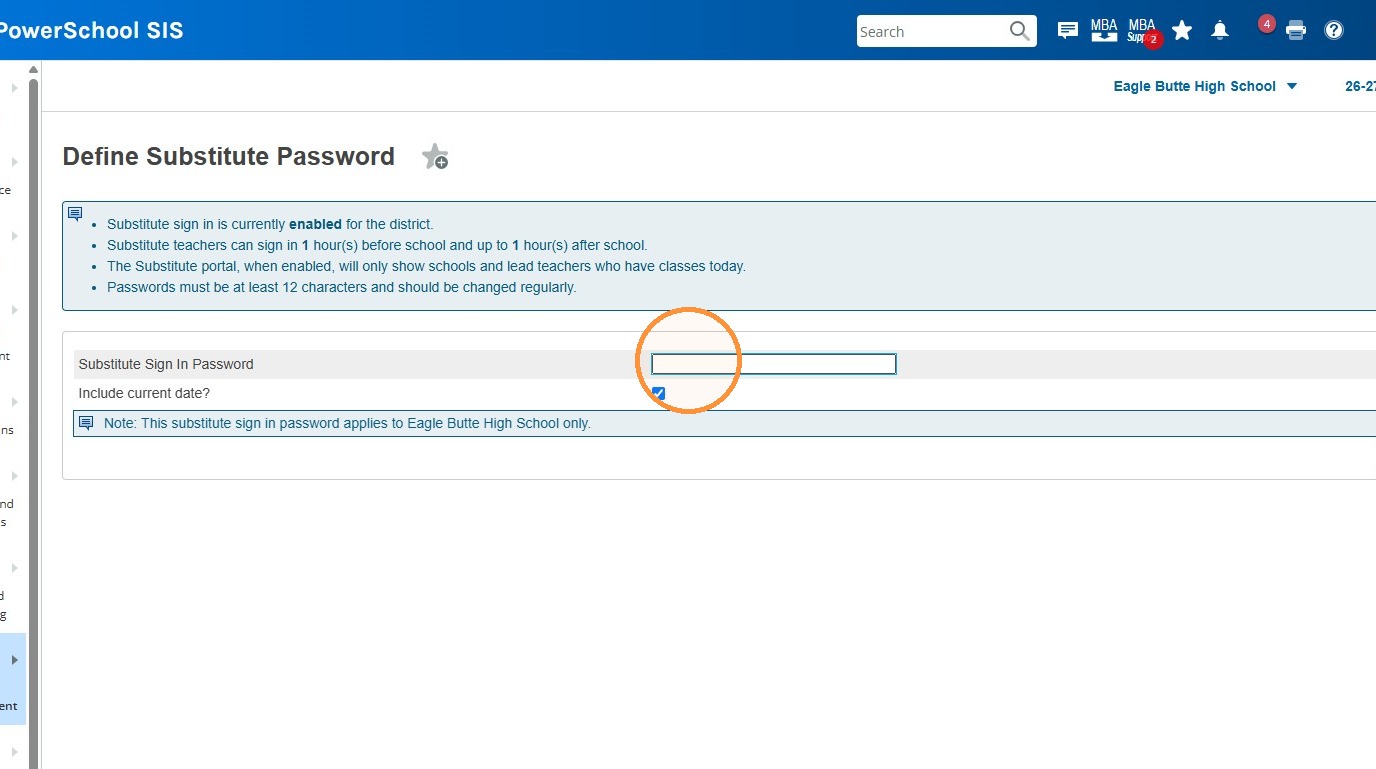
5. Enter or Change/Update the Substitute Sign In Password for your school. You can choose whether or not the sub would need to include the current date when they sign in as well by checking/unchecking the box underneath.
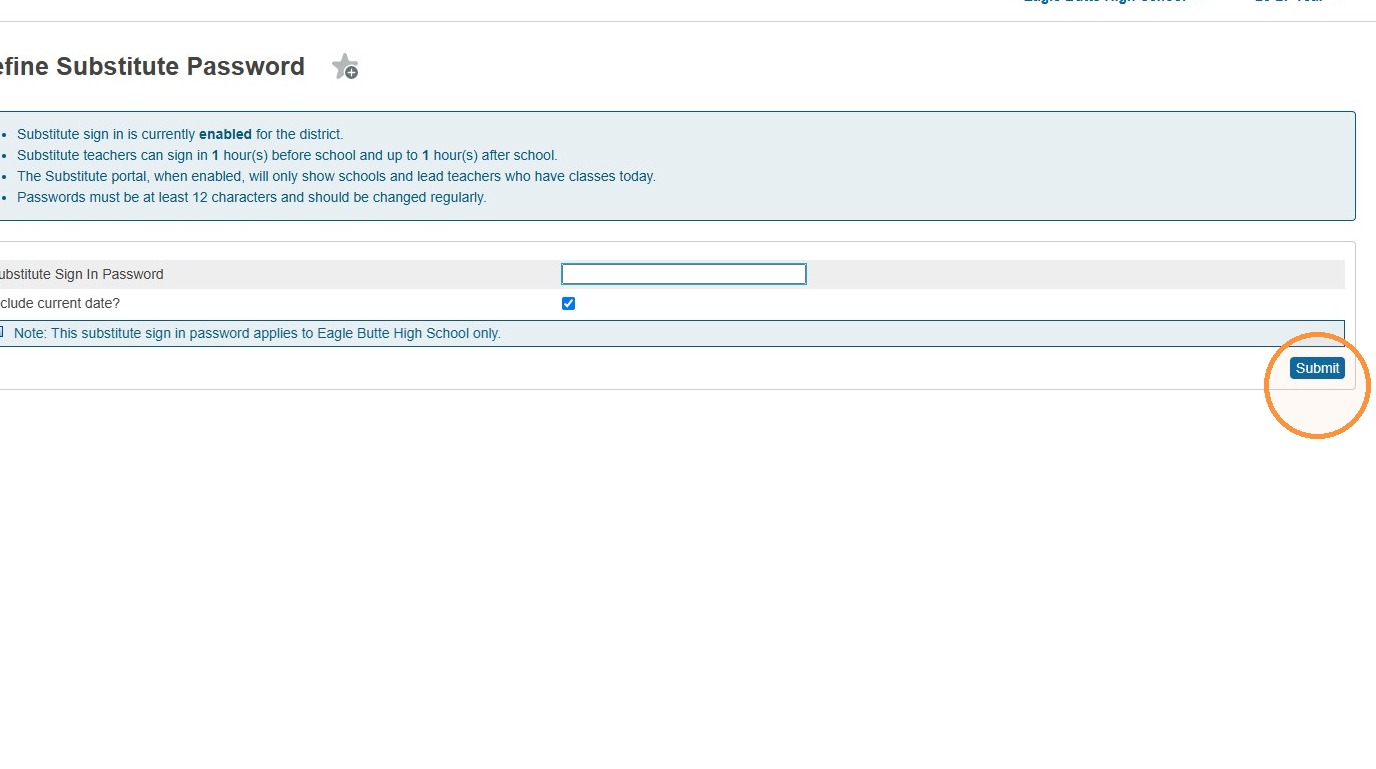
6. Click Submit.
Tip: Tip! It is recommended that you change/update the Sub password every month or so, and especially if it is suspected that the password has been found out by a student etc.