
Enroll Students in Previous Year Summer Courses (after EOY Rollover) in PowerSchool SIS
Enroll Student in Previous Year Summer Courses (After EOY Rollover) PowerSchool SIS
This guide provides a step-by-step process for enrolling students in previous year summer courses within the PowerSchool SIS after the end-of-year rollover. This guide assumes you have already ensured the student has an enrollment in the summer school, and you just need to add the courses.
1. Navigate to https://prsd8.ca/admin/home.html
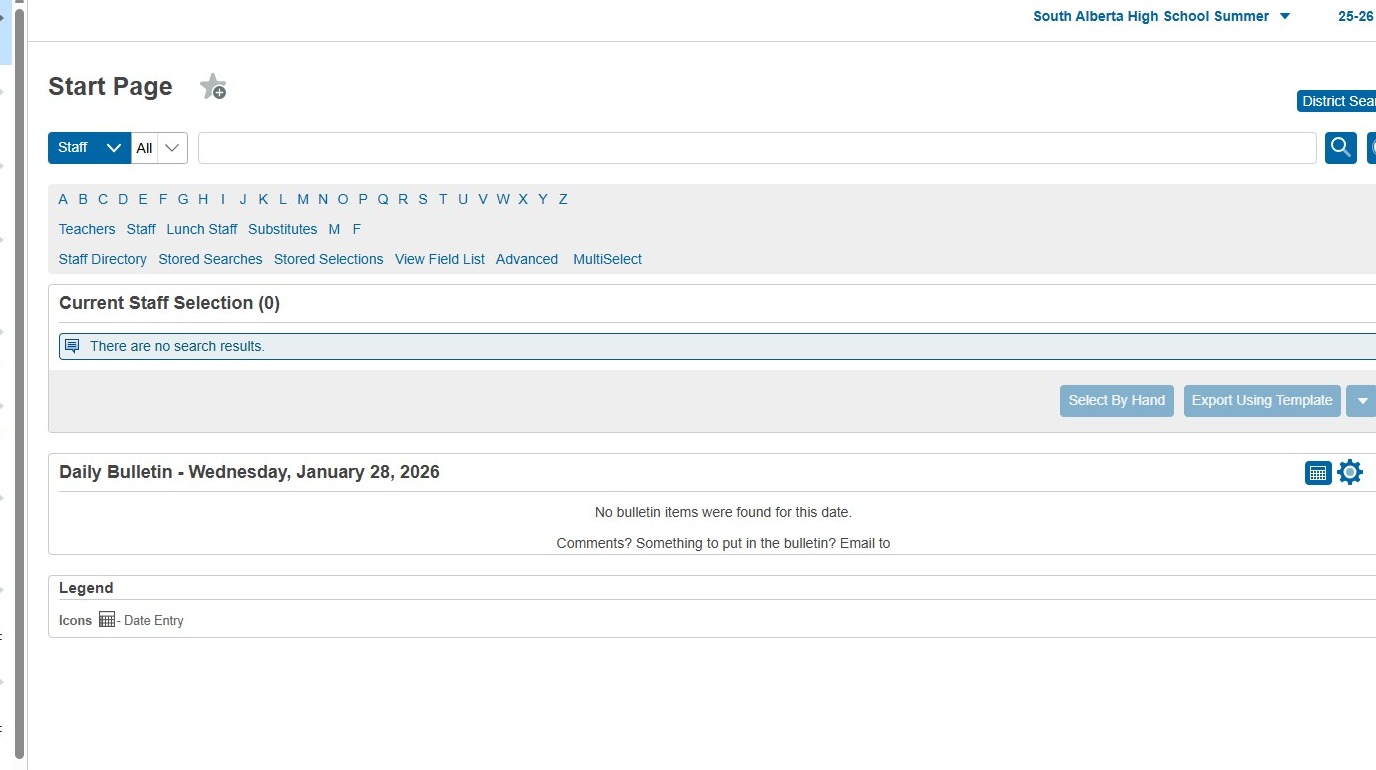
2. Click on the year in the upper right corner to select the correct year
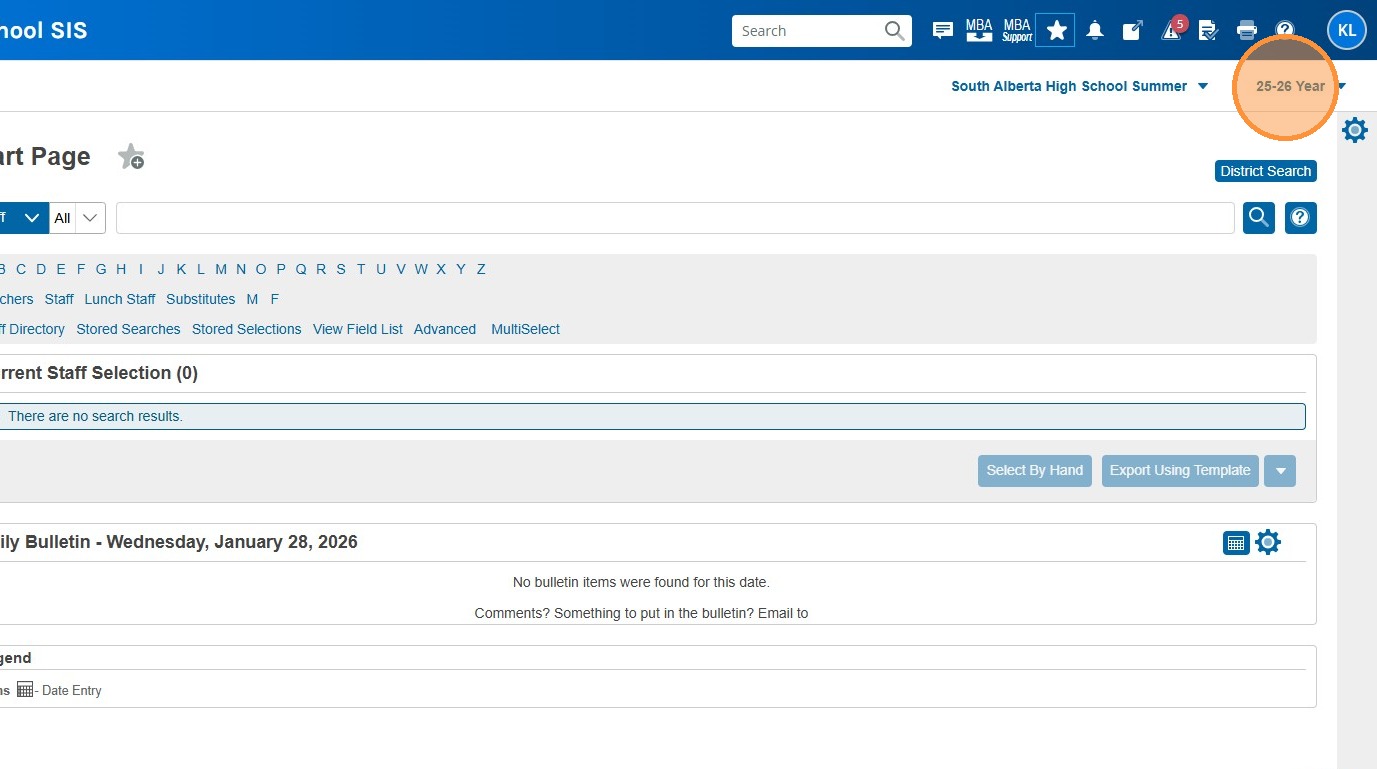
3. For the purposes of this example, we are going to click "24-25 2024-2025"
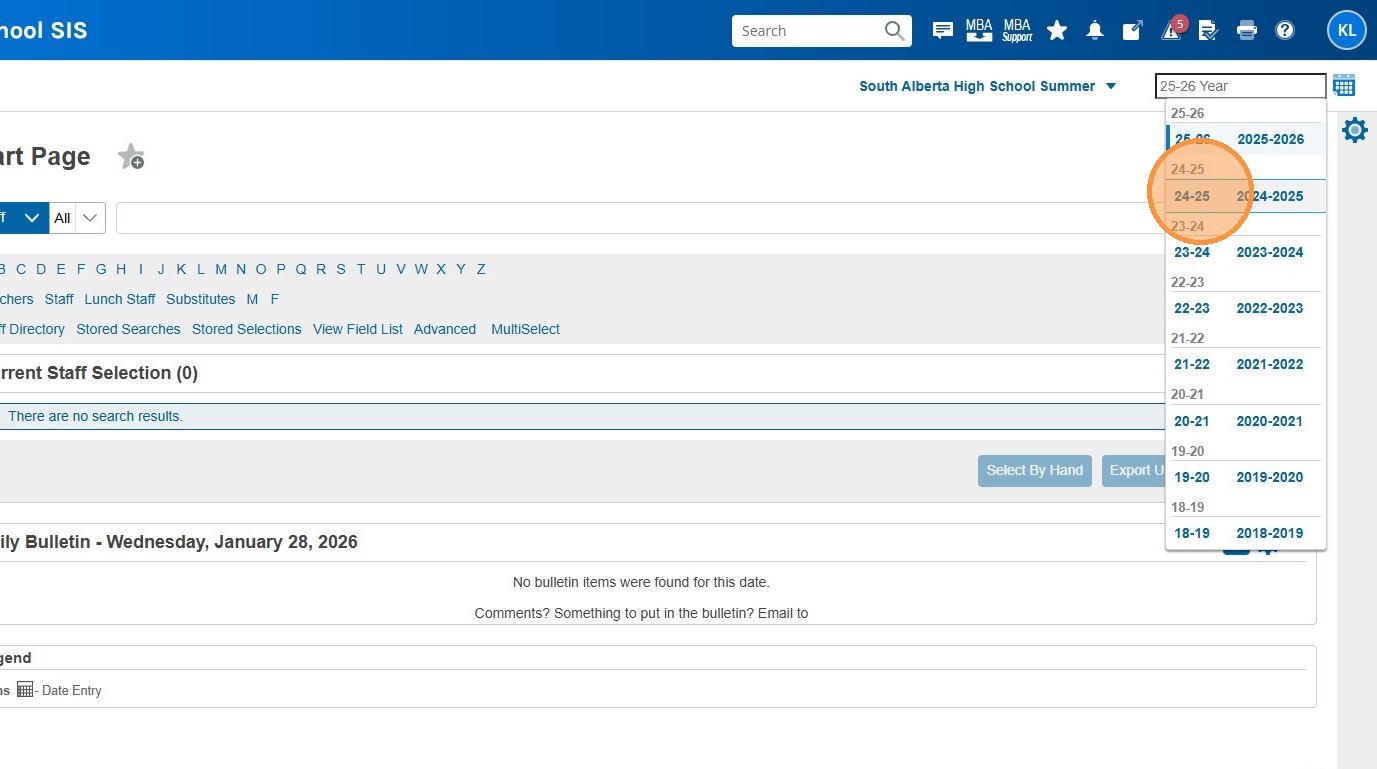
4. Click here to select Students
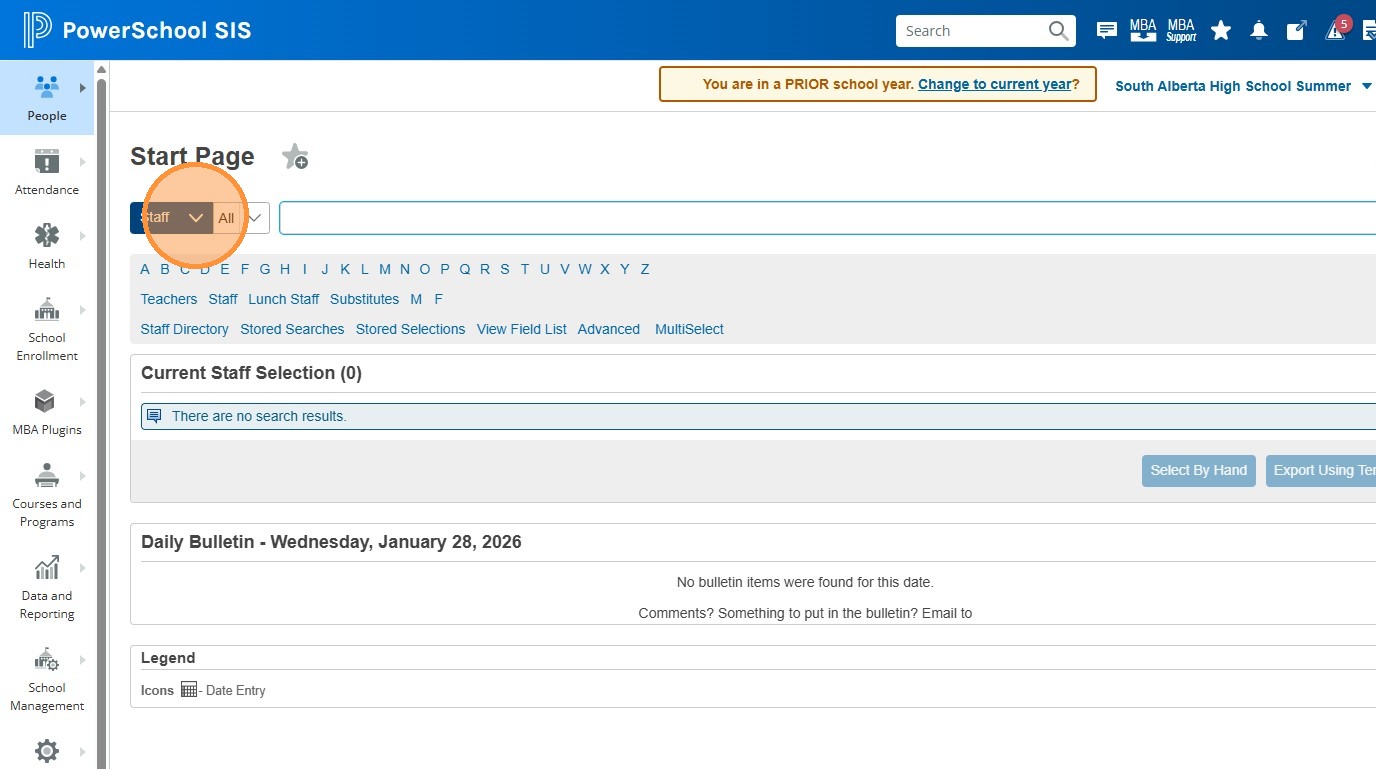
5. Click "Students"
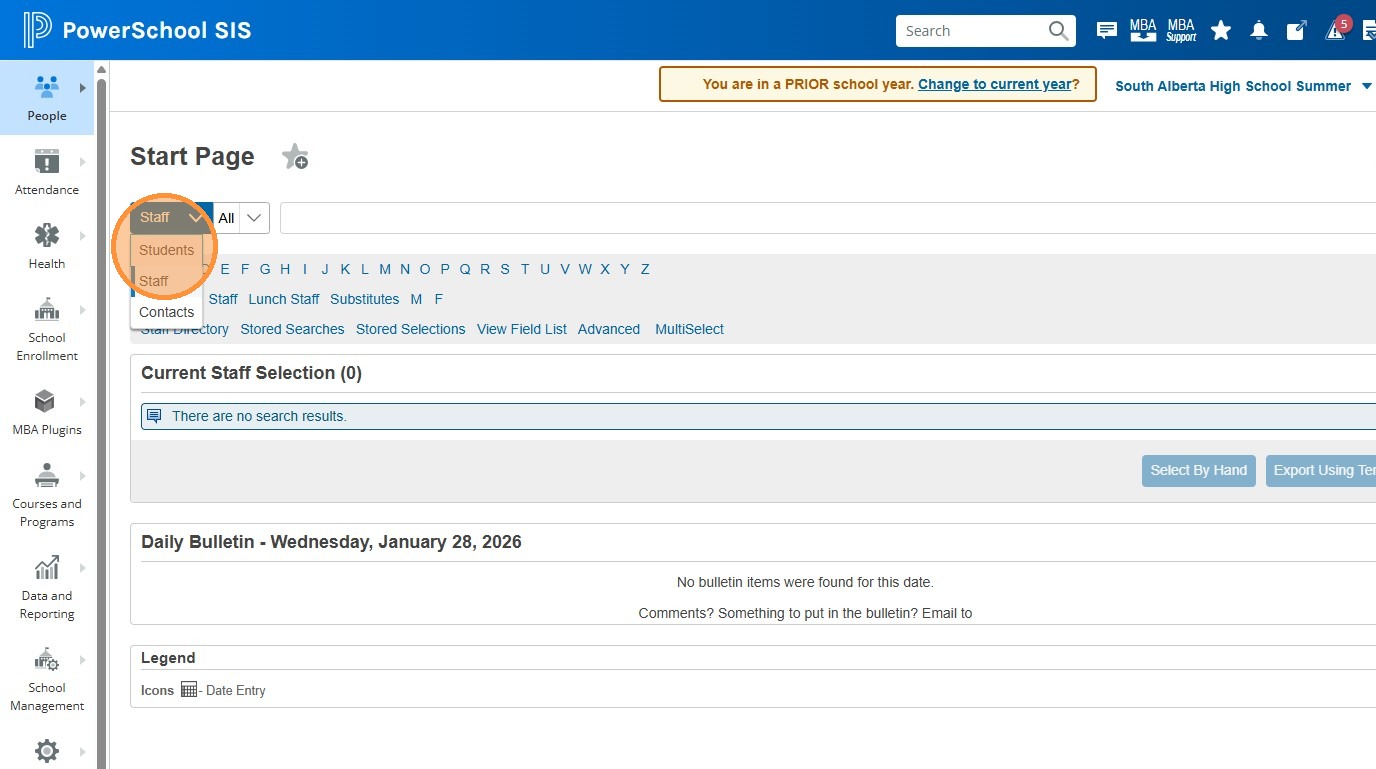
6. Grab and copy (right click -> Copy or highlight and cntrl + c) the ASN of the student you need to enroll in previous year summer courses.
7. Click the "Search" field.
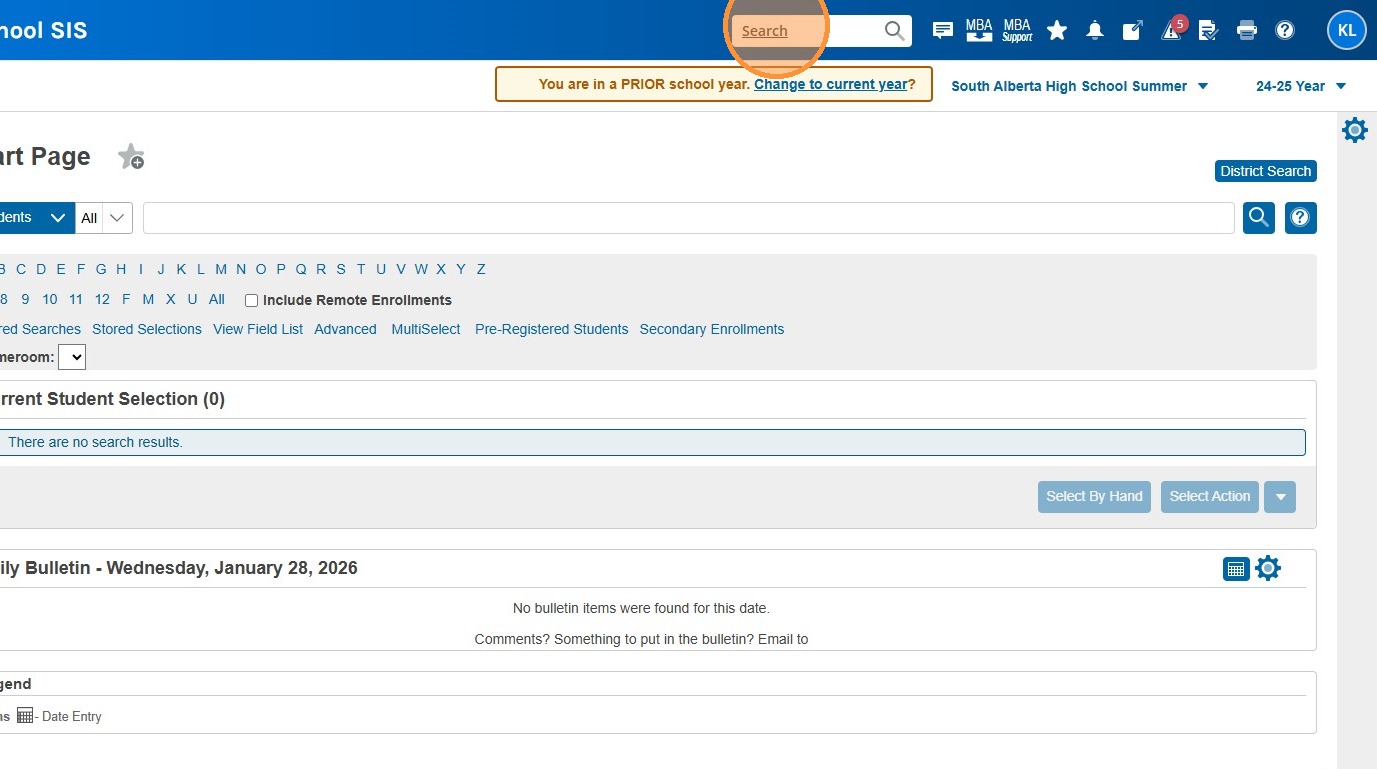
8. Type "DDE"
9. Click "Direct Database Export (DDE)"
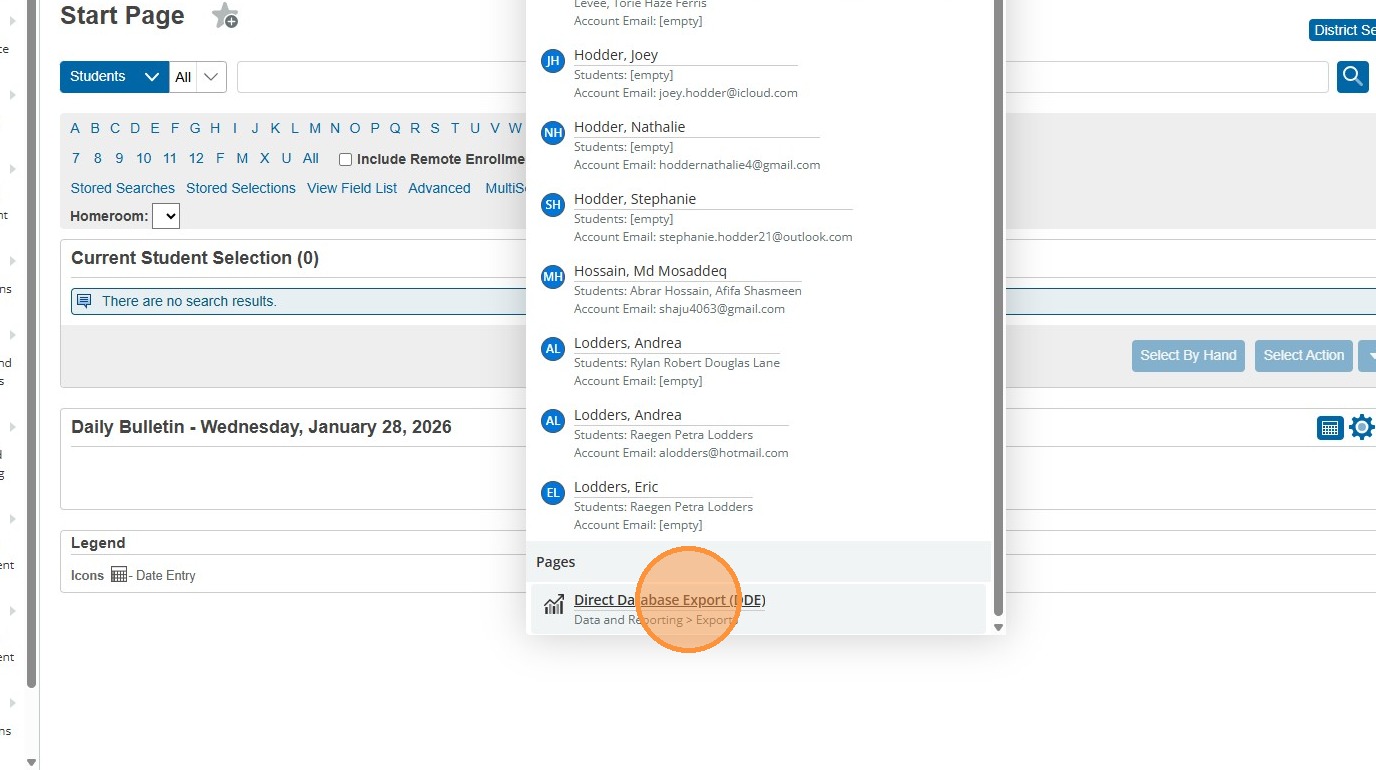
10. Select the "Students (1)" table from the drop down menu.
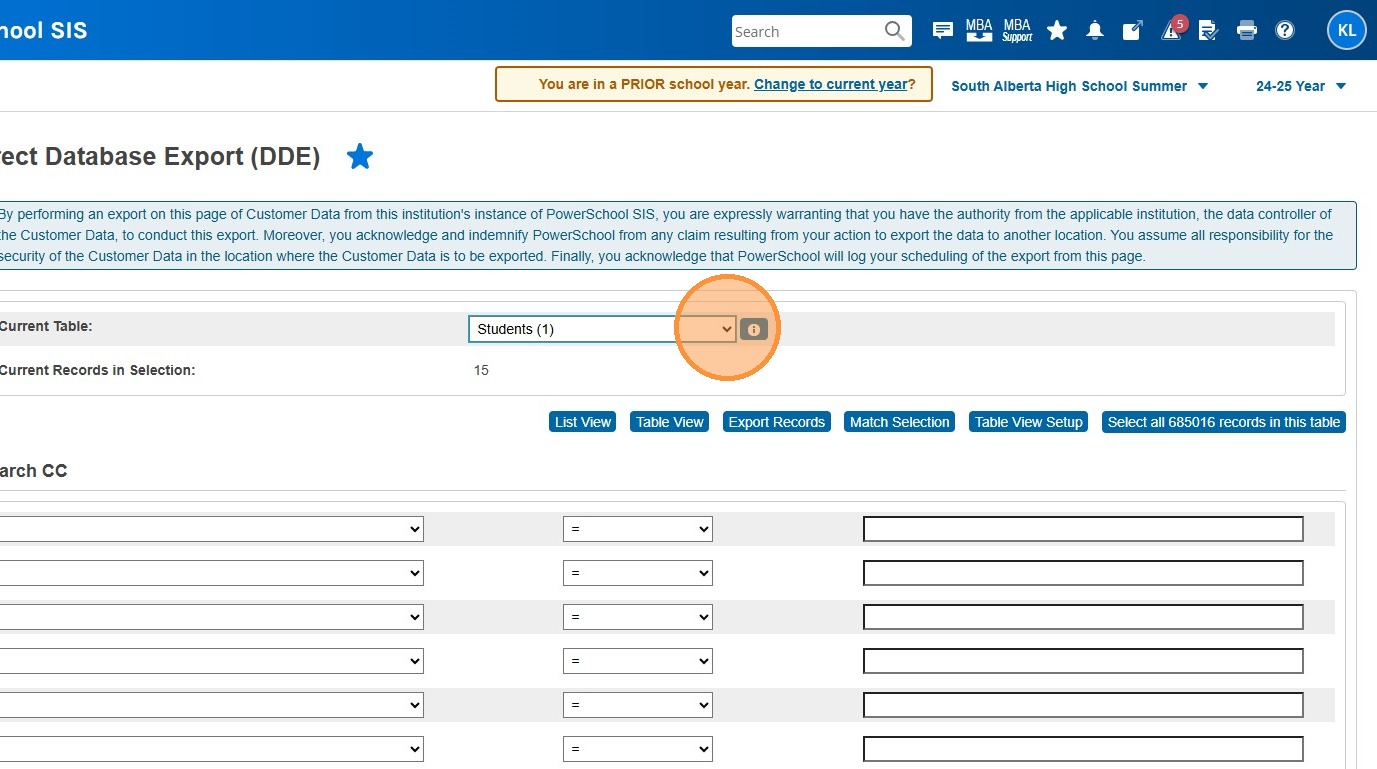
11. Click this dropdown and select "Student_Number".
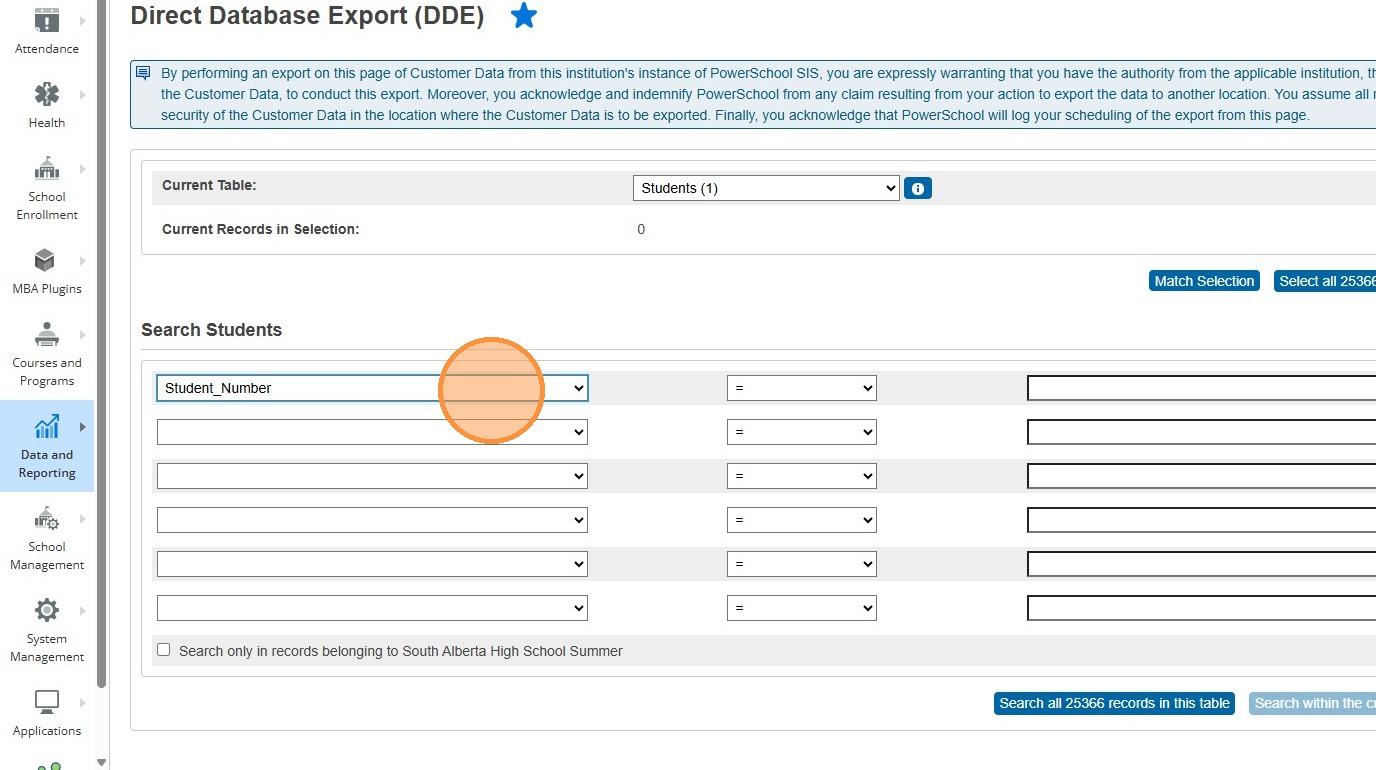
12. Click this dropdown and choose " = ".
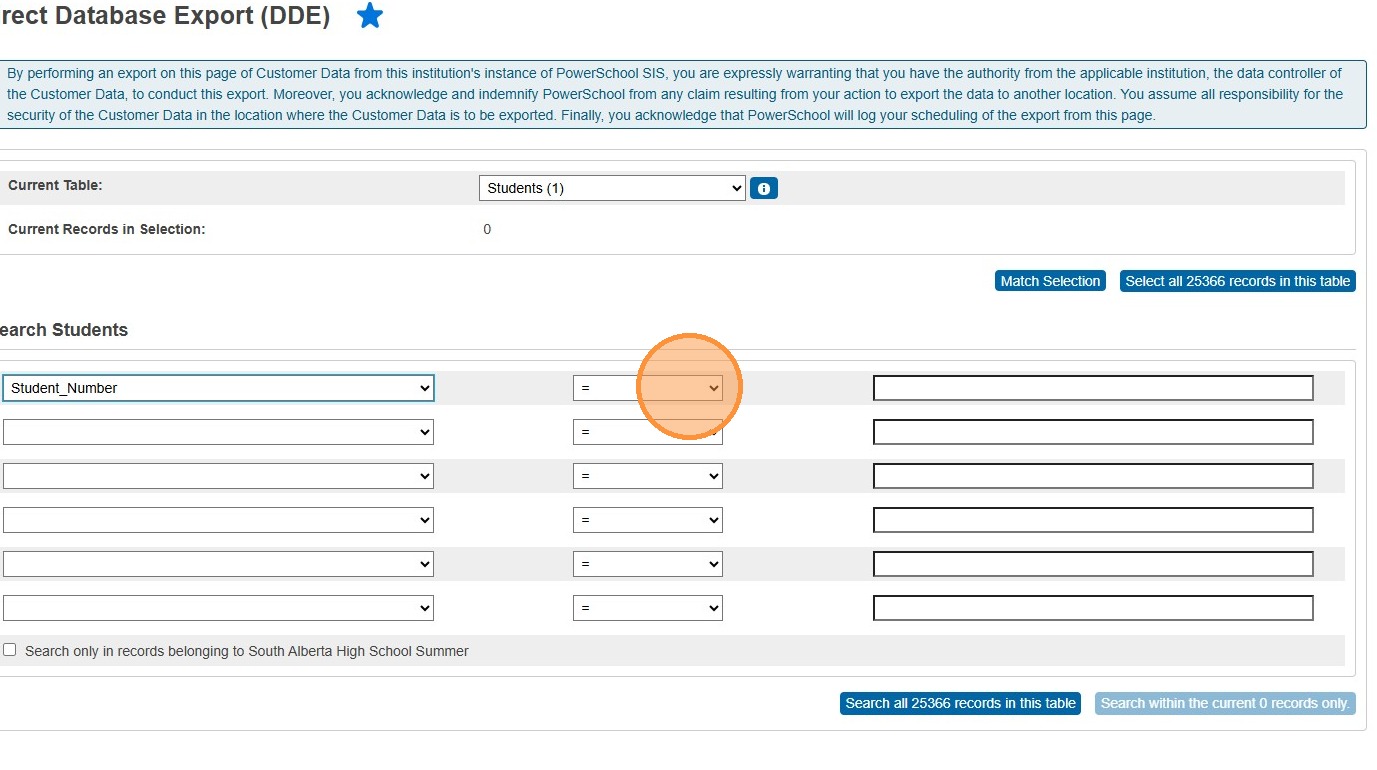
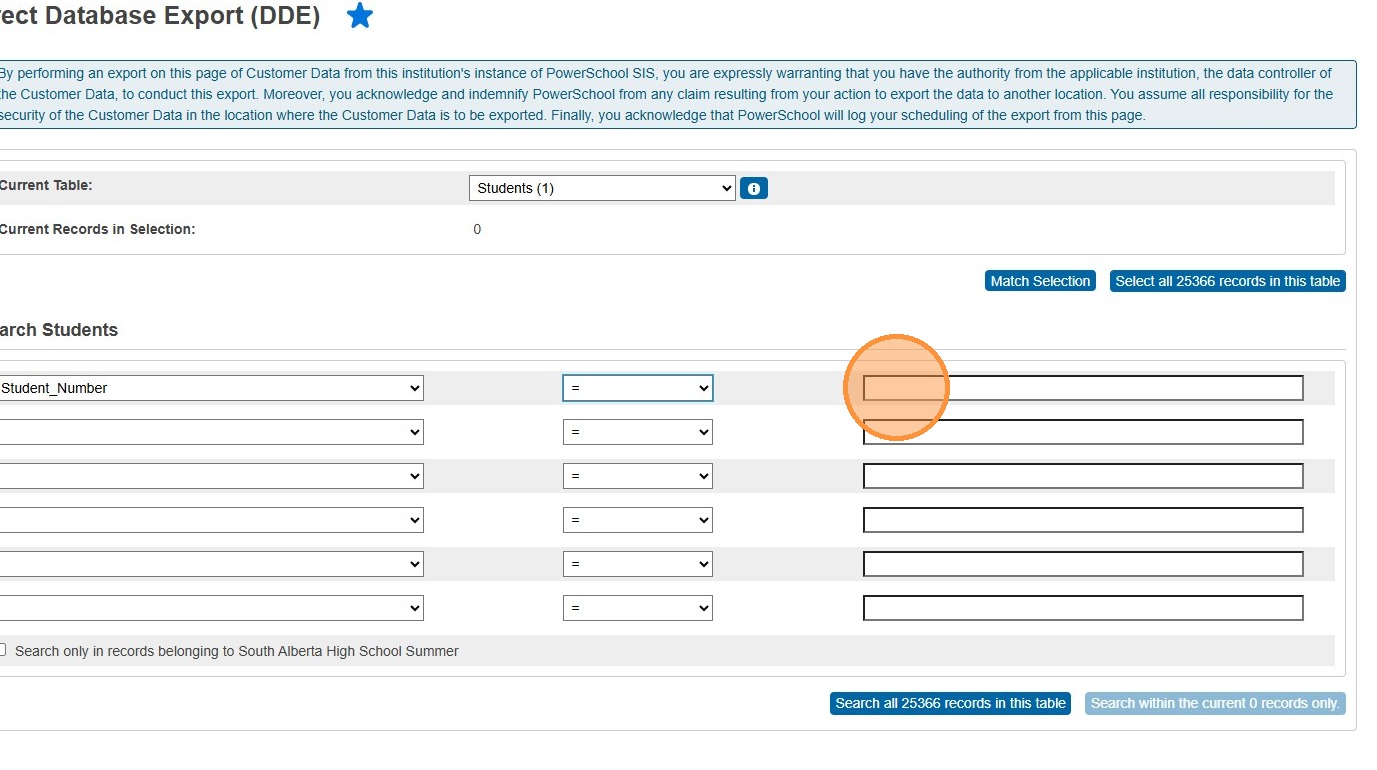
13. Press paste the ASN in the last field.
14. Click "Search all #### records in this table"
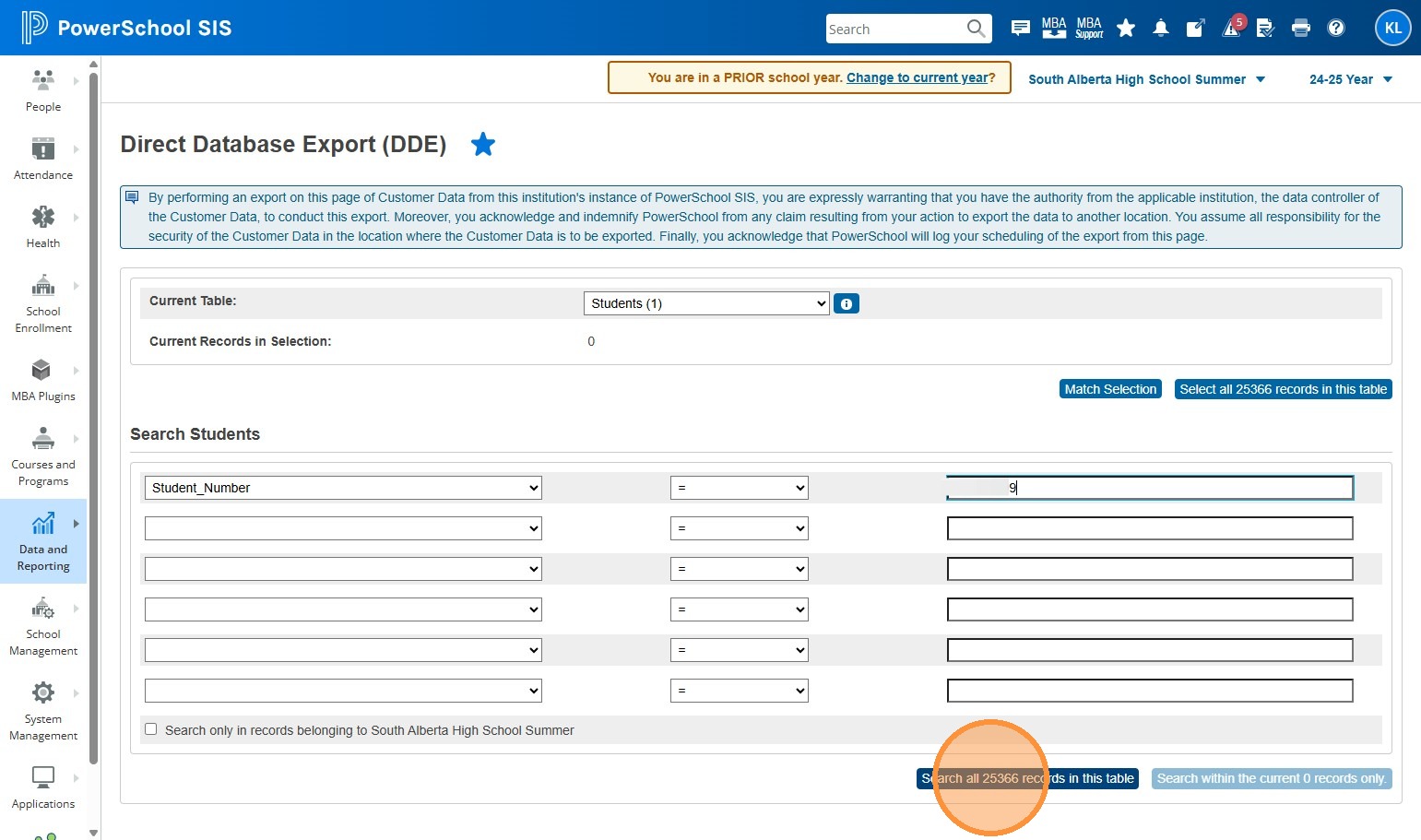
15. Click "PowerSchool SIS"
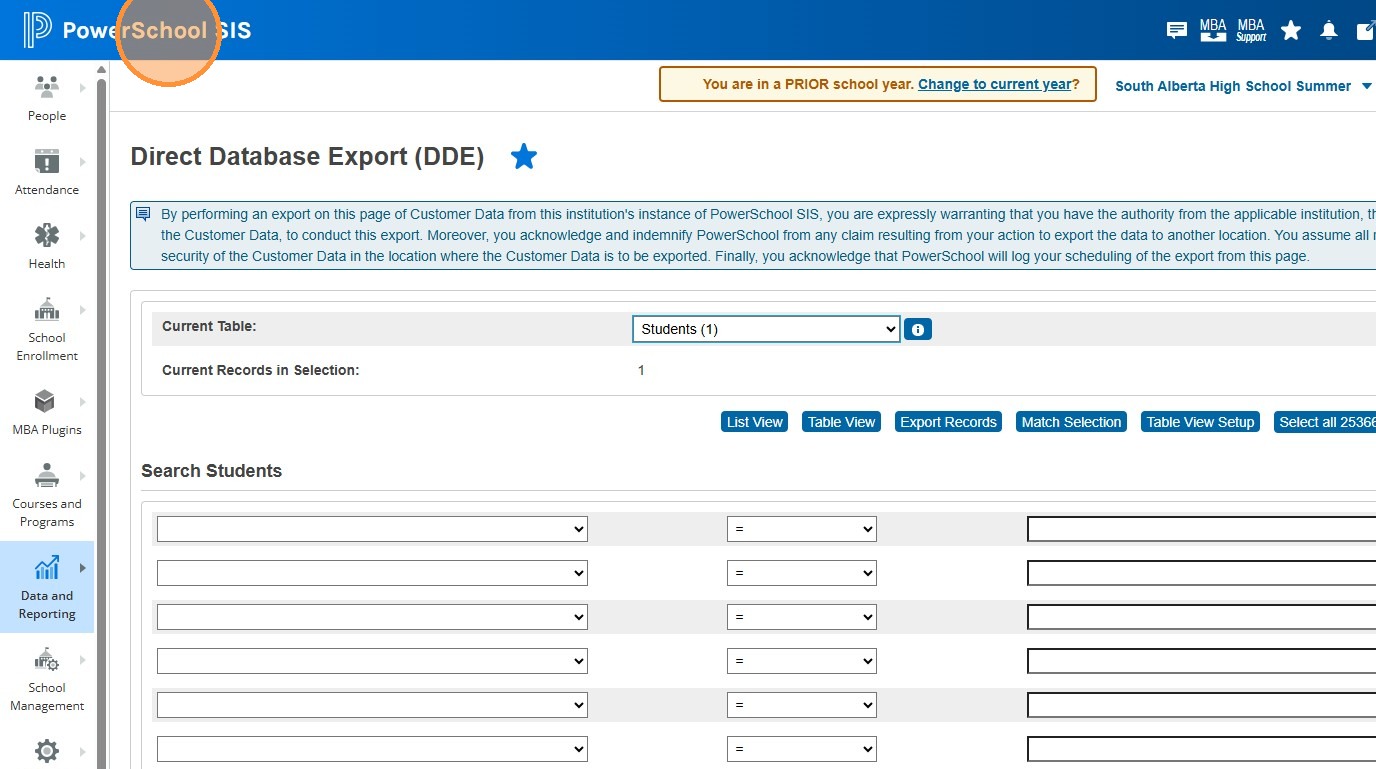
16. Click the student's name
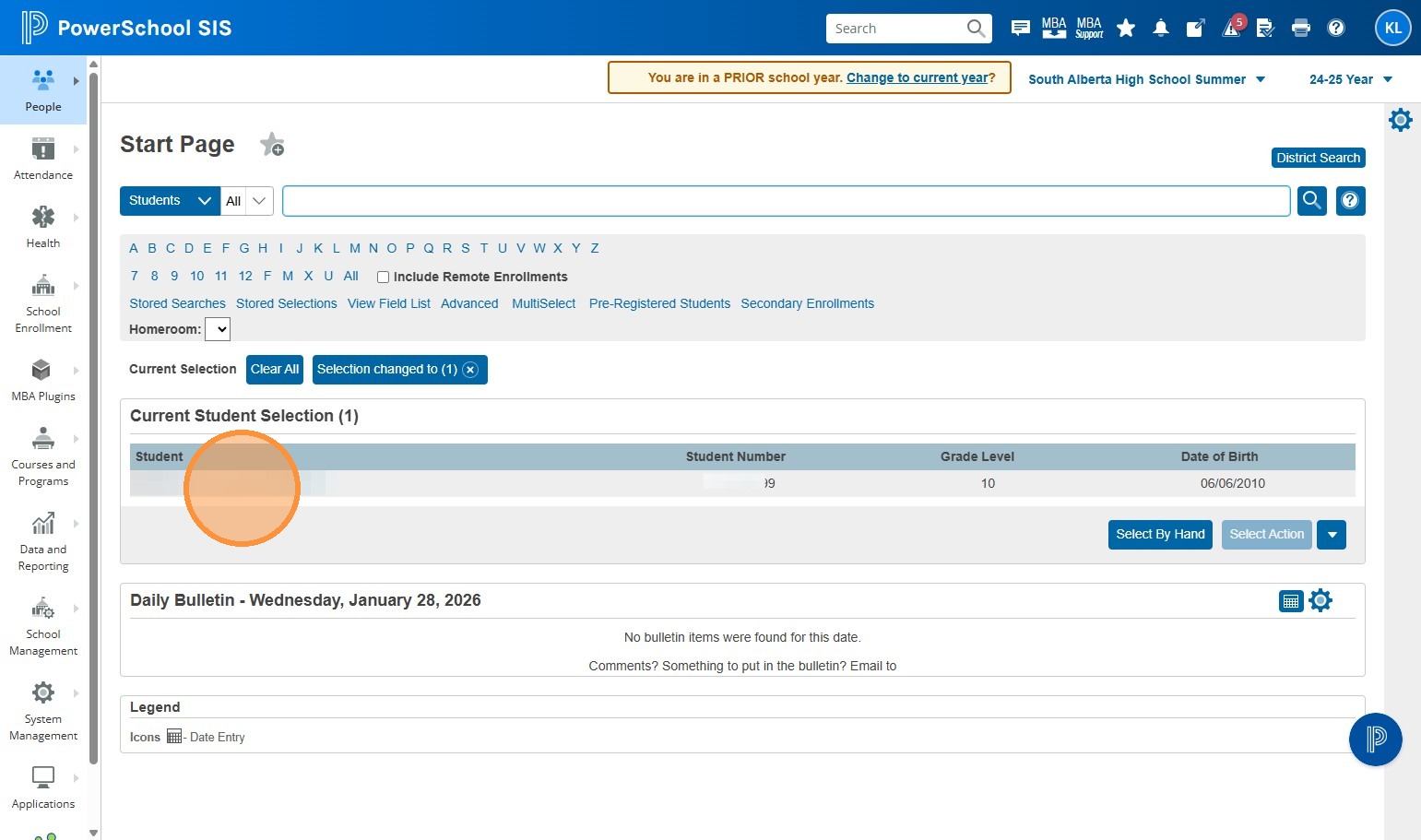
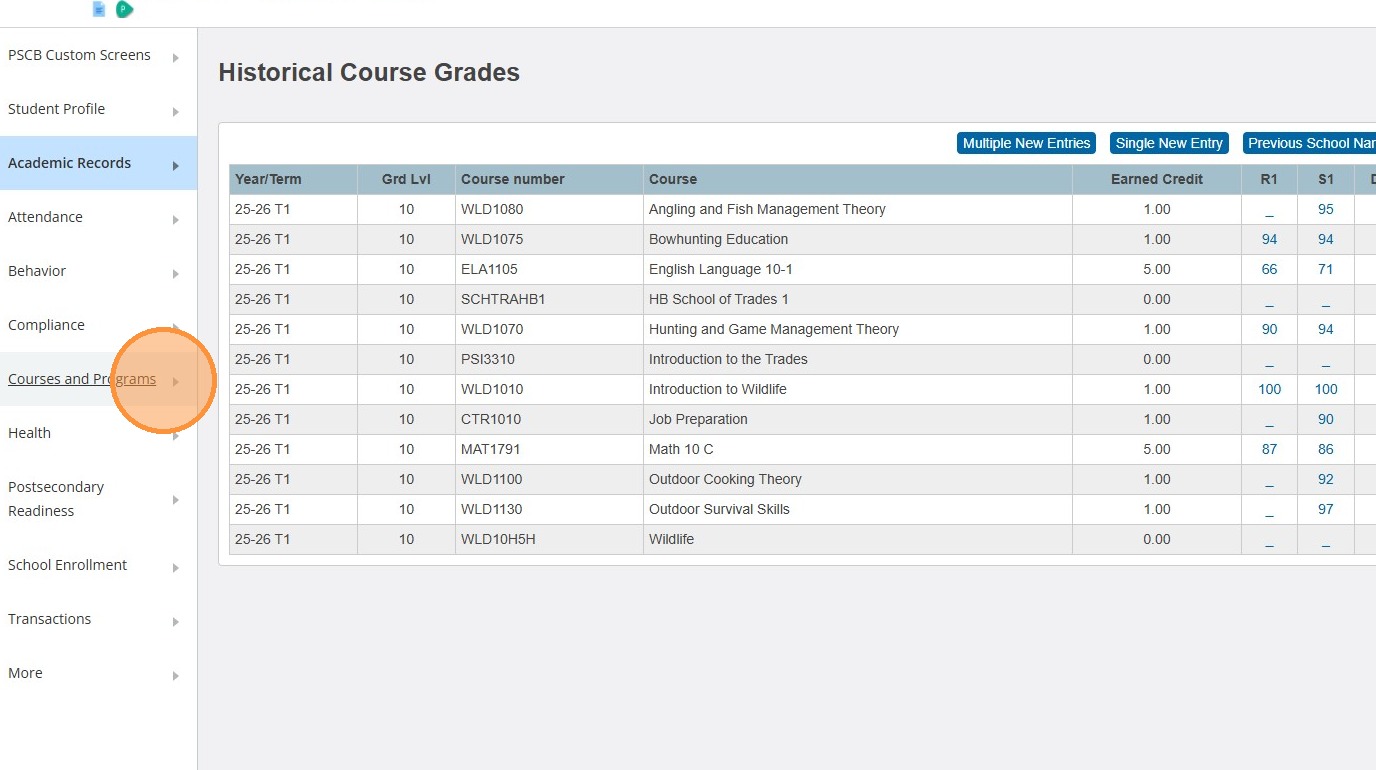
17. Click "Courses and Programs"
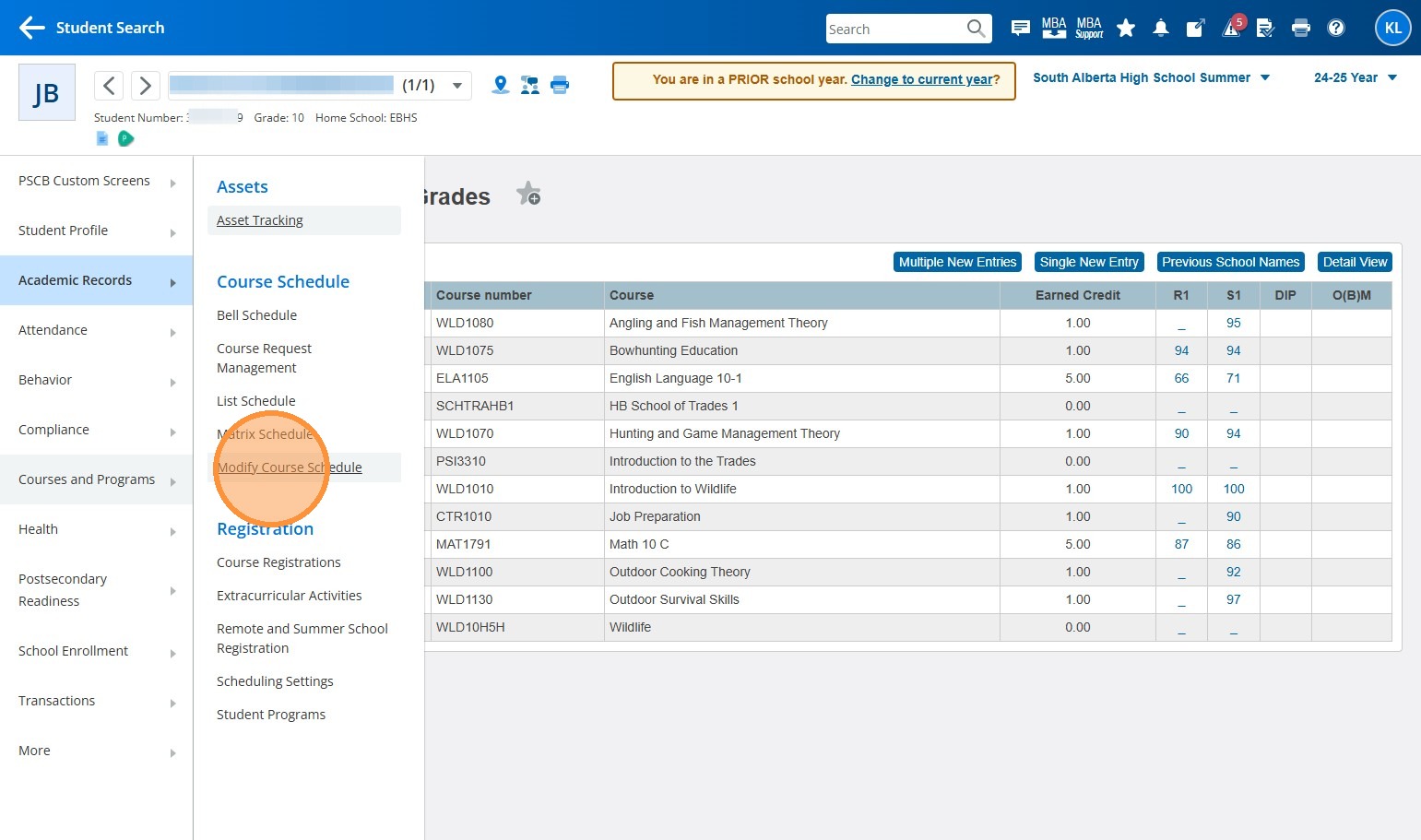
18. Click "Modify Course Schedule"
19. Click the calendar icon.
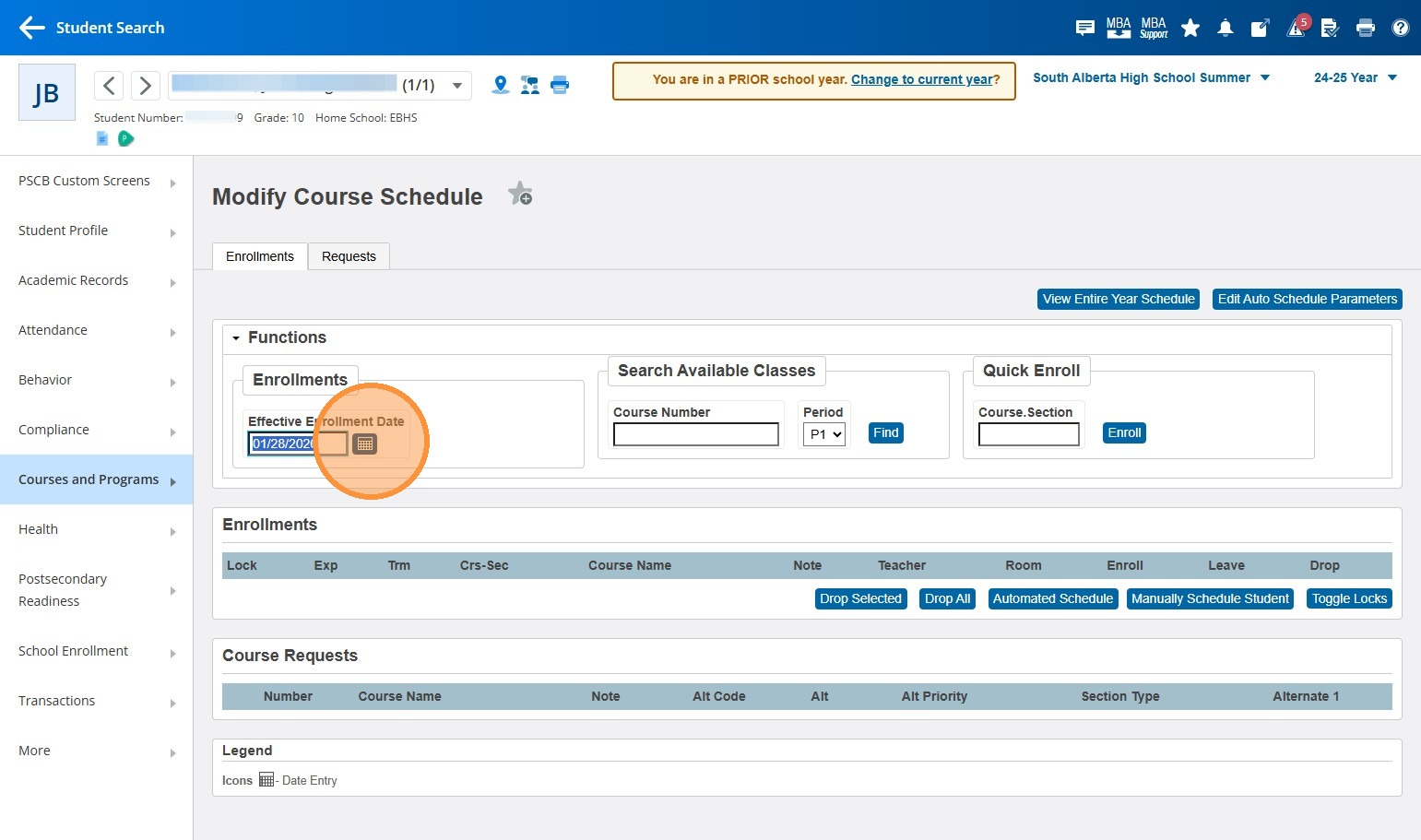
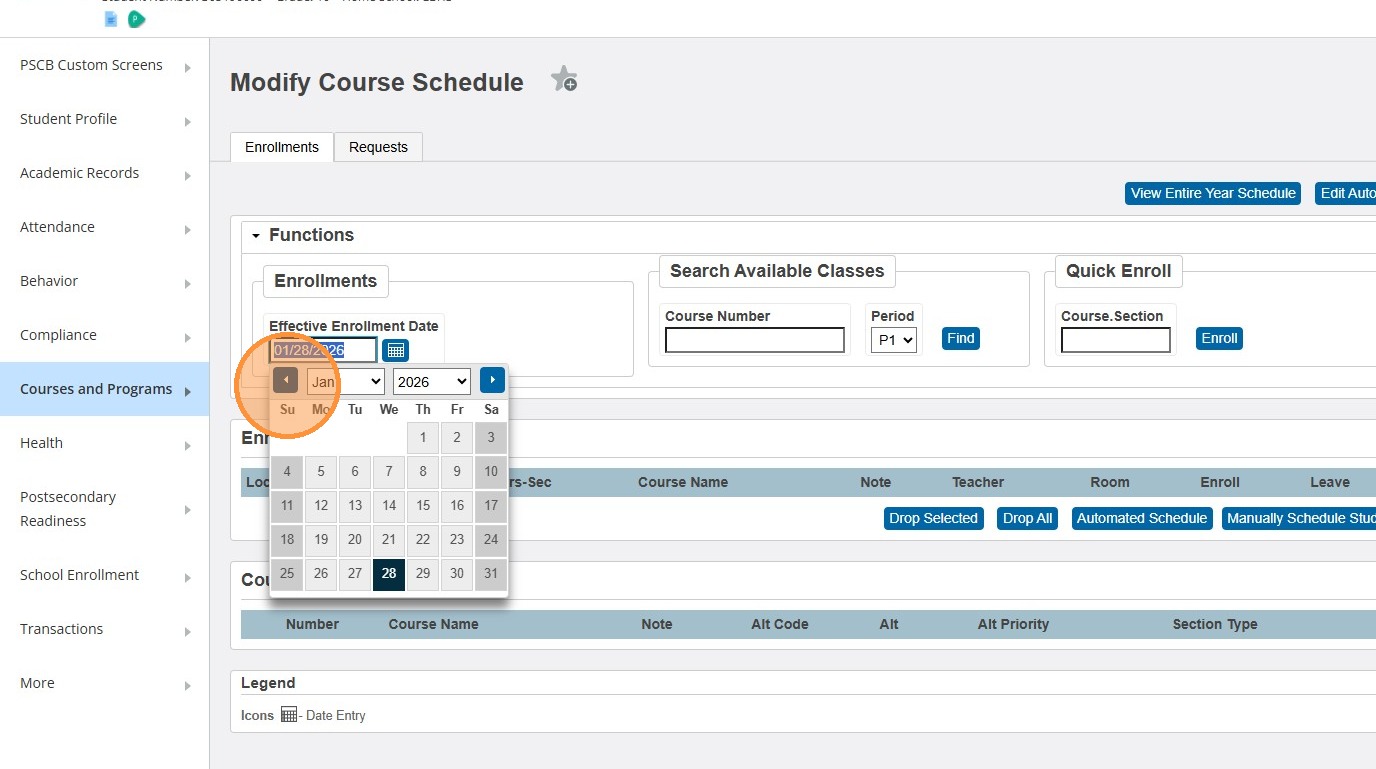
20. Choose the start of the summer term you're working on (Likely July 2 of the summer term that has already passed)
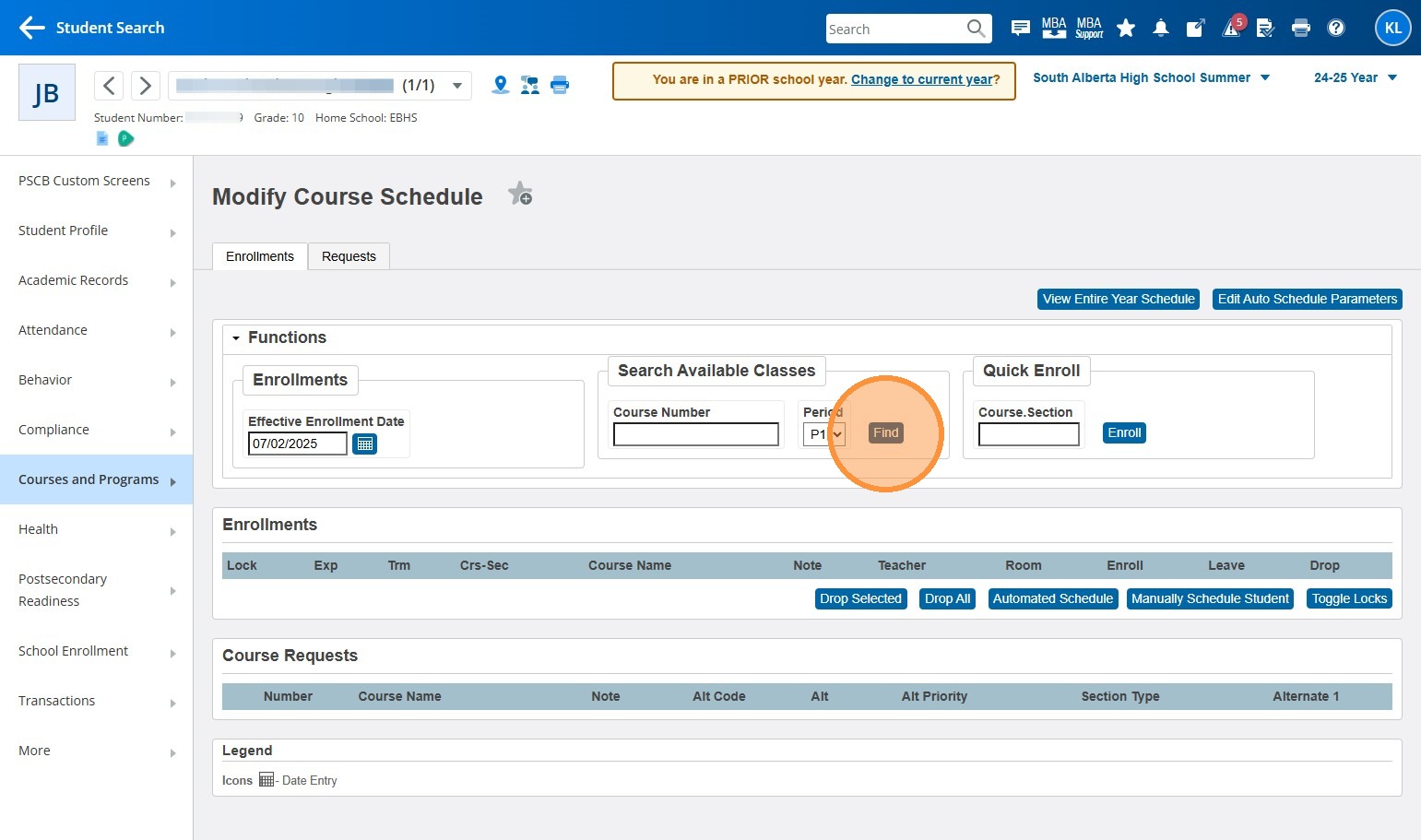
21. Click "Find"
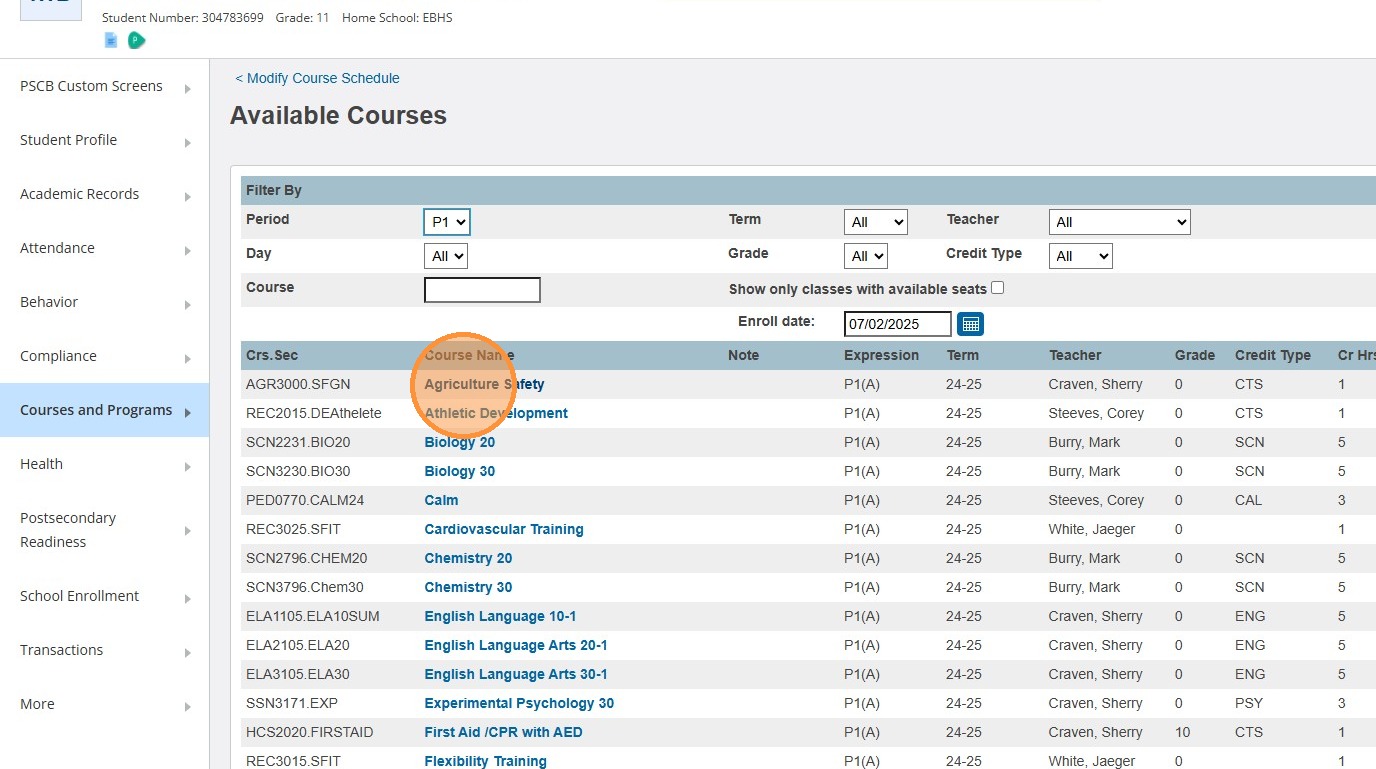
22. Click on the Course Name of the course you're wanting to add. Note the sections listed to the left if you have more than one section set up.
23. Repeat these steps as needed if you have more courses to add, or more students to add courses for.