
I have a Duplicate Student in PS SIS! Now What?!
I Have A Duplicate Student in PS SIS! Now What!?
If you find yourself with a duplicate student record in SIS, what do you do? How to resolve a duplicate student.
1. Navigate to https://prsd8.ca/admin/home.html
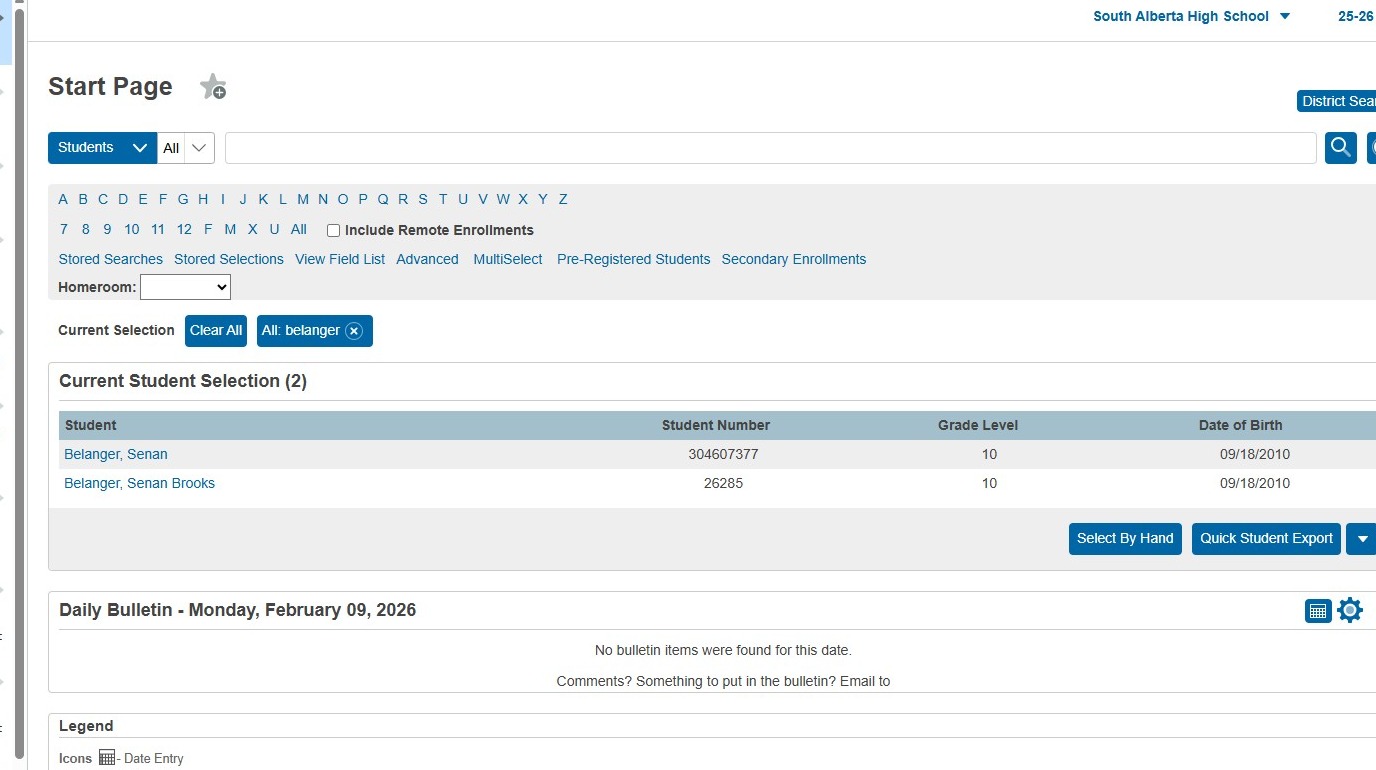
2. Search for the student that is a duplicate. This student should have a student number that is less than 9 digits
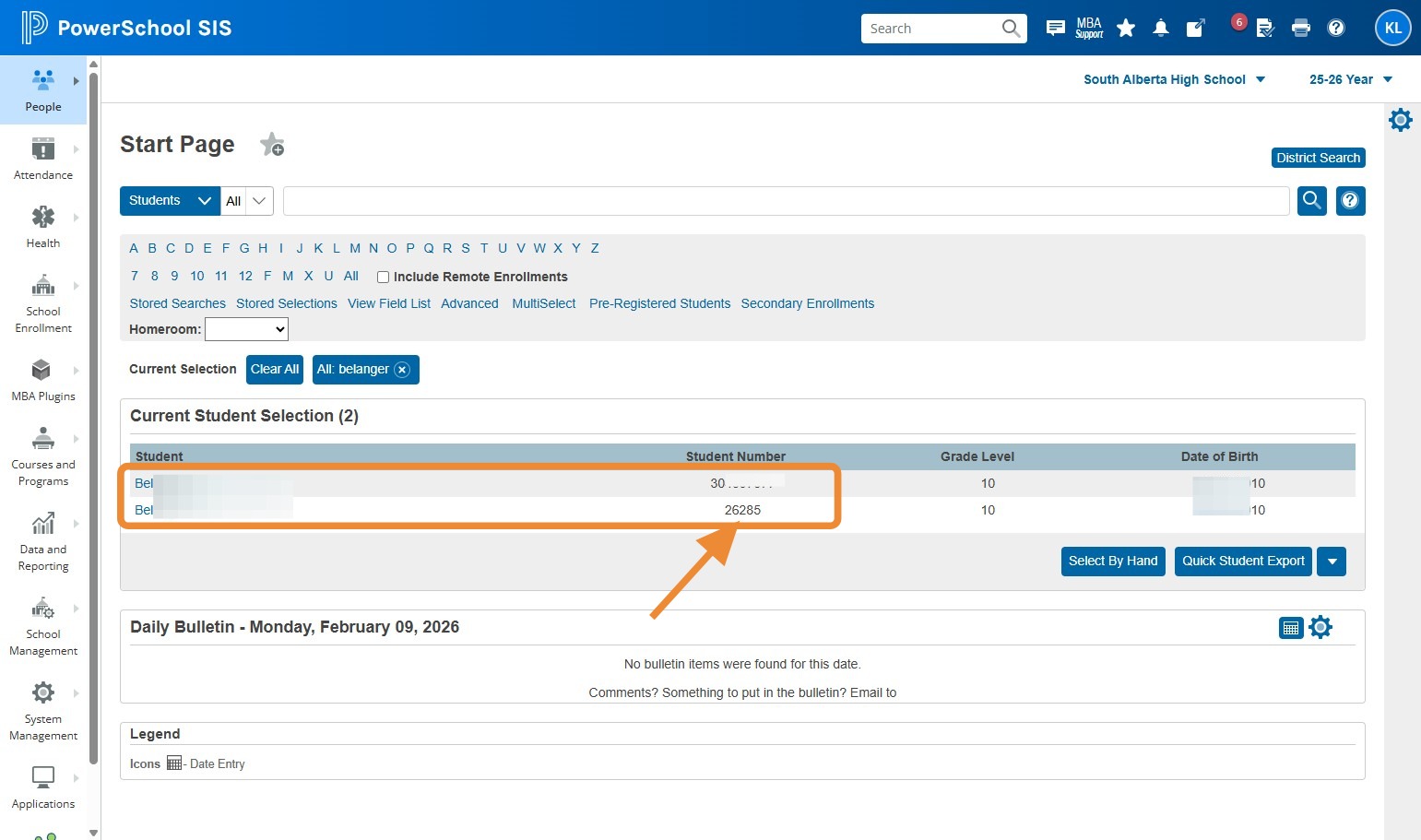
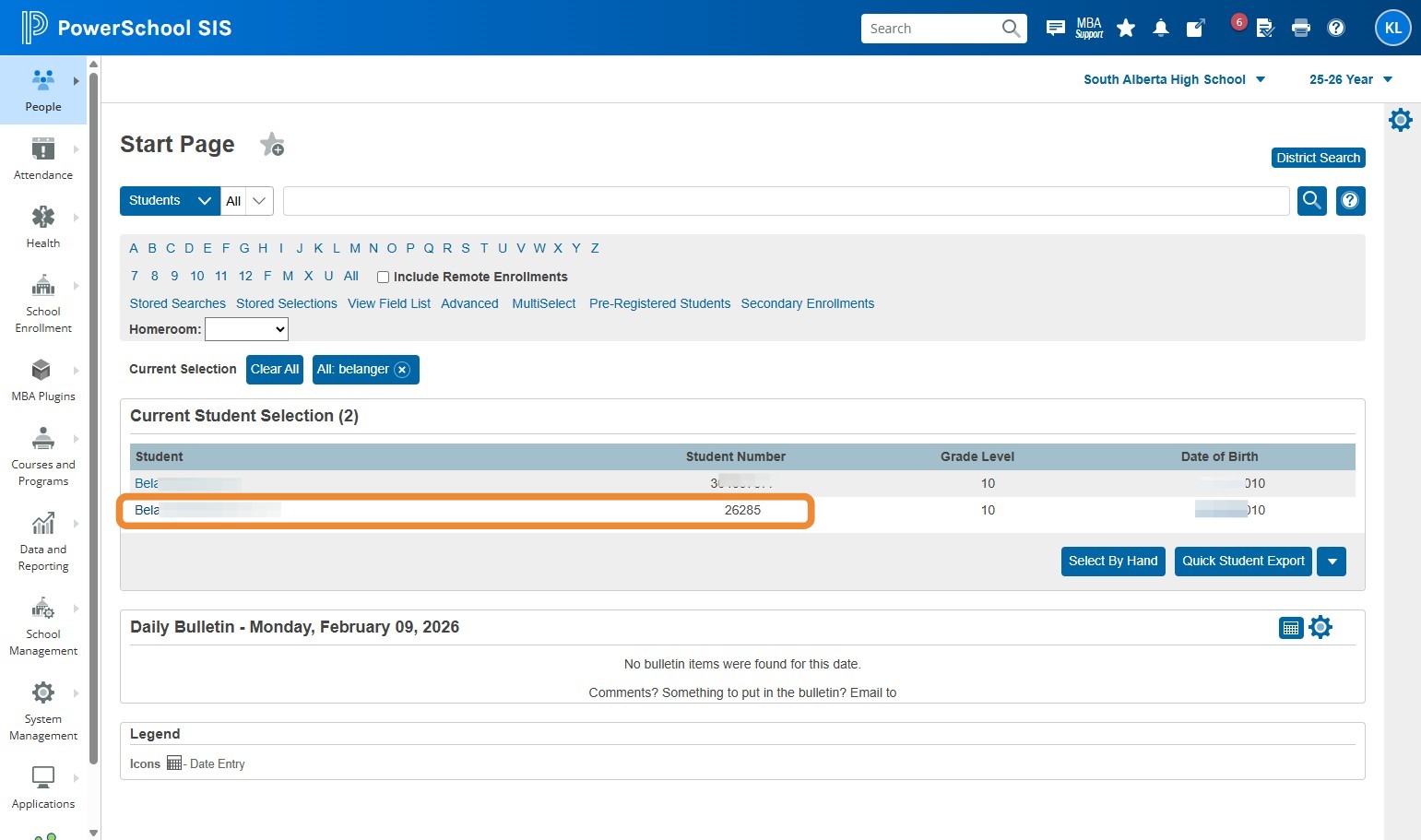
3. Click on the duplicate student
4. Click "Student Profile"
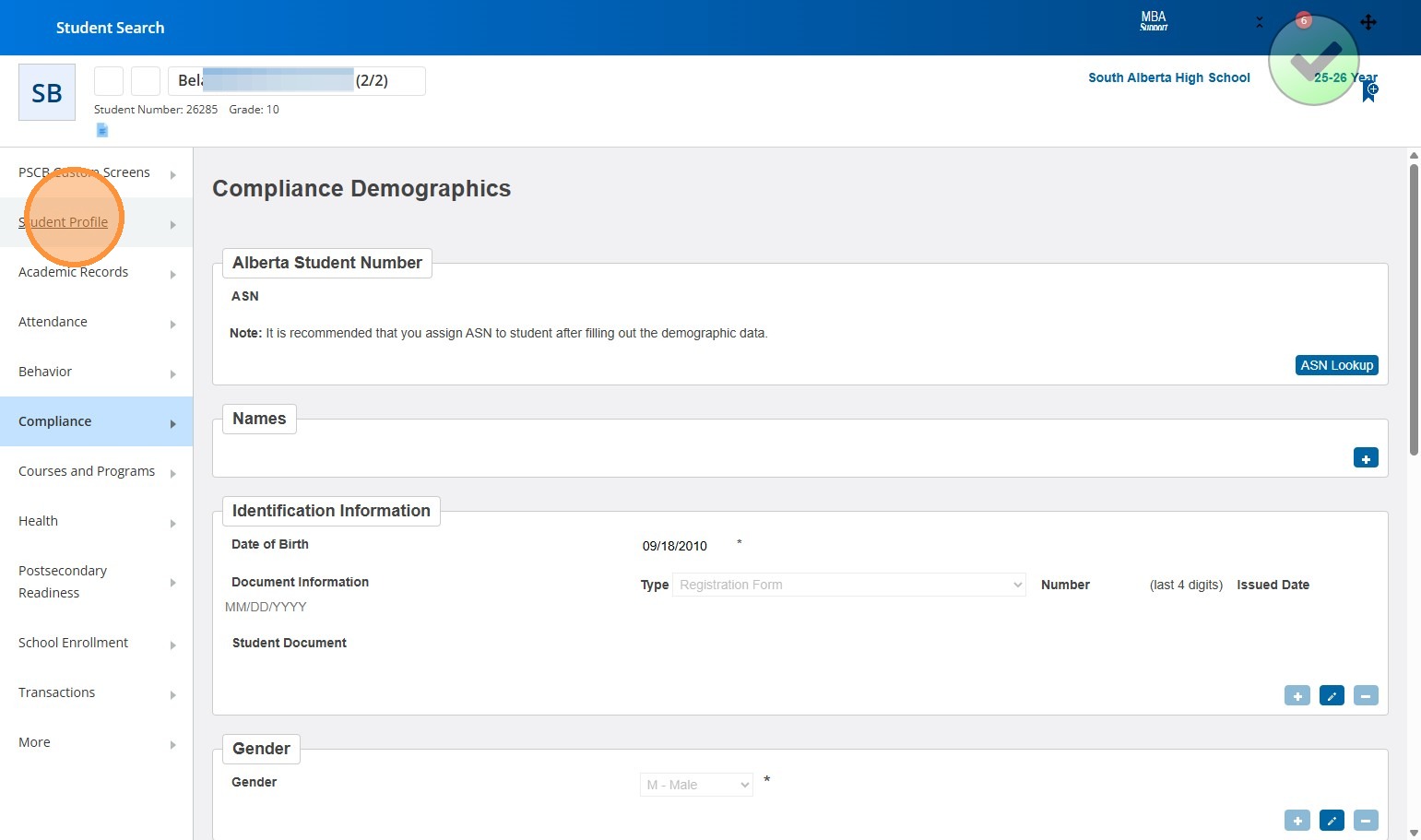
5. Click "Demographics"
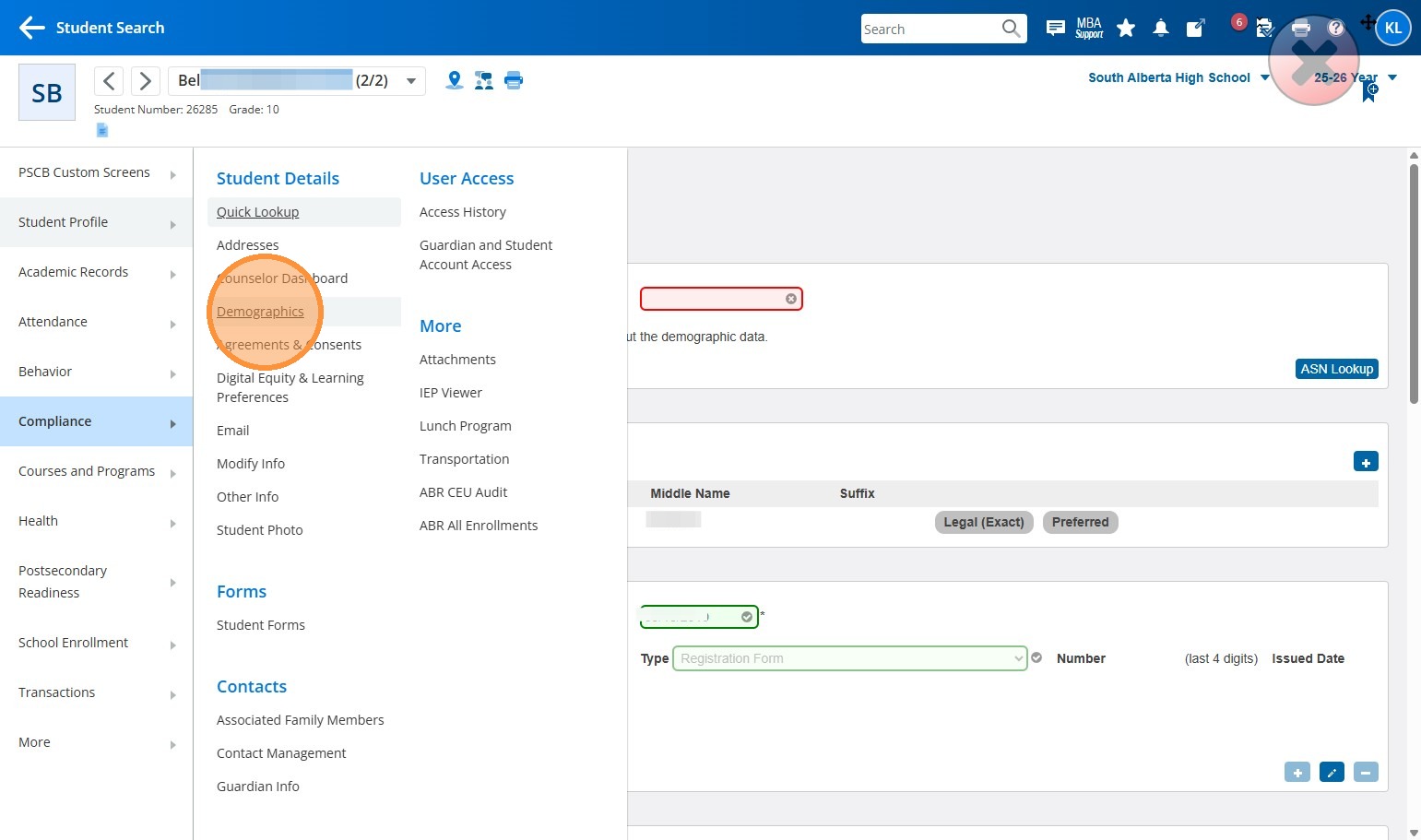
6. Click the Last Name field
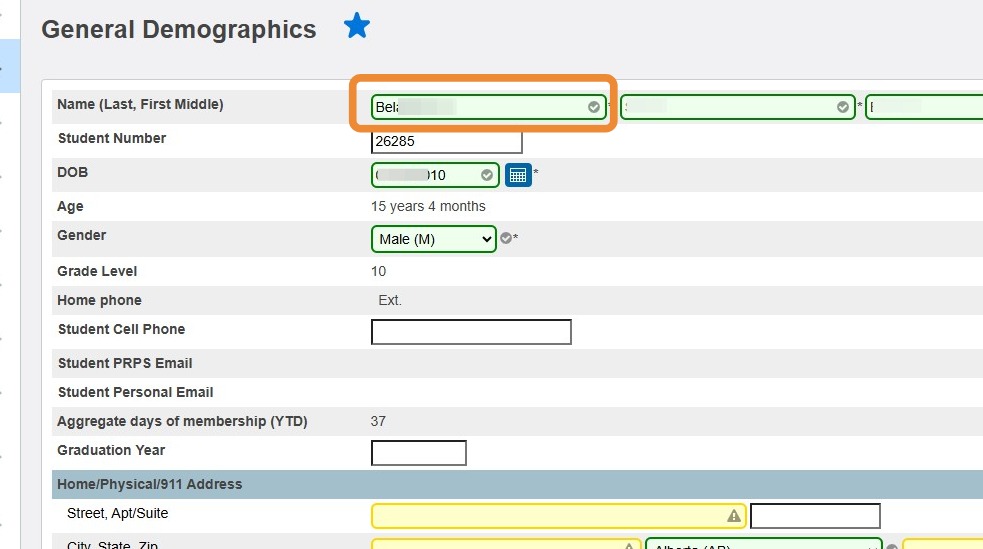
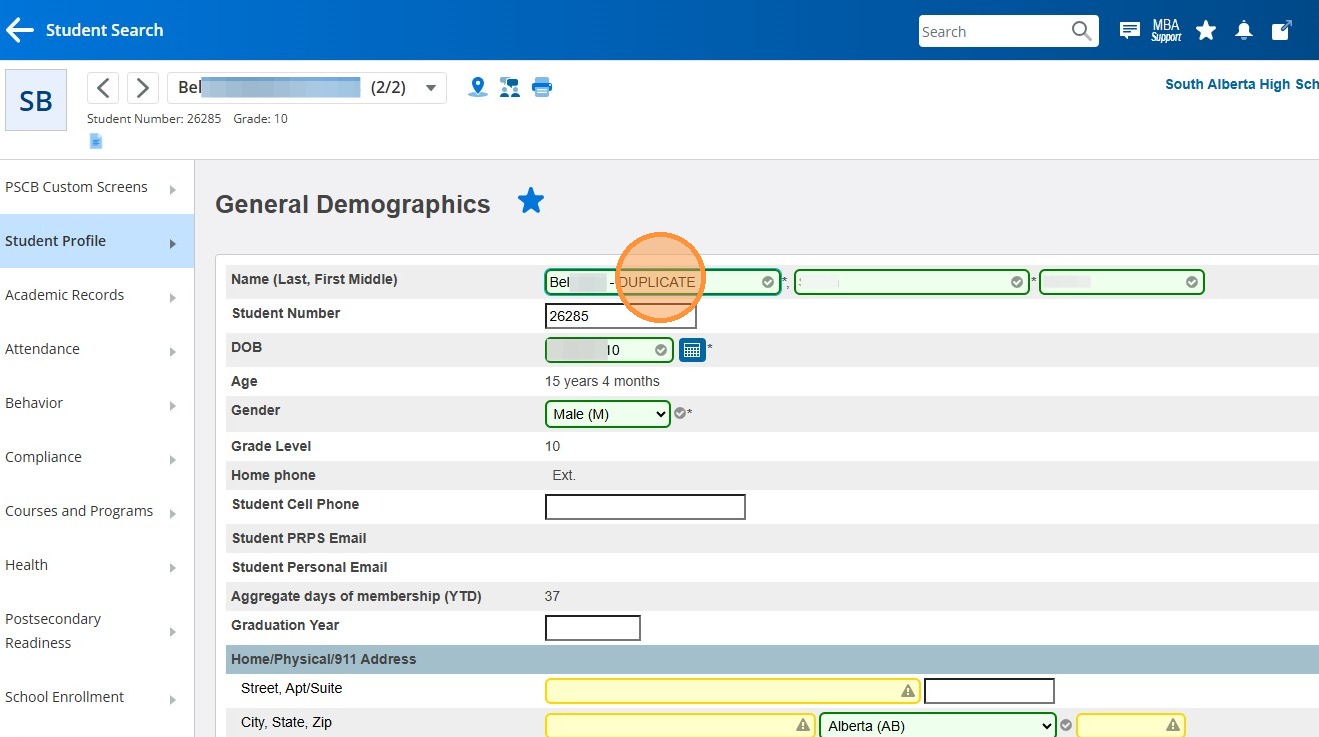
7. Behind the student's Last Name, type " - DUPLICATE"
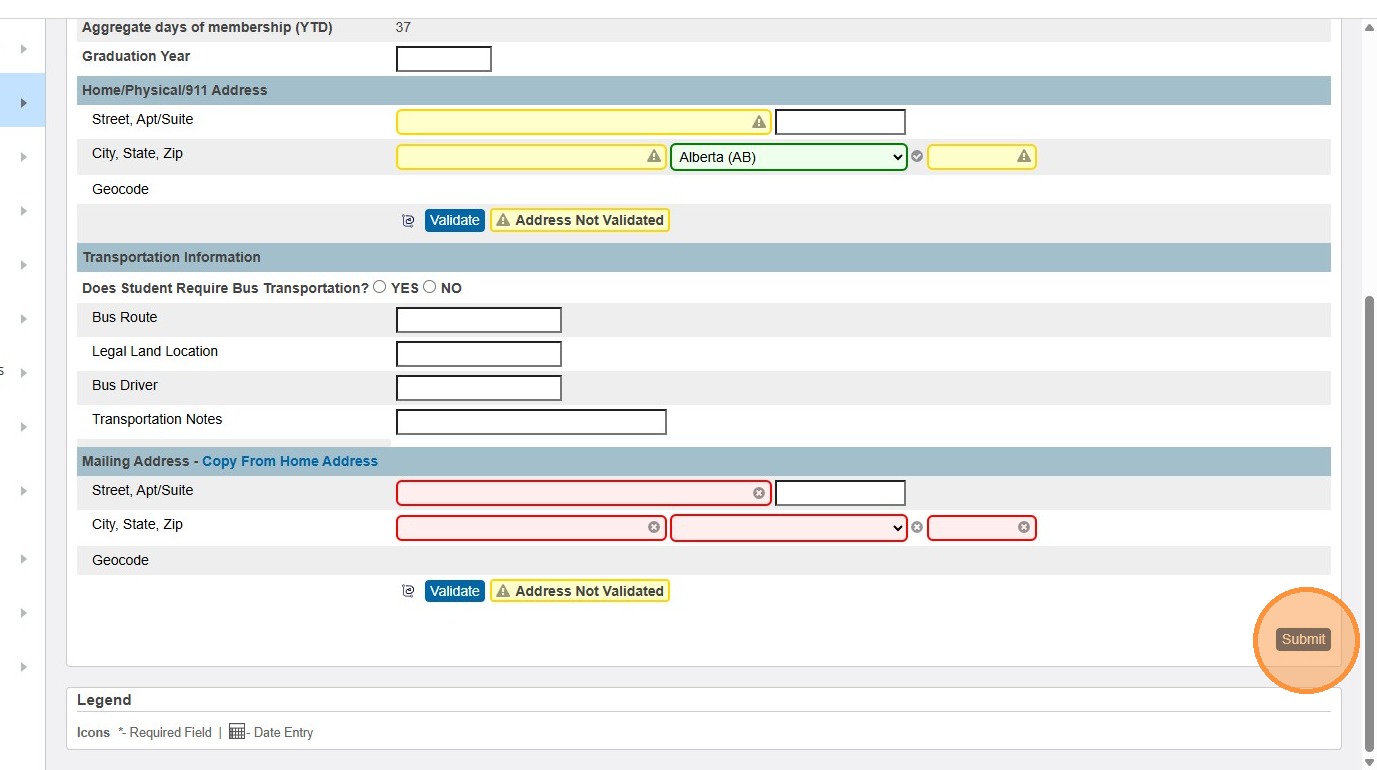
8. Click "Submit"
9. Click "Back"
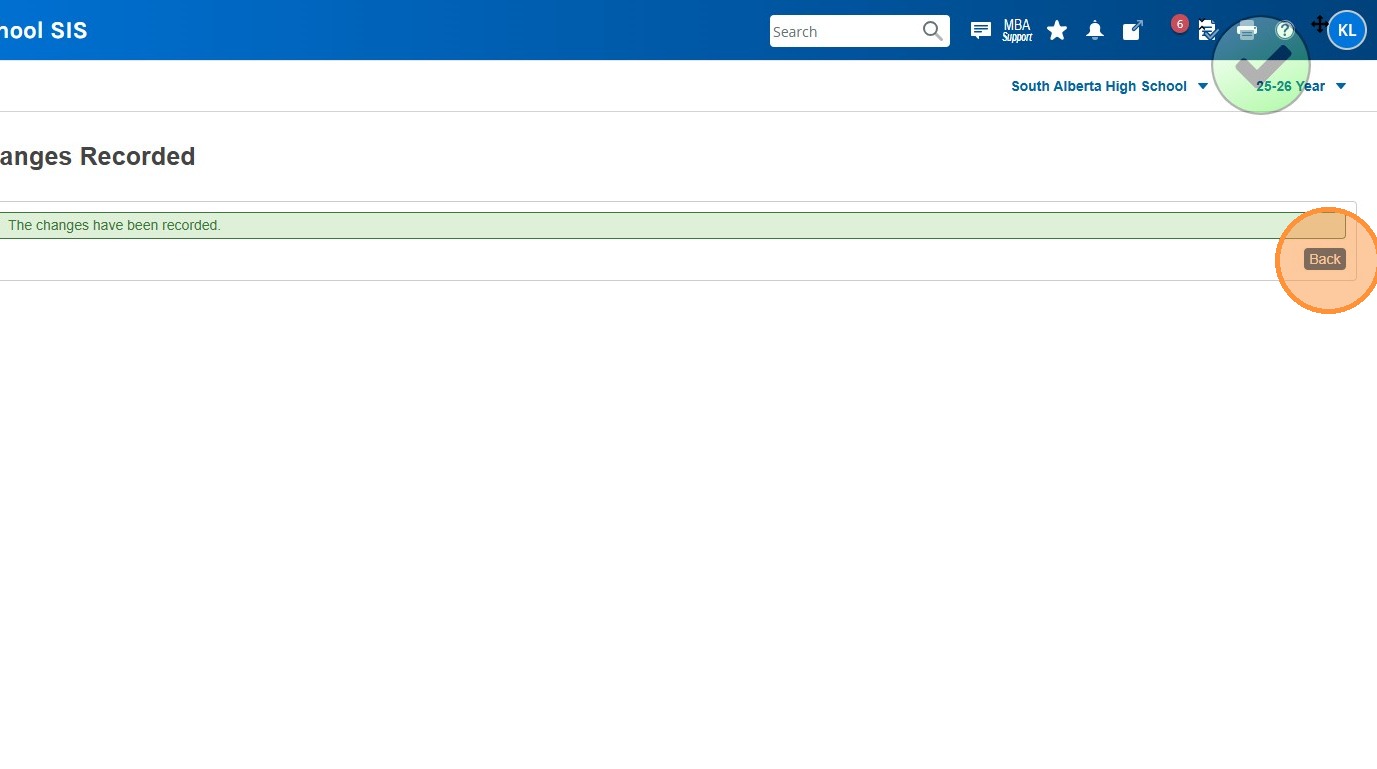
10. Click "School Enrollment"
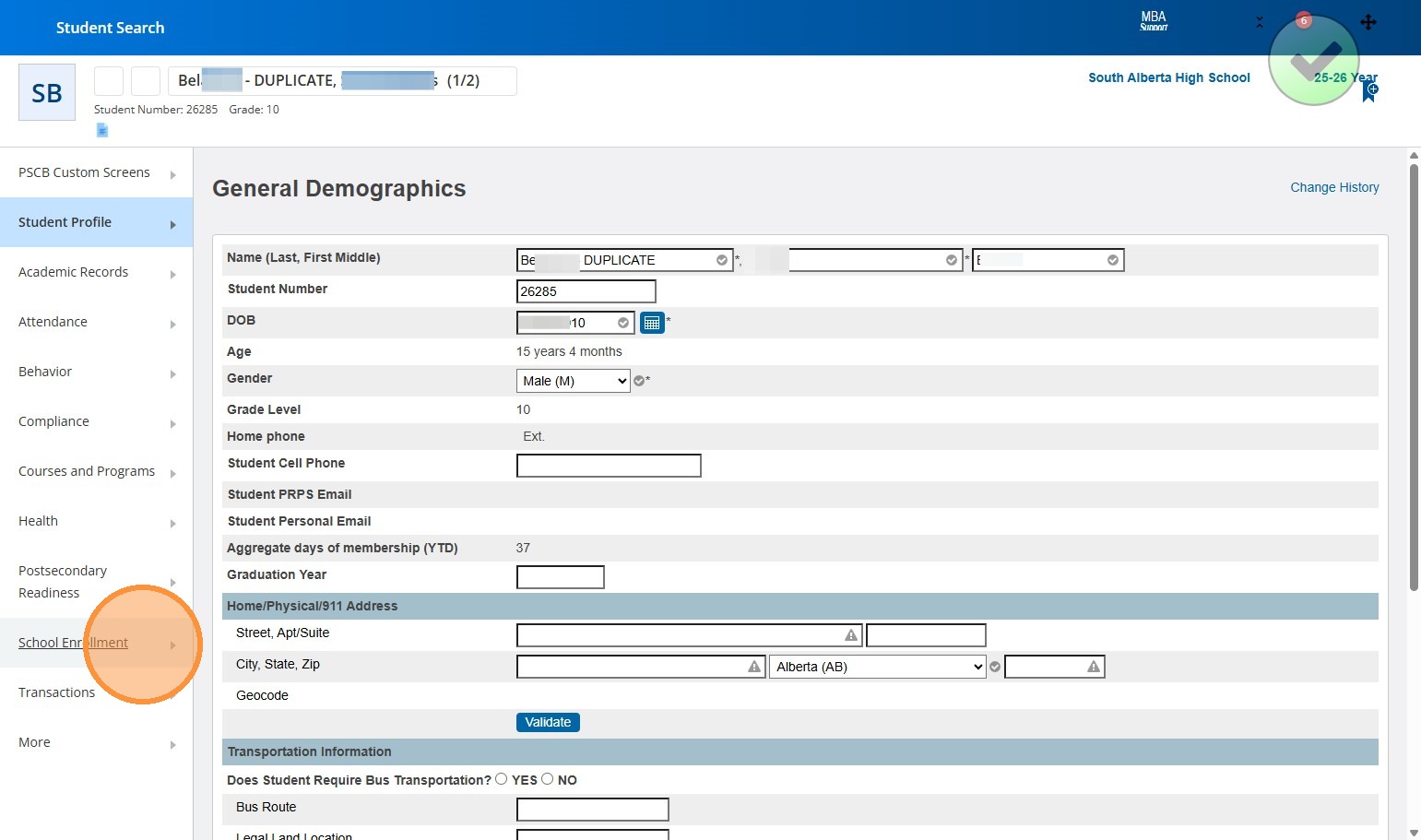
11. Click "Enrollment History"
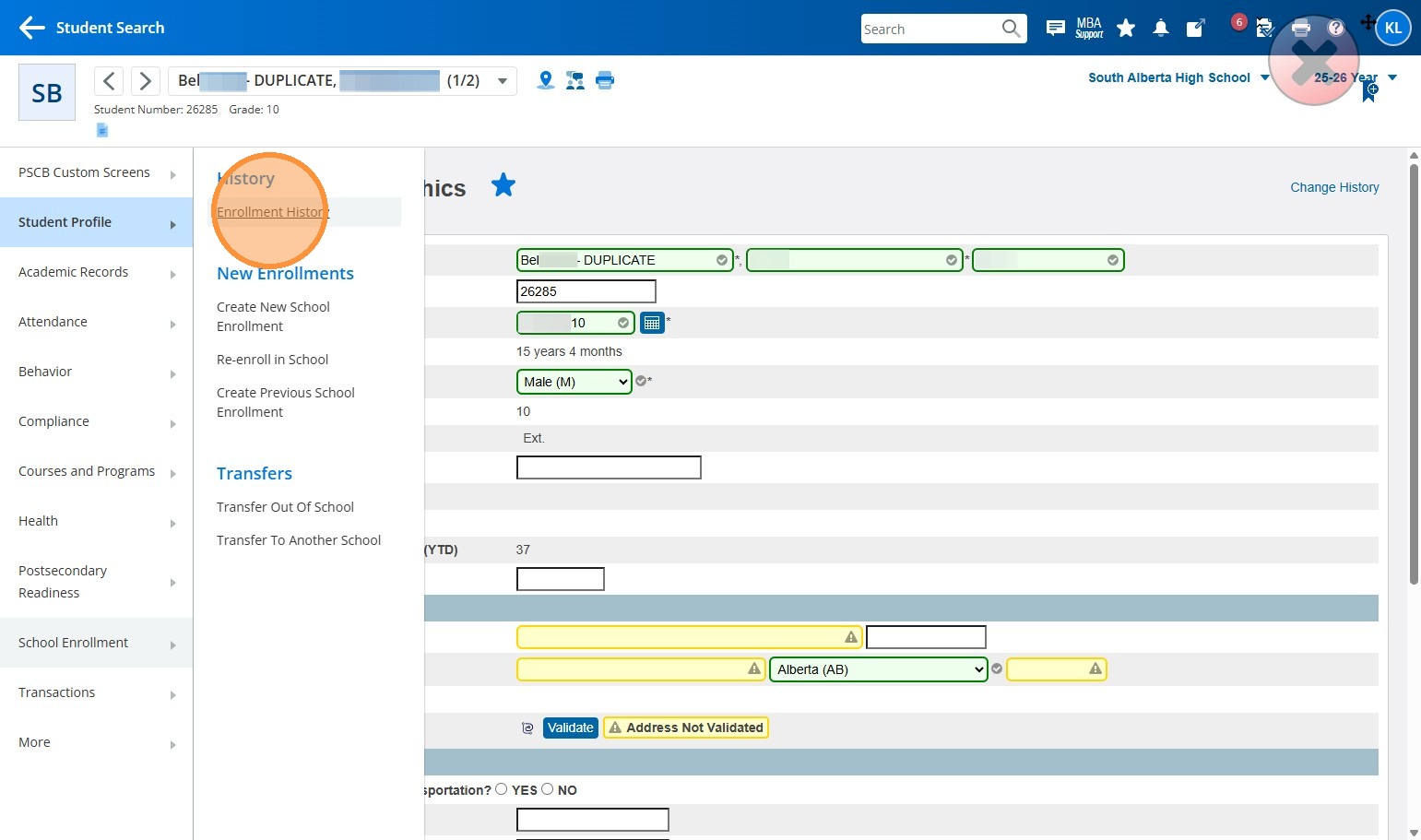
12. Make note of the student's Entry Date on their Current Enrollment
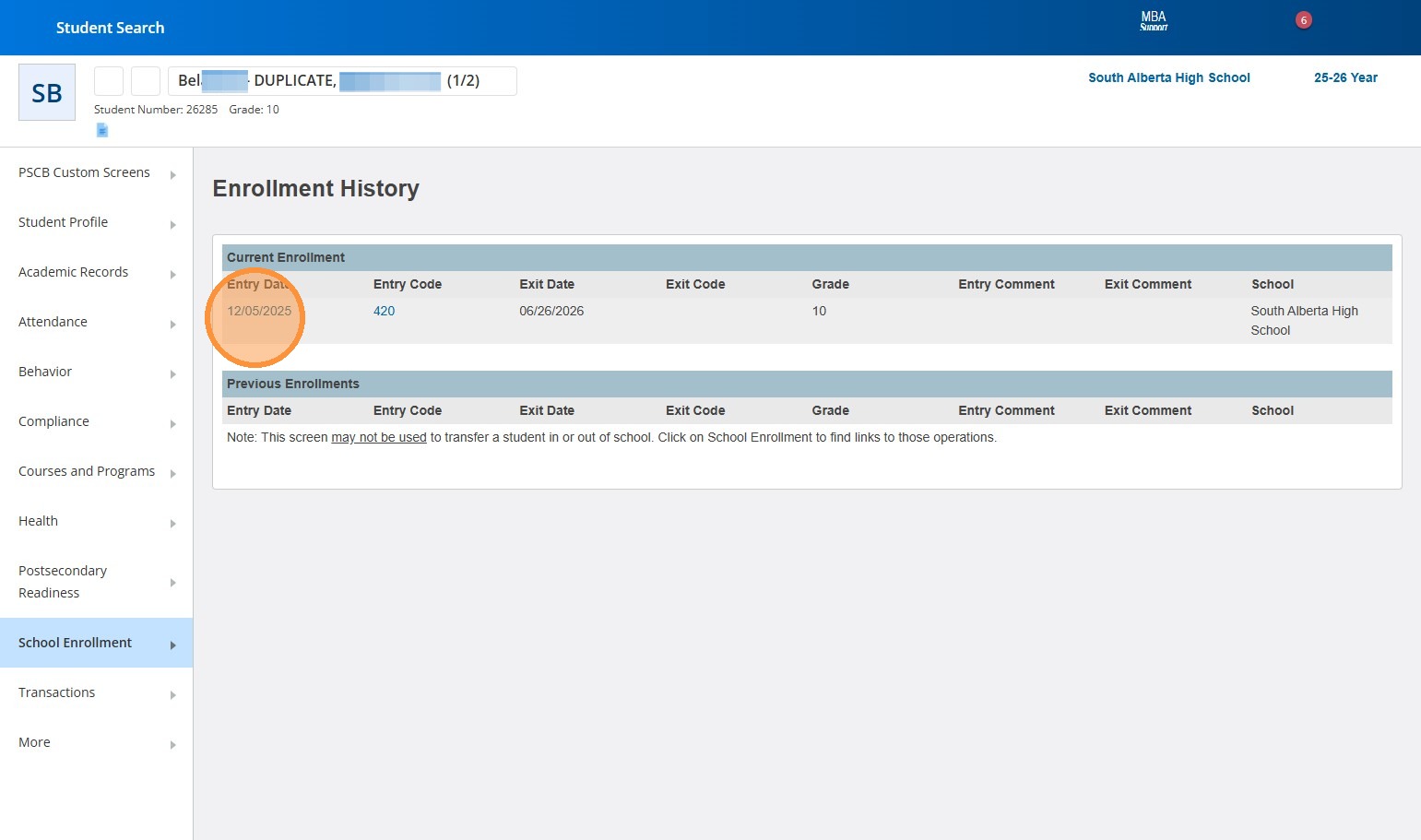
13. Click "School Enrollment"
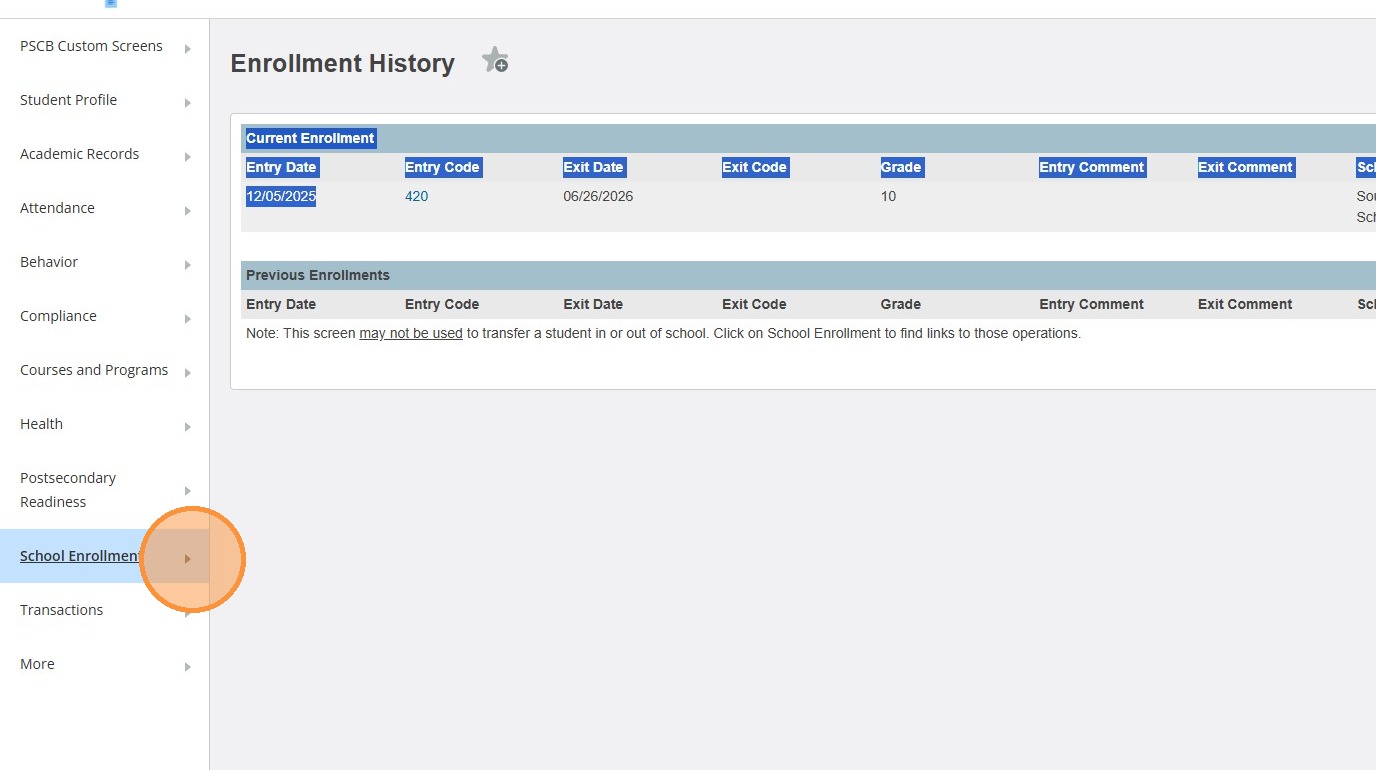
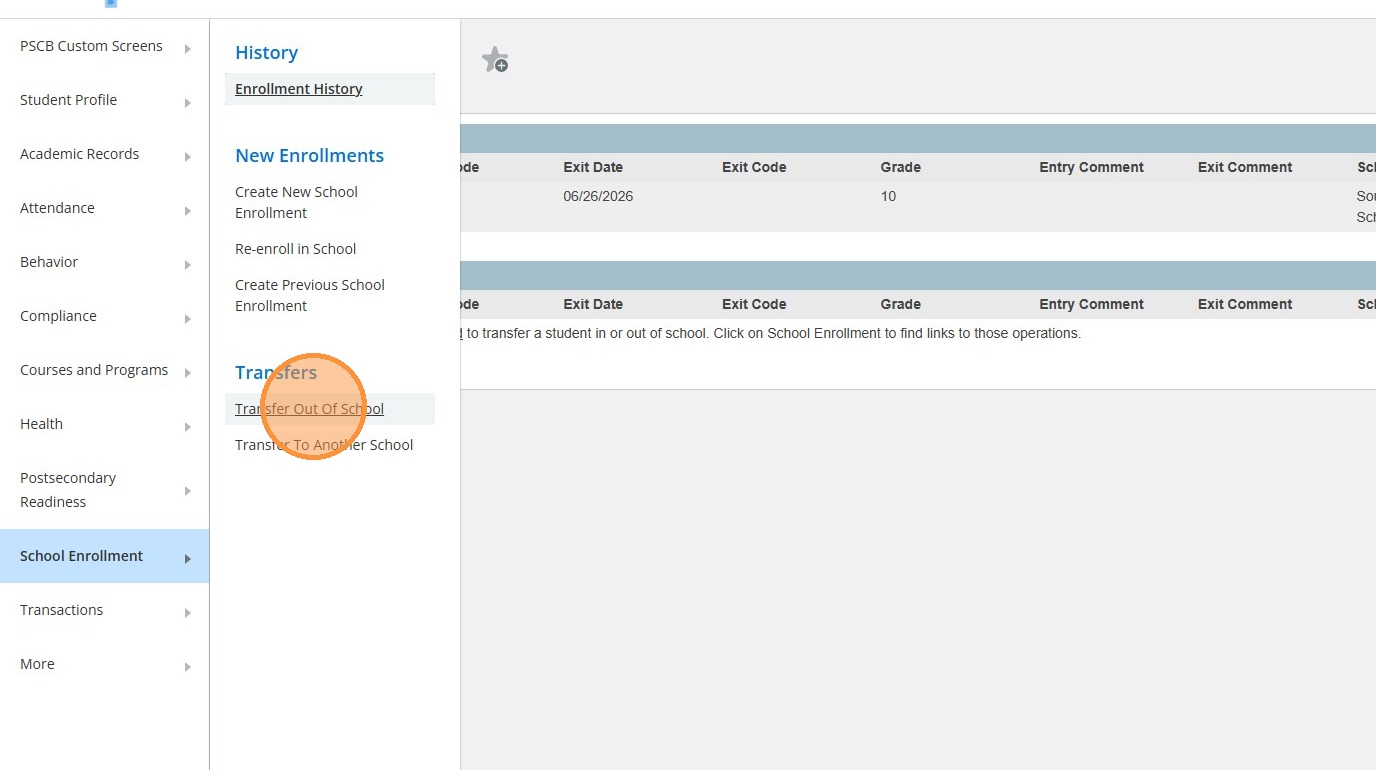
14. Click "Transfer Out Of School"
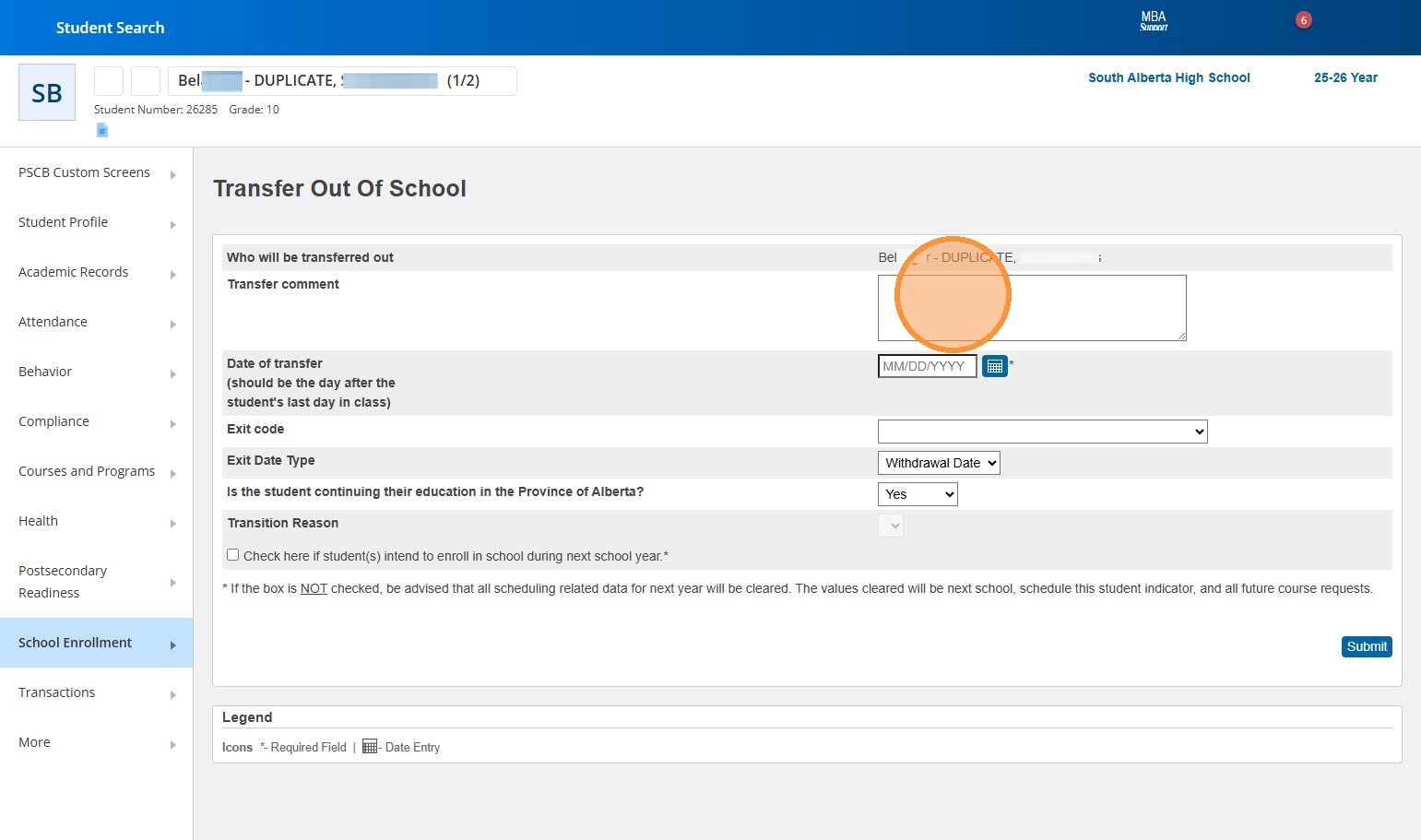
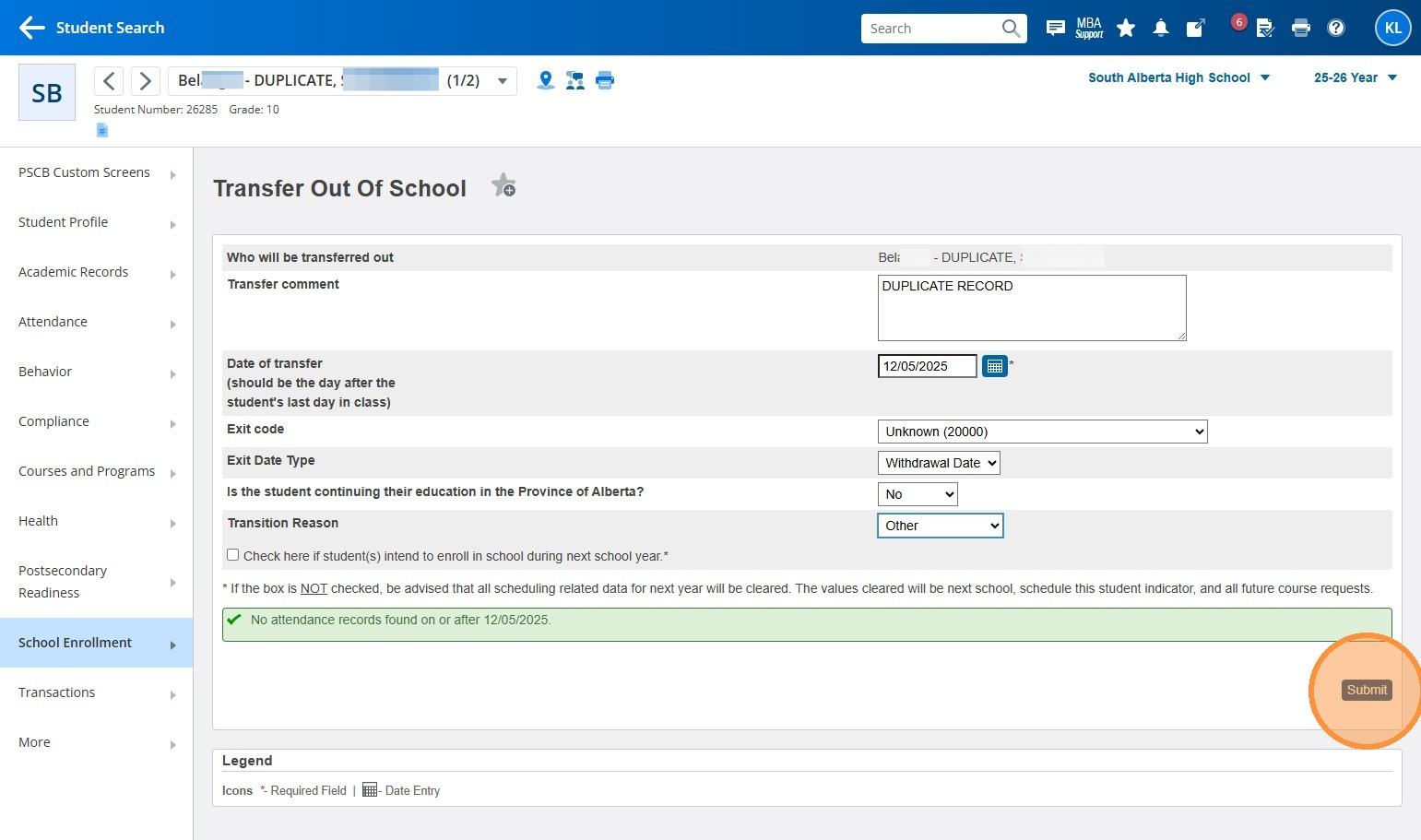
15. Click in the Transfer Comment field and type "DUPLICATE RECORD"
16. Click the Calendar Icon for Date of Transfer
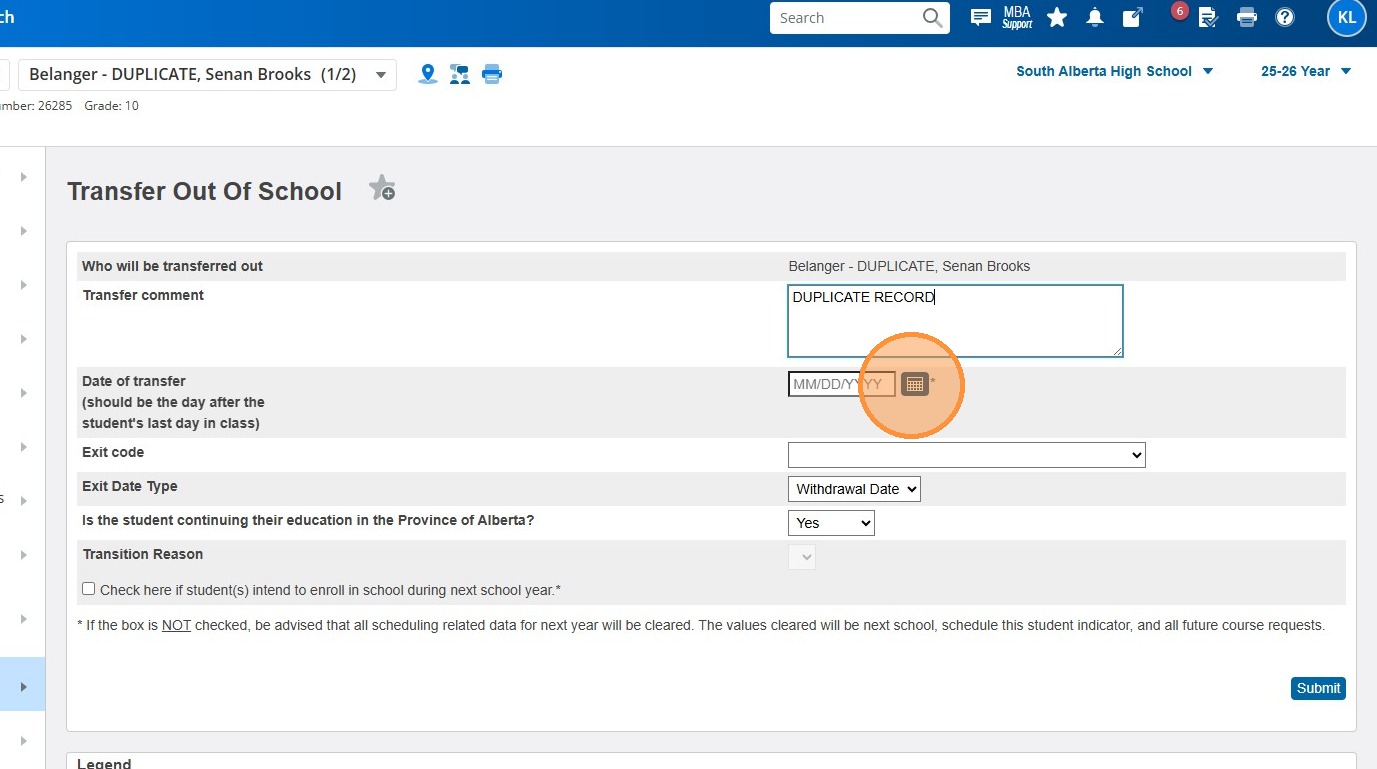
17. Choose the date that matches the student's Entry Date from Step 12 (You can also just type it into the field rather than use the calendar date picker)
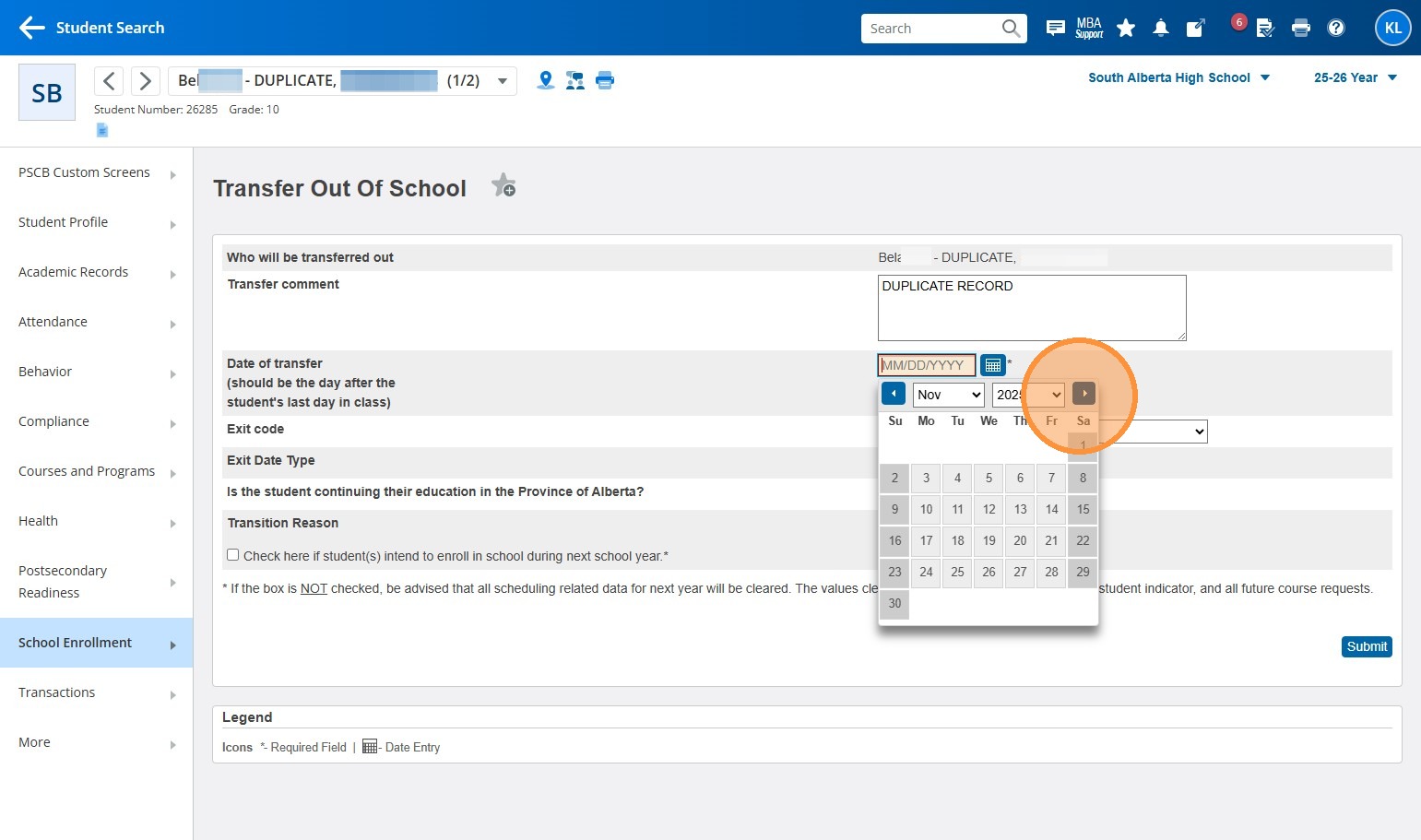
18. Select the "Exit Code" dropdown, and choose the "Unknown (20000)" option.
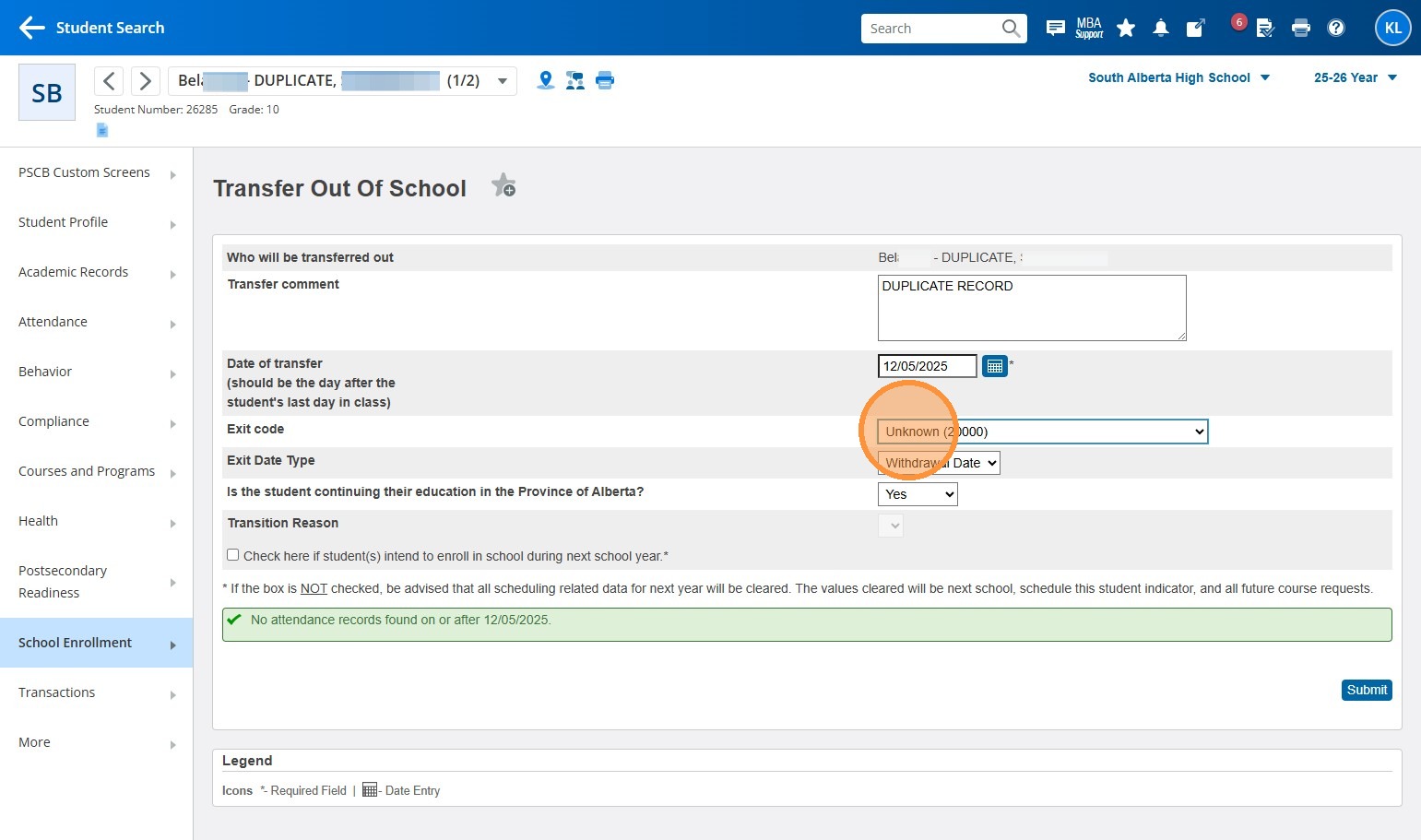
19. On th "Exit Date Type" drop down, choose "Withdrawl Date".
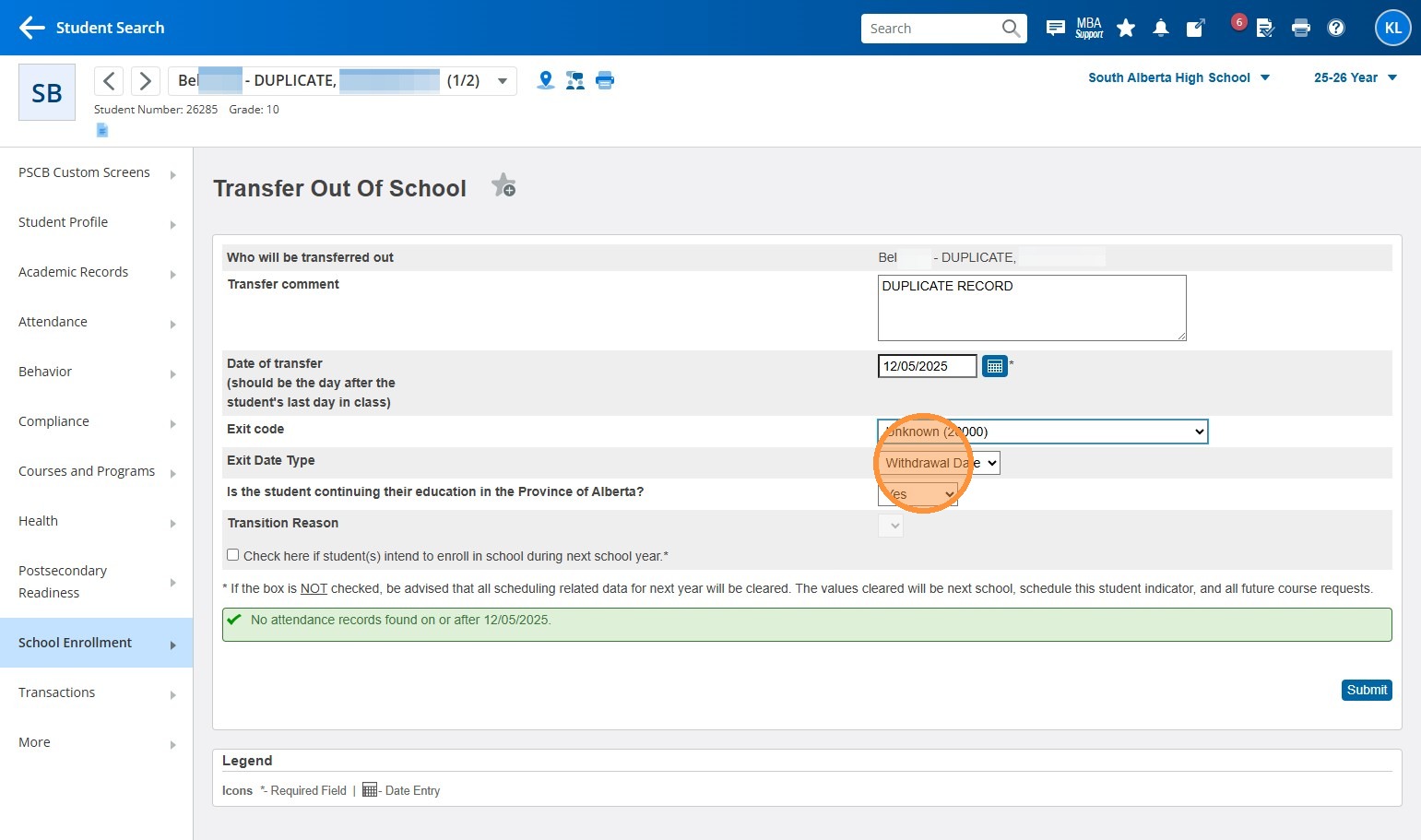
20. For "Is the student continuing their education in the Province of Alberta" select "No", and for "Transition Reason", select the "Other" option.
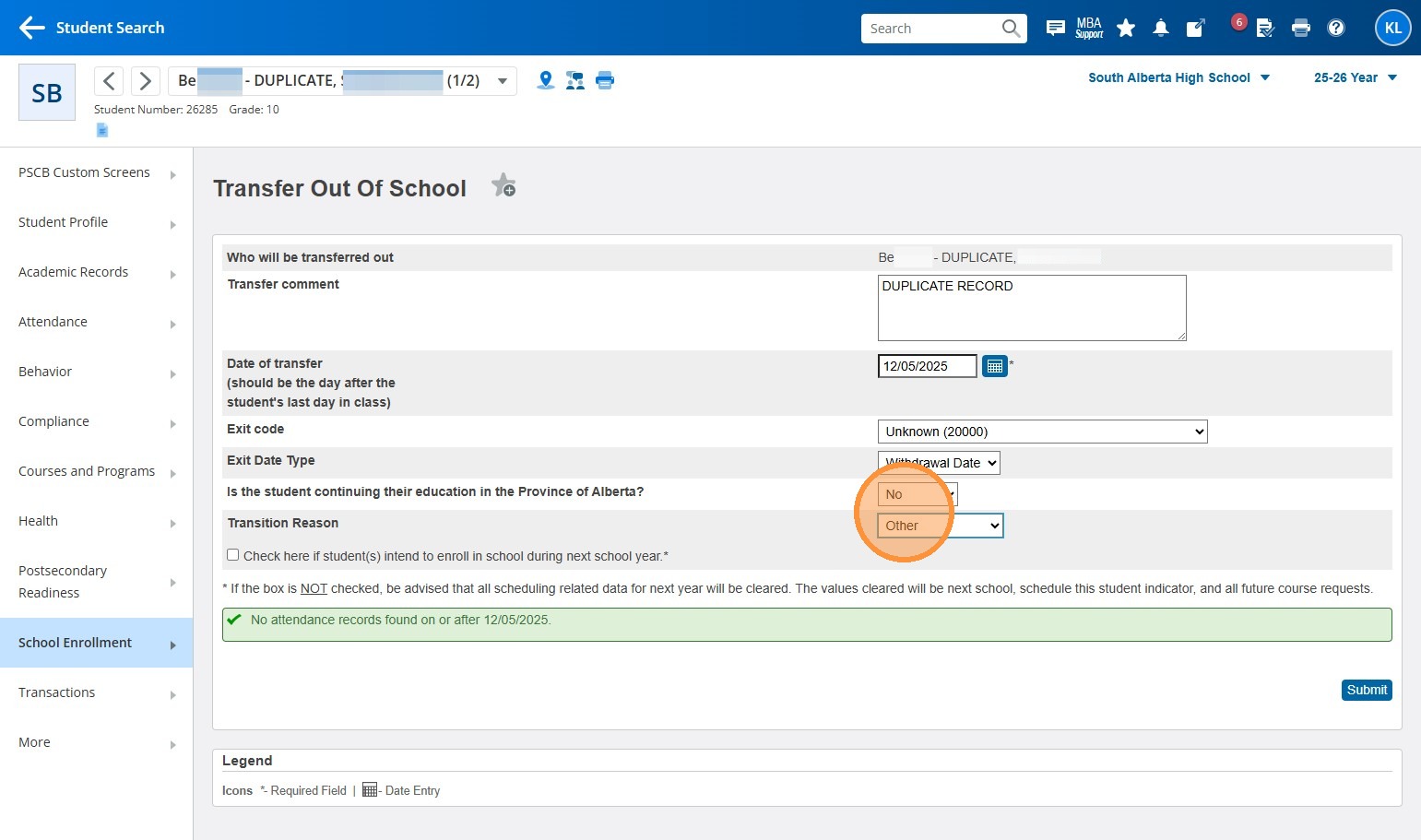
21. Click "Submit"
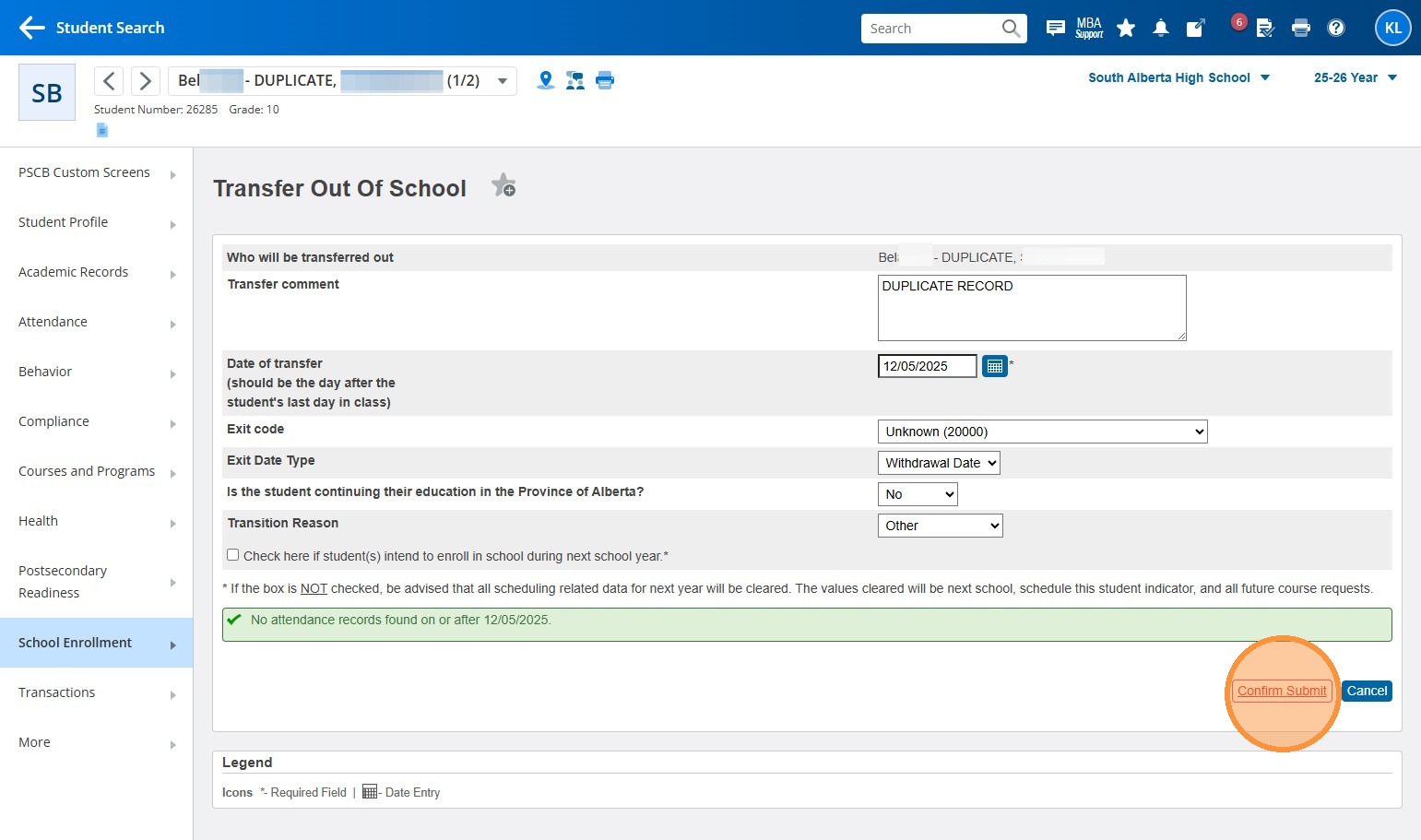
22. Click "Confirm Submit"
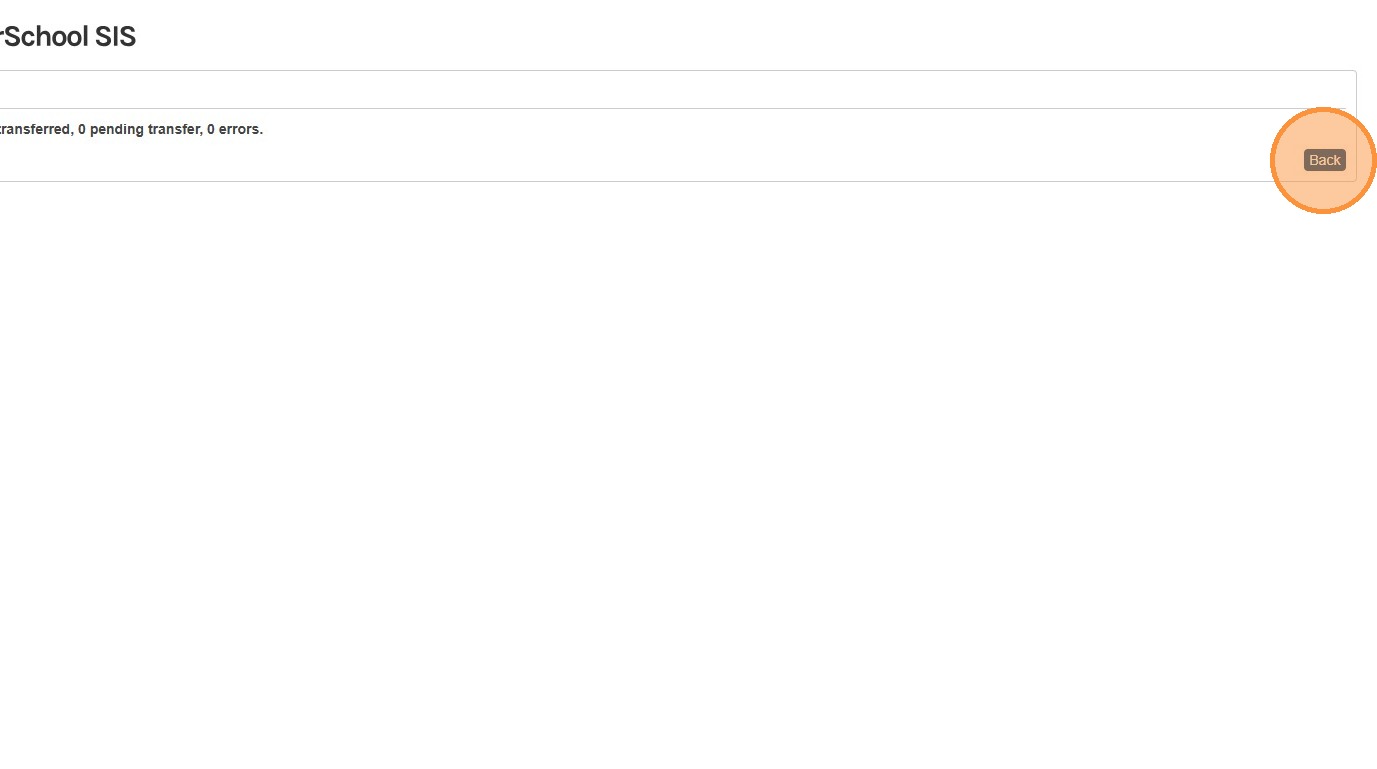
23. Click "Back"
24. Click "School Enrollment"
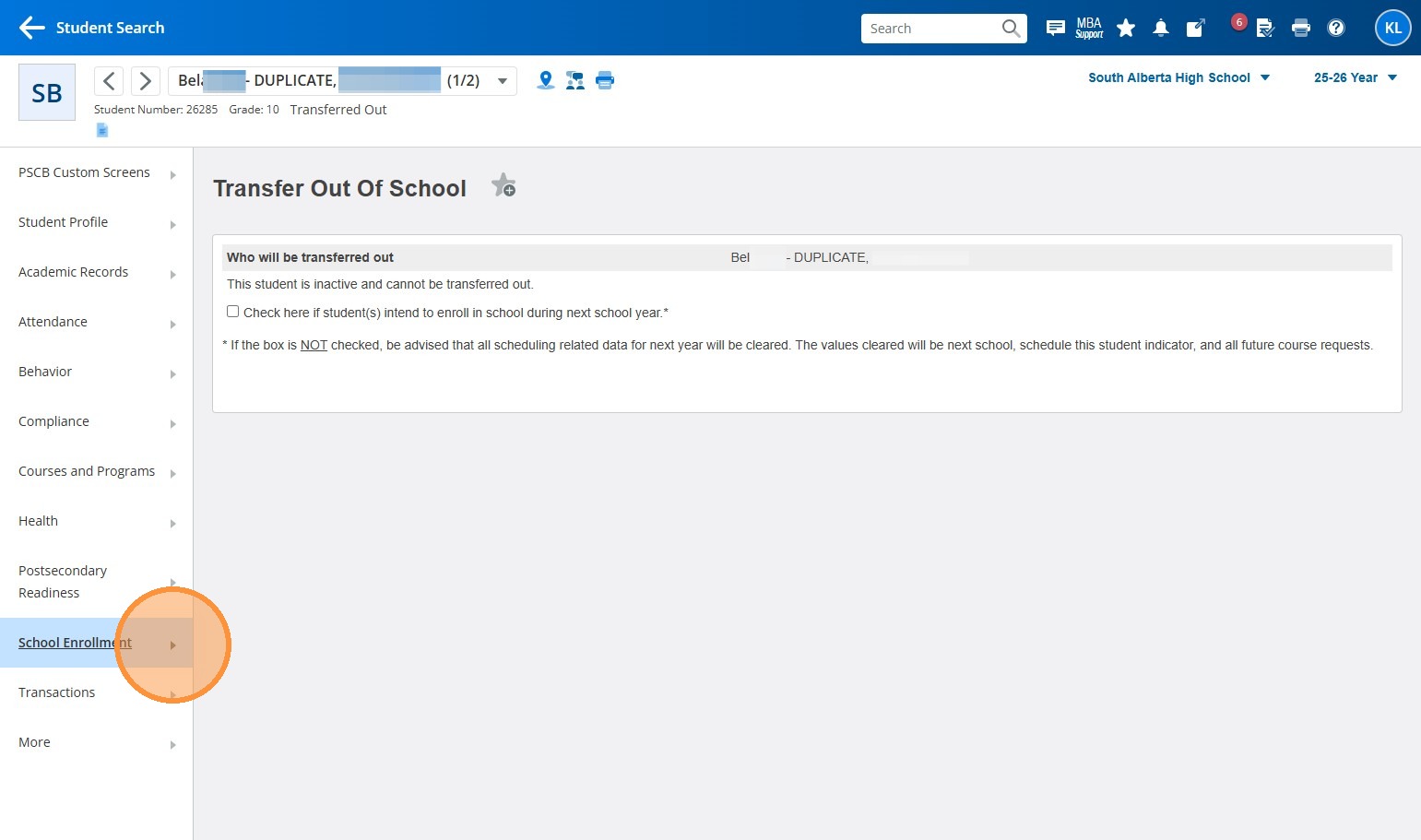
25. Click "Transfer To Another School"
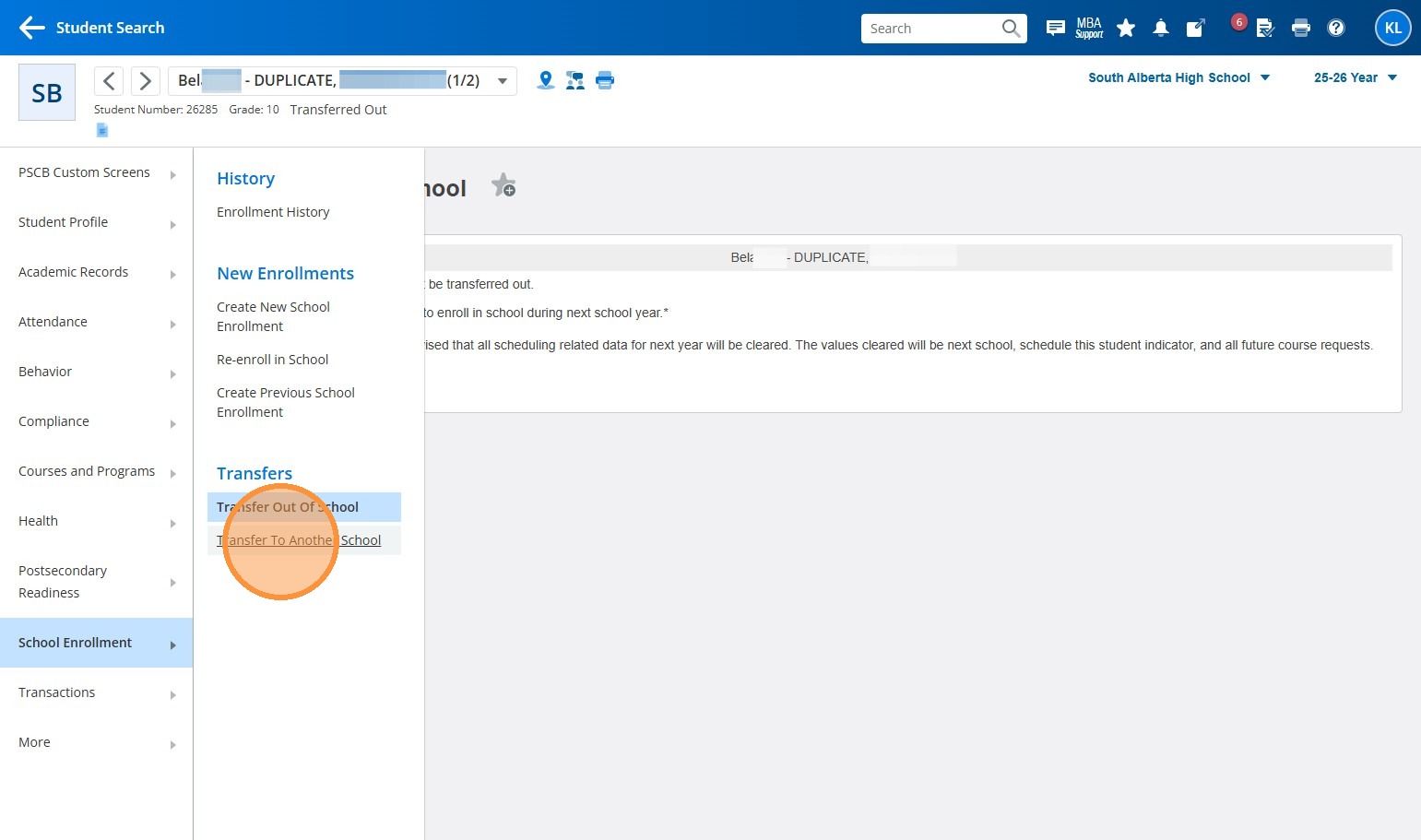
26. Select the "Transferred Out" option.
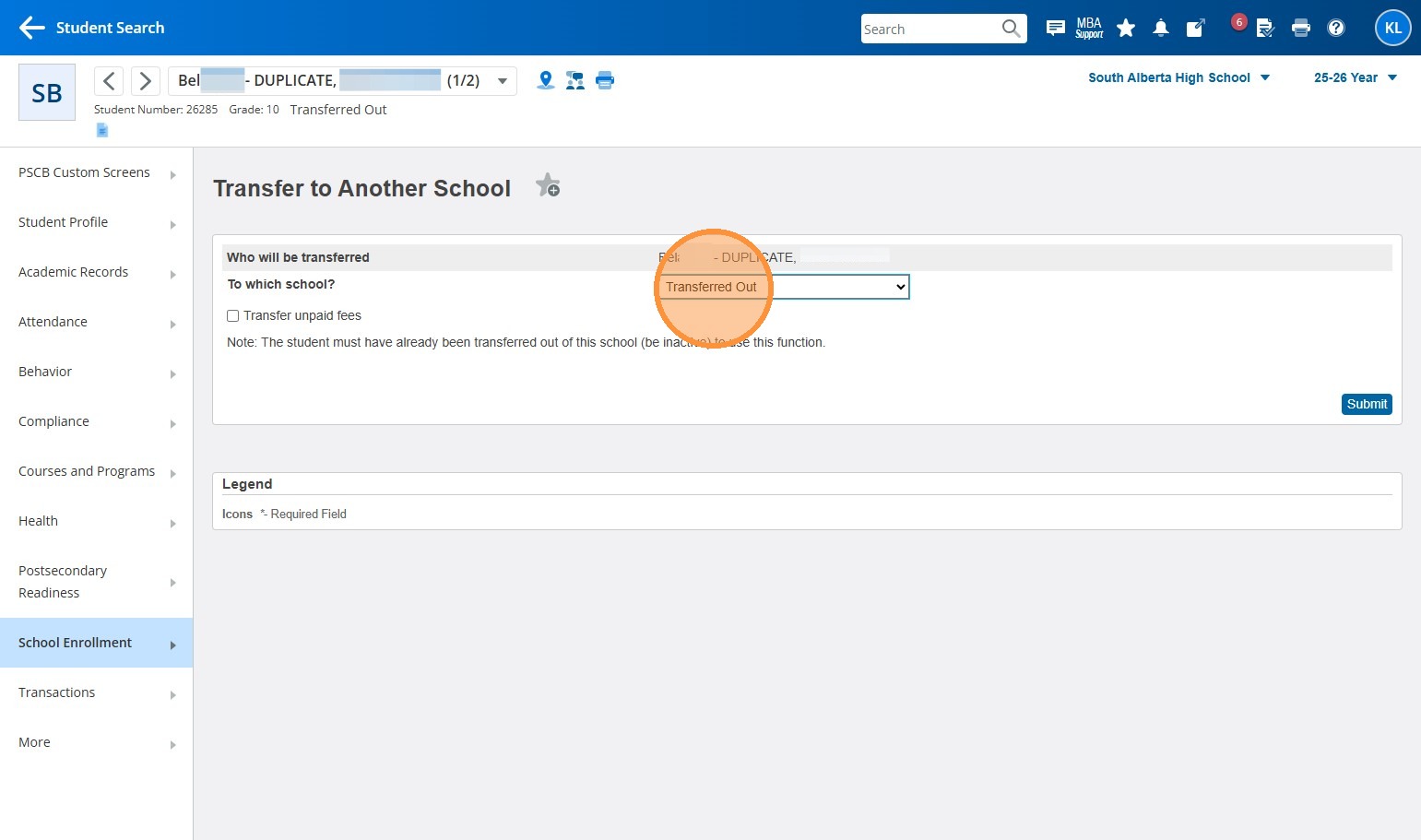
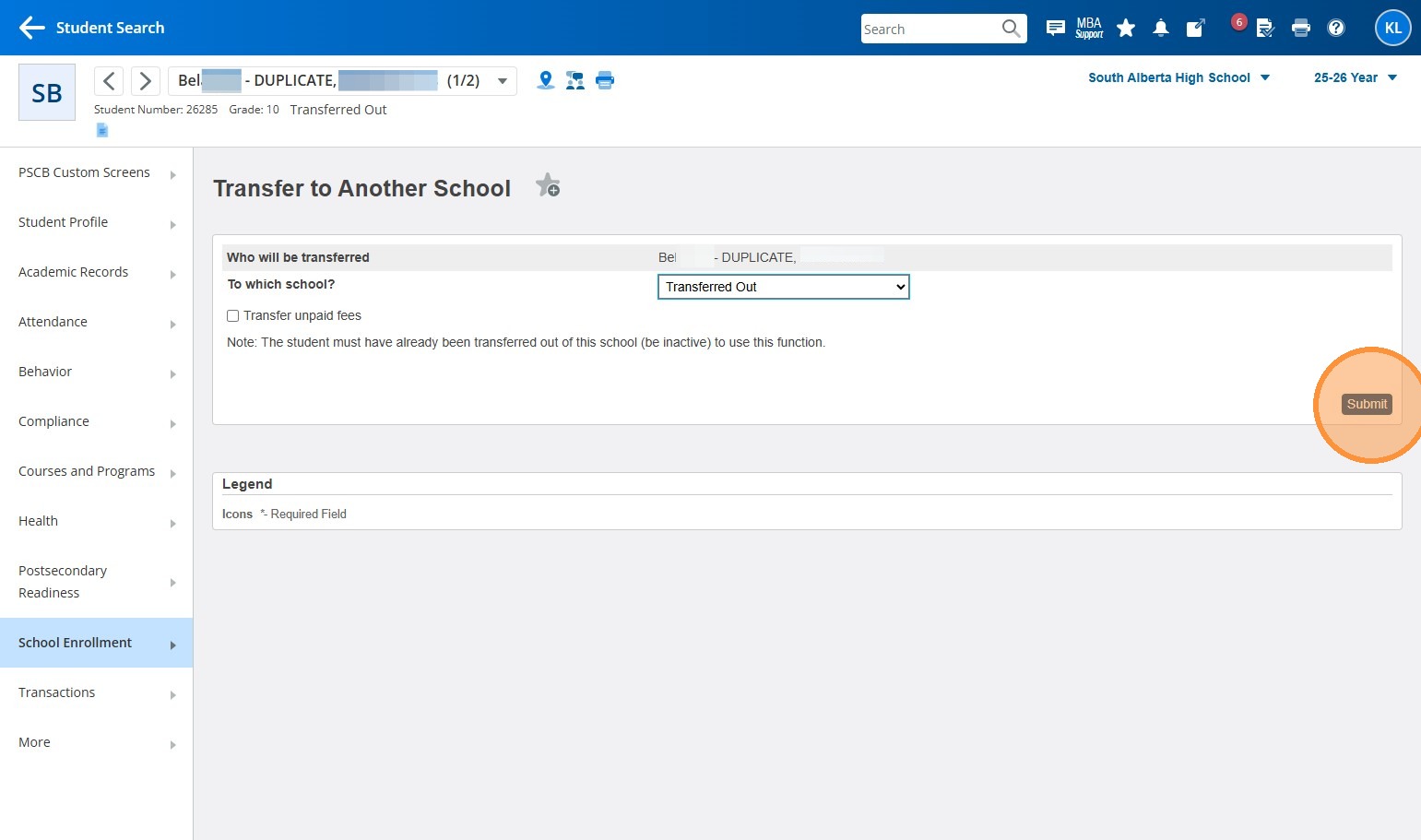
27. Click "Submit"
28. Click "PowerSchool" to return to the Start Page
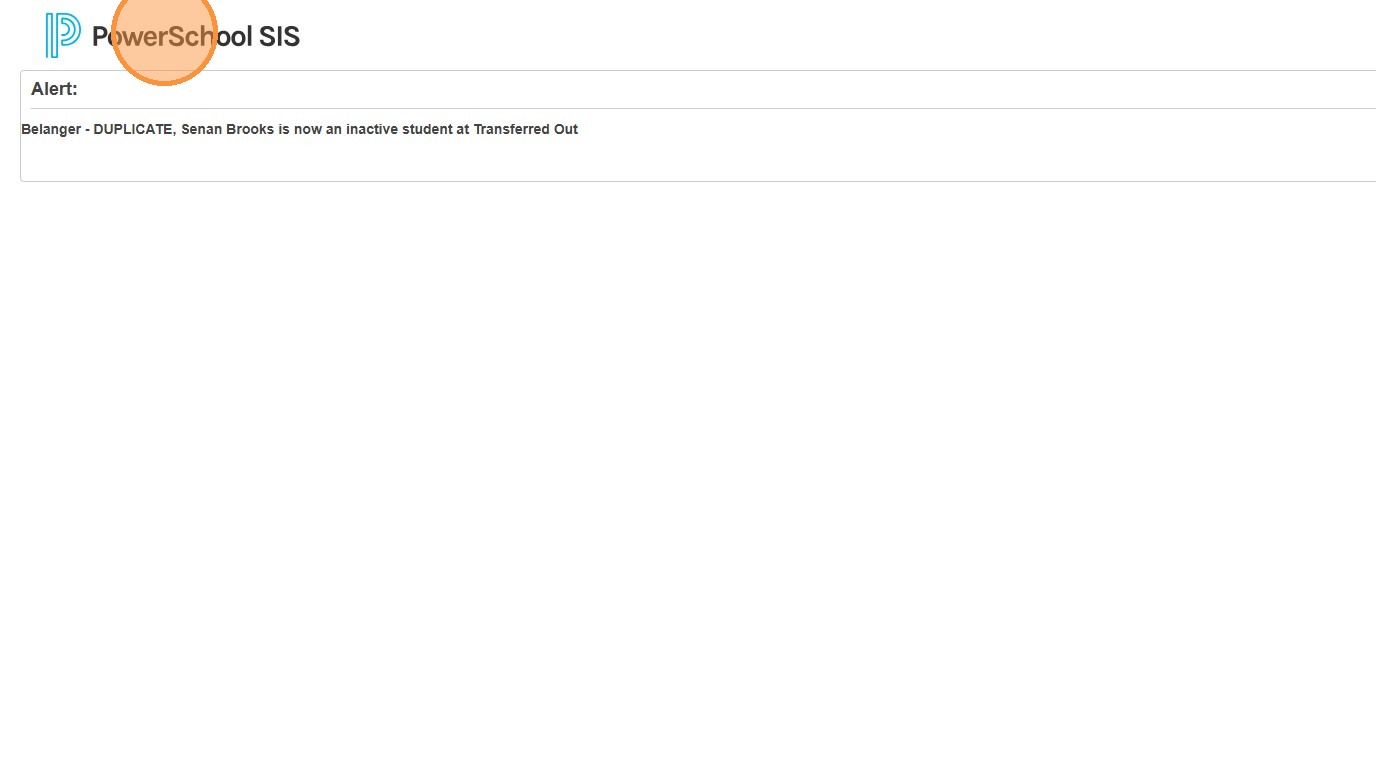
29. You're Done!