
International access for Staff
Creation date: 2026-03-10 11:25 a.m.
Updated: 2026-03-10 12:07 p.m.
Staff travelling out of Canada or the US will be unable to login in their email, 365 or other district services. They can however be temporarily allowed access while they travel. This can be done either by submitting at ticket or by a School's admin team.
If you are part of a school's admin team see the steps below or a guide on how to set this.
Allow internal access for Staff
Enable staff's access to their email, 365 and other resources while while travelling outside of Canada or the US.
1. Navigate to PowerSchool's Admin Portal
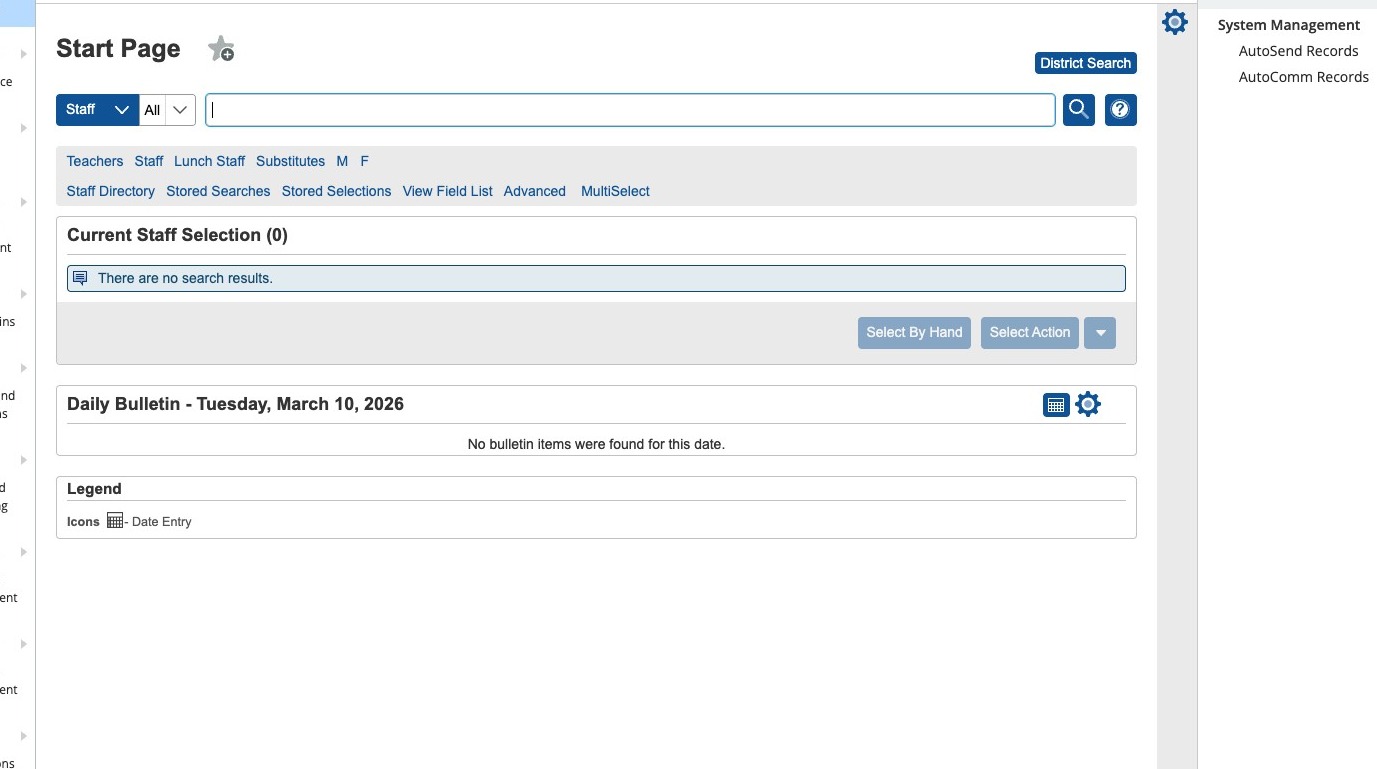
2. Search for the staff
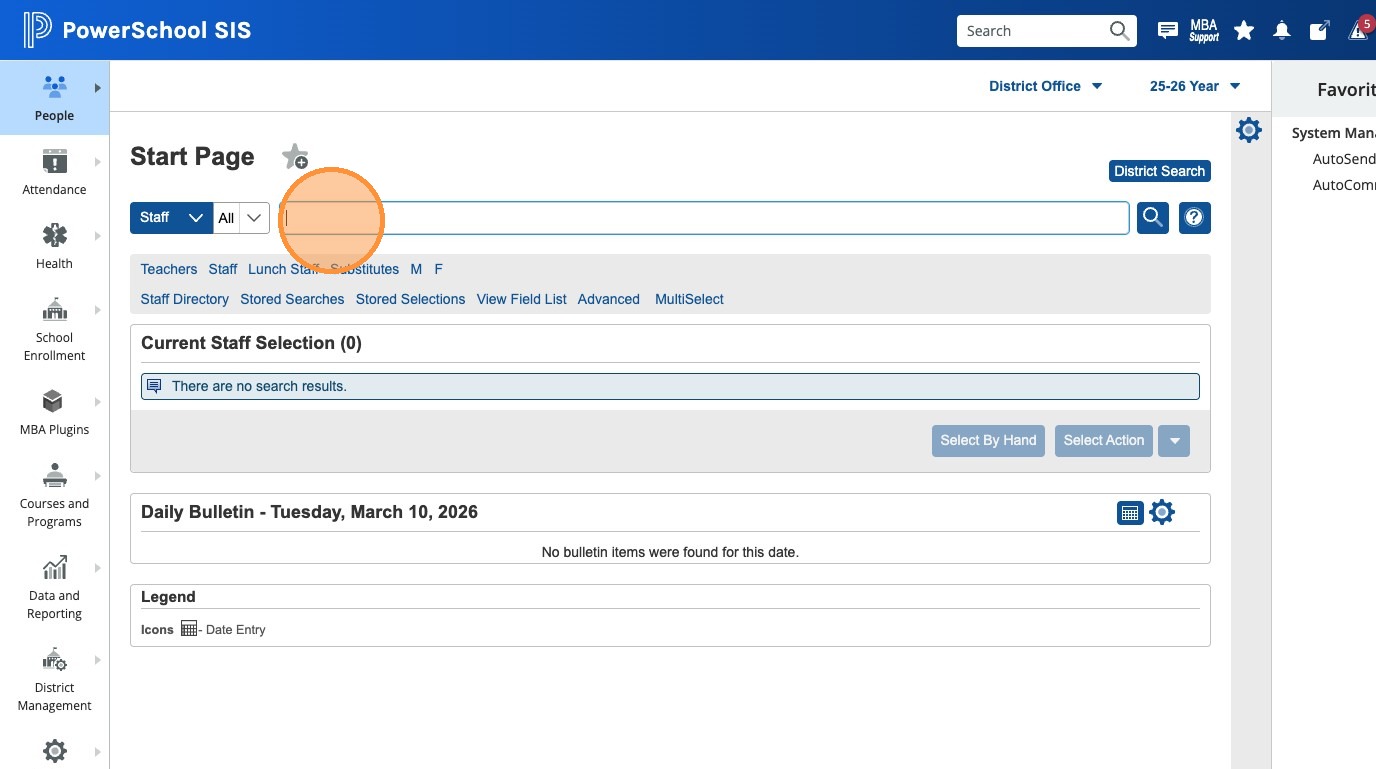
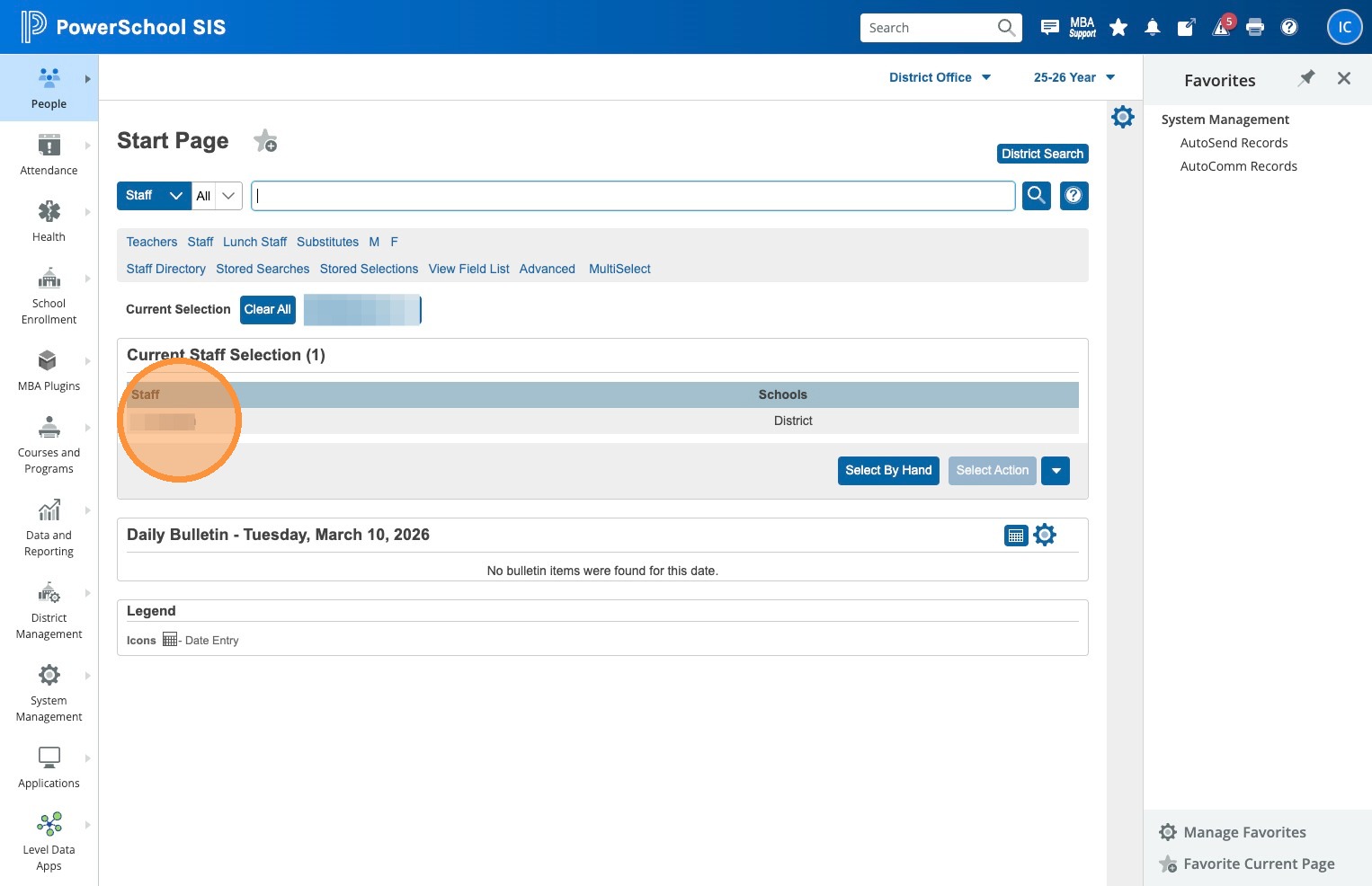
3. Click the staff's name and open their Profile
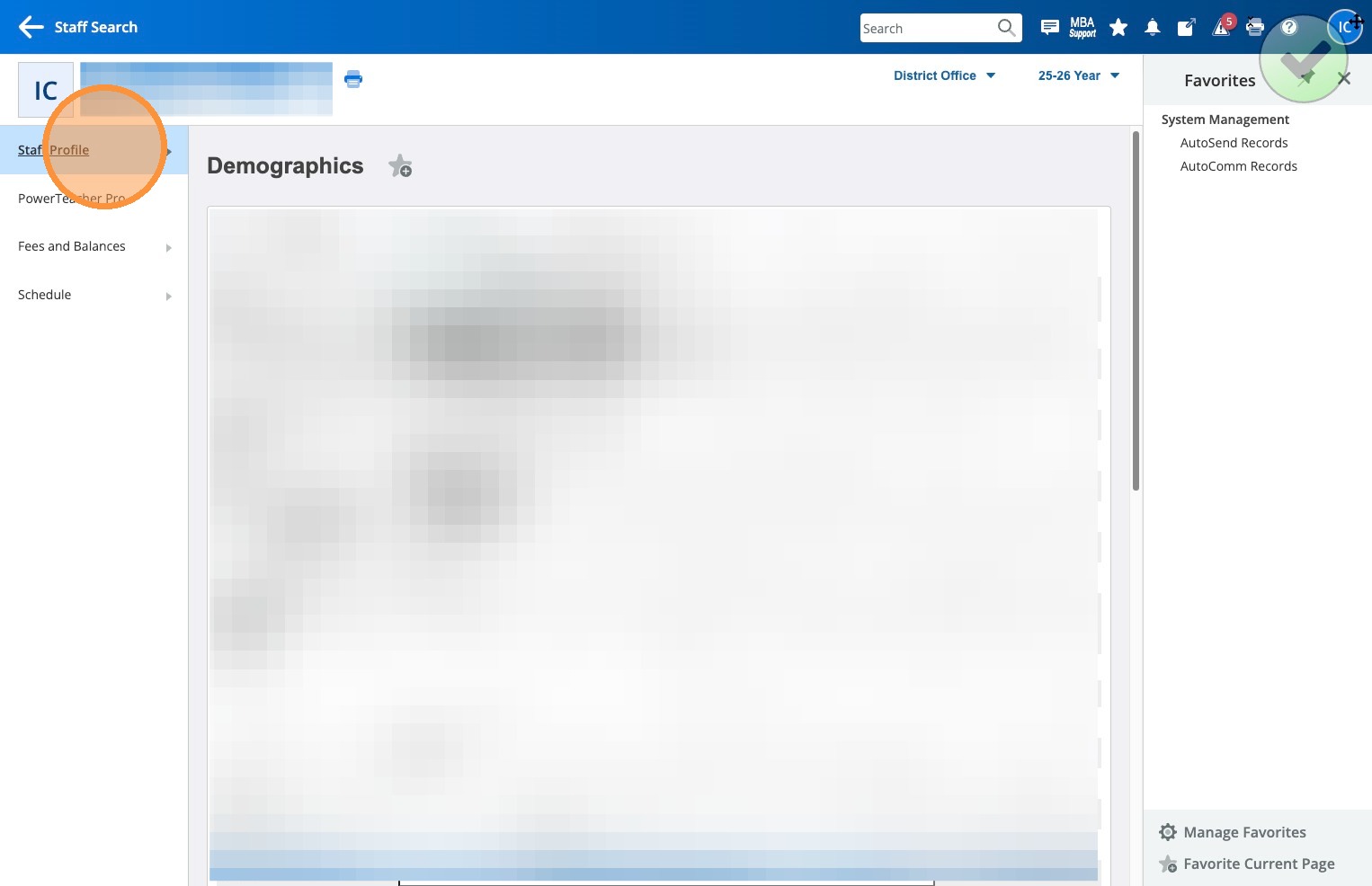
4. Click Staff Profile
5. Click Account / Login Info
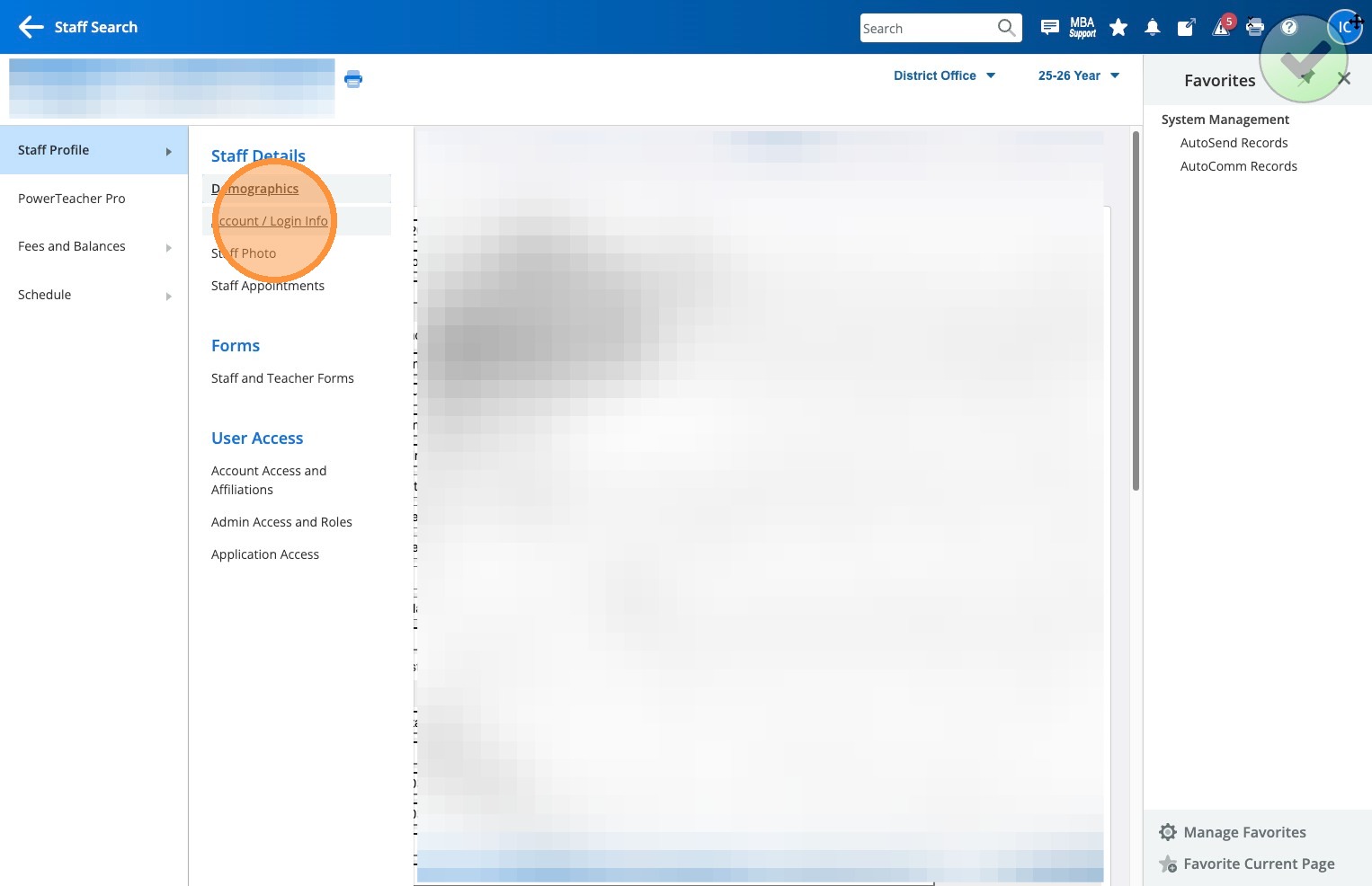
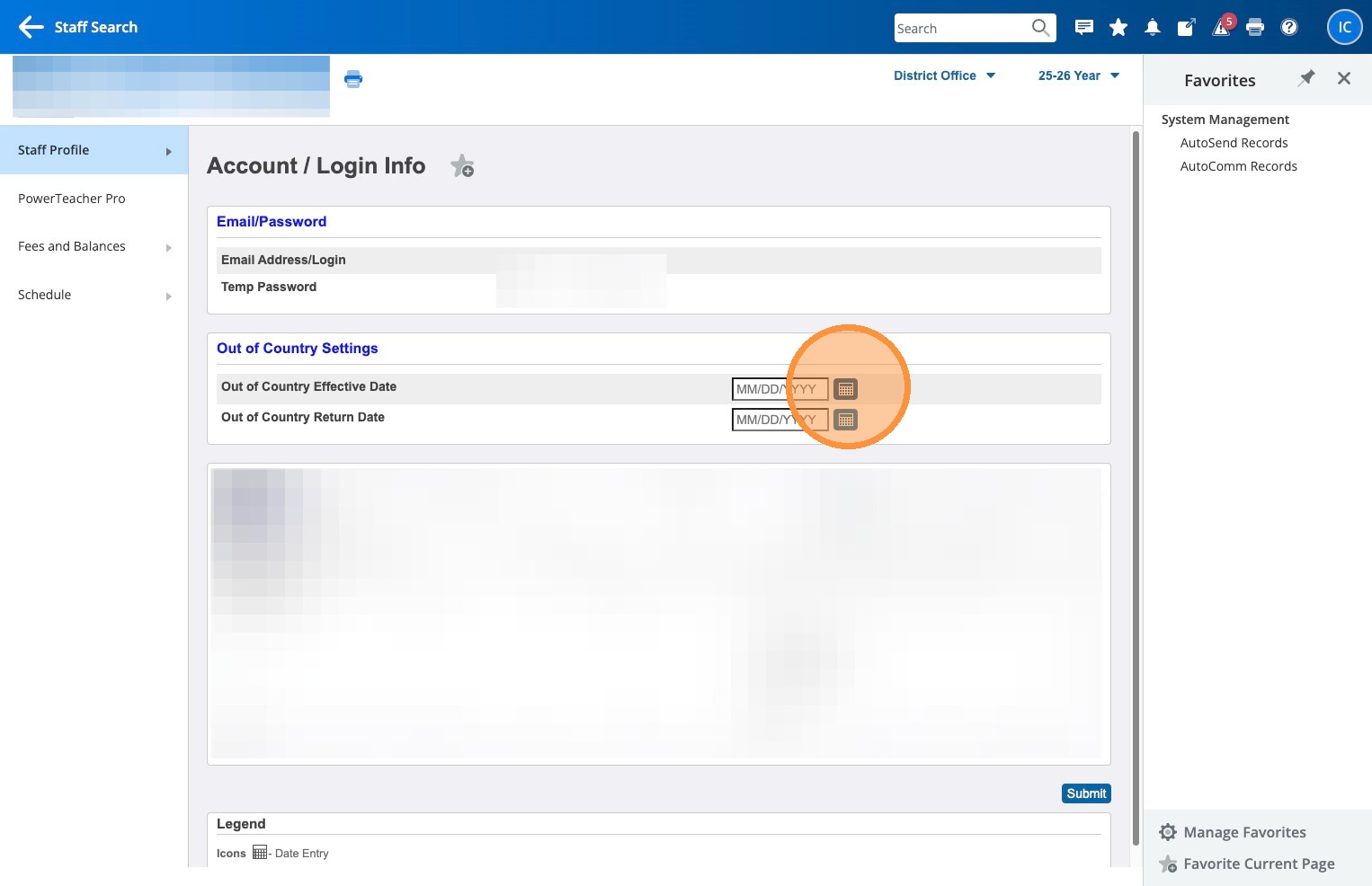
6. Under Out of Country Settings use the date picker beside Out of Country Effective Date to select the date the staff will be leaving Canada.
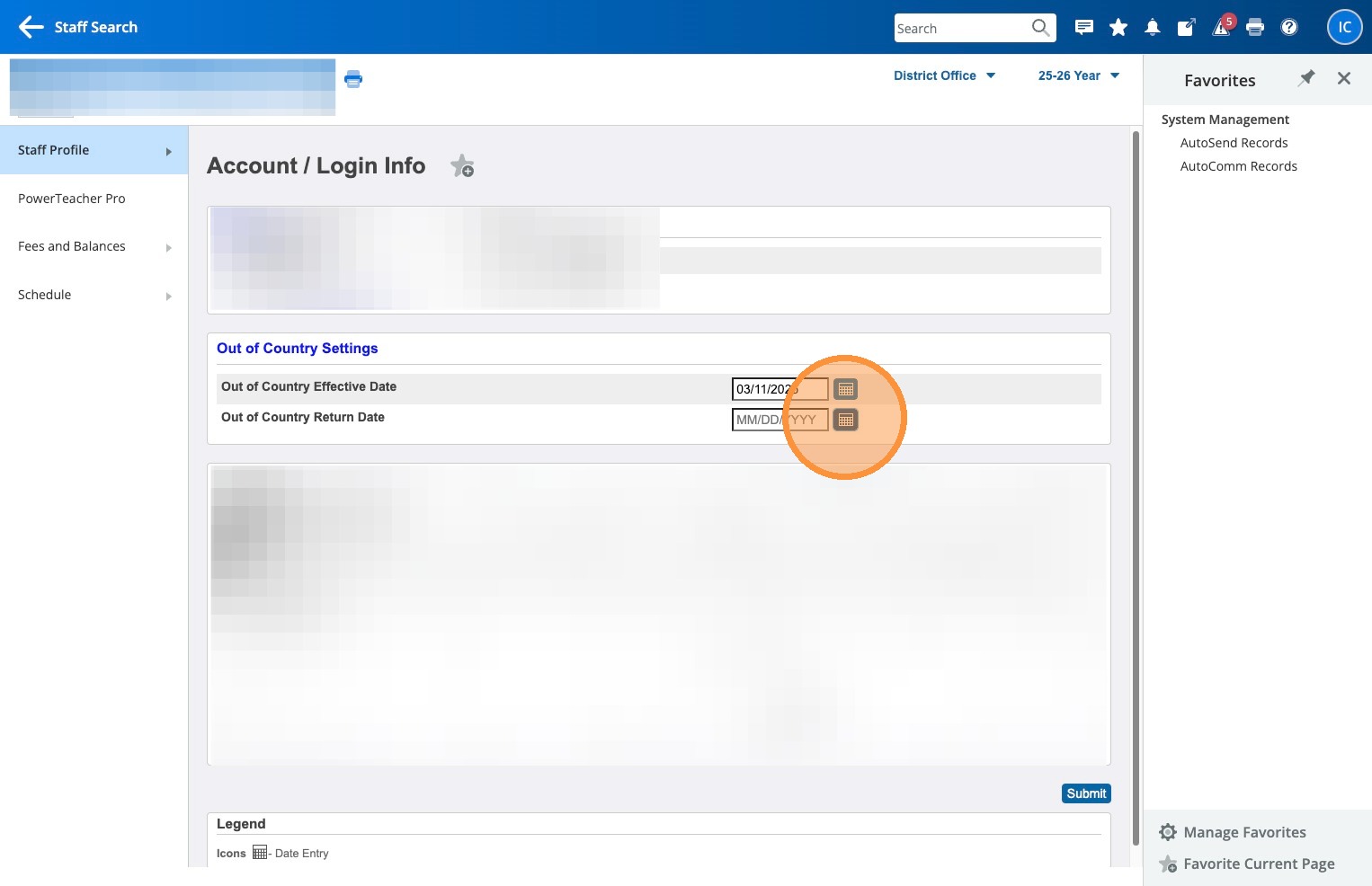
7. Under Out of Country Settings use the date picker beside Out of Country Return Date to select the date the staff will be returning to Canada.
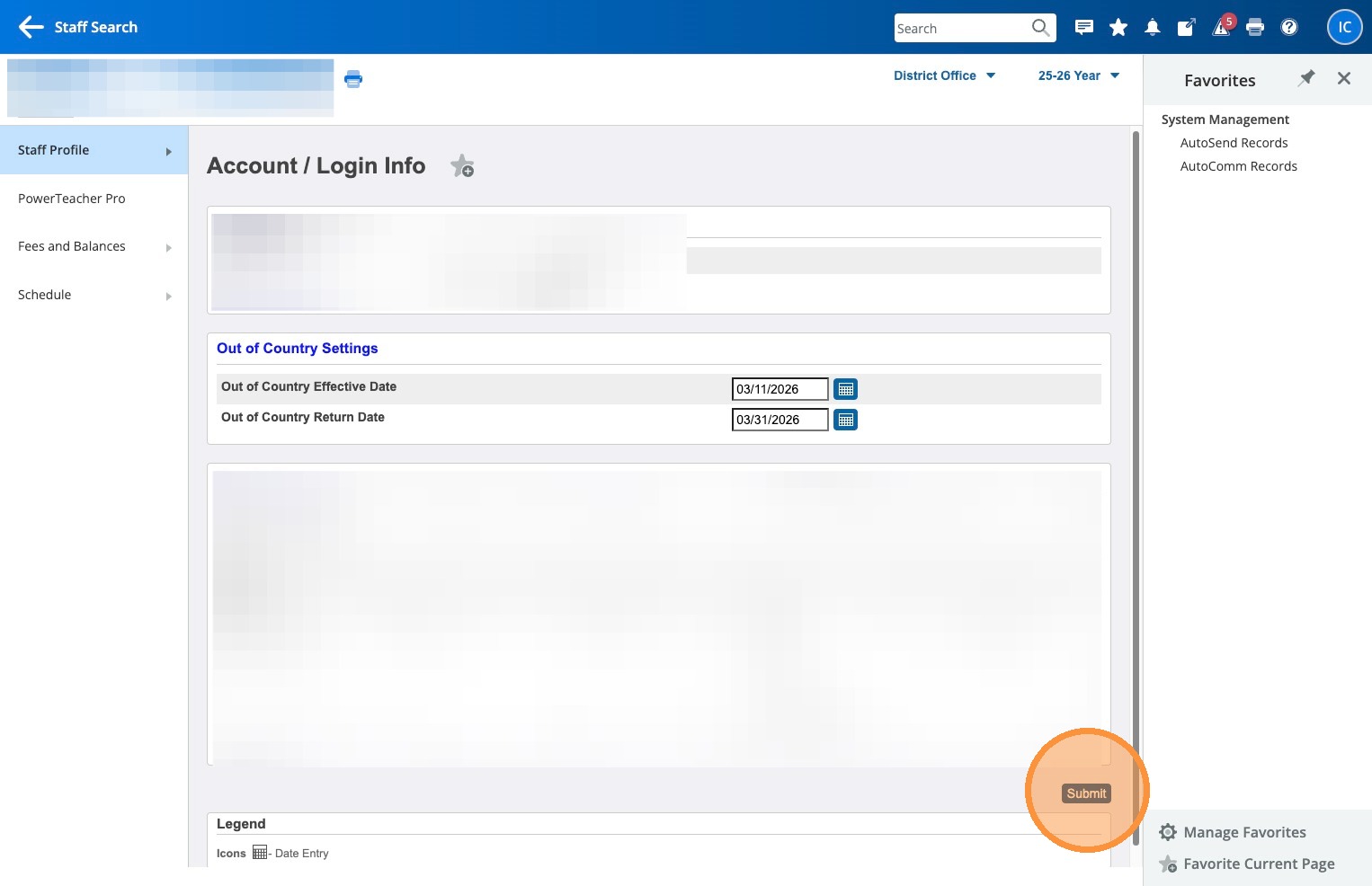
8. Click Submit
Tips:
- Buffer Dates: Select an effective date one day before they leave and a return date one day after they get back.
- Sync Cycles: This change will not take effect immediately; it will process during the next sync cycle. Syncs happen every day at 5:00 AM, 12:00 PM, and 5:00 PM.
- System Limitations: Note that this does not allow access to PowerSchool itself outside of Canada.
- Troubleshooting: If staff still experiences access issues, please have them submit a ticket.