
Enroll Students for Courses at another PRPS School Concurrently - Regular Year
Enroll Students for Courses at another PRPS School Concurrently
Learn how to enroll students concurrently in another school. This is for students belonging to your school that are taking courses at another PRPS school at the same time. The receiving school (usually Coulee Collegiate or South Alberta High School) will send you a request to have a specific student (or students) concurrently enrolled in their school for certain courses. They need to provide you with the student(s), Course, Section, and date of enrollment.
1. Navigate to https://prsd8.ca/admin/home.html
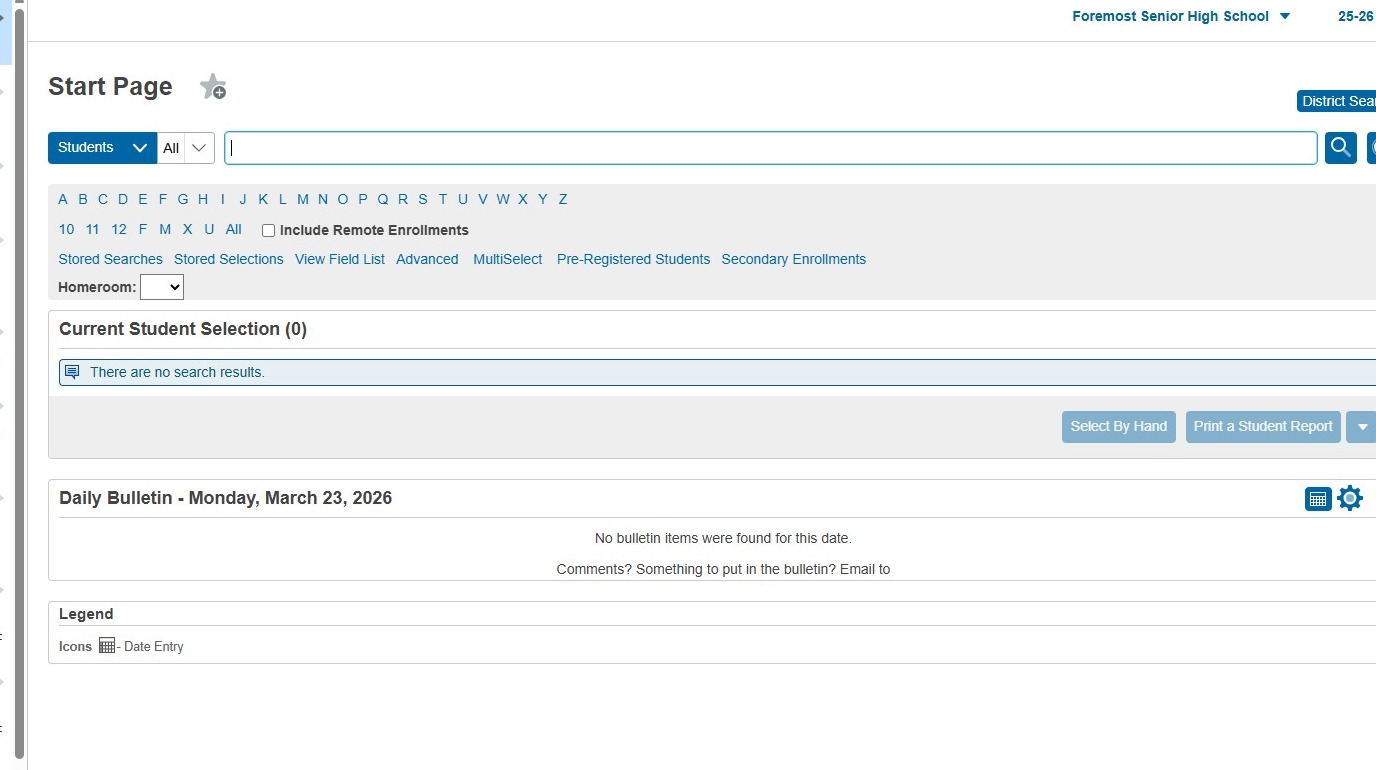
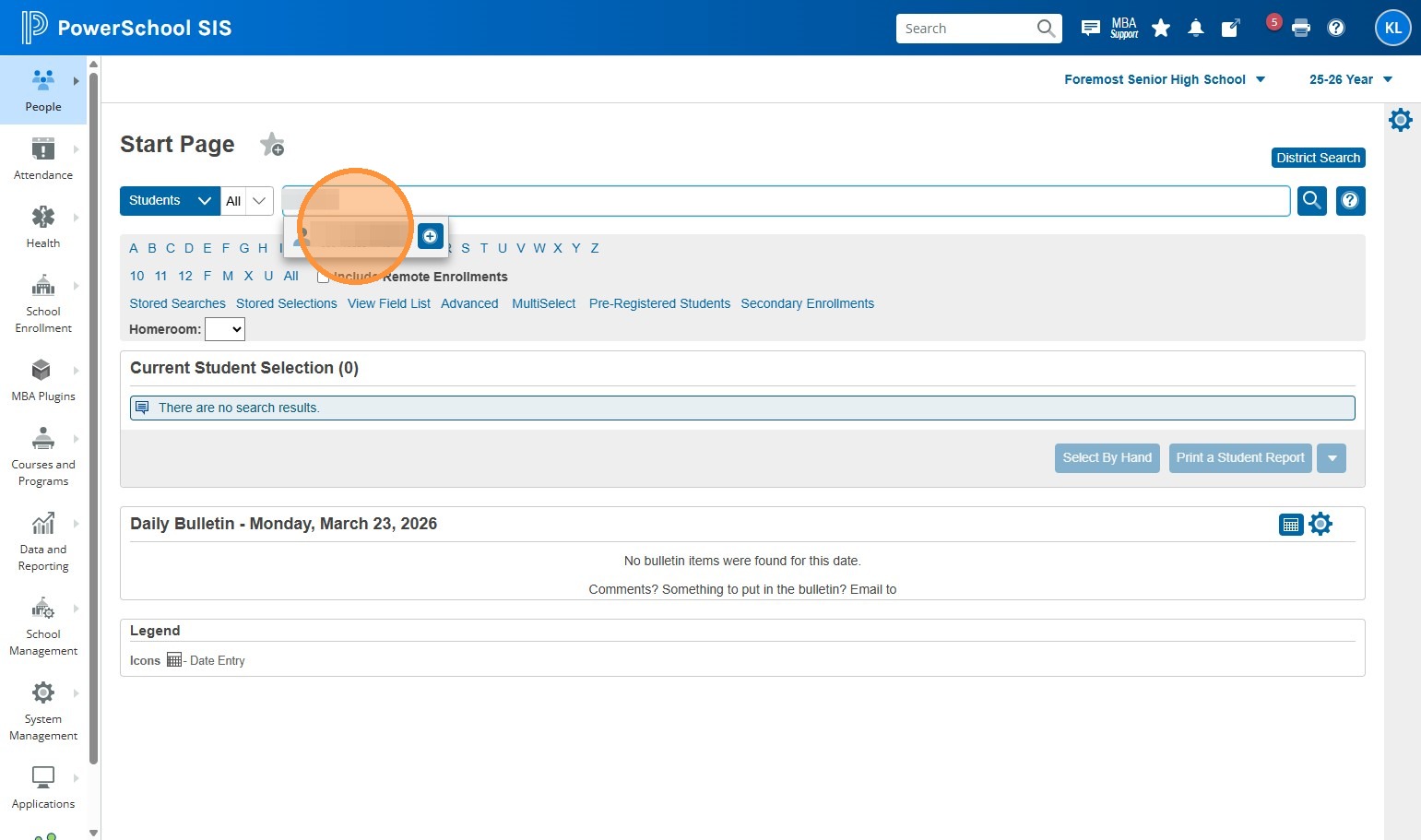
2. Search for and select the student who needs to be enrolled in the course(s)
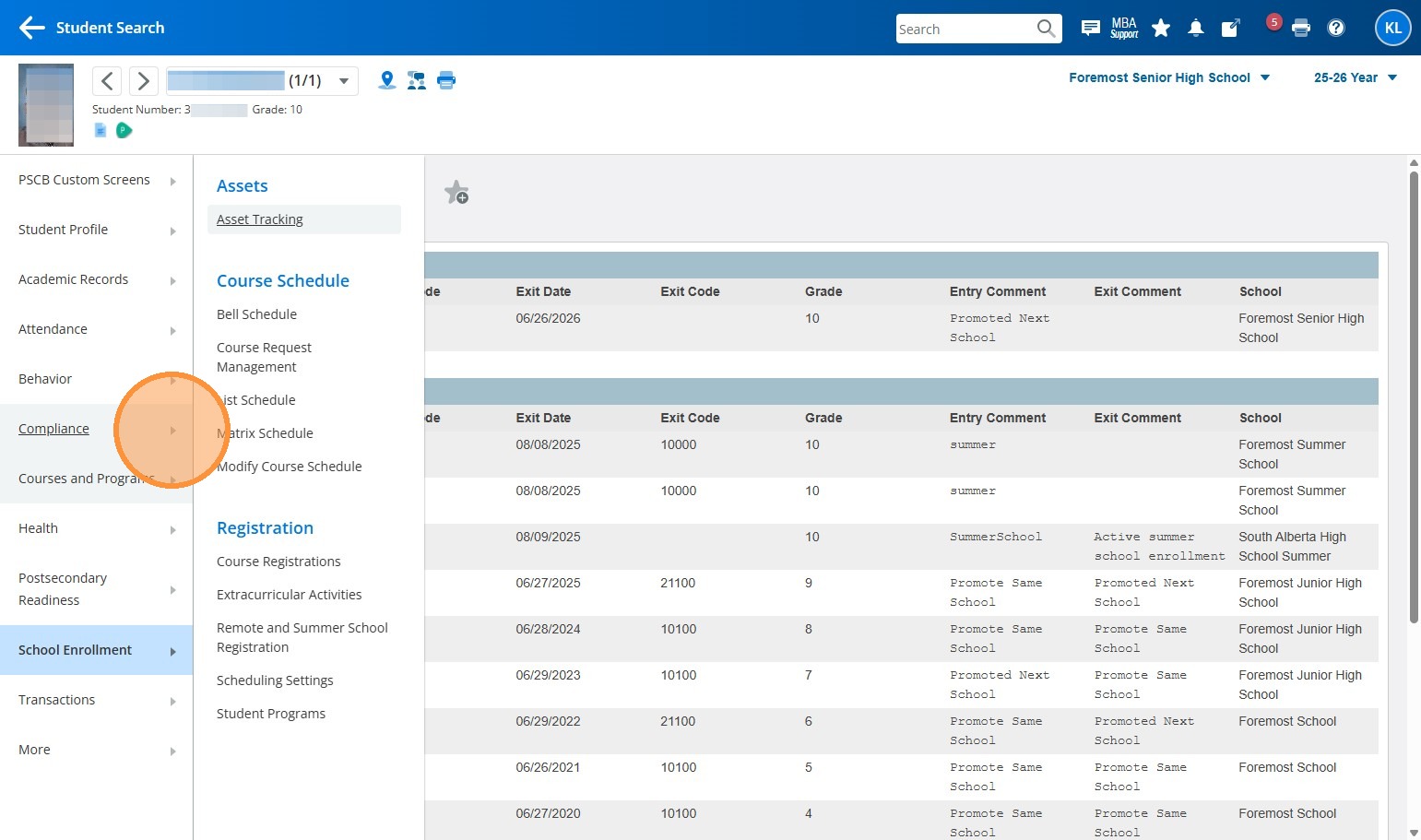
3. Click "Compliance"
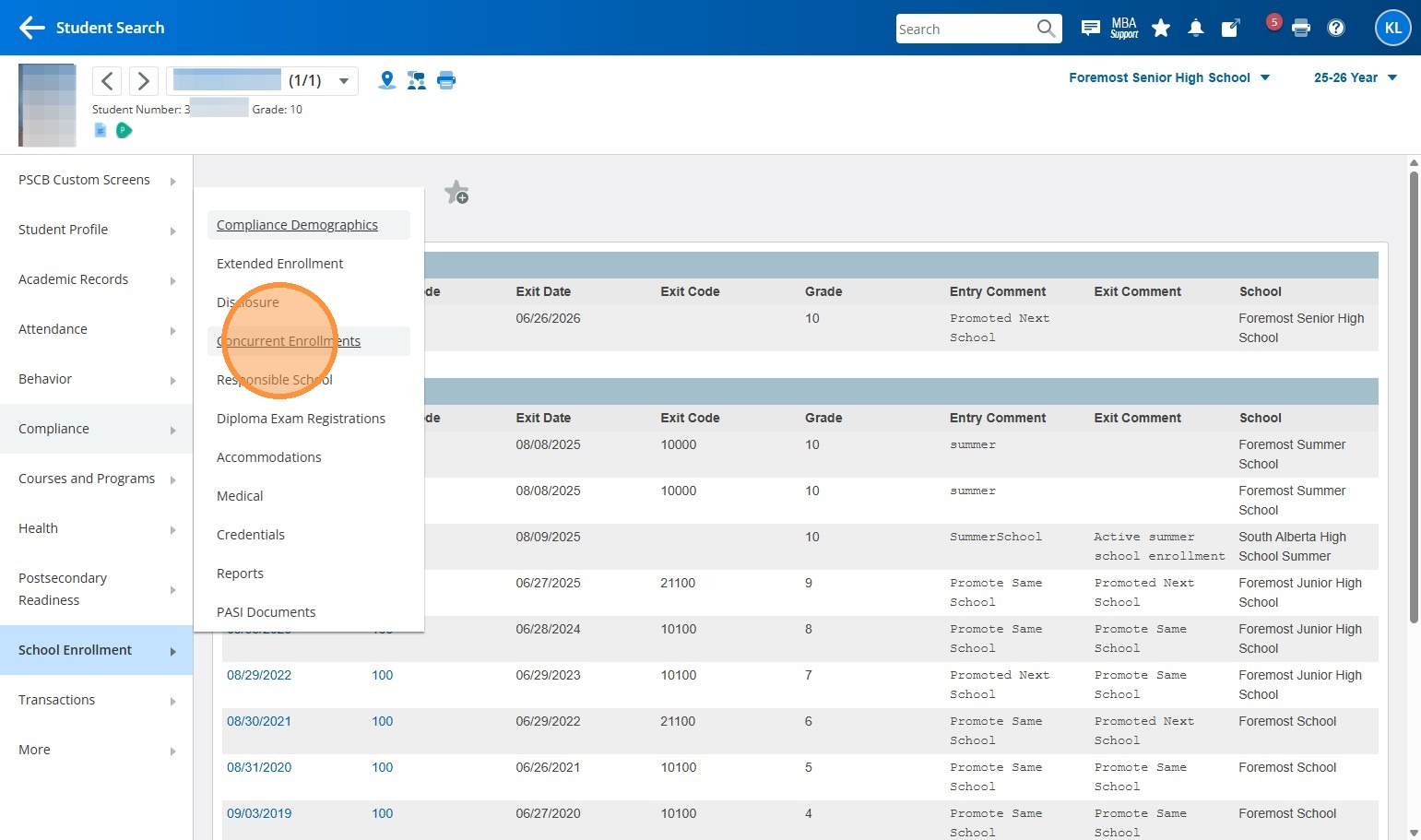
4. Click "Concurrent Enrollments"
5. Select the school that the student is taking courses at
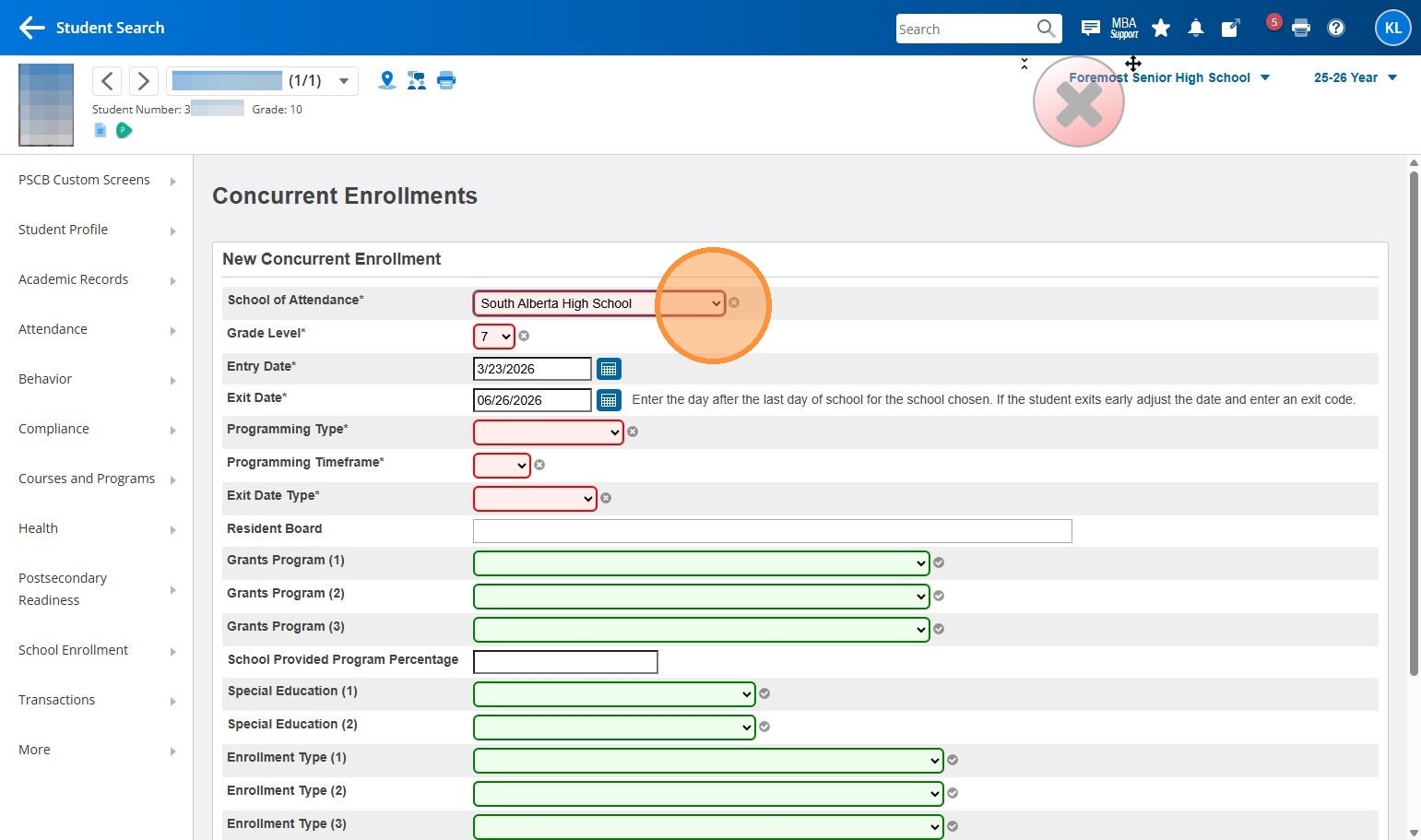
6. Select the grade that the student is in
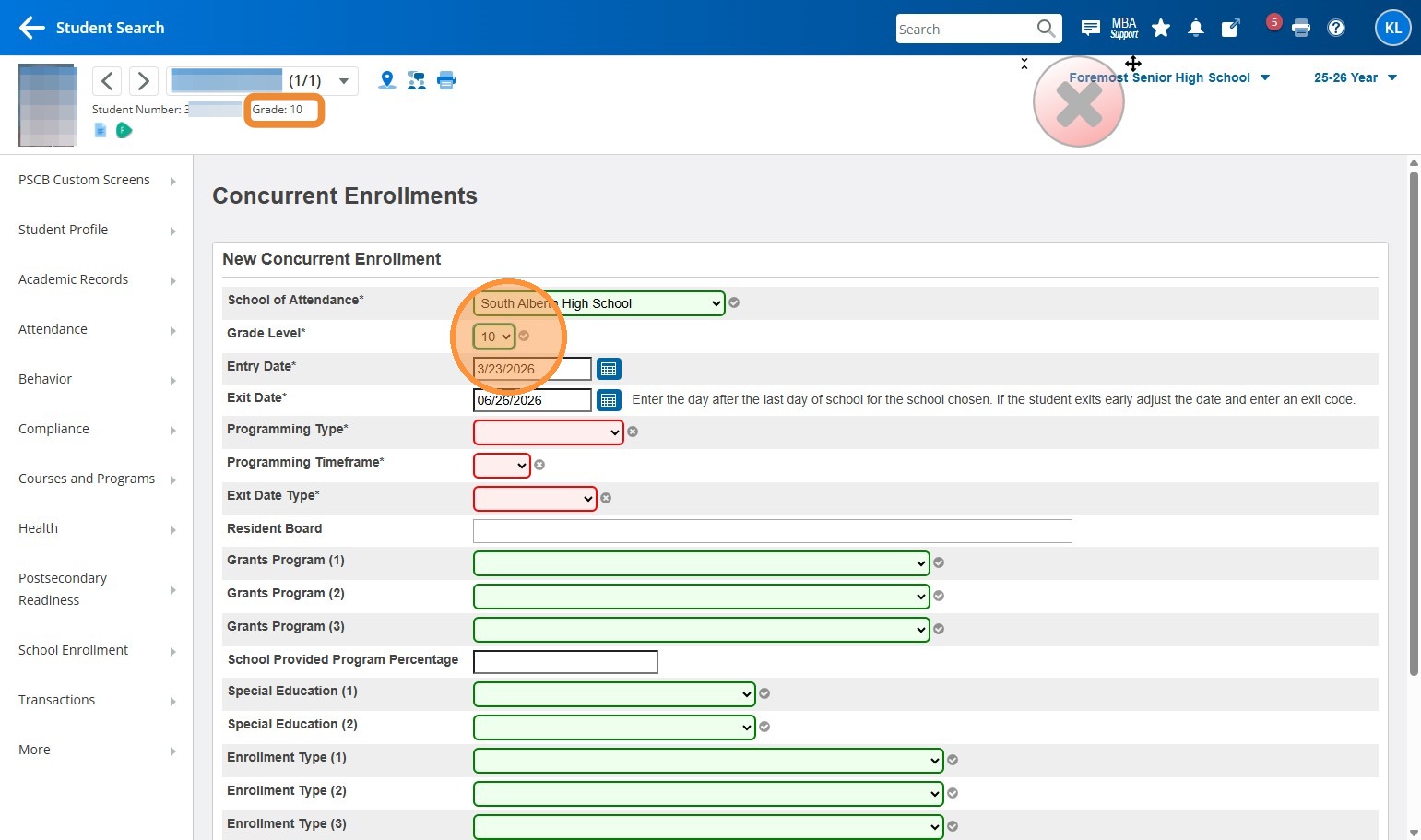
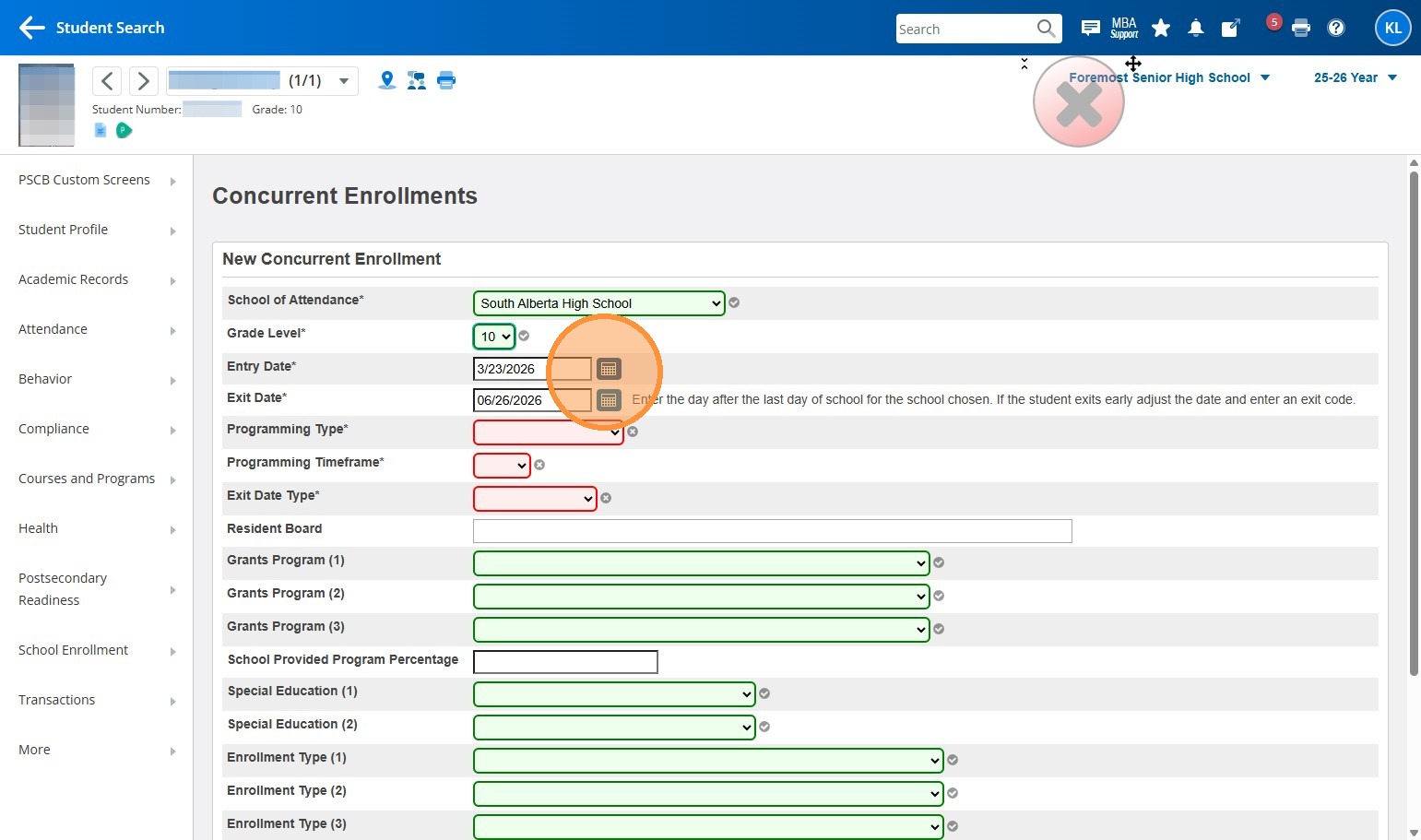
7. Choose the correct Entry Date (Start Date) for the student to enroll in this course.
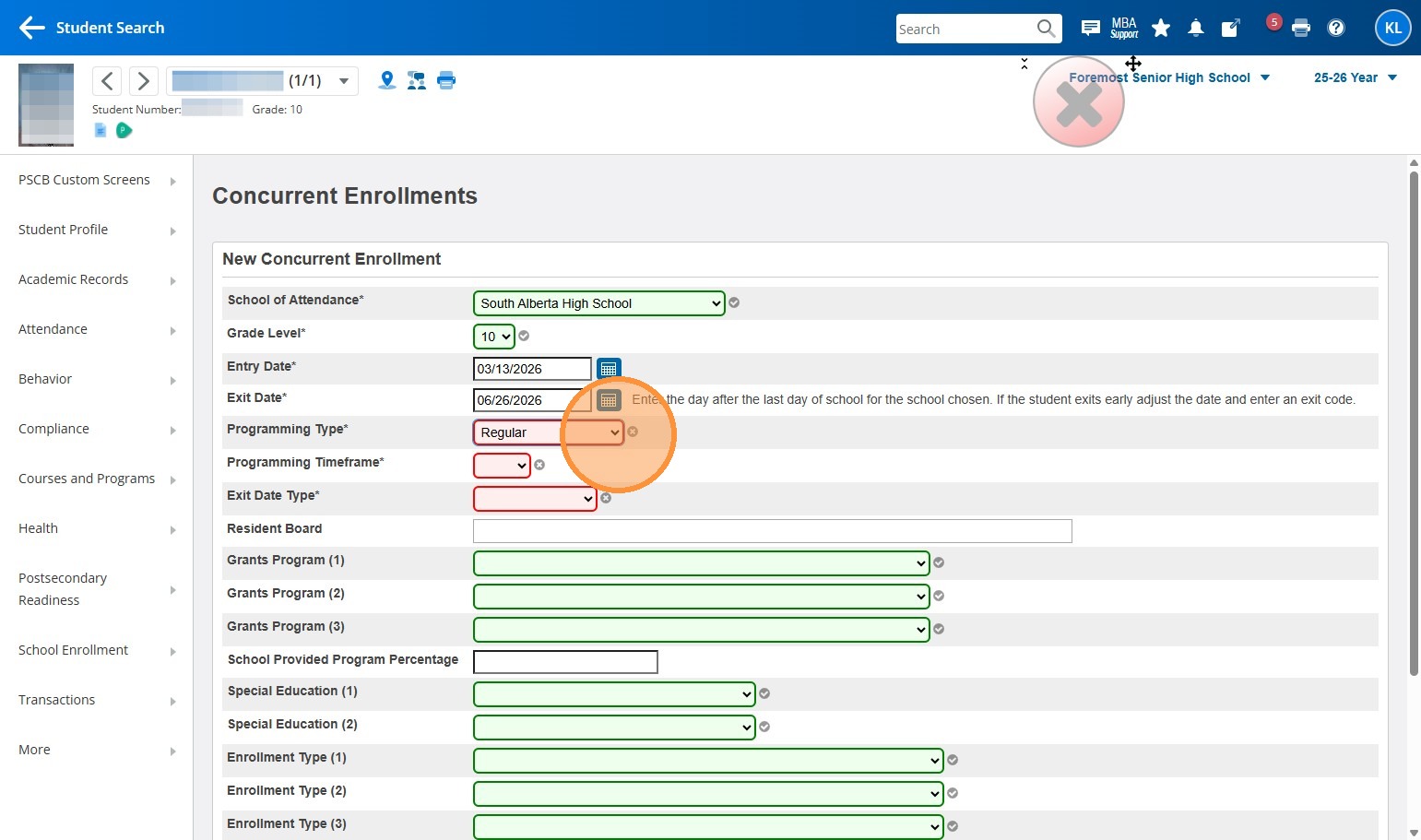
8. Select the "Regular" option.
9. Select the "Day" option.
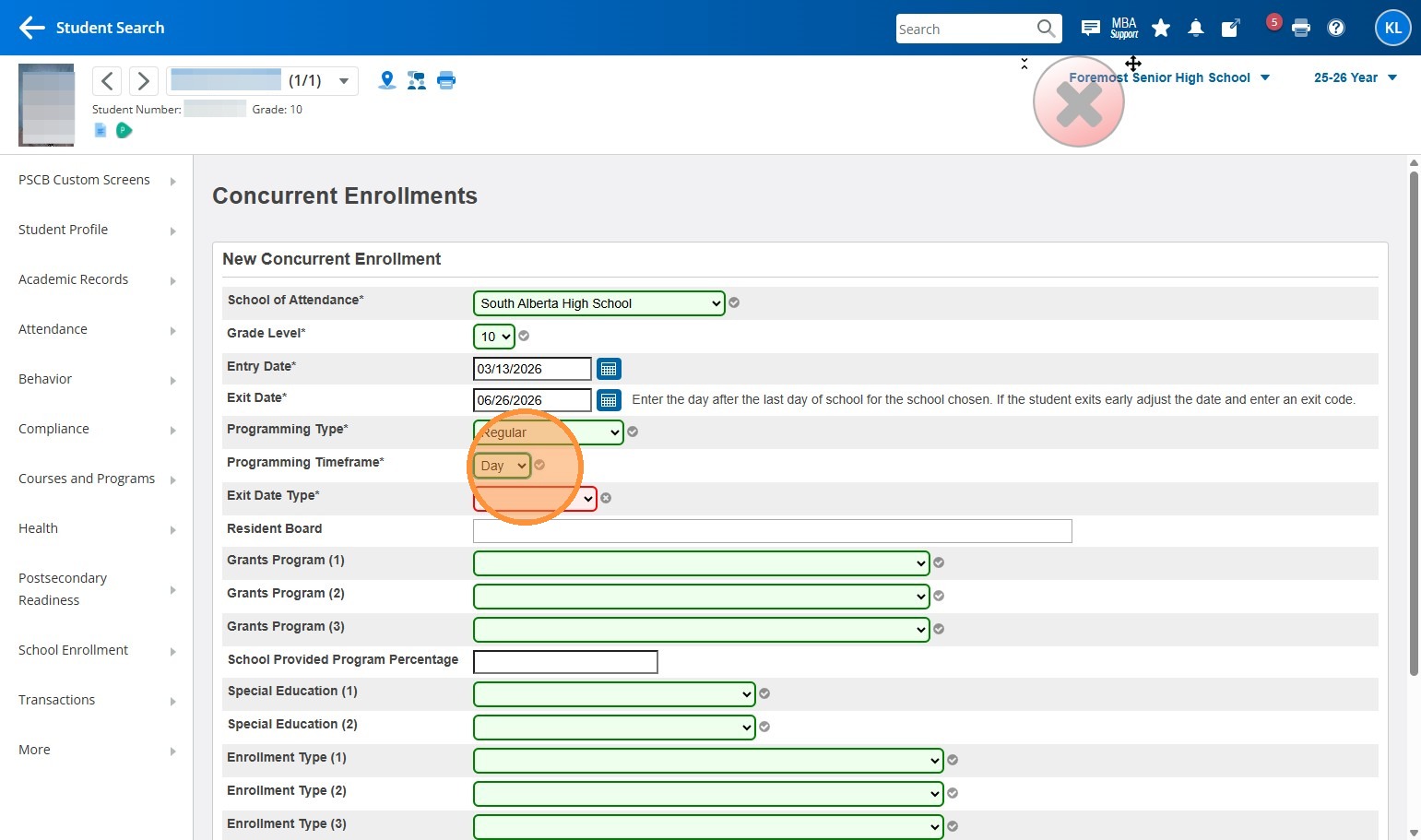
10. Select the "Completion Date" option.
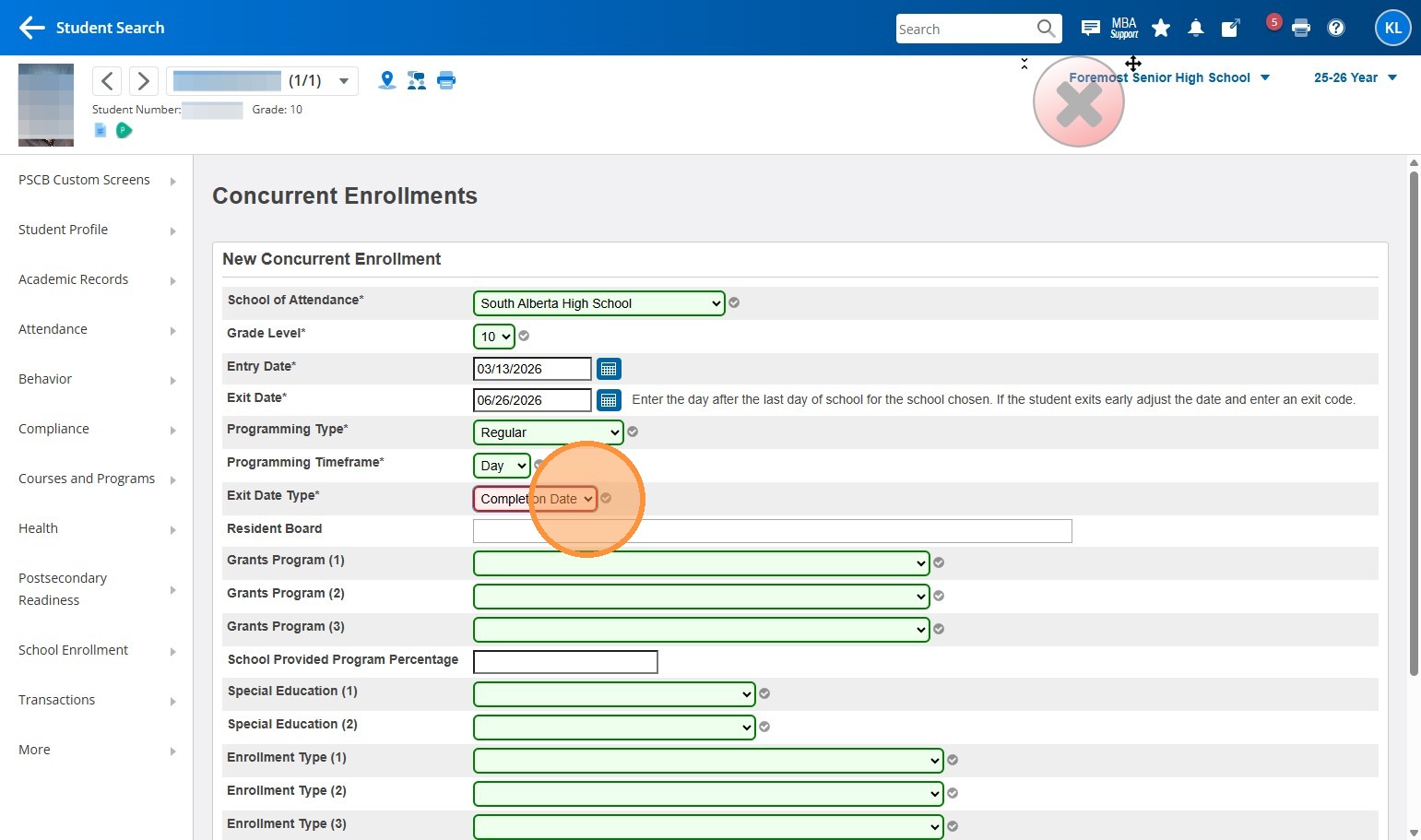
11. Click "Submit"
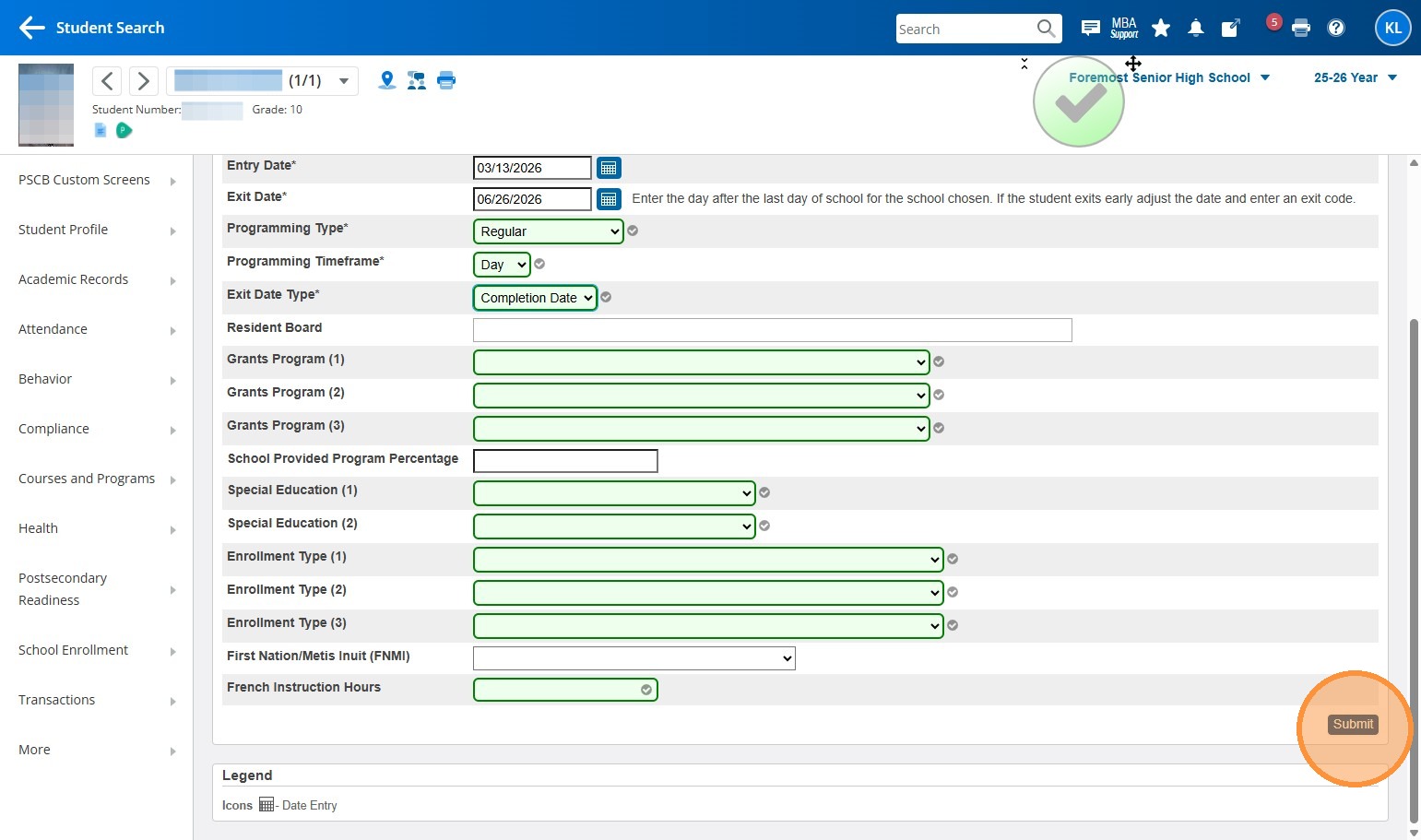
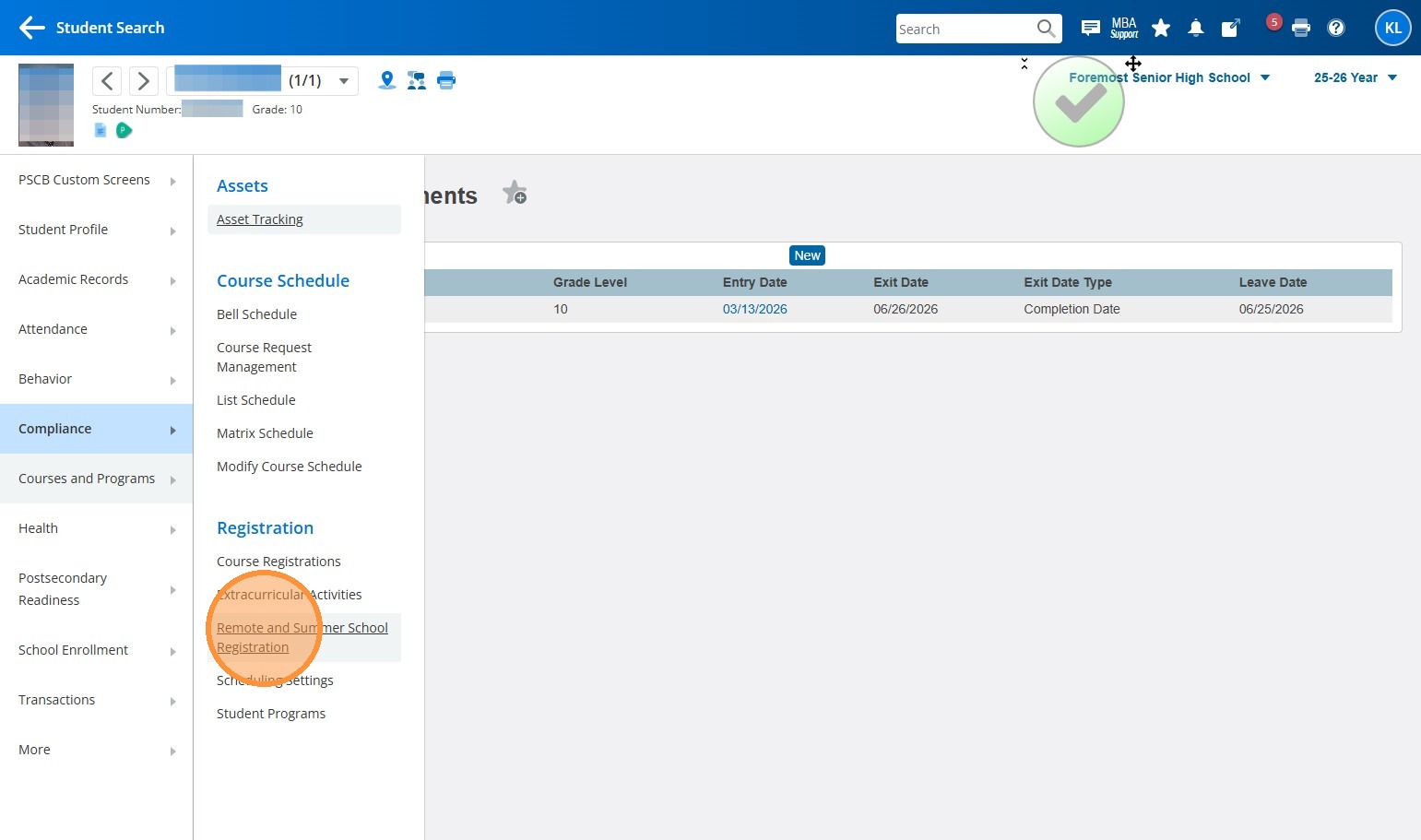
12. Click "Courses and Programs"
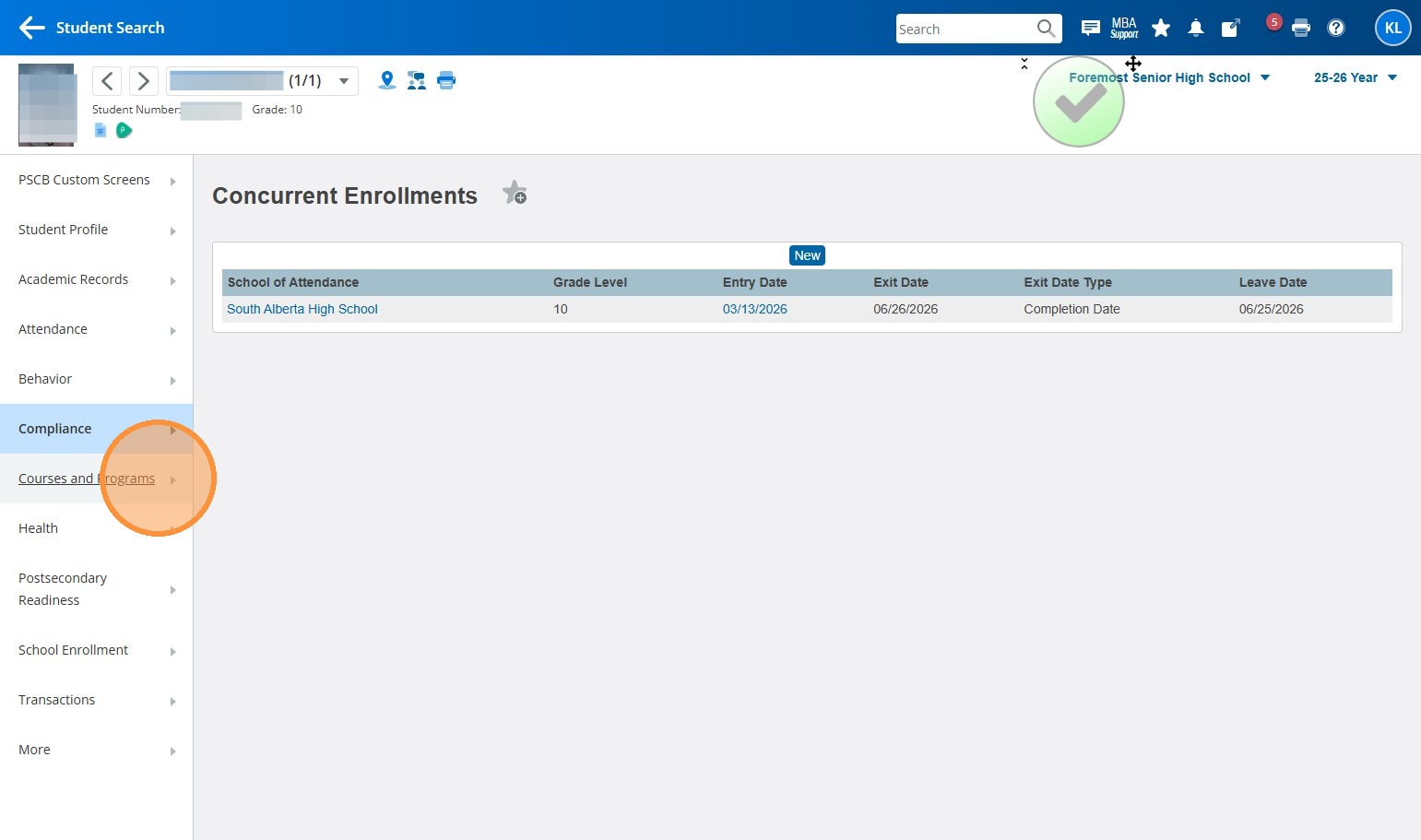
13. Click "Remote and Summer School Registration"
14. Select the school that the student is taking courses at
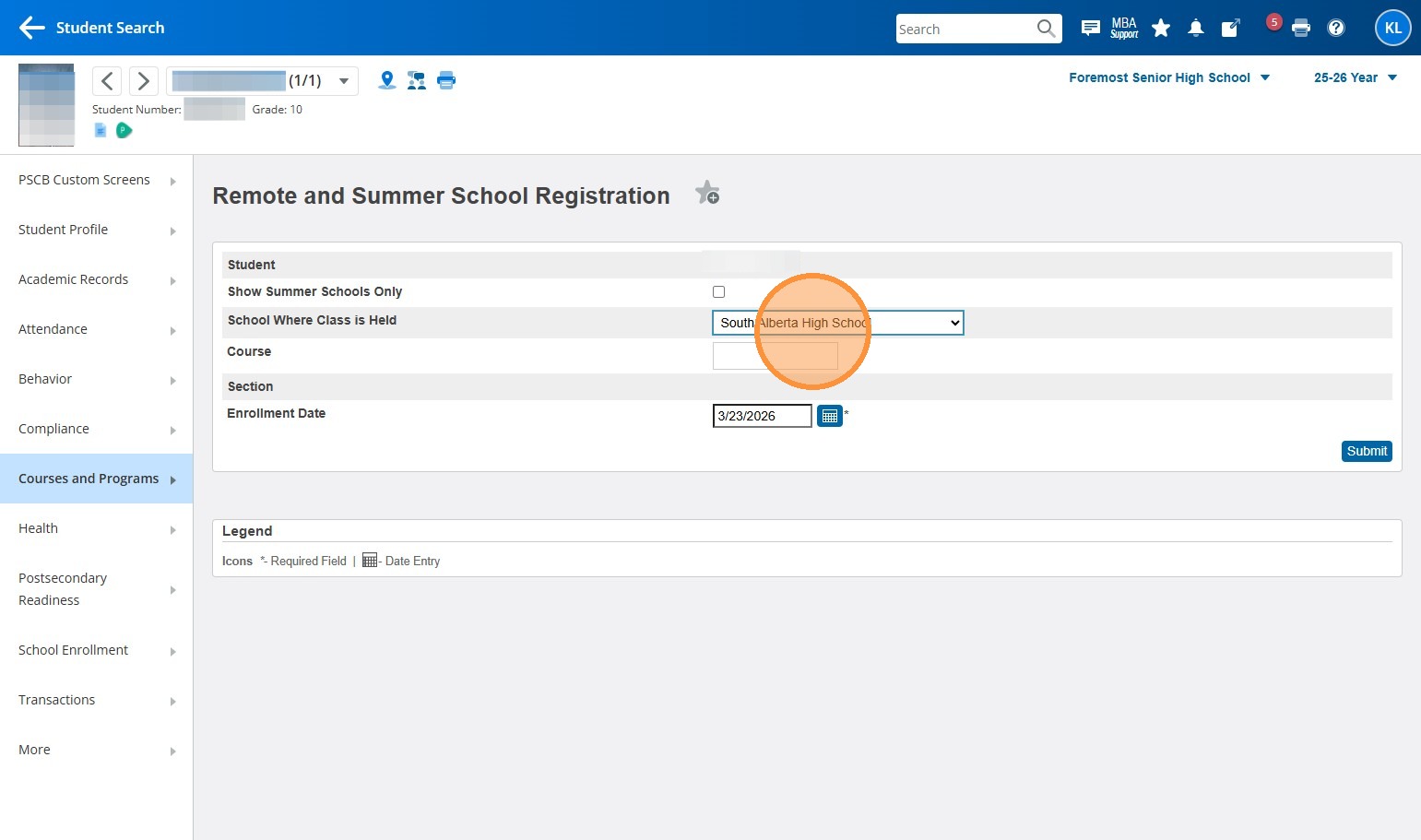
15. Click the "Course" text field
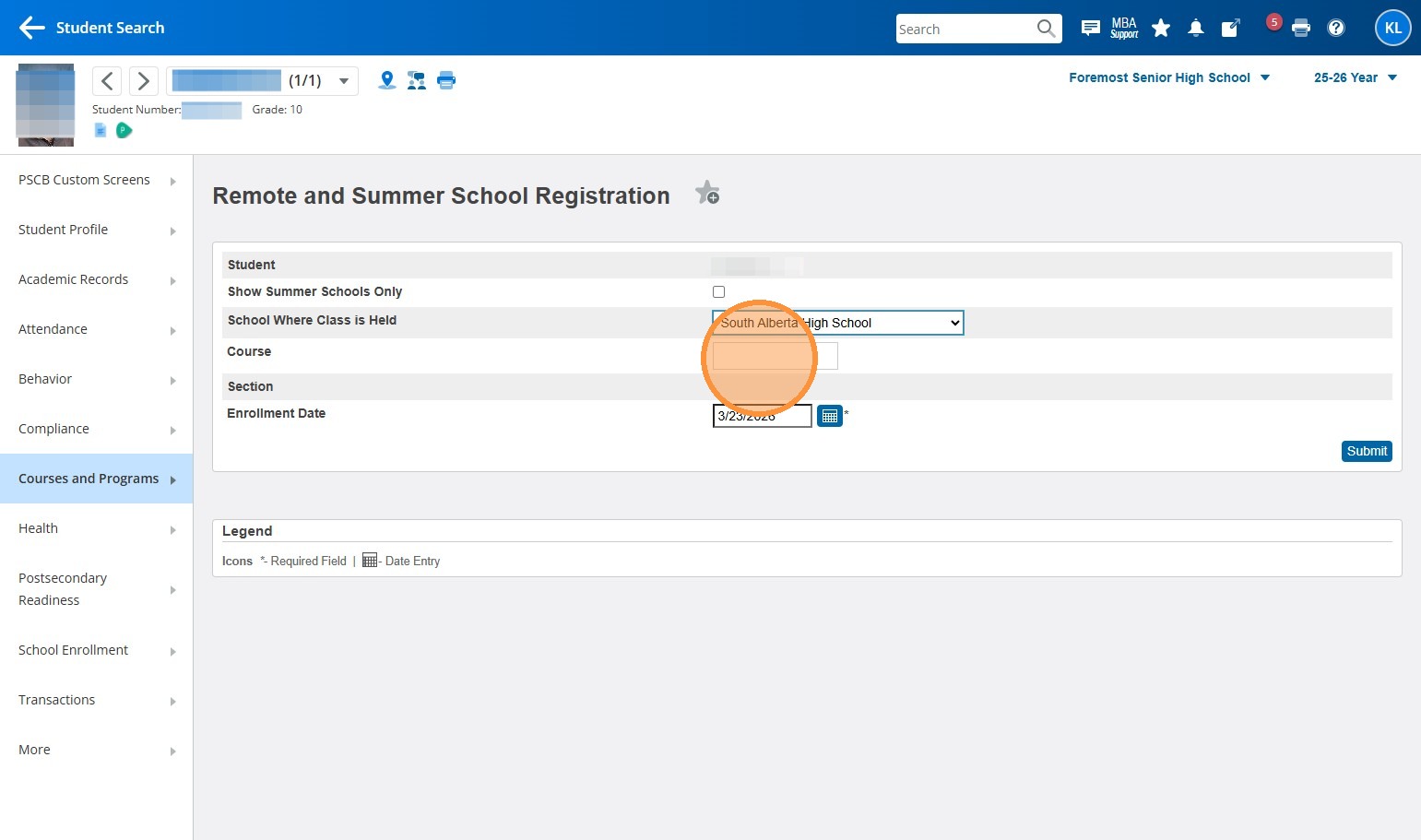
16. Start typing out the course name or number, and select it when it appears. In my example, I'm using "Home Room(HRGEN)"
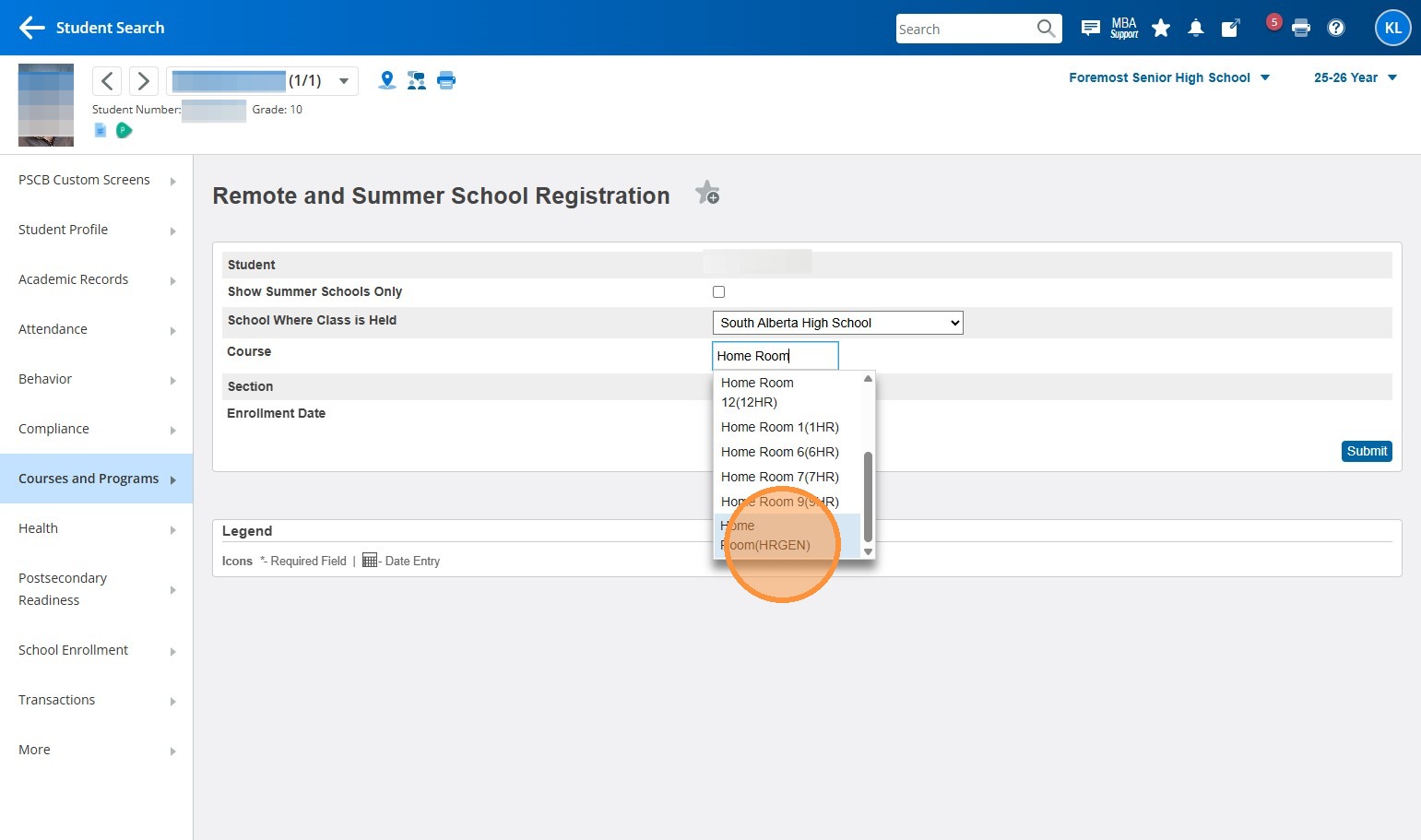
17. Once you select the course, a list of potential sections for that course will appear. Select the radio button next to the correct section.
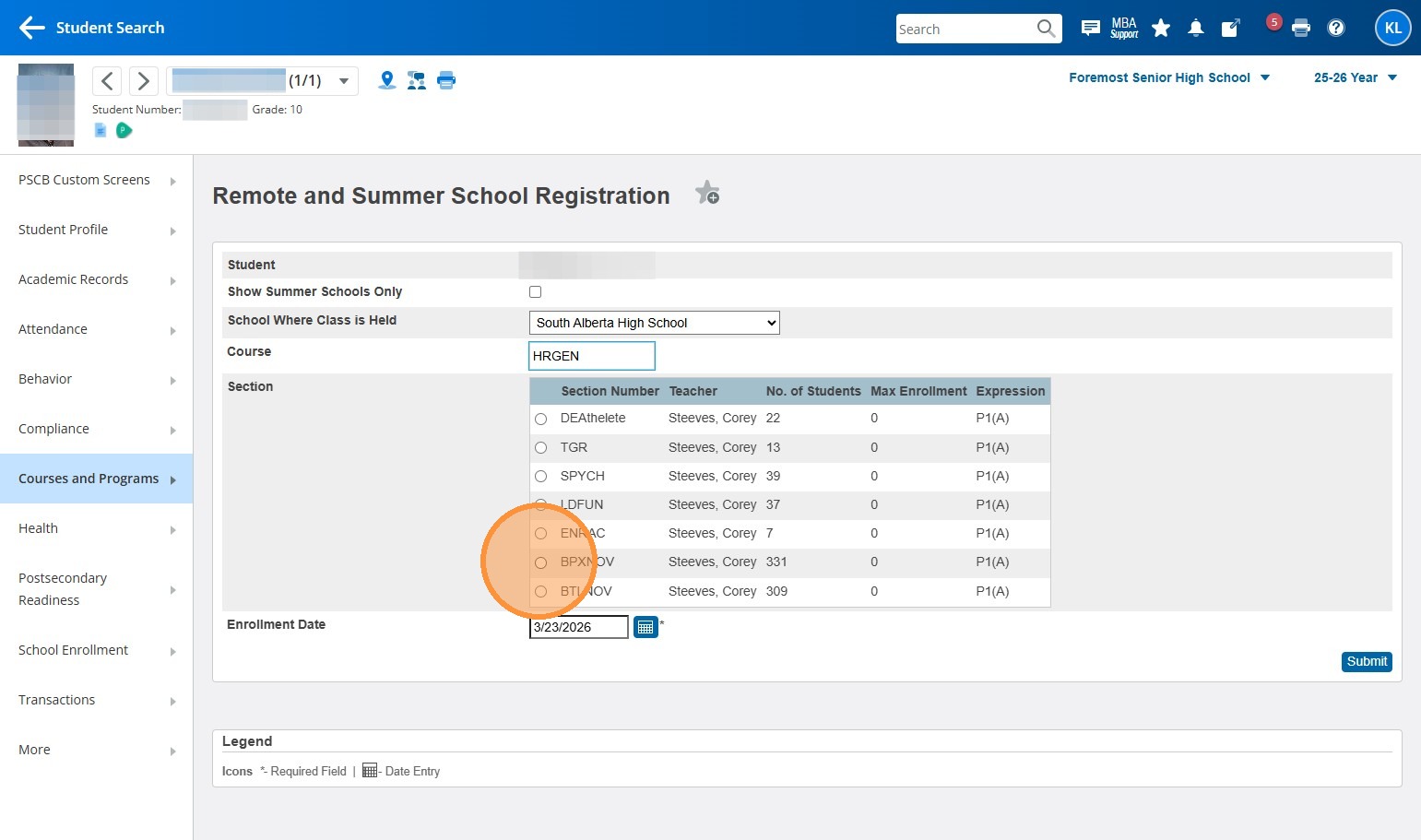
18. Select the date button and enter the date the student is starting the course
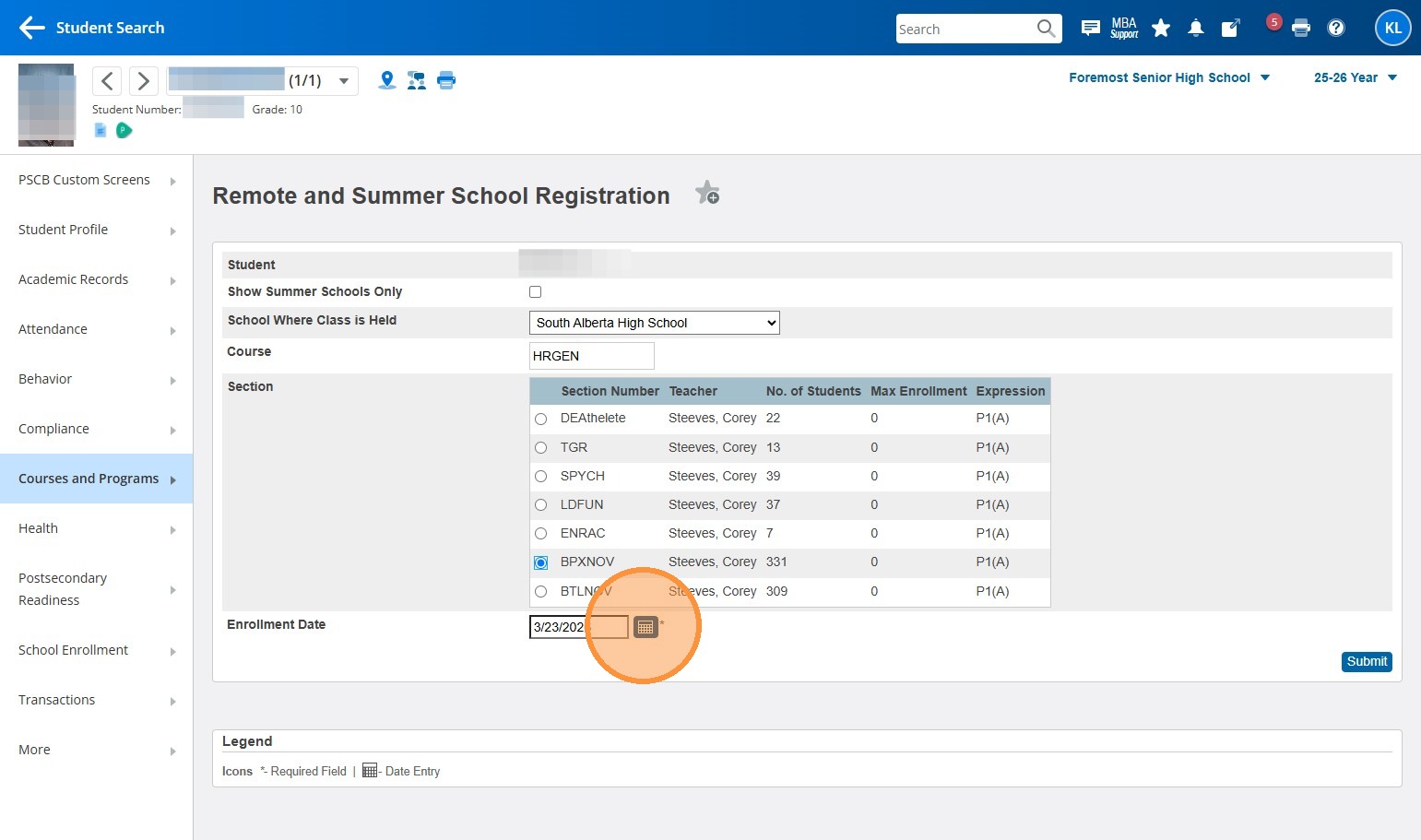
19. Click "Submit"
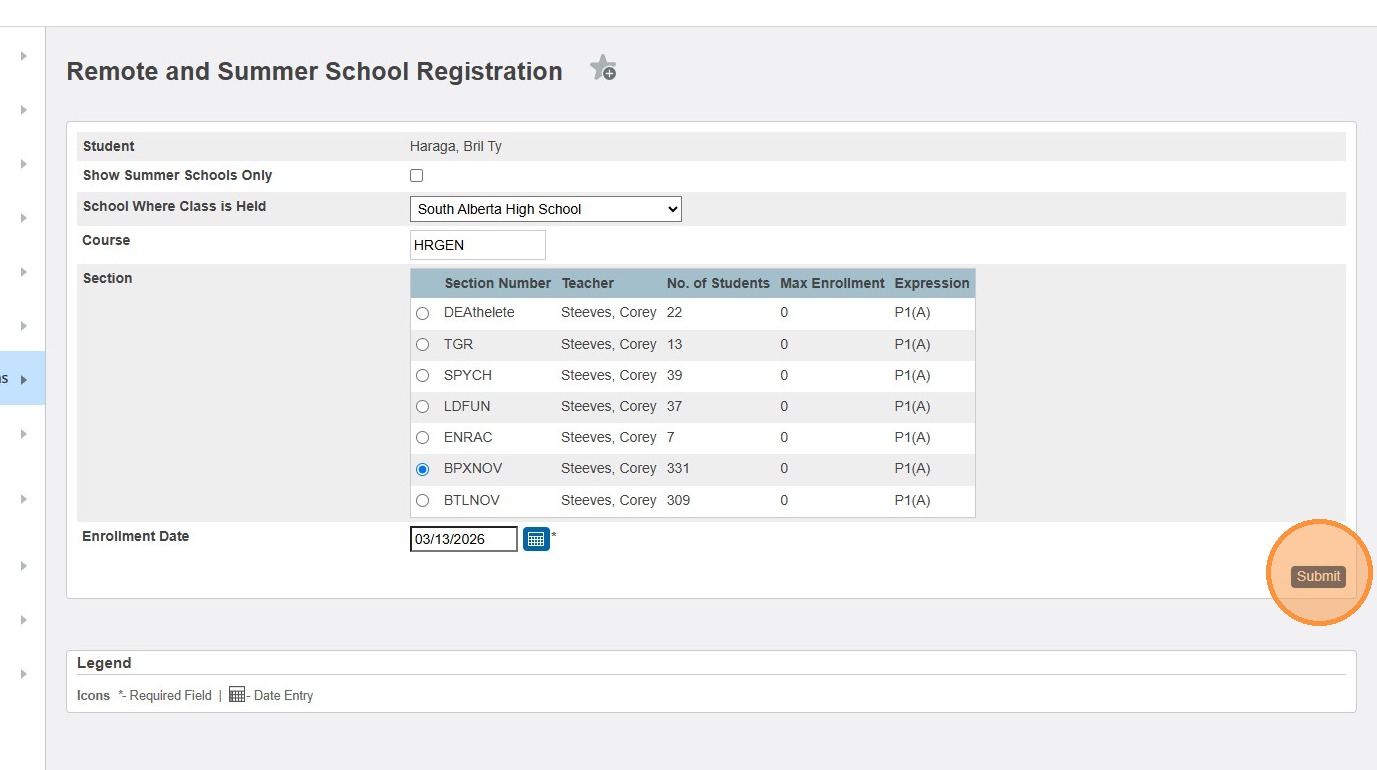
20. If you have more courses to add for the same student, you can repeat the steps starting at Step 16 from this same screen. Once you're finished, you can return to the Start Page.