
Student can't sign in to PowerSchool Student Portal - Now What?
Student can't sign in to PowerSchool Student Portal - Now What?
This guide will help you troubleshoot and resolve when a student cannot access their PowerSchool Student Account (this is assuming there is no password issue)
1. Navigate to https://prsd8.ca/admin/home.html?searchtype=students
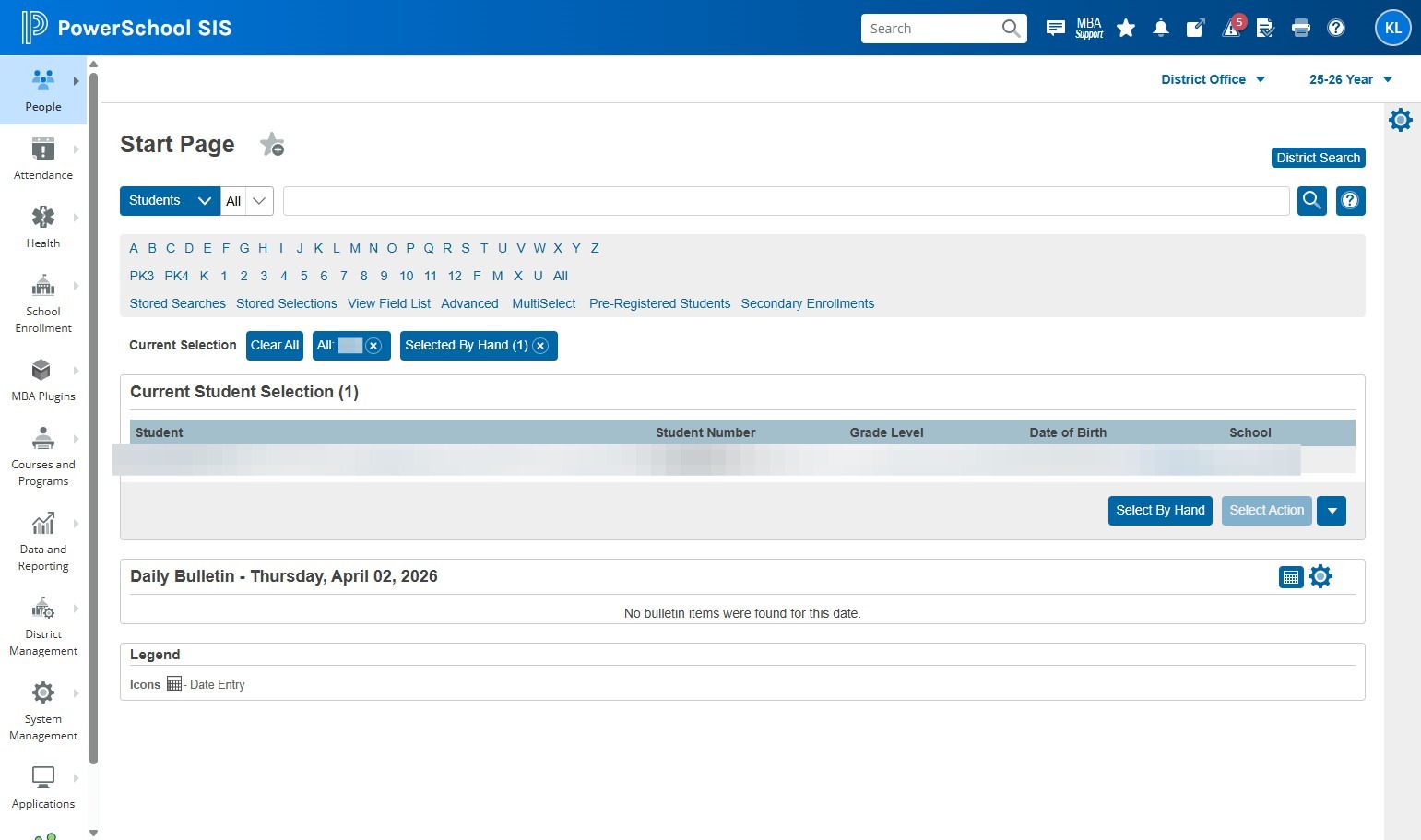
2. Locate the student in question and click on their name
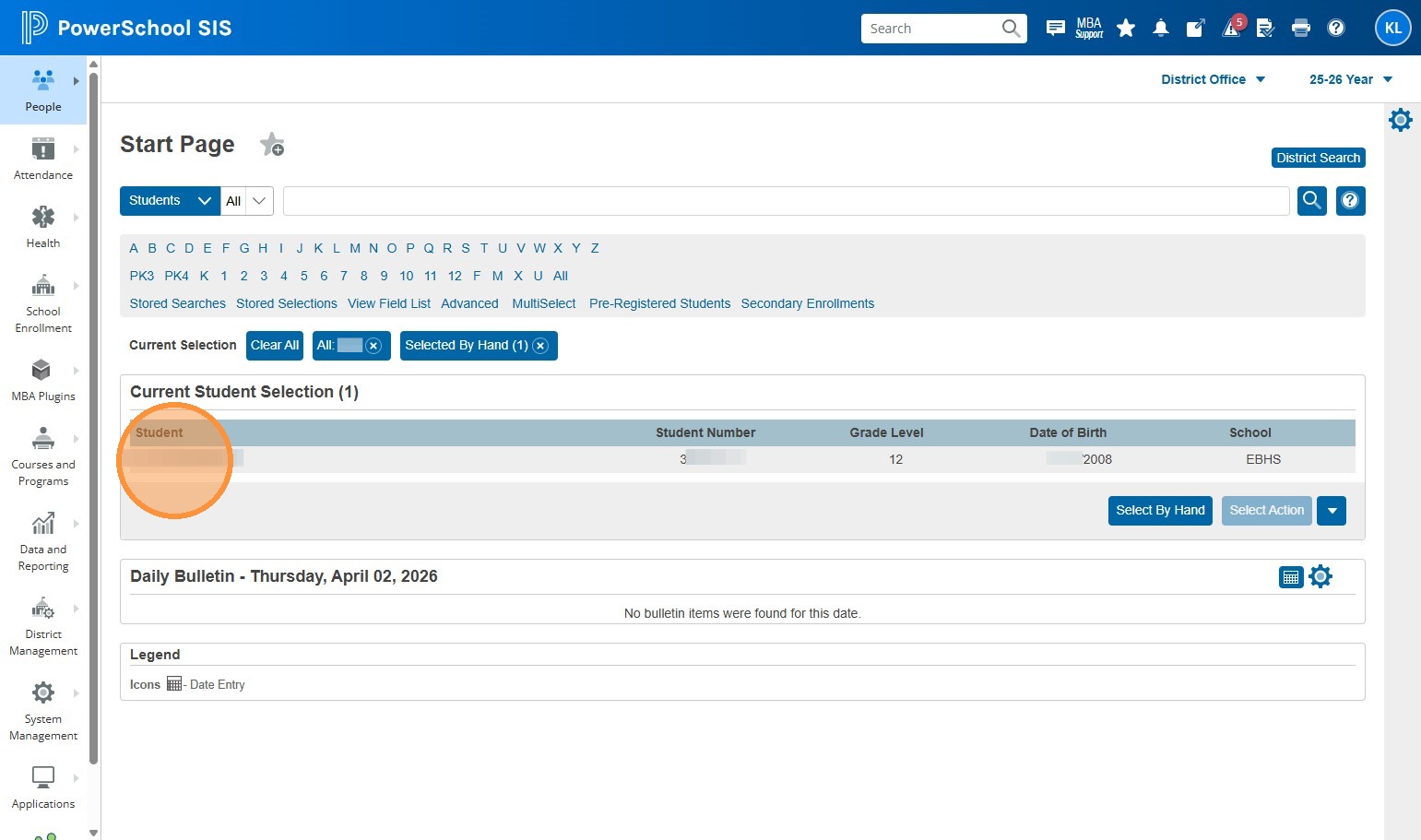
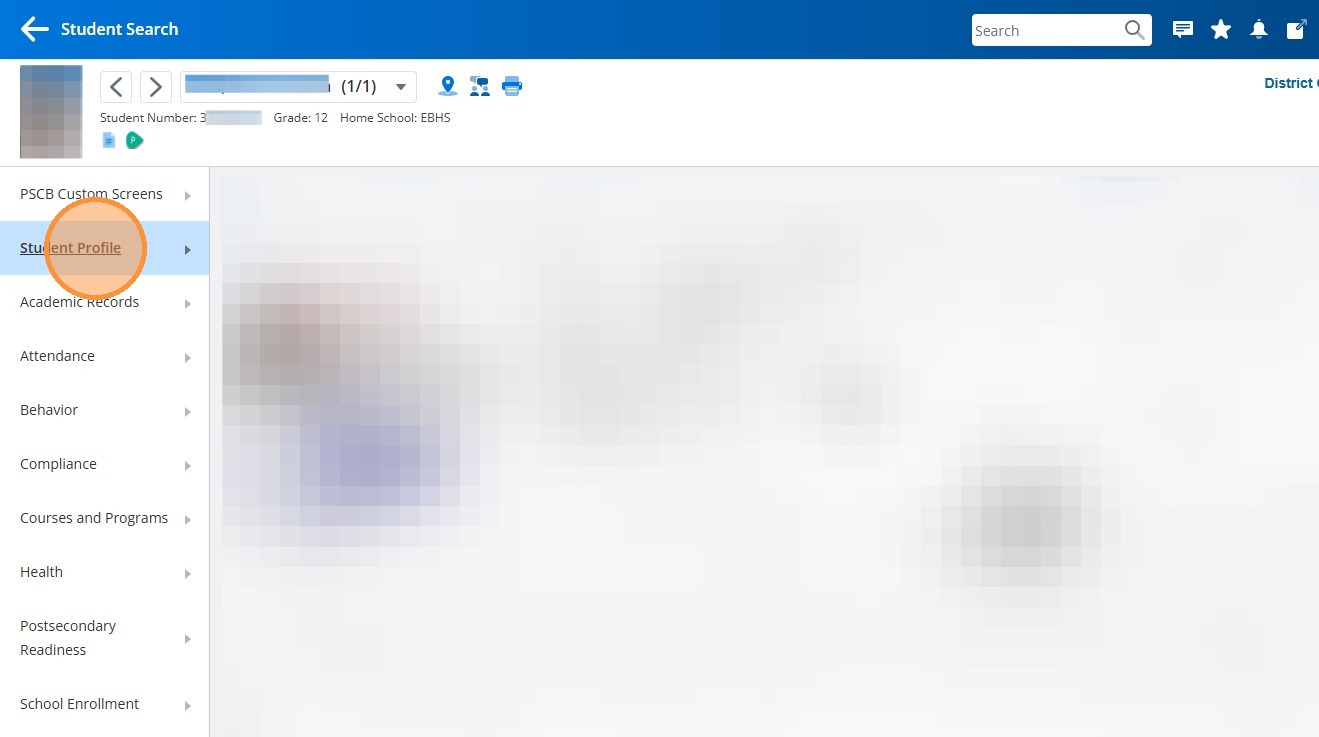
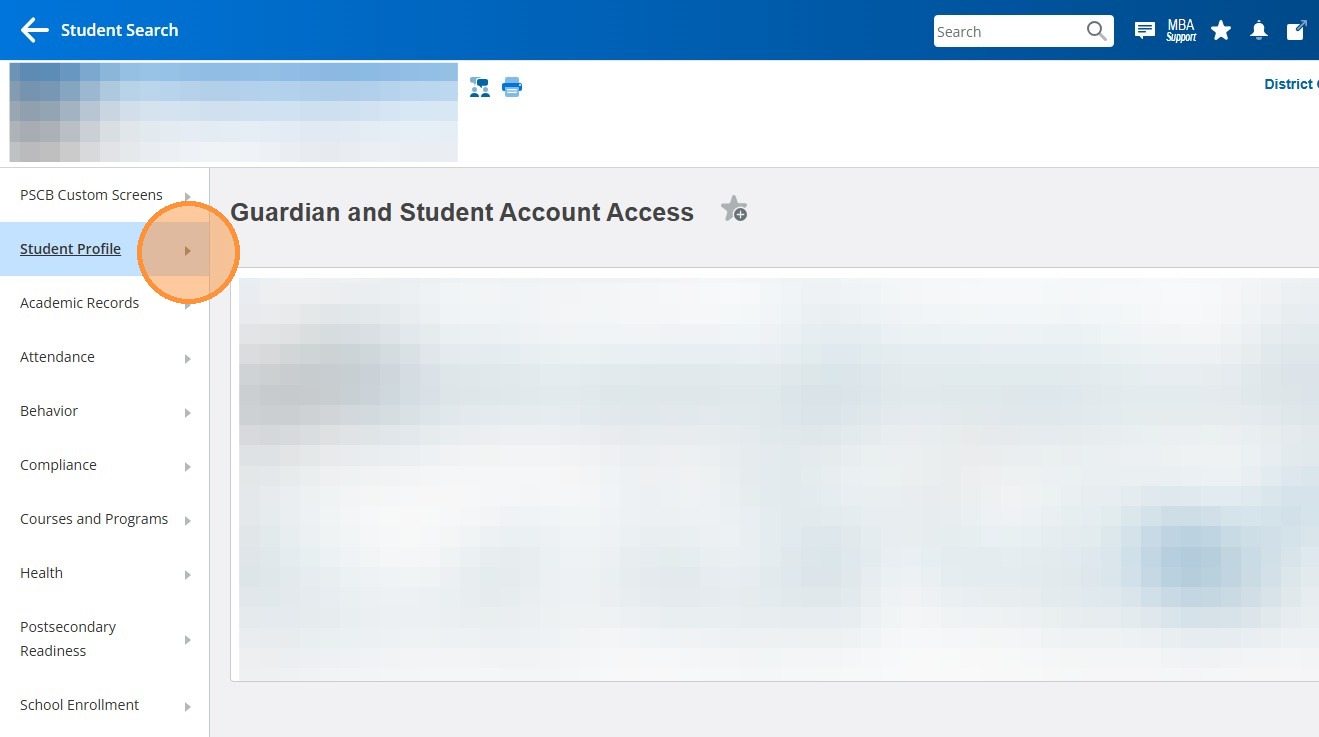
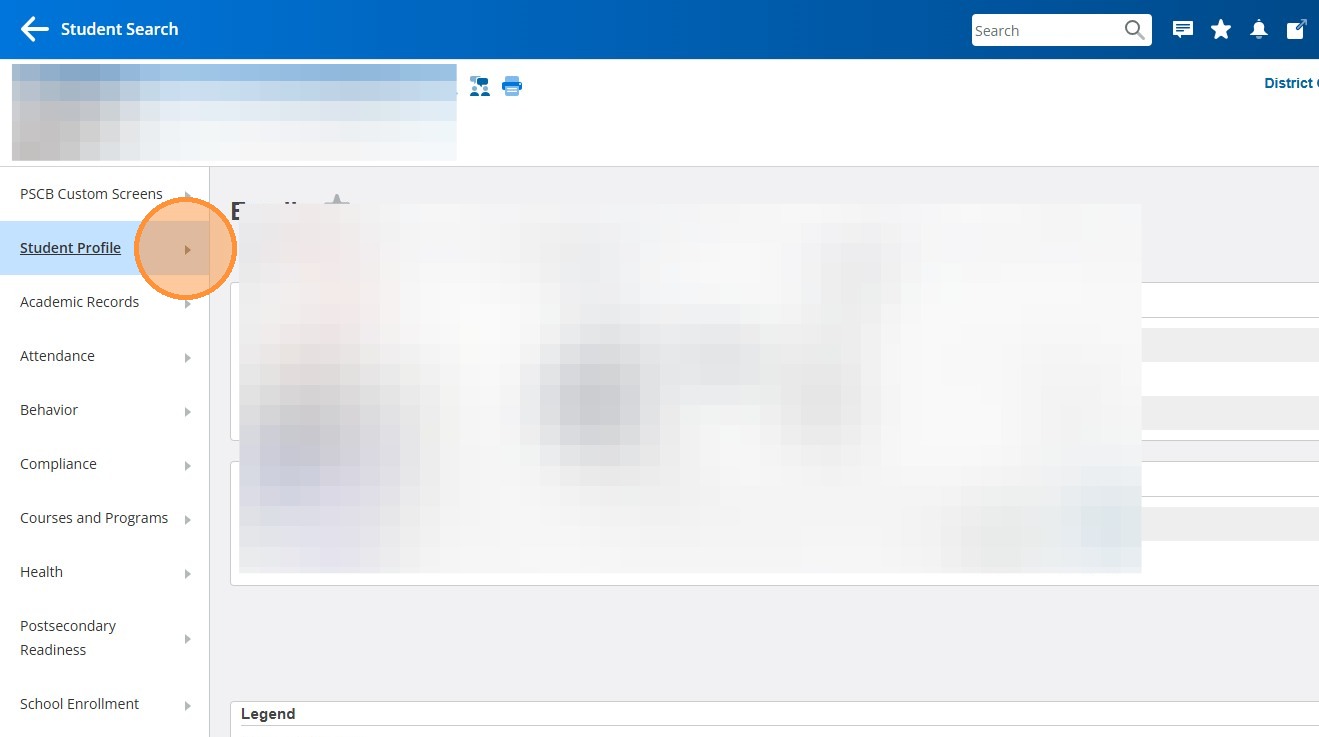
3. Click "Student Profile"
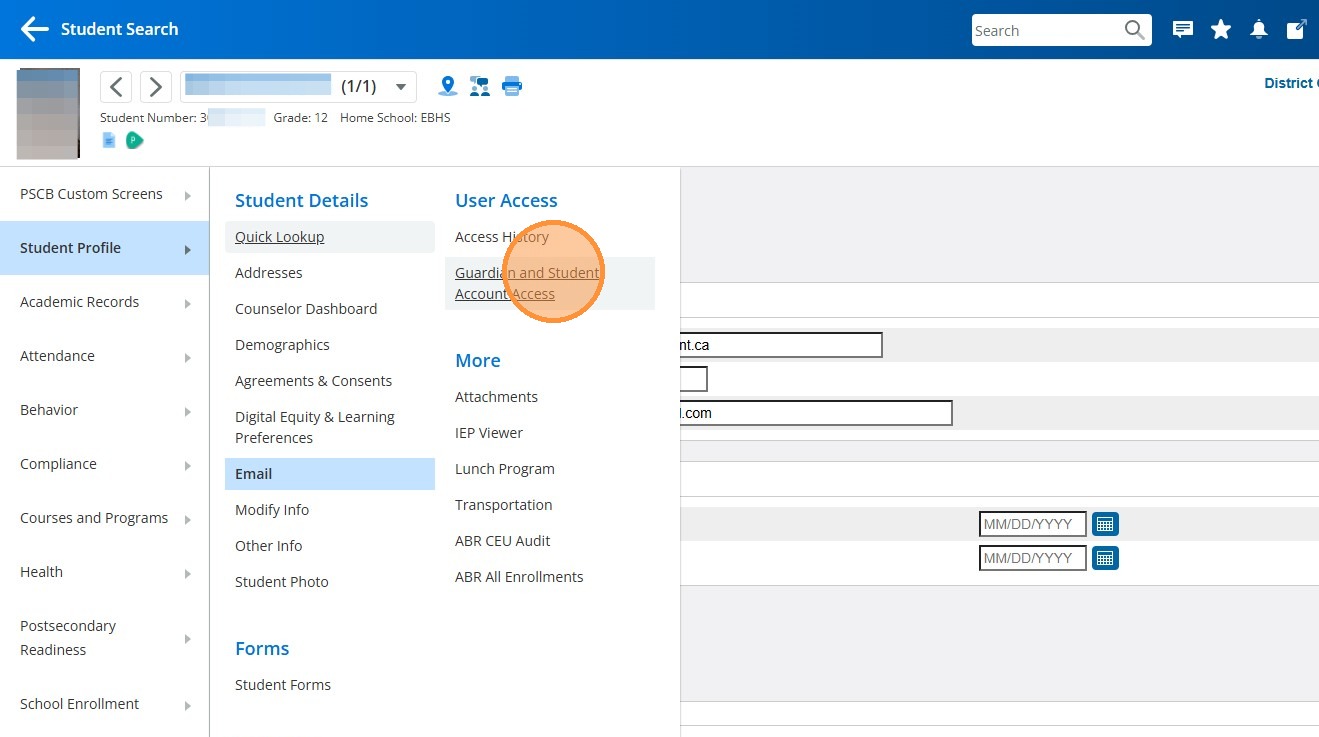
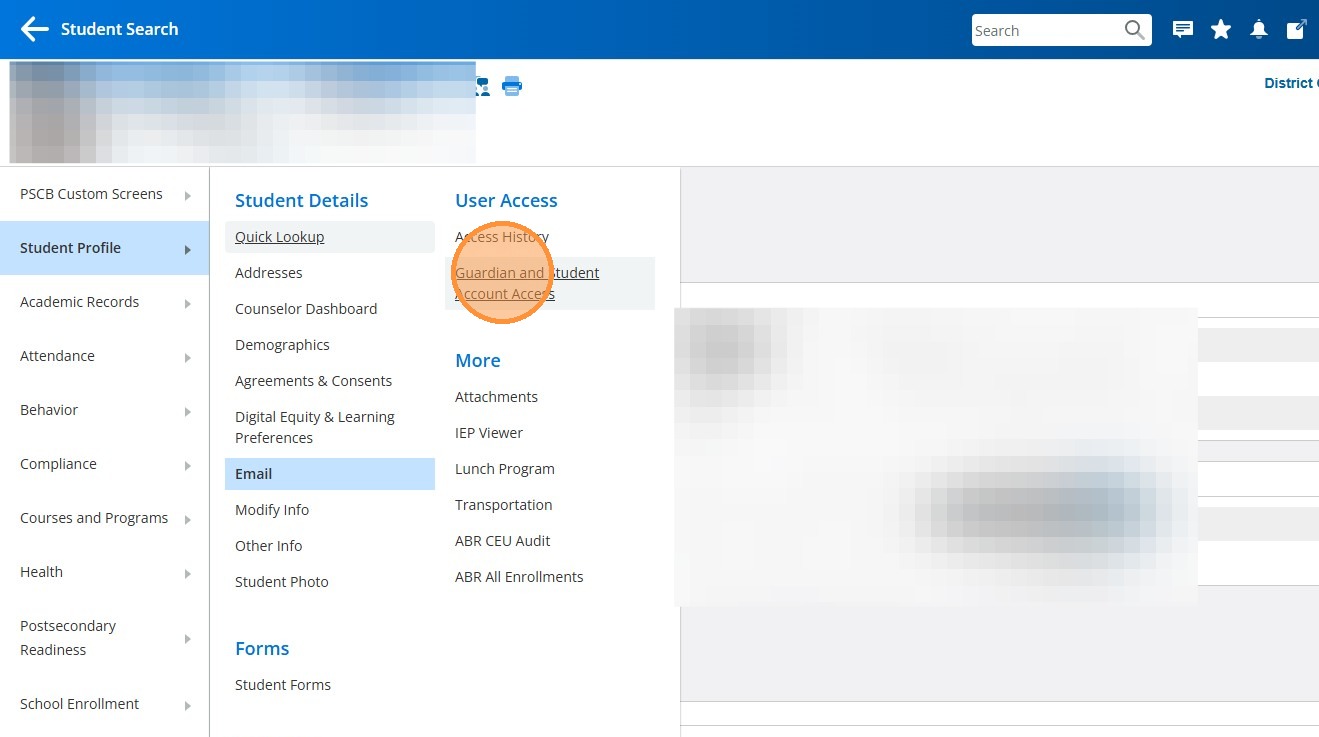
4. Click "Guardian and Student Account Access"
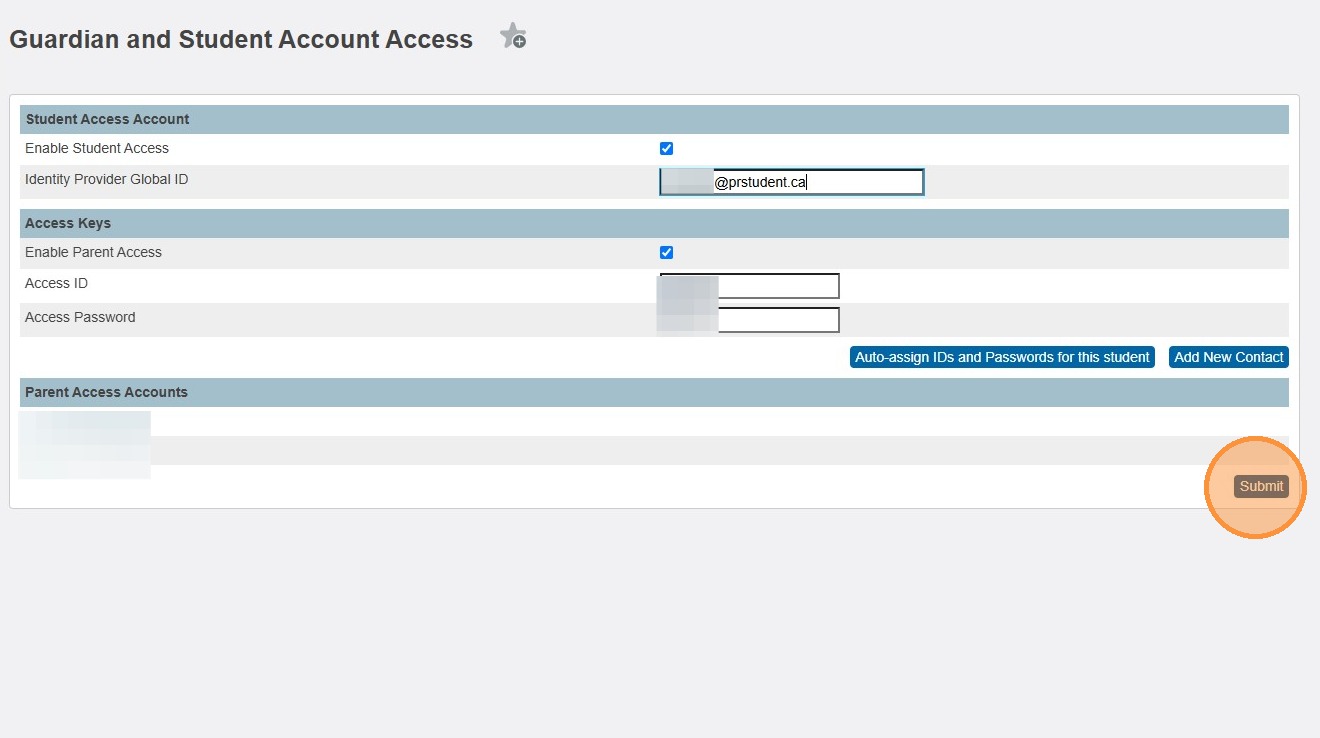
5. The first thing to check is the "Enable Student Access" checkbox. If it is not checked, make sure you check it.
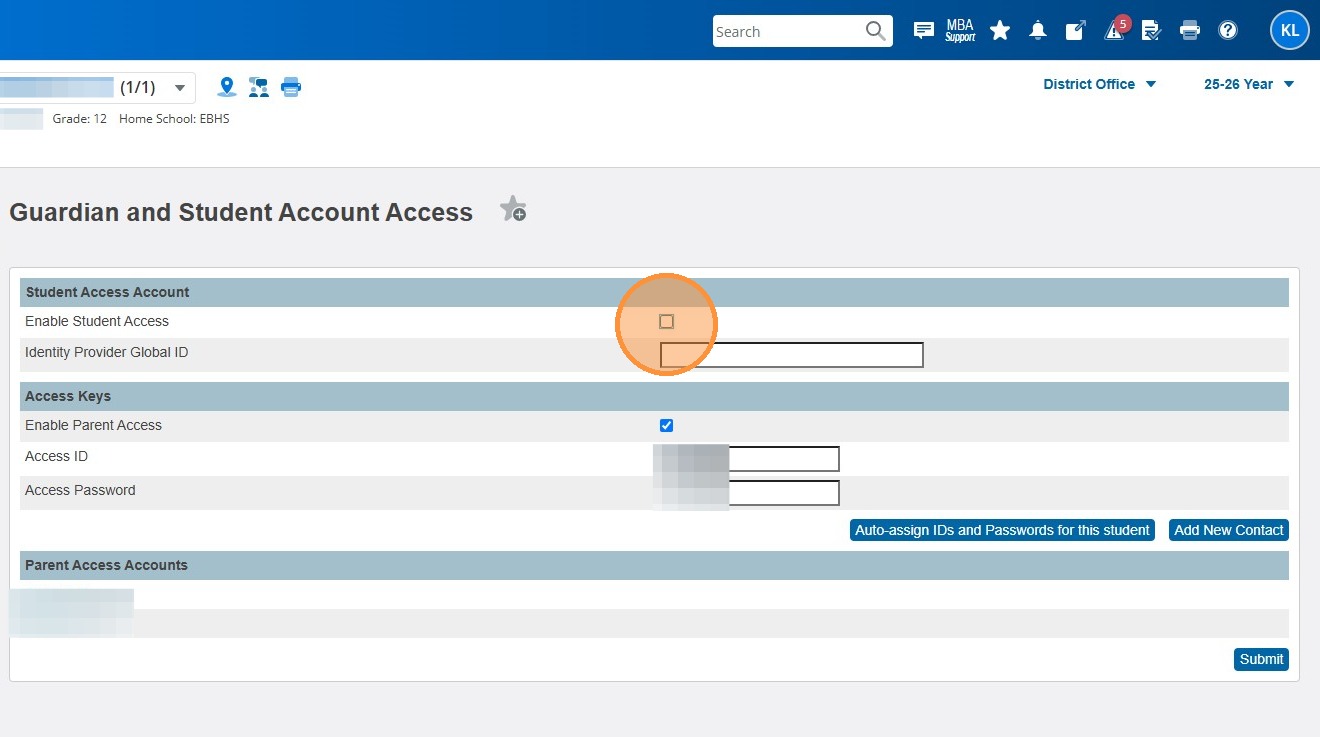
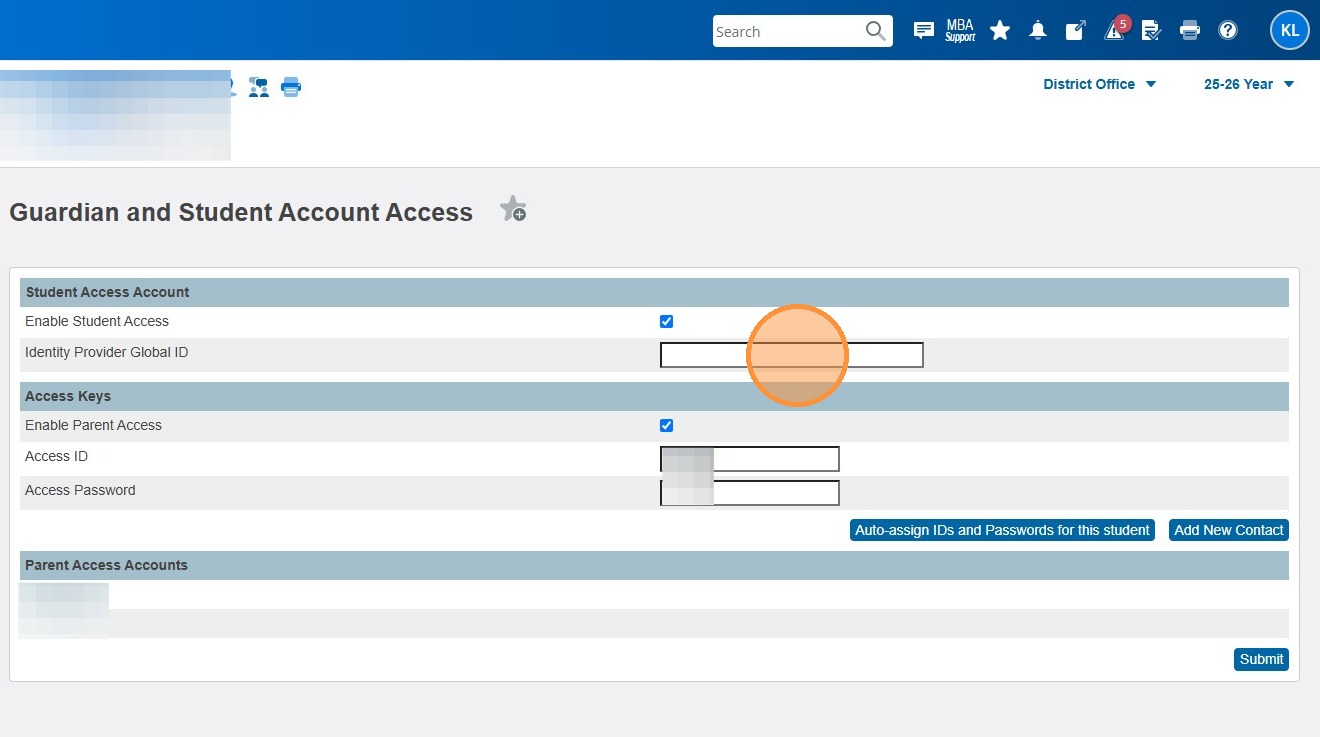
6. The next thing to check is the "Identity Provider Global ID". If this is blank, you'll need to enter the student's @prstudent email address into this field.
7. To get their email, click "Student Profile"
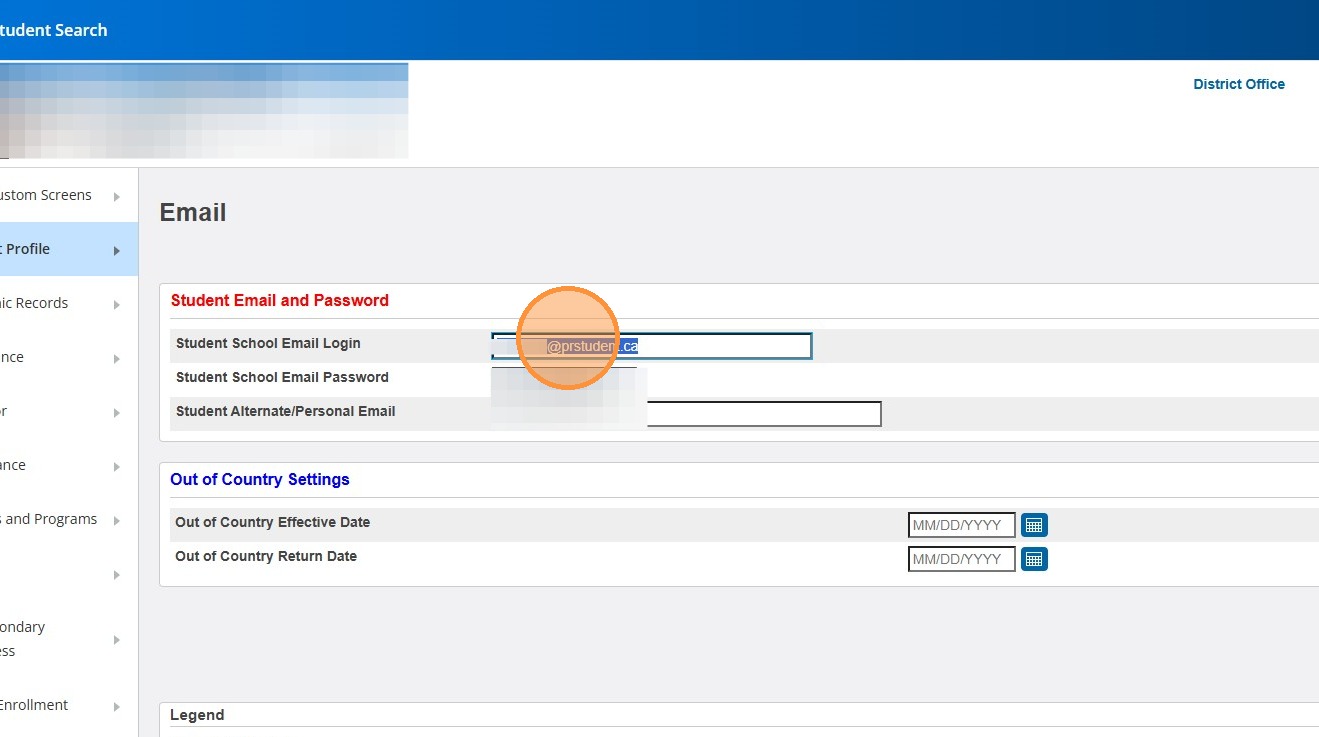
8. Click "Email"
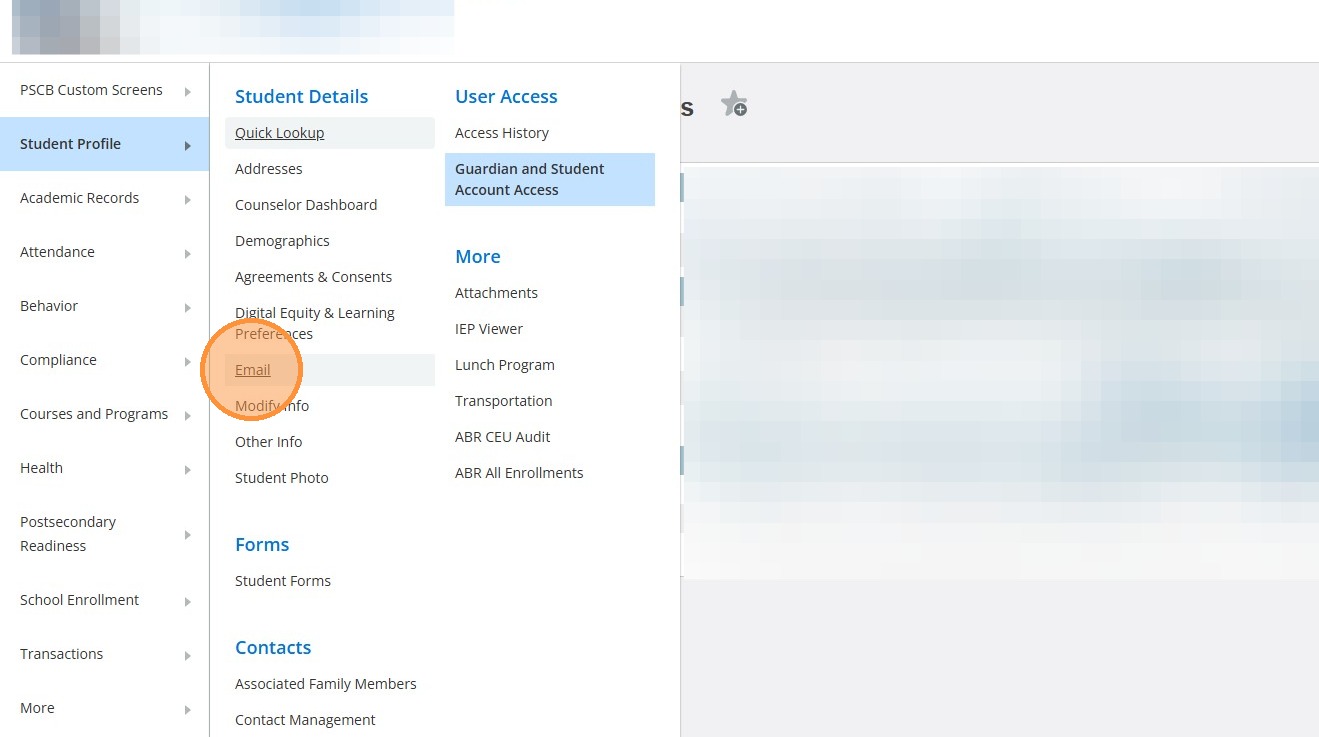
9. Highlight the Student School Email Login, and copy it (you can either highlight and press ctrl+c, or highlight and right-click with your mouse to select Copy).
10. Click "Student Profile"
11. Click "Guardian and Student Account Access" again
12. Paste the student's email address into the "Identity Provider Global ID" field. You can either click in the field and press ctrl+v, or right-click in the field with your mouse and select Paste
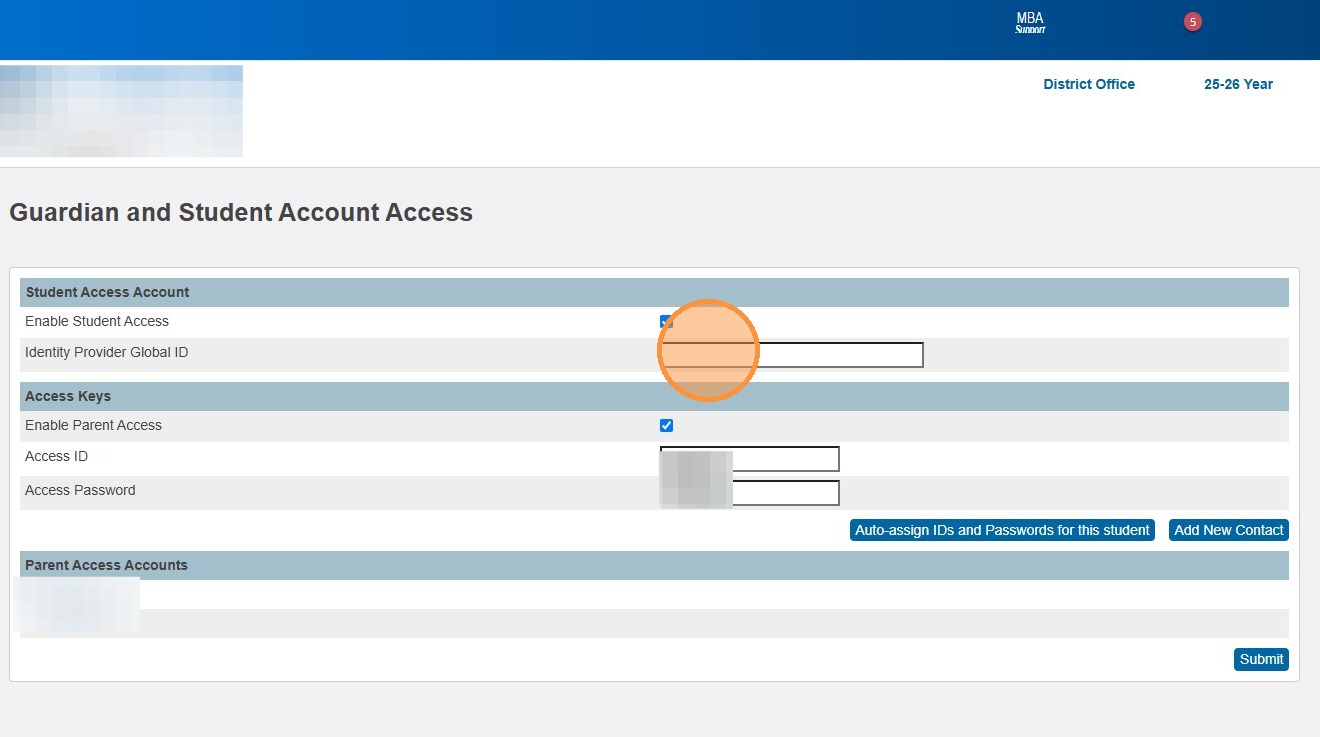
13. Click "Submit"
14. Assuming there are no other issues with password etc, the student will now be able to access their PS Student Portal.