
Returning Student Form: What to watch for with changes in Contacts
Returning Student Form: What to watch for with changes in Contacts
Most forms are straight forward and require minimal review. However, there are times a parent chooses to remove a contact from their list, or an old phone number. Here are the things to look for when reviewing the form to make sure that when you deliver to PowerSchool from Enrollment, you will expire out the old information so it doesn't show up on the form again next year.
1. Navigate to PSEnrollment-PendingDeliveryView
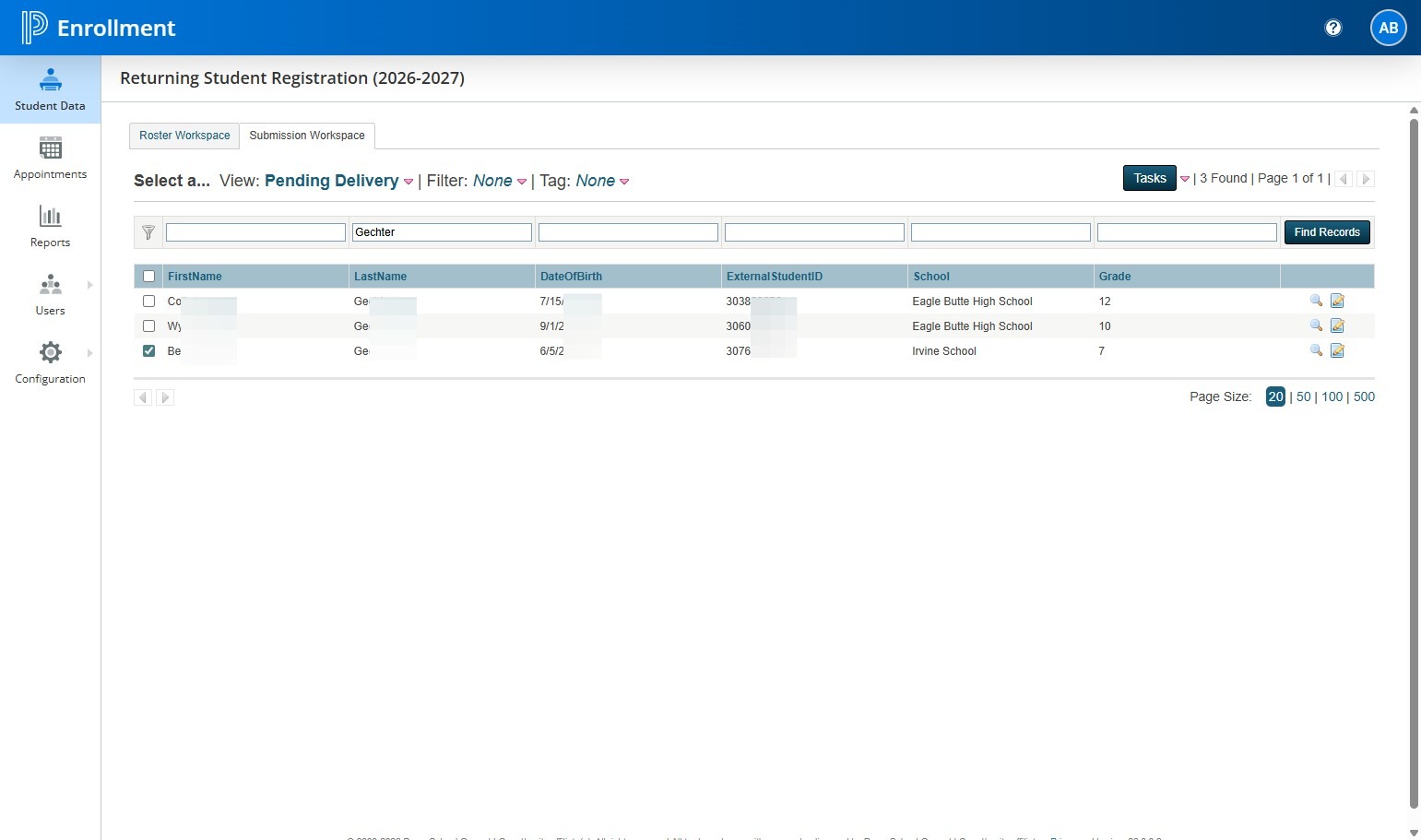
2. Select the student you want to deliver.
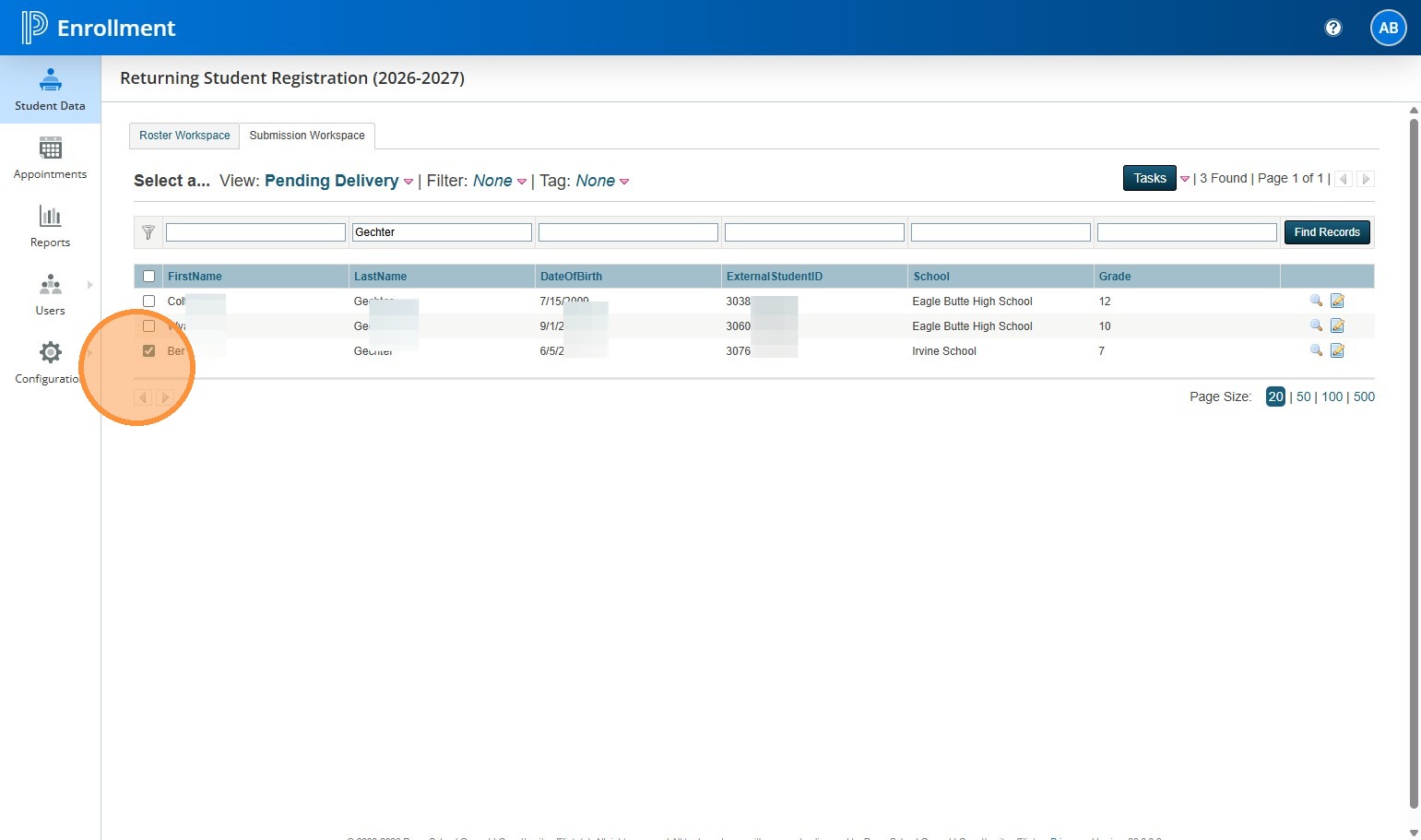
3. Click on Tasks.
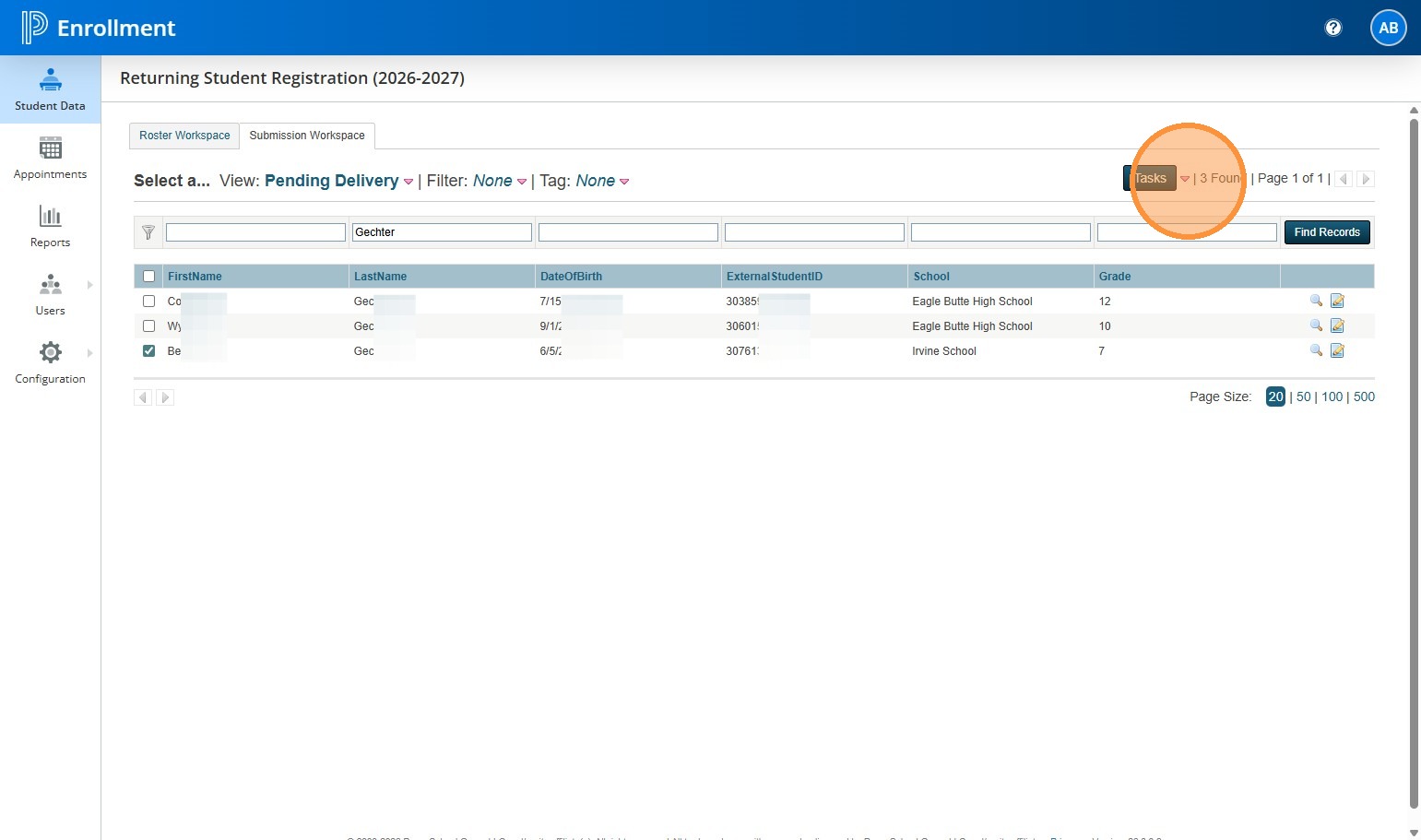
4. Click "Deliver Data"
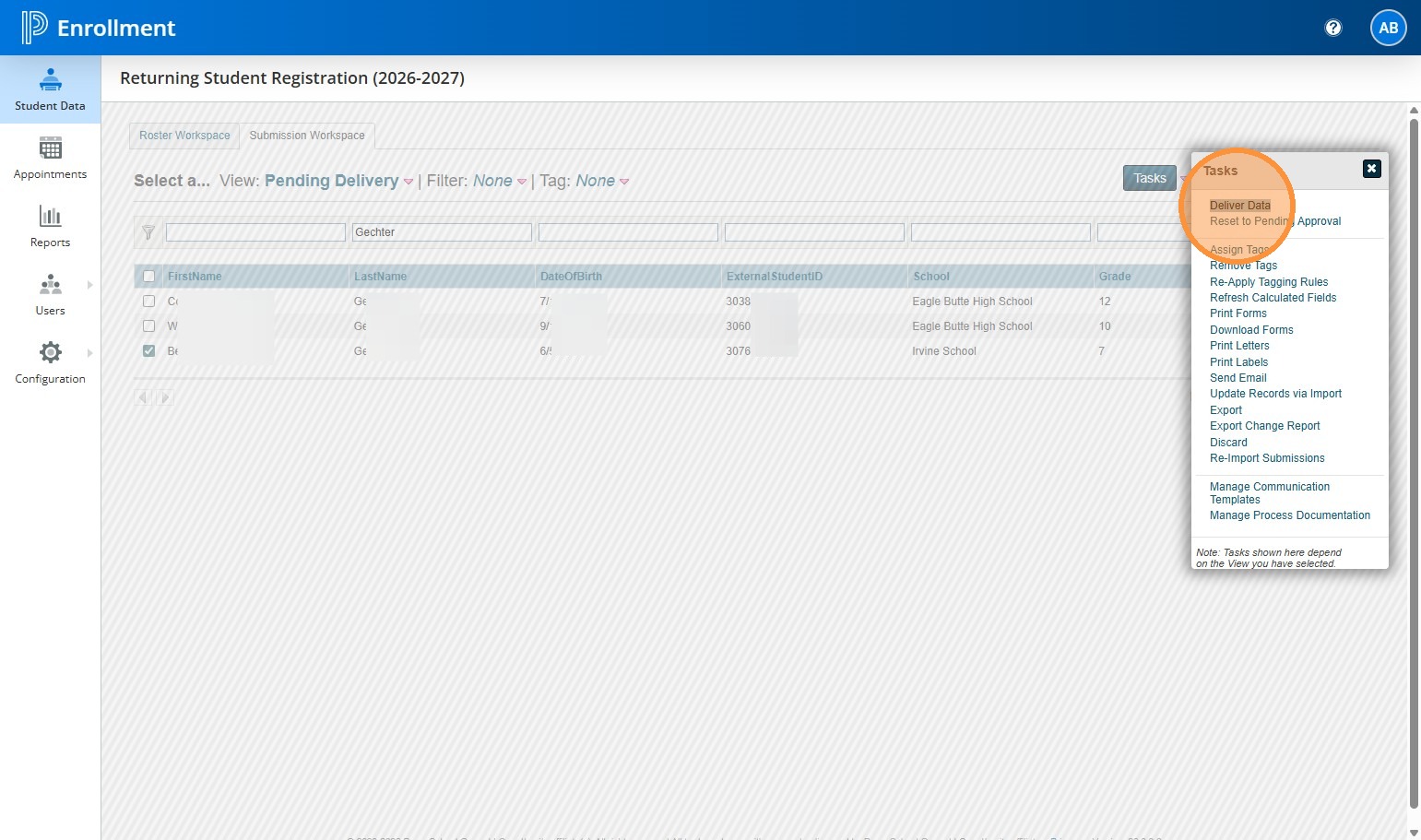
5. Choose Selected Only or All Found, if you want to do more than one.
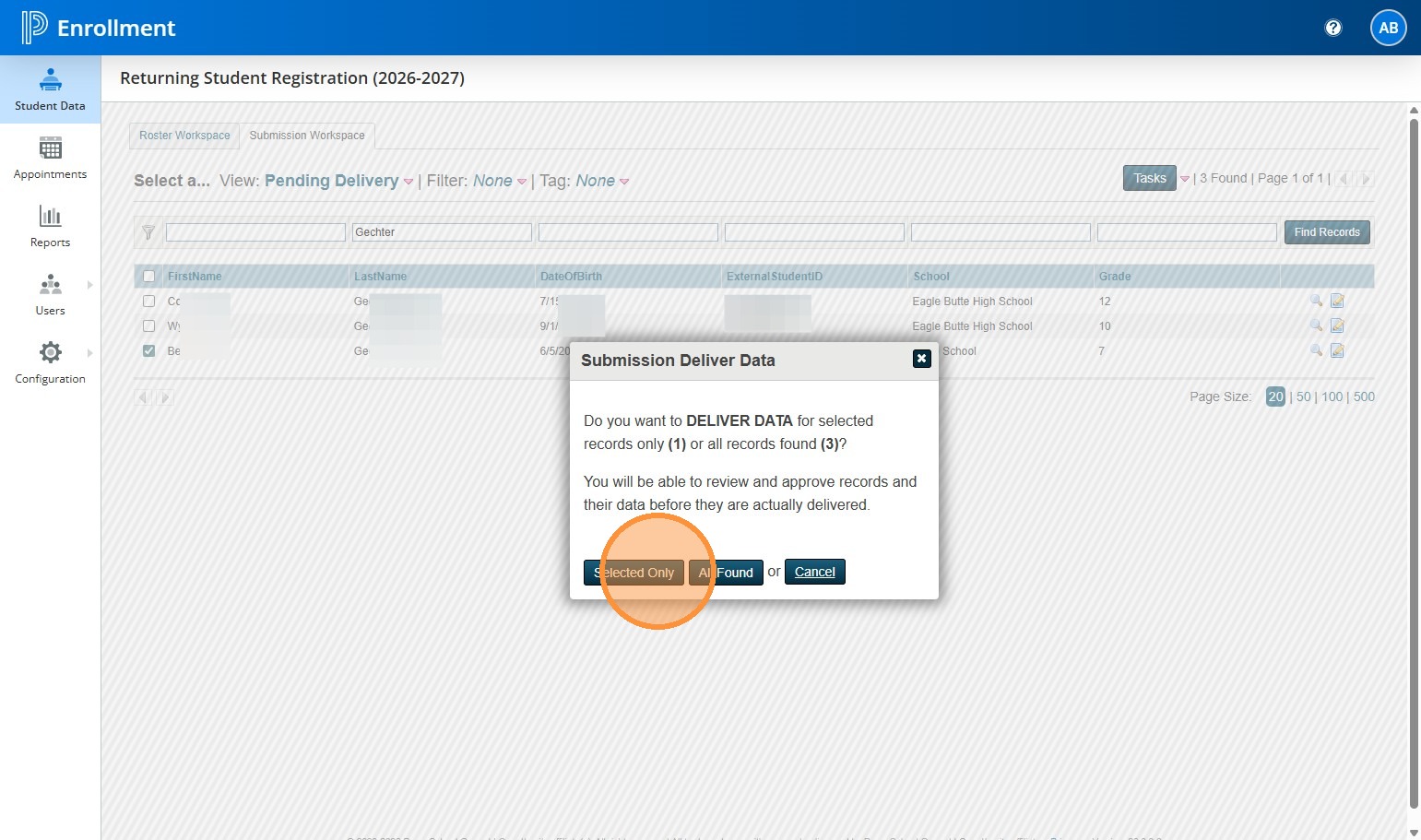
6. Create your Delivery Batch and click Close.
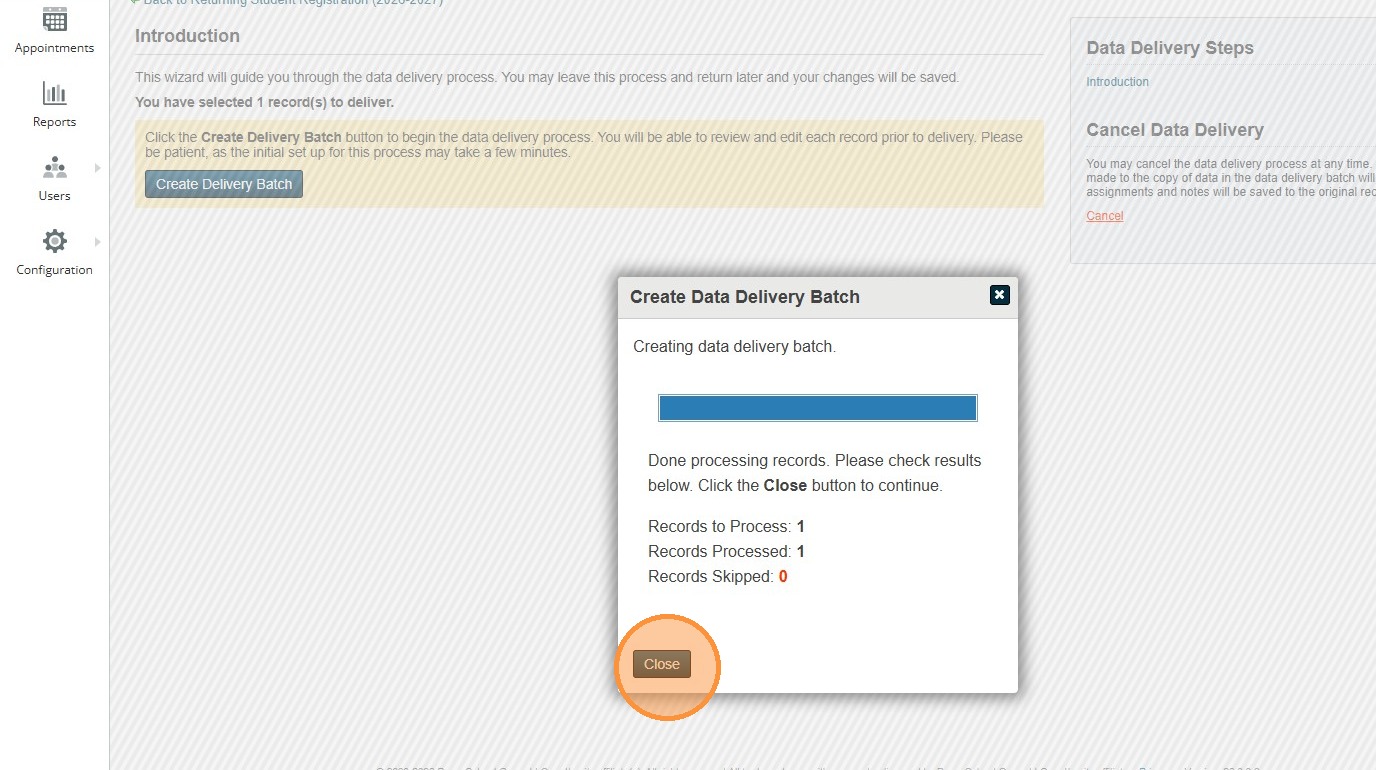
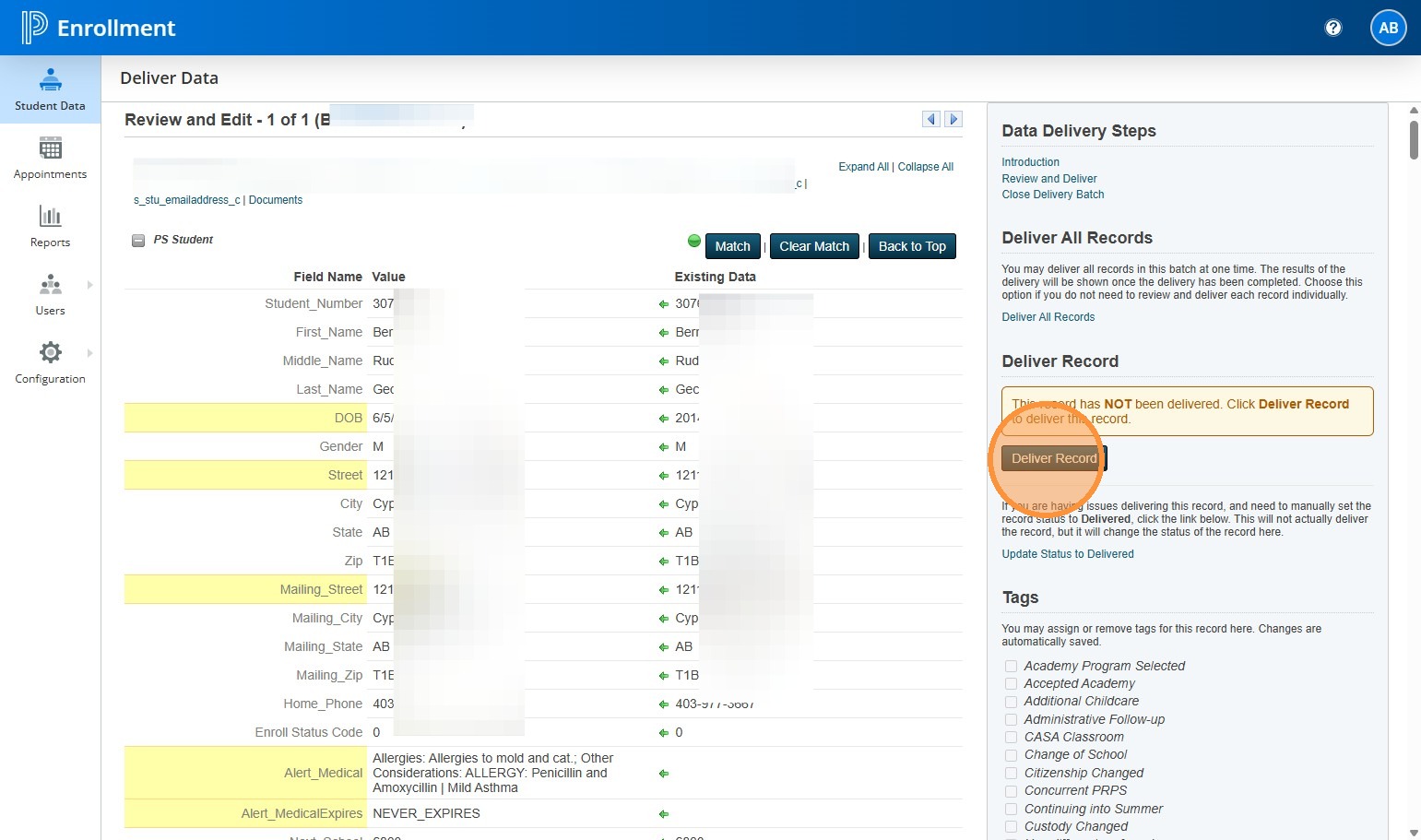
7. Once the batch opens you will see two columns. Left is what is on the form. Right is what exists in PS SIS.
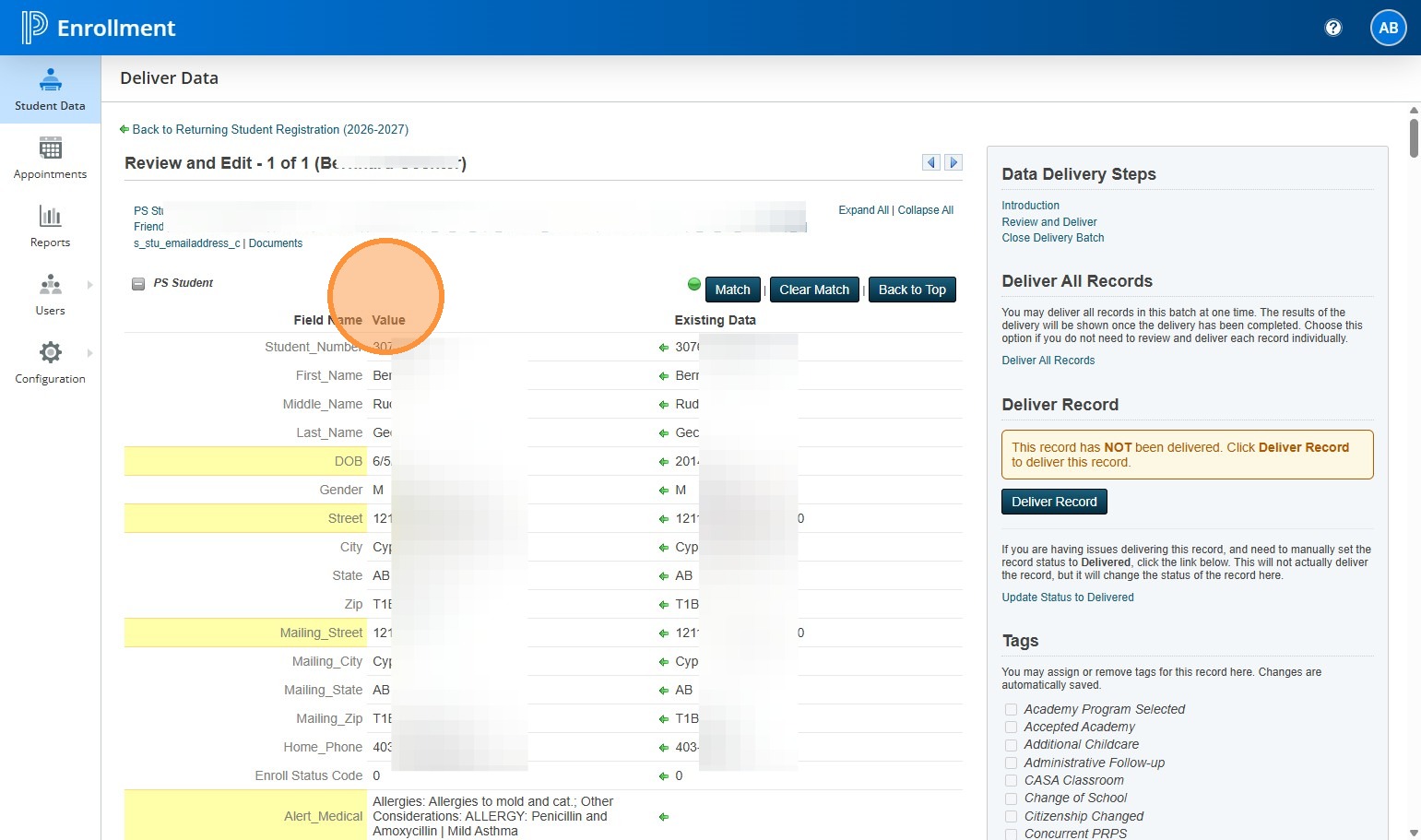
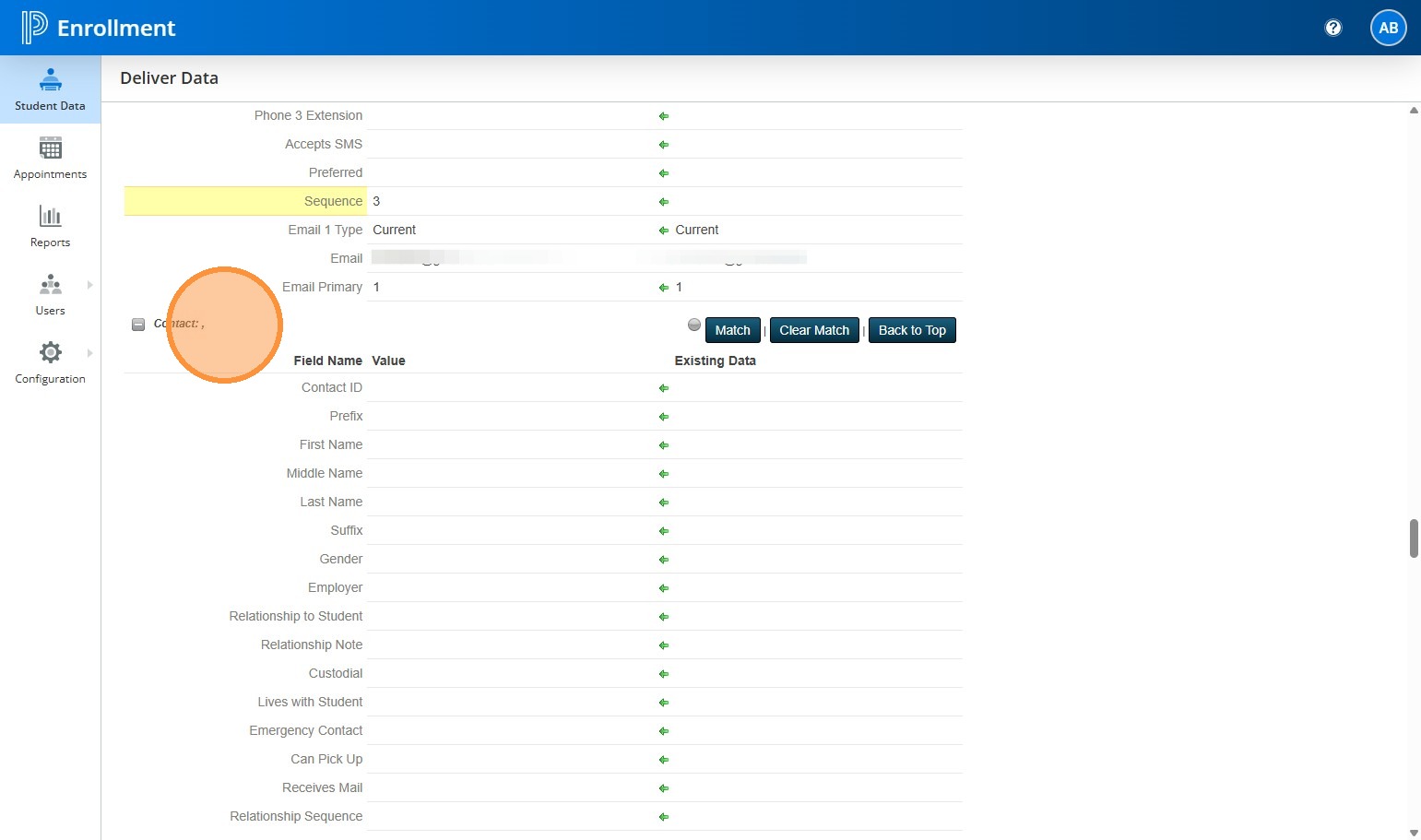
8. On this particular form there is a blank contact between the 2nd Contact and the 4th Contact. You don't need to do anything, but this means that there was a contact in this space that the parent has now removed.
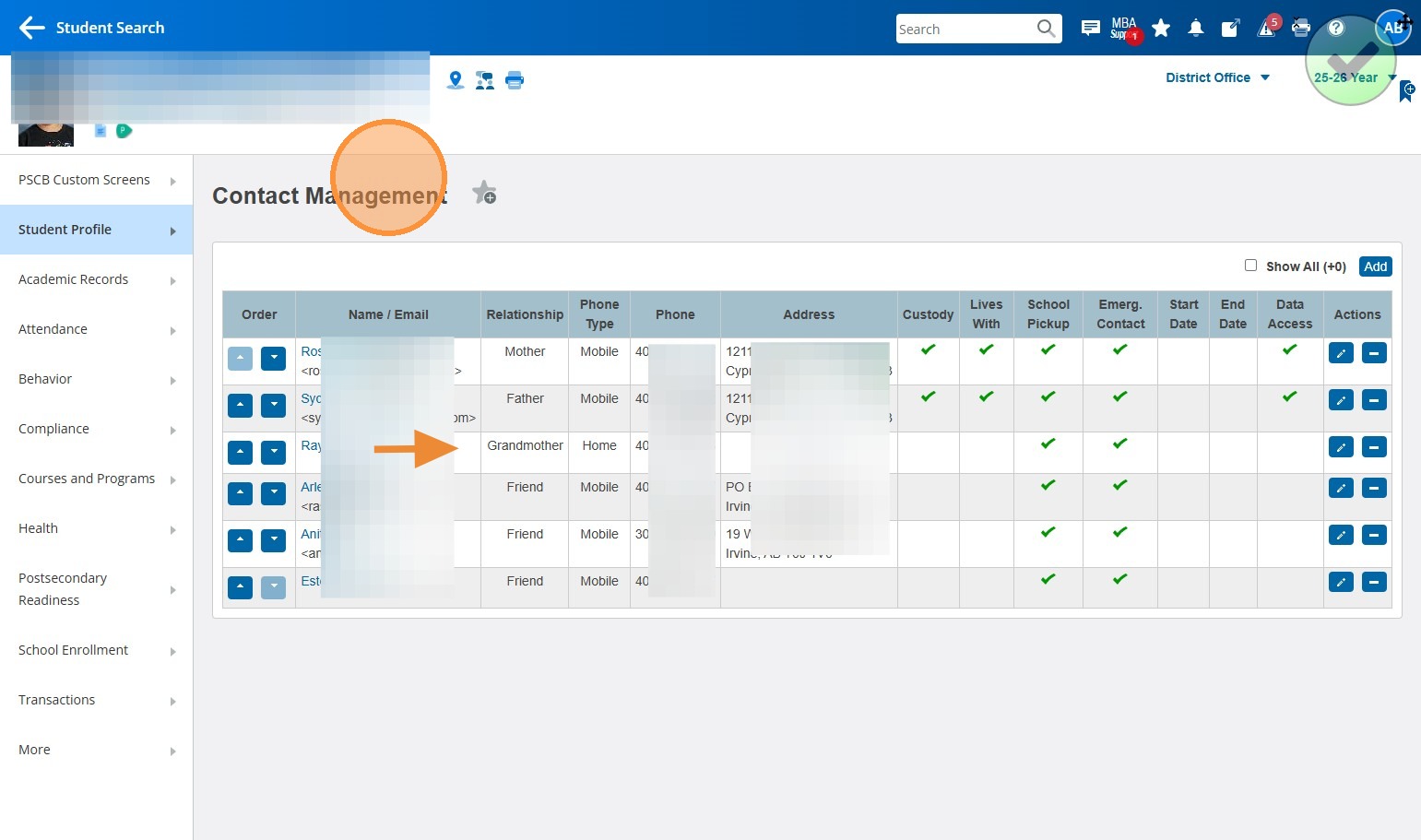
9. SIDE NOTE: If you flip over to PS SIS and bring up the student, you will see in this instance the parent has indicated they want to remove the Grandmother.
Note: You don't need to swap over to PS SIS to check this for every student, I just want to explain how the removal of contacts has been set up and what to look for.
10. Deliver your record, after reviewing and completing all the steps in the previous guides.
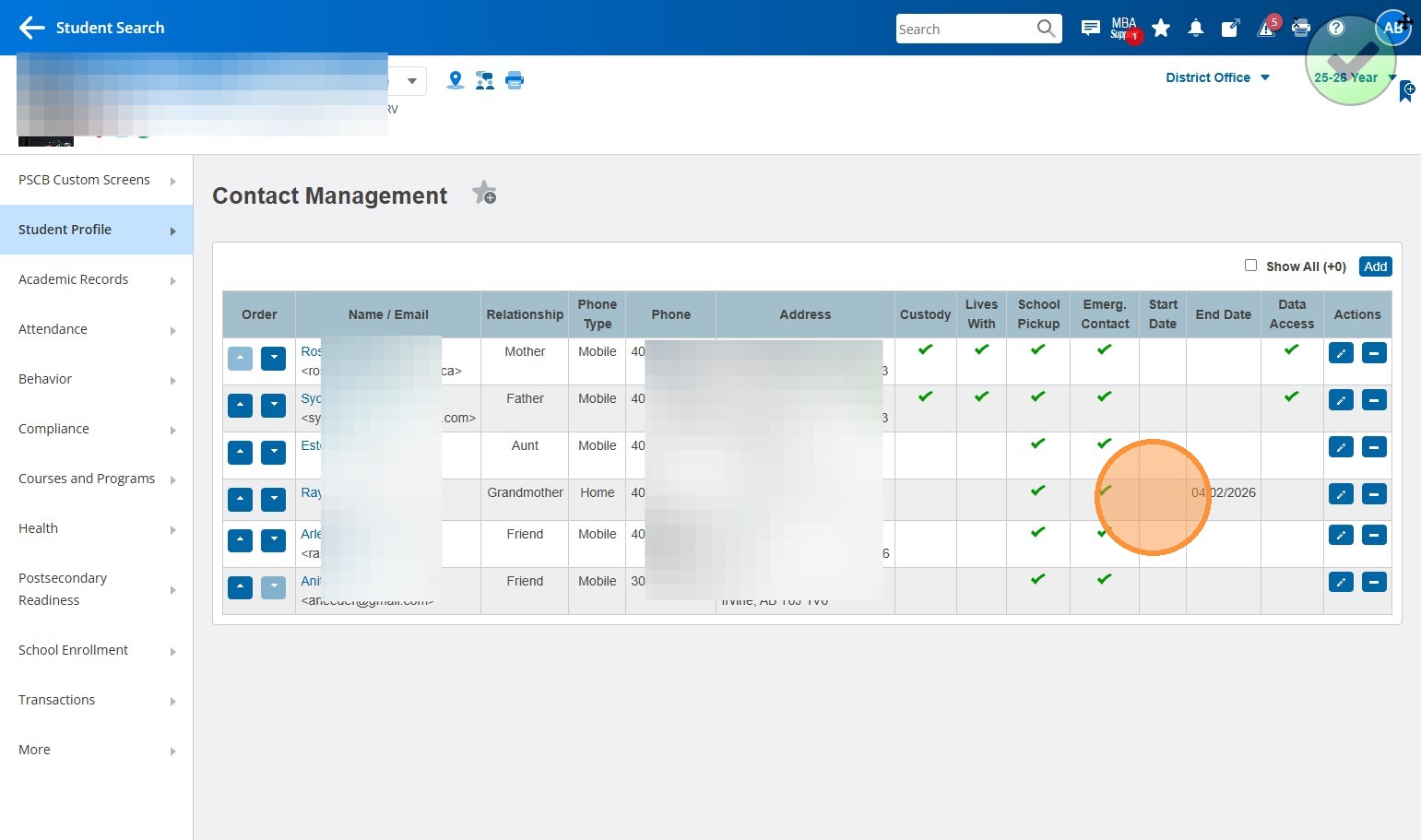
11. Now flip back over to PS SIS. You will see the program has expired out the contact that was removed. It will use the current date as the date of expiry. After the day passes, you will no longer see that contact listed.
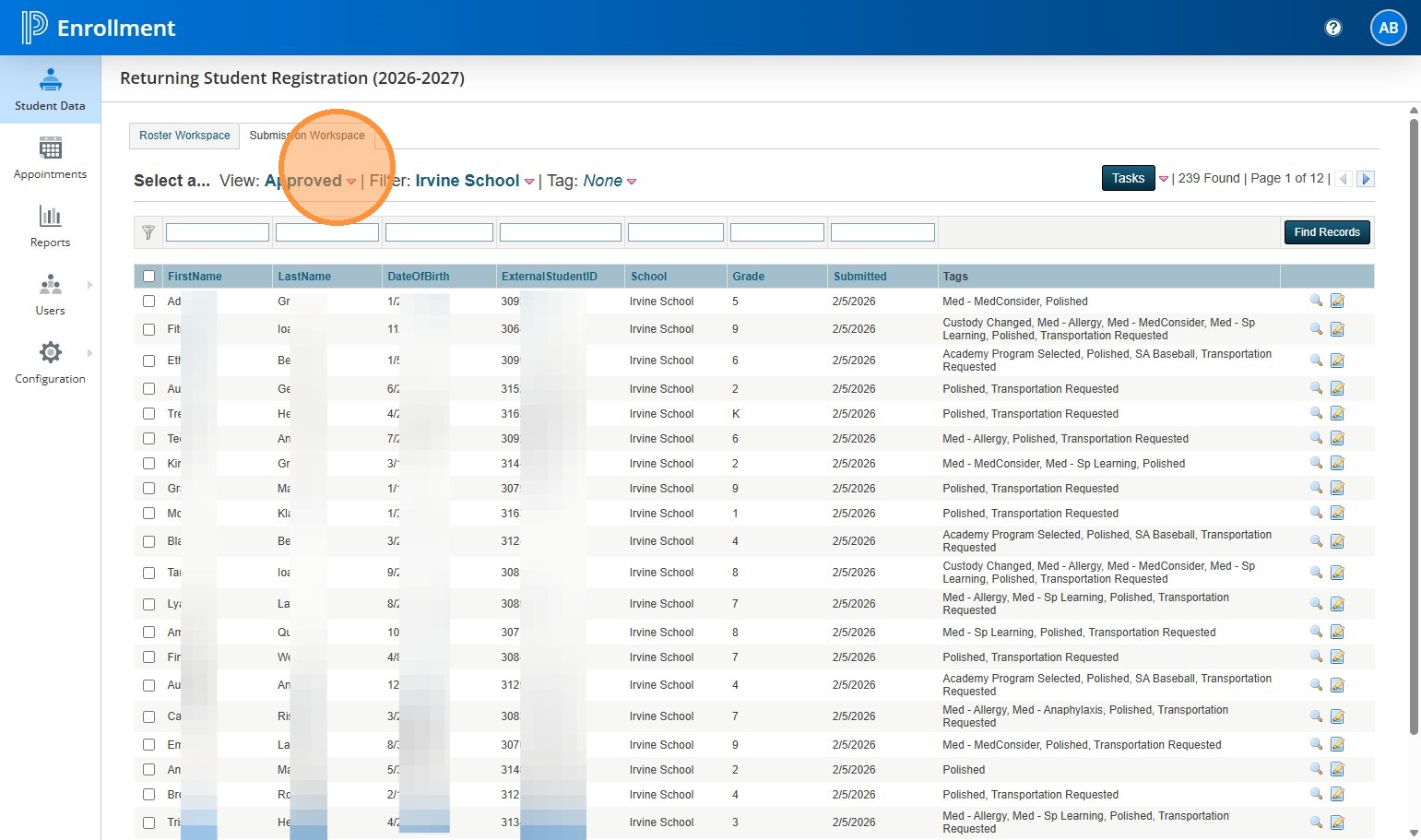
12. This next part is to show you what to look for before you get to the Delivery stage of the record and how to tell if a removed contact will throw an error in Delivery.
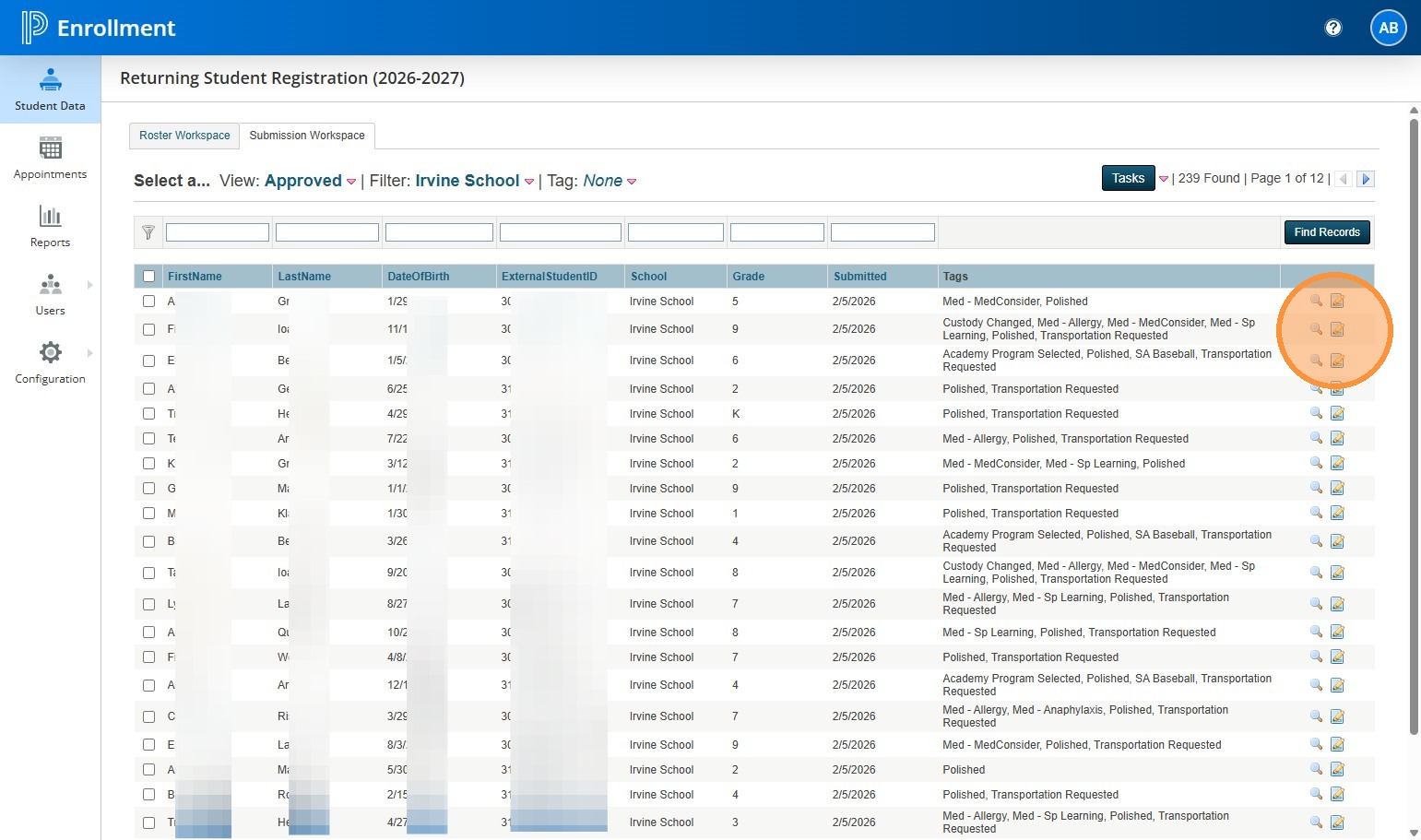
Go to the Approved or Pending Approval view.
13. Click on the record you want to review.
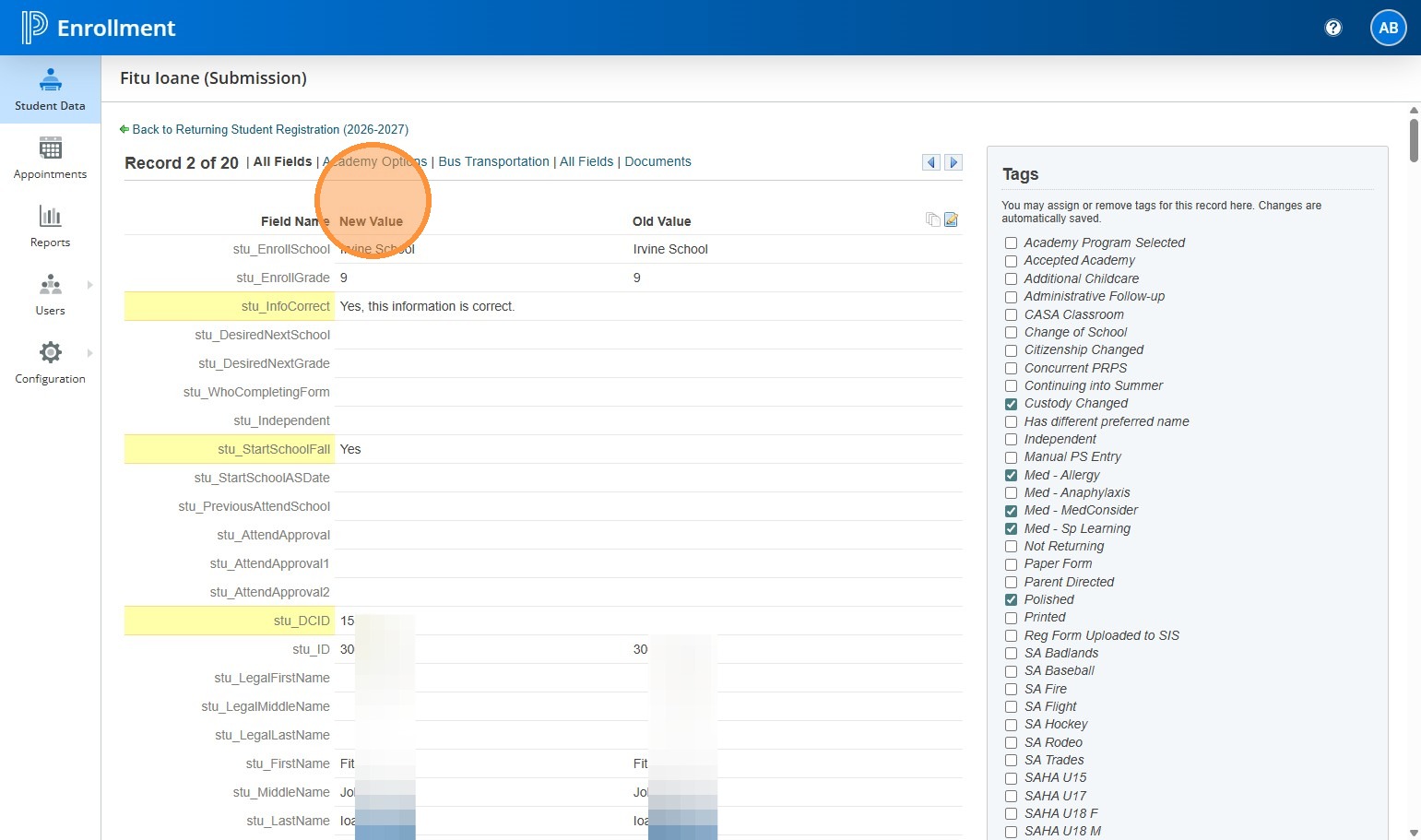
14. Remember the New Value is what is on the form and the Old Value is what is in PS SIS.
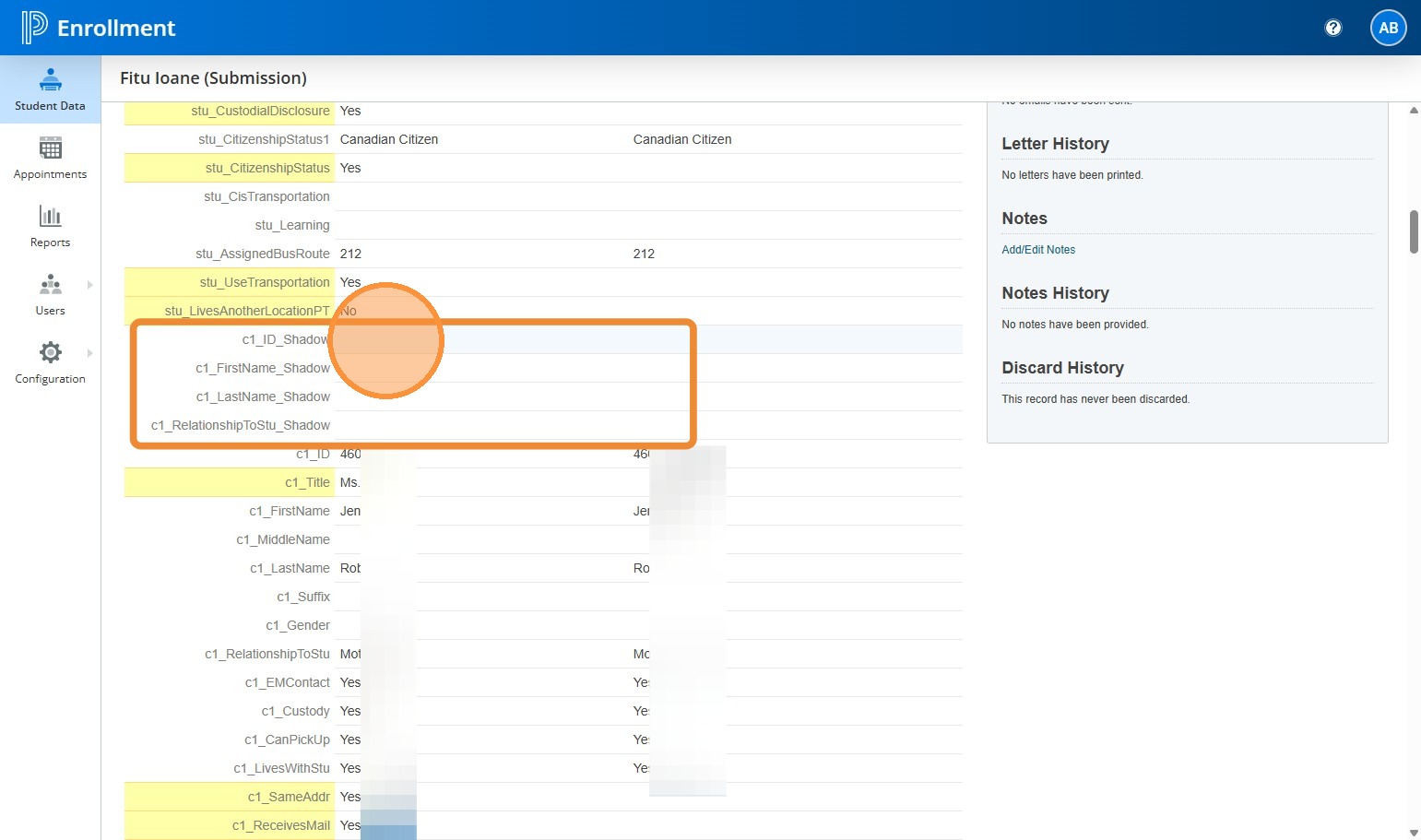
15. This is what you need to look for to determine if a contact is being removed.
See how there is no name listed in the Shadow Contact section. The parent has confirmed this contact is still valid. If they change it, two things could be possible.
Possibility 1: The Shadow ID would have information, but the Contact information would be empty. This means they are removing the contact. On the Delivery screen (which I showed you above) this contact would be blank when you deliver.
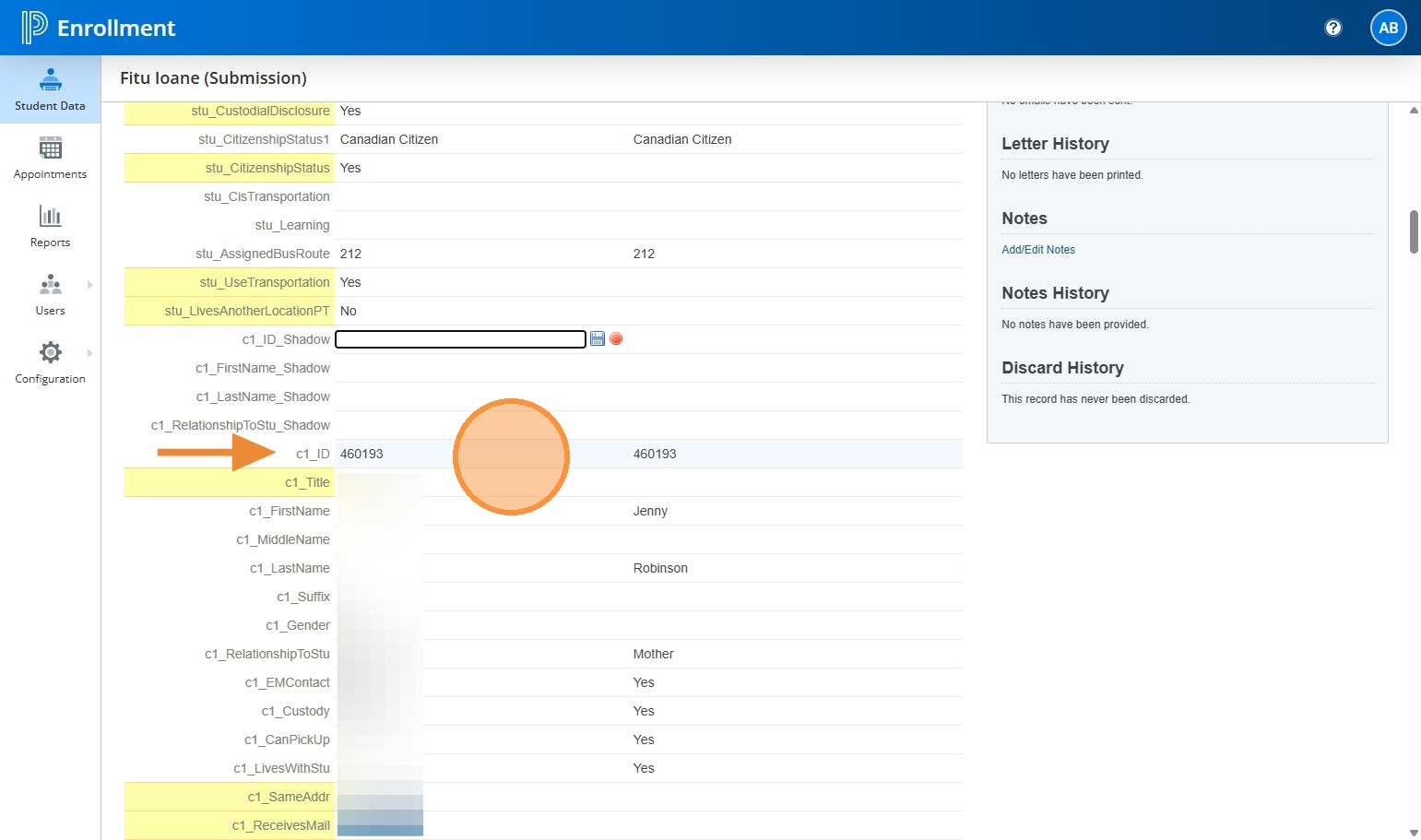
16. Possibility 2. In the field labeled c1_ID the number would be showing, but all the contact information underneath it wouldn't be there. This might have happened if some of you were getting errors in Delivery and trying to fix them. If there is a number in the left column, you need to delete it as part of the Approval process before delivery. If there is any information on that side when you deliver, it will not expire the Contact. It will just update it.
17. For the most part, the program will do all of the stuff for you, including adding the dates for expiring contacts. As a best practice, keep an on these contact fields as you are approving and delivering records. If you are getting an error when delivering your contacts, there's a good chance you need to review these sections.