Managing Student Activities in PowerSchool SIS Admin
Managing Student Activities in PowerSchool SIS Admin
Learn how to manage student extracurricular assignments and field values within the PowerSchool SIS administrative portal. This guide covers assigning activities to individual students, groups of students, and how to remove activities from individuals and groups of students.
Add an activity to an individual student:
1. Navigate to the PowerSchool SIS admin home page at https://prsd8.ca/admin/home.html
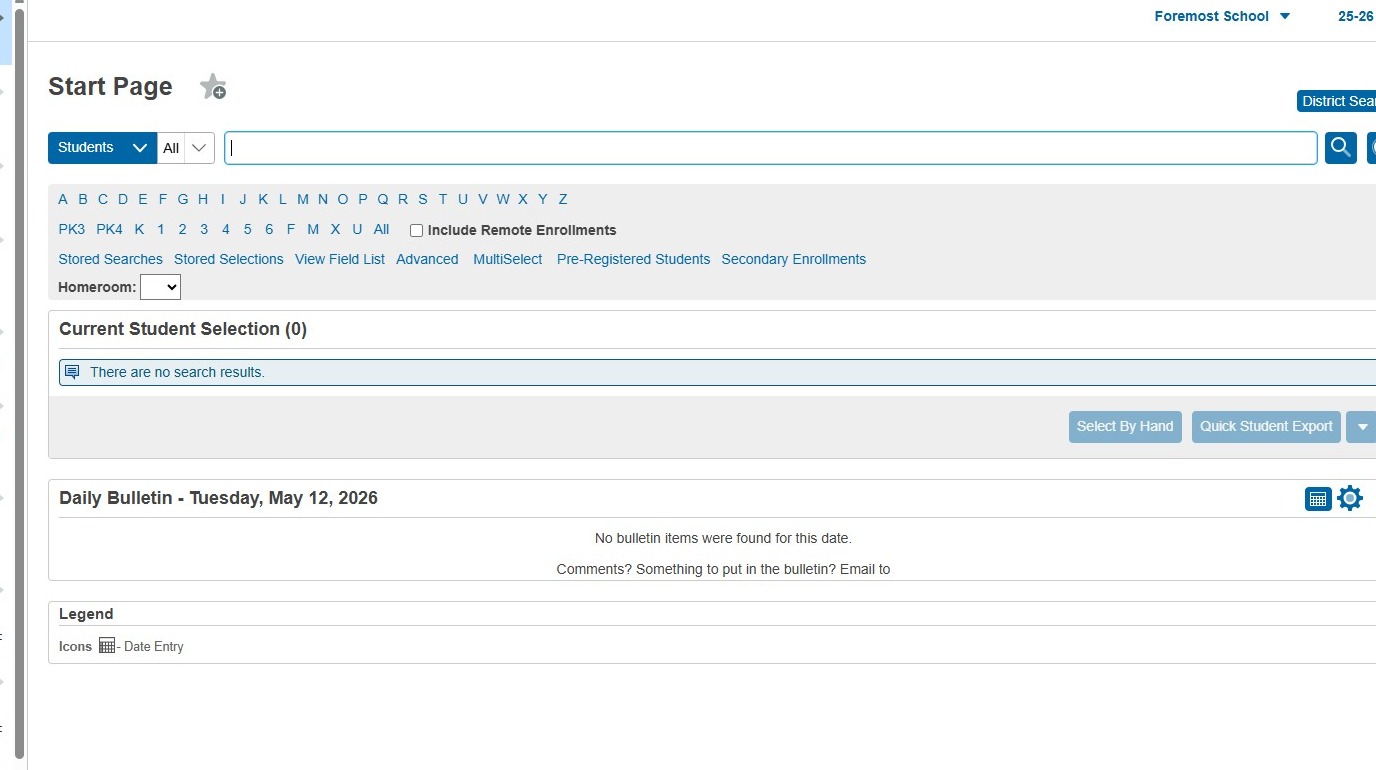
2. Search for a student by typing their last name in the Search box

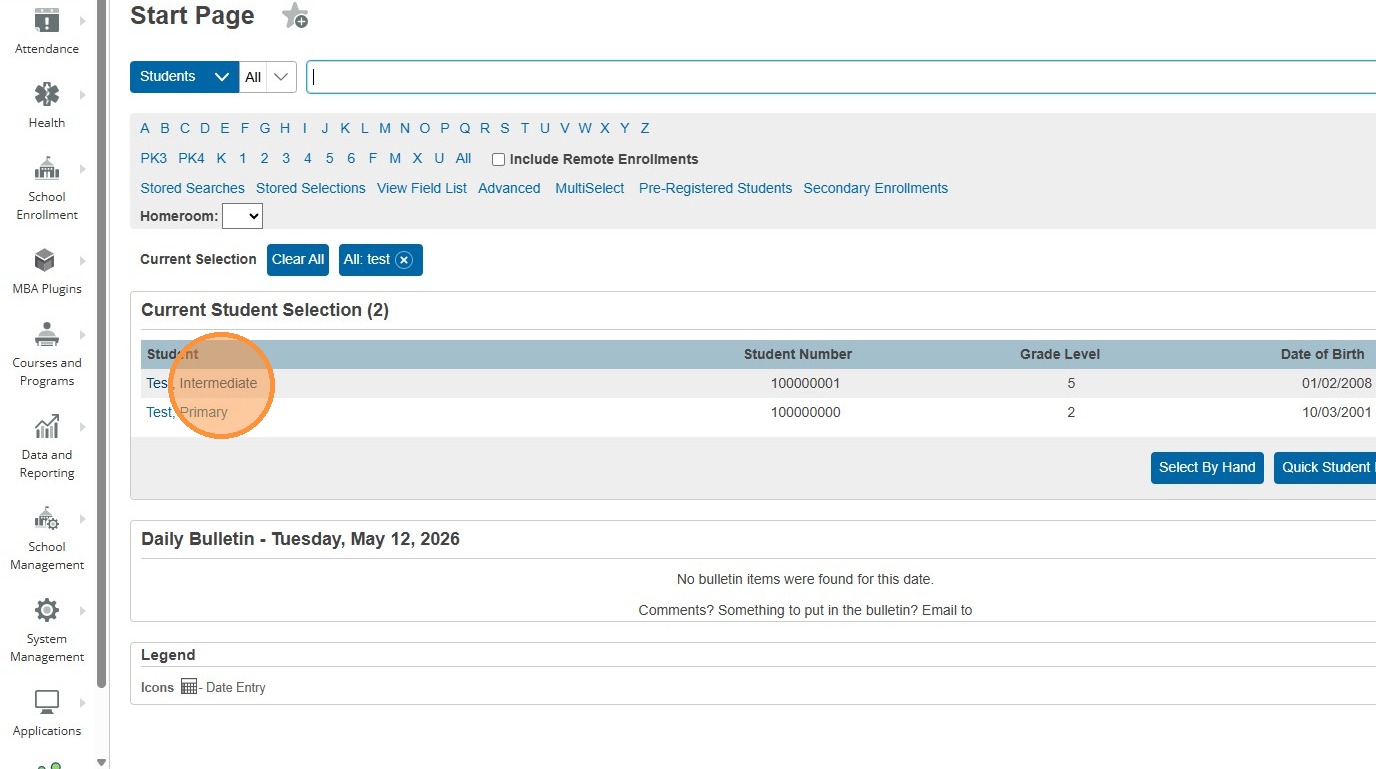
3. Select the student from the search results.
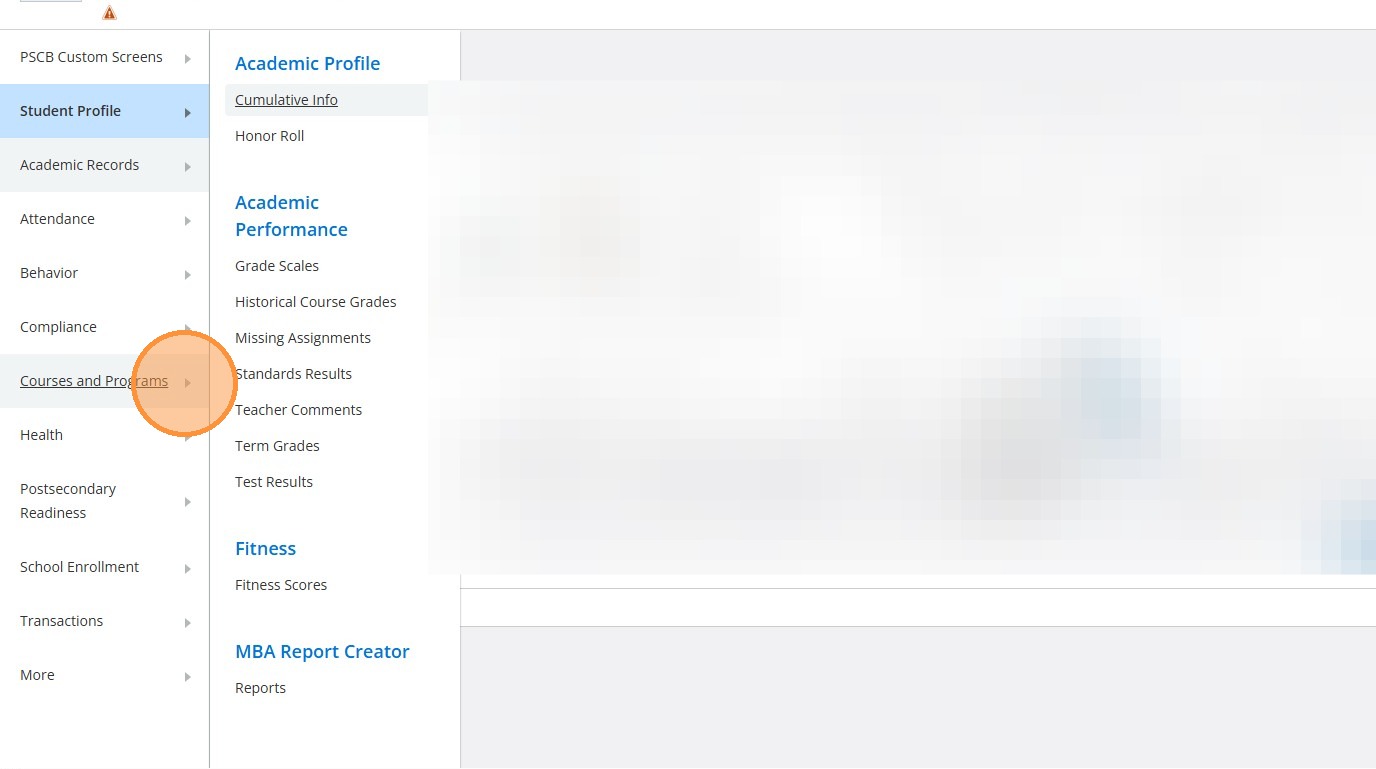
4. Click "Courses and Programs"
5. Click "Extracurricular Activities"
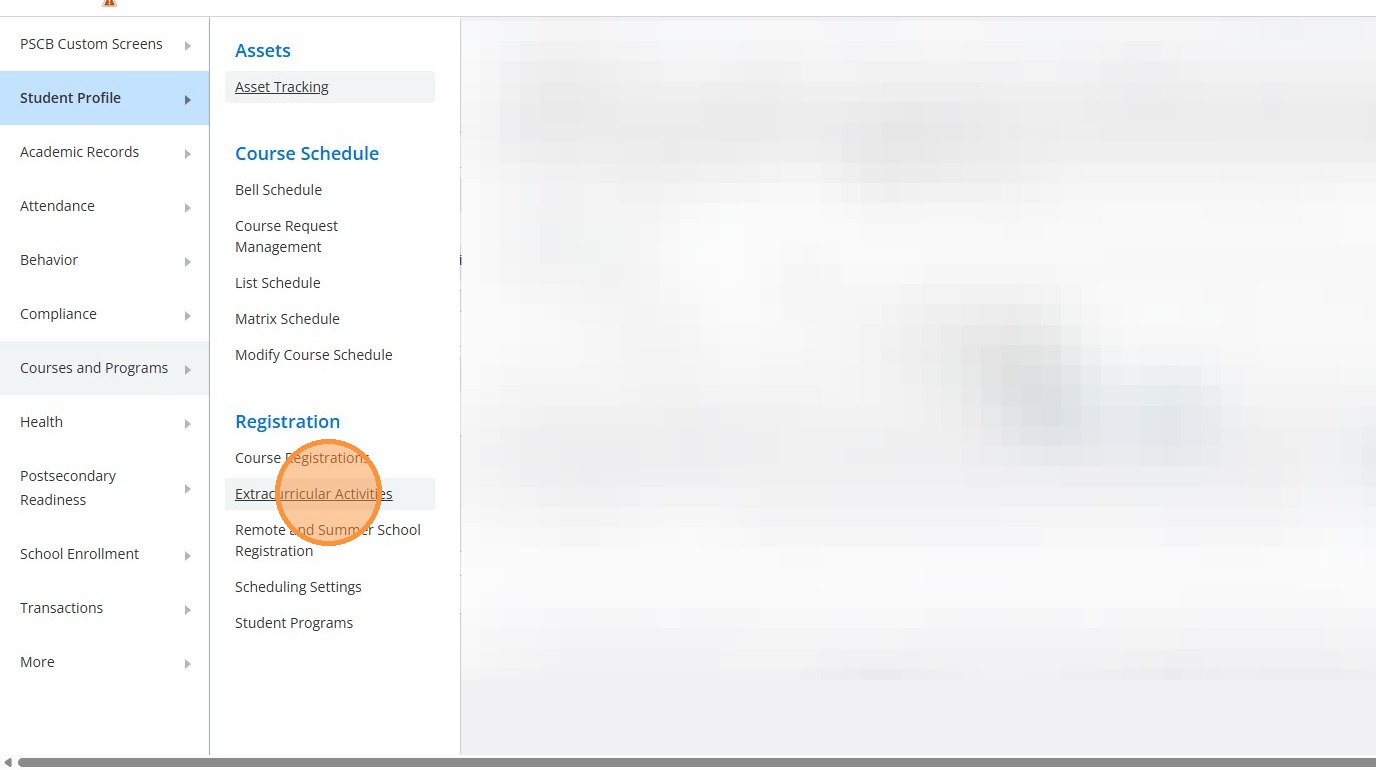
6. Select the checkbox for the activity you want to add
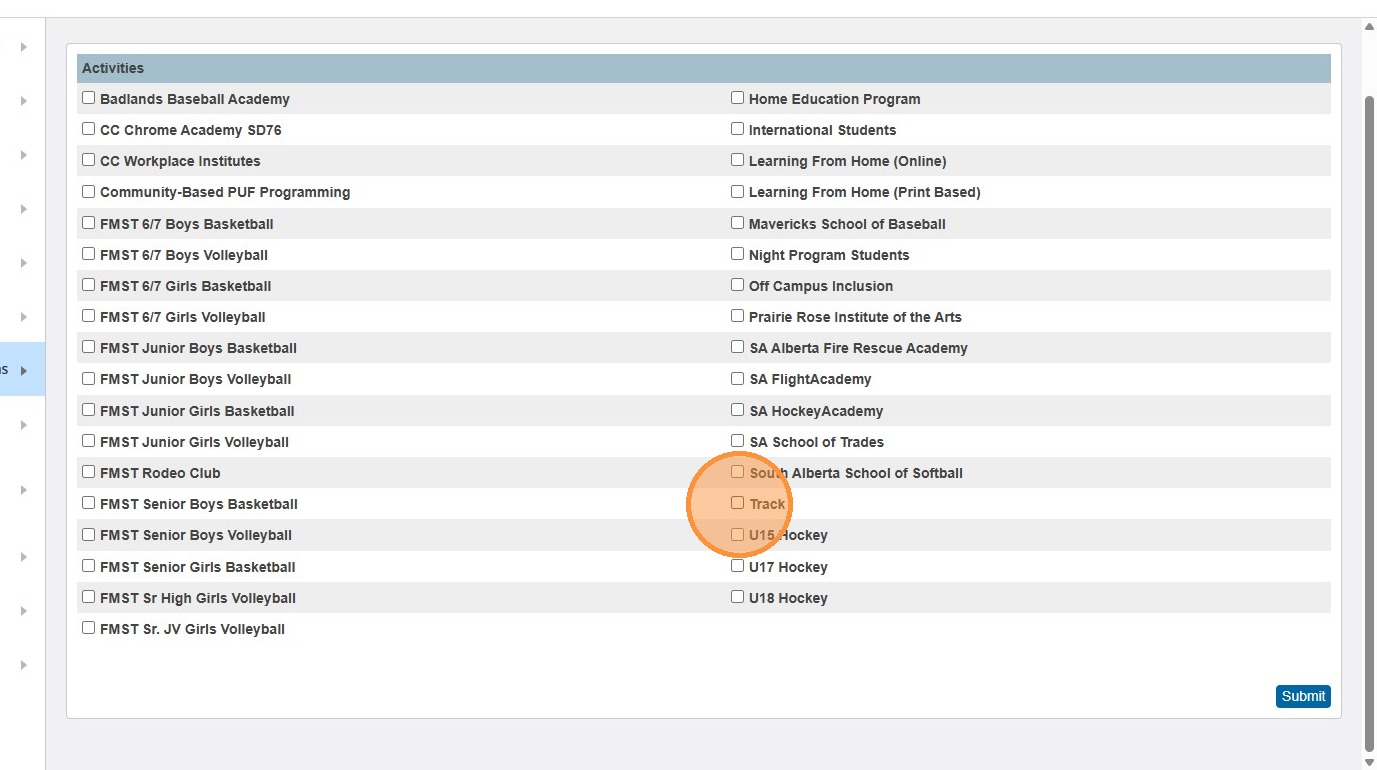
7. Click "Submit"
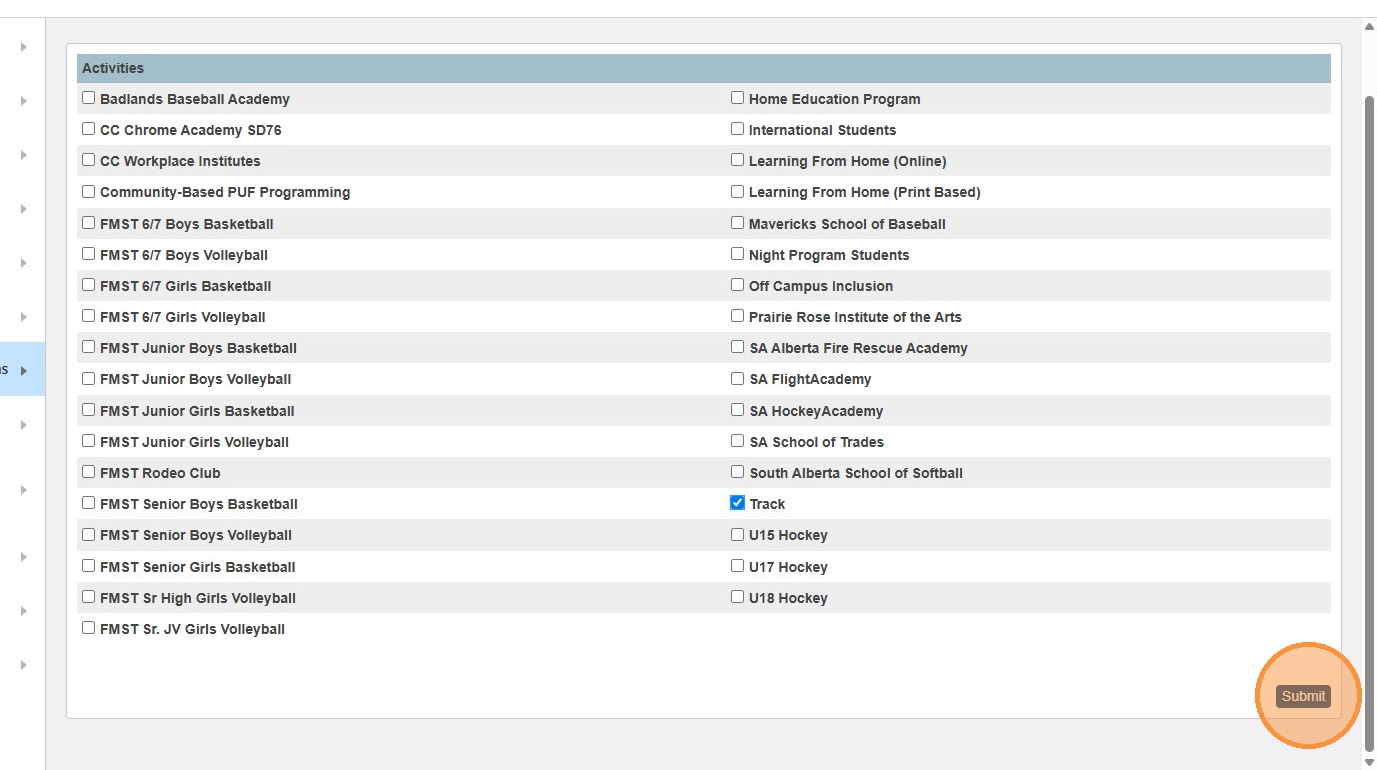
8. To remove an activity from an individual student, follow these same steps and UNcheck the box next to the activity you wish to remove.
Adding an activity to more than one student as a batch:
9. Choose a student selection, and click the drop down under the student selection.
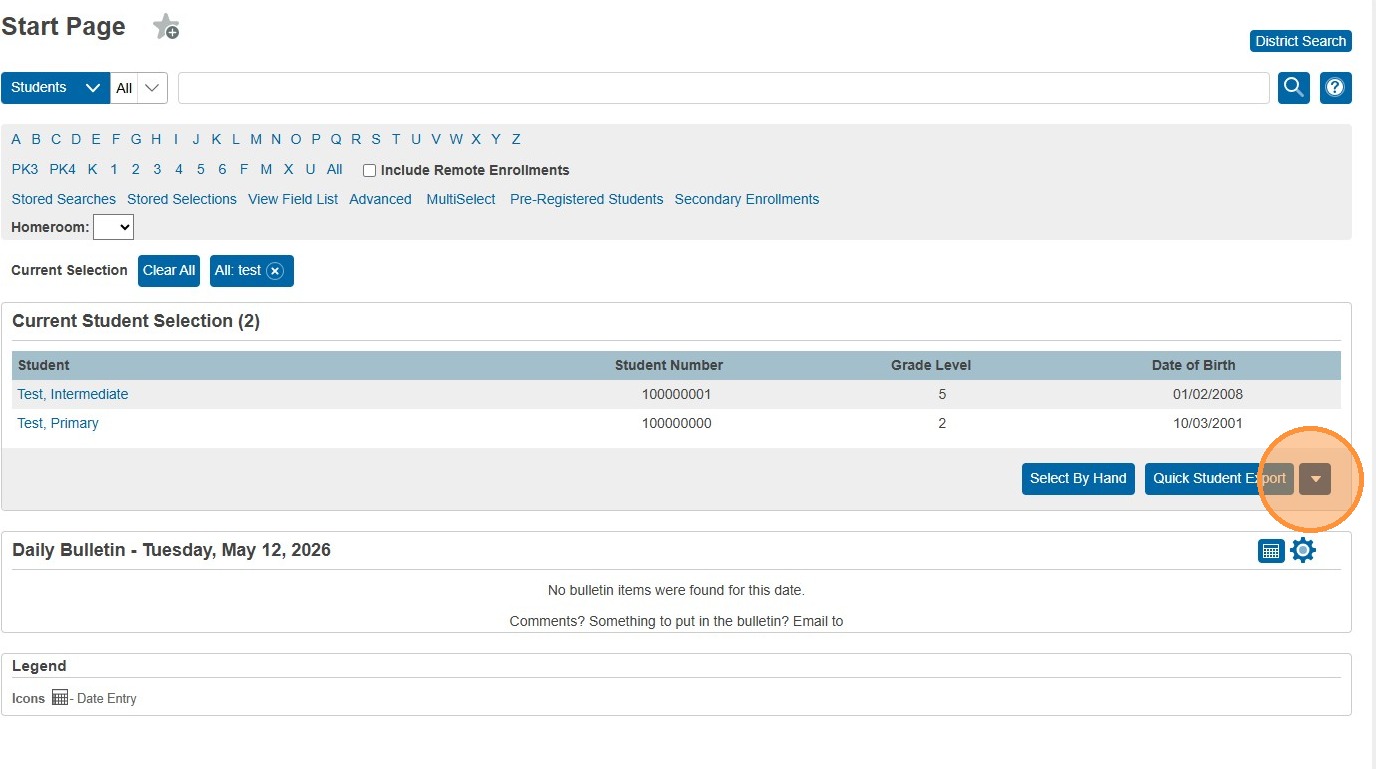
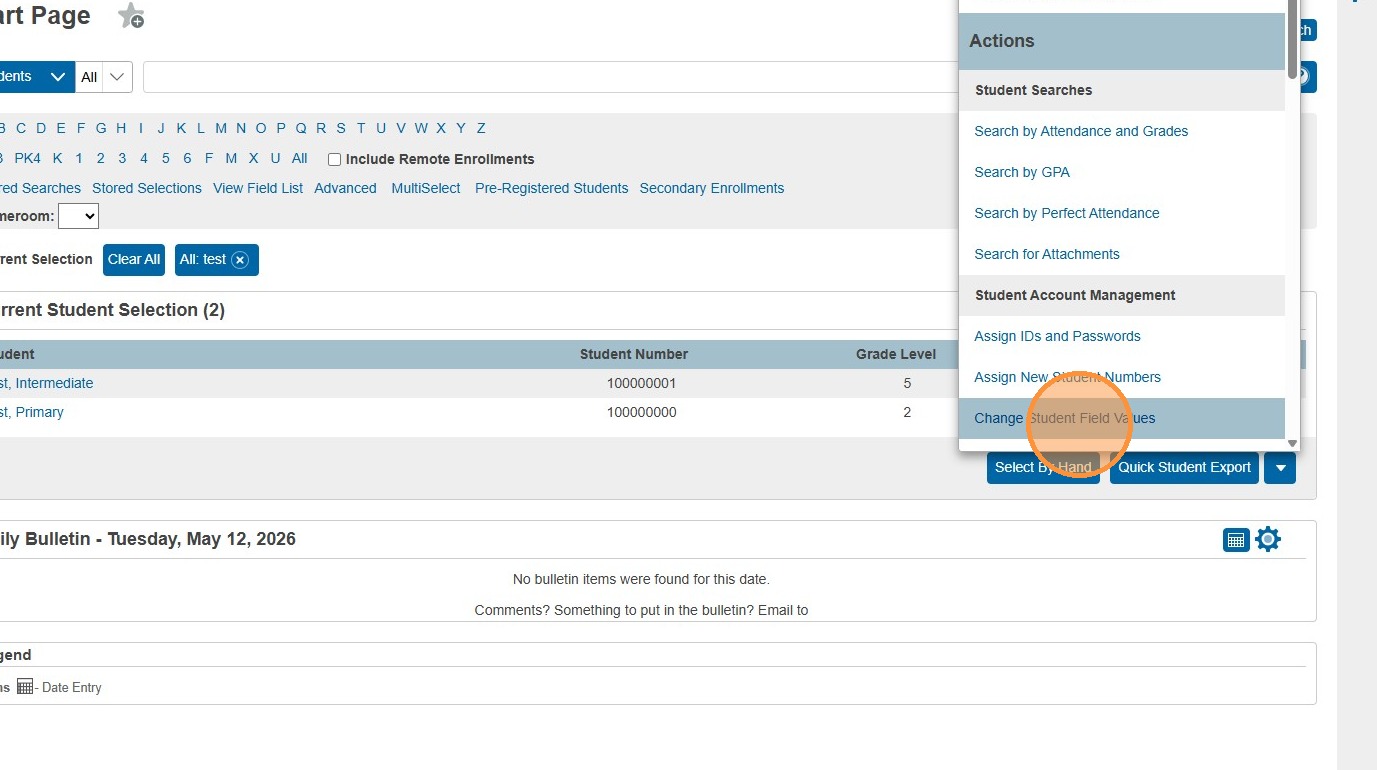
10. Click "Change Student Field Values"
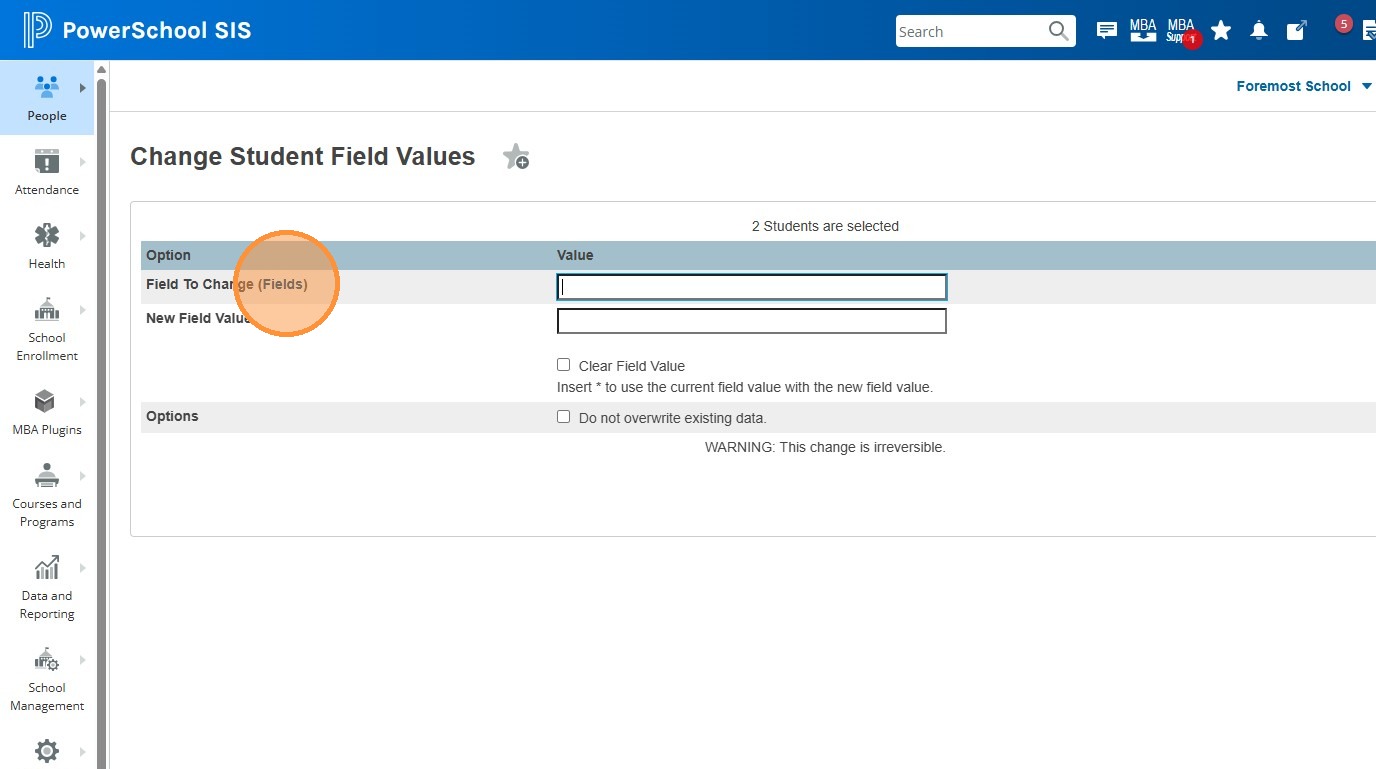
11. Click "Fields"
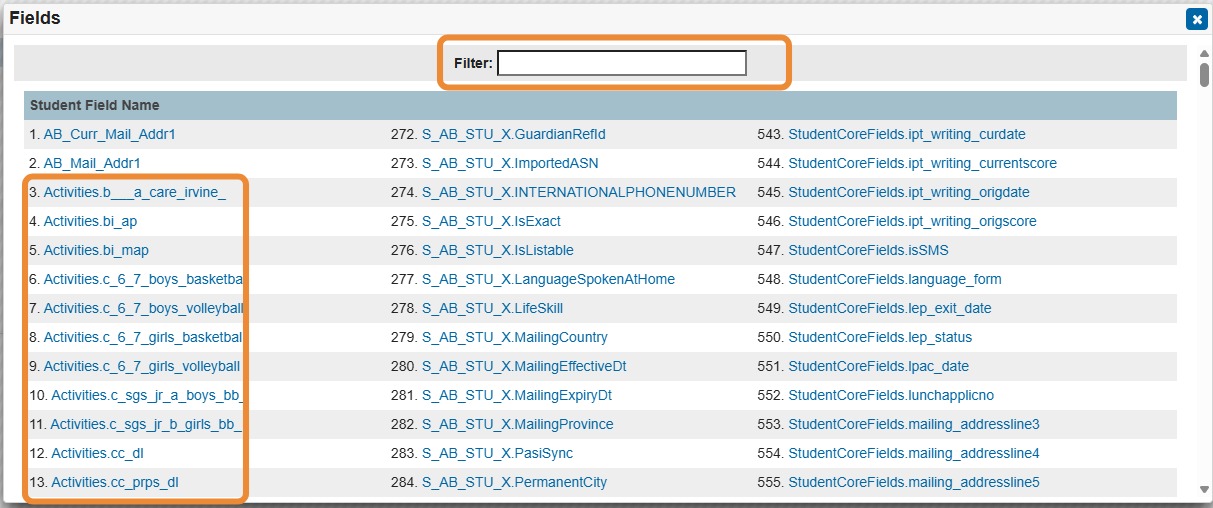
12. Search for the Activity field you want. You can scroll through them, or use the Filter box to type in a bit of the field name to narrow down your search.
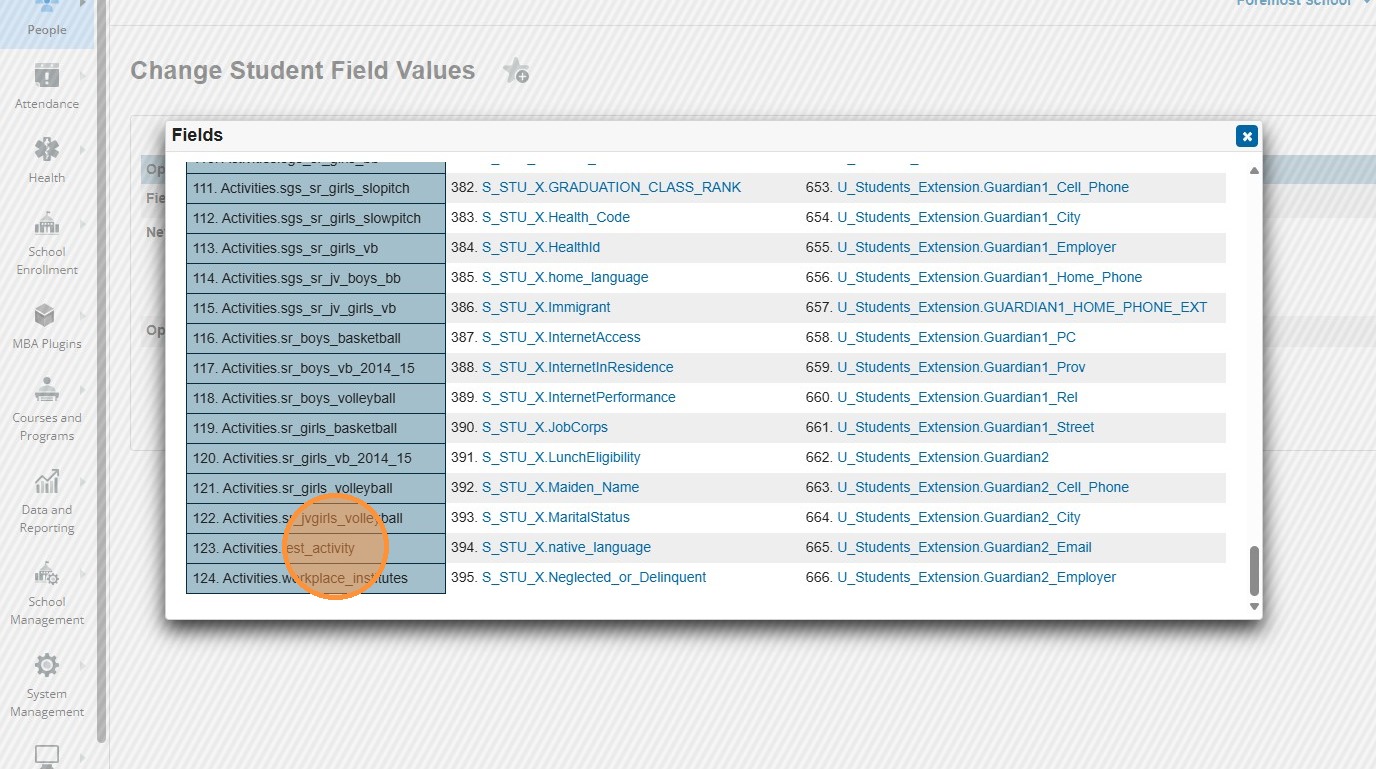
13. Click on the activity
14. Enter "1" in the New Field Value field. Because all the activities are "boolean" fields, their values are 1 (for checked/active), and 0 (for unchecked/inactive). We are assigning these activities, or checking them off, so we are entering the value of "1".

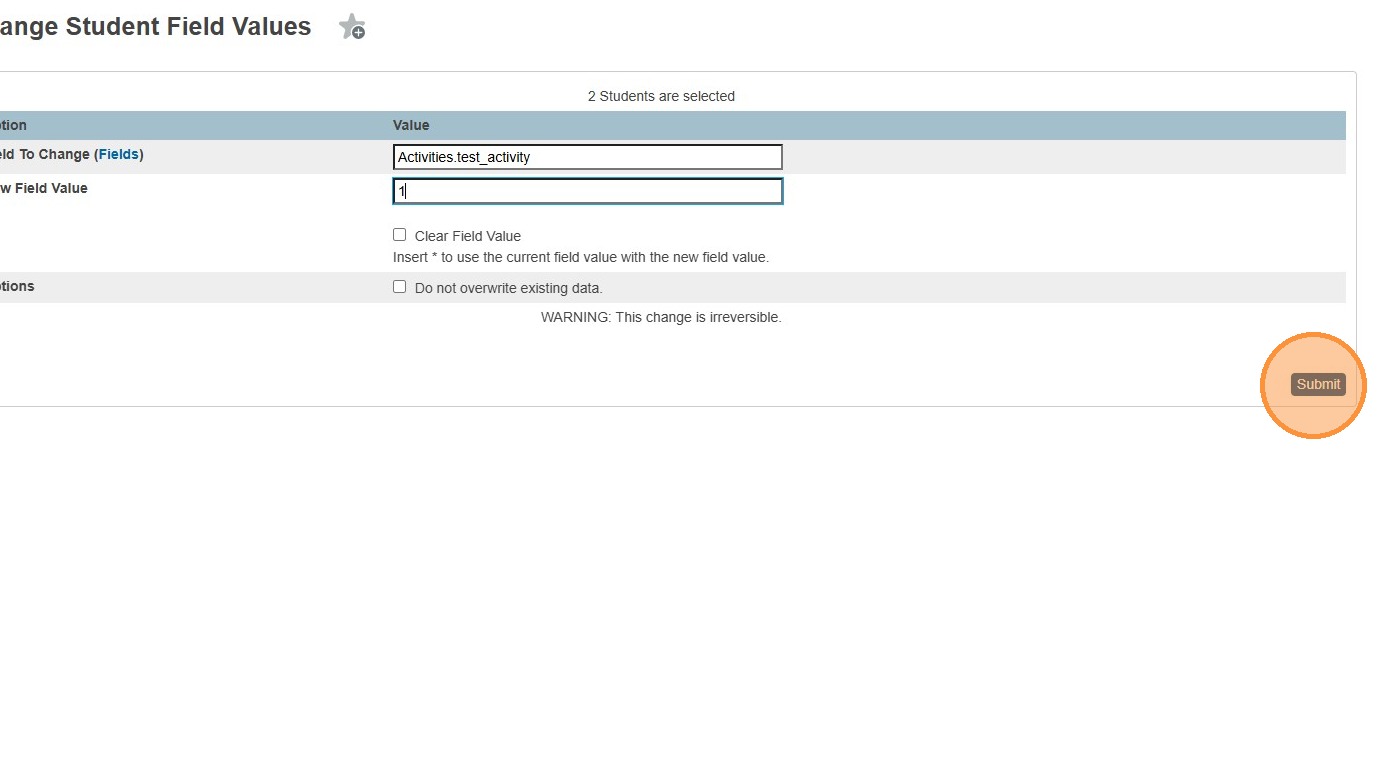
15. Click Submit to prepare the field value update.
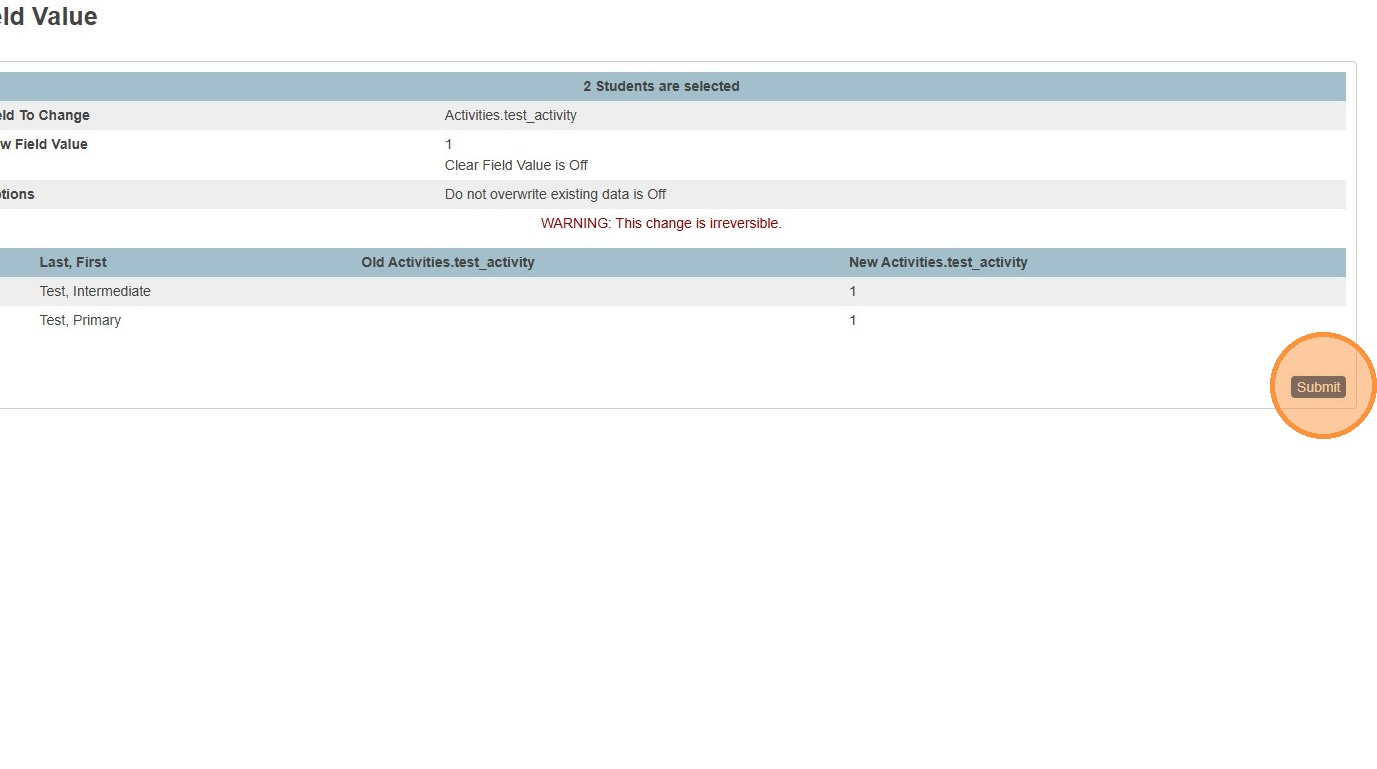
16. Review the changes that are being made. You can see that the old value was nothing (same as 0), and the new value will be 1. Click Submit to confirm and commit the field value update.
Remove or Clear an activity field from students in bulk:

17. Select your group of students. Open the student actions menu and select Change Student Field Values.

18. Select the Fields lookup, and choose the correct activity. Use the Filter option if needed.
19. Select the Clear Field Value checkbox.
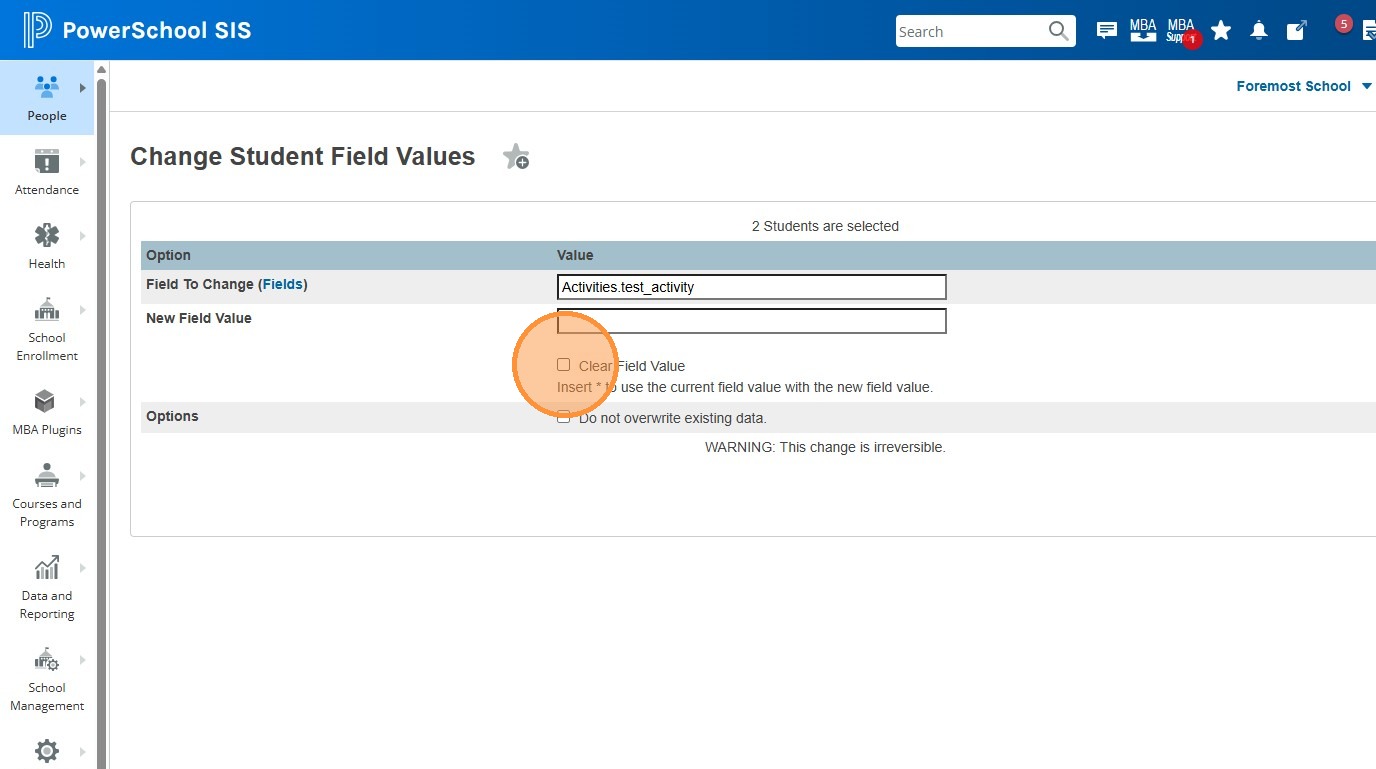
20. Click Submit to prepare the field value clear.
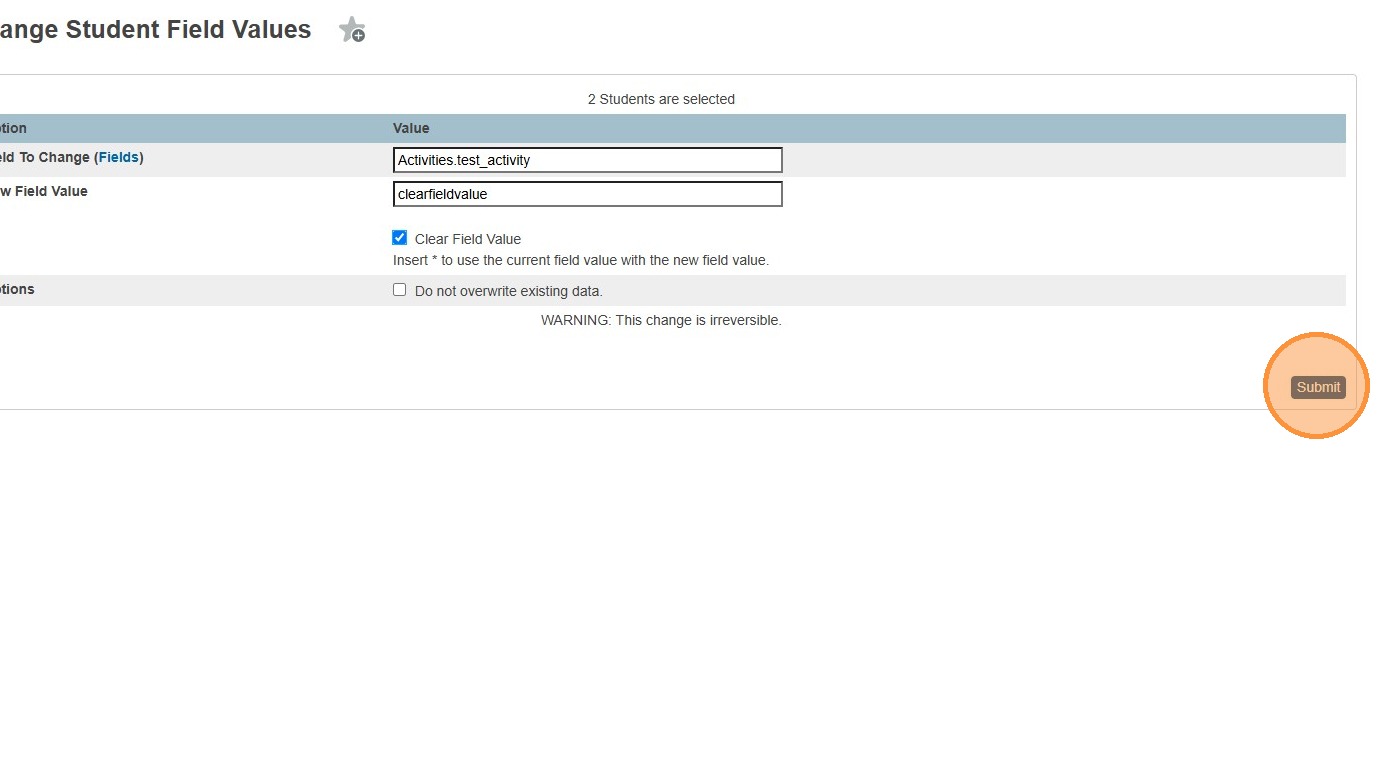
21. Review the changes, and click Submit to confirm and commit the field value clear.
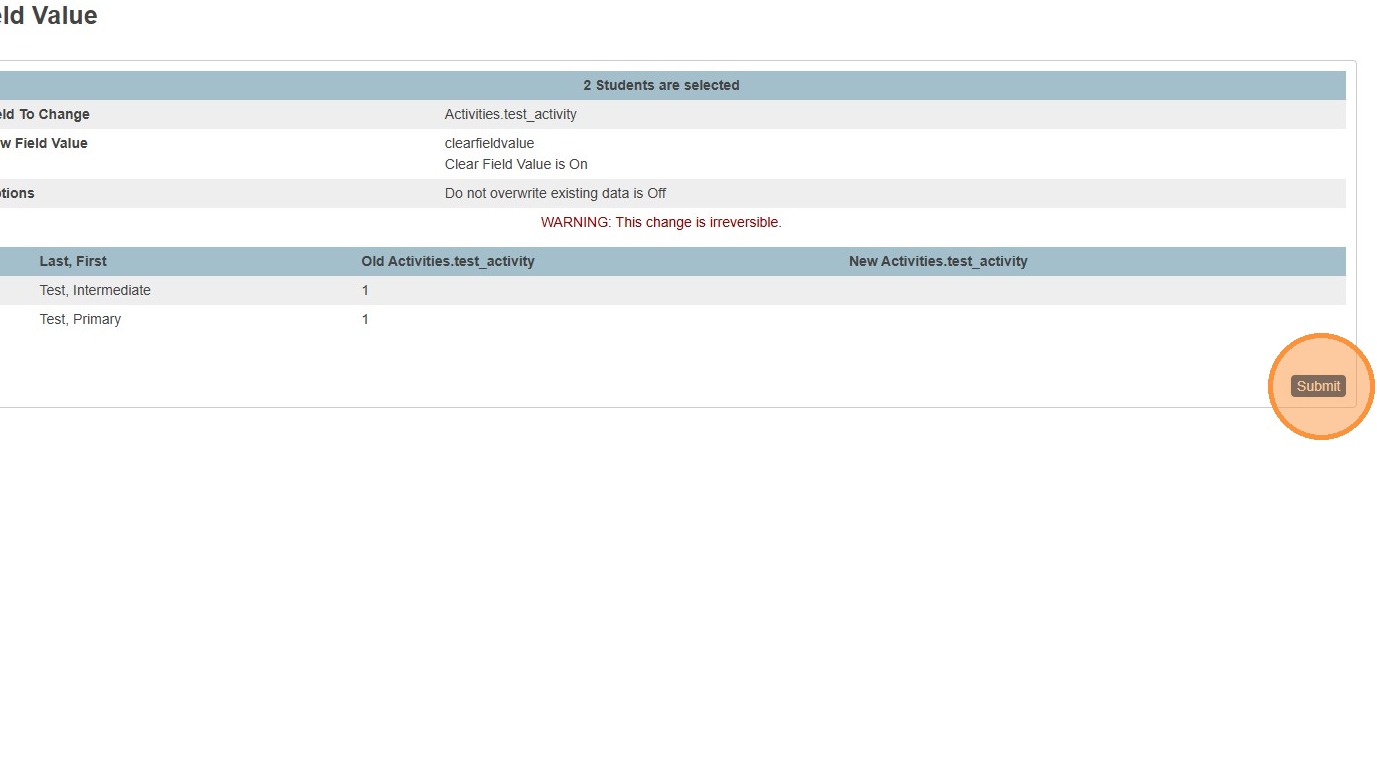
Create a New Activity
22. If you don't see the an activity that matches one you are trying to assign to students:
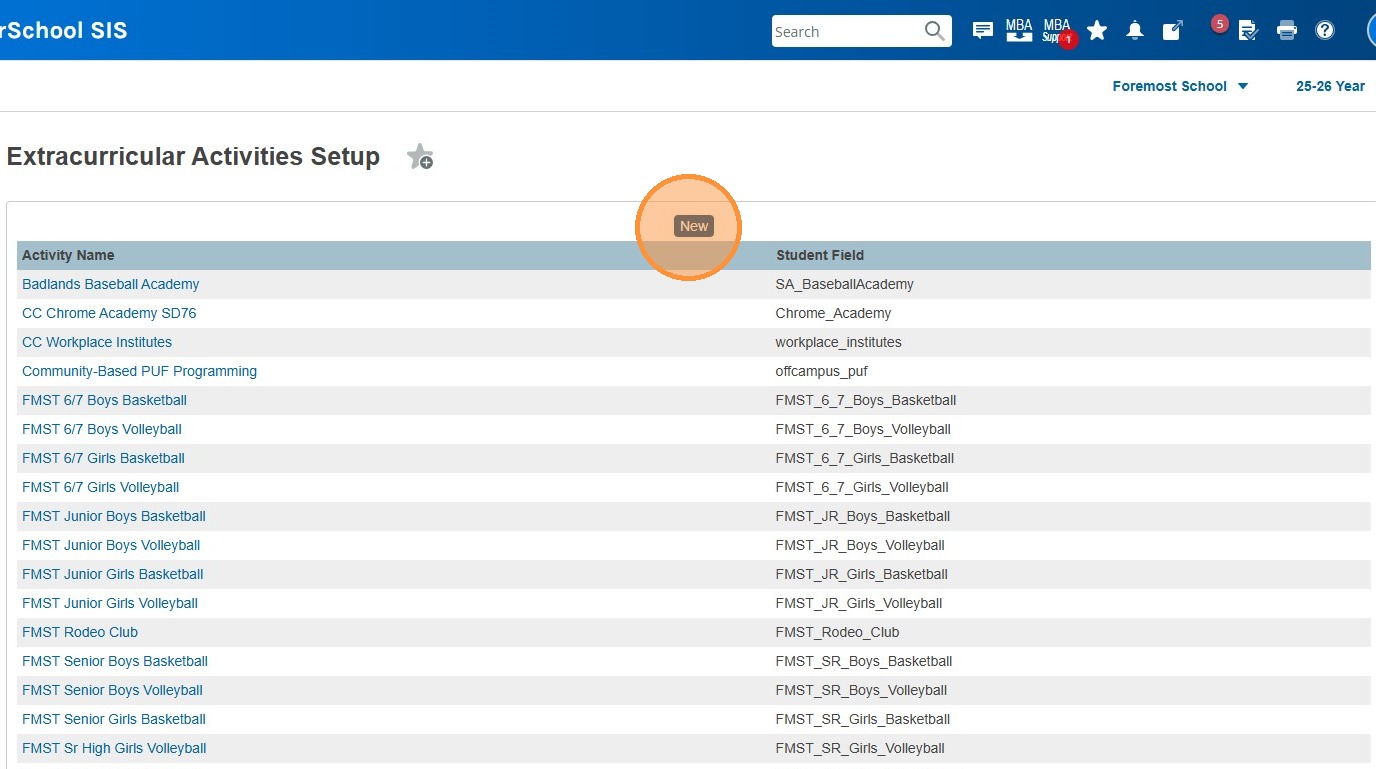
Navigate to School Management > Courses and Programs > Extracurricular Activities Setup.

23. Click New to create a new activity definition.
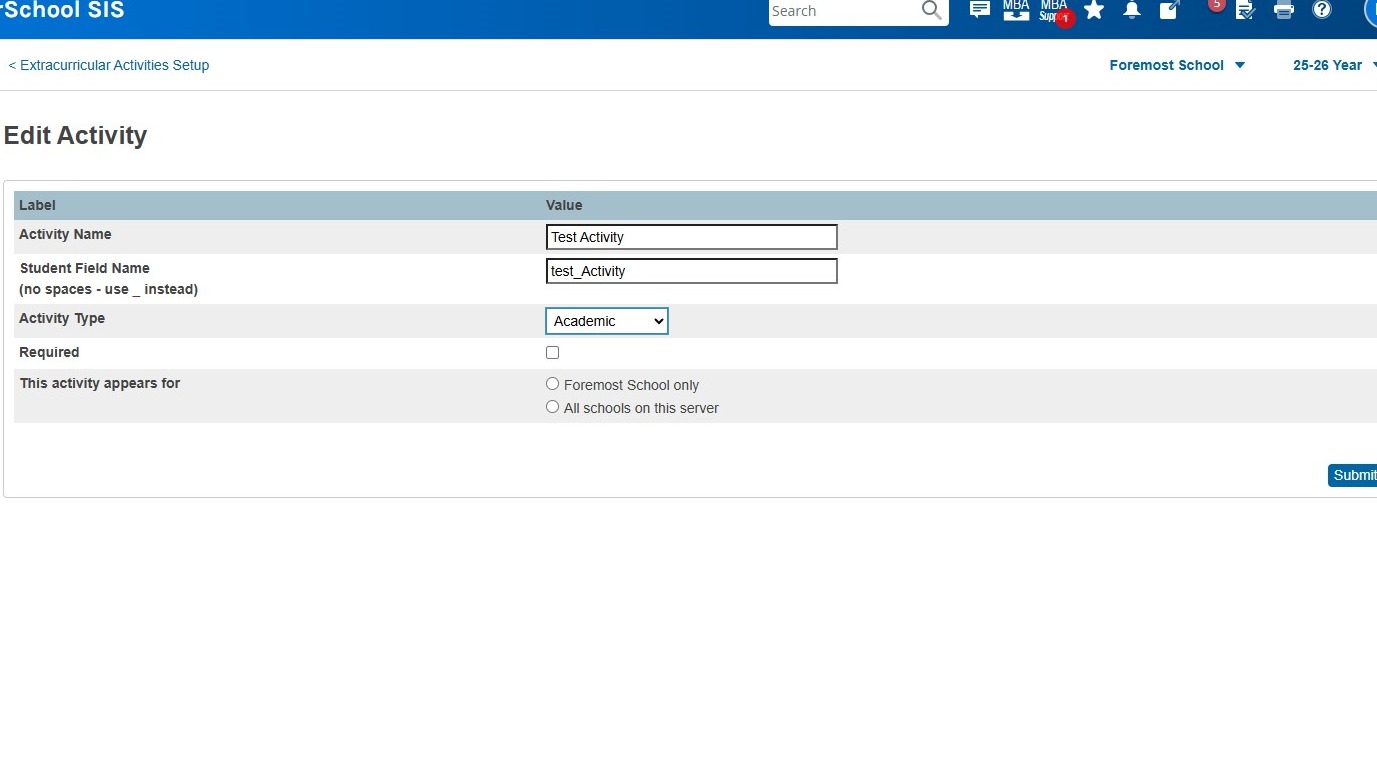
24. Give the Activity a Name, and Field Name. Give it an Activity Type, choose whether this is an Required activity, and whether this activity is for a single school or can be used by other schools within the District. Hit Submit. You can now follow the steps for adding this activity to students.
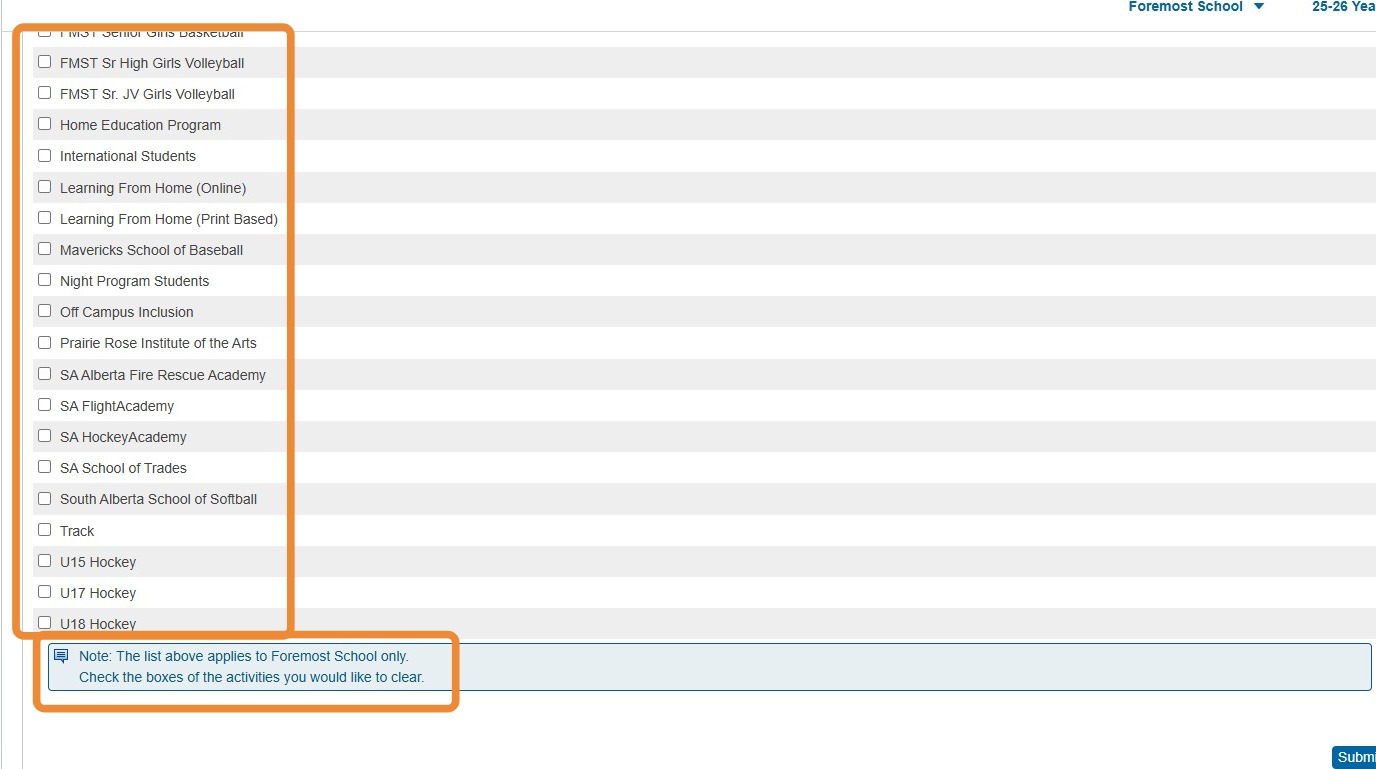
Remove Activities from ALL students from the school you are in. If you are a District Office user, using this function from the District level will remove the activity from ALL students.
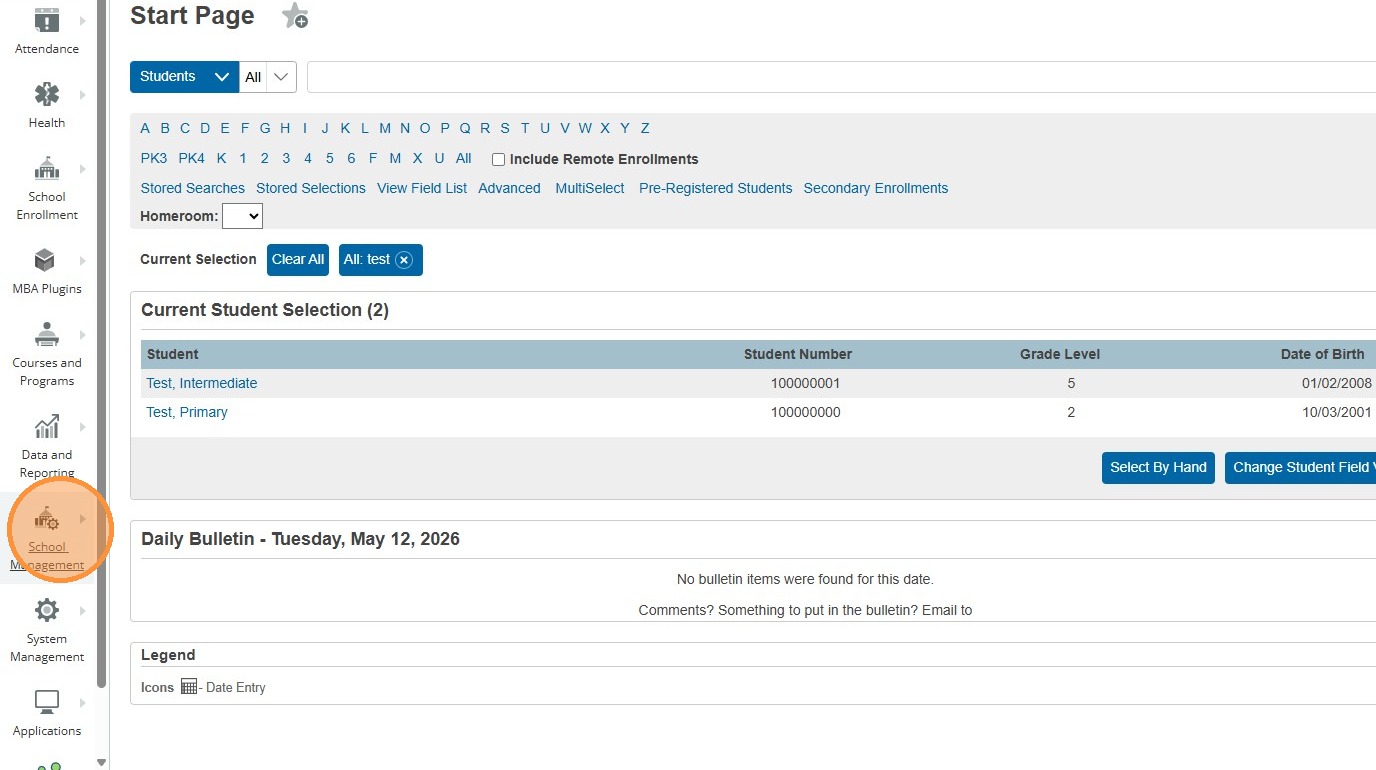
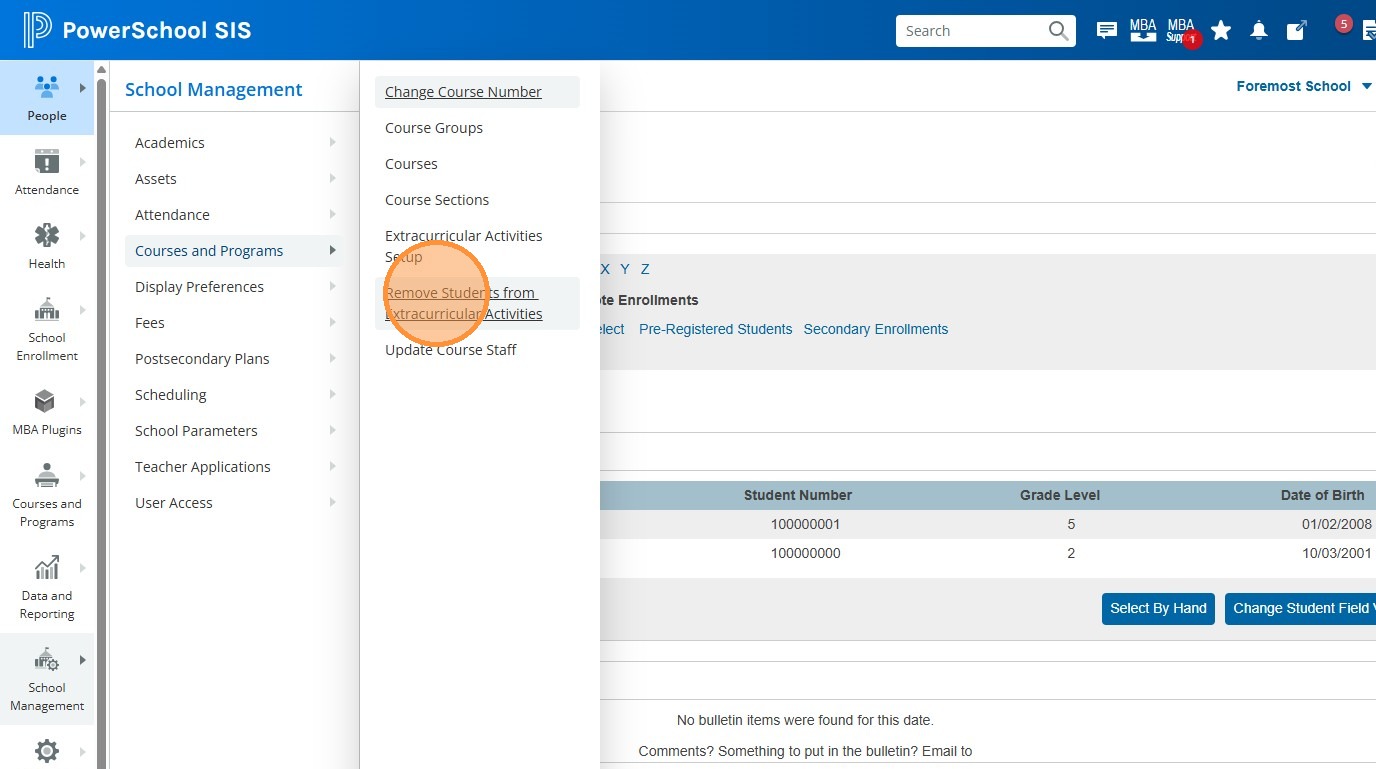
25. Click "School Management". (For District Level users, choose "District Management").
26. Click "Courses and Programs"
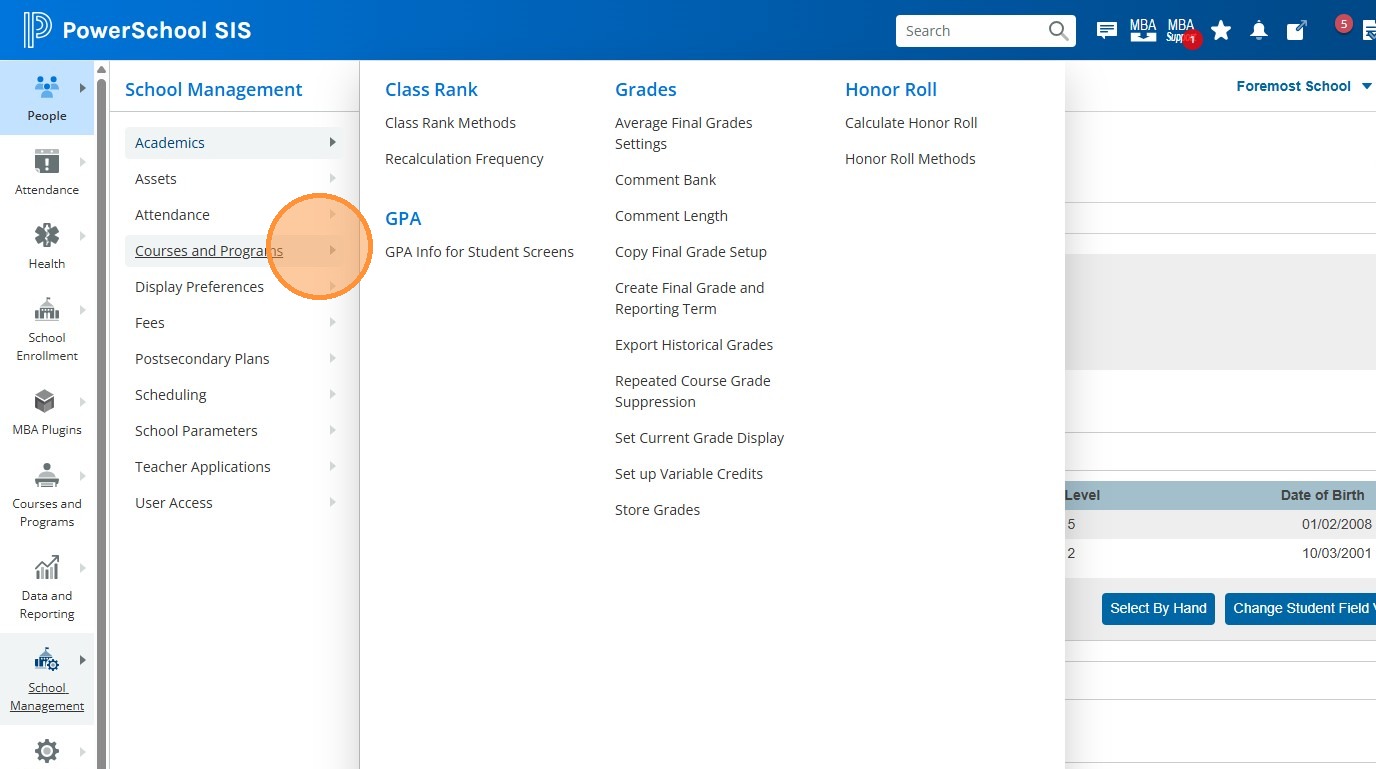
27. Click "Remove Students from Extracurricular Activities"
28. Select the activity to clear student enrollments from, then click Submit. Reminder that this removes this activity code from ALL Students in the current school. If you're at the District Level, it removes the code from ALL Students in the Division.