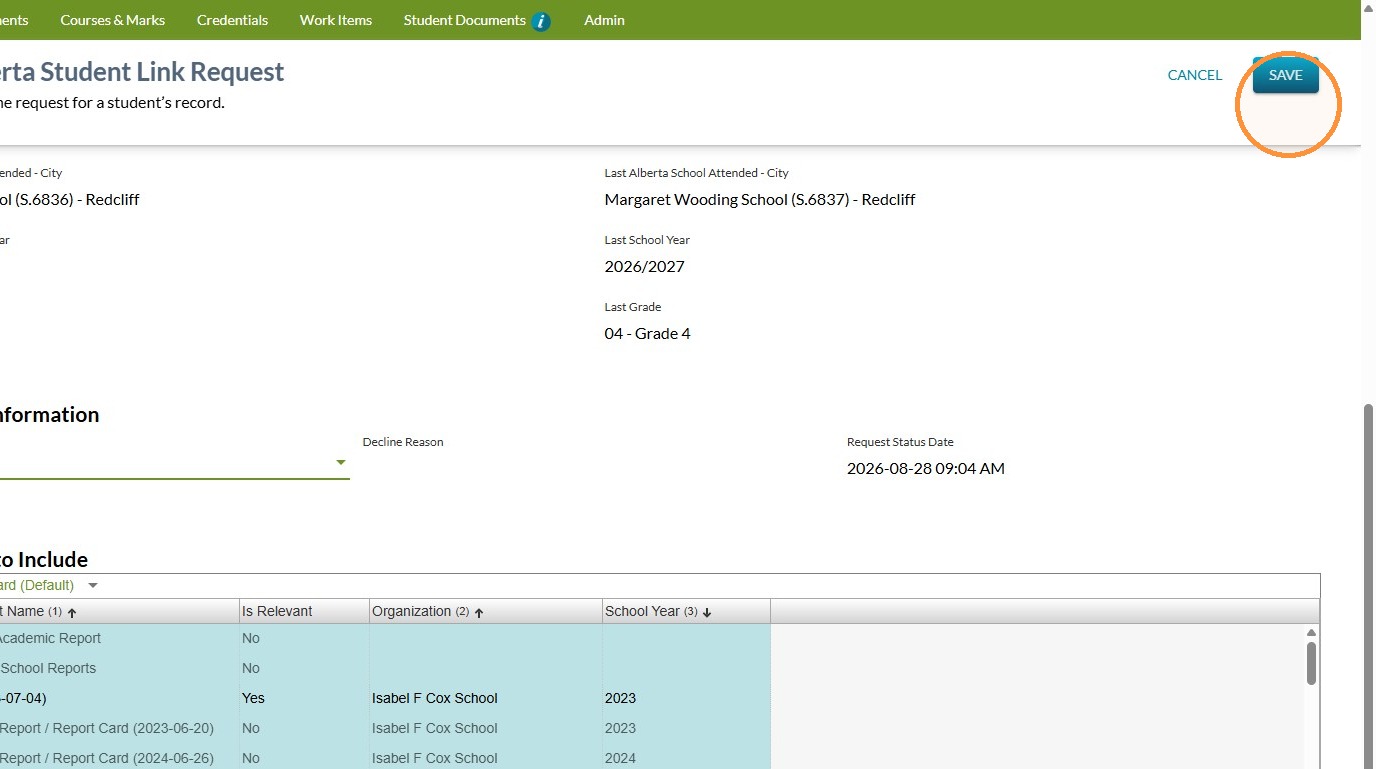
Approve a Student Link Request
Managing Alberta Student Link Requests in PASIprep
Learn how to access and manage student link requests within the PASIprep portal. This guide helps you navigate the necessary menus to view, update, and finalize request statuses efficiently.
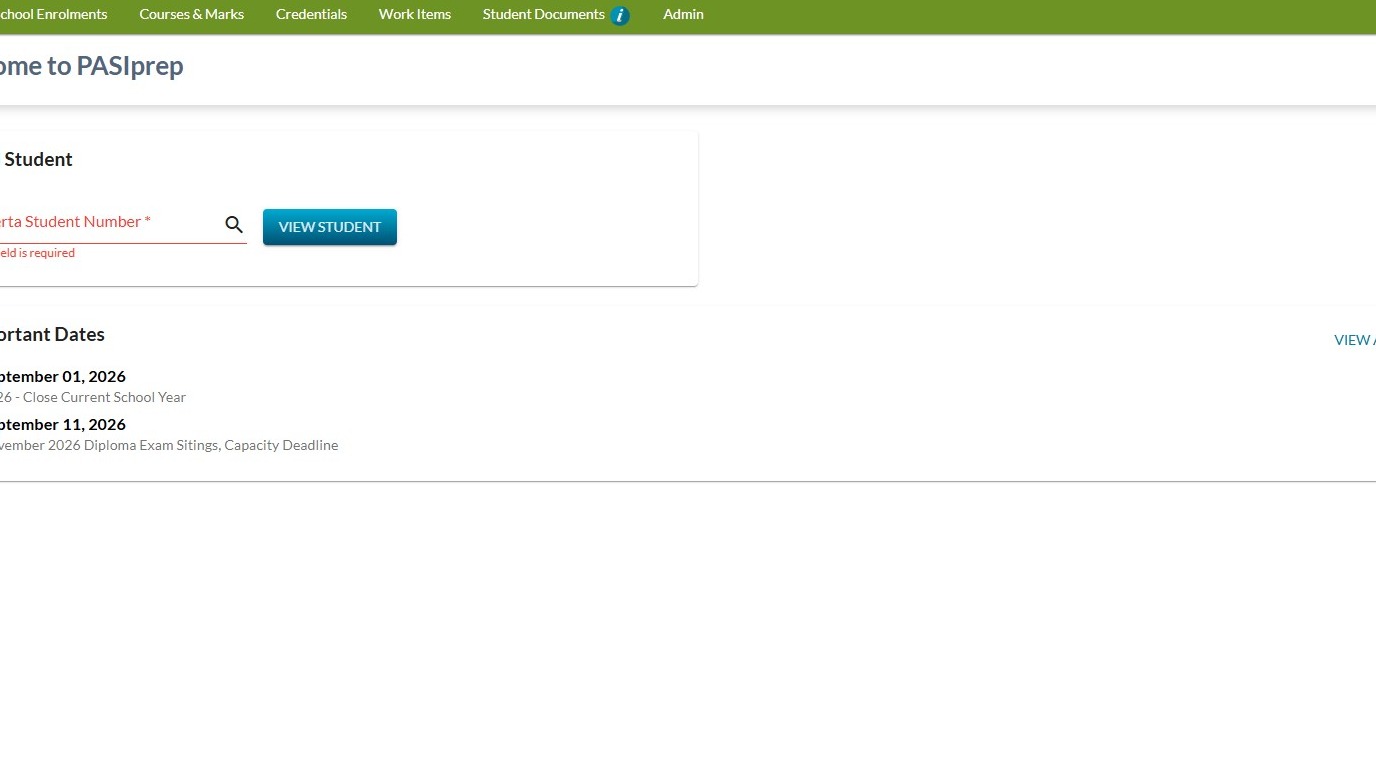
1. Sign in to PASI Prep https://extranet.education.alberta.ca/PASI/PASIprep/
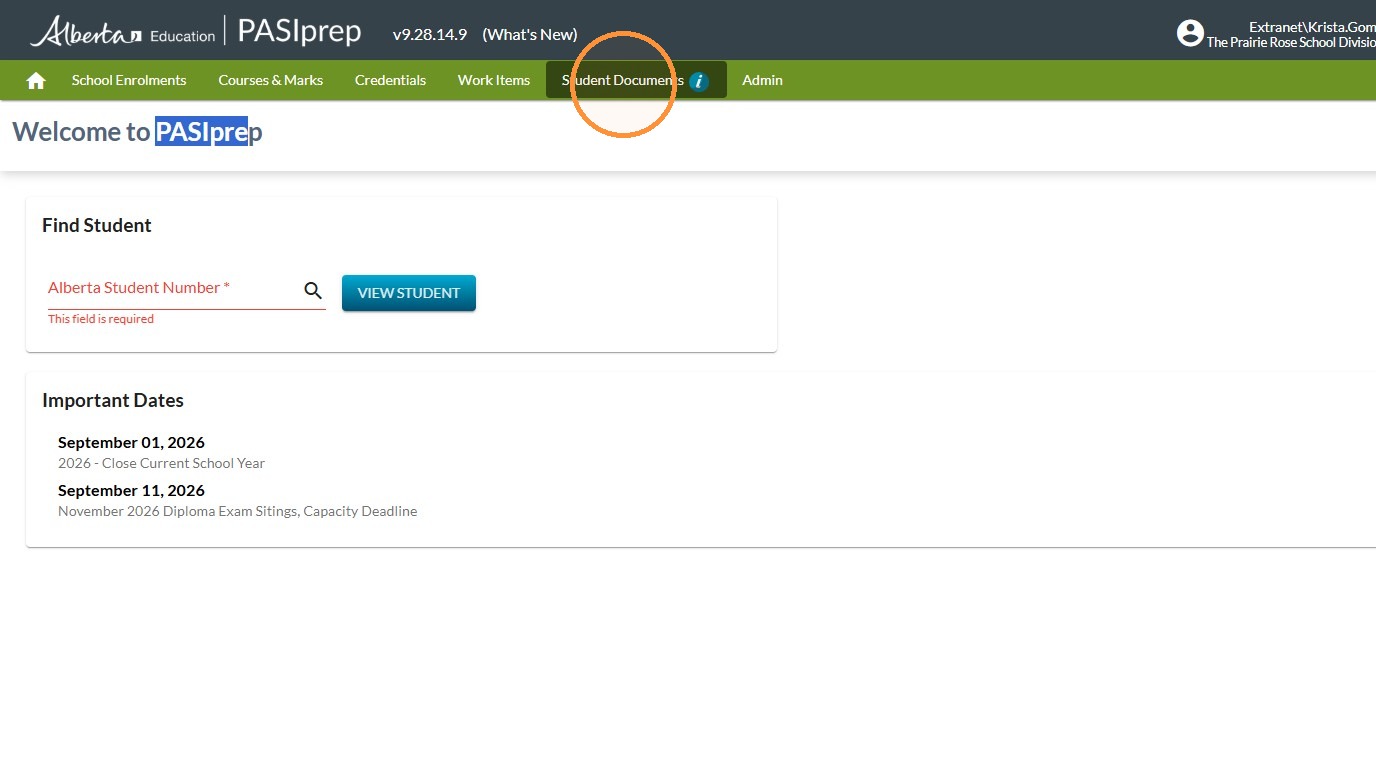
2. Click "Student Documents"
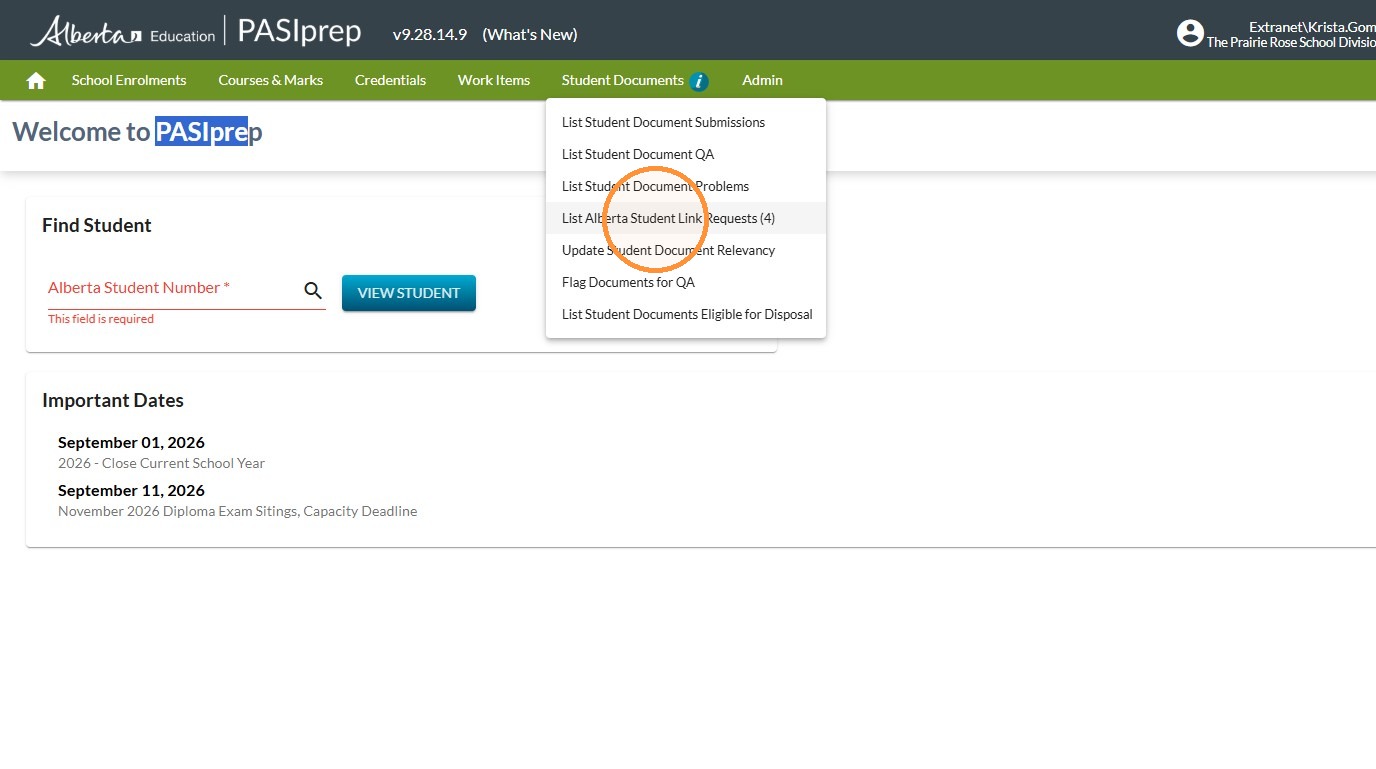
3. Click "List Alberta Student Link Requests"
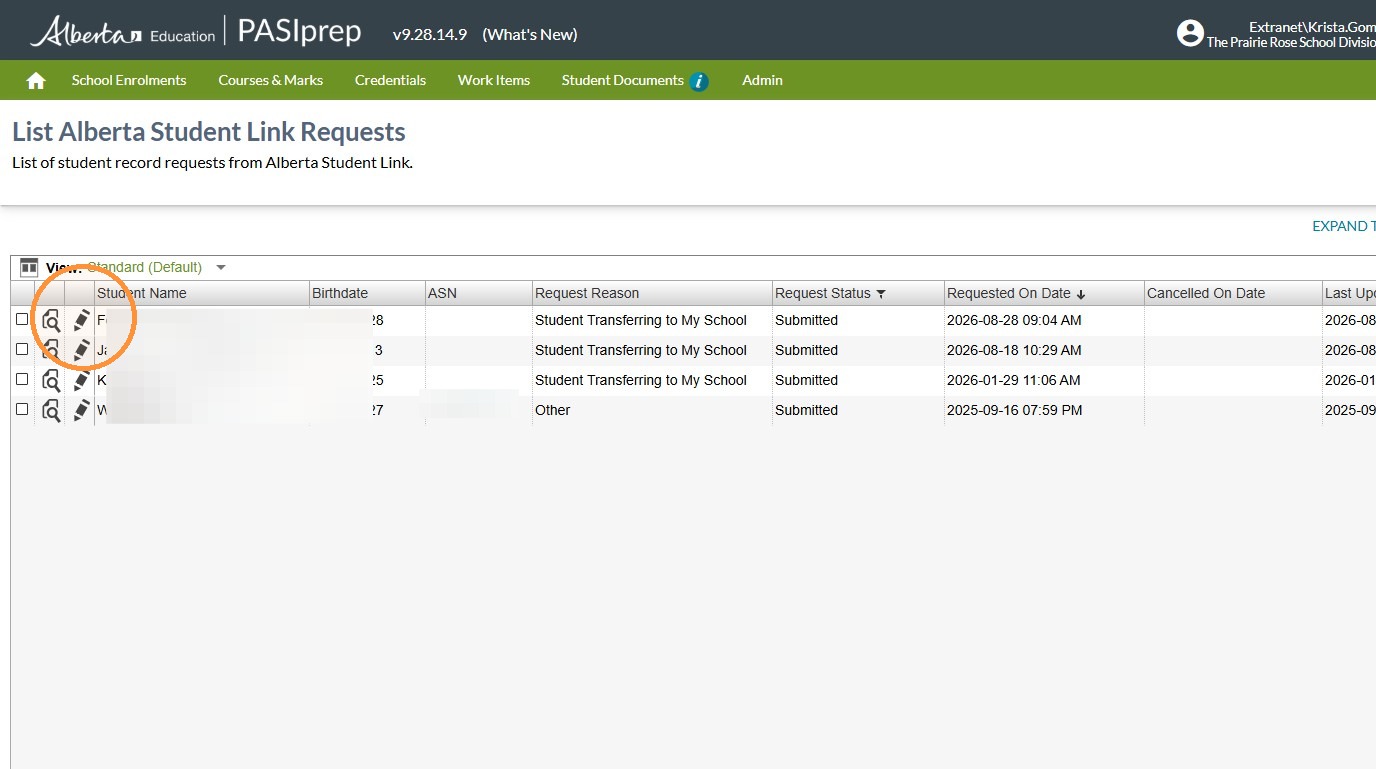
4. Click on the Edit/Pencil icon for the student link request you want to Approve (or Deny)
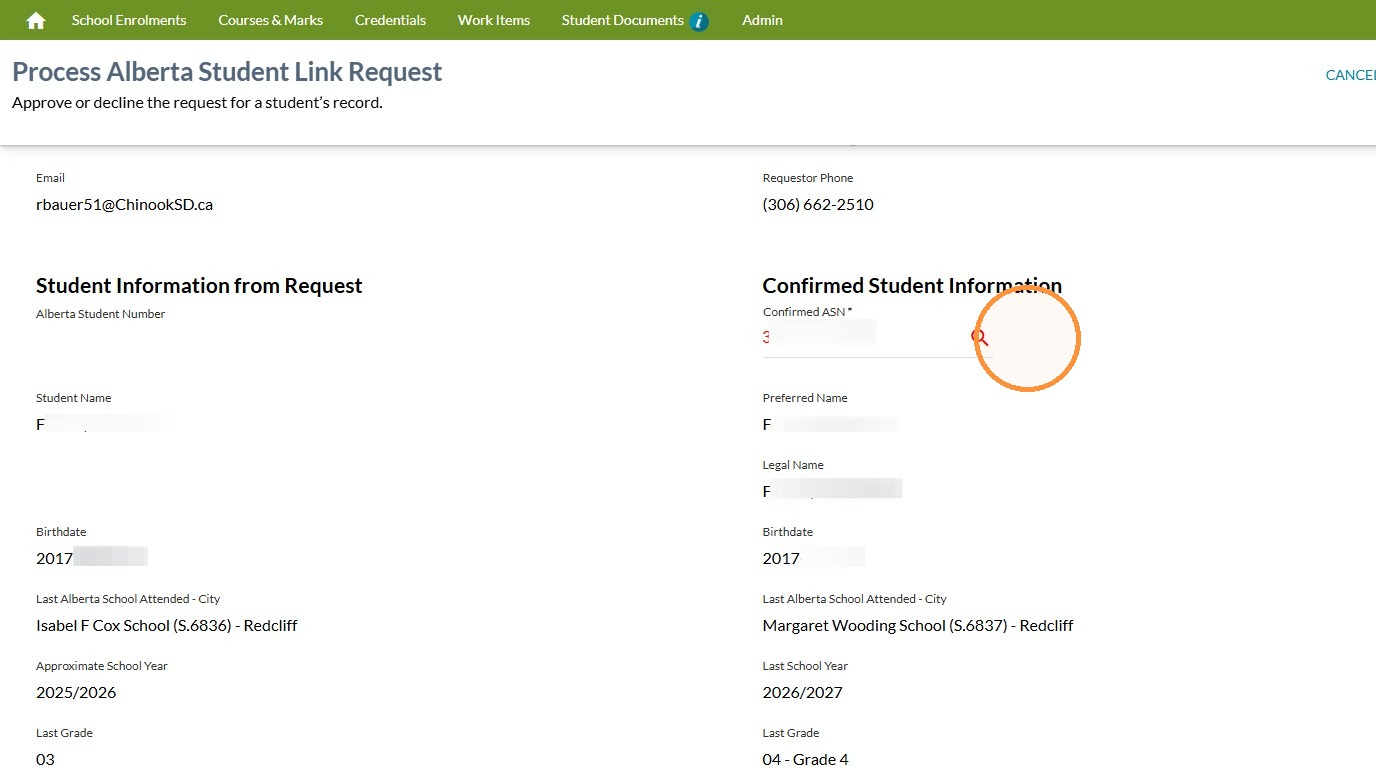
5. Enter the student's ASN under "Confirmed Student Information" and confirm that the student details match the details of the request (make sure the right matches the left)
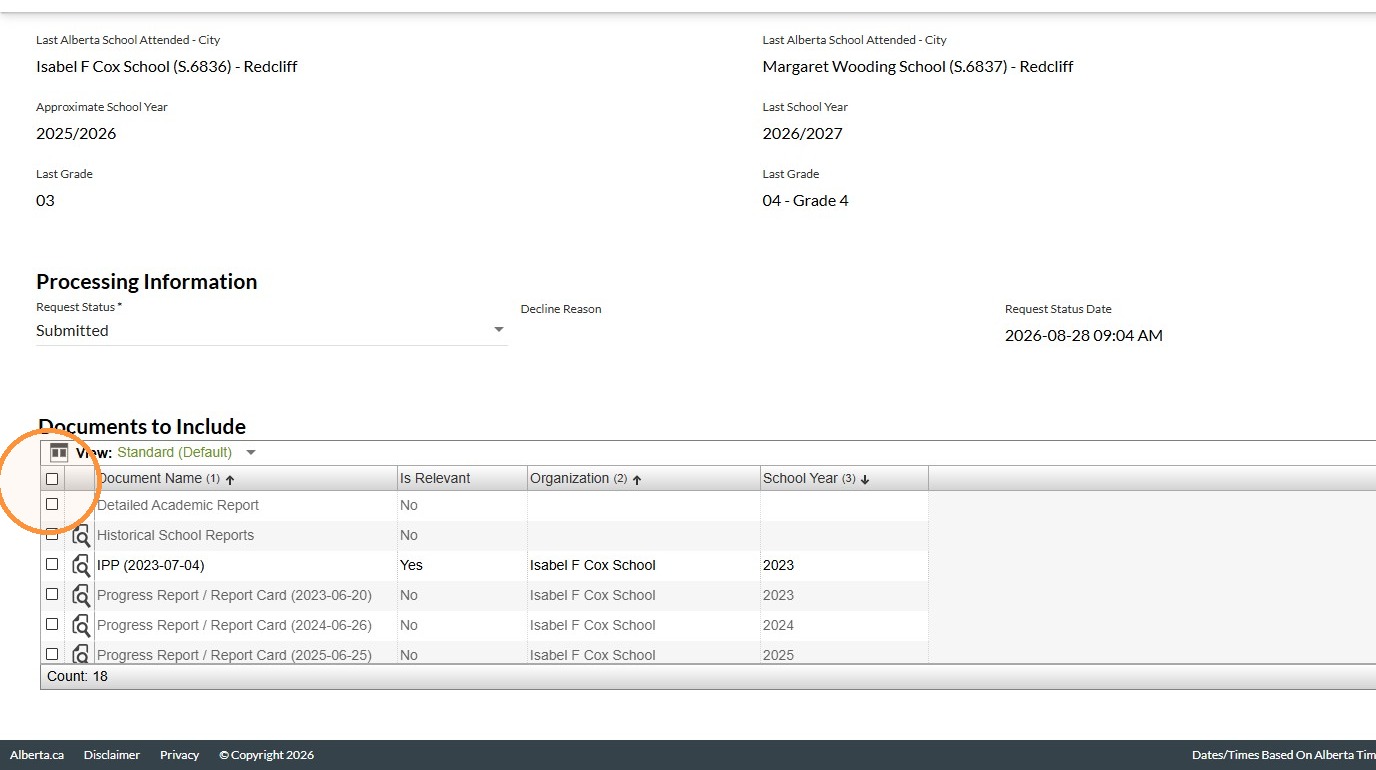
6. Click the top checkbox for "Documents to Include" so that all documents are selected to be sent (Unless there are any that should not be in the CUME file and therefore not sent. But usually you'd send them all)
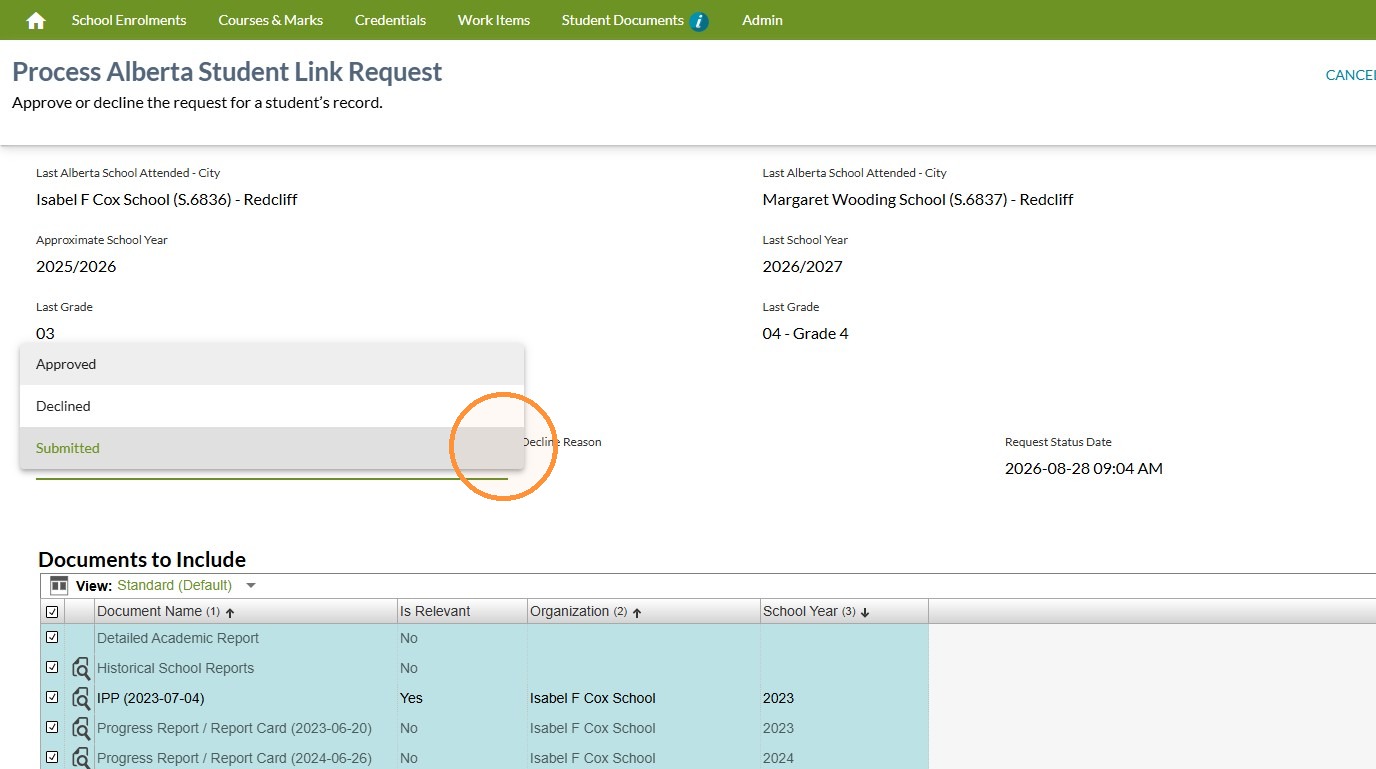
7. Click the drop down under "Processing Information" and change to "Approved" or "Declined". If you choose to decline, you'll have to provide a reason on the drop down beside this labelled "Decline Reason"
8. Click "Save"