
Running the SCM/CTS Validations in PS SIS
Running the SCM/CTS Validations
This process sets the Funding Flag and the Complete flag for stored marks.
1. Click on "Applications".
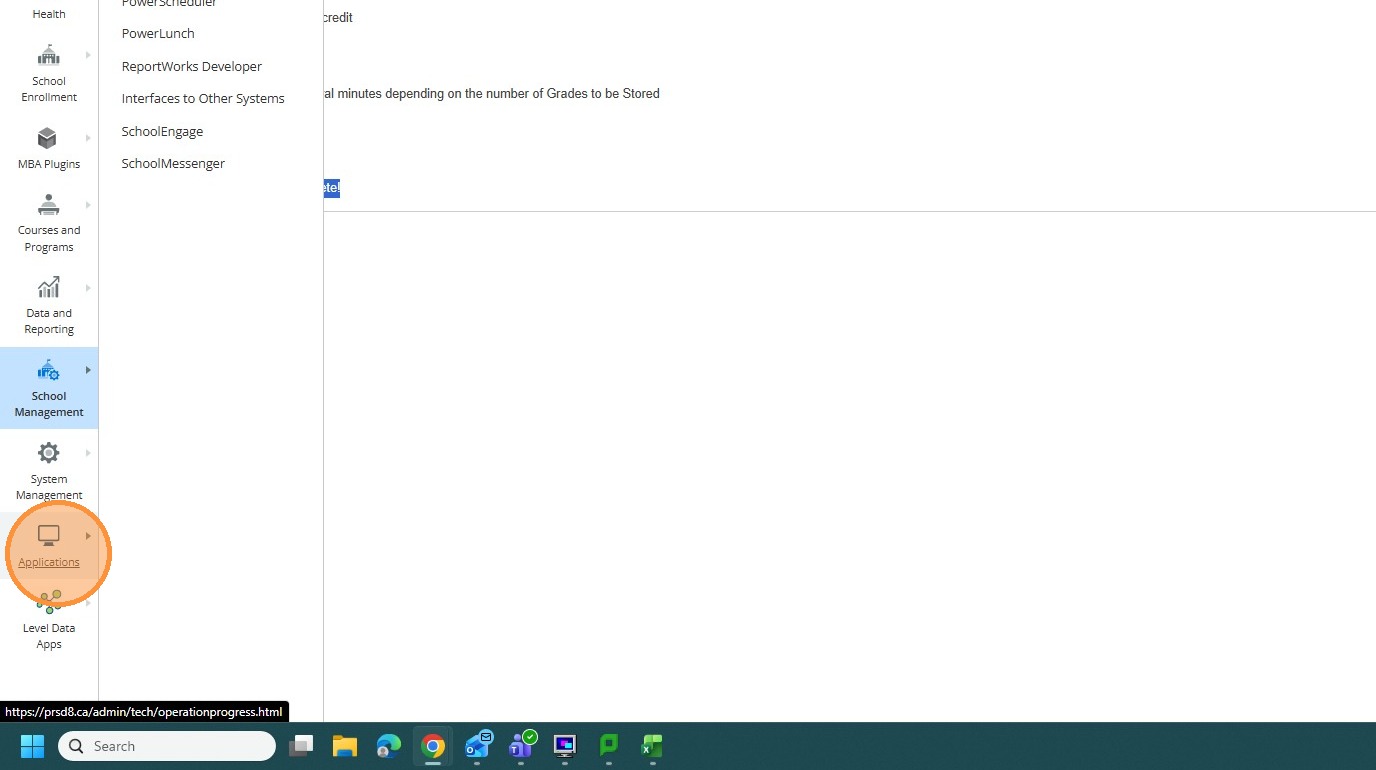
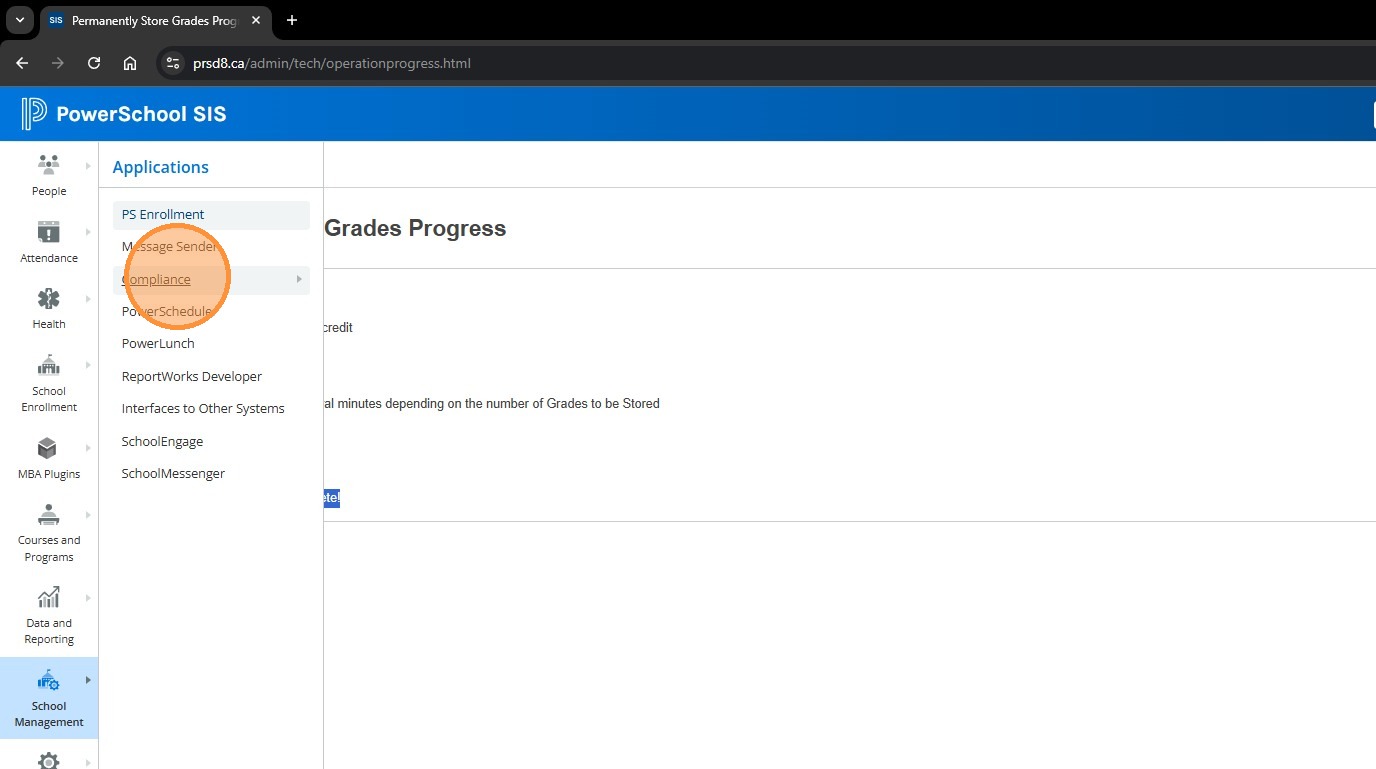
2. Click "Compliance".
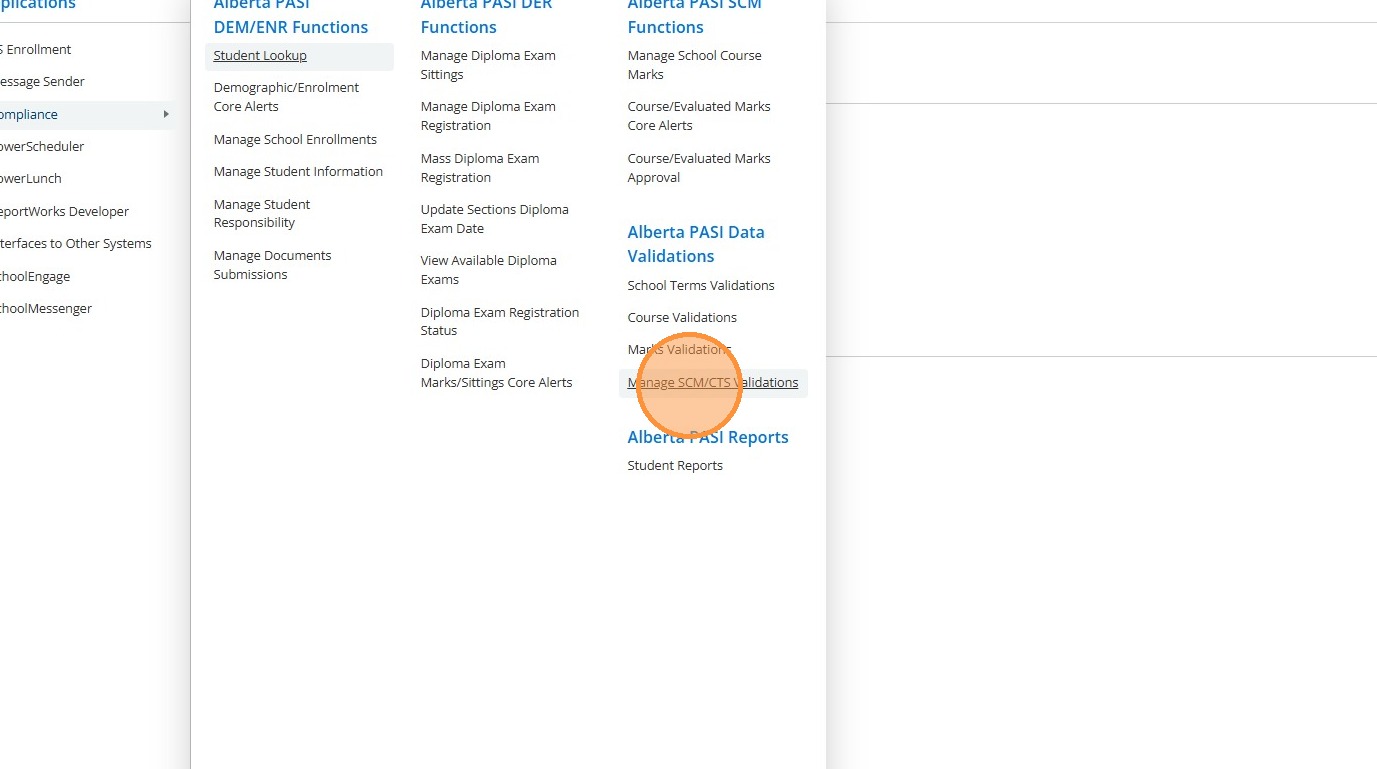
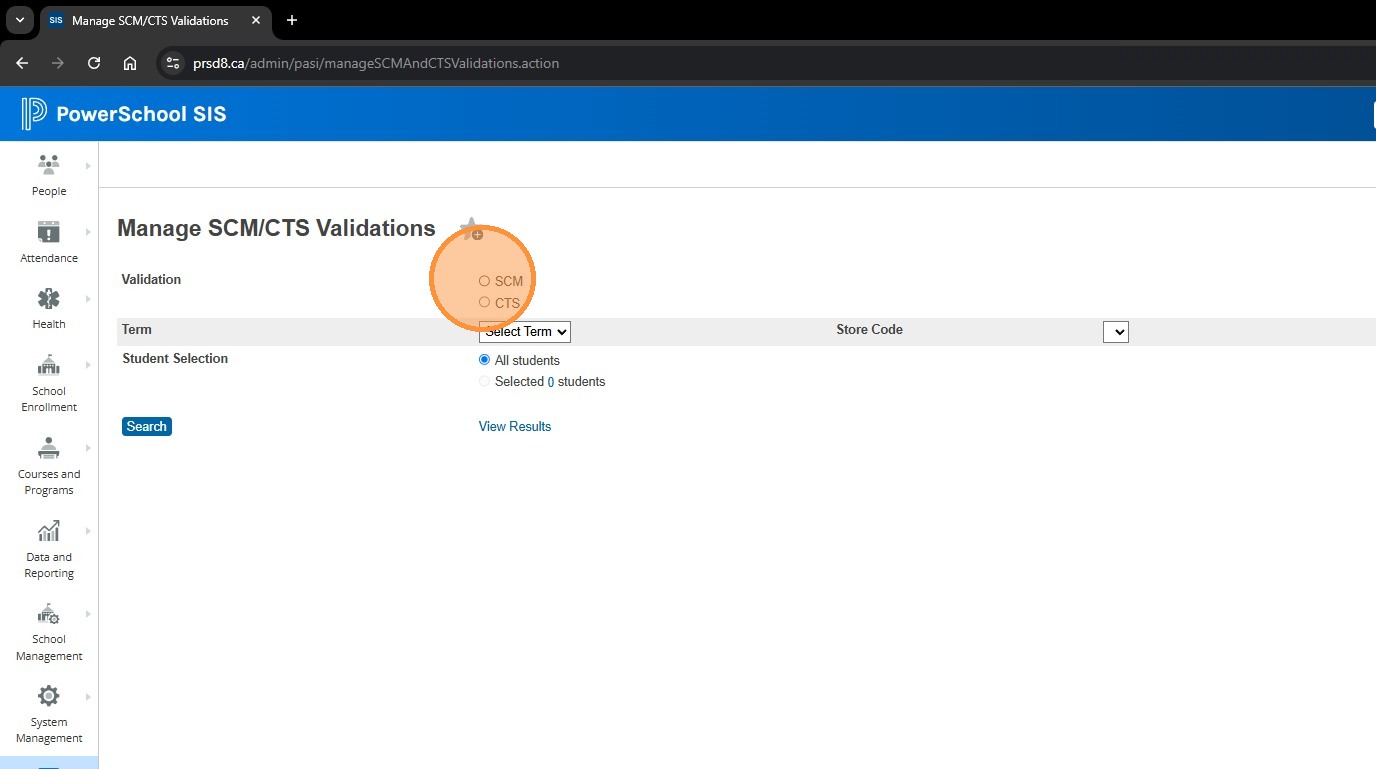
3. Click "Manage SCM/CTS Validations".
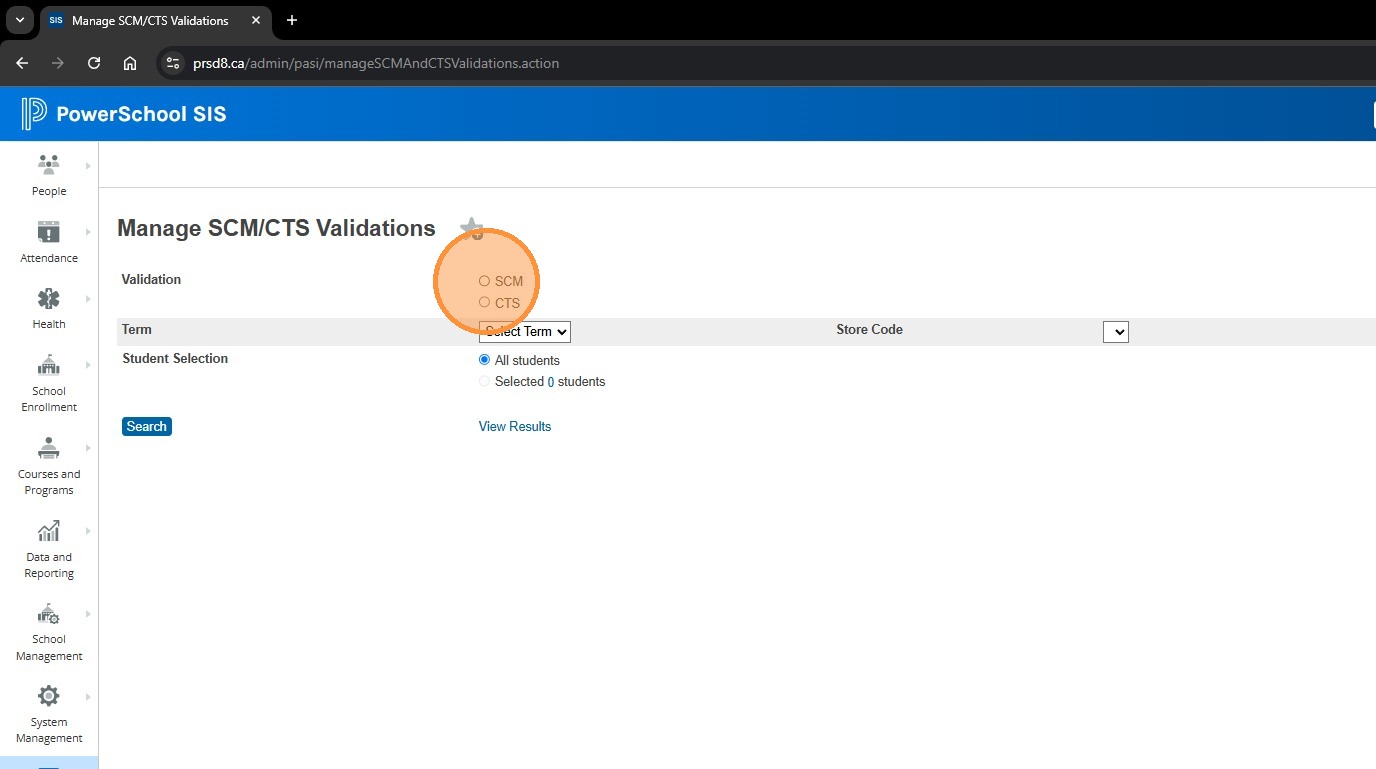
4. Choose which Validation you want to run - School Course Marks (SCM) or CTS. FOr the first Example, we will choose SCM
5. Choose whether you want to validate for Non-Diploma Exam Courses, or Diploma Exam Courses
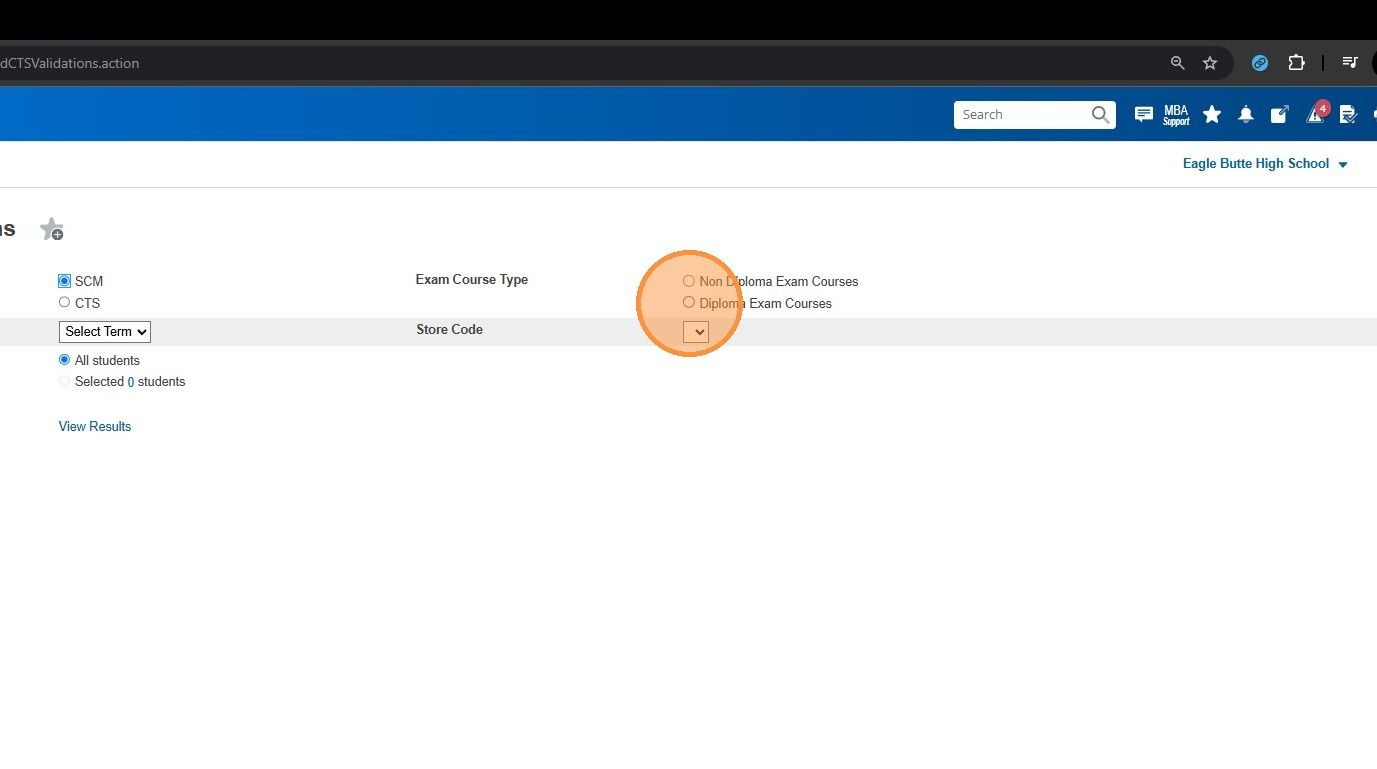
6. Click the "Term" dropdown
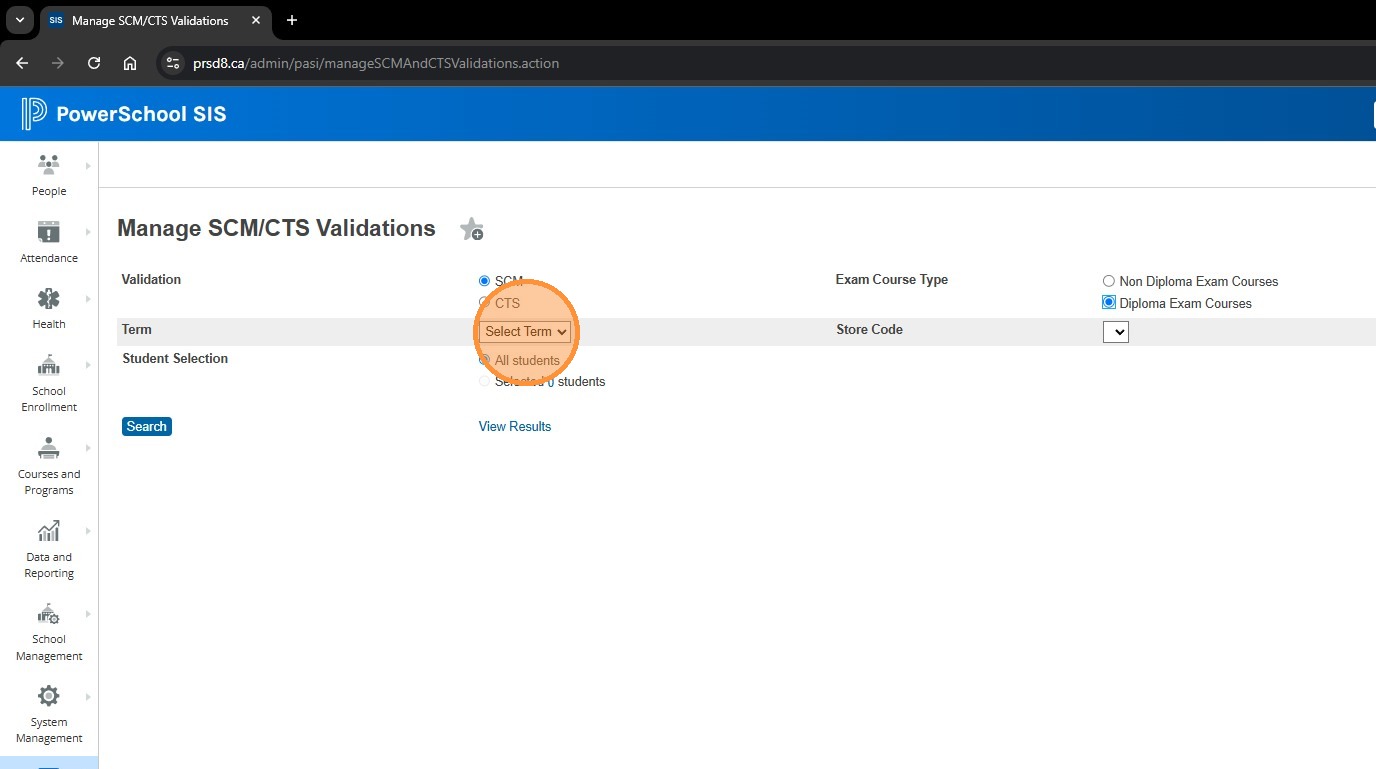
7. Choose the term you stored marks for
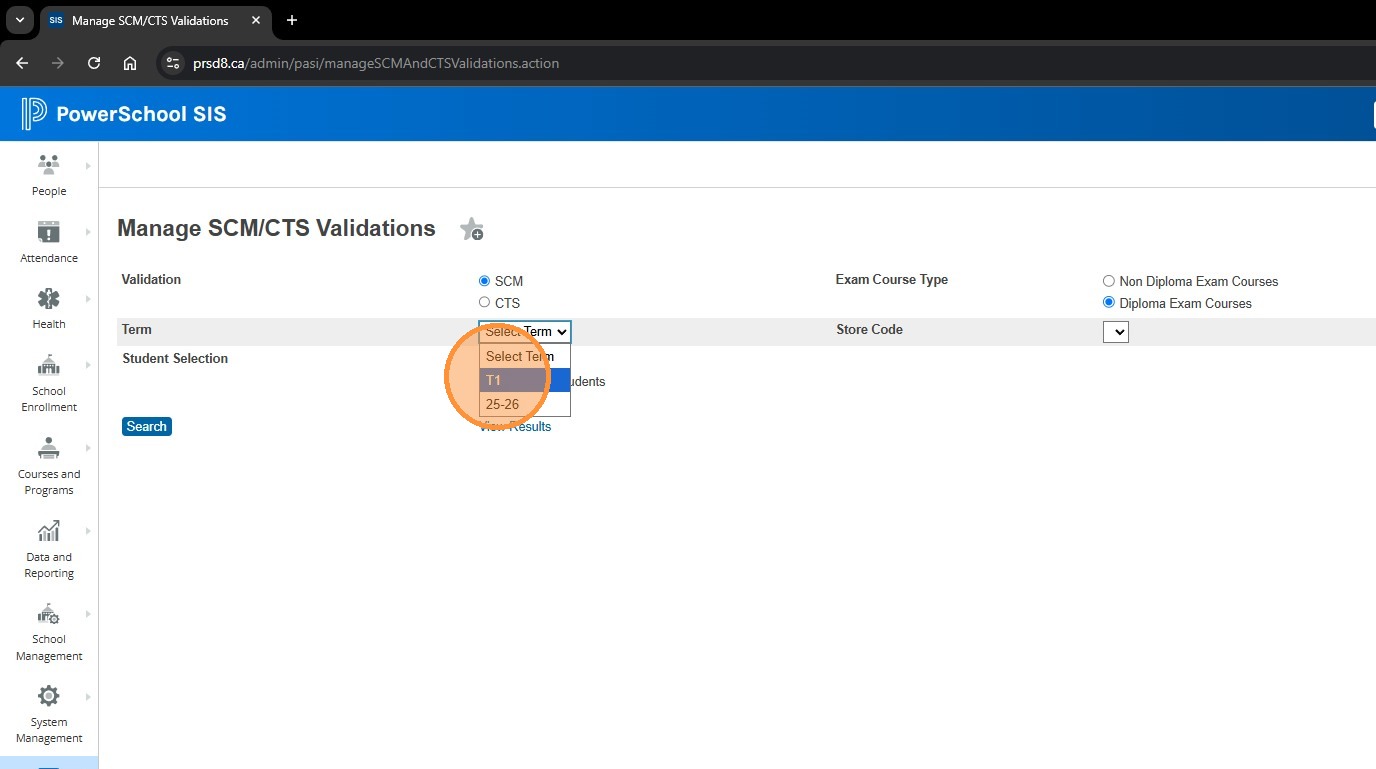
8. Click the "Store Code" drop down
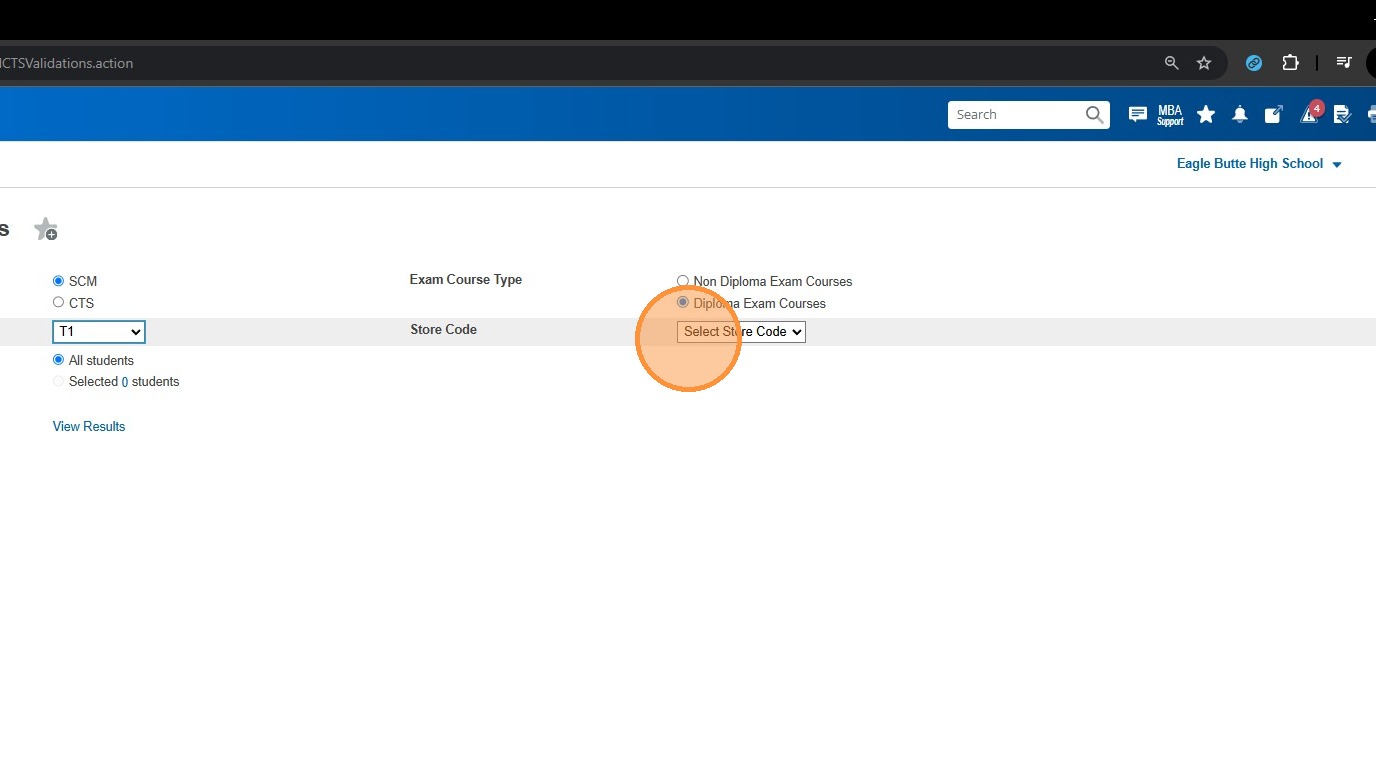
9. Choose the correct Store Code
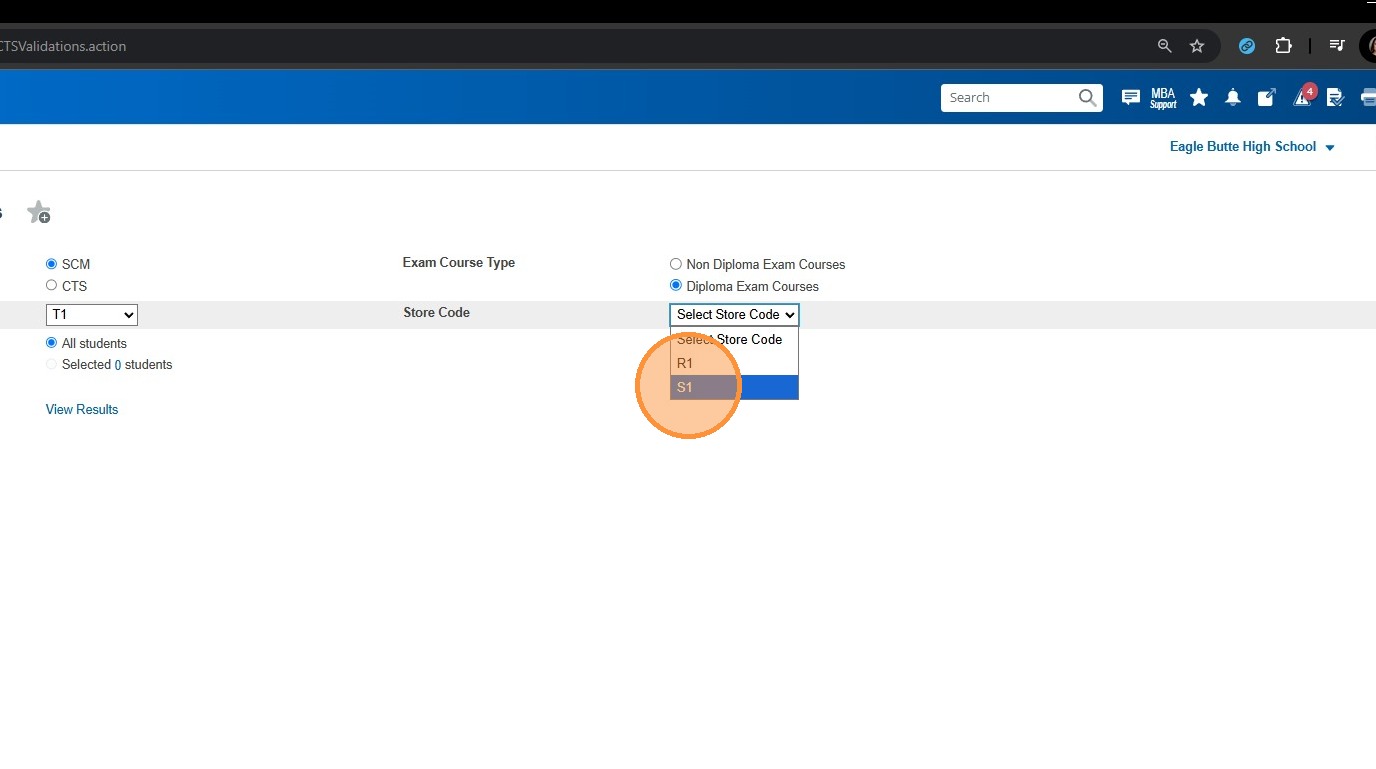
10. Make sure you choose All Students (Unless you're running this for a certain selection, then choose "Selected # Students". Click "Search"
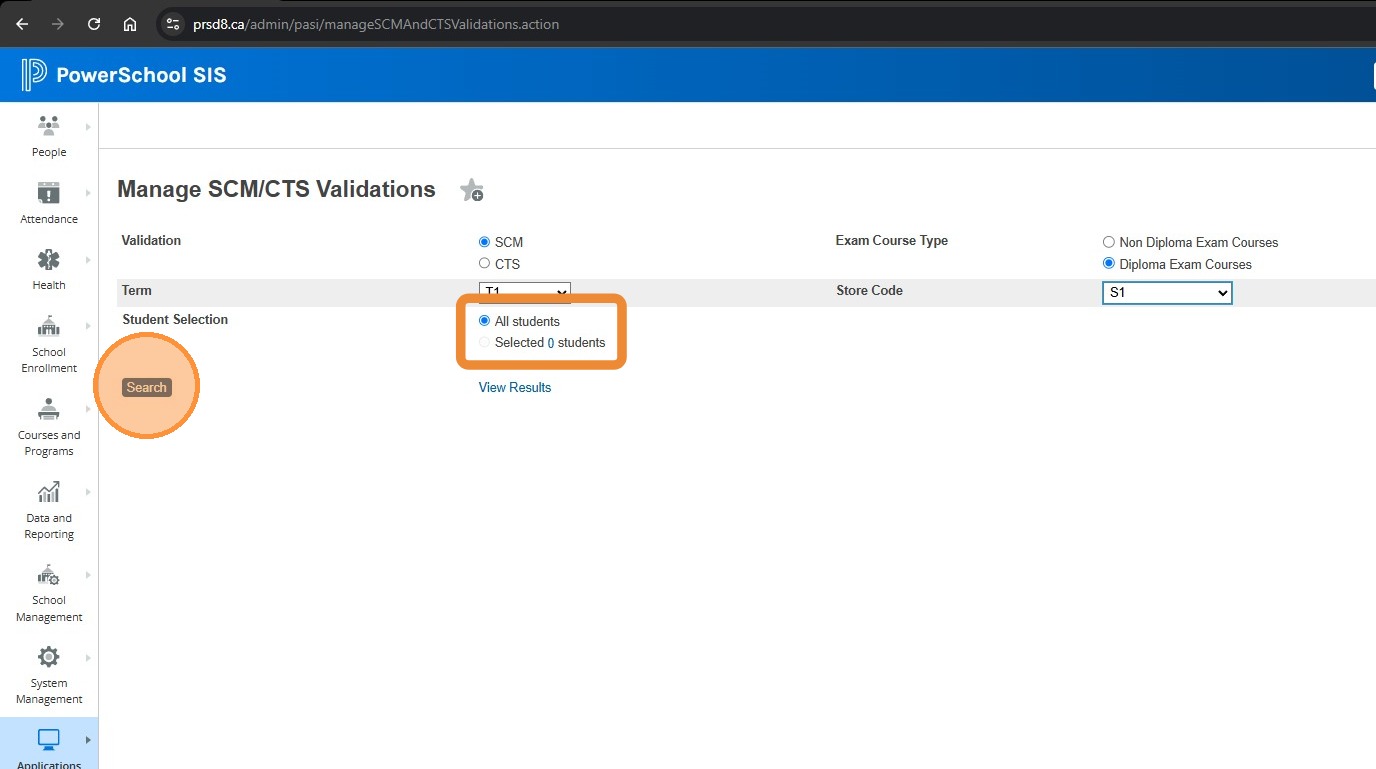
11. Click "Next".
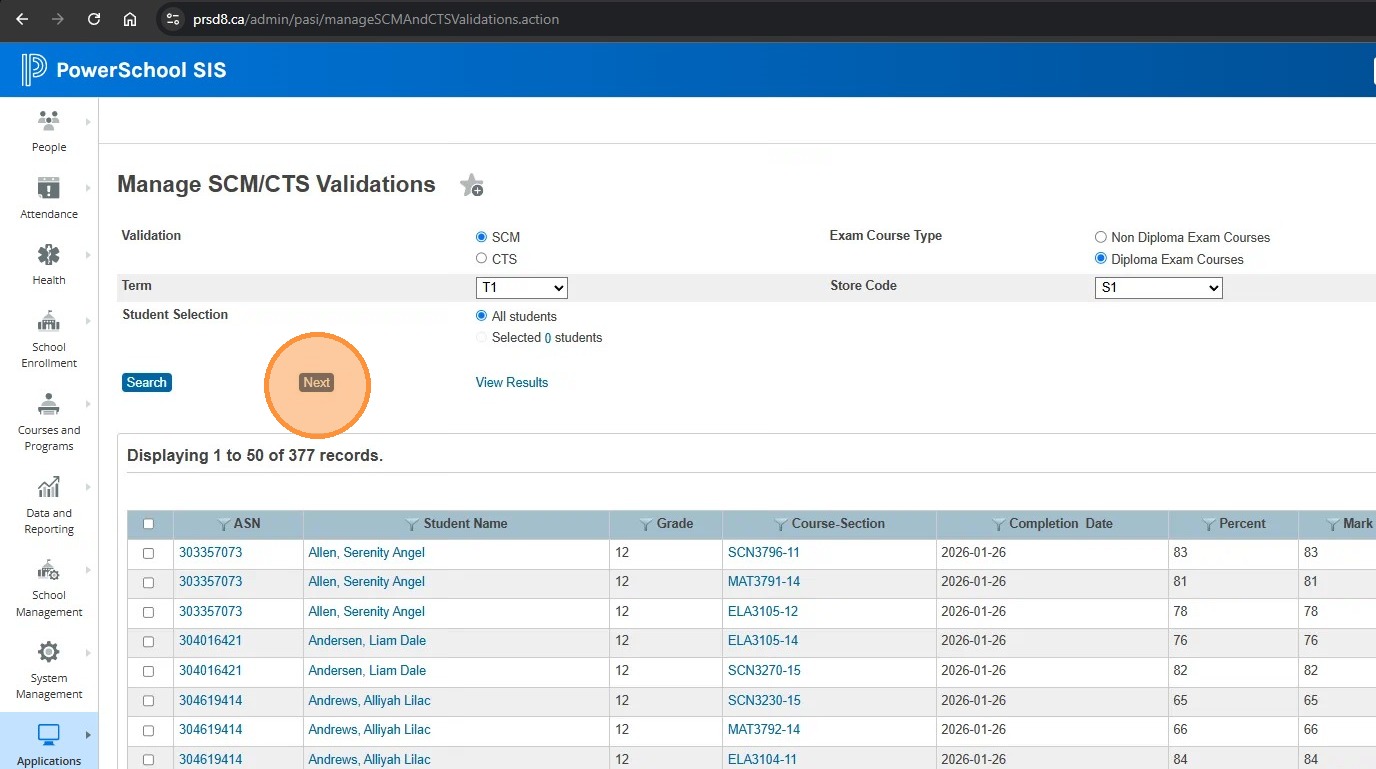
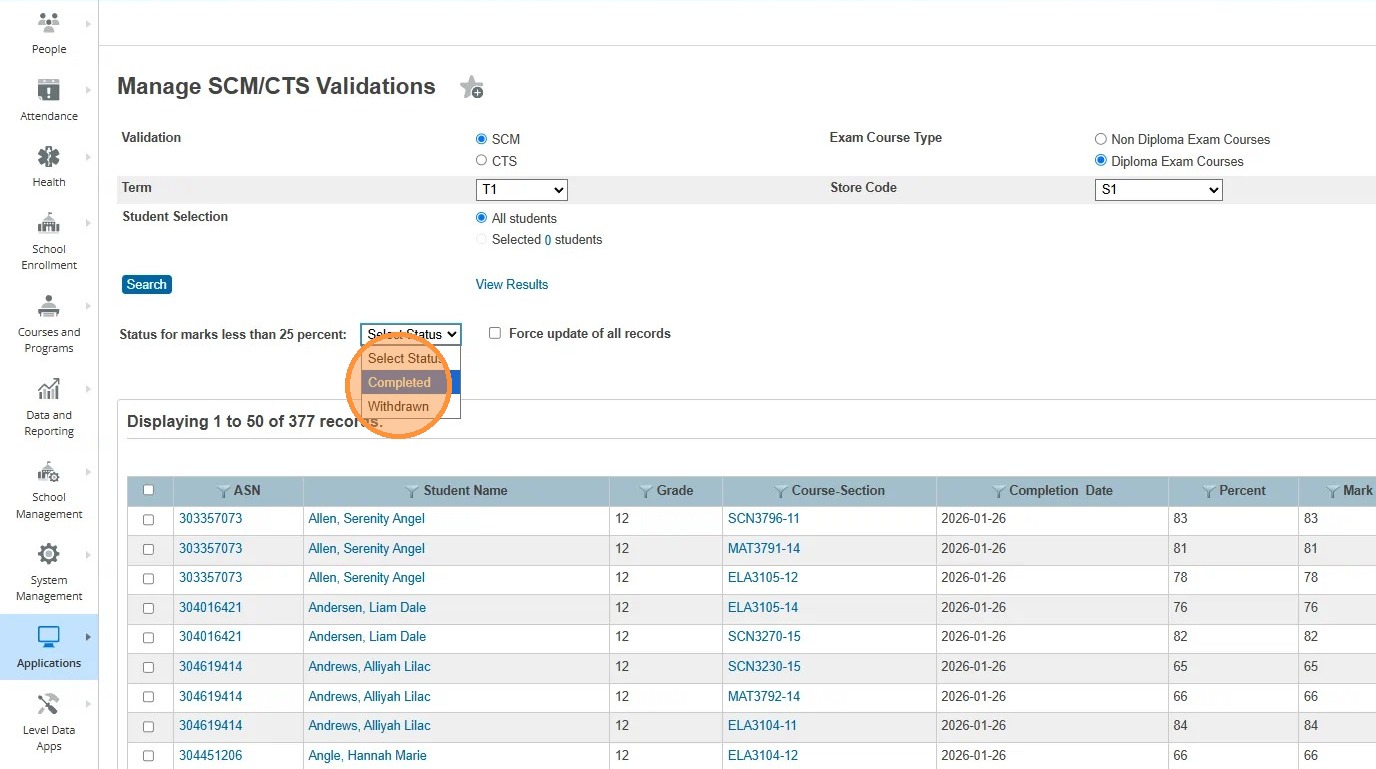
12. Click the drop down for "Status for marks less that 25 percent".
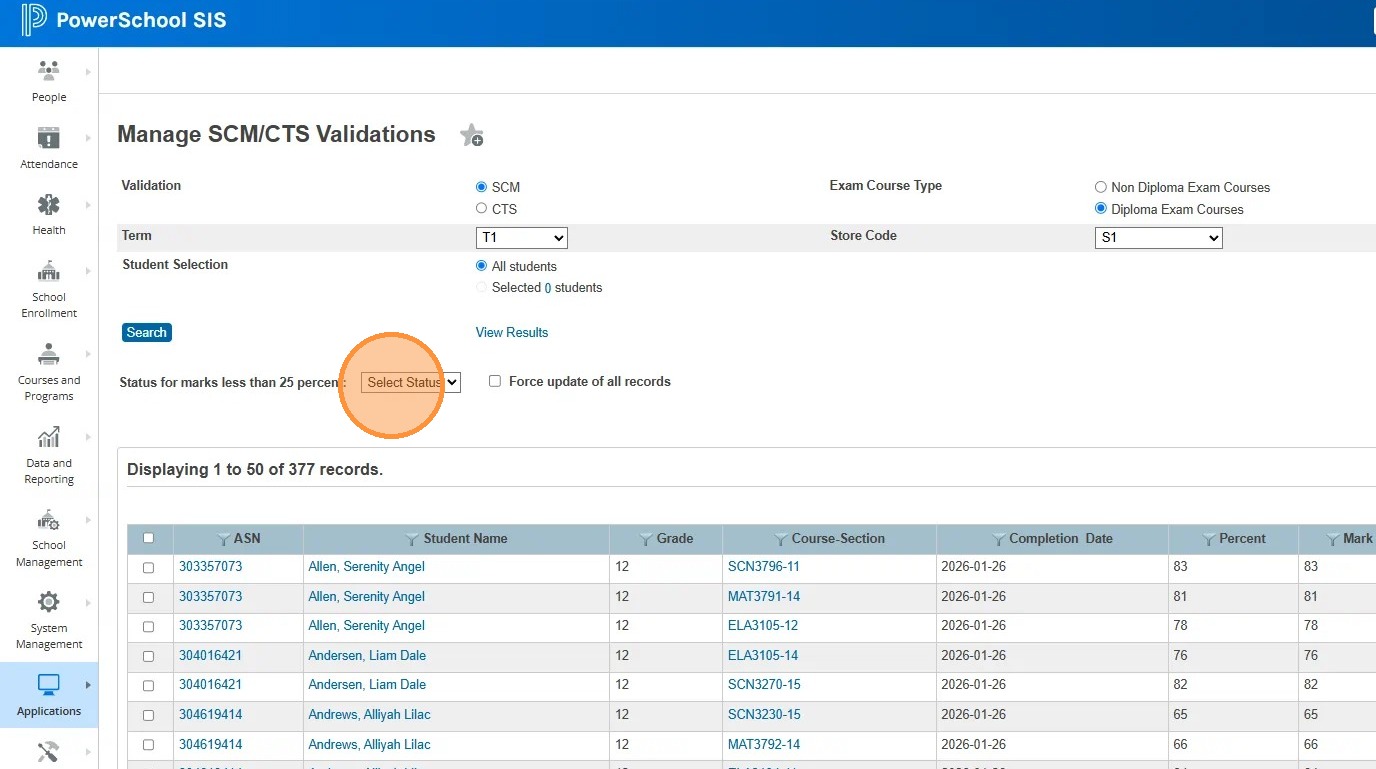
13. For regular courses, most likely you will choose to show "Completed". If this is for CTS marks, you may choose to show "Incomplete". This is up to your school.
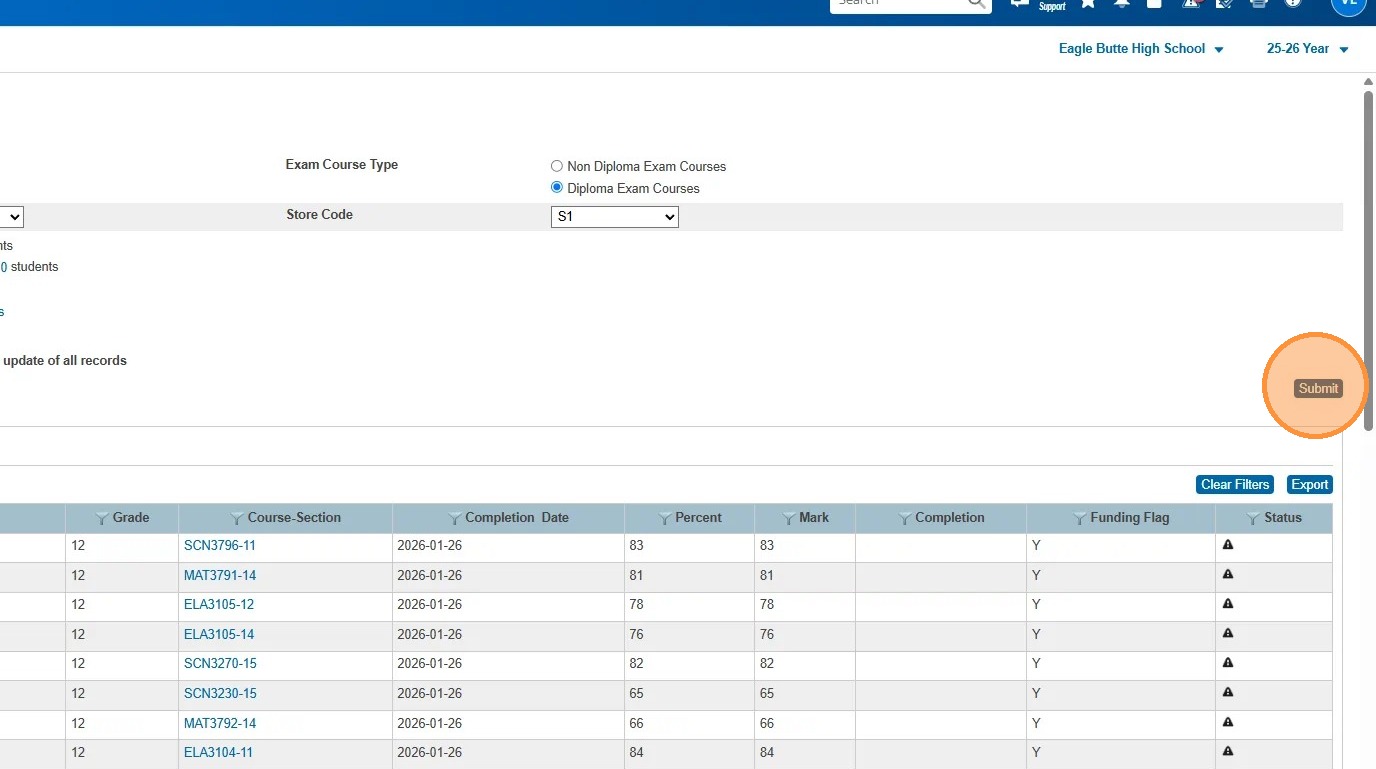
14. Click "Submit"
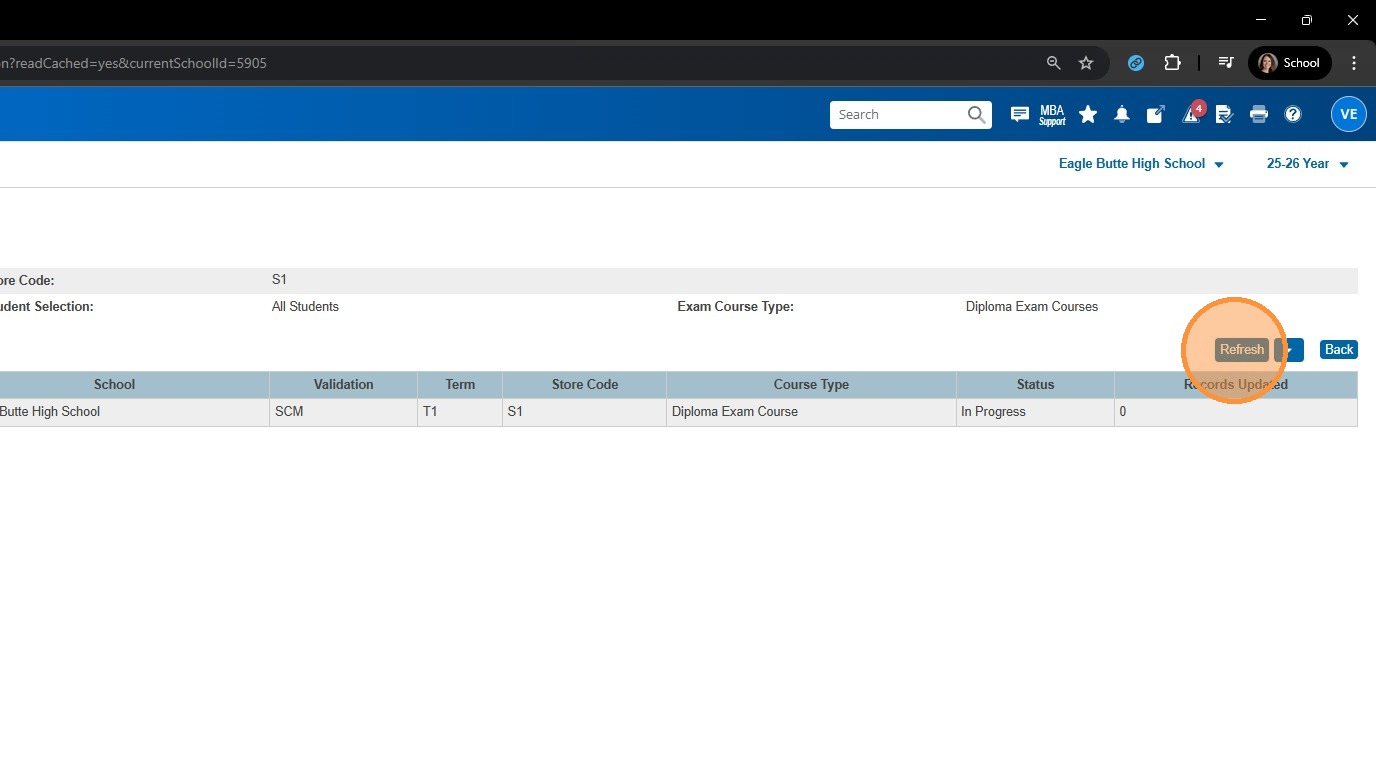
15. Click "Refresh" until the Status of the process changes from In Progress to Completed
16. Click "Back"
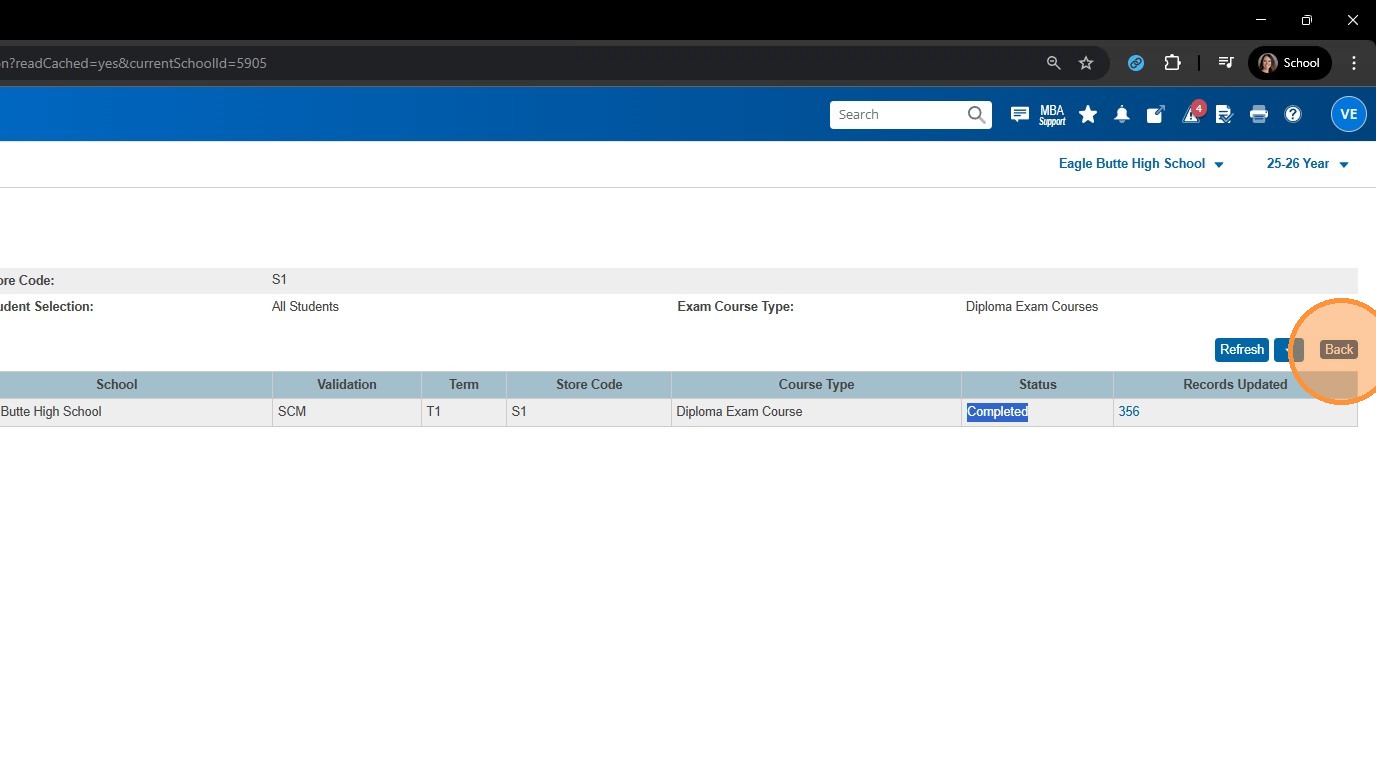
17. Repeat all the steps as necessary until you've run all the necessary validations.
18. Once all validations are run, you can continue on to Mark Approvals