
Using Level Data to Fix Invalid Scheduled Next Year Grade in PowerSchool SIS
Using Level Data to Fix Invalid Scheduled Next Year Grade in PowerSchool SIS
1. Navigate to https://prsd8.ca/admin/home.html
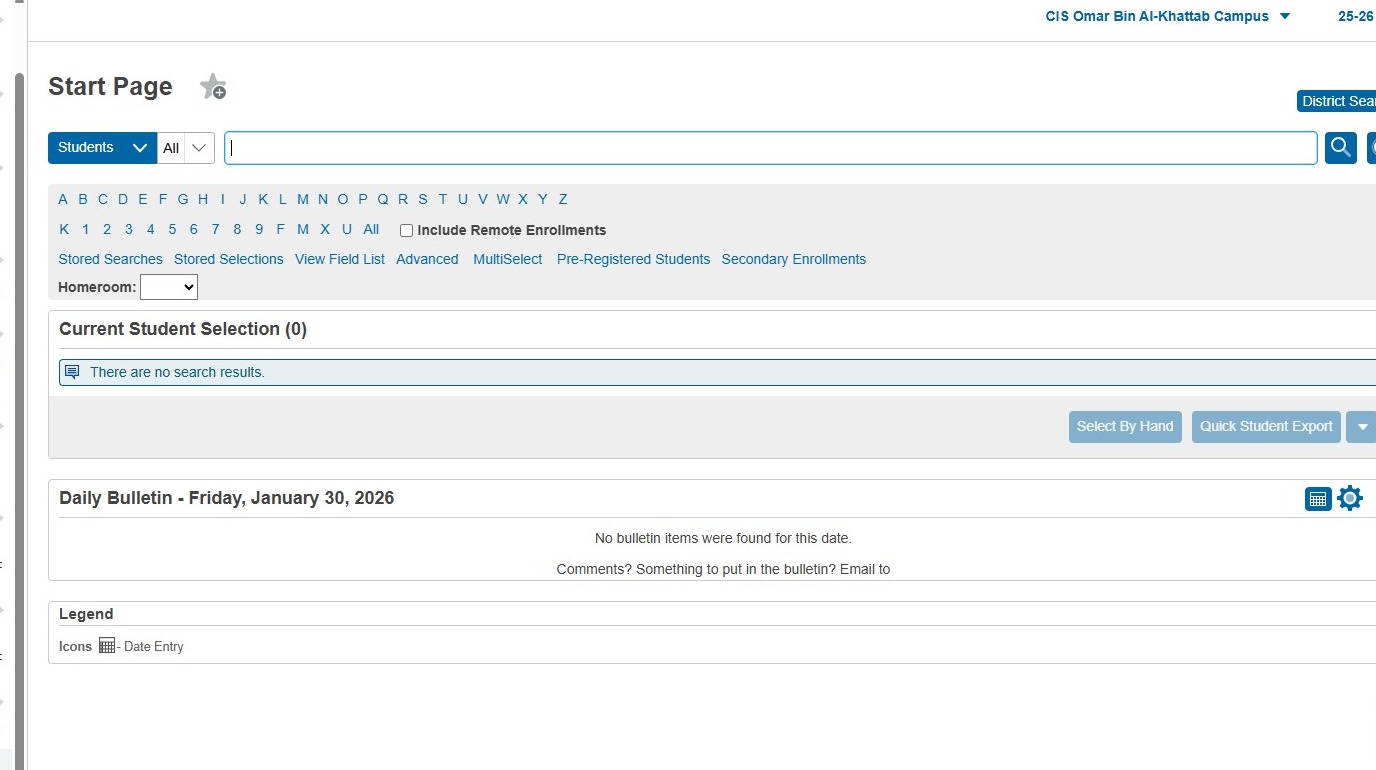
2. Click "Level Data Apps"
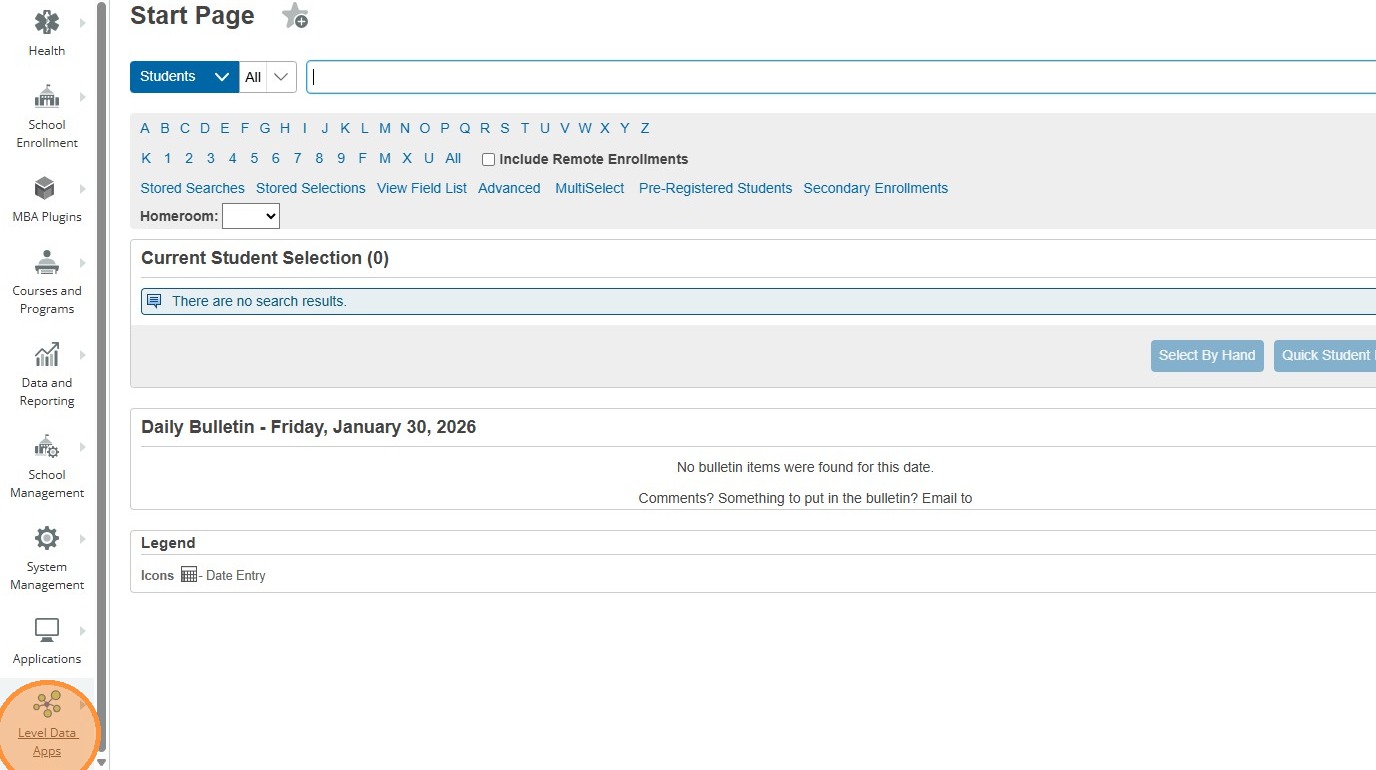
3. Click "Data Validation"
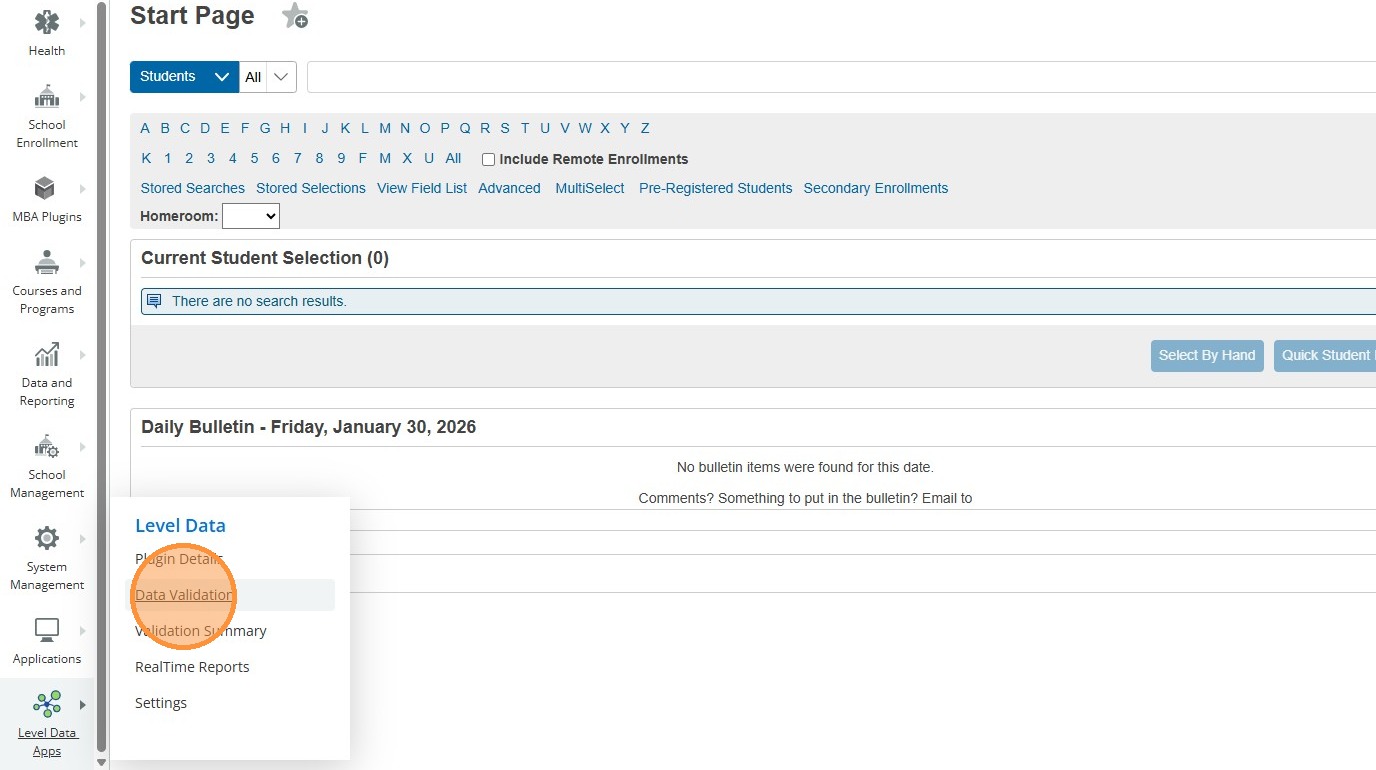
4. Click "Miscellaneous"
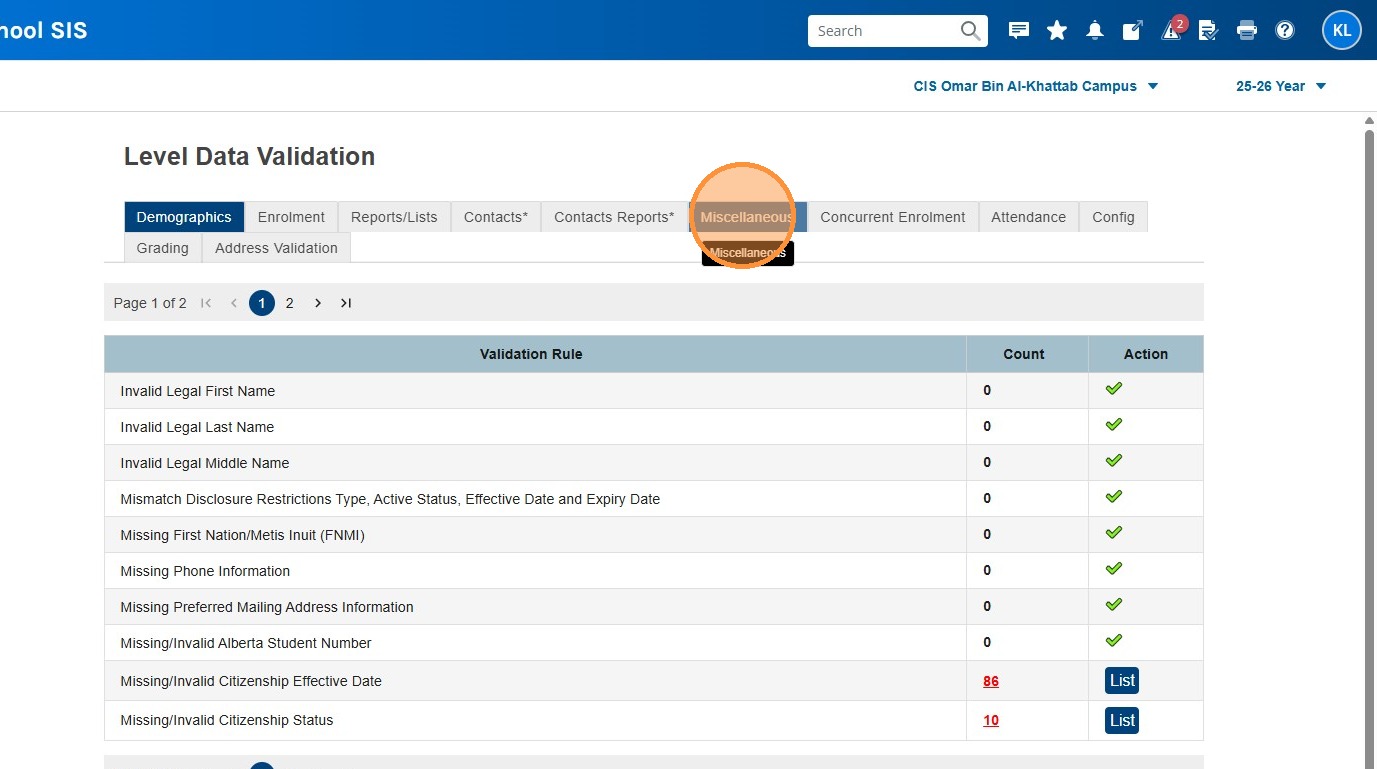
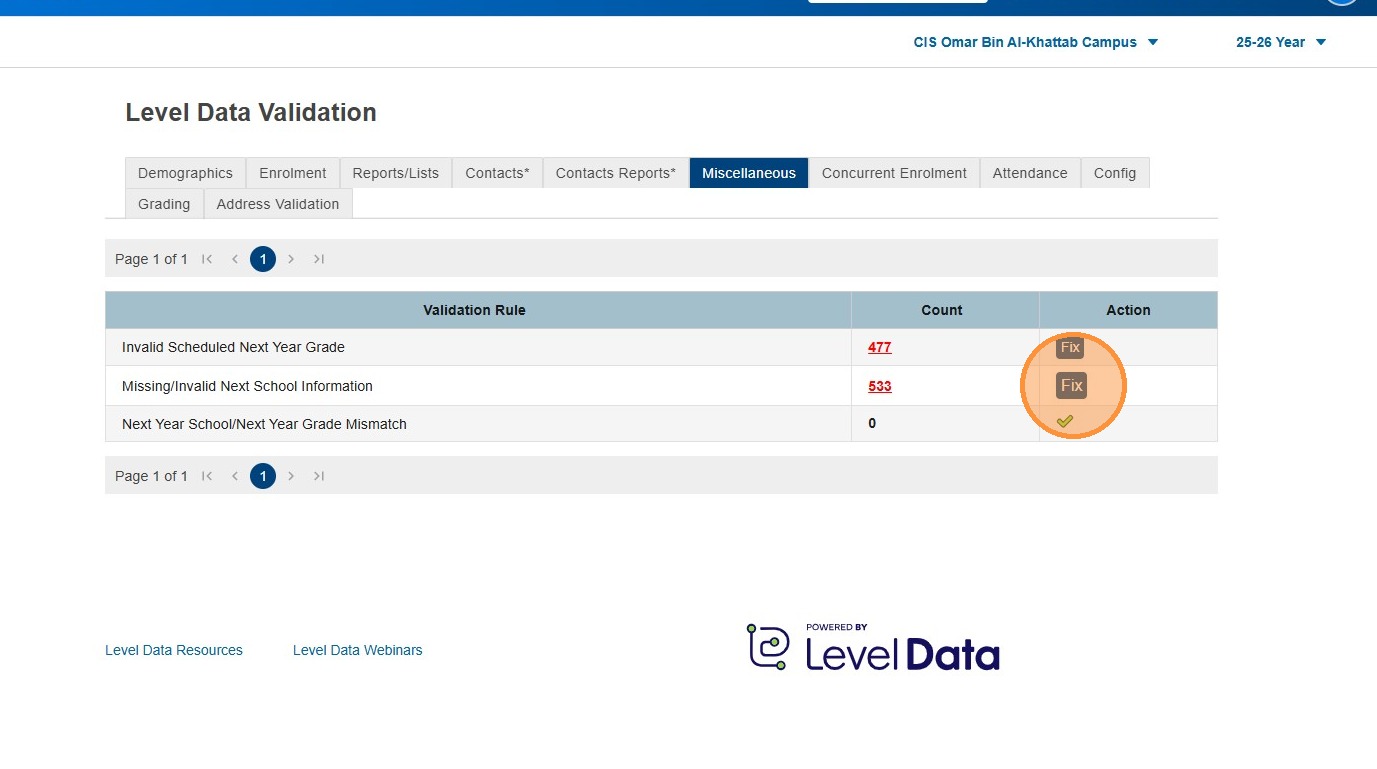
5. You'll see 3 reports. One for fixing the Next Year Grade, one for fixing the Next Year School, and one that will show any mismatches between the 2. In each row you'll see how many errors the system is showing. This will be students who have an inconsistent Next Year Grade/School, or none selected at all.
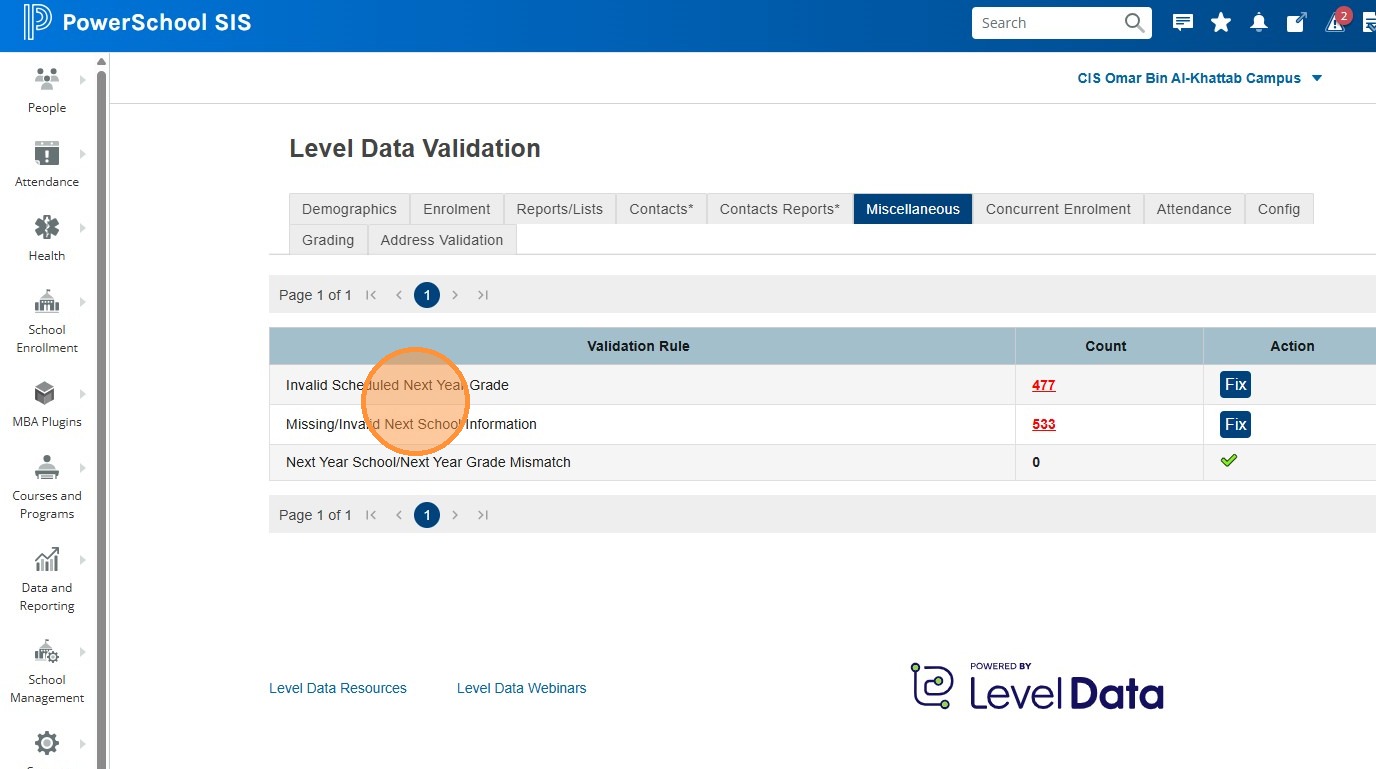
6. Click "Fix" on the validation you want to resolve. For this example I'm clicking "Fix" for "Invalid Scheduled Next Year Grade"
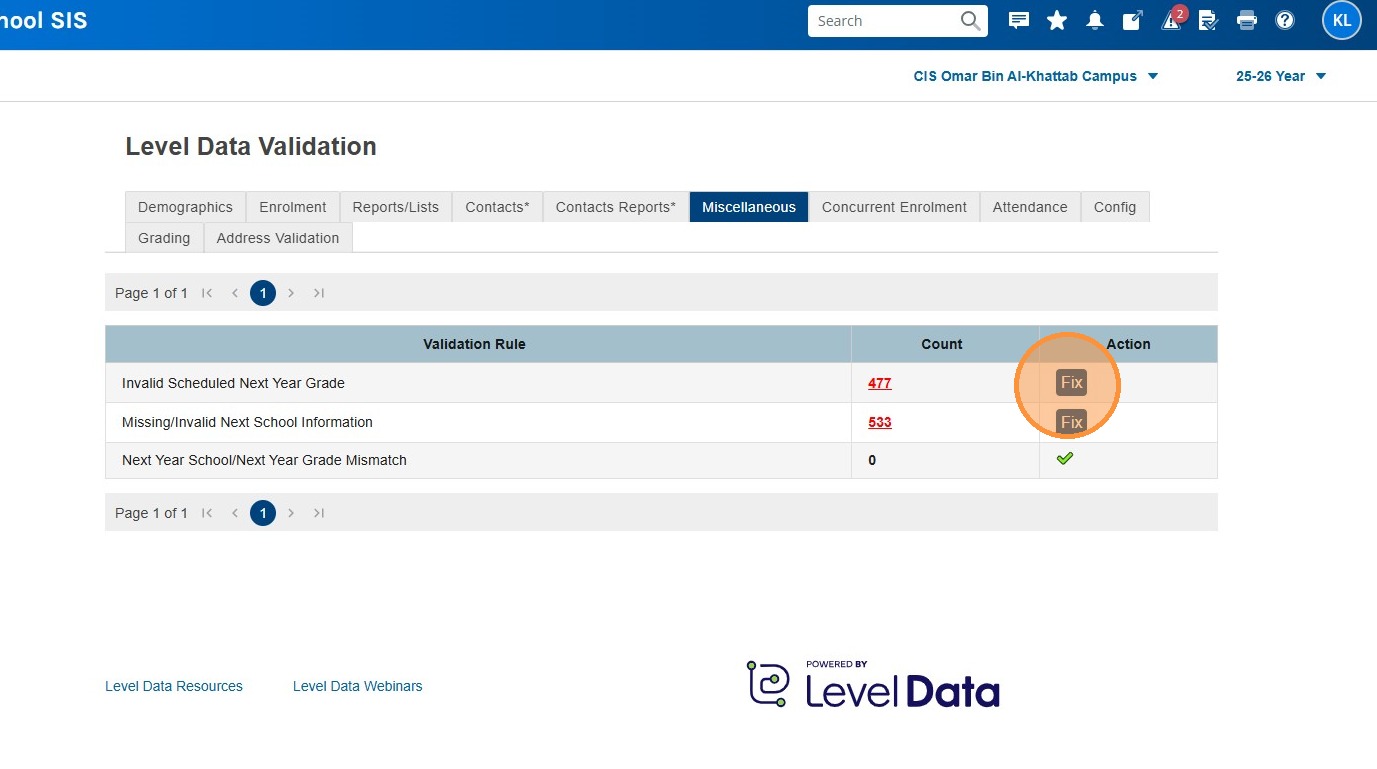
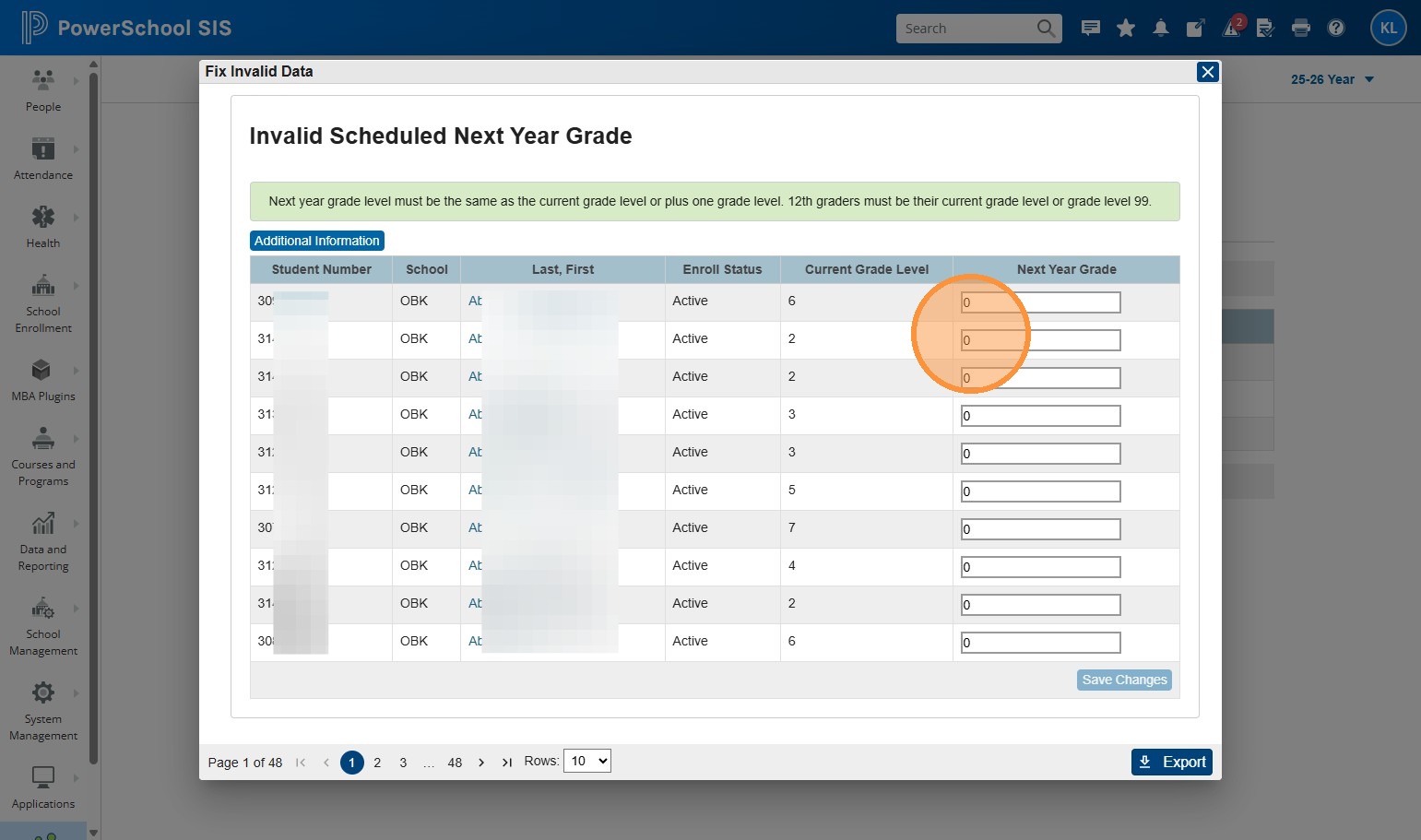
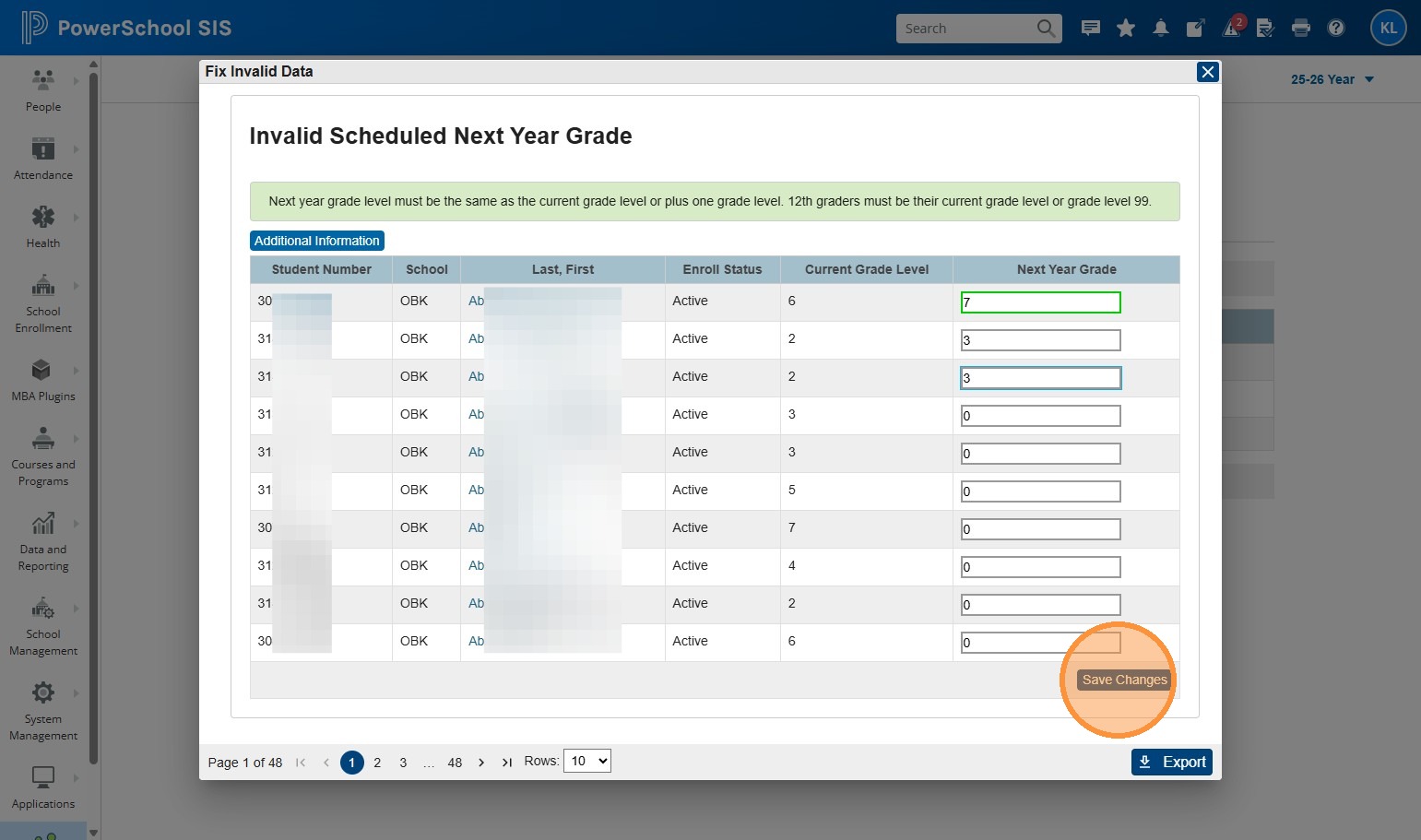
7. You can see a list of students and their current grade level, and the Next Year Grade that is currently in SIS.
8. You can set/correct the Next Year Grade right on this screen by typing the correct grade into the fields.
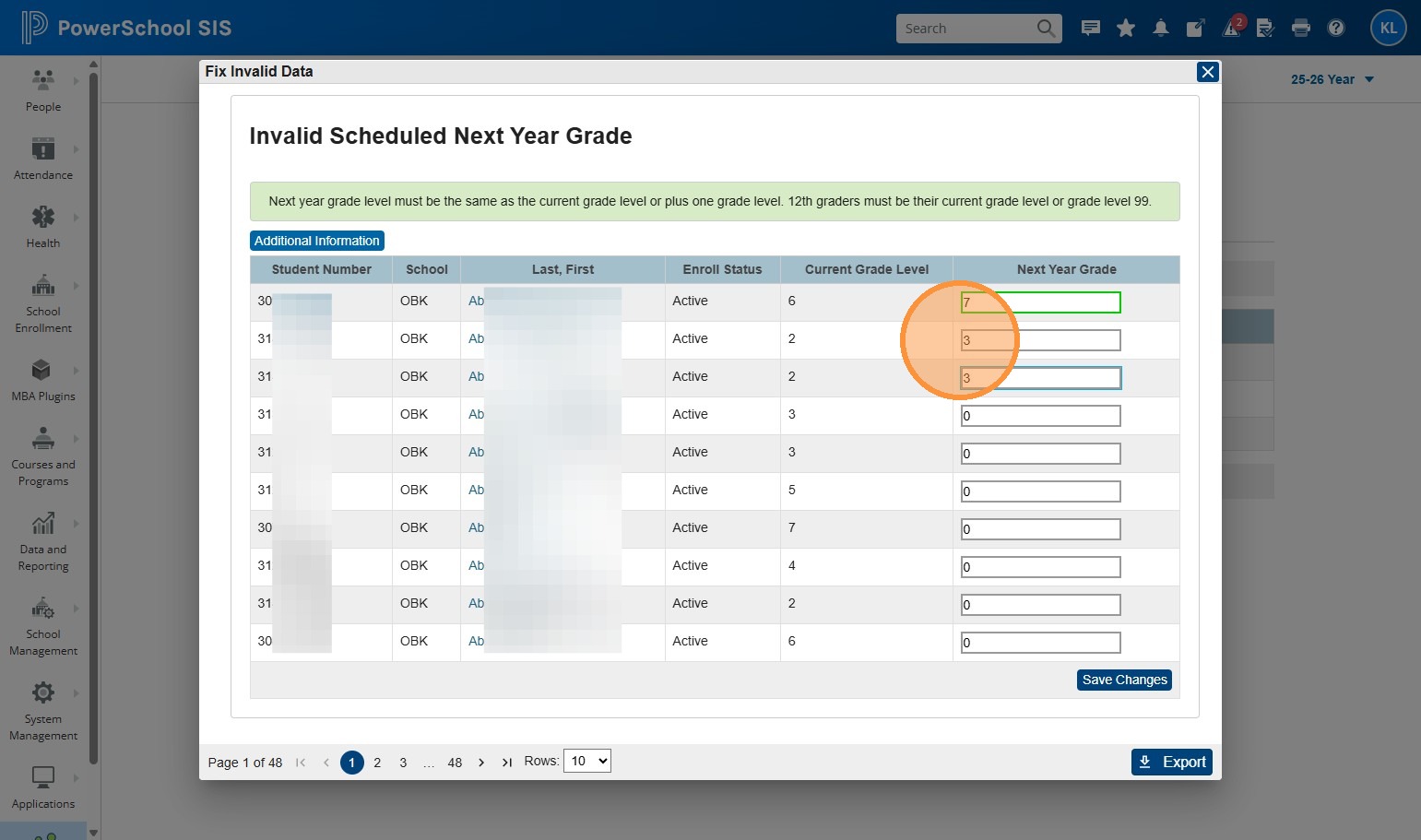
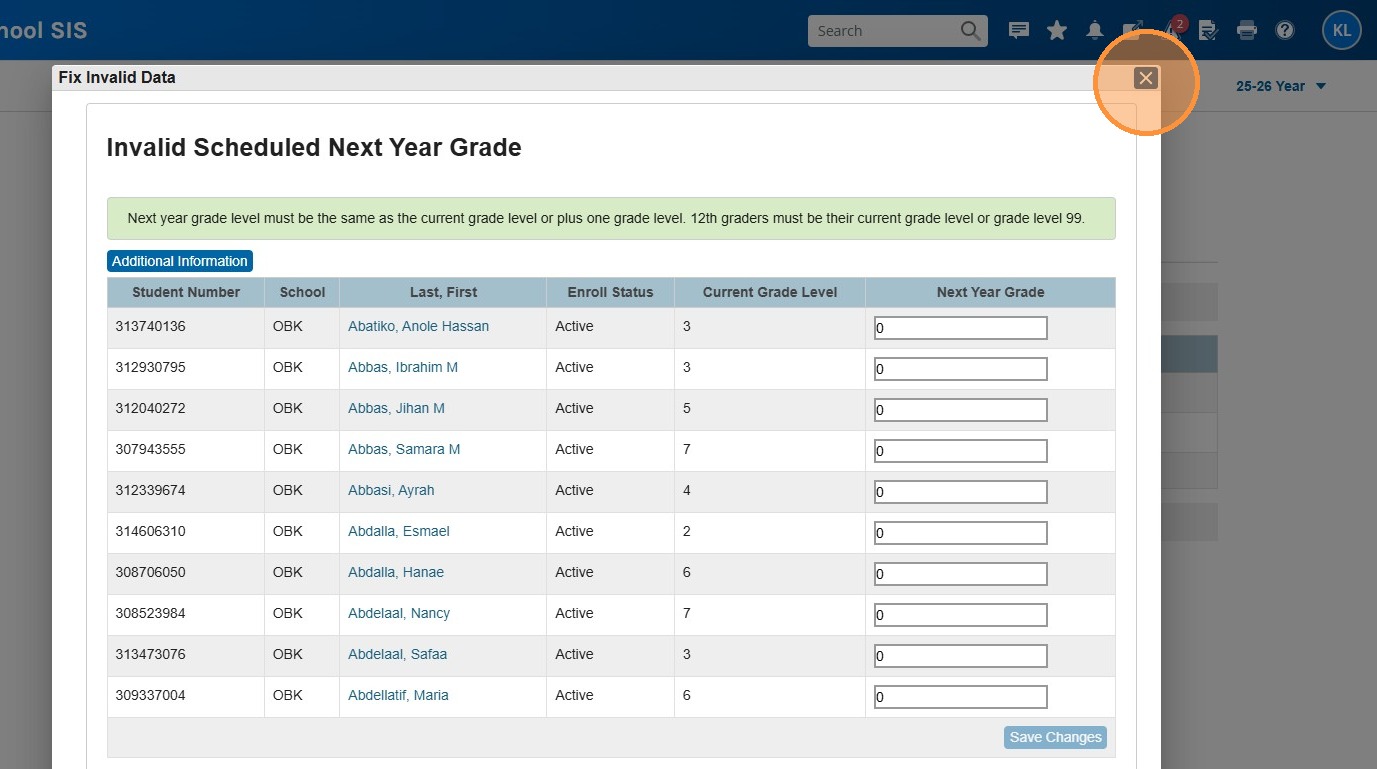
9. Click "Save Changes" when you're done making corrections. You can then move to the next page, or close using the X in the upper right corner of the popout.
10. For this example, we are going to close and look at the next report. Click the X.
11. Click "Fix" for "Missing/Invalid Next School Information"
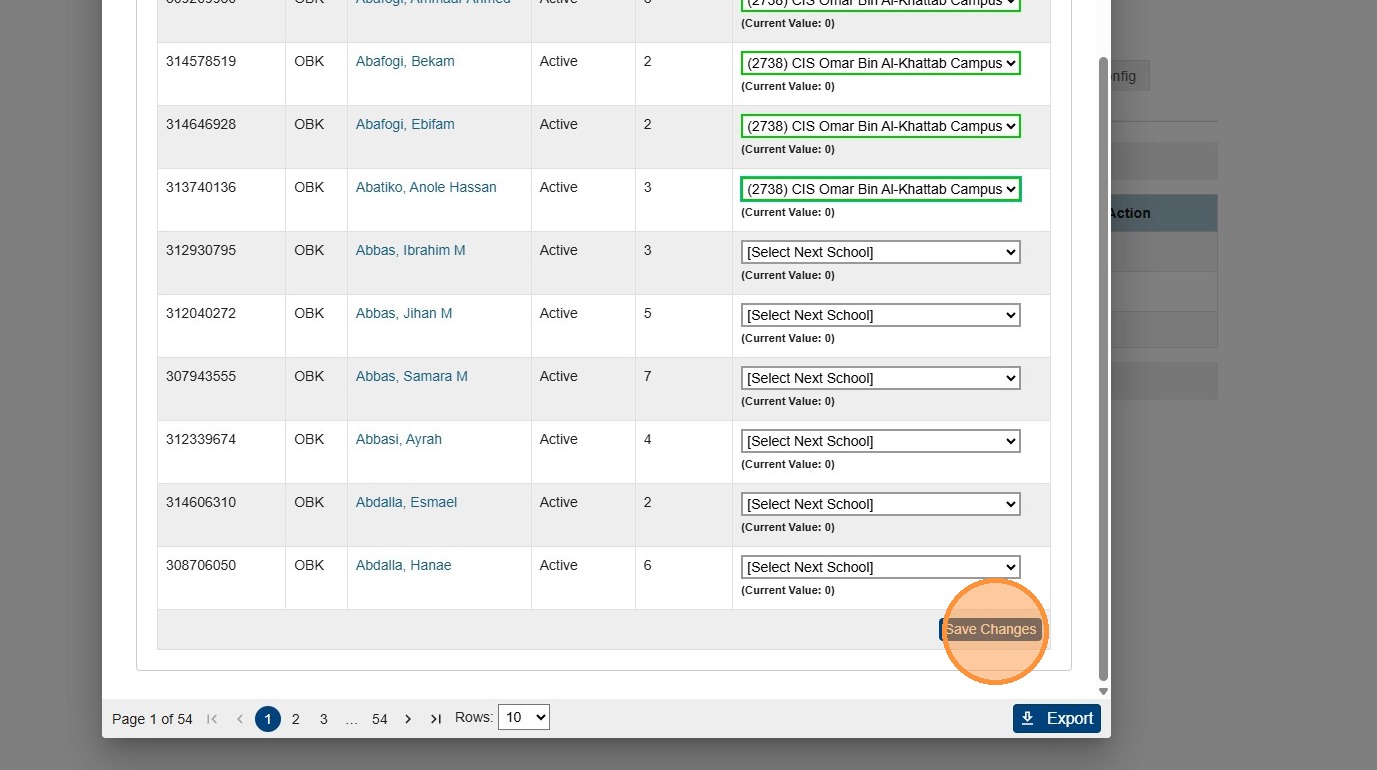
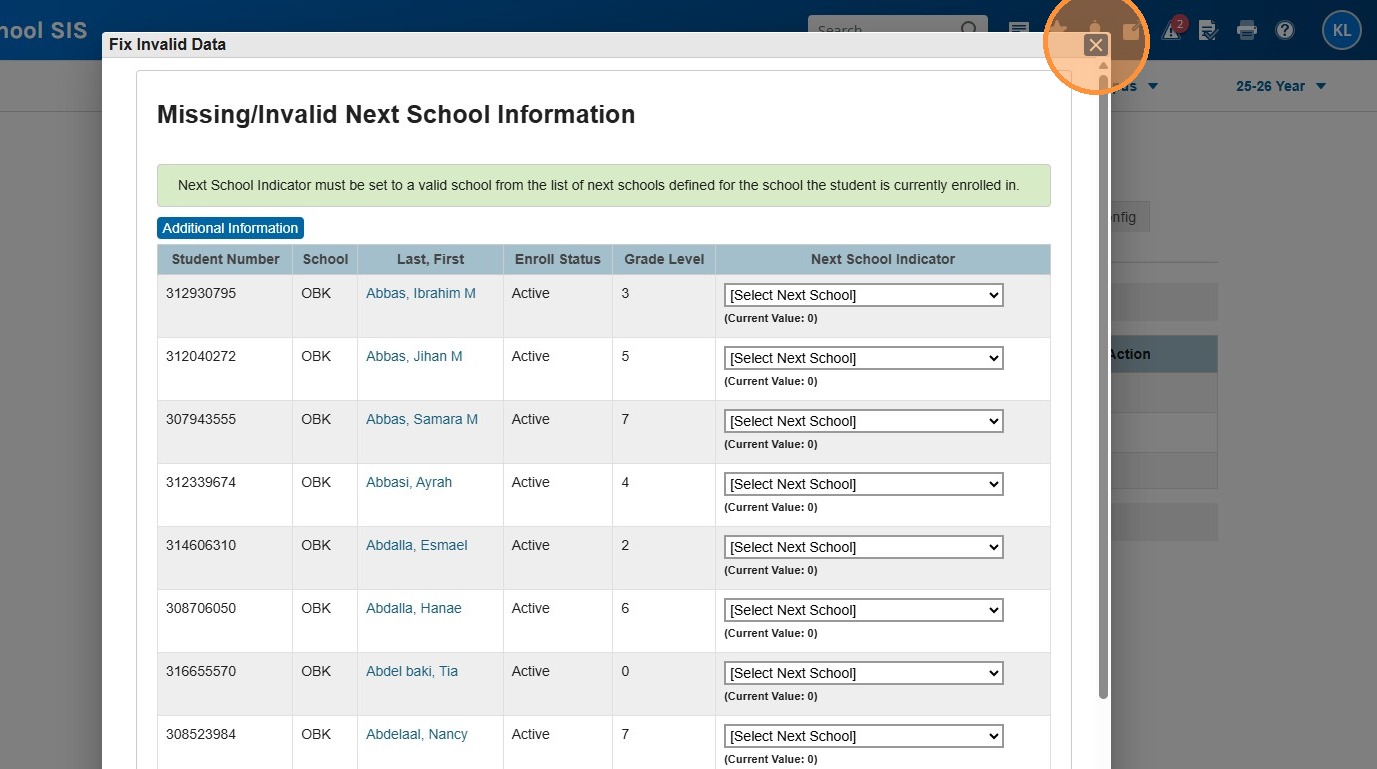
12. On this report, we can see the students, their grades, and which Next School has been set up. In our example, no Next School has been selected. We can click on each drop down next to the students, and choose the correct Next School. If you have a grade 12 student that is graduating, choose the Graduated school. If you have a student you know will not be returning next year, you can choose Transferred Out.
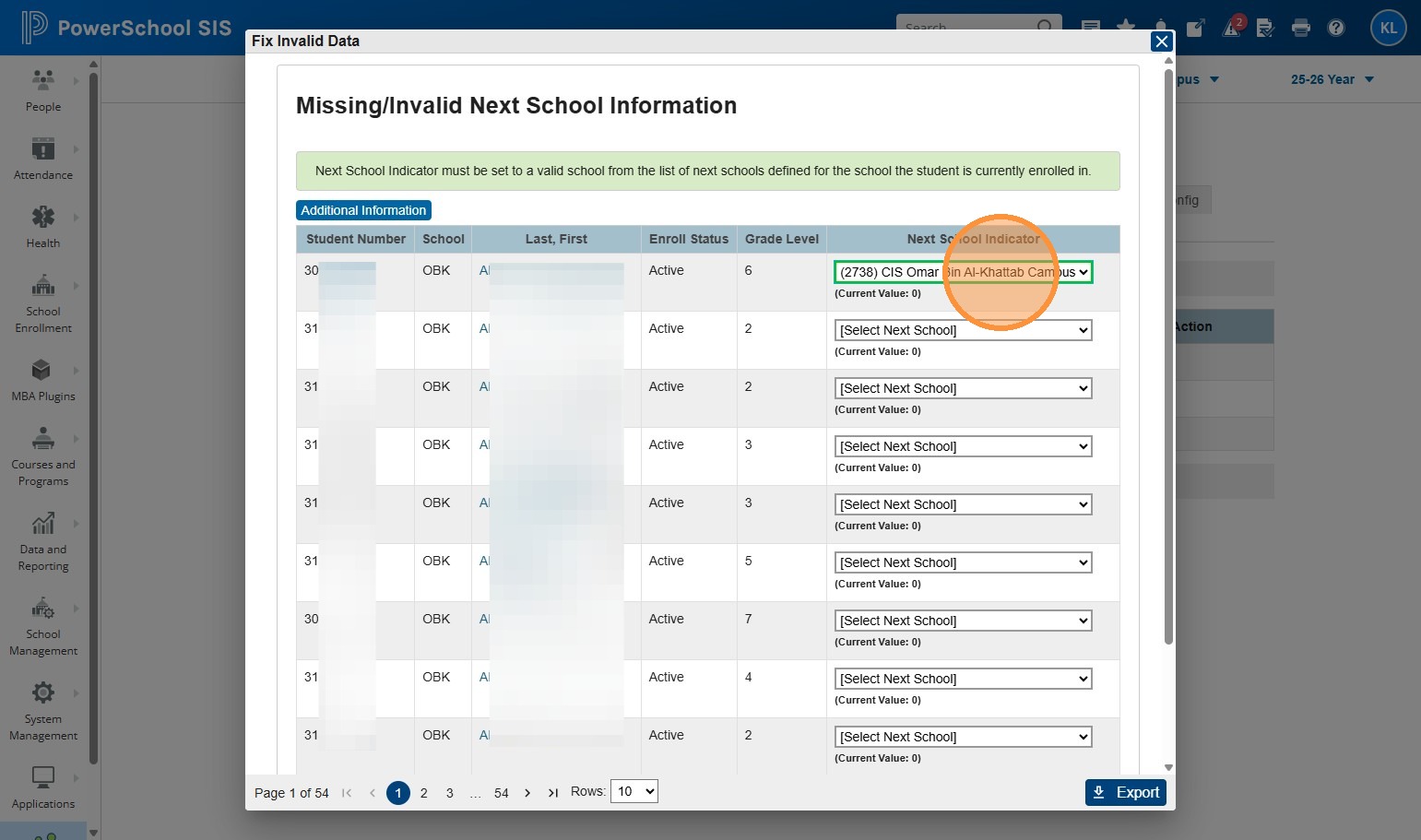
13. When you're done, Click "Save Changes"
14. Click this icon to close the report.
15. If you have the same errors or blanks on many of your students, you can use Change Student Field Values to mass set this flag. There is a separate guide for this.