
Using Change Student Field Values to update Next Year Grade and Next Year School in PowerSchool
Using Change Student Field Values to update Next Year Grade and Next Year School in PowerSchool
1. Navigate to https://prsd8.ca/admin/home.html
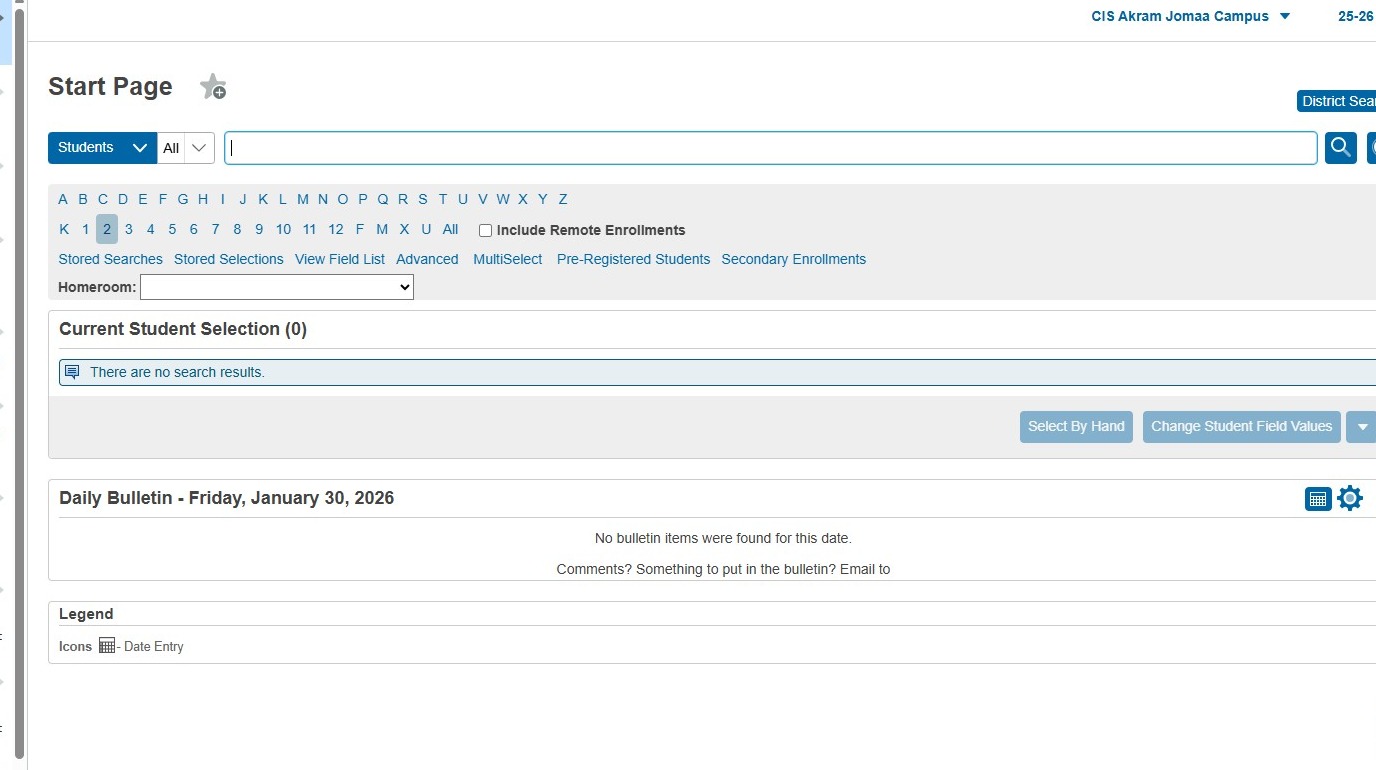
2. First, we will set the Next School Indicator for a group of students:
3. Choose a selection of students. For my example, I will click "2" to select the Grade 2 students
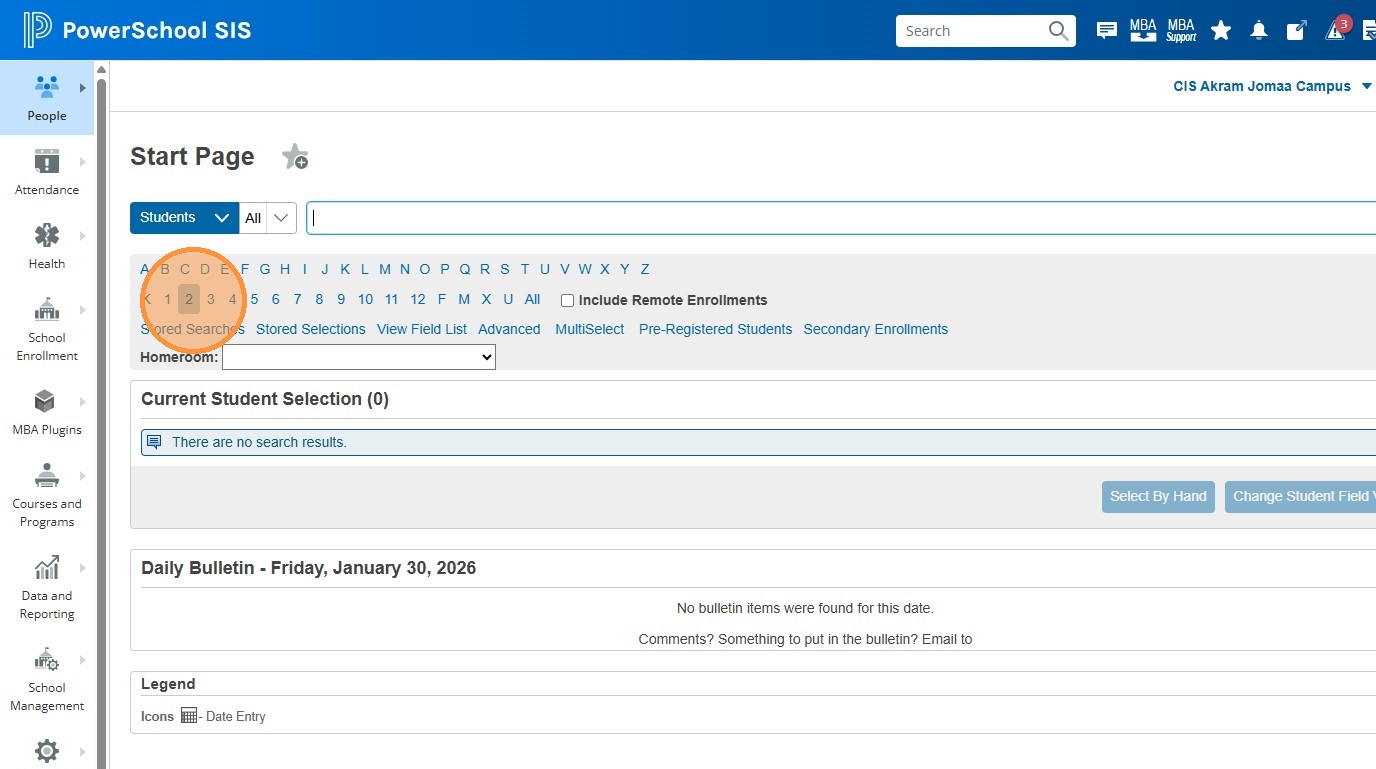
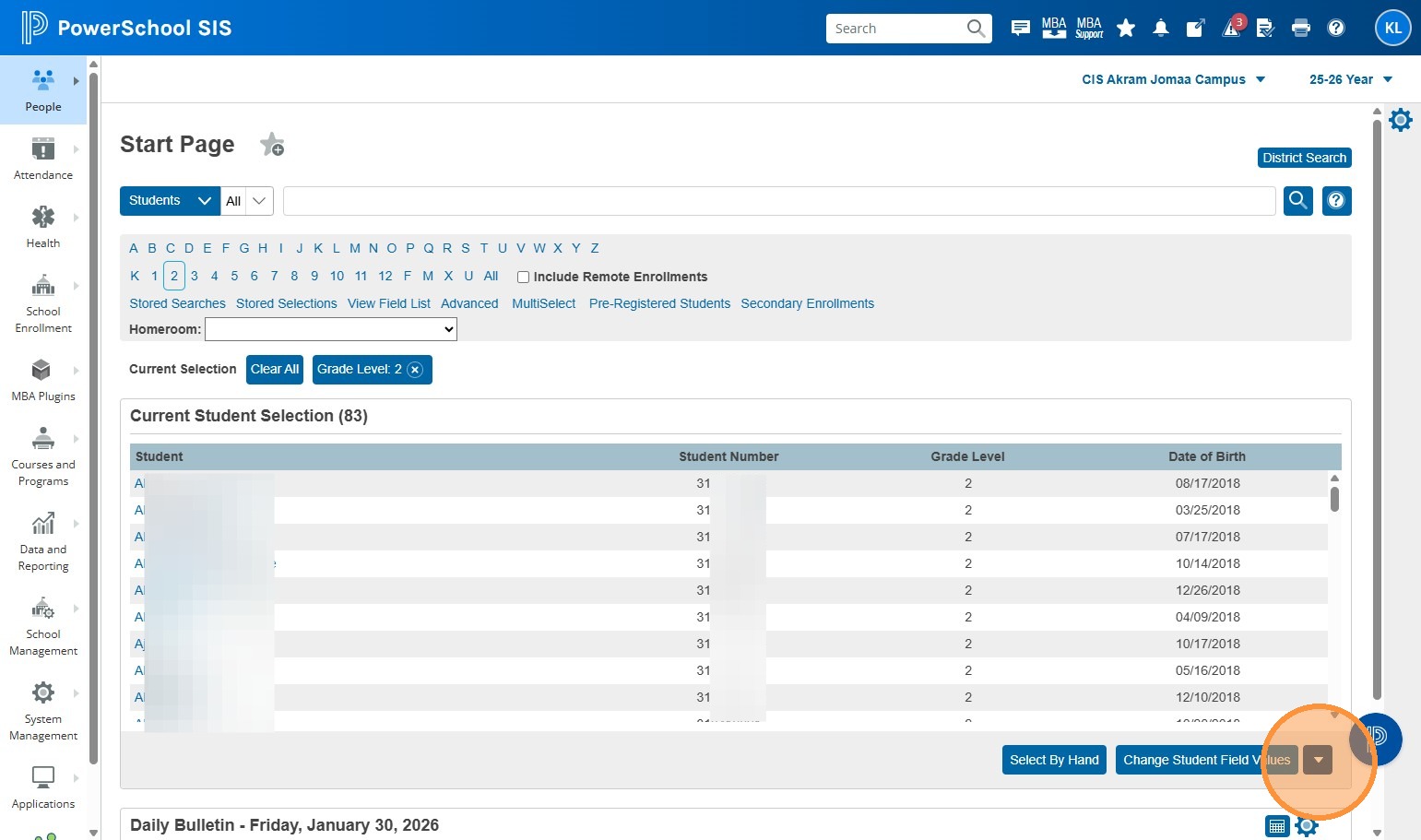
4. Click the drop-down on the lower right of the student selection
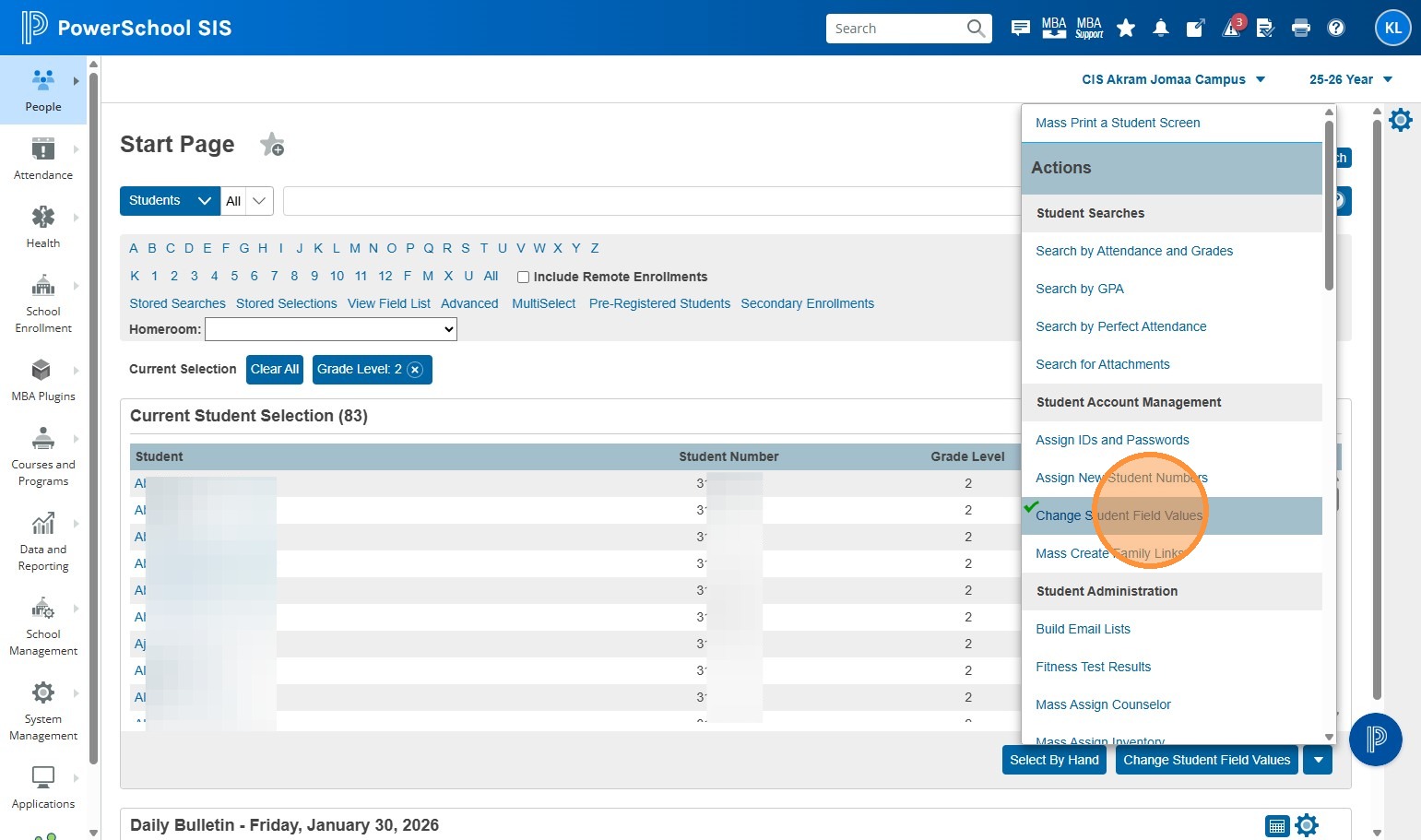
5. Click "Change Student Field Values"
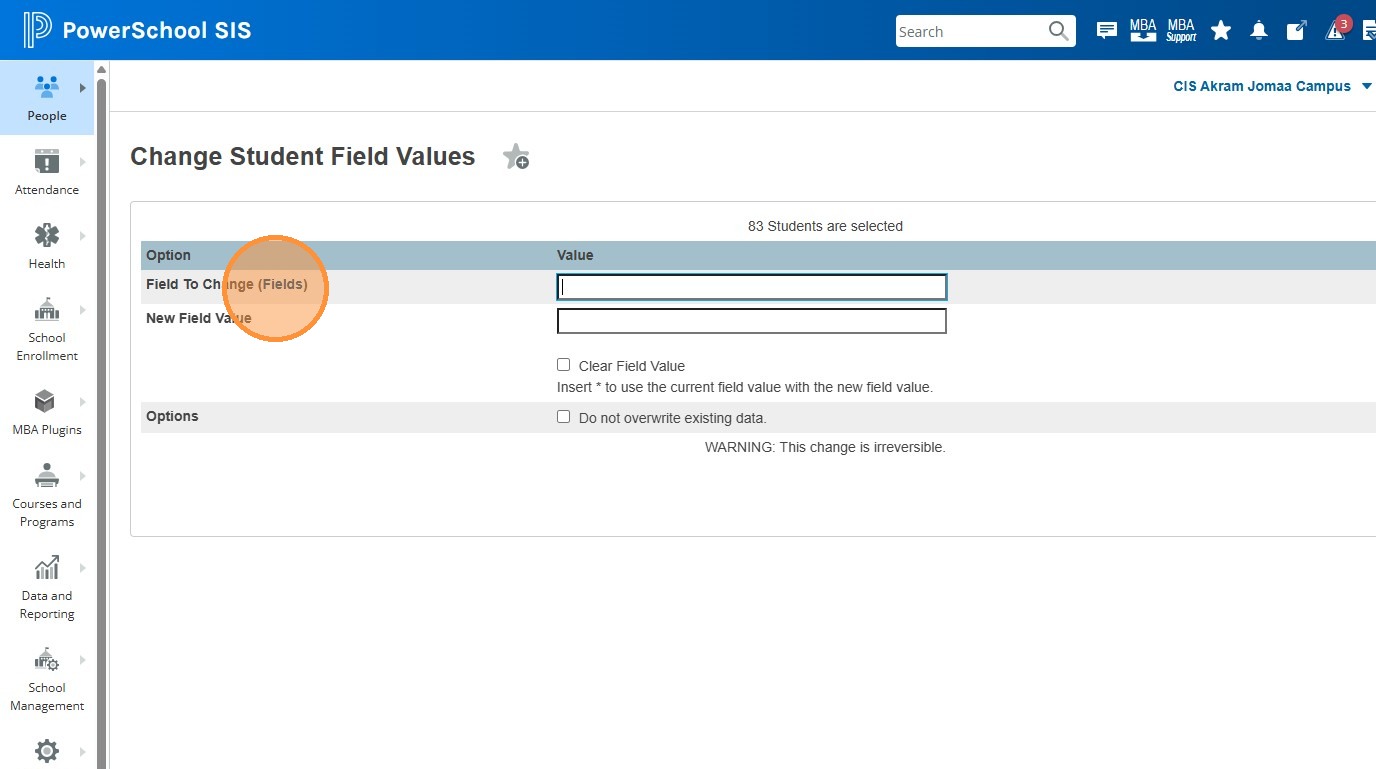
6. Click "Fields"
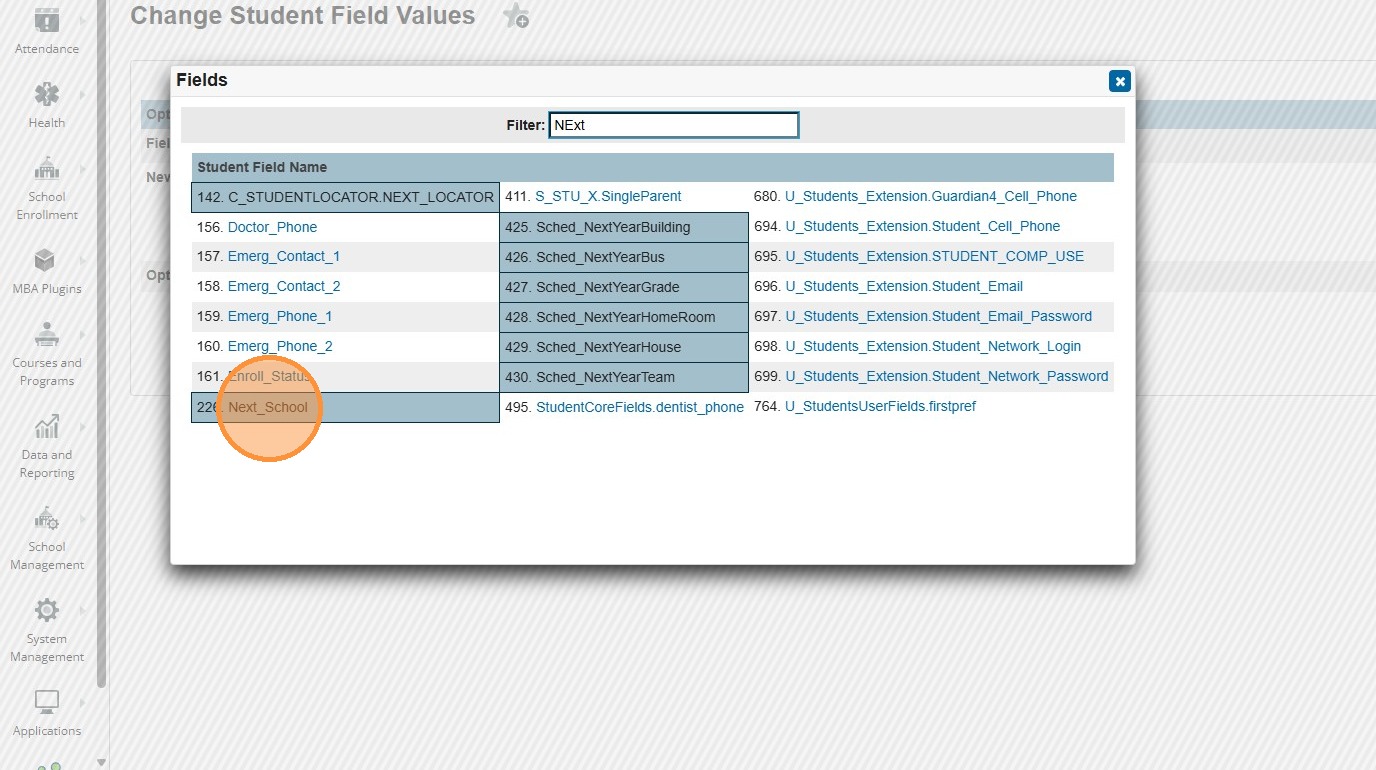
7. Type "Next" into the Filter field, and choose "Next_School"
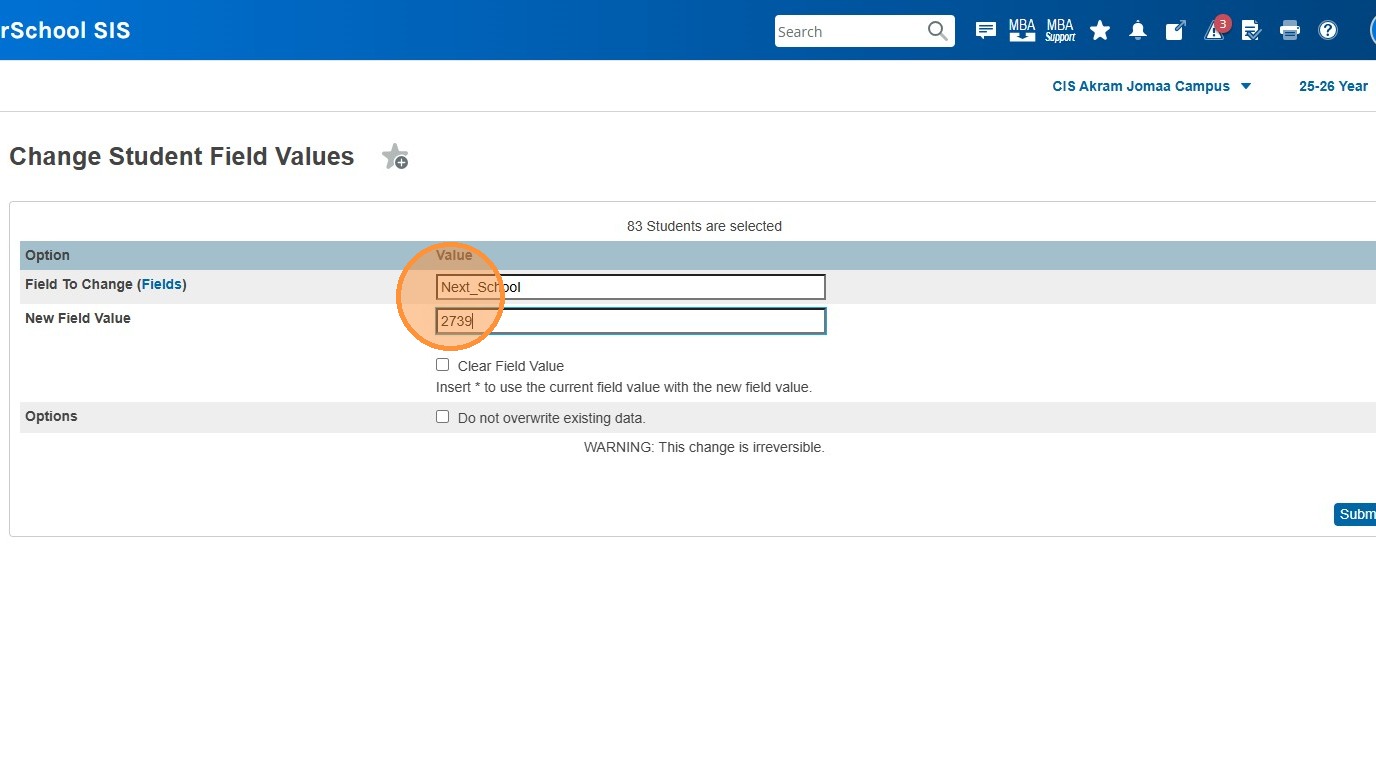
8. Type the school number of the school that this selection of students will attend in the next school year. Because I chose grade 2 students at a K-12 school, their next school will remain the same as their current one, so I'm entering 2739.
If you have students moving to a feeder school, enter the feeder school's code. Grade 12 students that are graduating will have a Next School value of 999999.
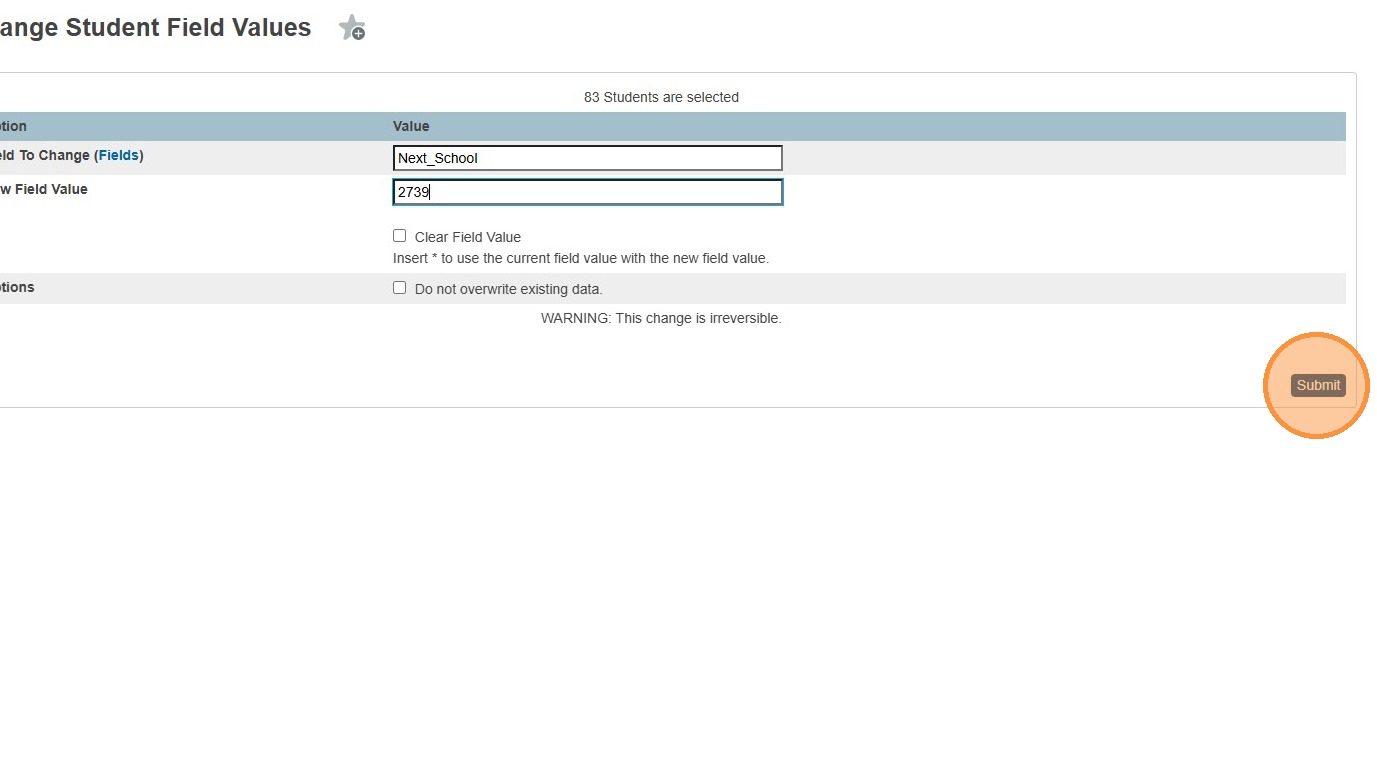
9. Click "Submit"
10. You will be shown a validation screen. You'll see the previous value, on the left, and the value that it will be changed to on the right.
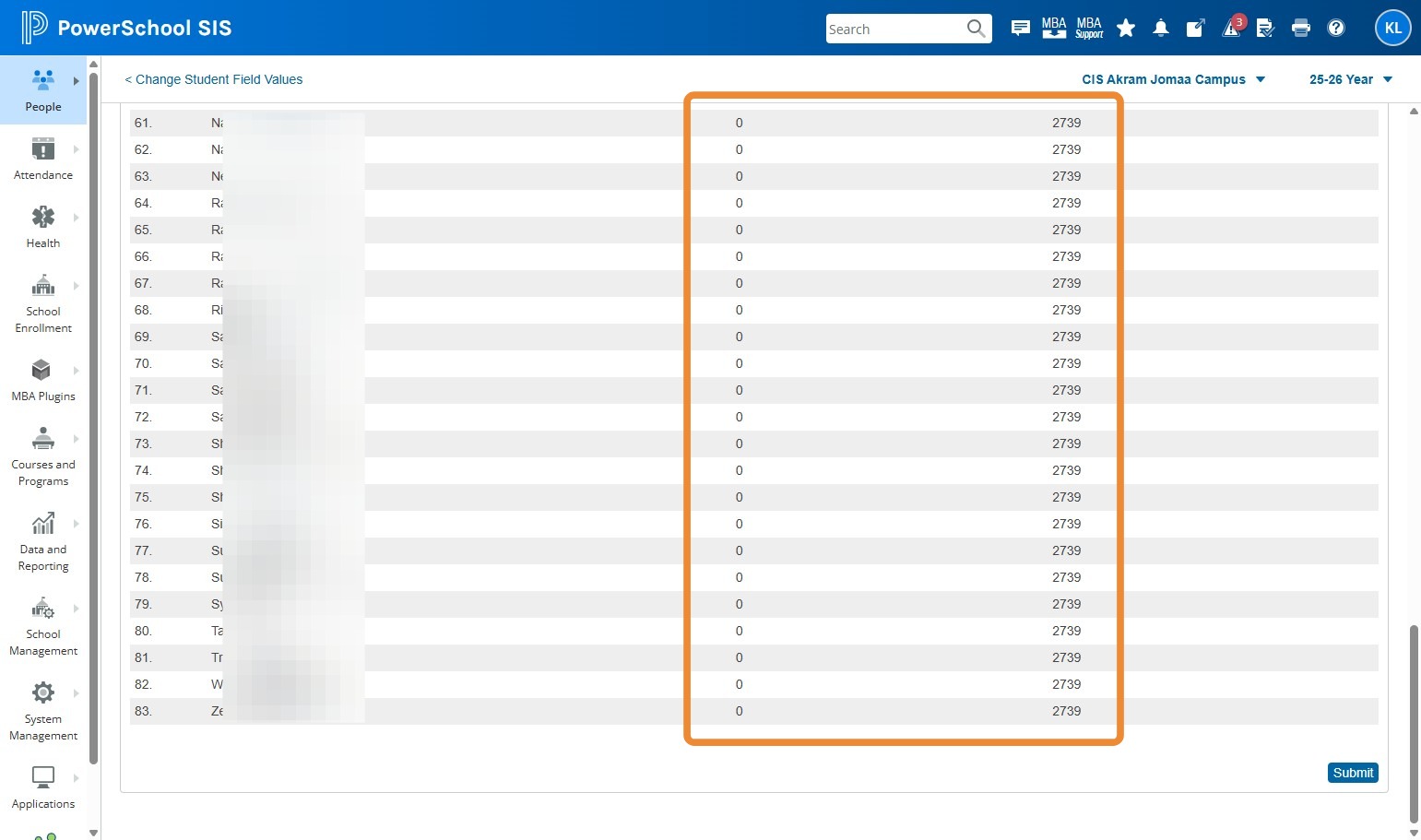
11. Click "Submit"
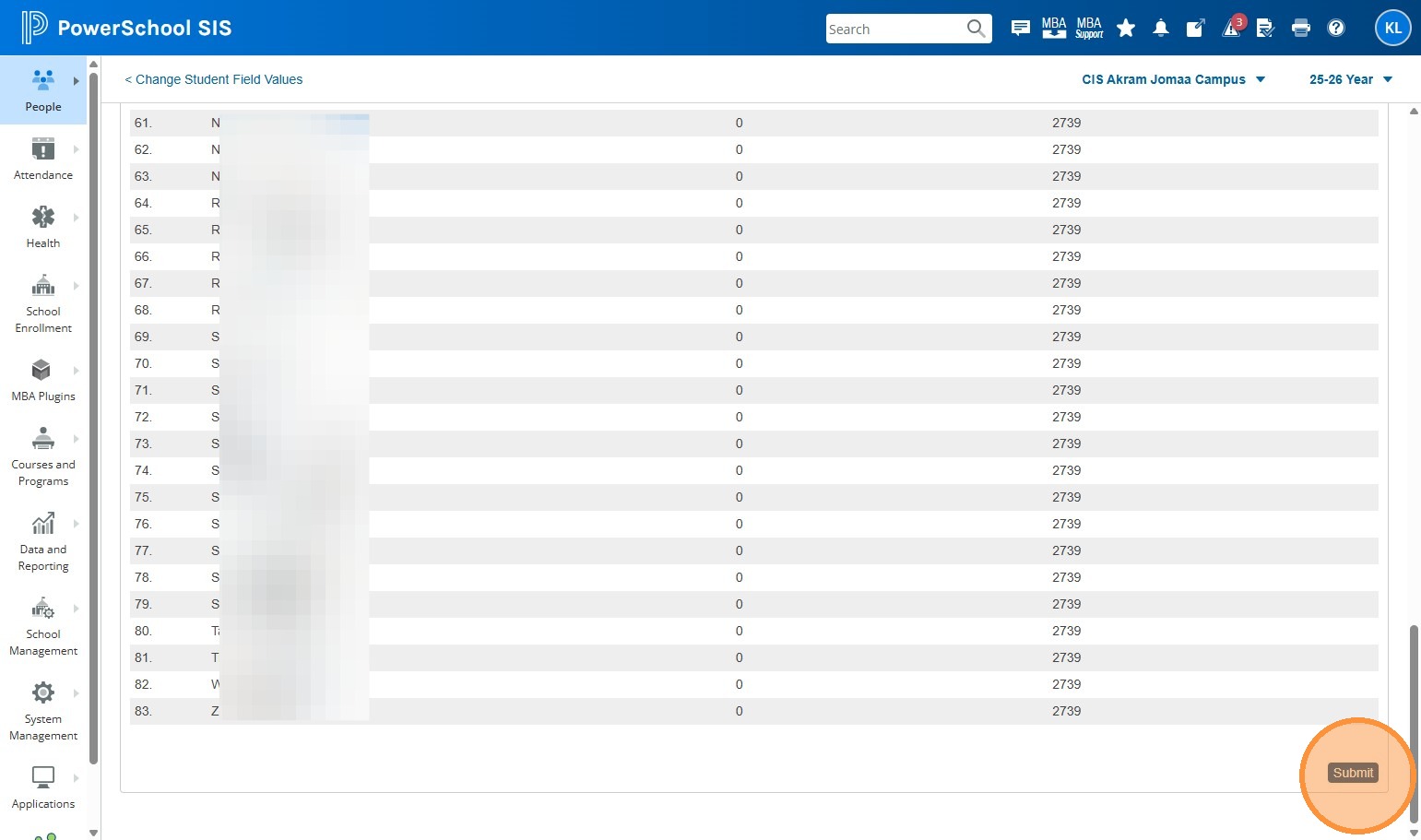
12. Next, we will set the Next Year Grade for these students.
13. Click "PowerSchool" to return to the start page.
14. I'm going to leave my selection of students the same, but you may choose another group of students if you need to. Click the drop down in the lower right of the student selection.
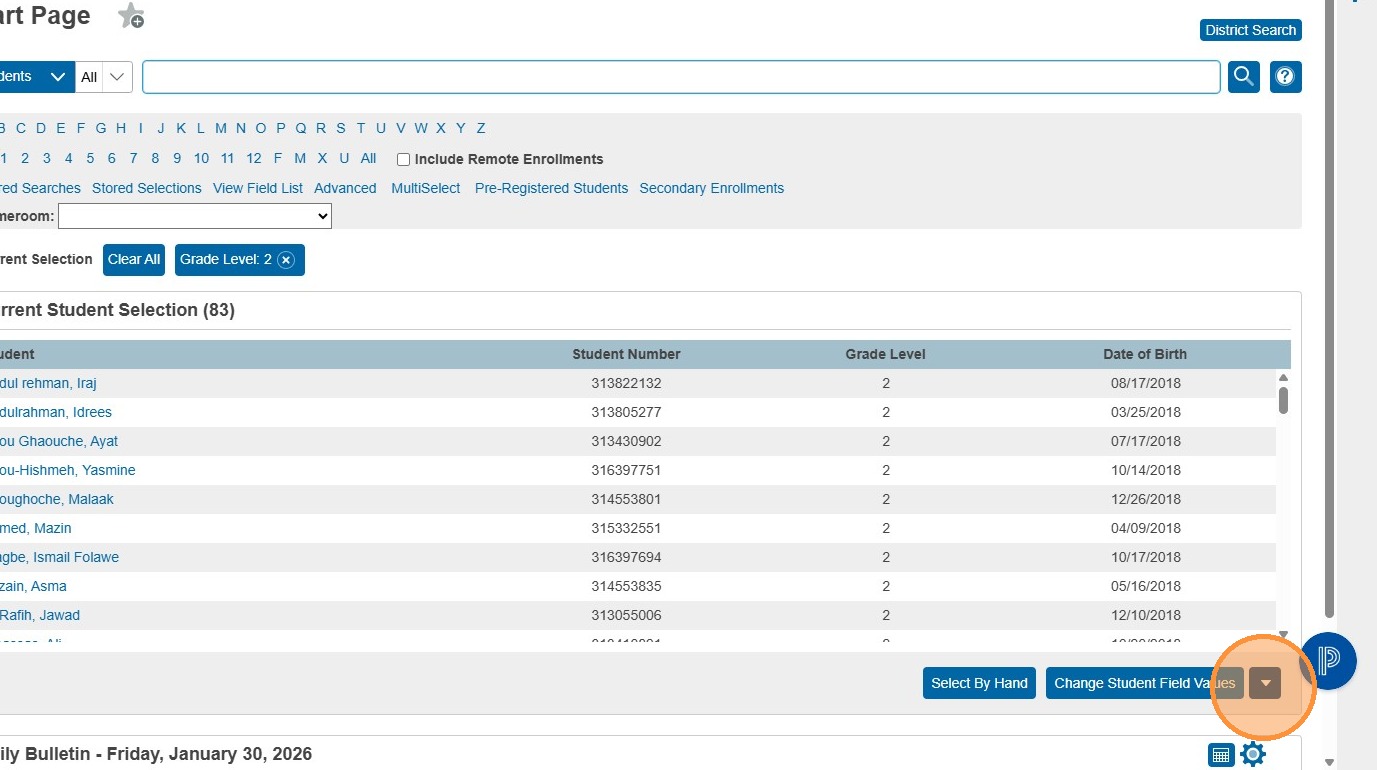
15. Click "Change Student Field Values"
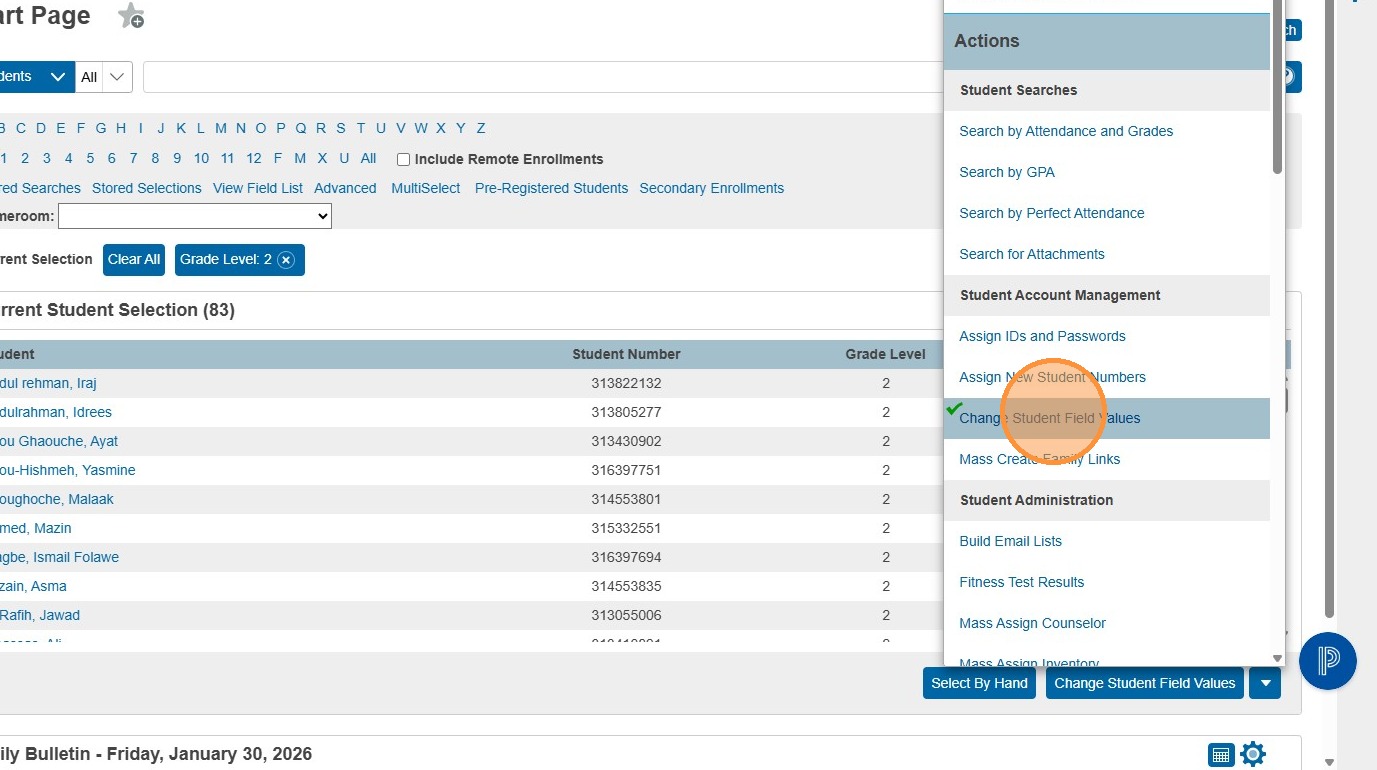
16. Click "Fields"
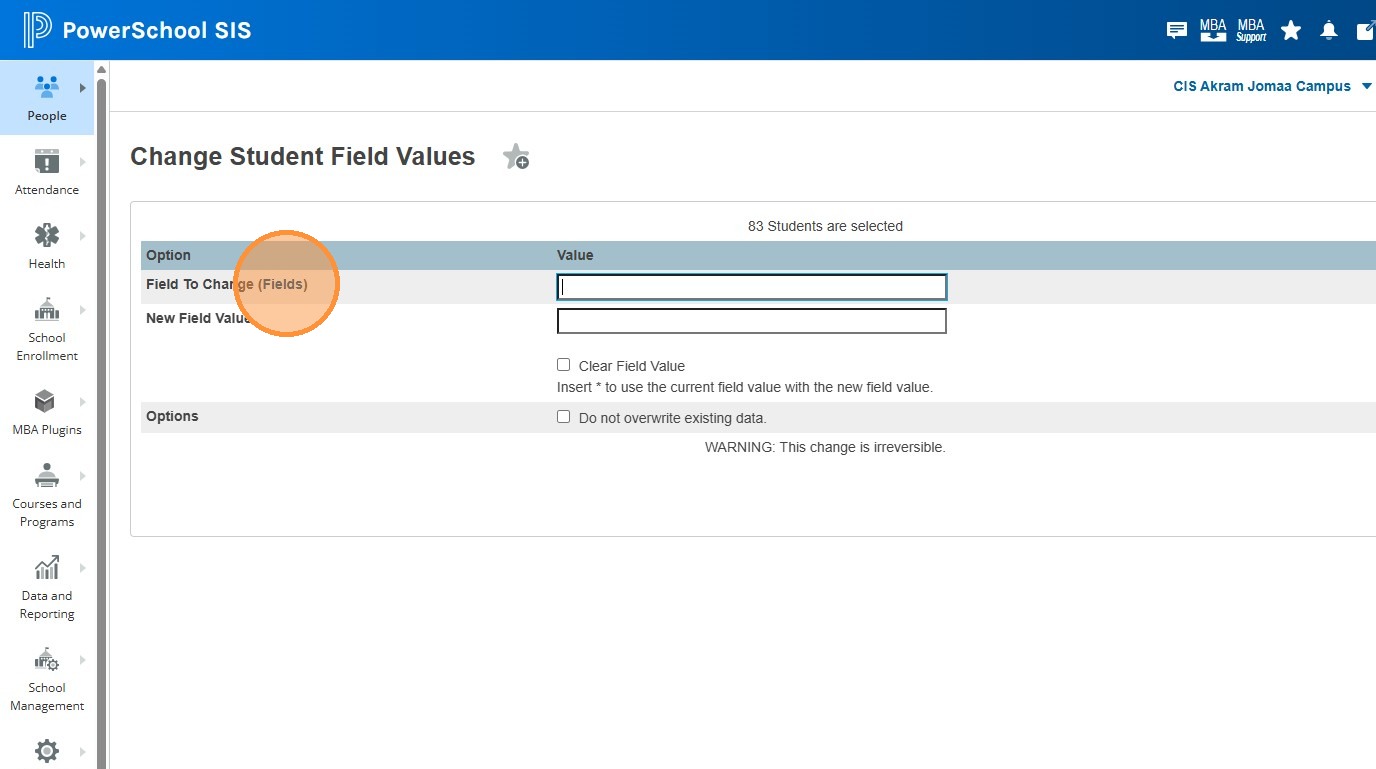
17. Type "Next" in the Filter field, and click "Sched_NextYearGrade"
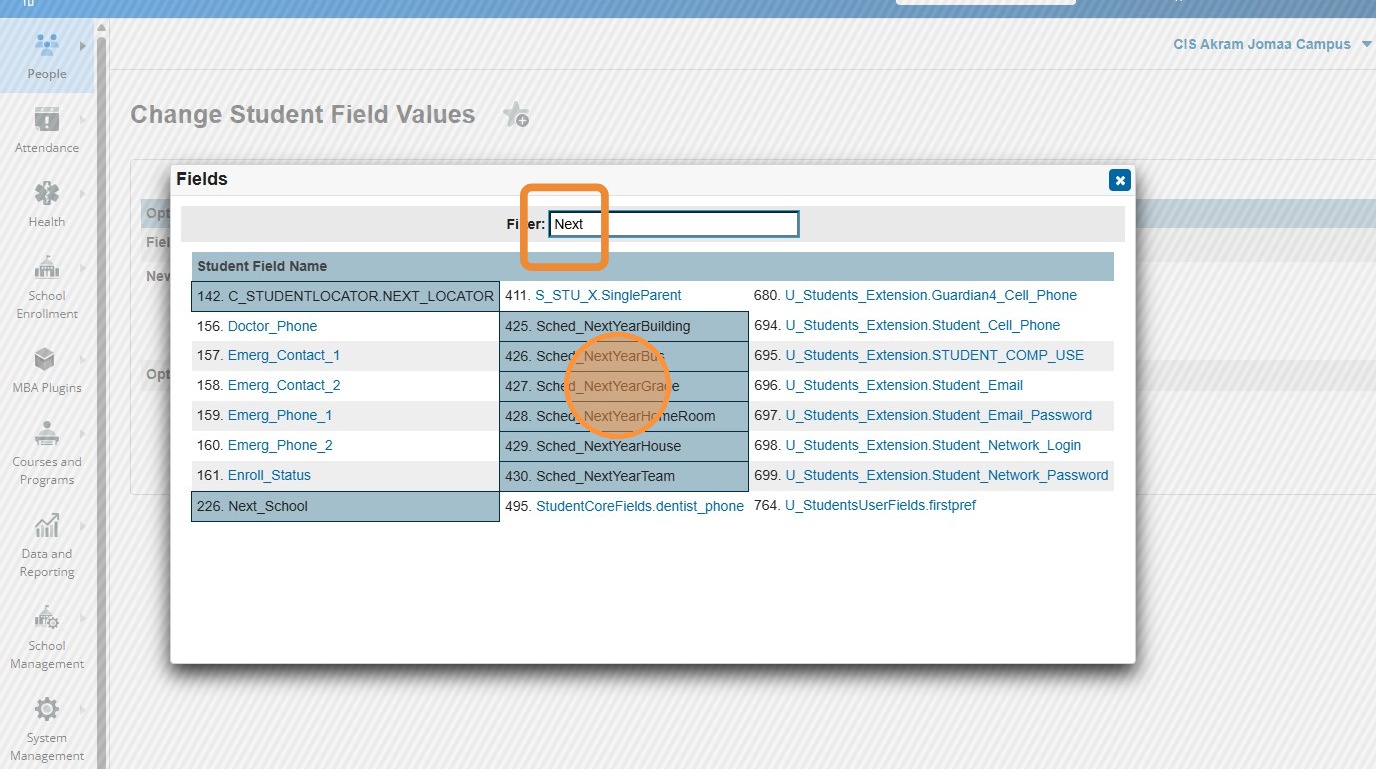
18. Click the "New Field Value" text field.
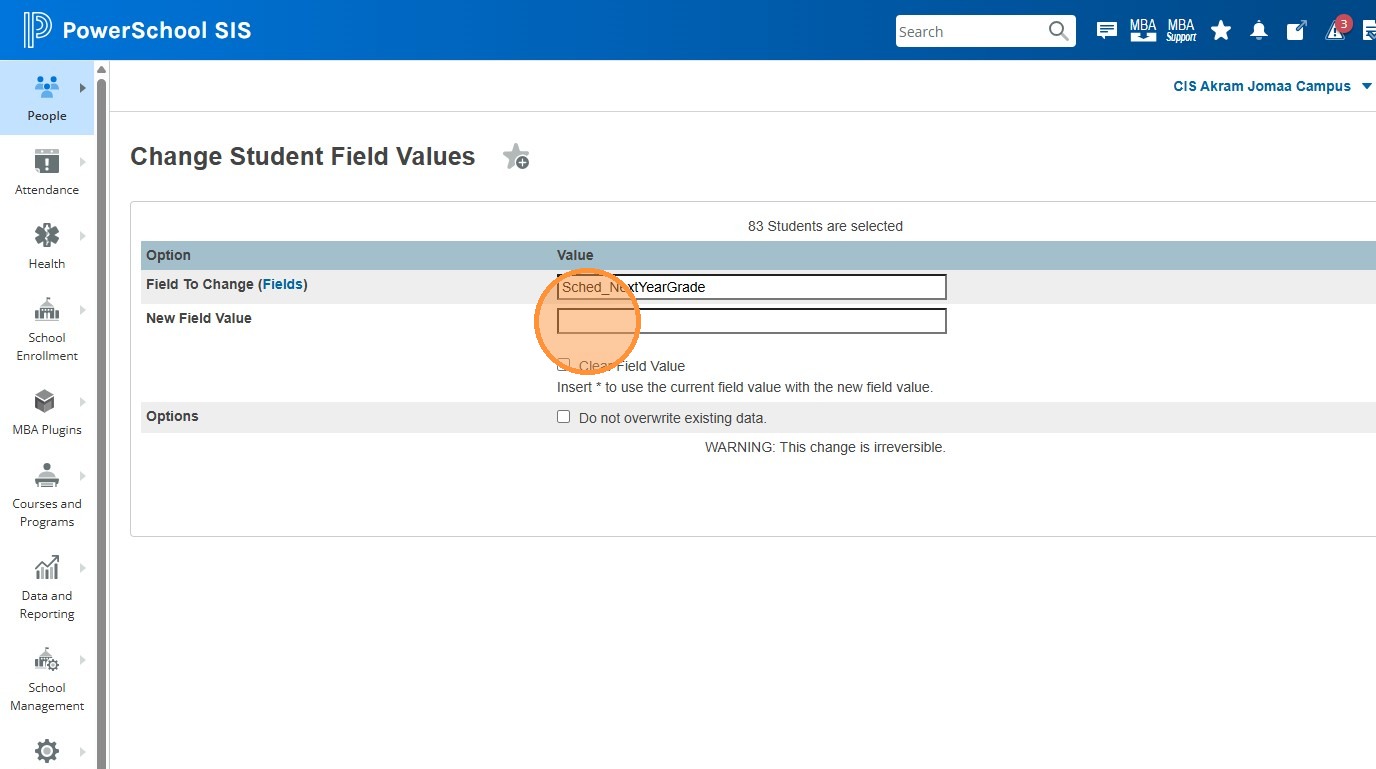
19. Because my selection of students is Grade 2, I know that next year, they will be in Grade 3. Therefore I am putting "3" in this field.
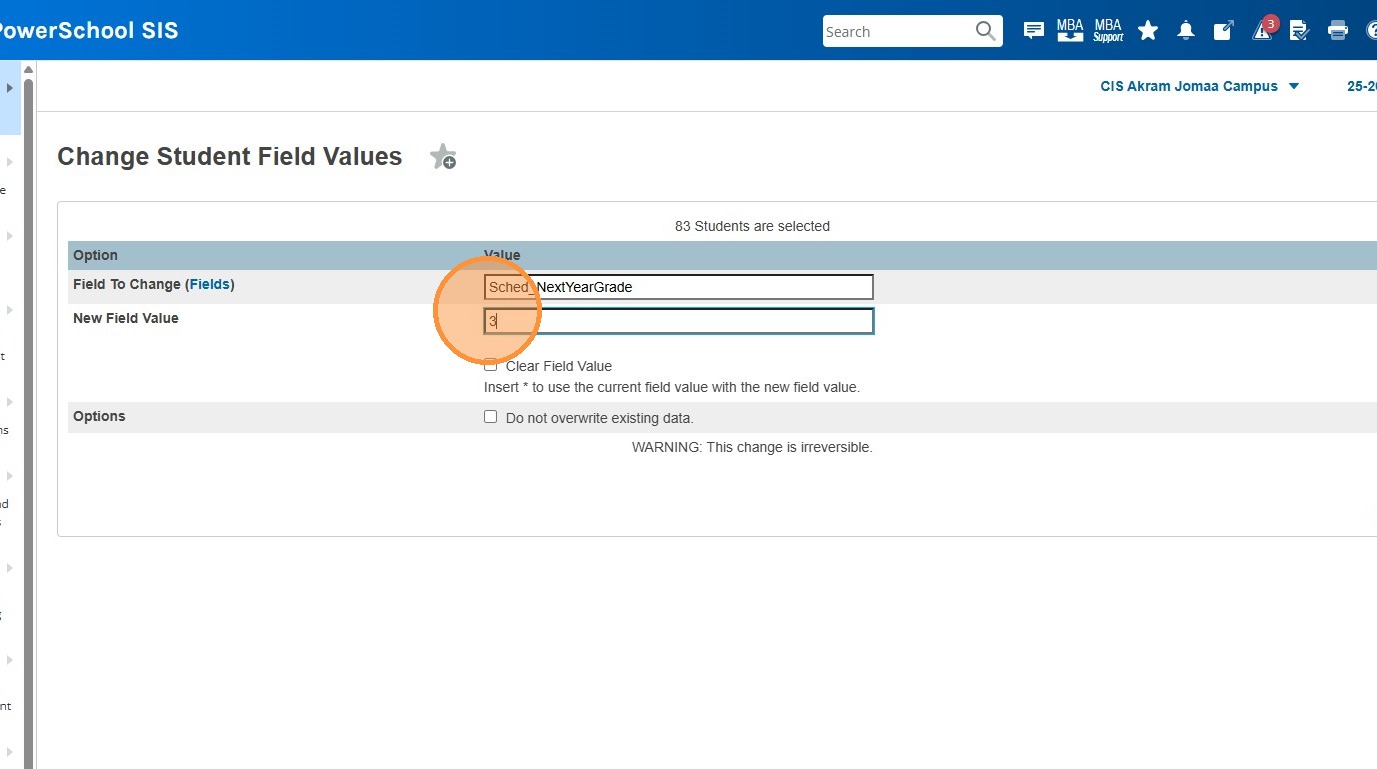
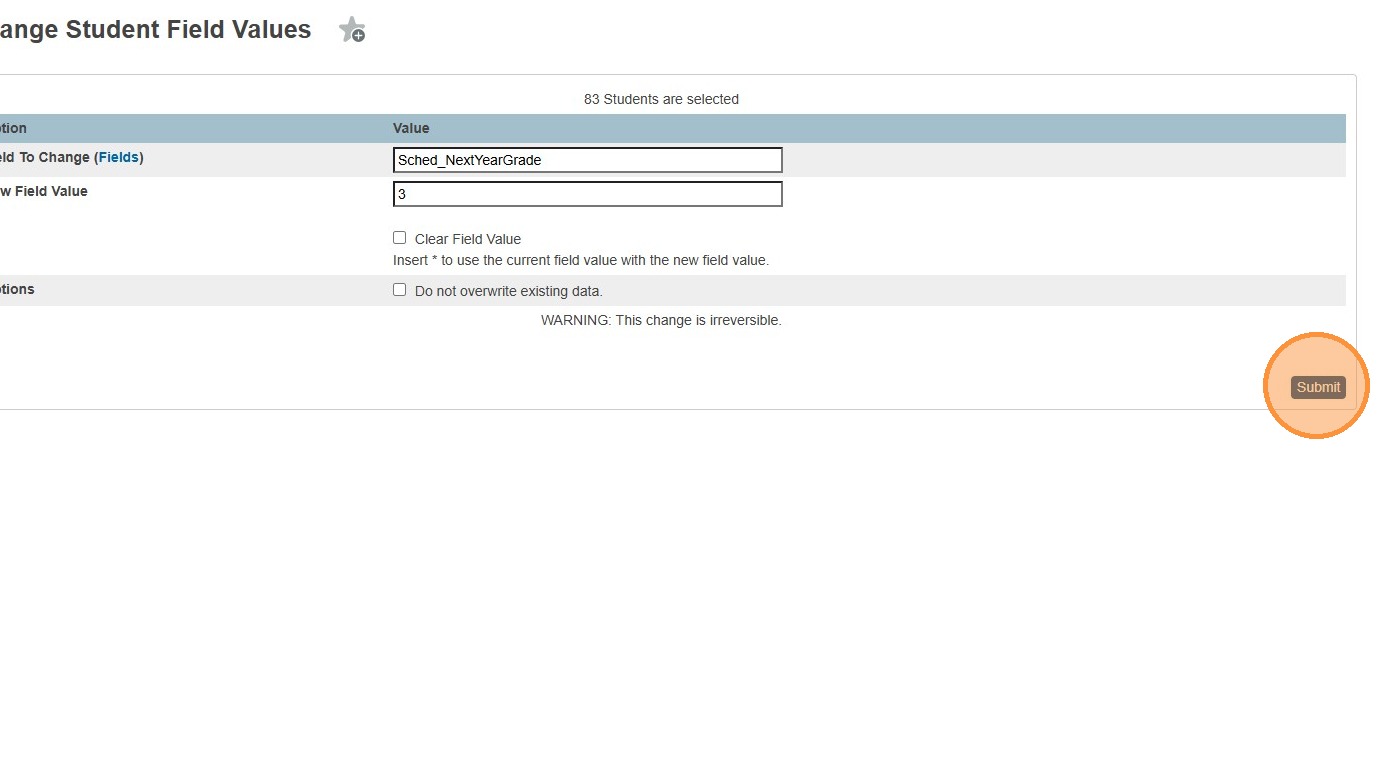
20. Click "Submit"
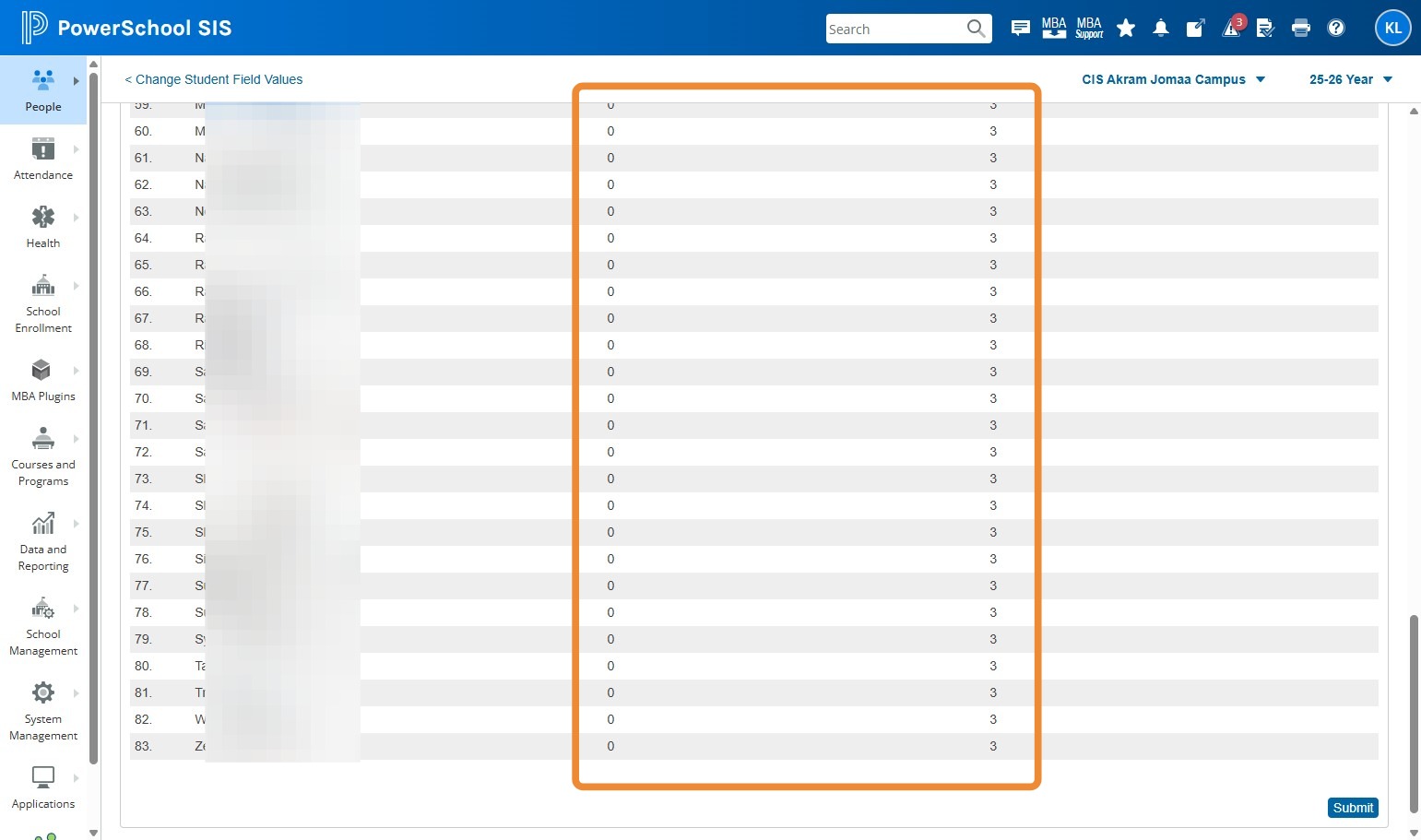
21. You will be shown a validation screen with the list of students, and what the previous value of this field was on the left, and what it will be changed to on the right. You can see that for my selection, no previous Next Year Grade had been set.
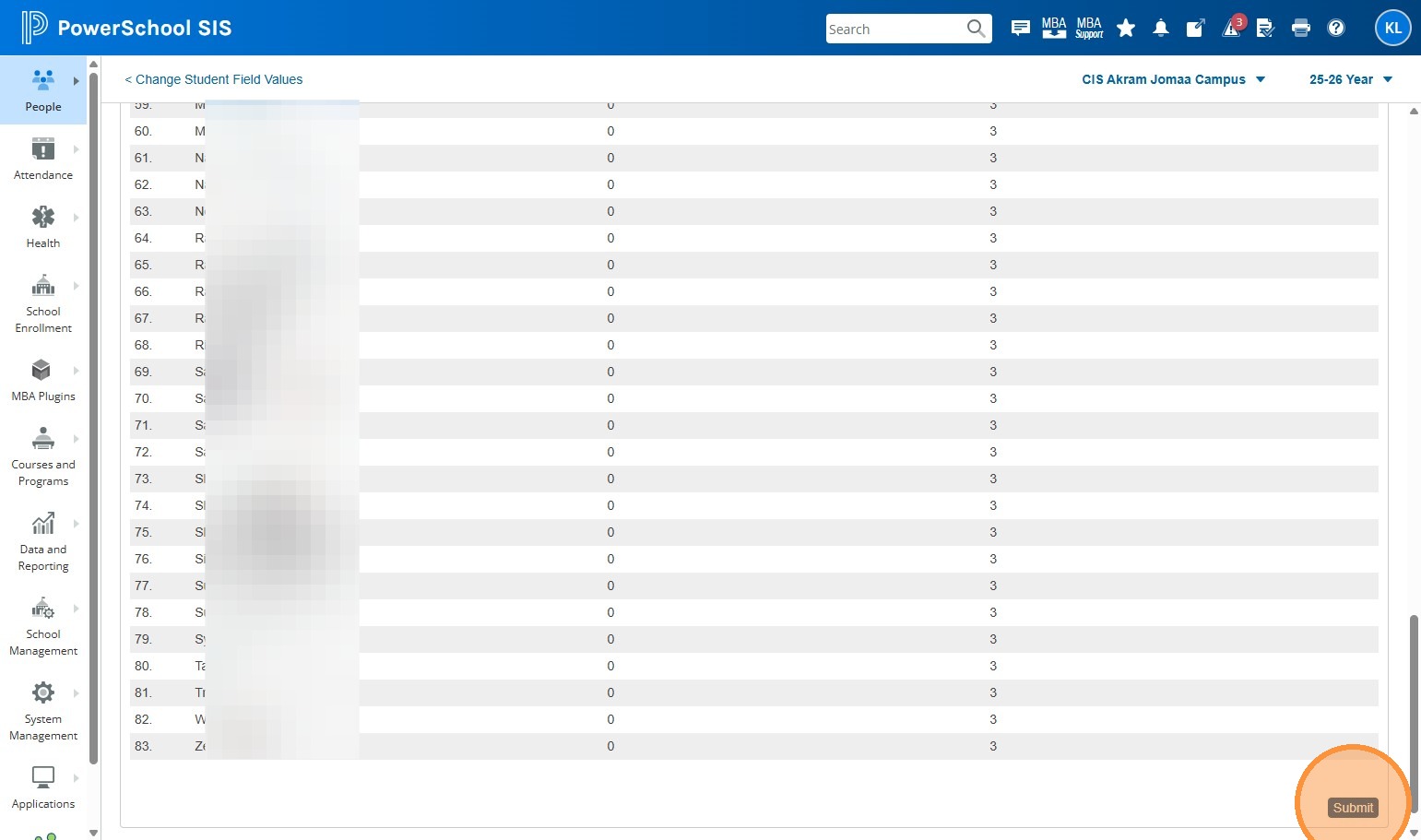
22. Click "Submit"
23. You can repeat these steps to mass set the Schedule This Student flag as well. Follow the steps again, but use "Sched_Scheduled" as the field, and "1" as the value (a checked box would be 1, and unchecked box is 0)