
Upload MBA Report Cards to PASI
Upload MBA Report Cards to PASI
This document shows how to upload the MBA Report cards (that are done through PowerSchool SIS) to PASI. It assumes you are finished report cards and have archived them.
Starting at step #8, the steps are the same regardless of what type of student Cume file document(s) you are uploading. You'd just choose the correct template.
1. Navigate to the Start Page
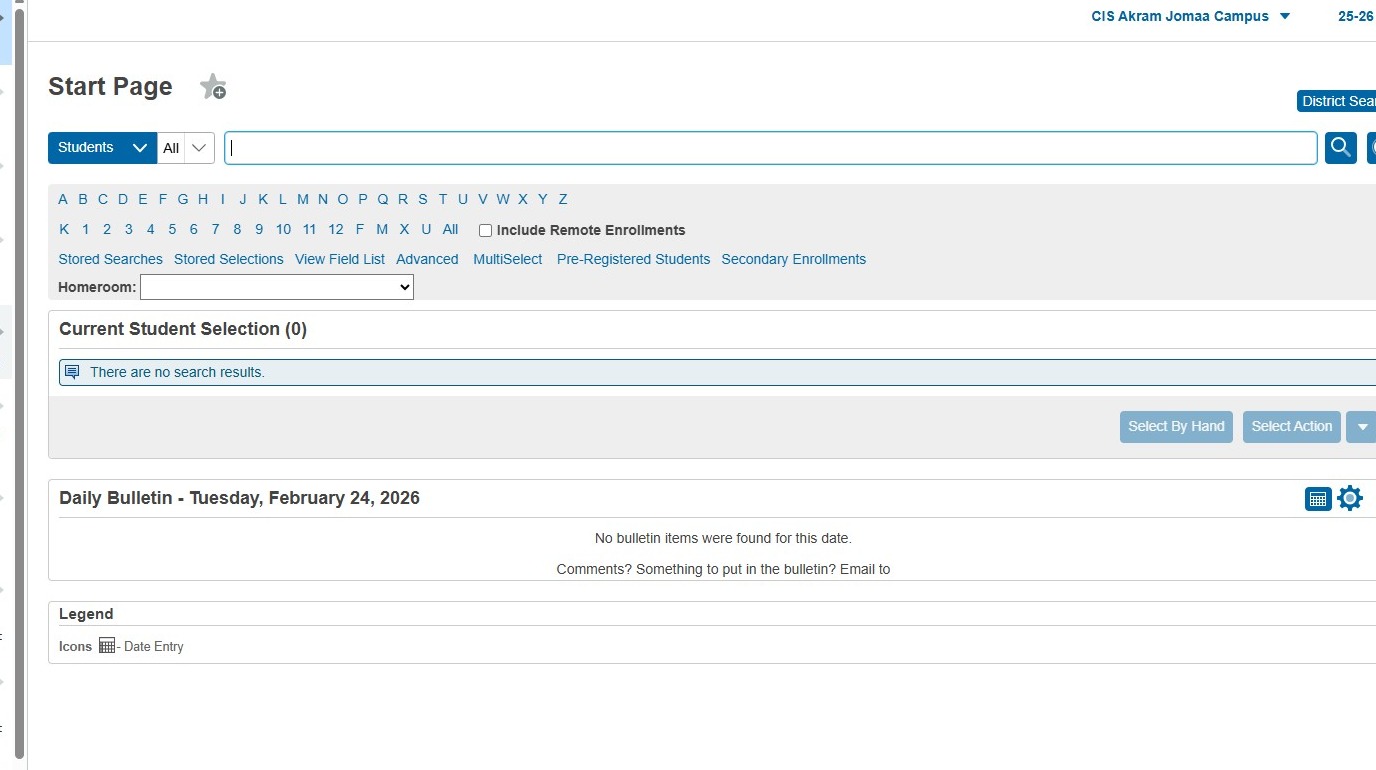
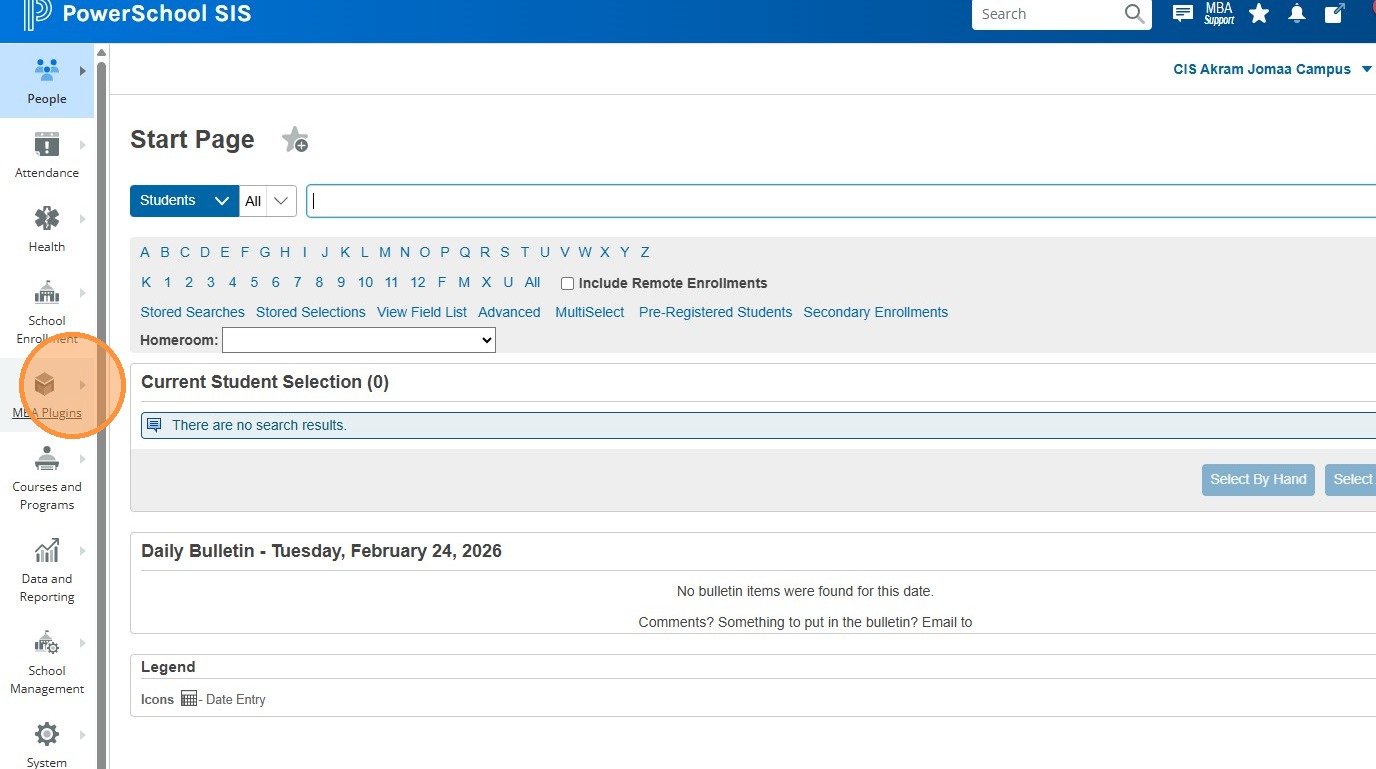
2. Click "MBA Plugins"
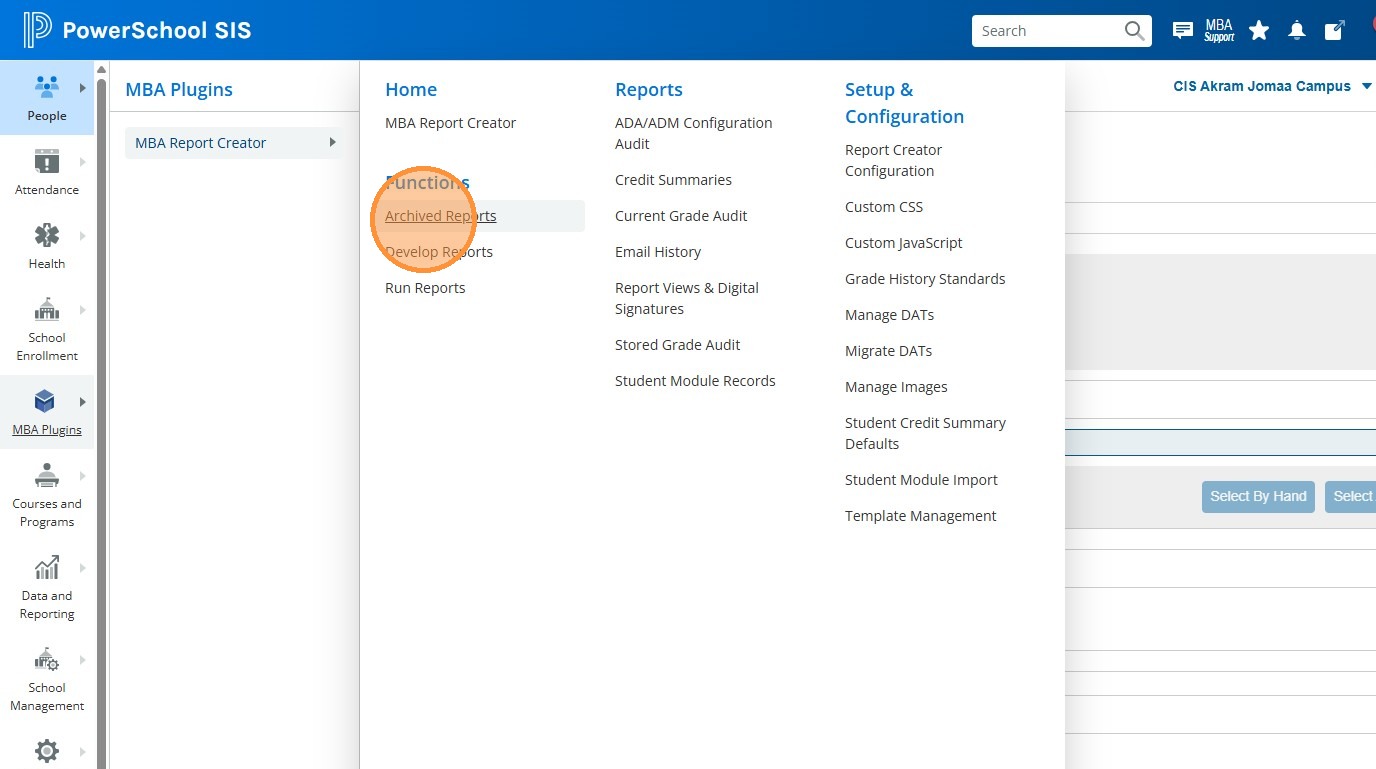
3. Click "Archived Reports"
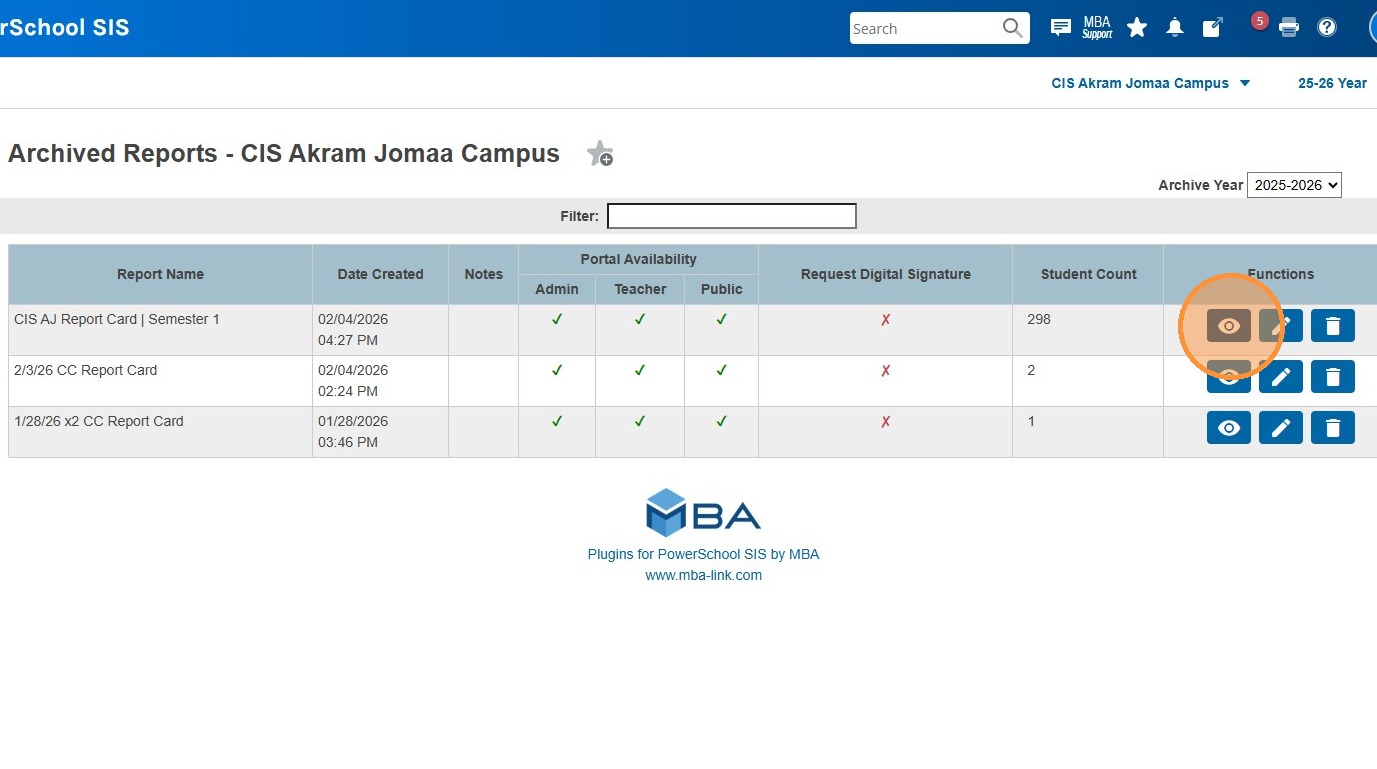
4. Click the Eye icon next to your batch
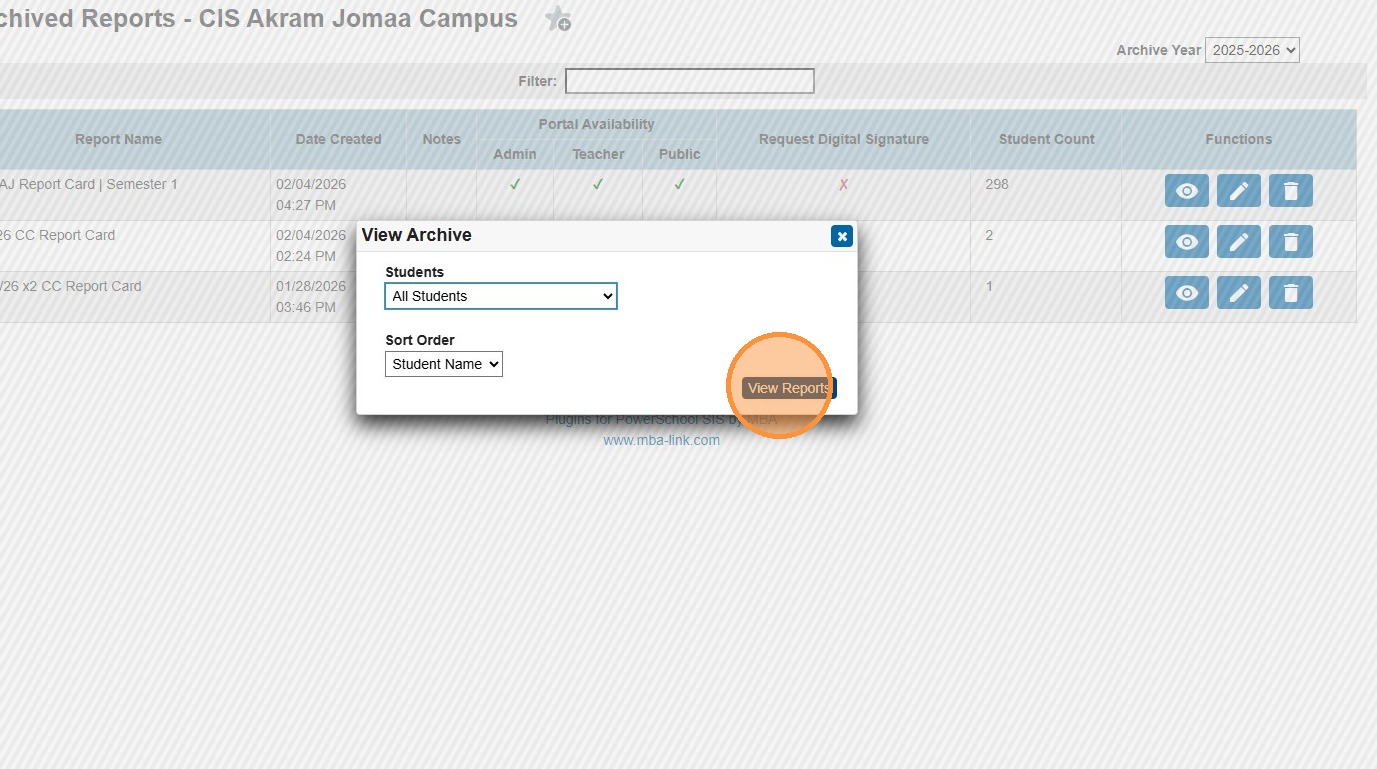
5. Click "View Reports"
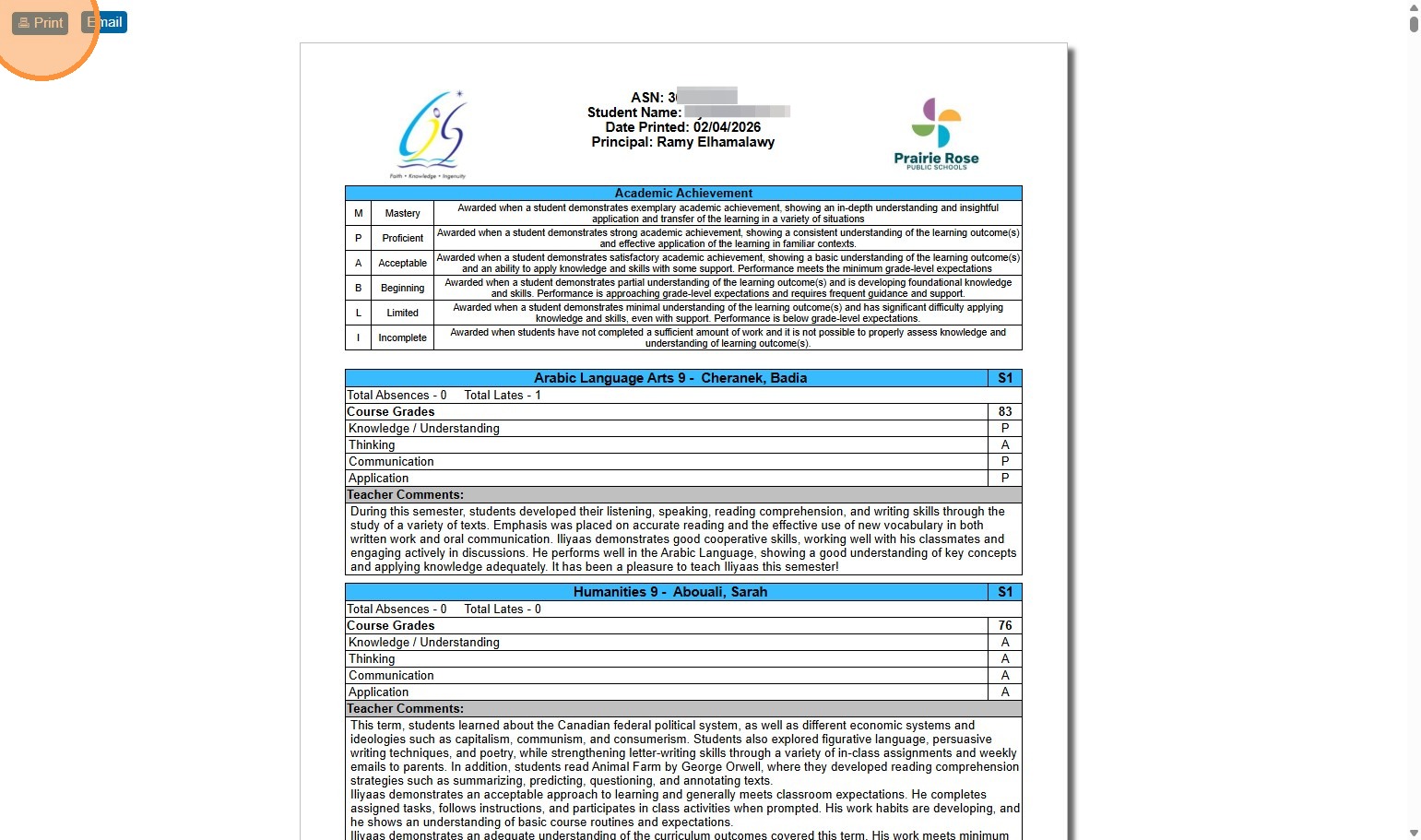
6. Click "🖶 Print"
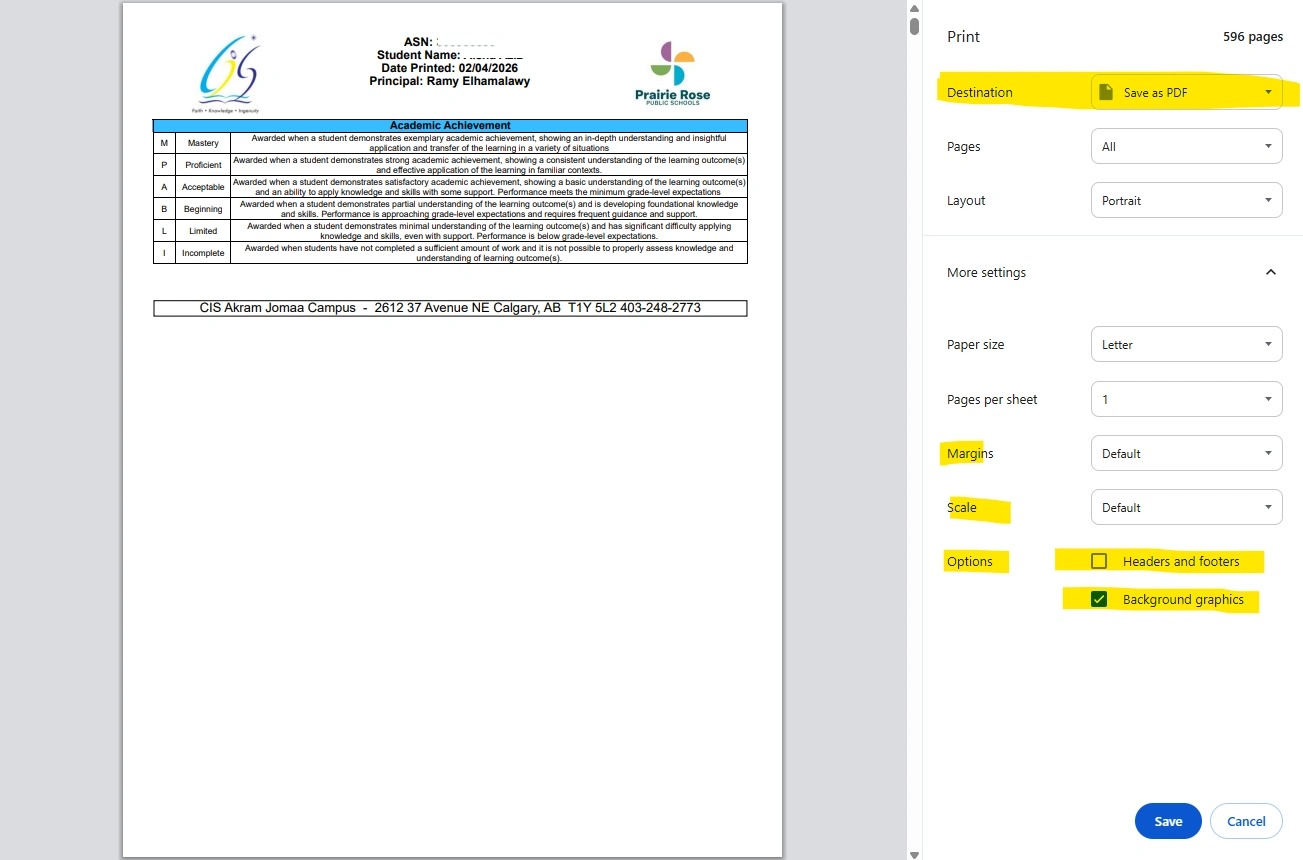
7. The Print Dialoge box will open.
Change your printer/destination to PDF.
Open Advanced Settings and double check that Internet Headers are off, Background Graphics are on, and that the scale and margins appear correct in your preview. Click Save.
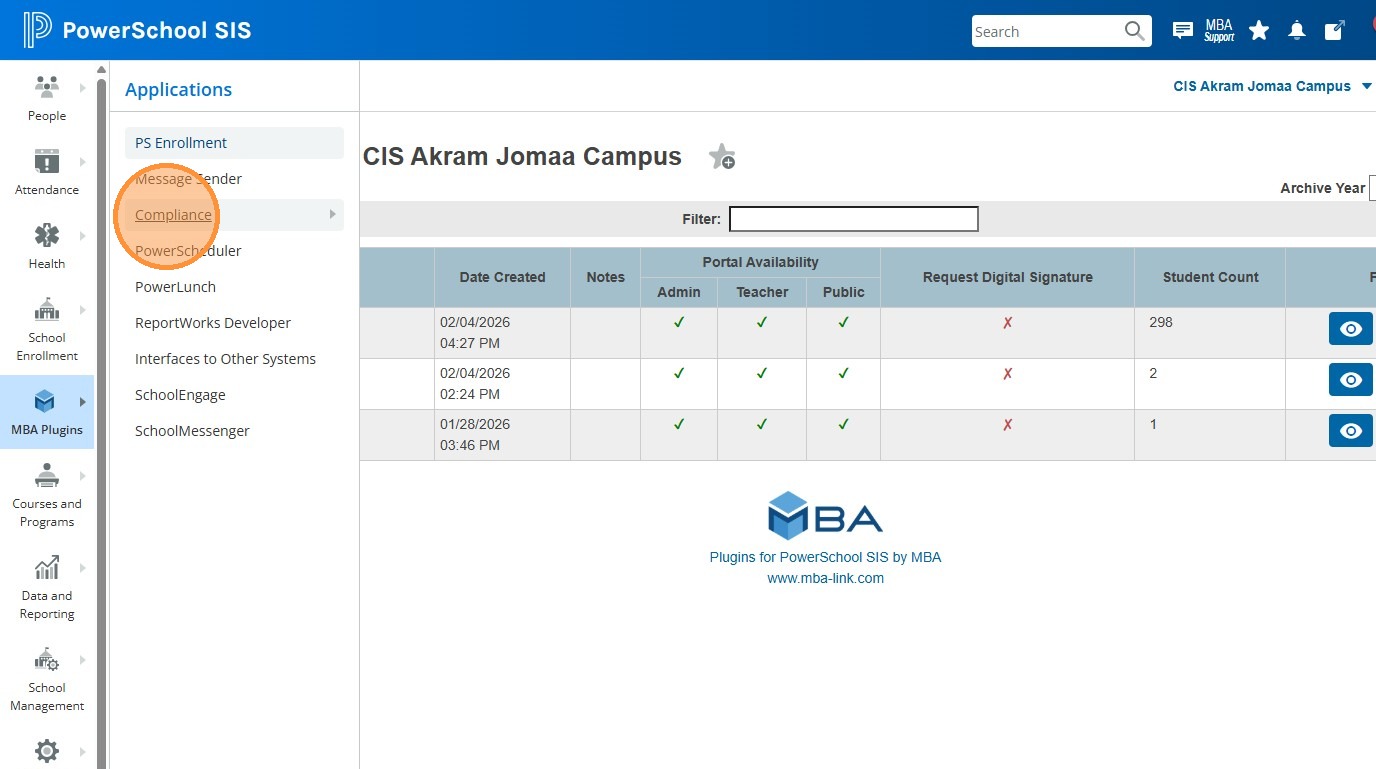
8. Go back to PowerSchool and click "Applications"

9. Click "Compliance"
10. Click "Manage Documents Submissions"
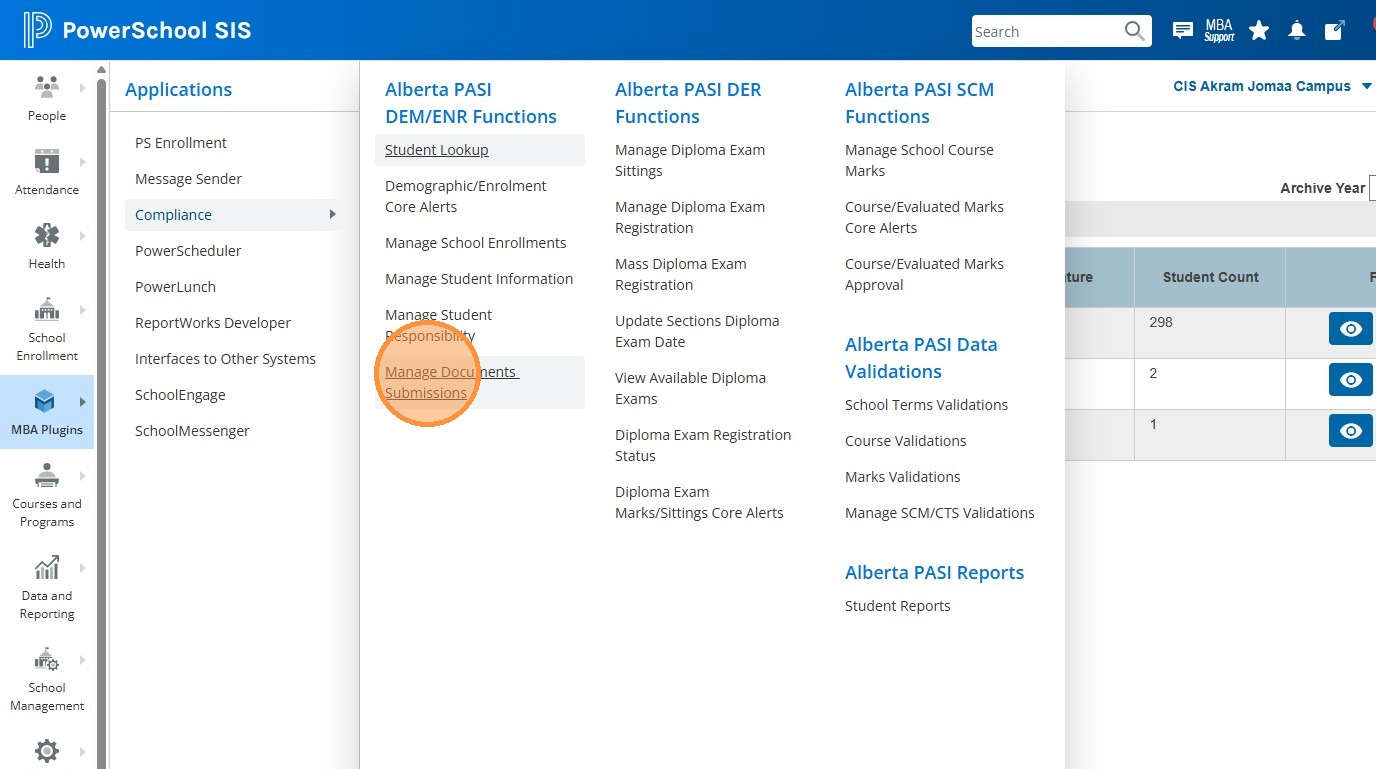
11. Click the Template dropdown.
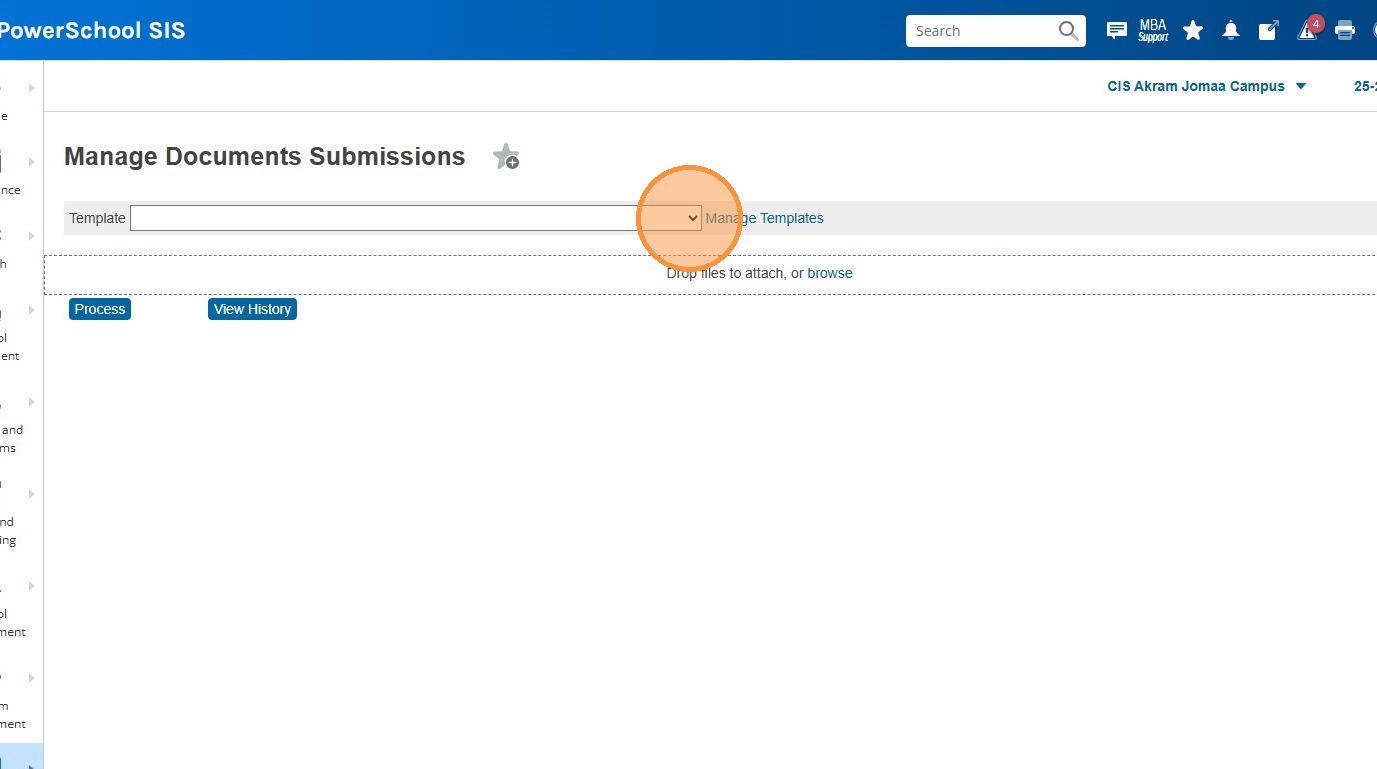
12. Choose the correct template. In this case, it's "2025-2026 Report Card". You may choose a different template based on year, school, or type of document.
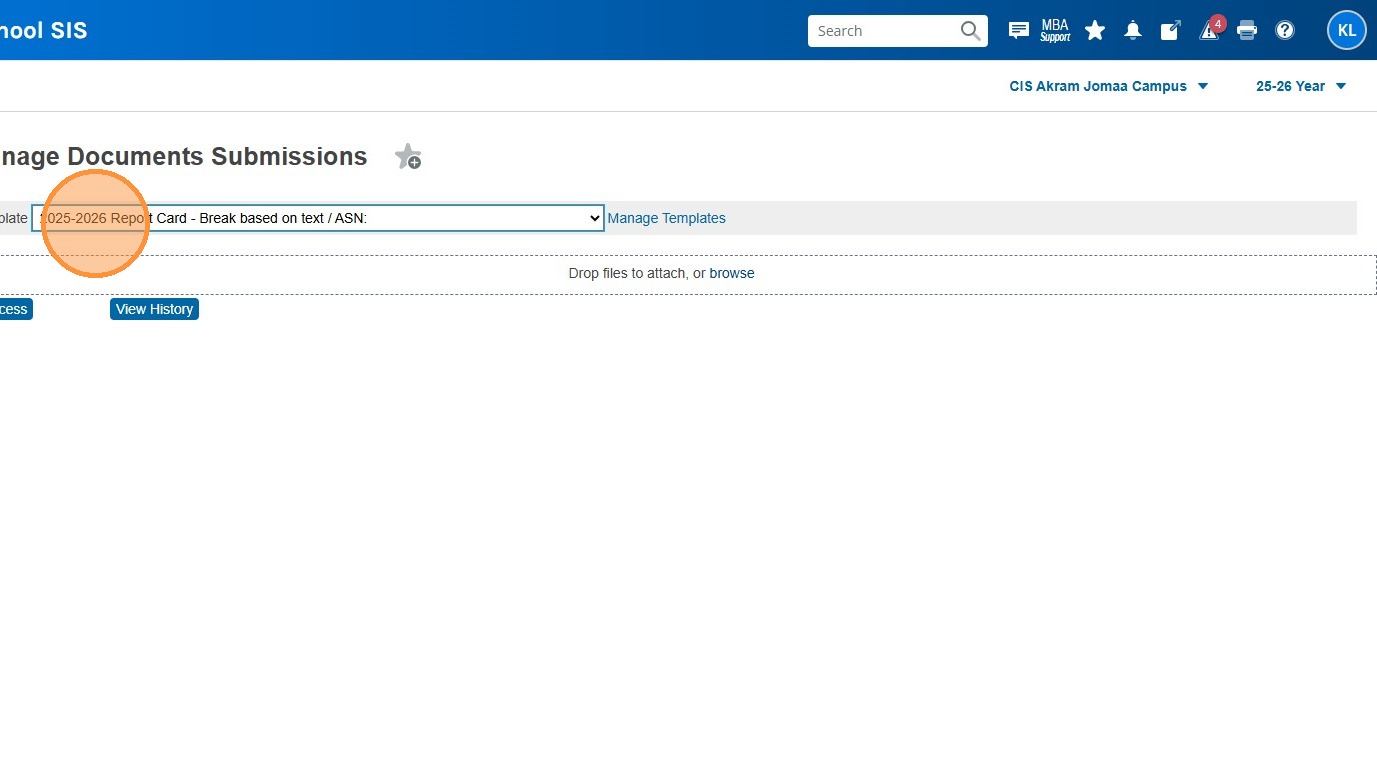
13. Click "browse". Navigate to the PDF files you've saved.
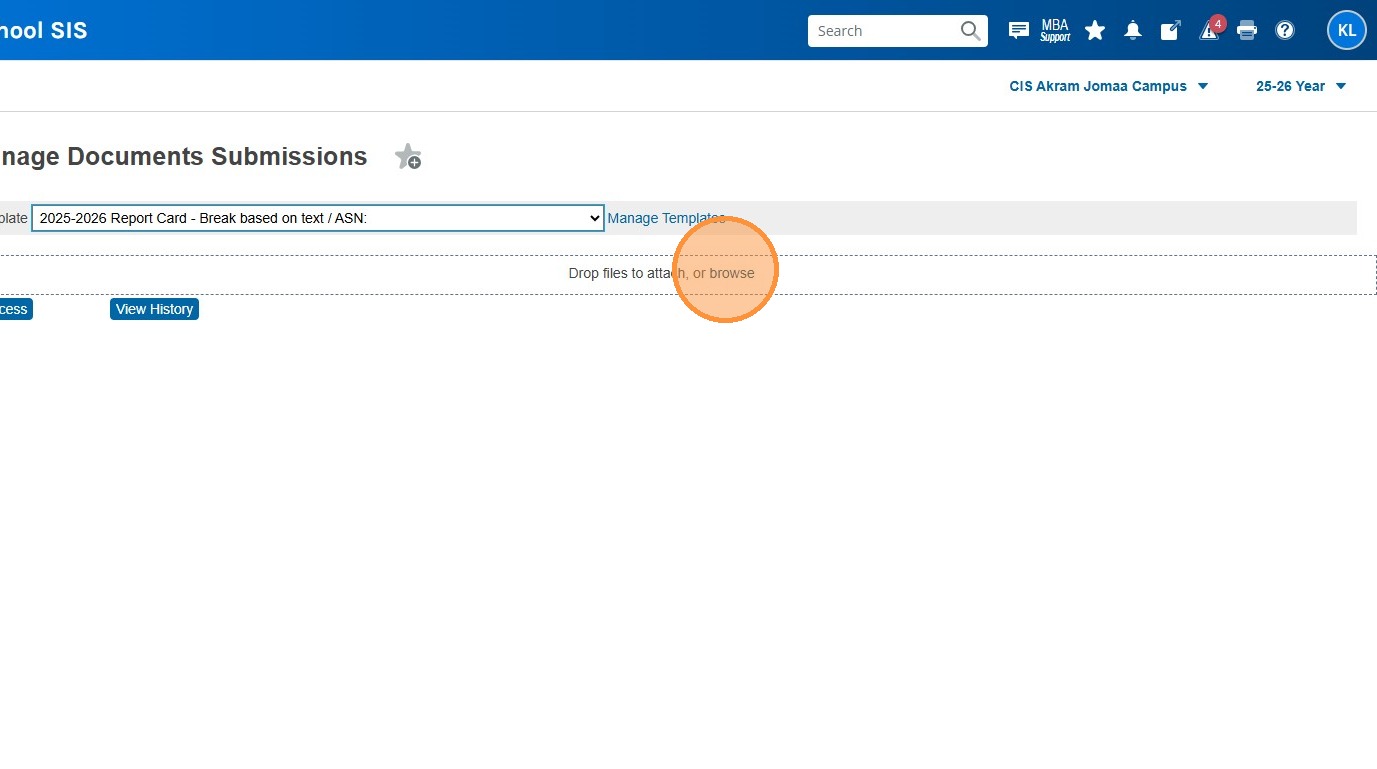
14. Click "Process"
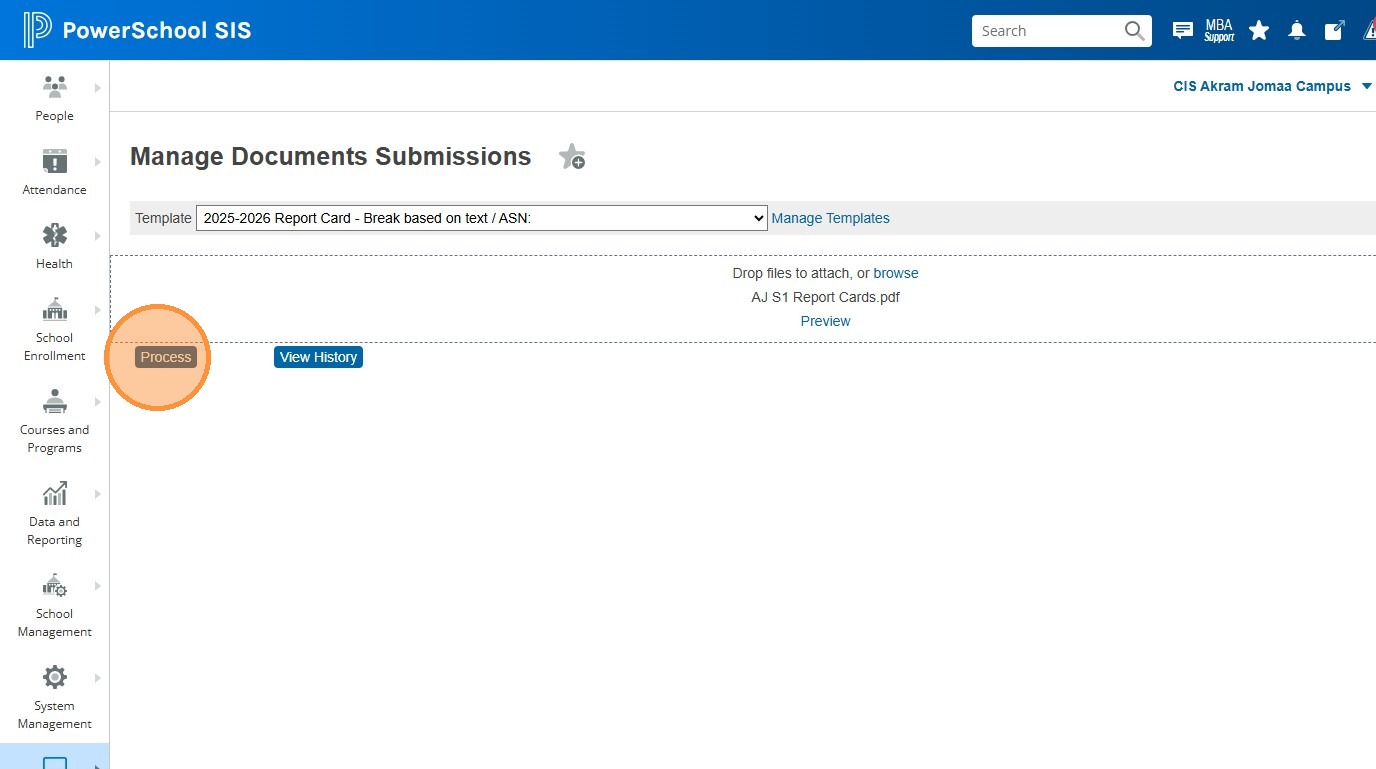
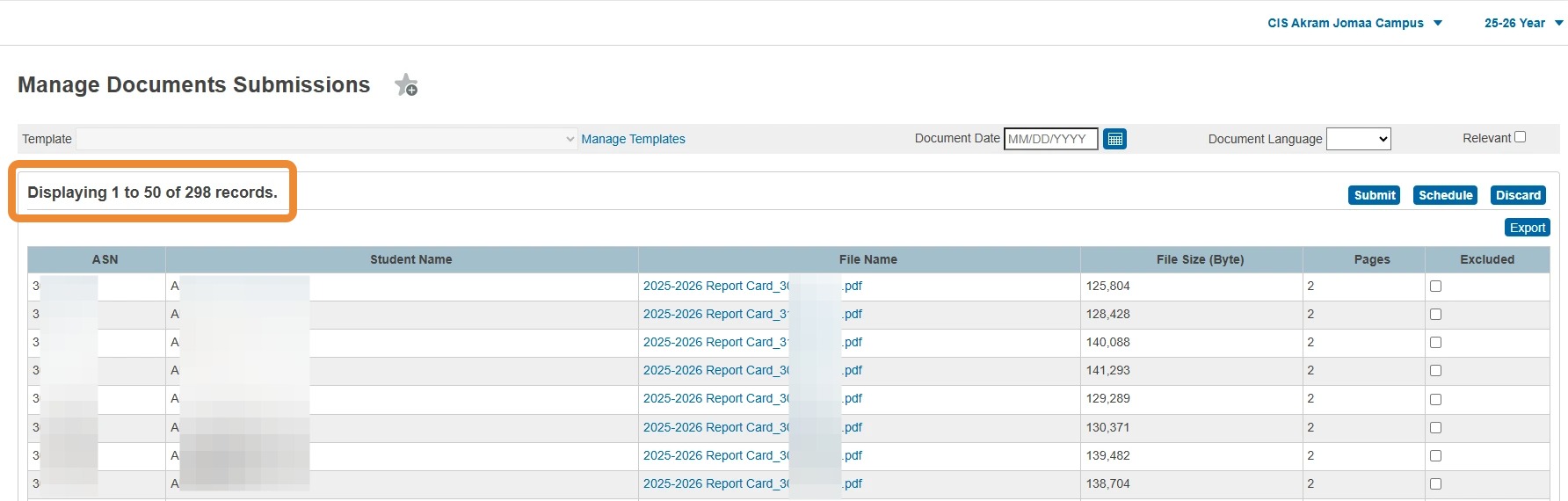
15. Verify the number of student records identified matches the expected number.
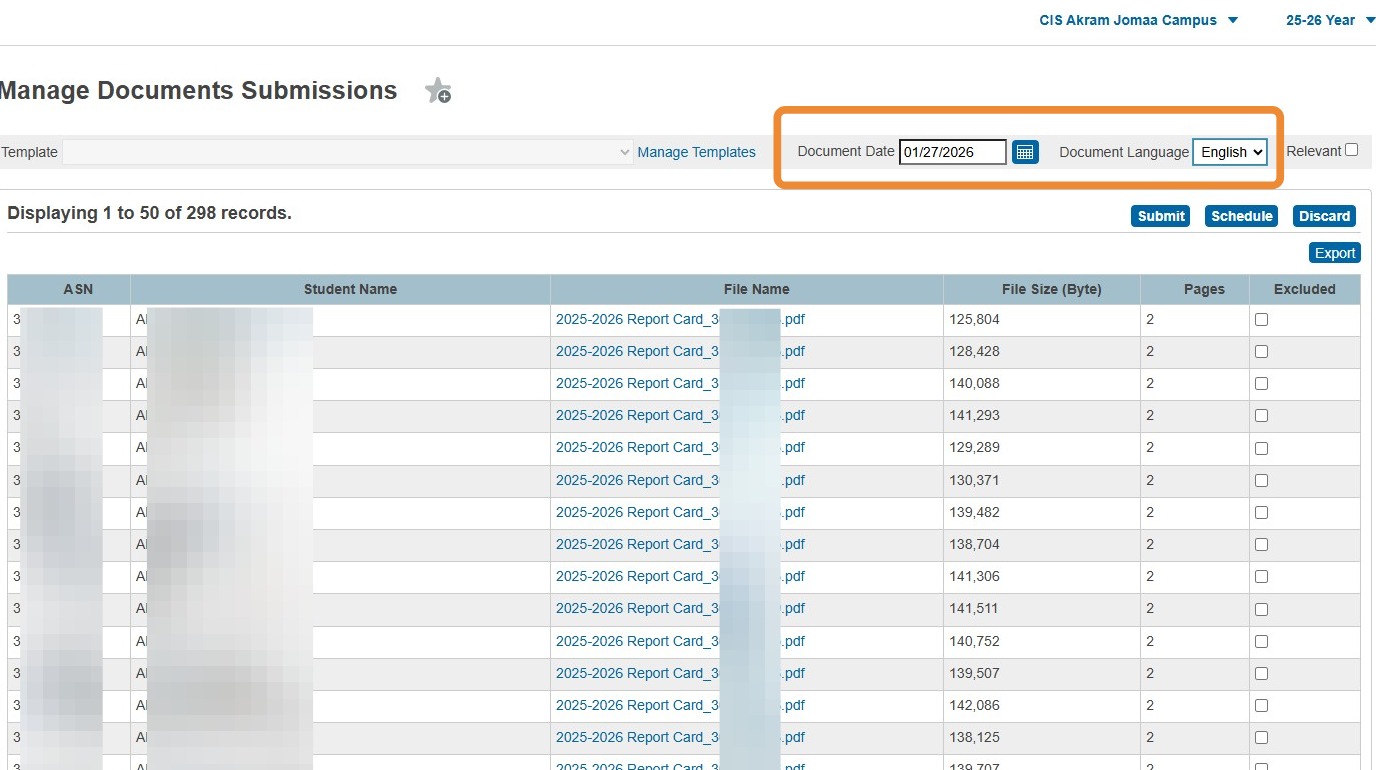
16. Enter the Document date, and set the Document Language to "English". Remember that only Identity documents would be checked as Relevant.
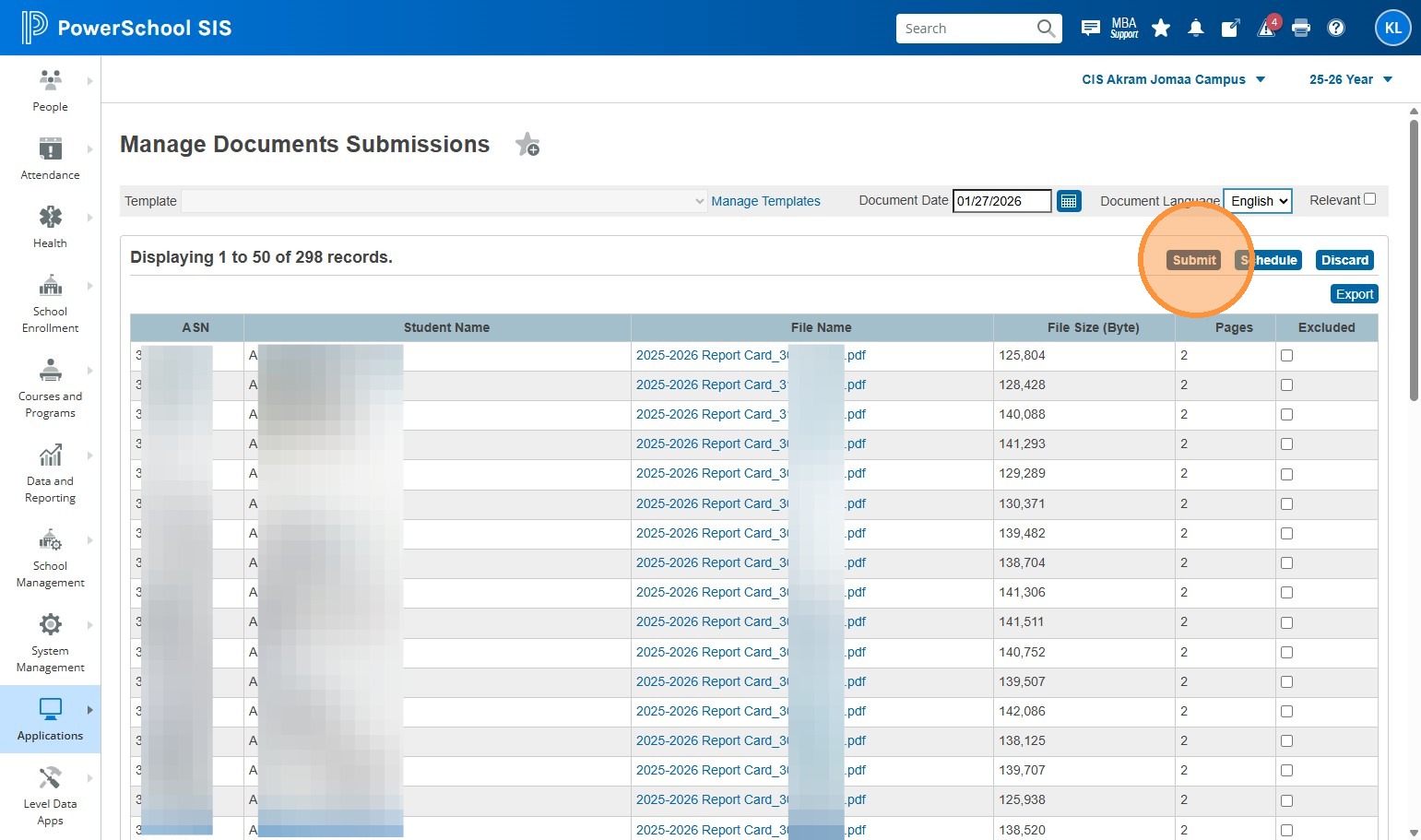
17. Click "Submit"
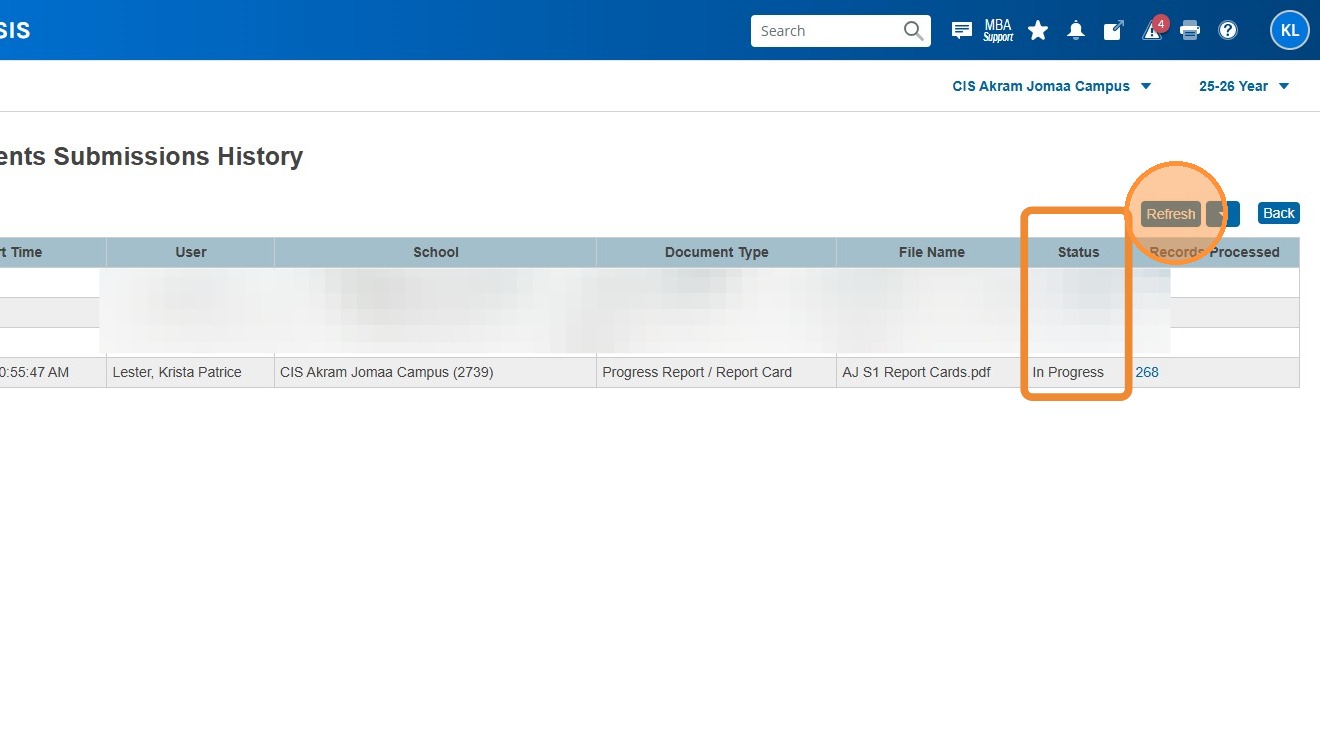
18. Click "Refresh" until the Status changes from In Progress to Complete
19. Status Complete
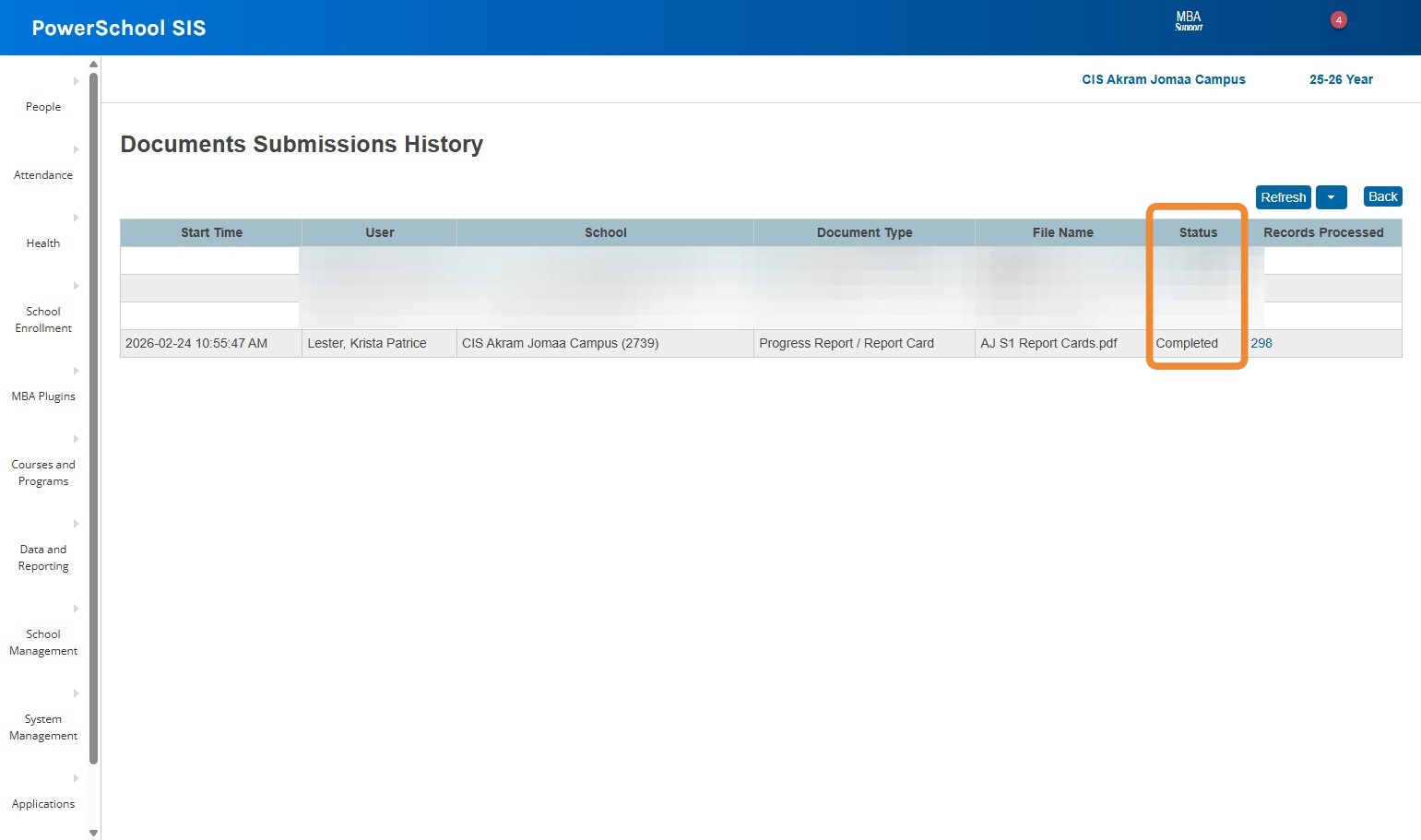
20. You're done! Return to the Start Page and carry on with your day :)