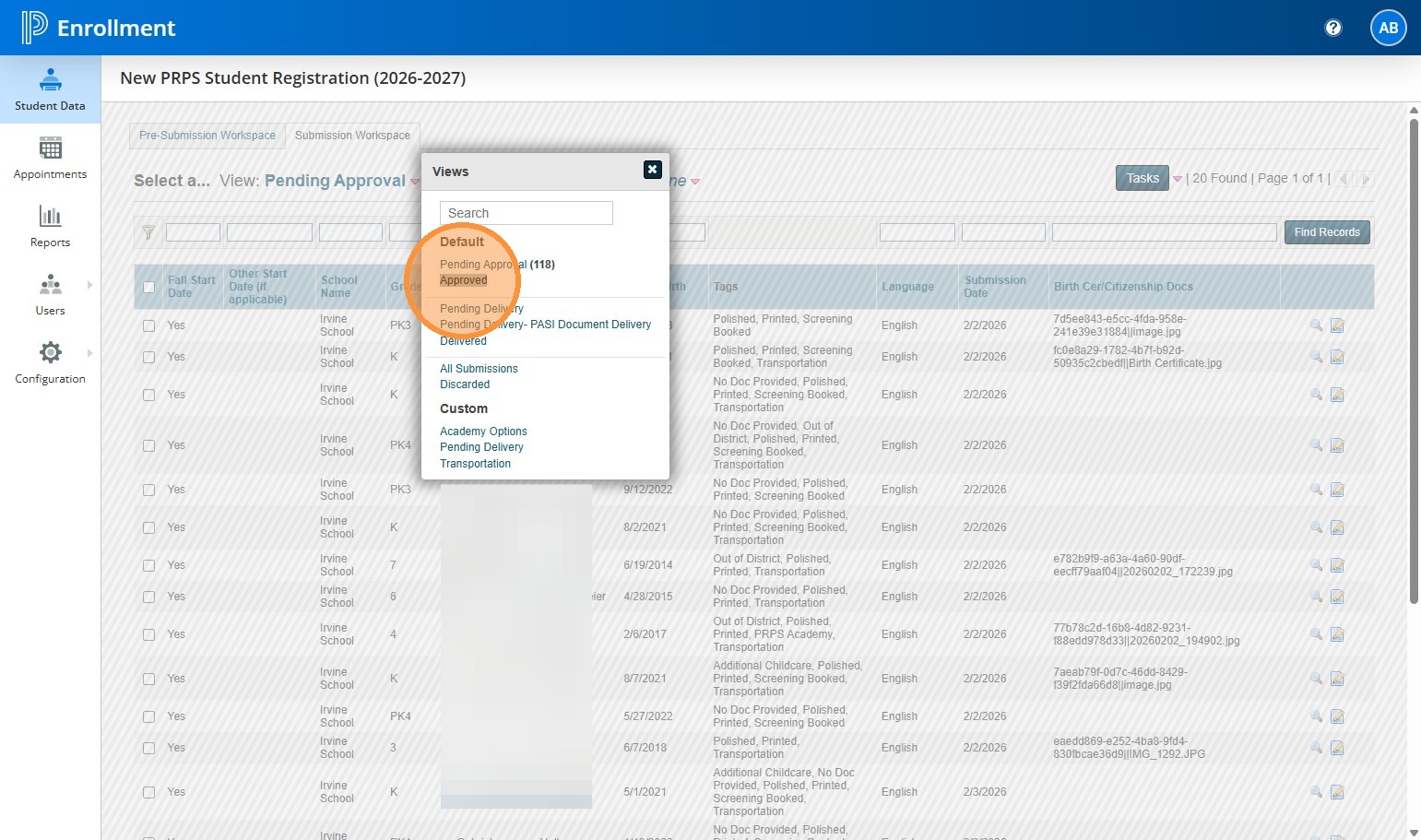
New PRPS Student Registrations Approval / Confirm School Interviews for JK/K
New PRPS Student Registrations Approval / Confirm School Interviews for JK/K
1. Login into PowerSchool. Click Applications. Choose PS Enrollment.
2. Navigate to PowerSchoolEnrollmentviaPSApplications
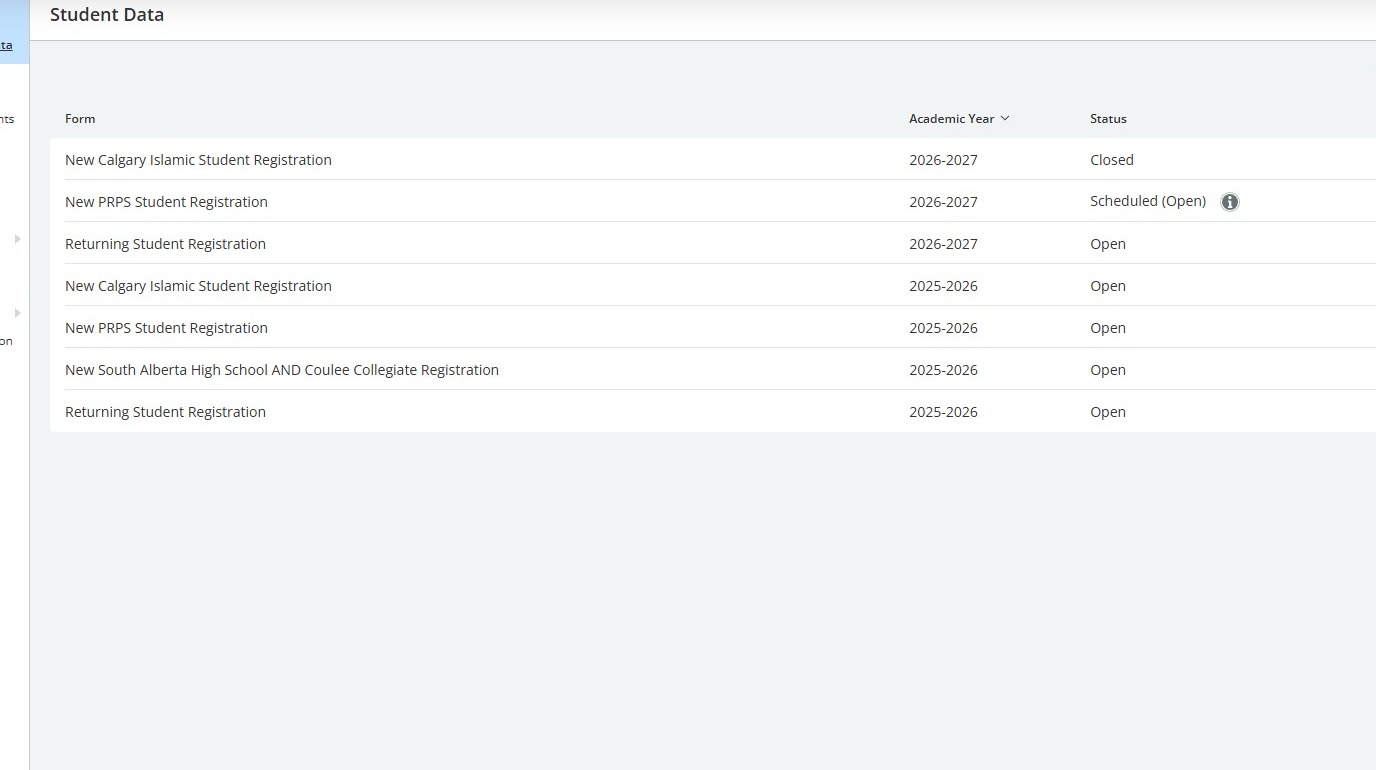
3. Click "New PRPS Student Registration"
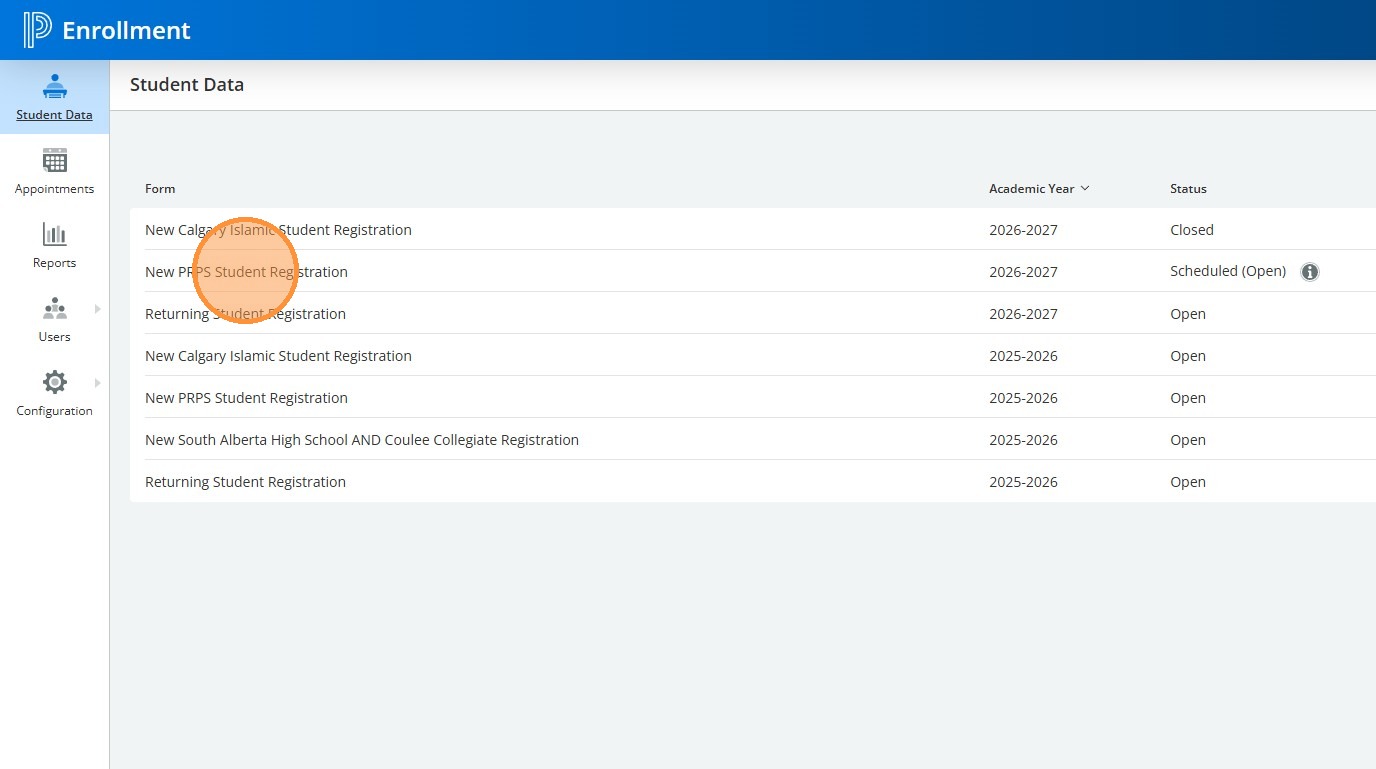
4. Click "Pending Approval"
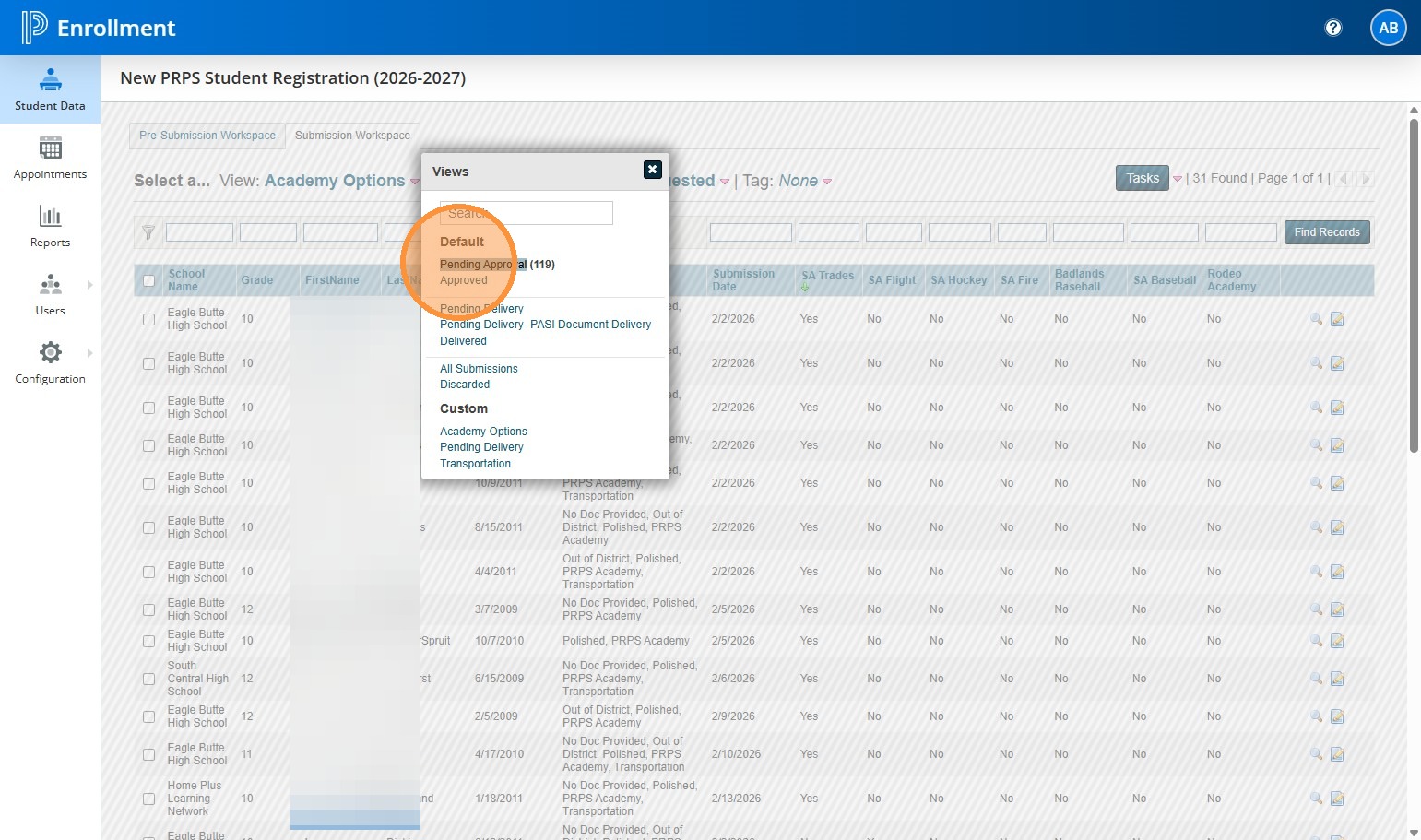
5. Filter to the school you want to work on if you have more than one school available.
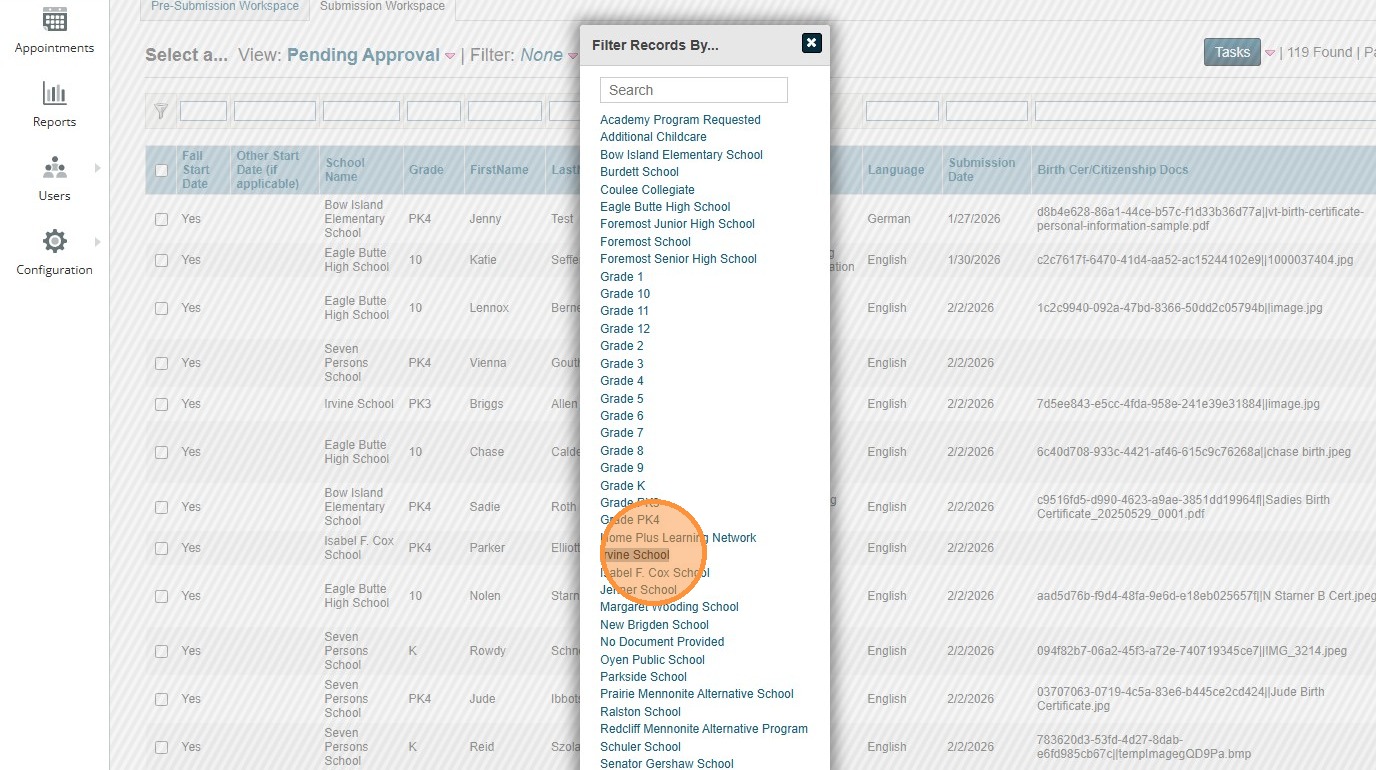
6. After selecting the student you want to review to approve, click on the notepad and pencil on the right side of the row.
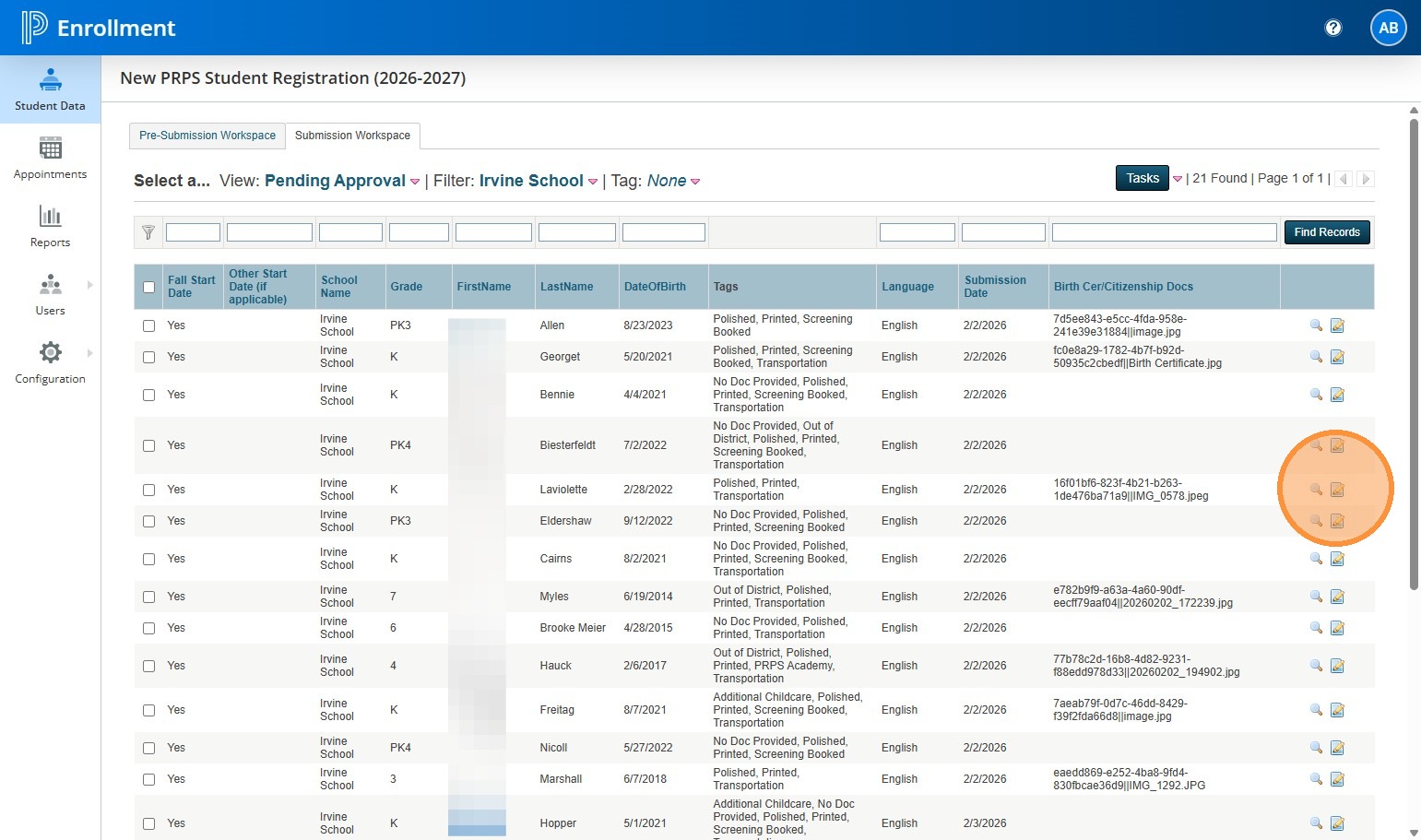
7. VERY IMPORTANT: Make sure you check for the student in the SIS to make sure they are a new student and not someone who just filled out the new form by accident, or had been with PRPS previously. If you don't confirm they aren't already in our system you can create a duplicate student when we go to deliver them later.
Step: Go to PS SIS. Click on District Search. Type in the last name of the student. If they are found in the SIS, you will want to add their ASN number into the form in the stu_ID line. This will sync the student to their existing record when delivered.
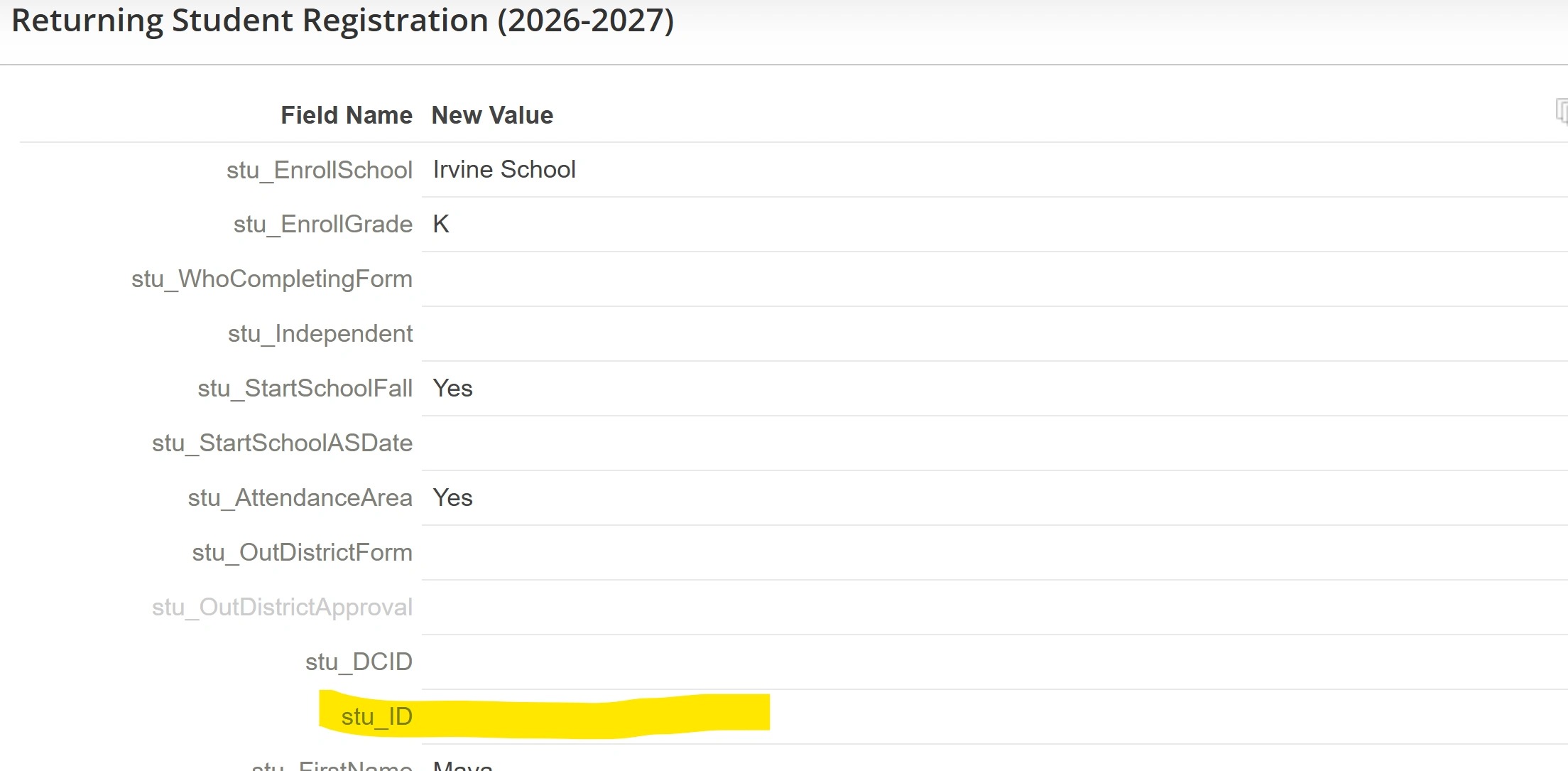
8. Scroll down and review the form. Make any changes to formatting or typos the parent may have made. There should be no other changes required at this screen, unless the parent uploaded the required ID document for the new student. This should be the case with almost all new students.
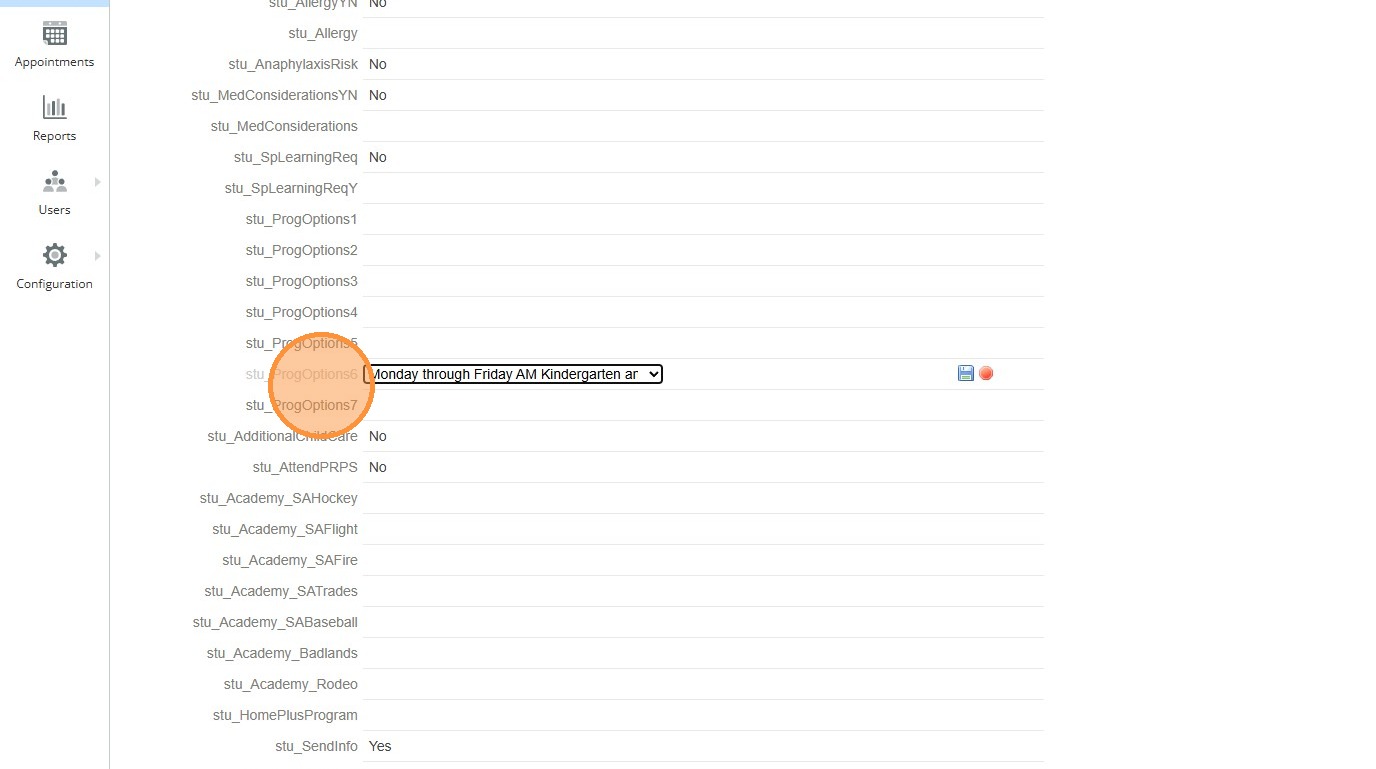
Note: Those who have early childhood program options or students who are registering for an academy can note these near the bottom section of the form.
9. Here is an example of where the Early Childhood program option for Irvine School kindergarten is located.
10. As you review the form, check to see if the parent uploaded any documents. You must address these BEFORE you approve the registration.
Click "Birth Certificate or Citizenship Document" and hold down CTRL at the same time to open another window to review the uploaded document.
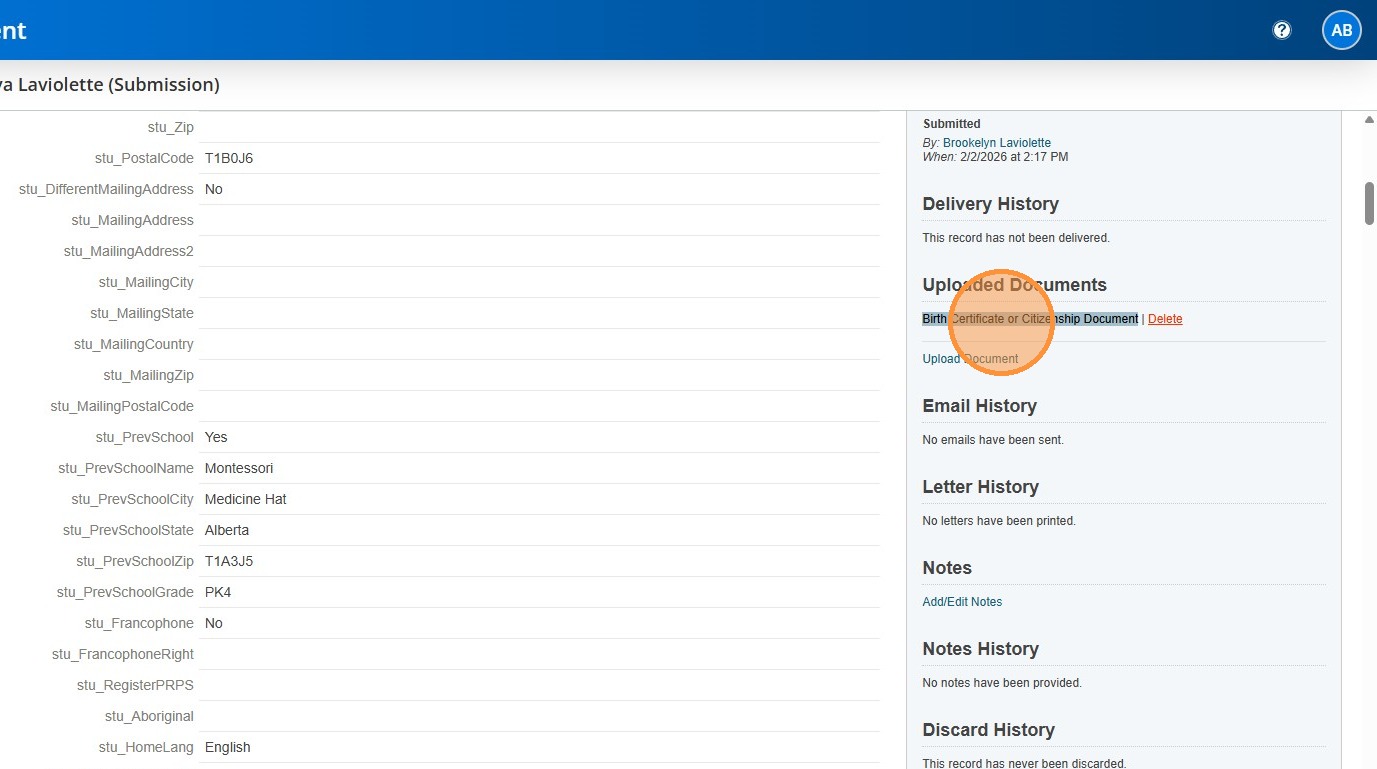
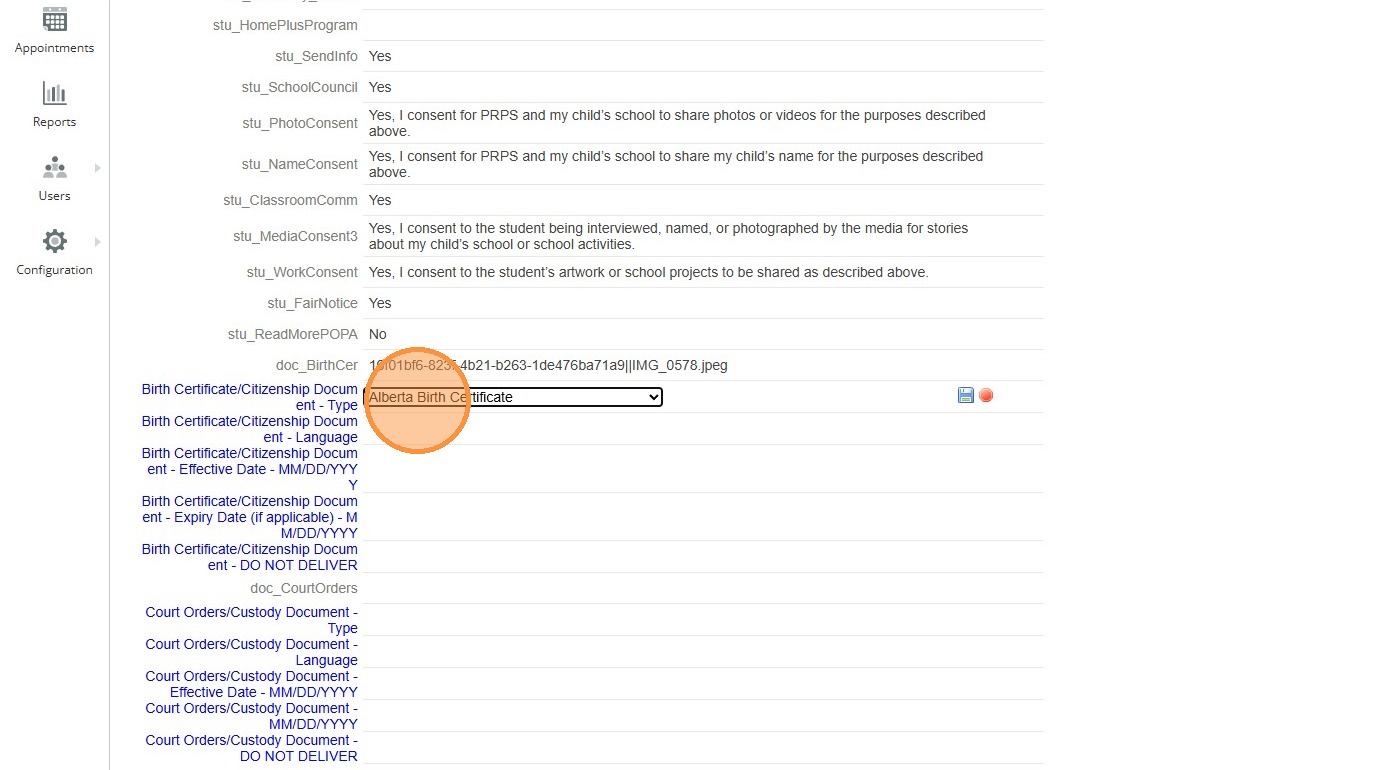
11. After reviewing the document for name, issued date and type, switch back to the PS Enrollment screen. Scroll down to the bottom until you find the blue fields.
12. In the instance of a AB birth certificate, select the "Alberta Birth Certificate" option.
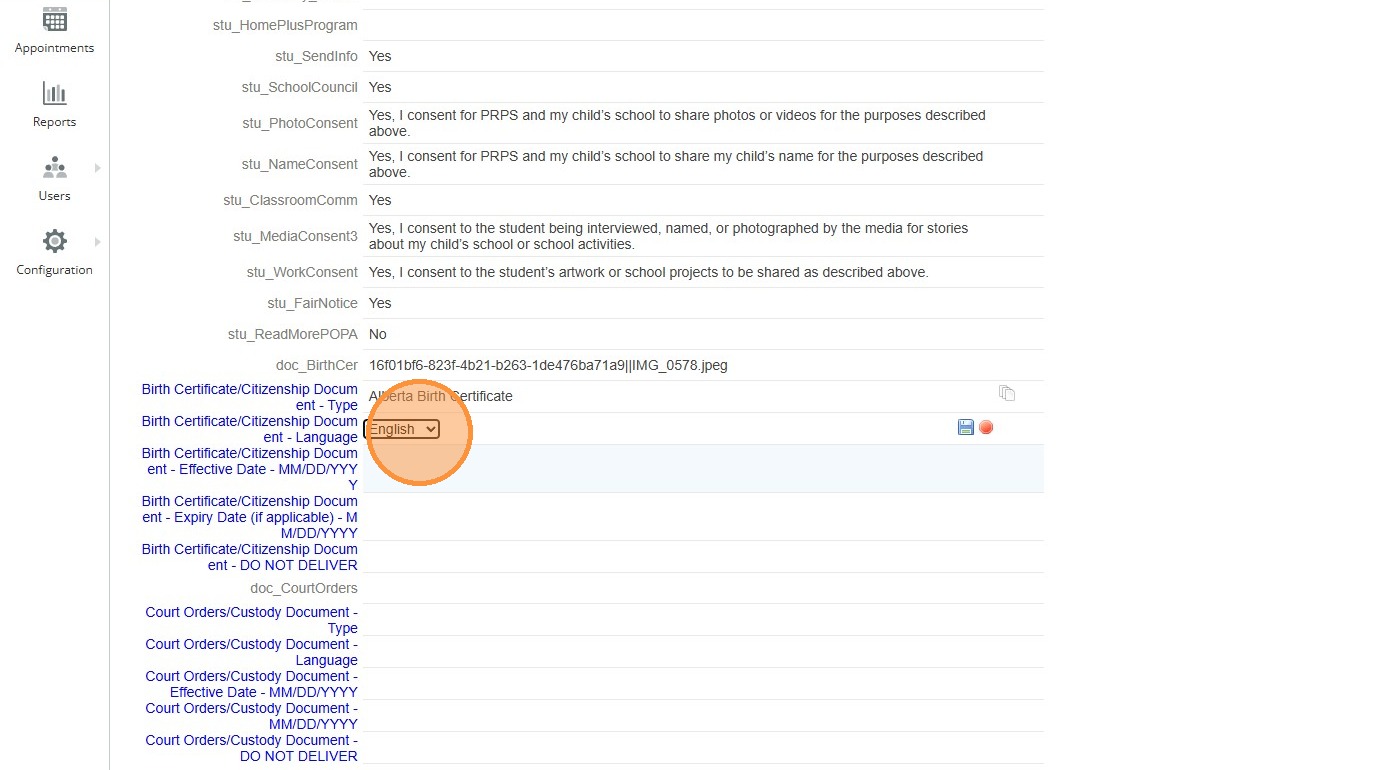
13. Select the "English" option.
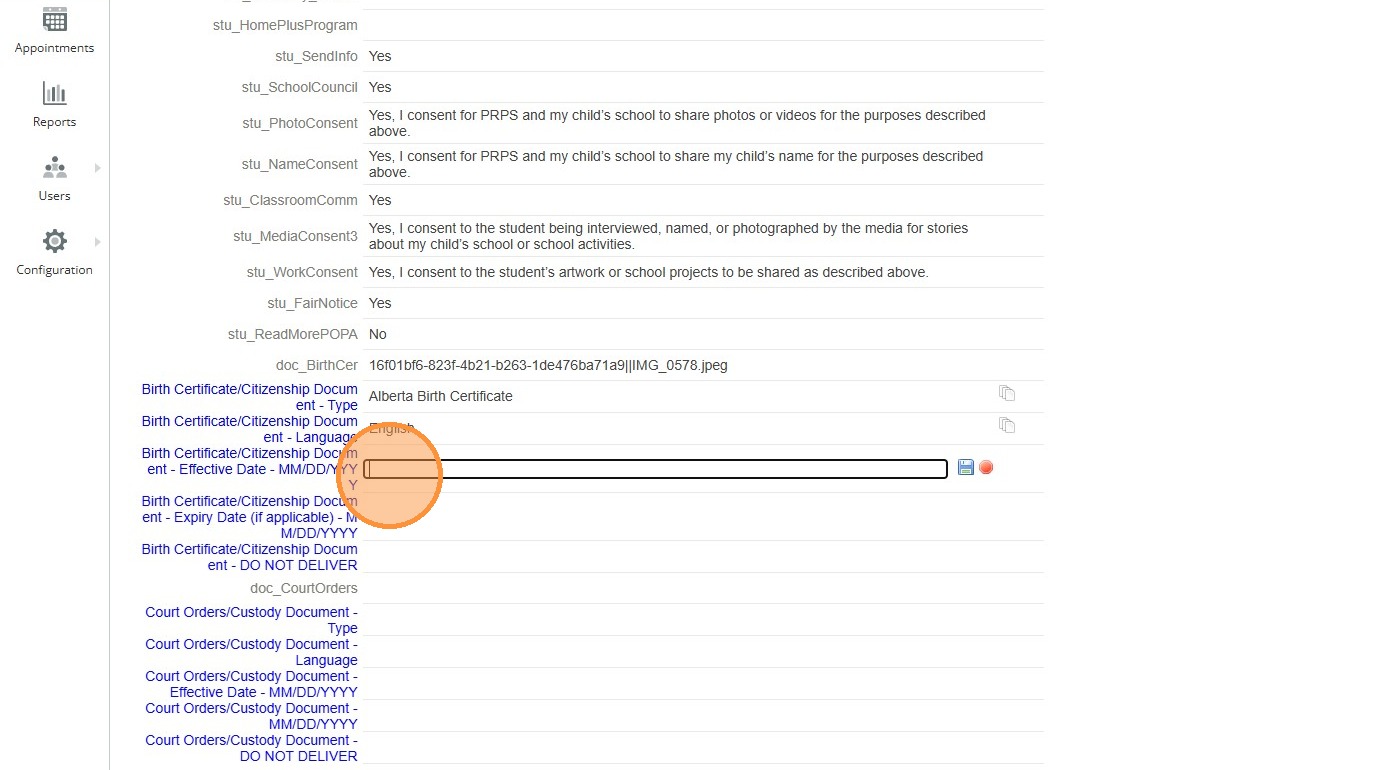
14. Enter the document effective date that is listed on the student's document you reviewed. This is the issued date and not the birthdate.
15. If your school has a JK or K program and you need to review if the parent booked an Early Learning Screening test, in a new tab, navigate to https://www.schoolinterviews.ca
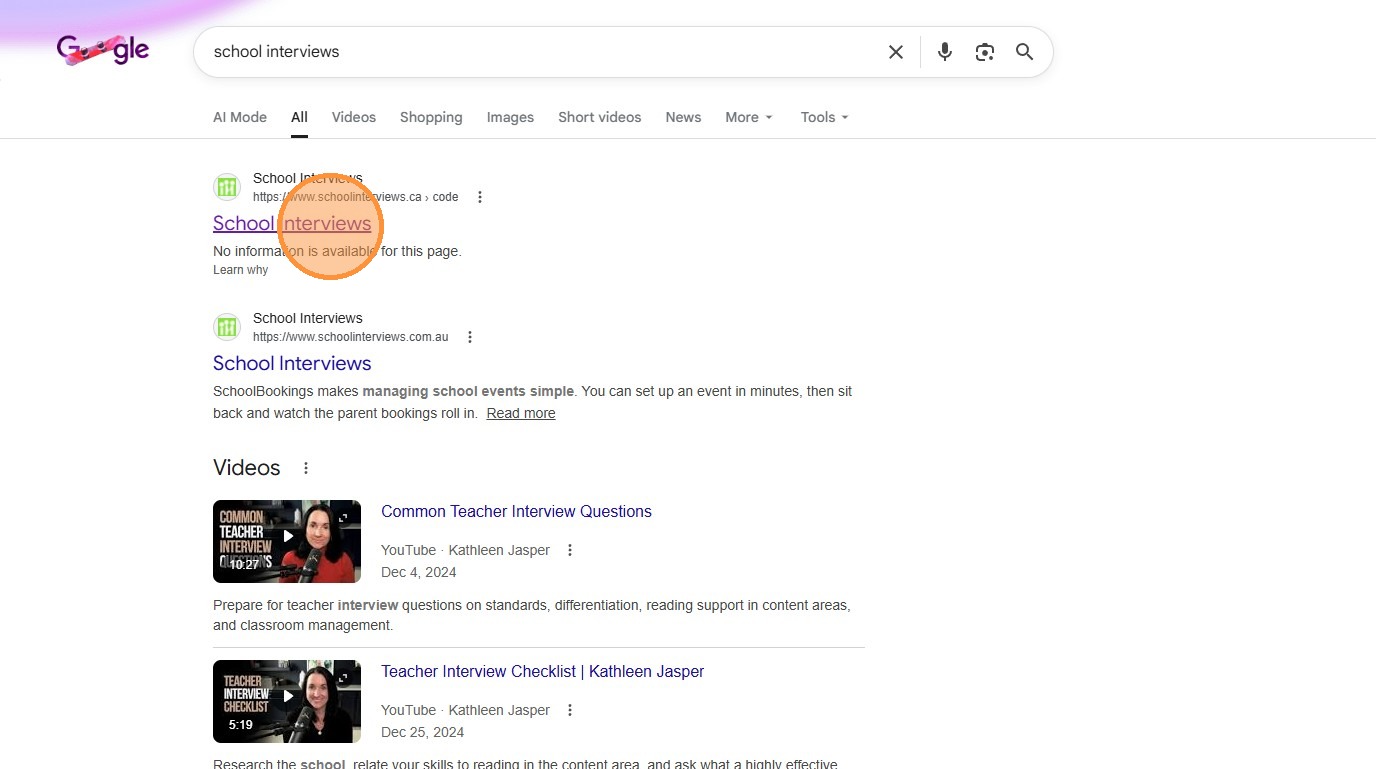
16. Click "School Interviews"
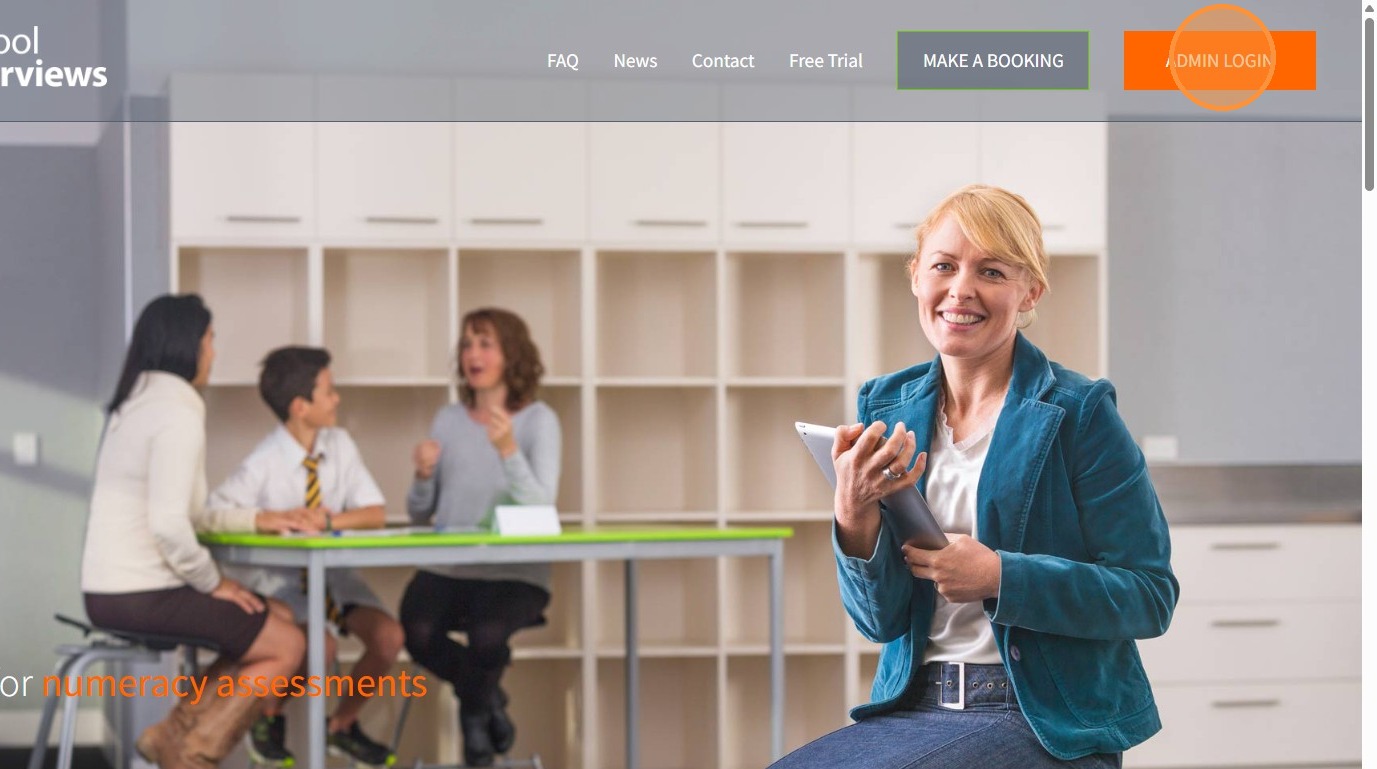
17. Click "Admin Login"
18. Click the "USERNAME" field.
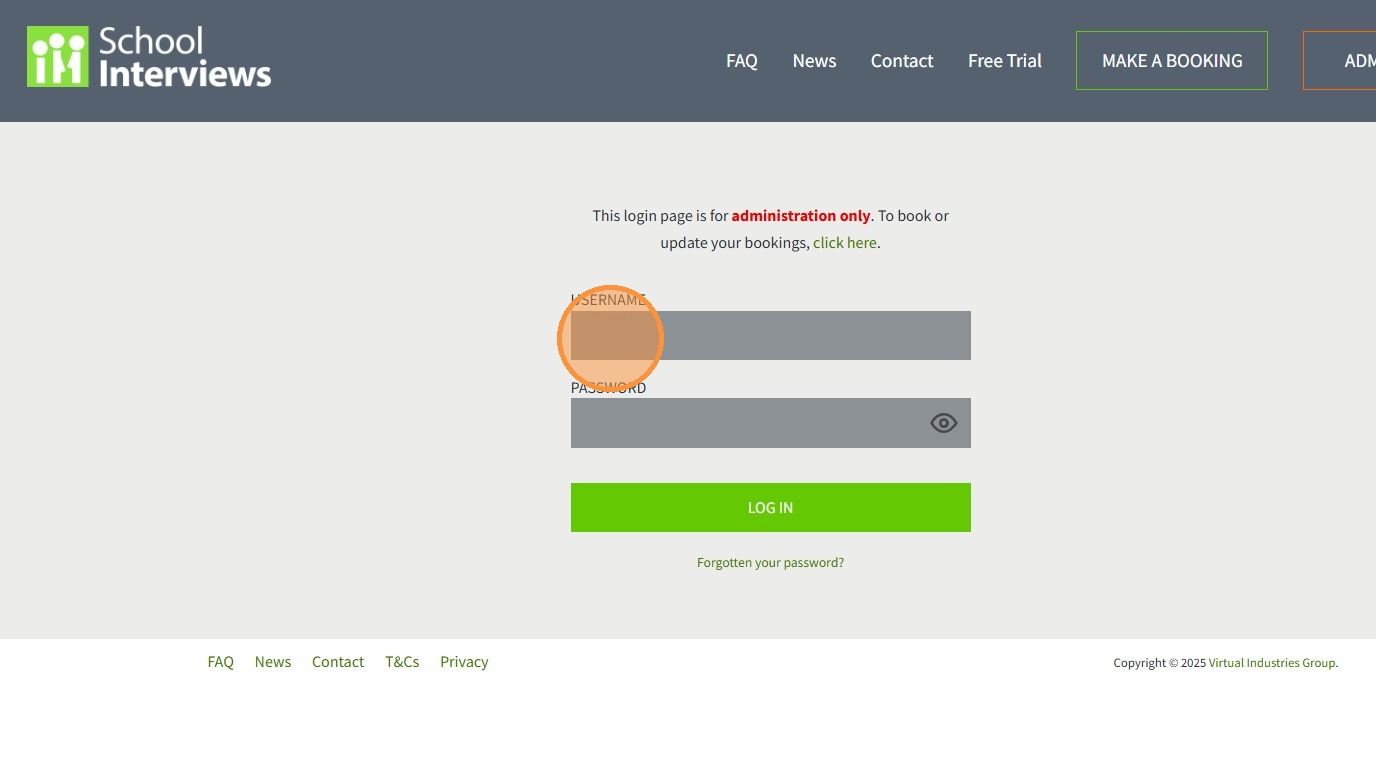
19. Type "prsd communications3 [[Tab]]" for the username and then bookings2026 for the password.
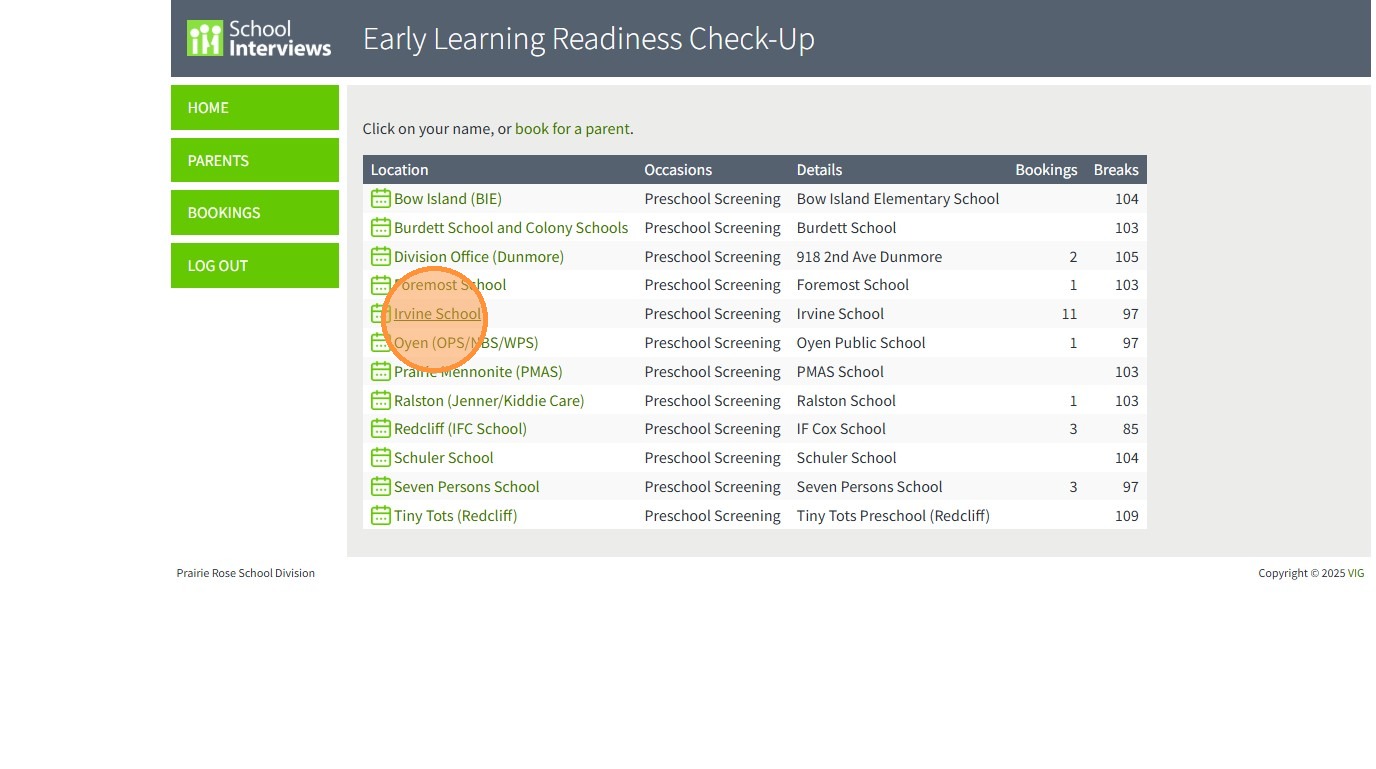
20. Click on "Your School" or you can search by parent last name by clicking on the Parent tab.
21. If the parent has already booked an appointment, you can click the "Screening Booked" tag. This will help you keep track of those who have and have not booked screenings for your team.
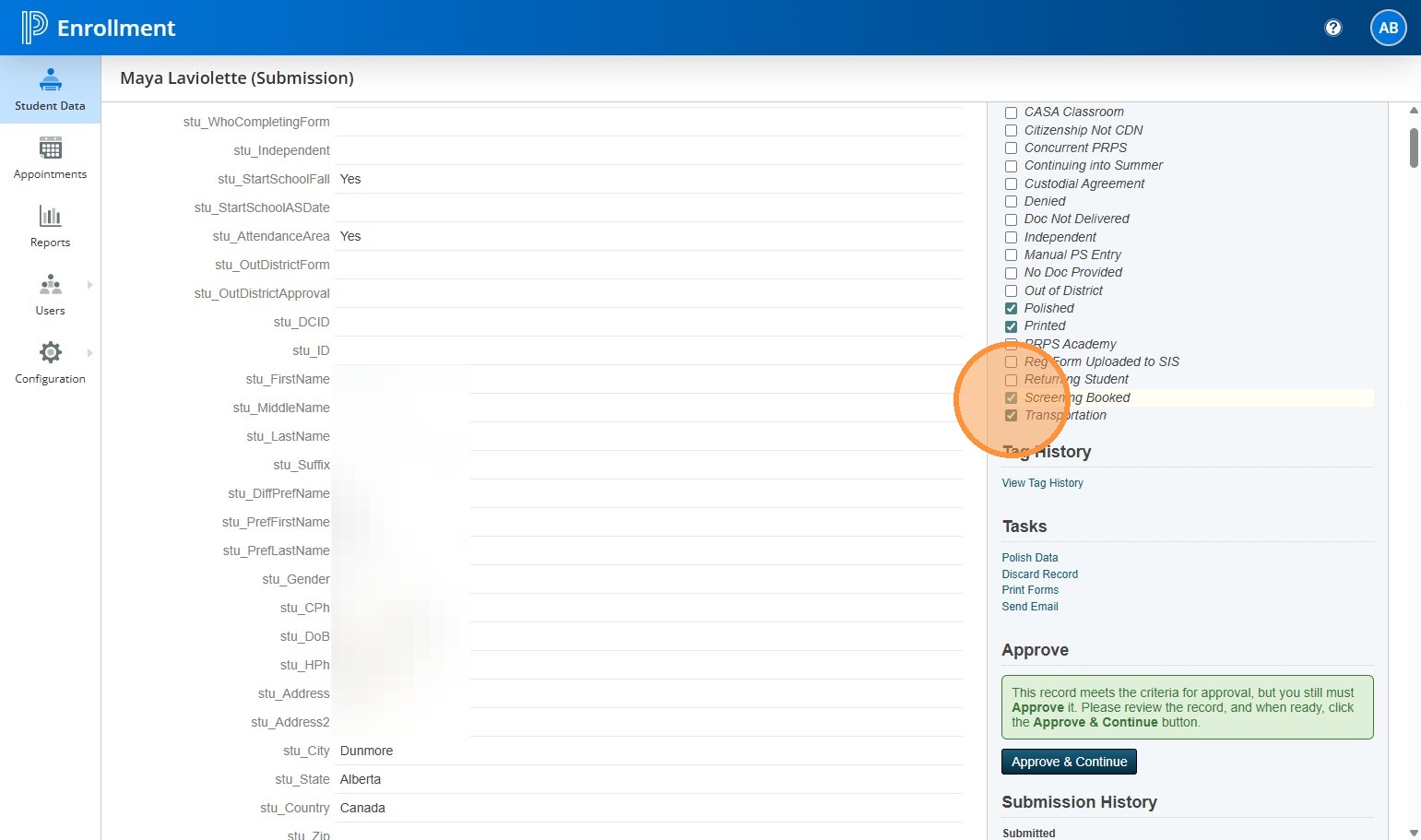
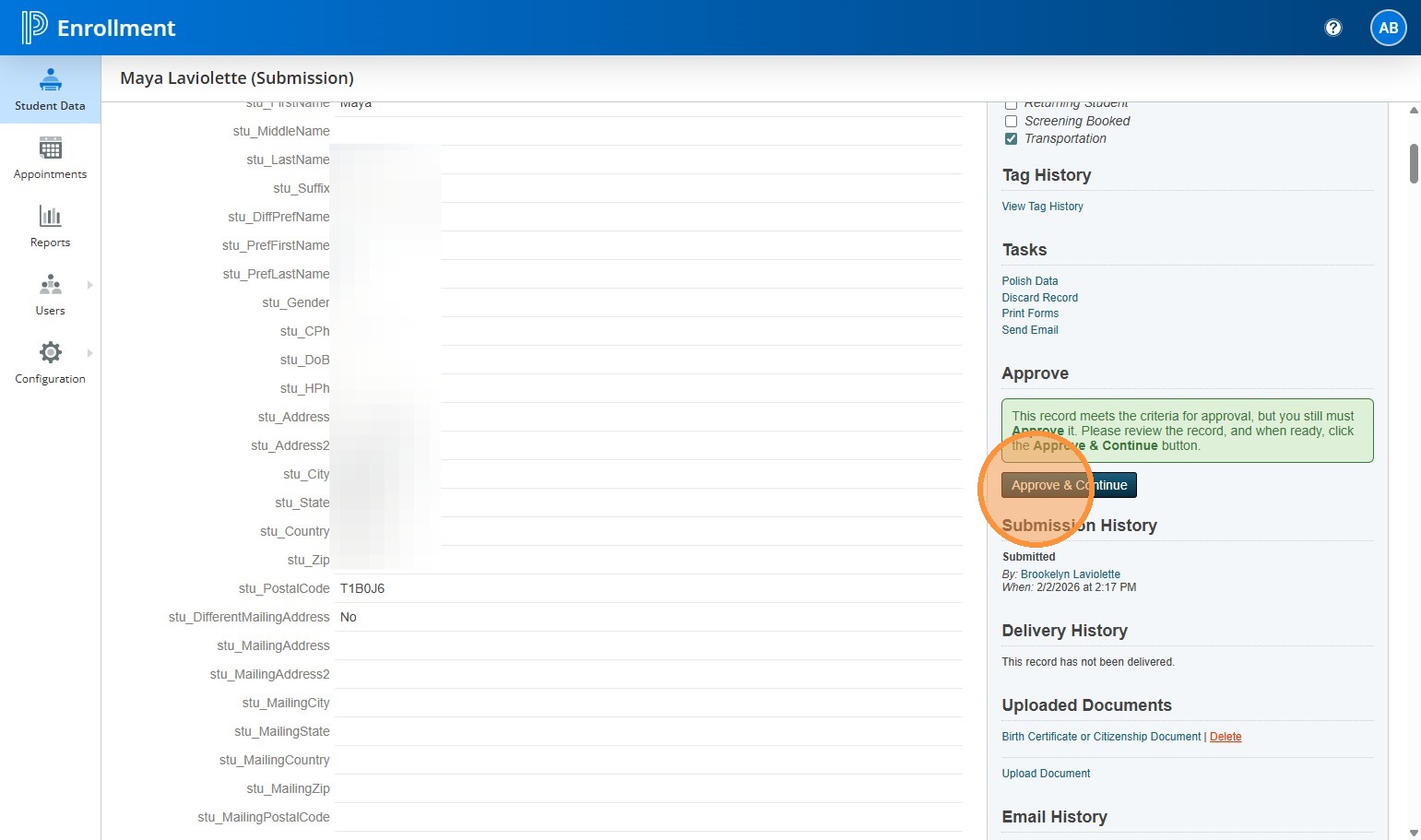
22. Once you are done, you can Approve the registration.
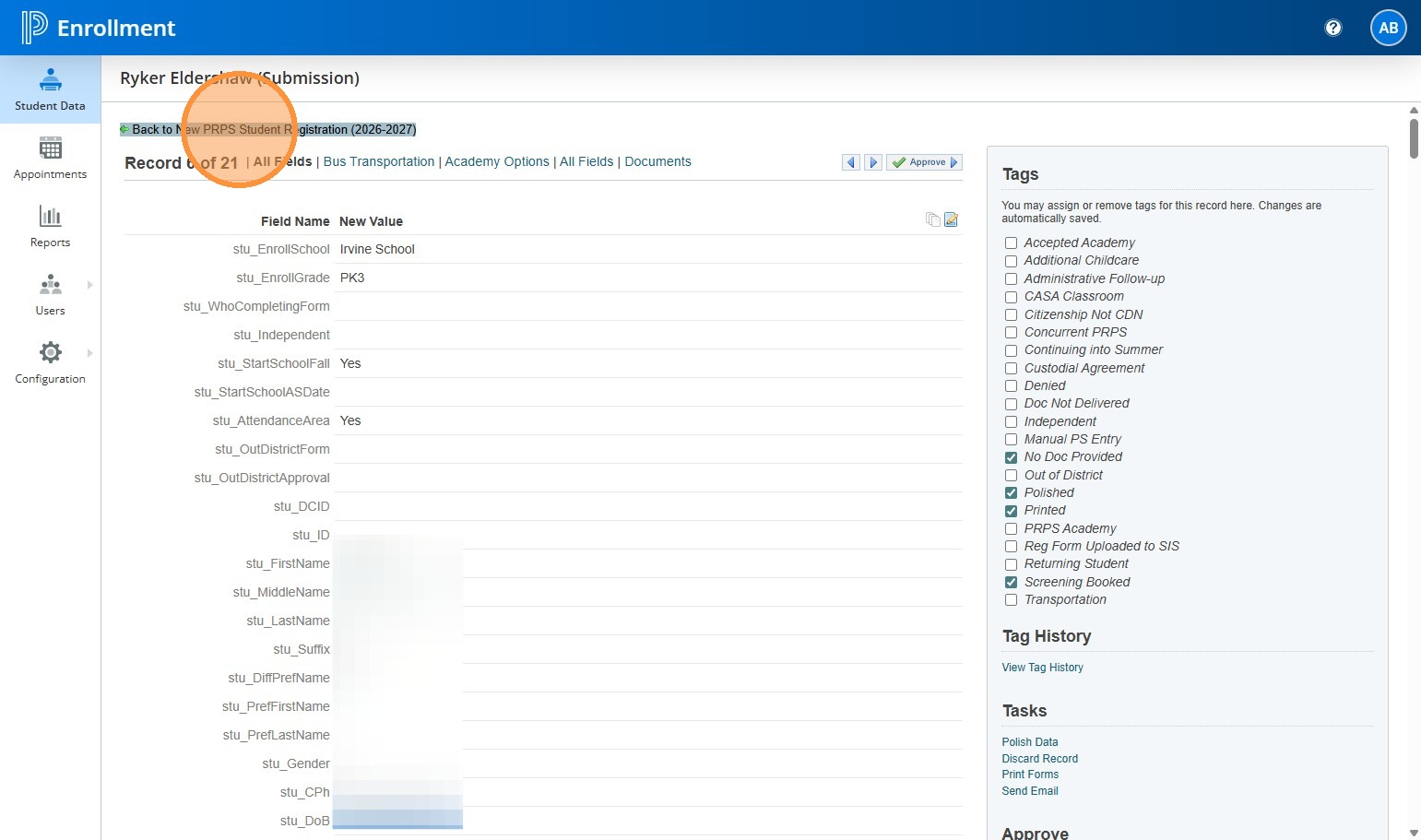
23. Click "Back to New PRPS Student Registration (2026-2027)"
24. The student will no longer show up on the Pending Approval screen.
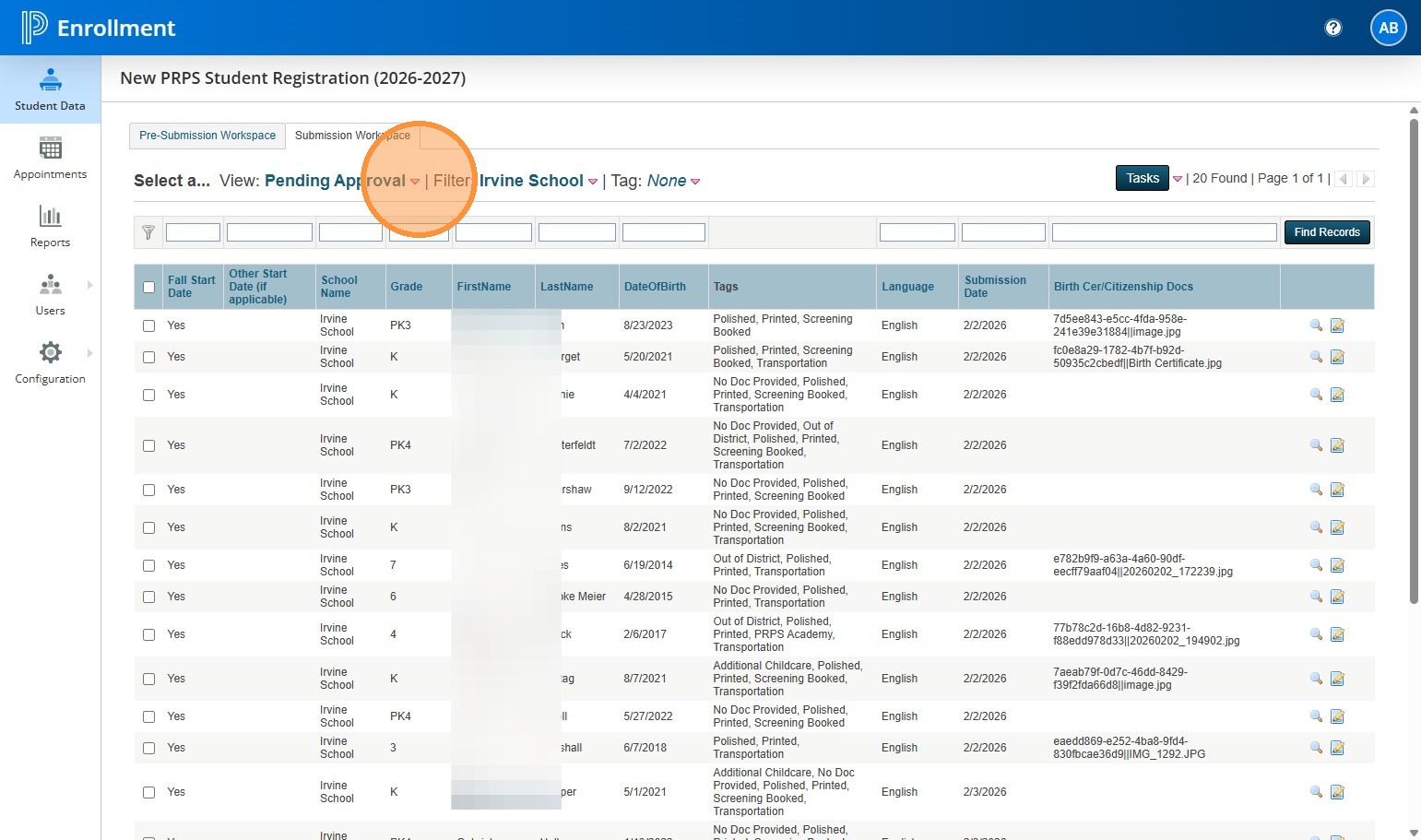
25. They will now appear under "Approved" and are ready to be delivered. You can toggle to the "Pending Delivery" screen where they will also be listed.
For now, there are no more steps to complete until Krista has the new calendar for the 2026-2027 school year built in PS SIS.