Start of Year: Transfer Student Out of School and Update Enrollment History
Start of Year: Transfer Student Out of School and Update Enrollment History
For transferring out students at the start of a new year who are not returning/attending this school year
1. Navigate to the Start Page
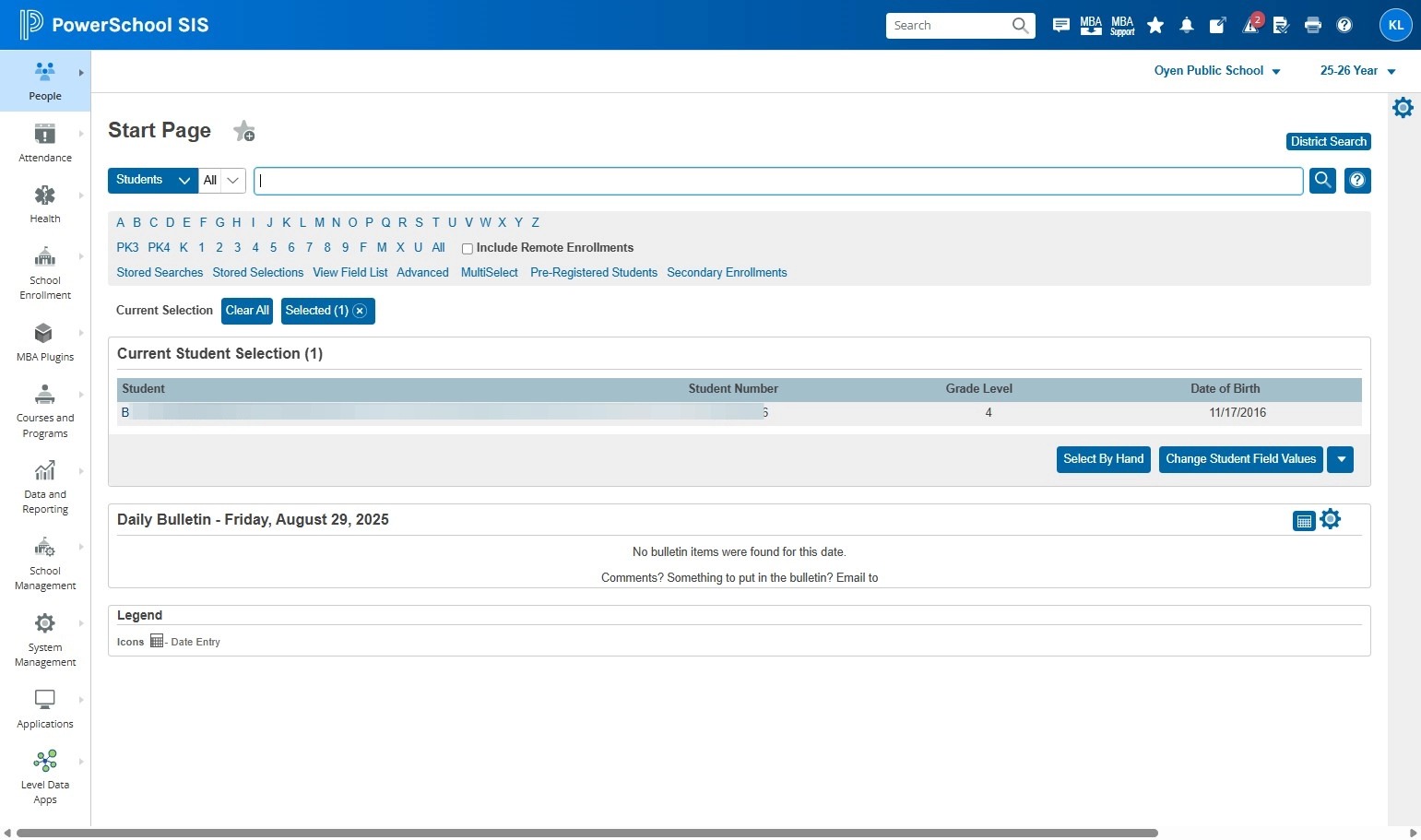
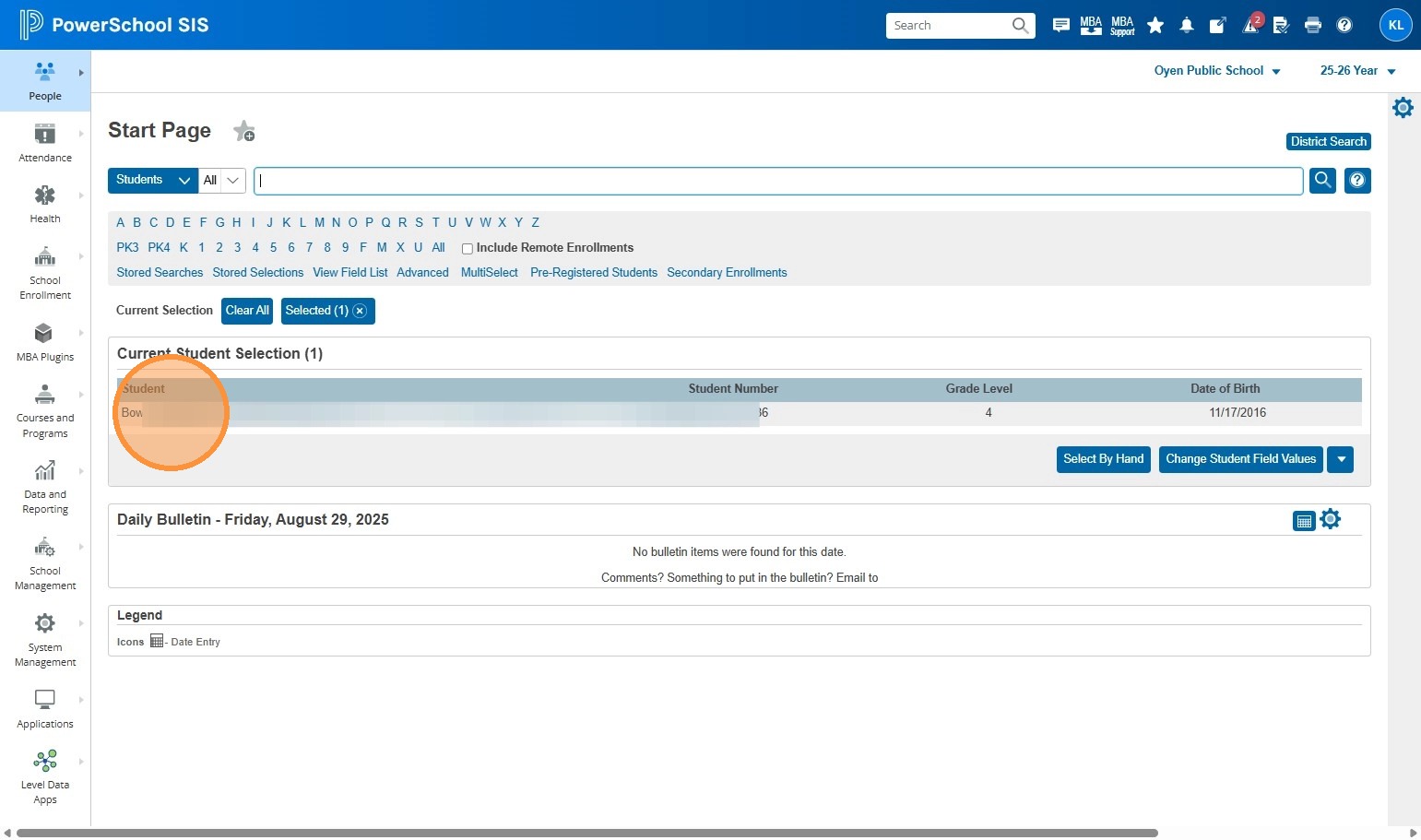
2. Search your student, and click on your student.
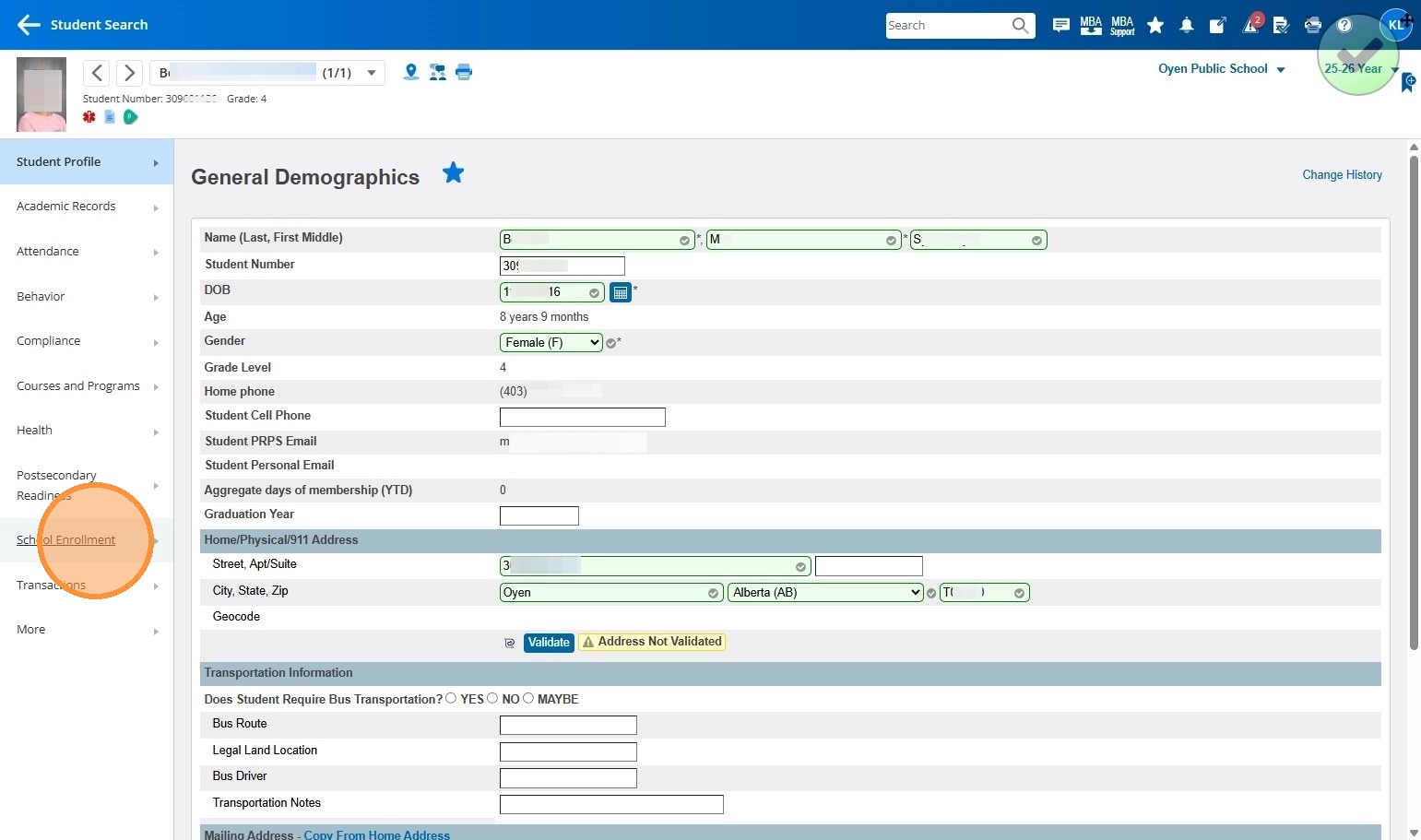
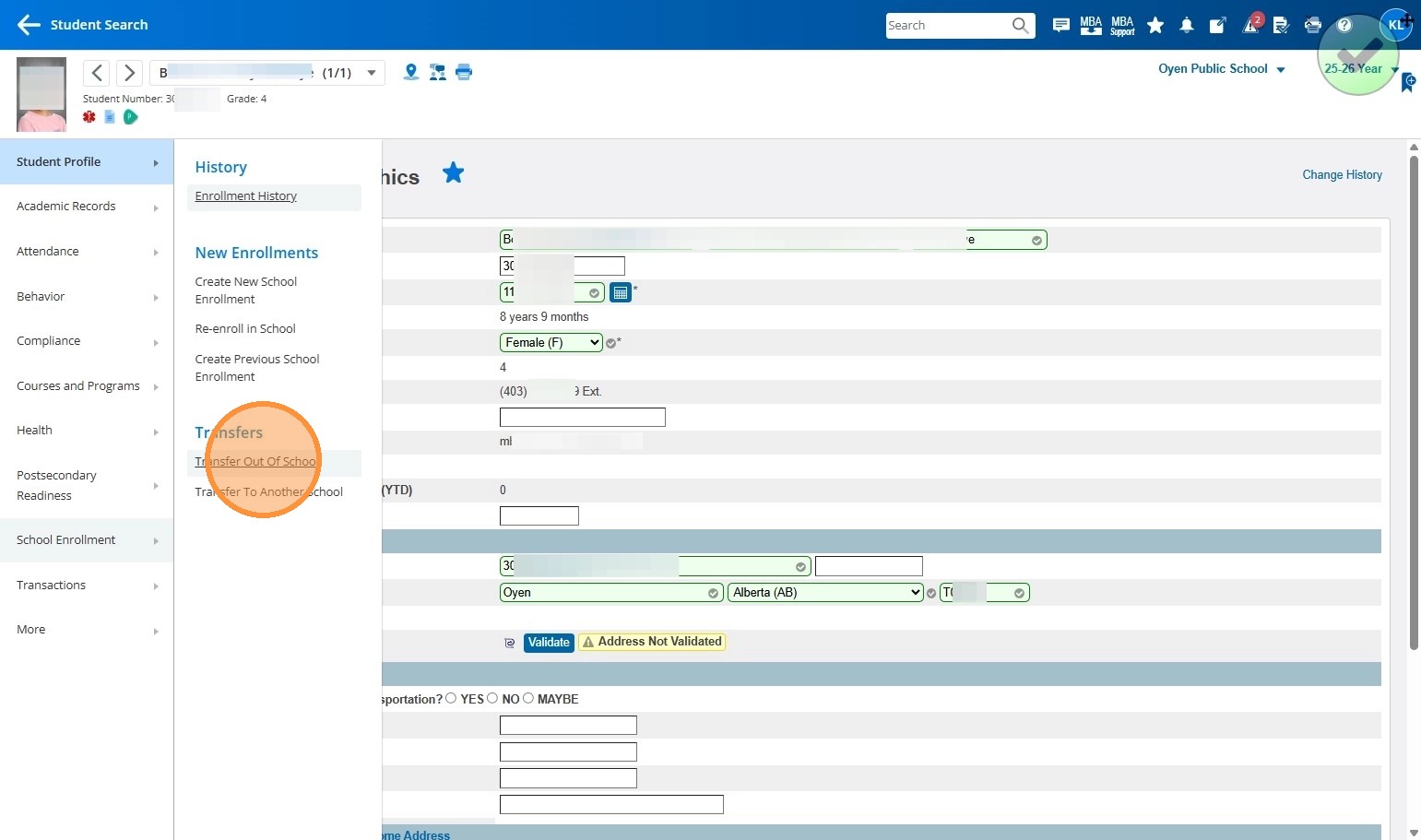
3. Then on the left navigation menu, you're going to click school enrollment.
4. Transfer out of school.
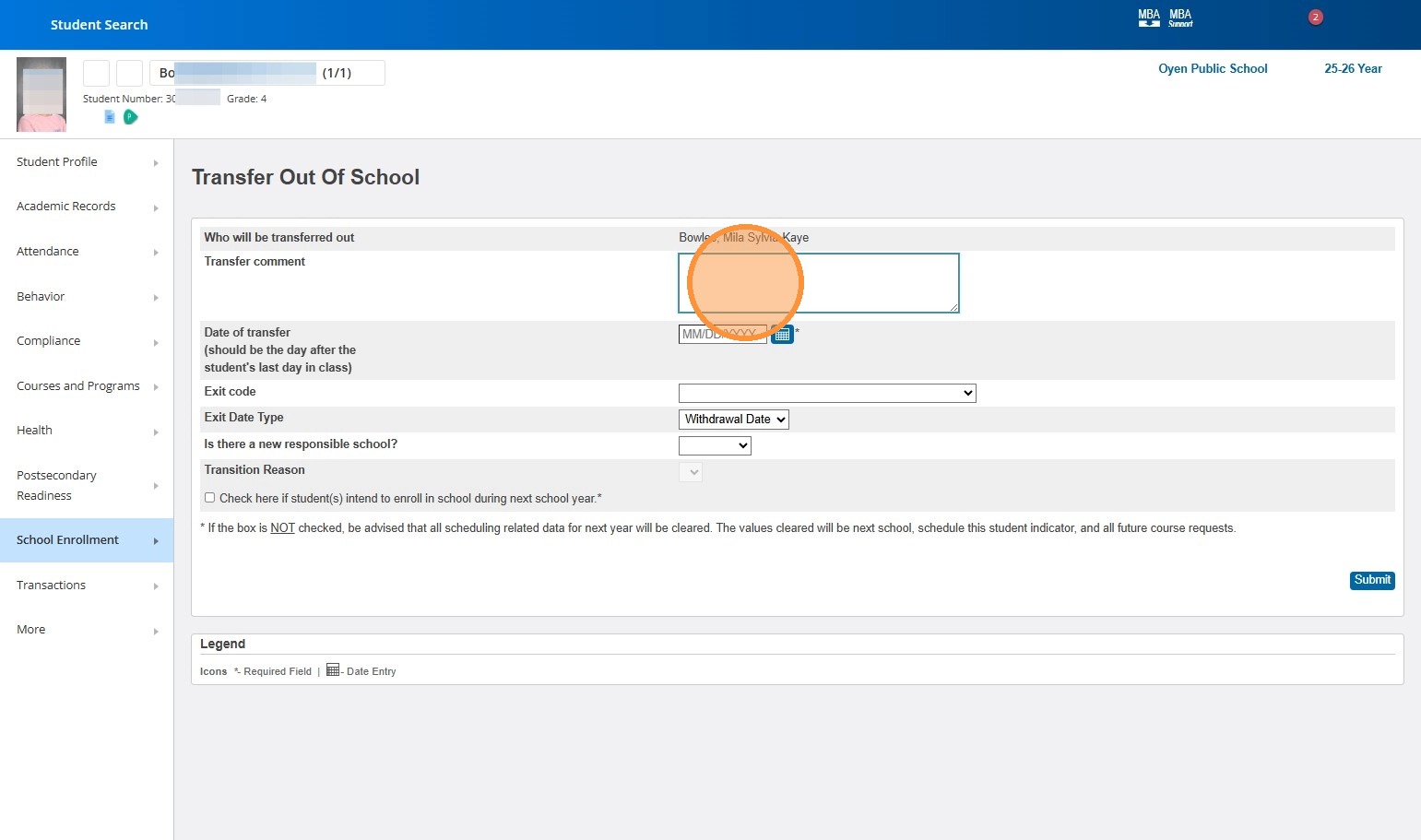
5. You can add a Transfer Comment (it is not mandatory)
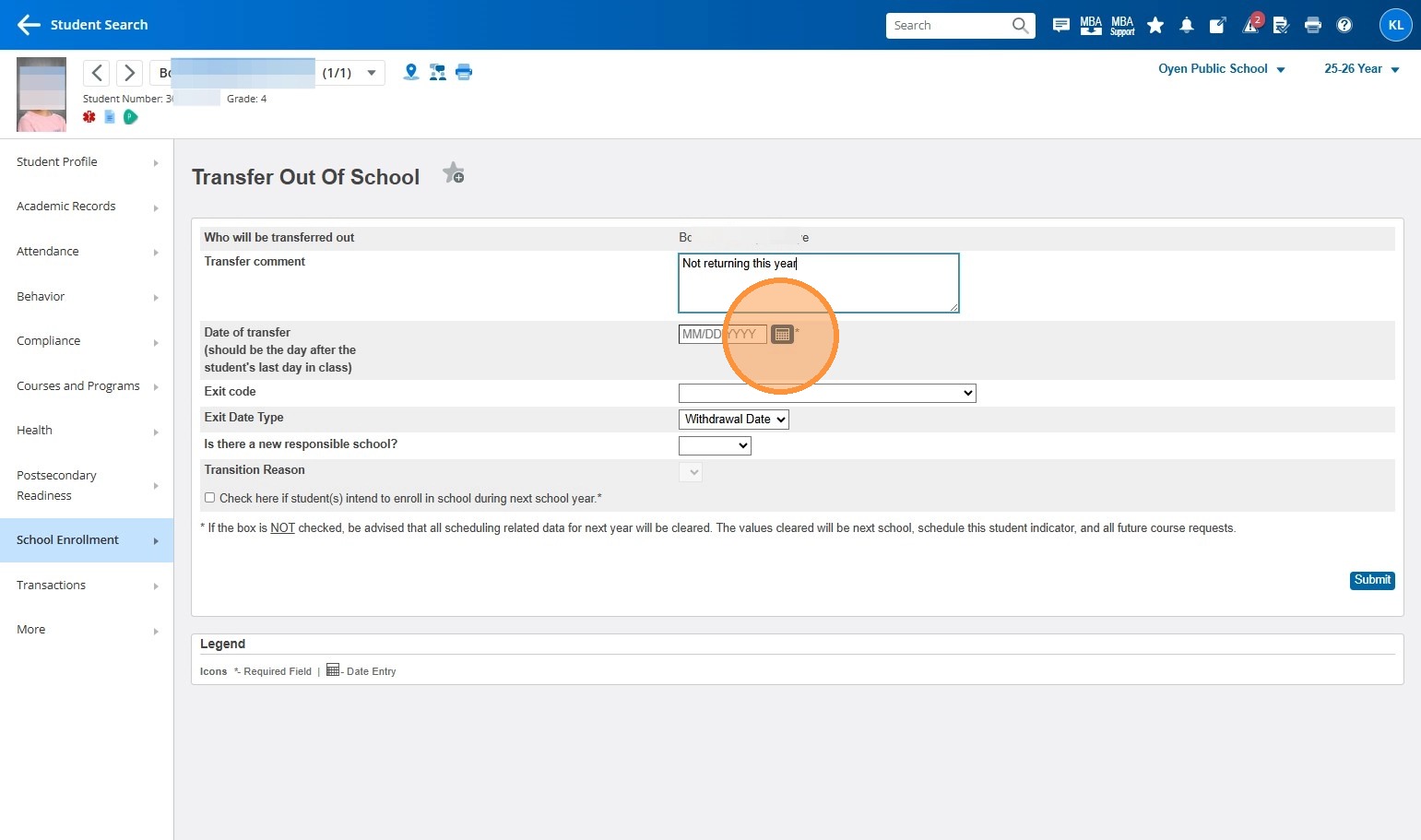
6. Click to choose the transfer out date
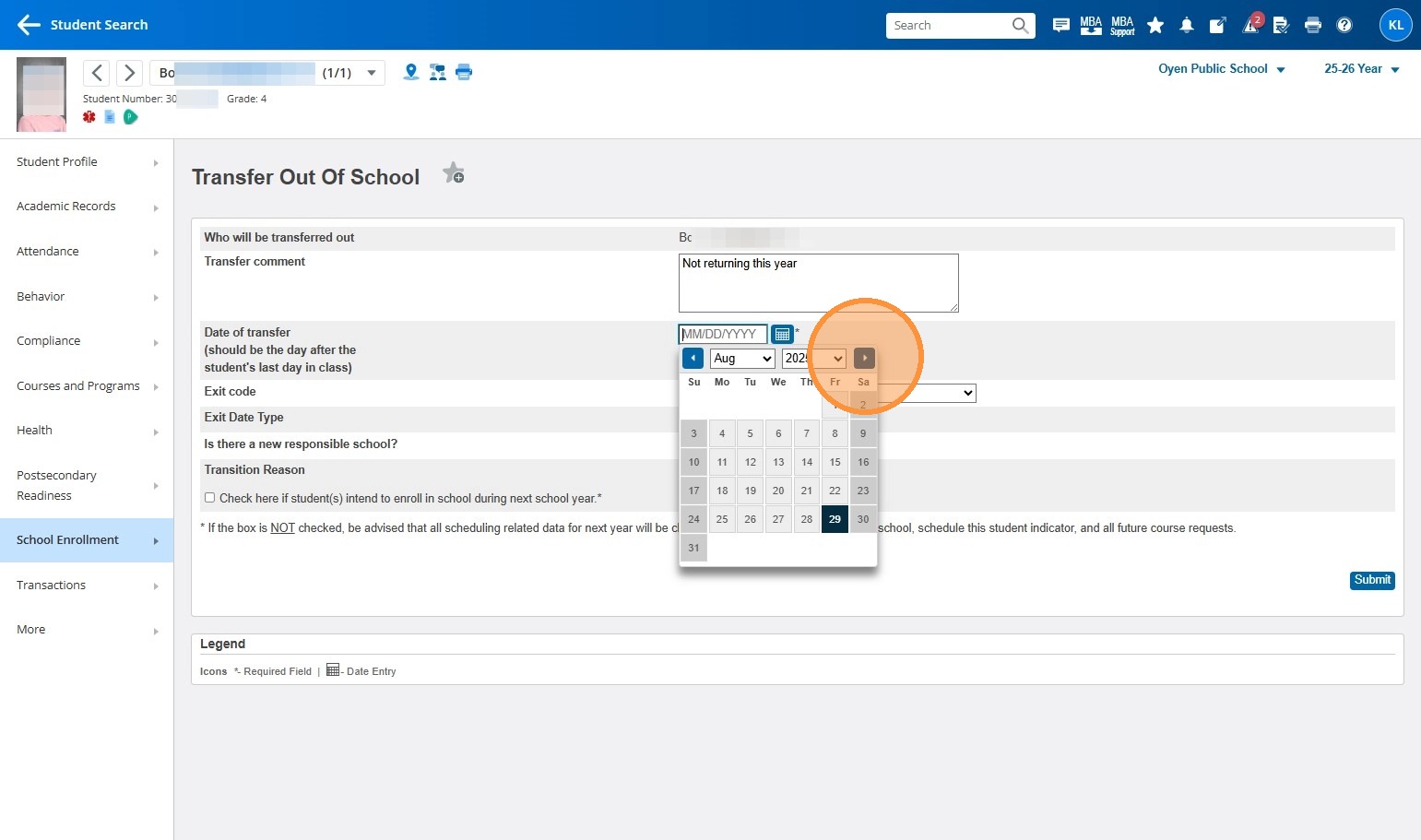
7. In our case, we want the exit date to be the same as the school start date, Sept 2, 2025. This will cancel the school enrollment in PASI.
8. For the exit code, choose the one that fits best. I'm assuming that this student will go somewhere else in Alberta, so I'm choosing: "Transfer within Alberta (21000)"
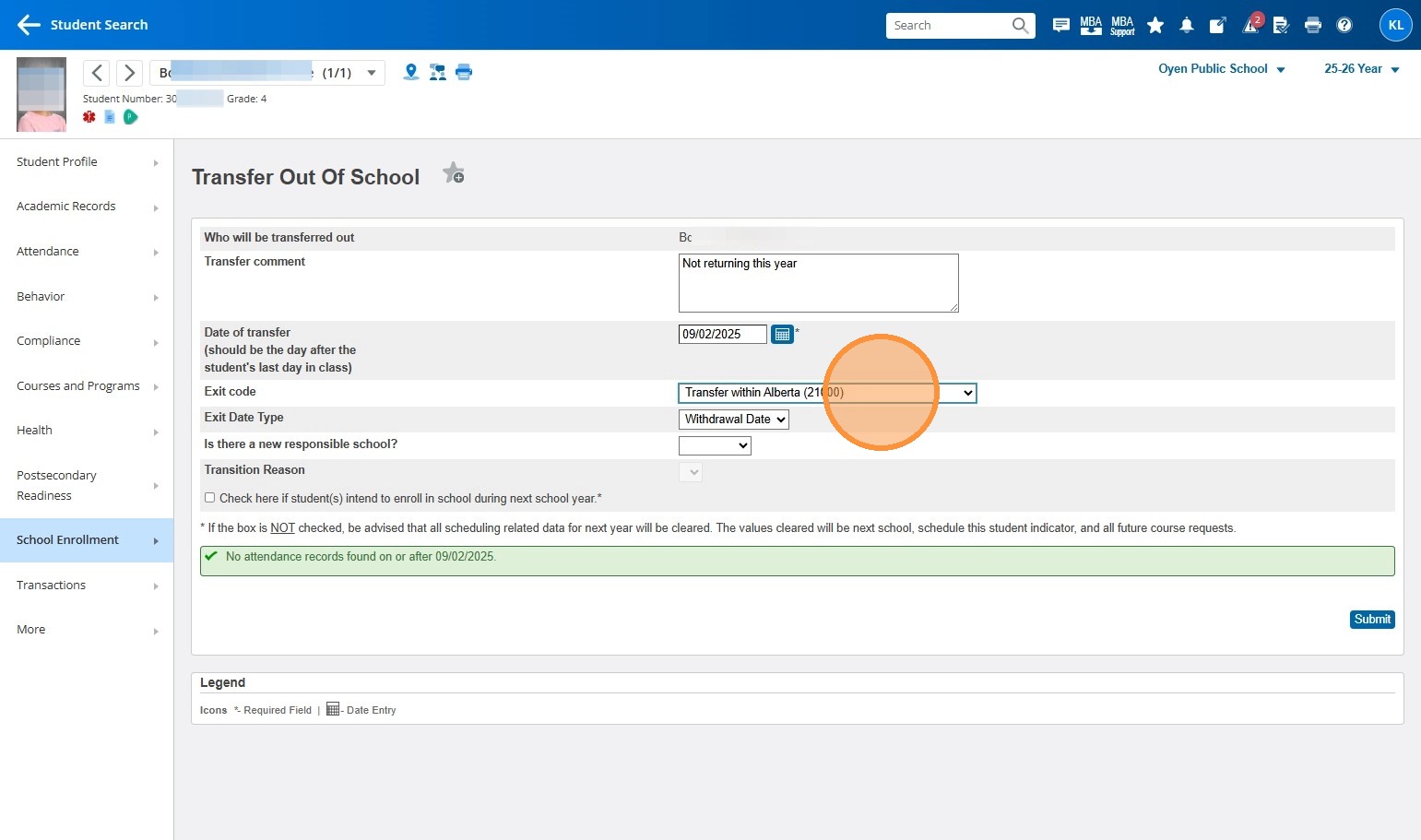
9. Make the Exit Date Type: Withdrawl Date
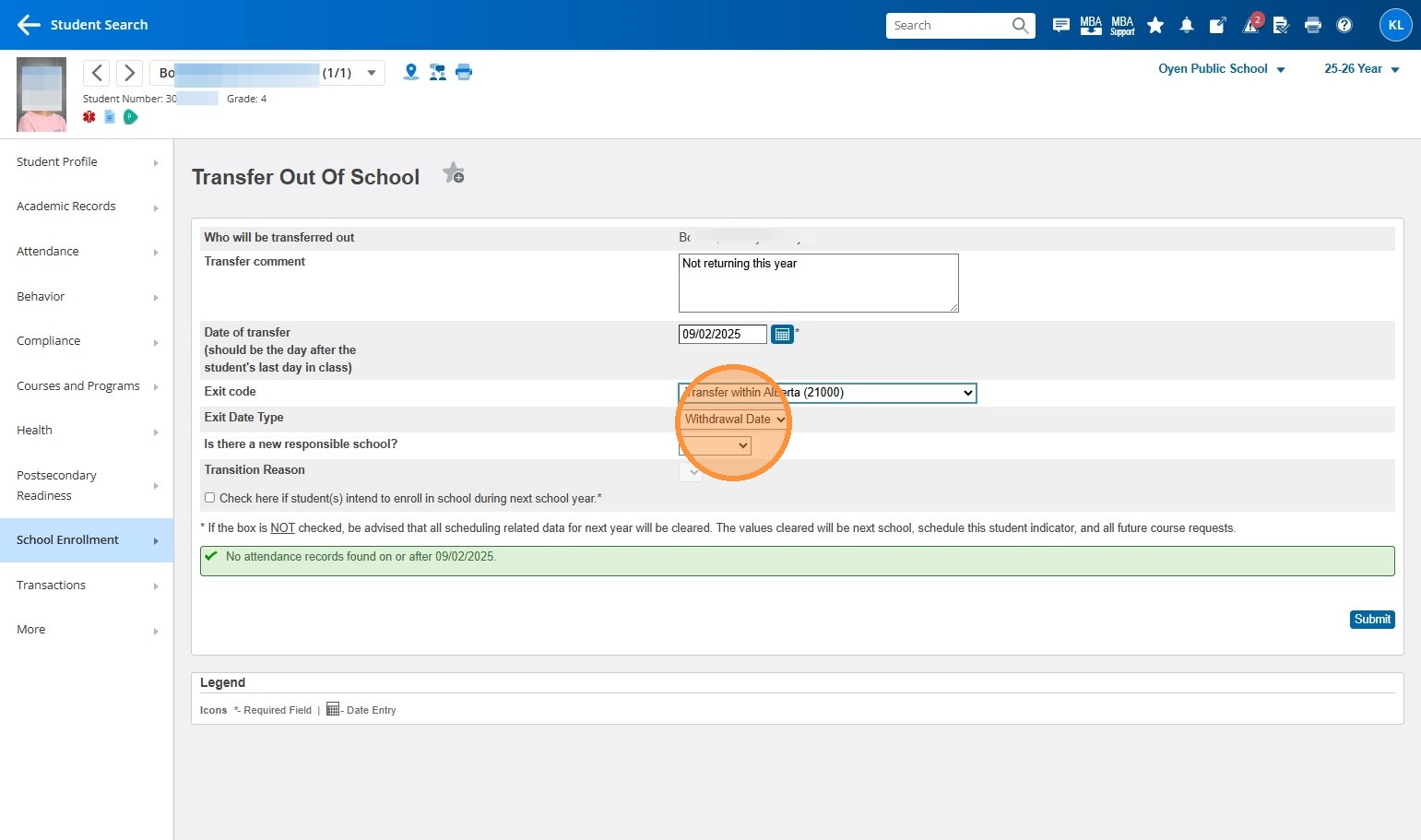
10. Is there a new responsible School? Choose Unknown
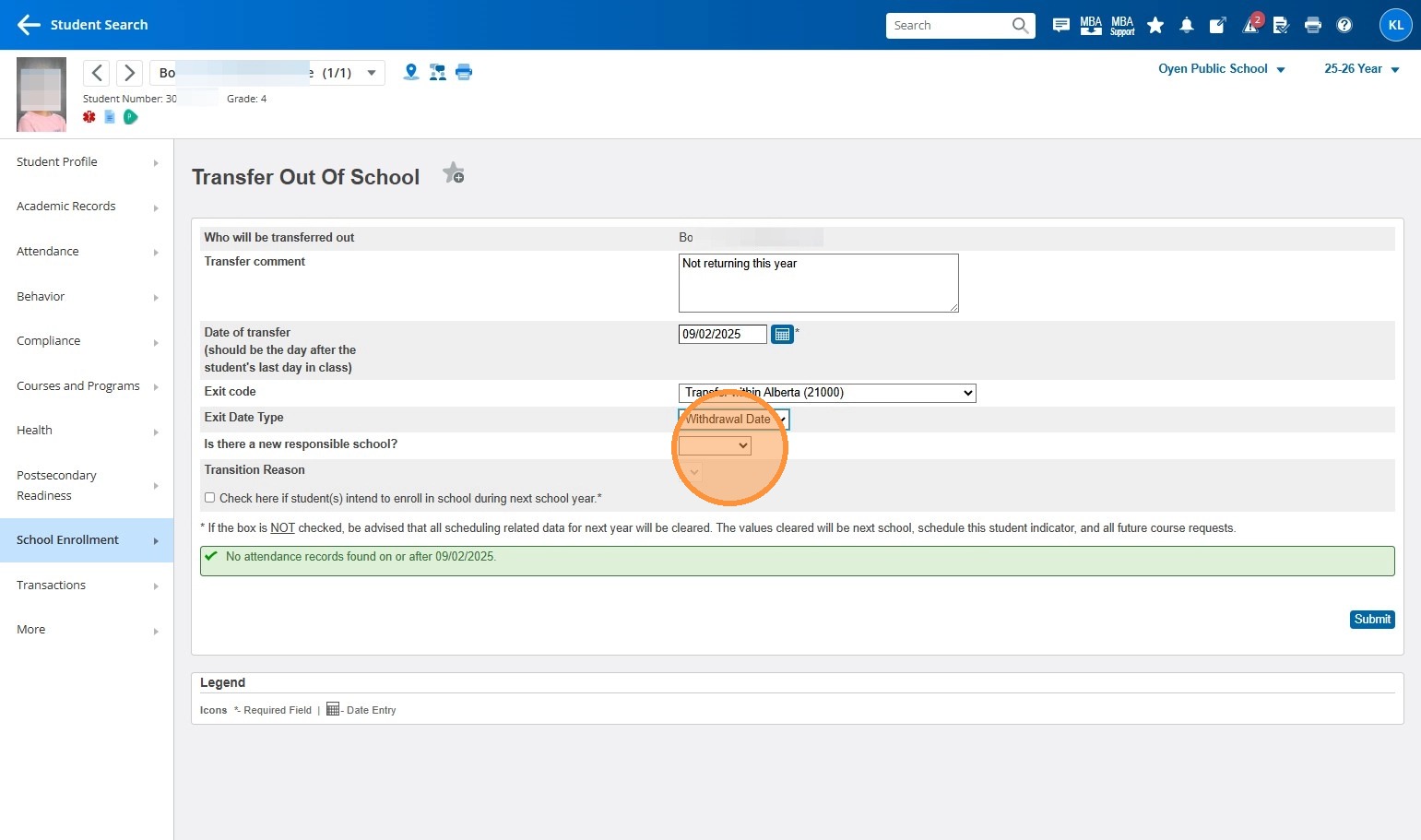
11. Pick the best transition reason. I will select the "Other" option.
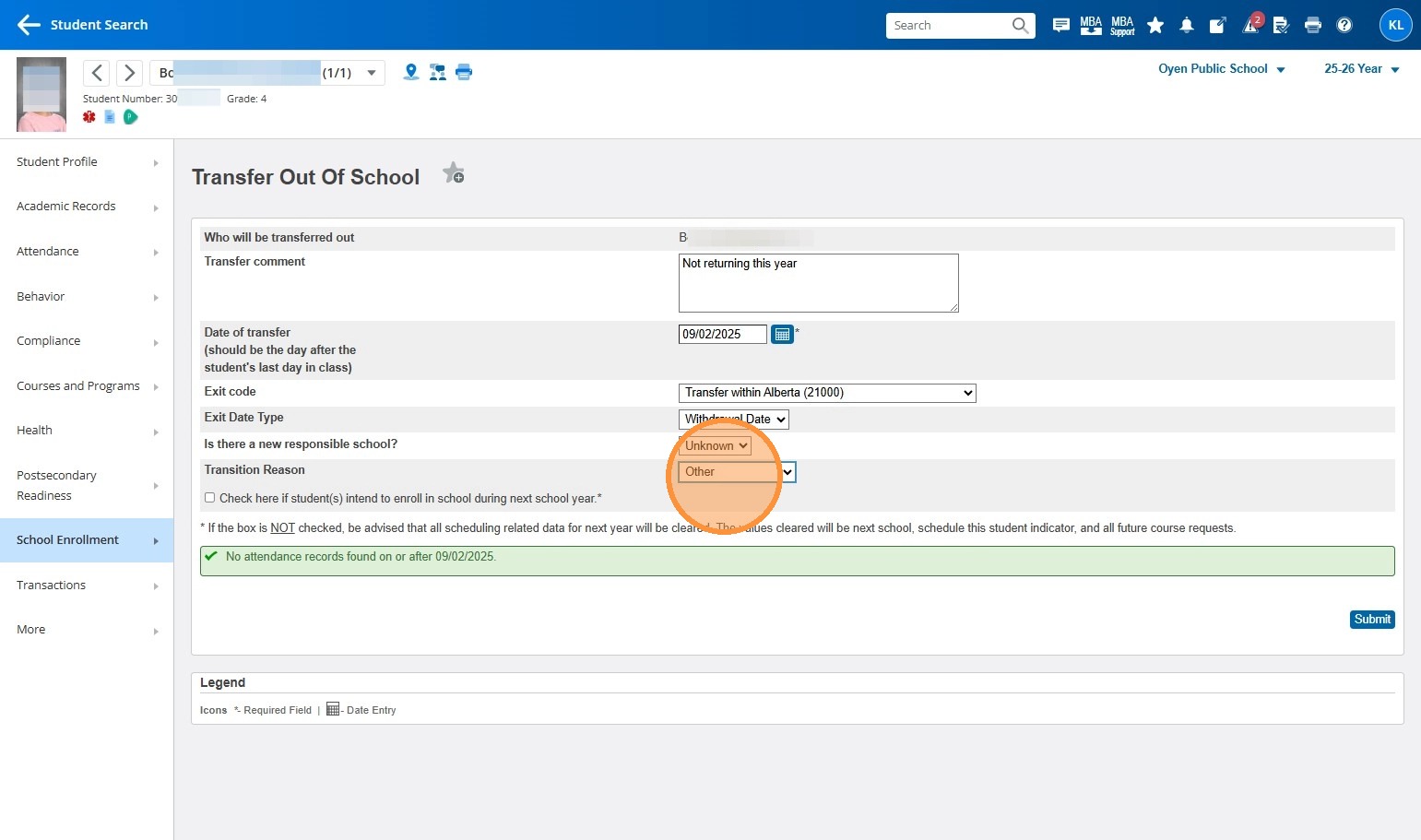
12. Then click submit.
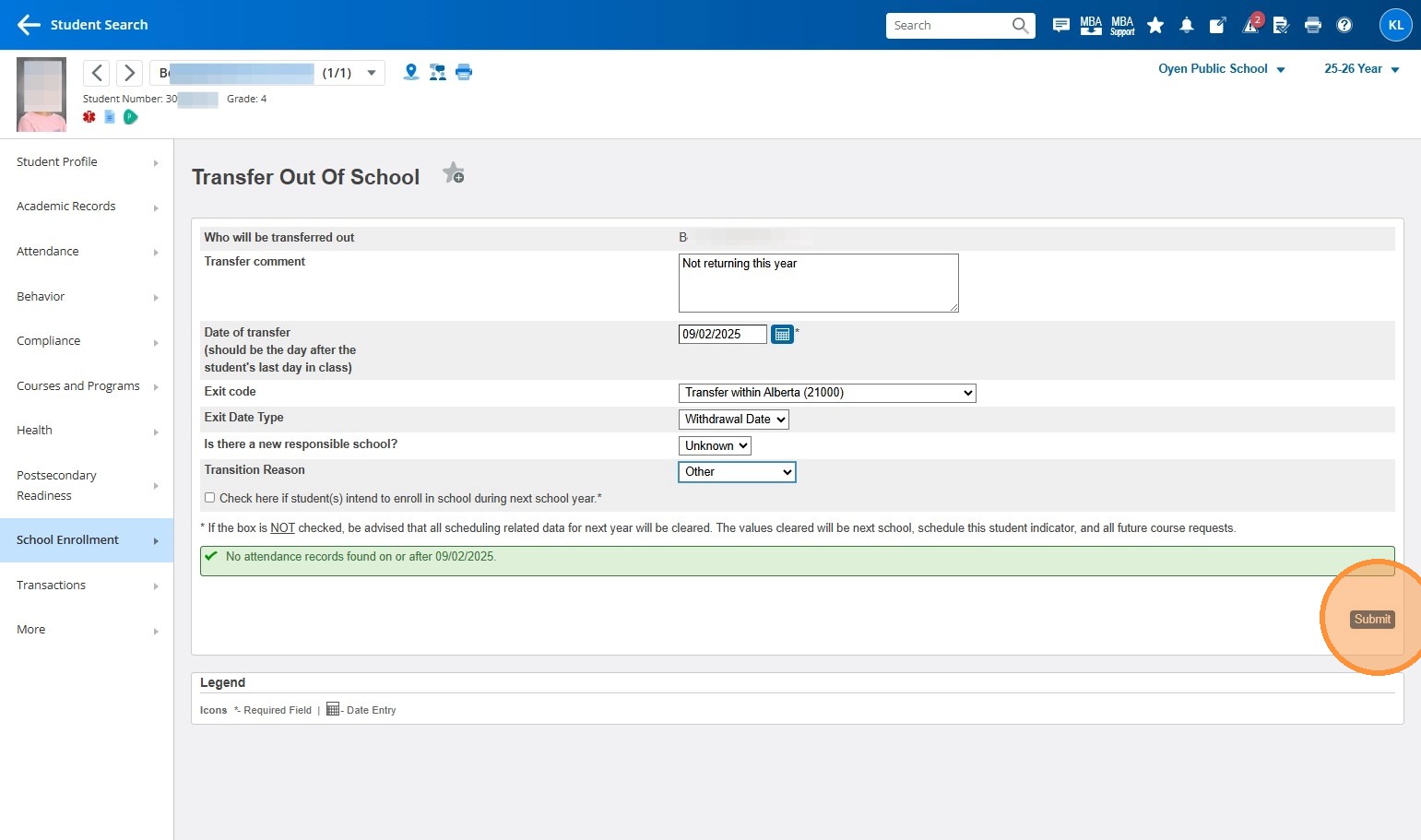
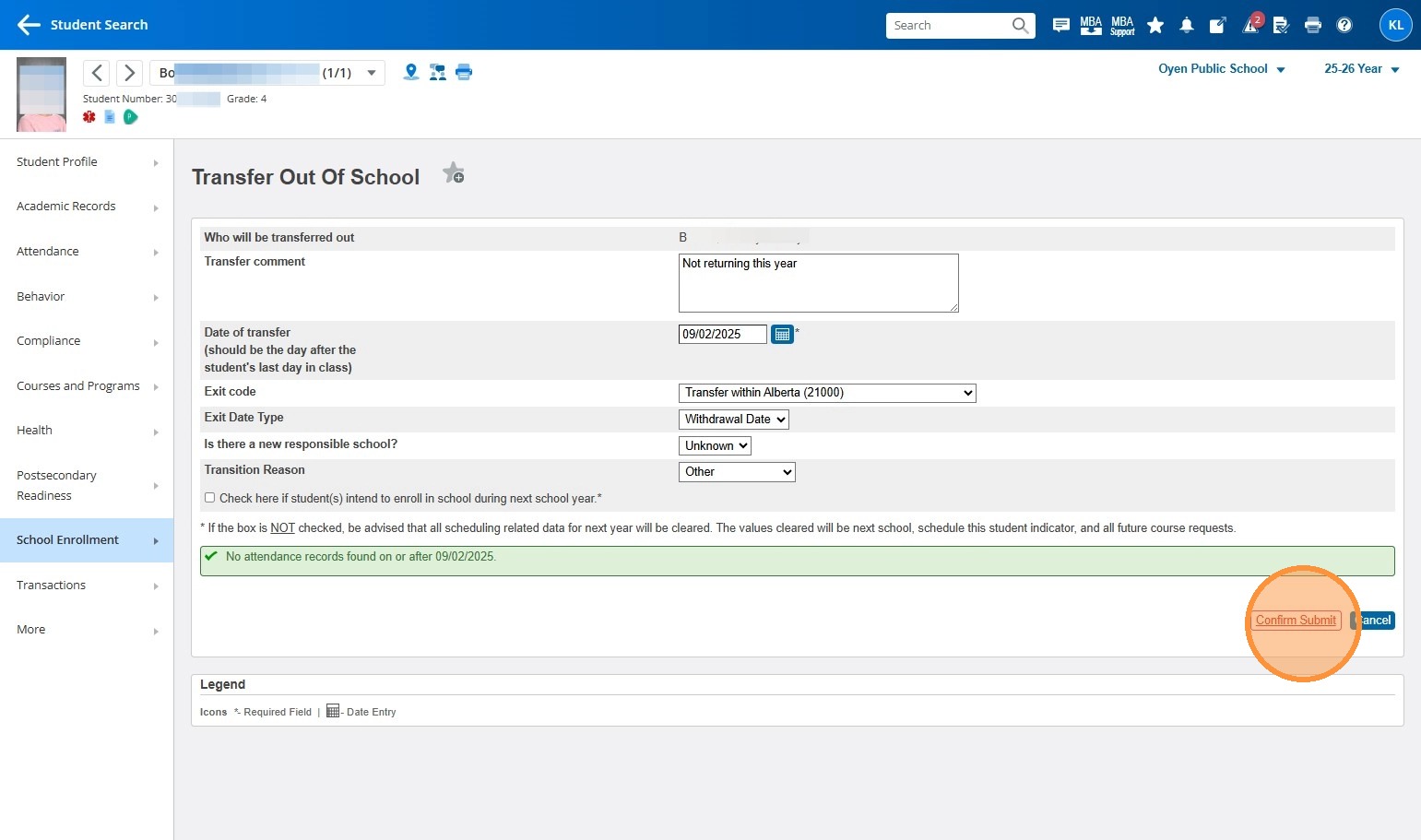
13. Confirm submit. This should be the end of the process, unless you get an error message regarding a Duplicate Effective Date
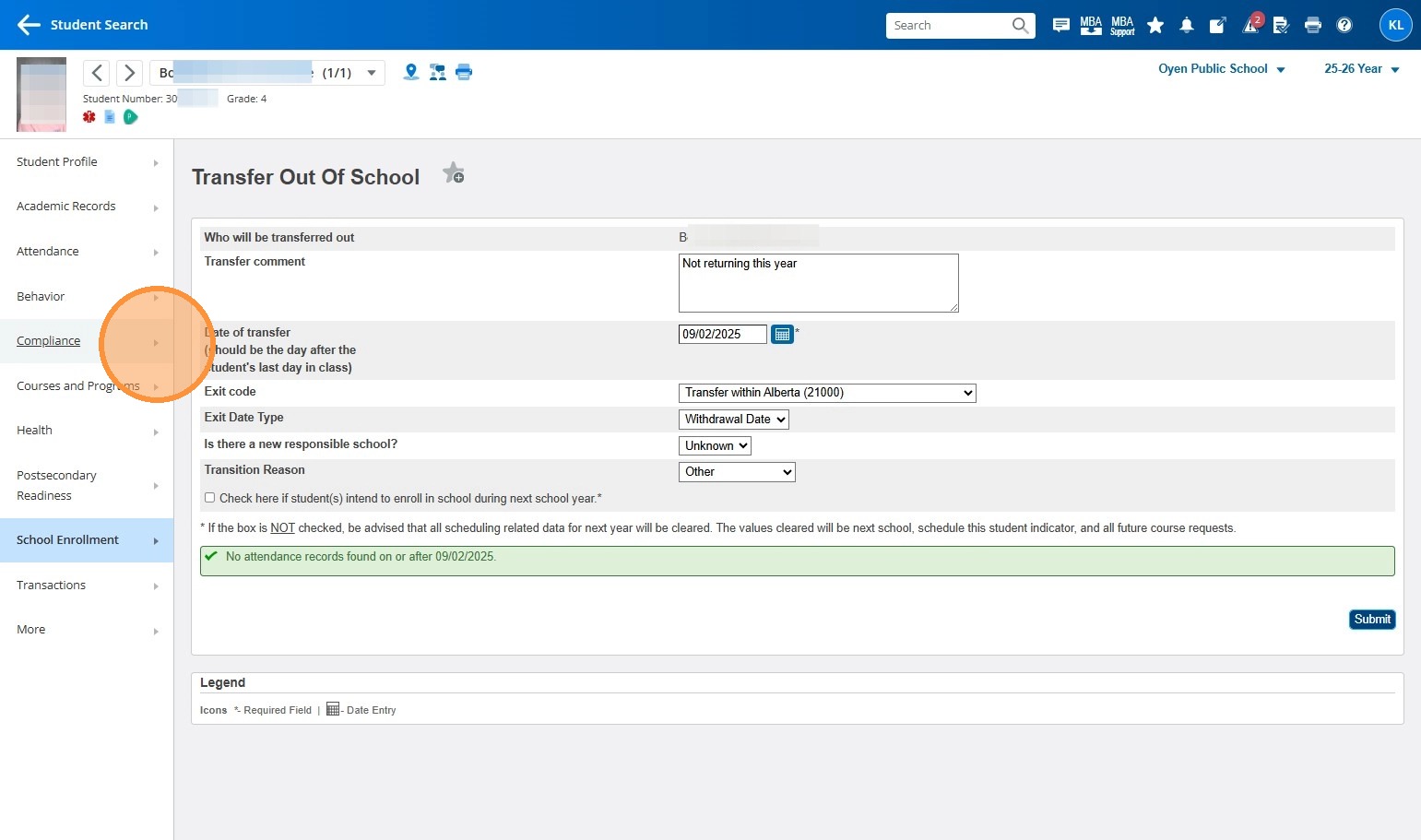
14. In that case: Click Compliance
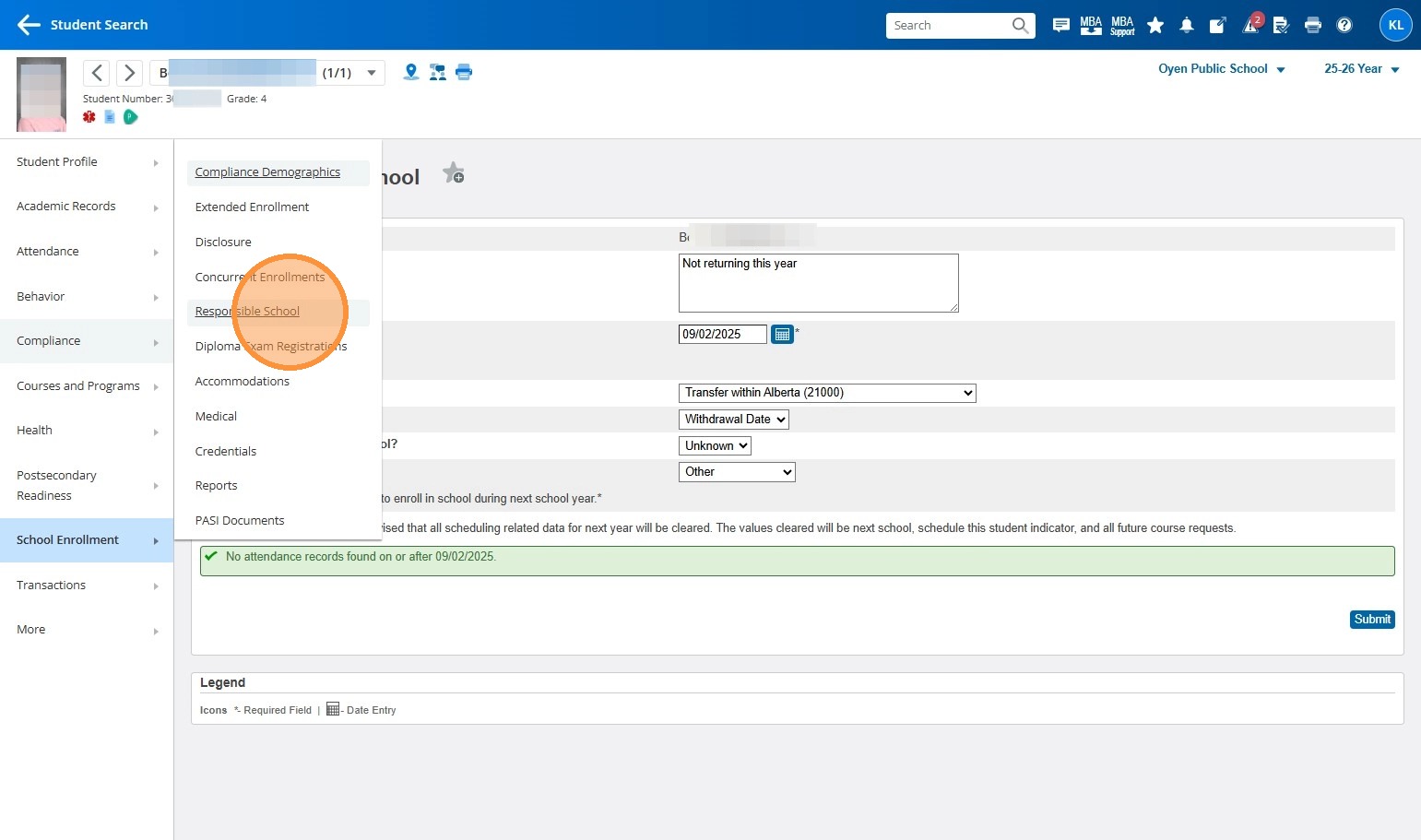
15. Then right click on responsible school and choose open in a new tab.
16. Switch to the new tab to review Responsible School
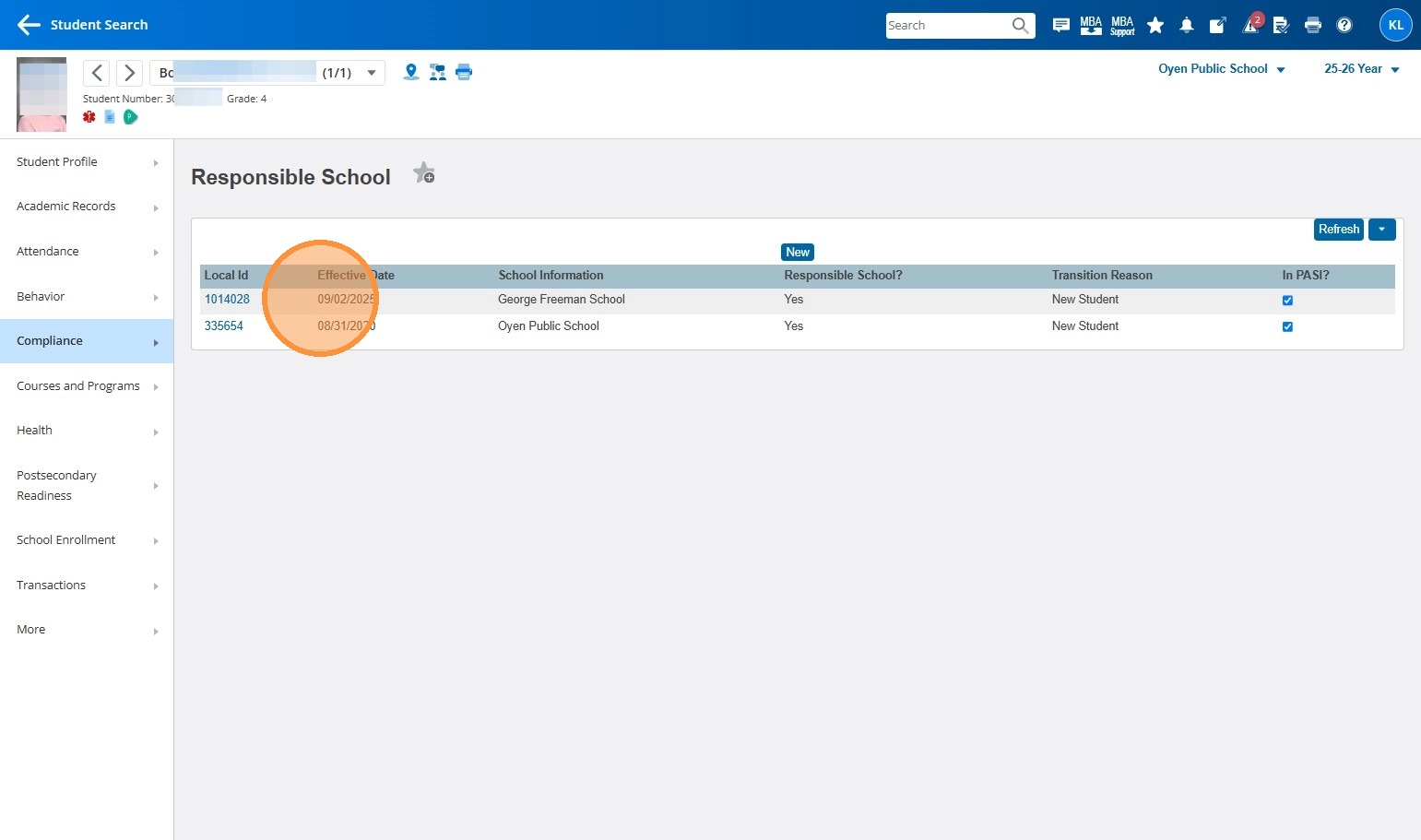
17. You'll see something similar to this. If the duplicate effective date is on another school's enrollment, we will do the next steps. If that duplicate effective date is for your school - you can click on it, and delete the record before proceeding.
18. Switch back to our original tab: *Transfer Out Of School
19. If you've deleted the responsible school record on that second tab, just click submit again and you will be finished.
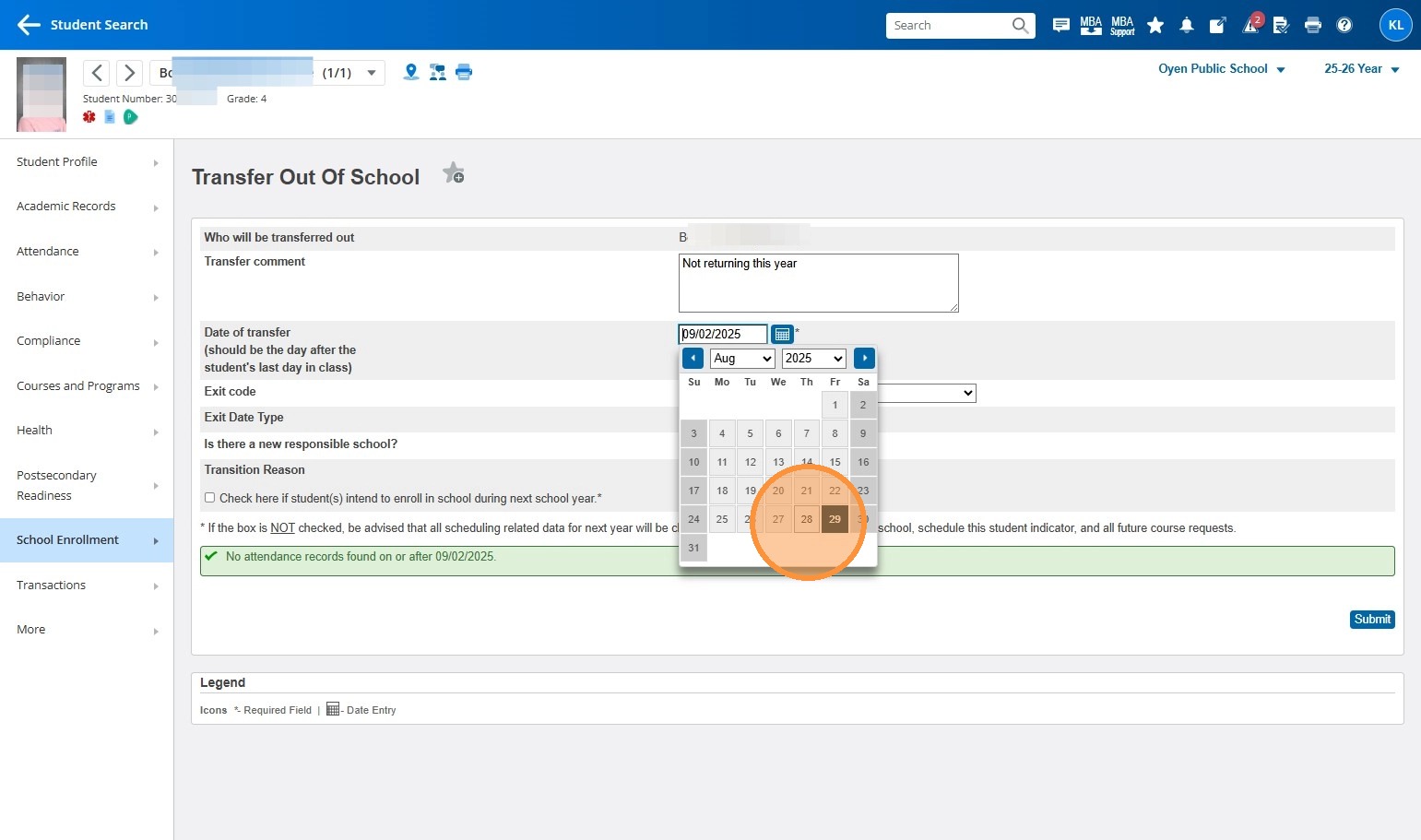
20. If the duplicate record was on another school, then here is the workaround: change the exit date, and make it the day before the current date.
21. Click "Submit"
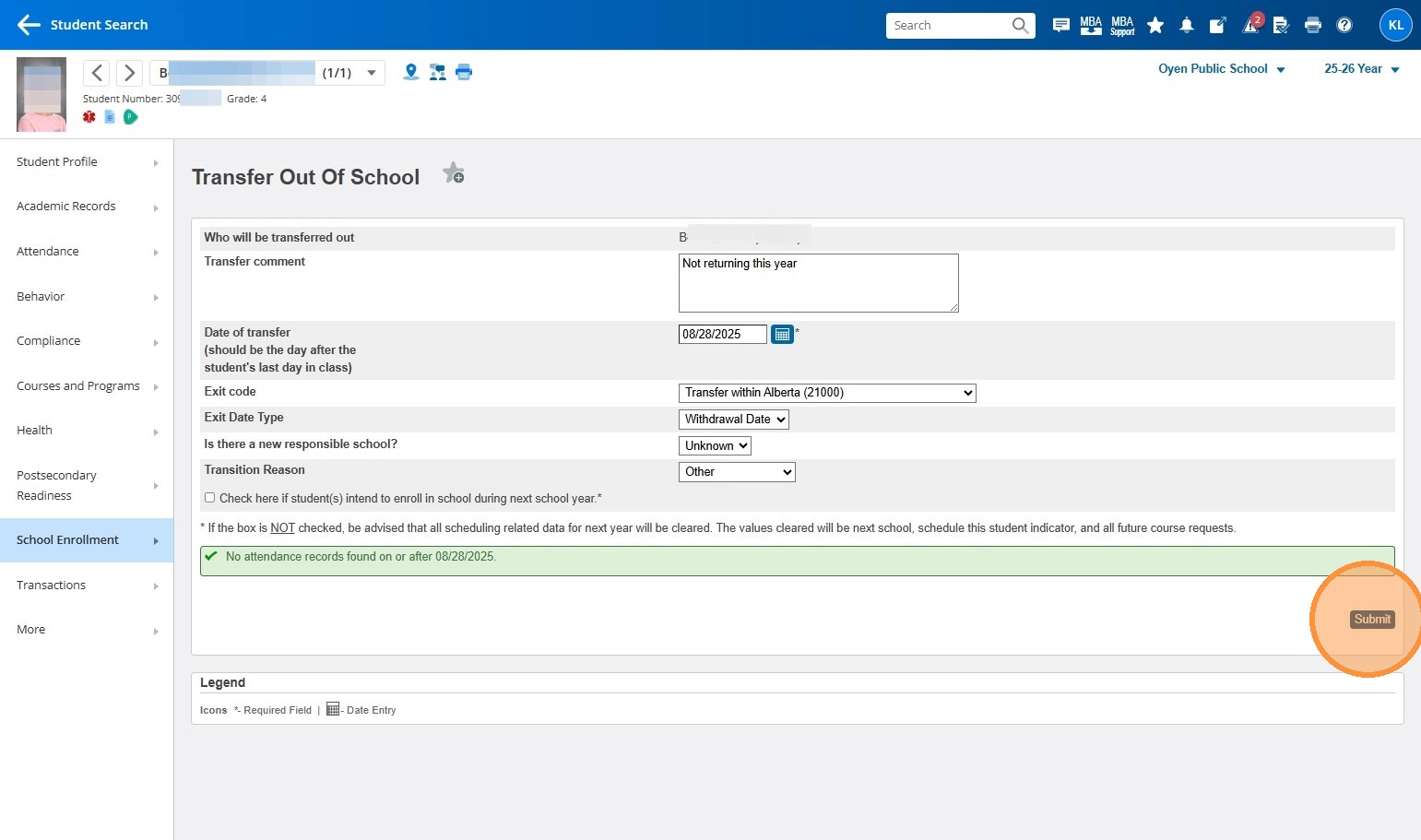
22. Submit. Confirm. Submit.
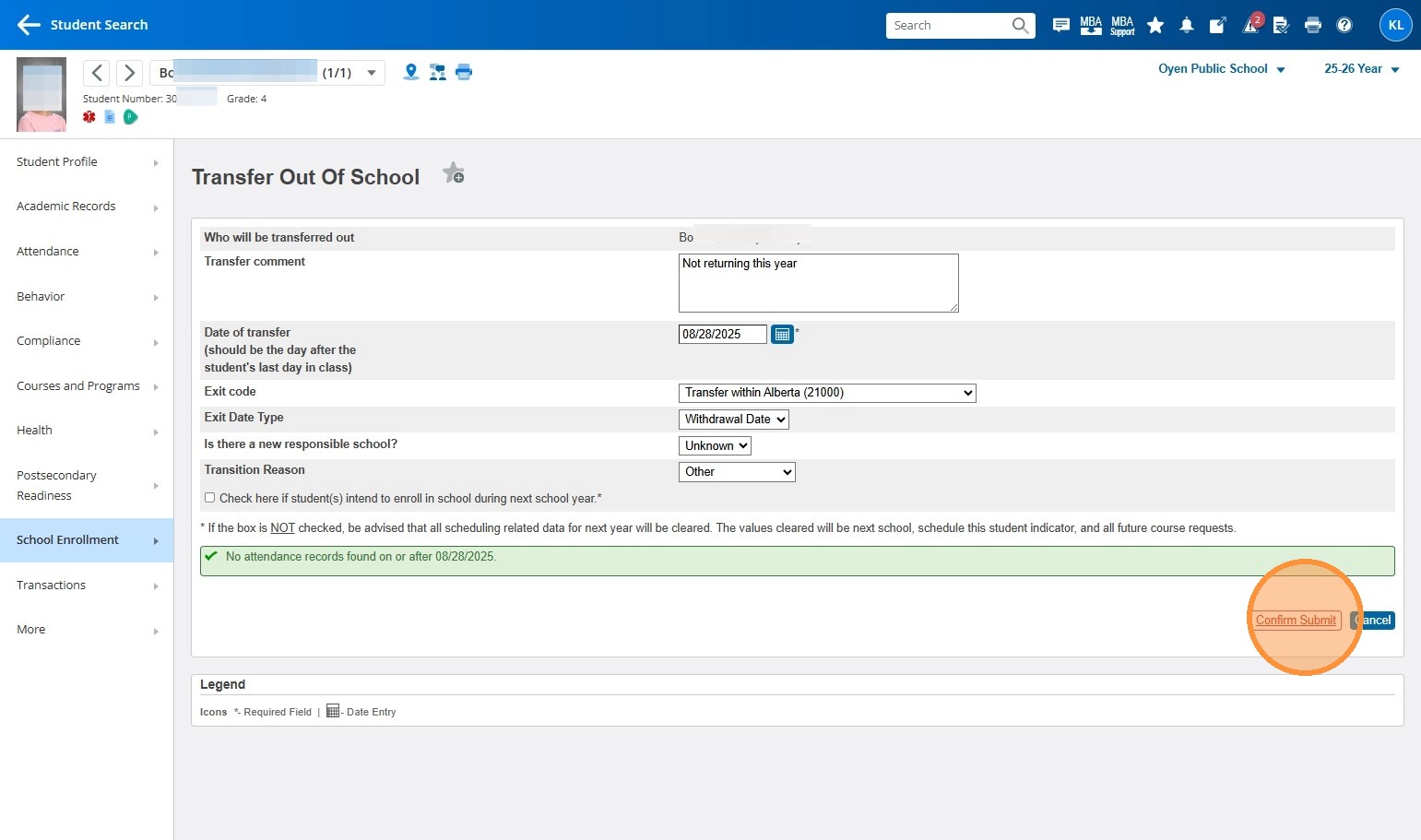
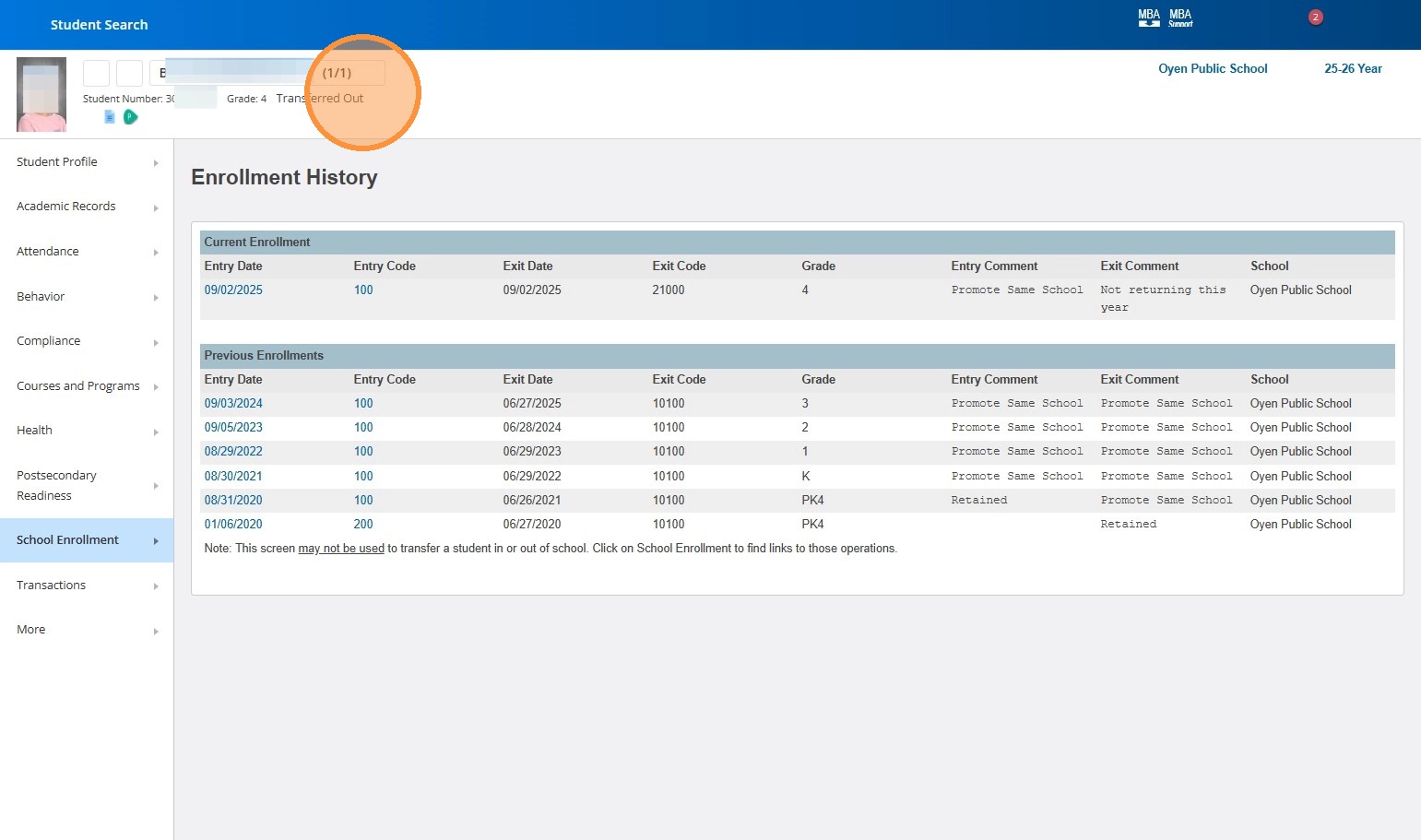
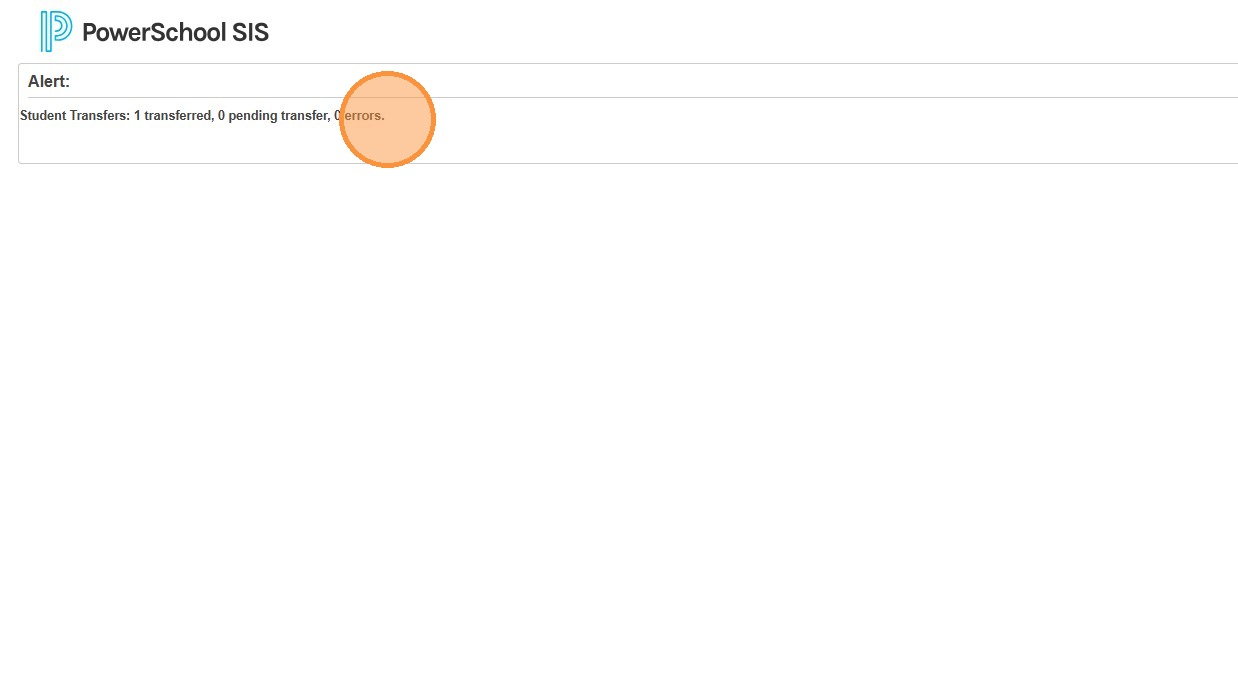
23. you can see now that this student was transferred out
24. Choose school enrollment again.
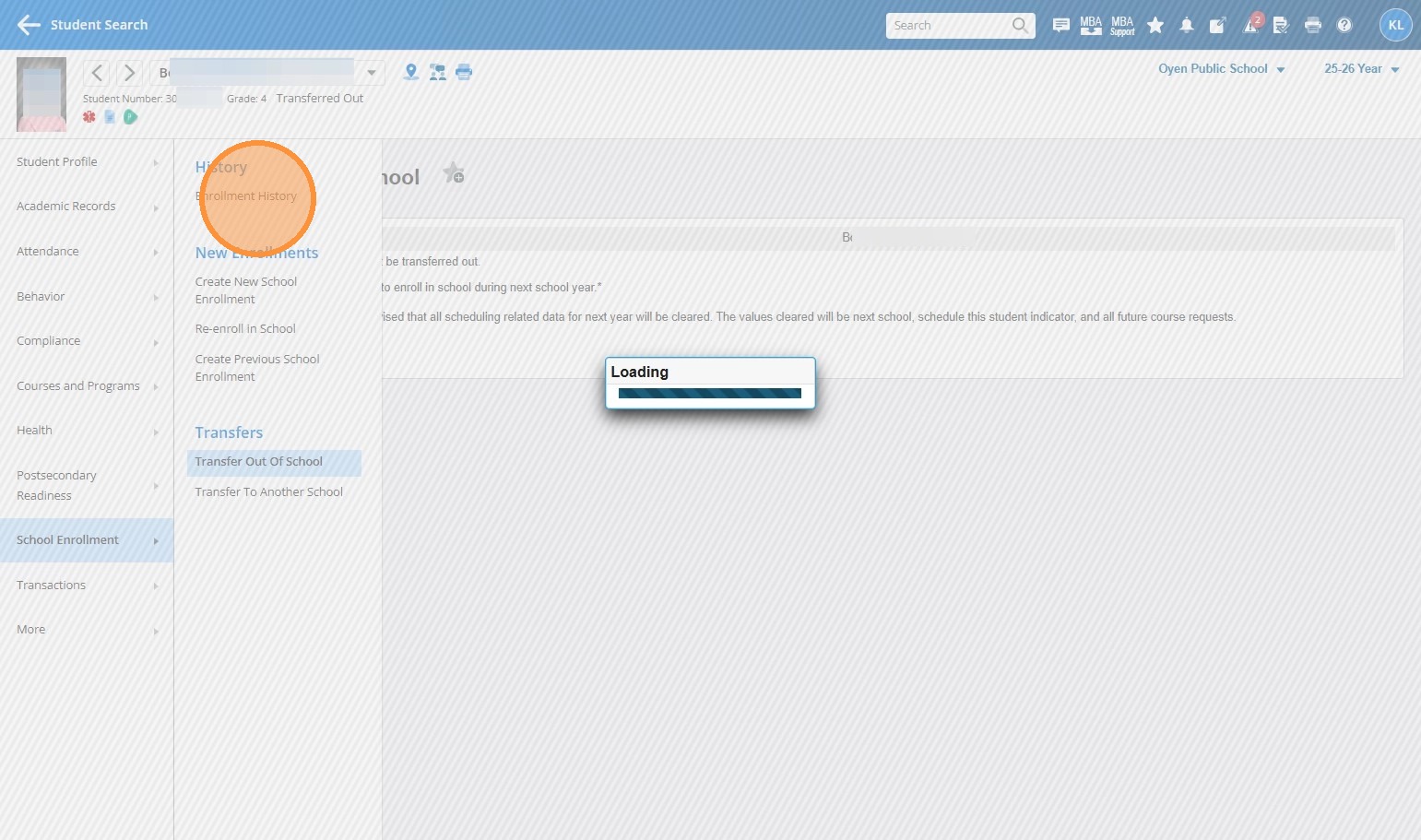
25. And enrollment history. Go into the current enrollment.
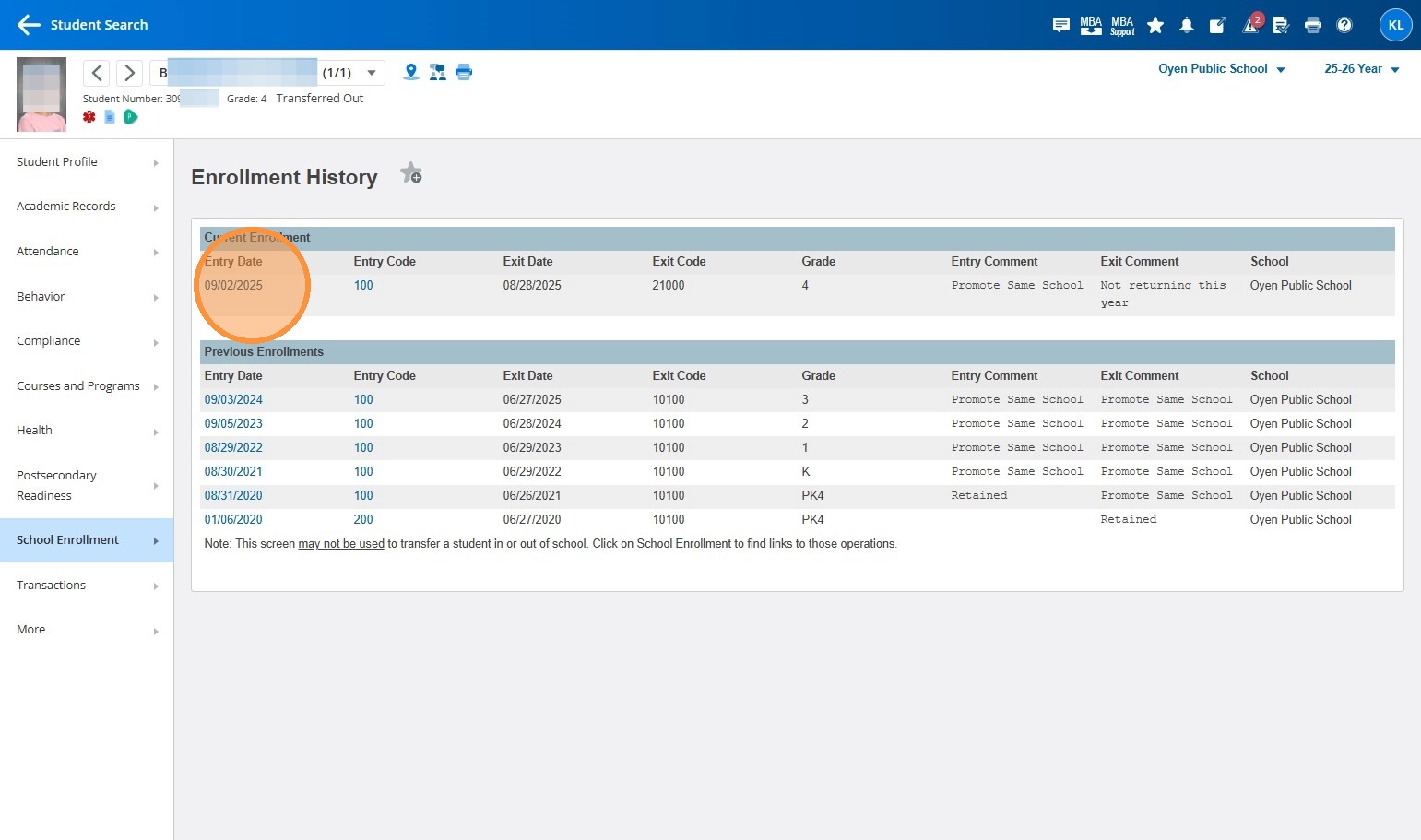
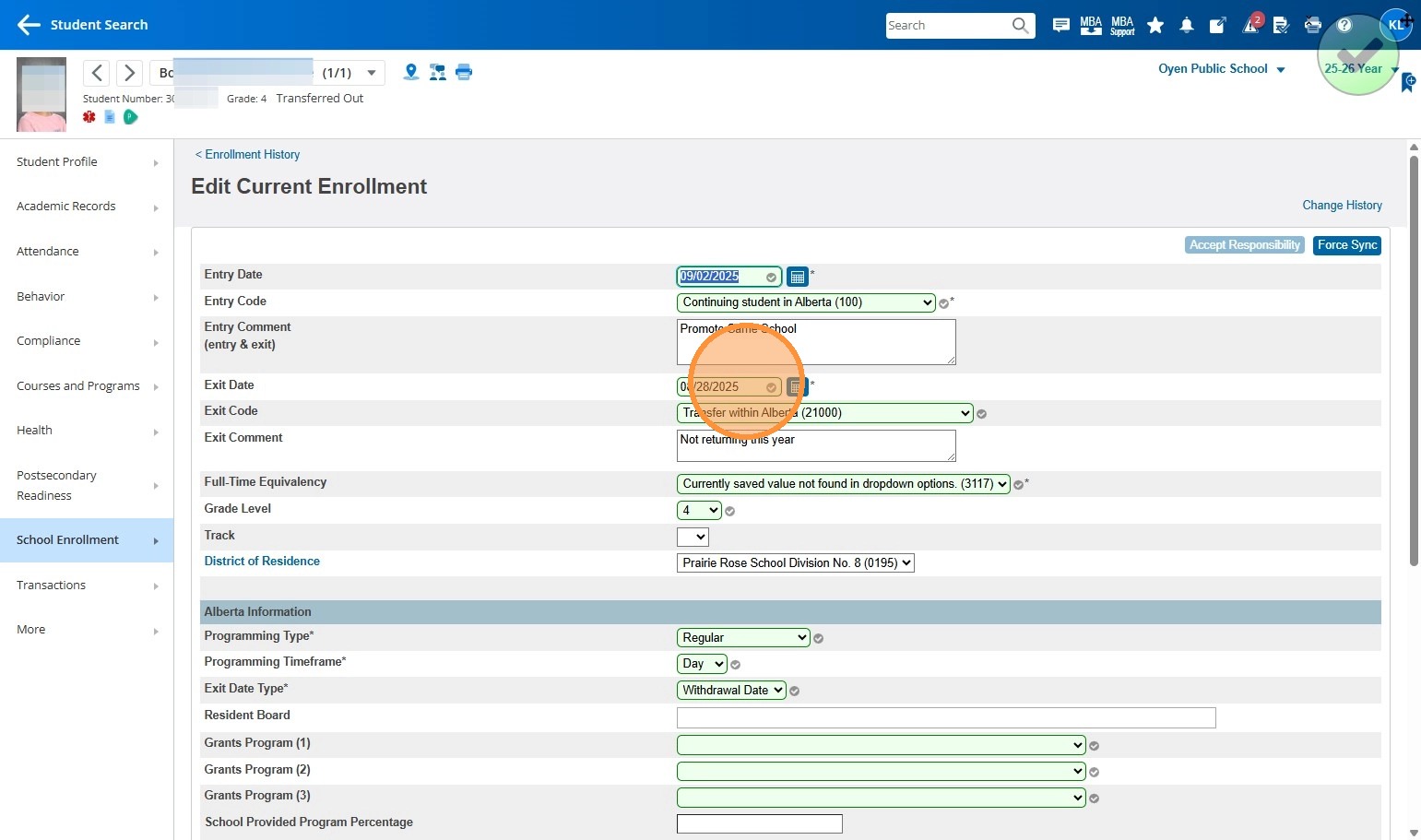
26. And then clean up these dates.
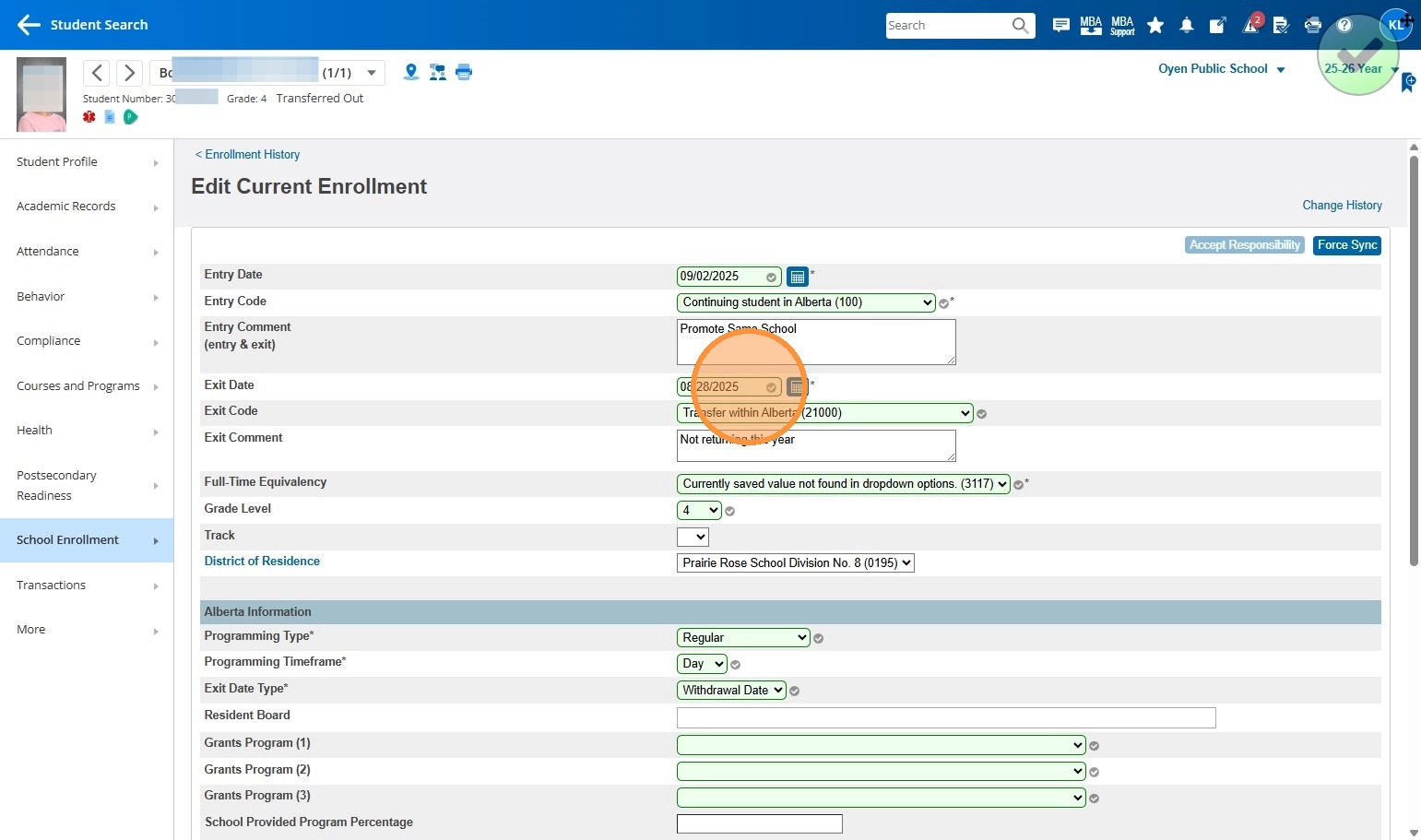
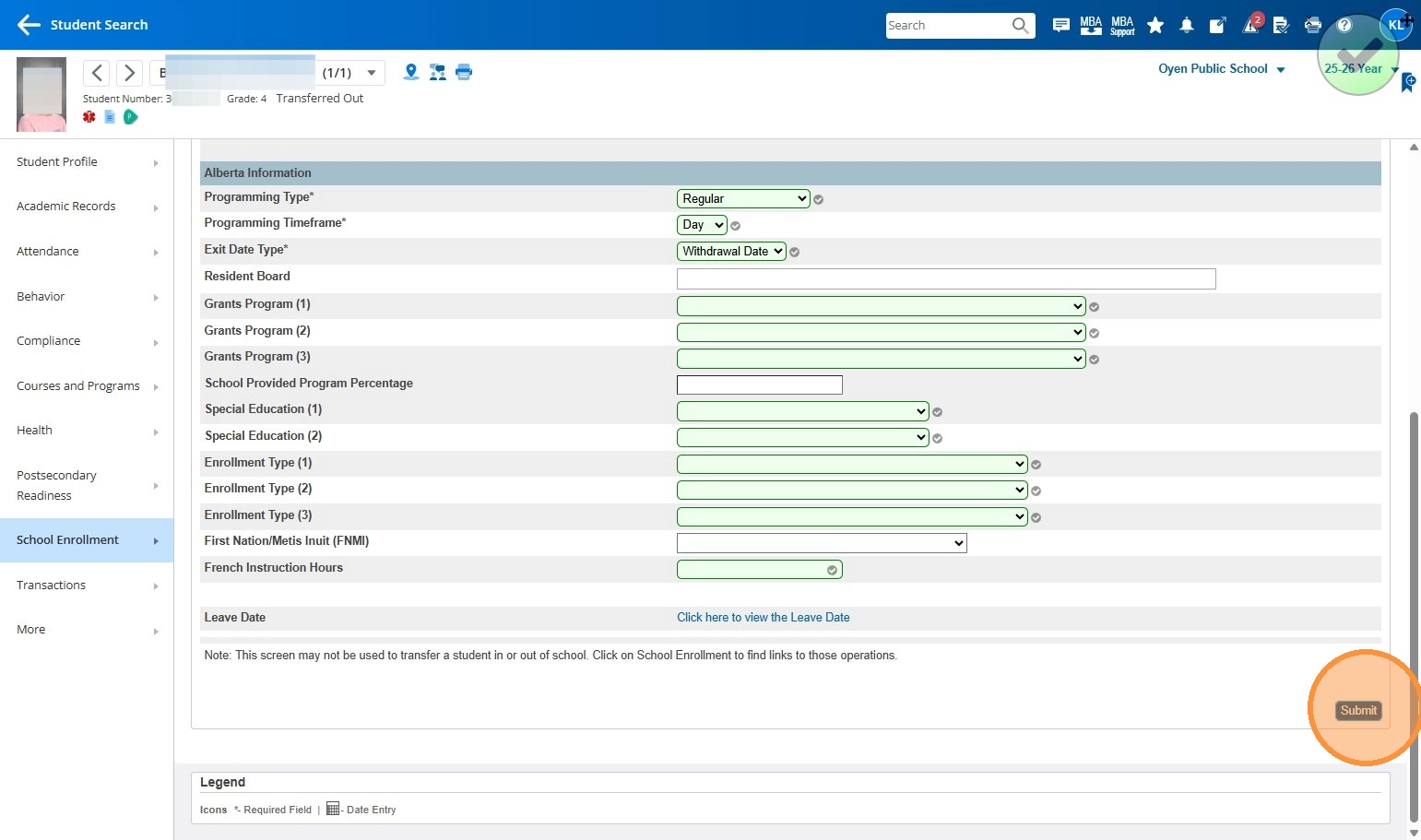
27. You can't have a student exiting before they were set to start
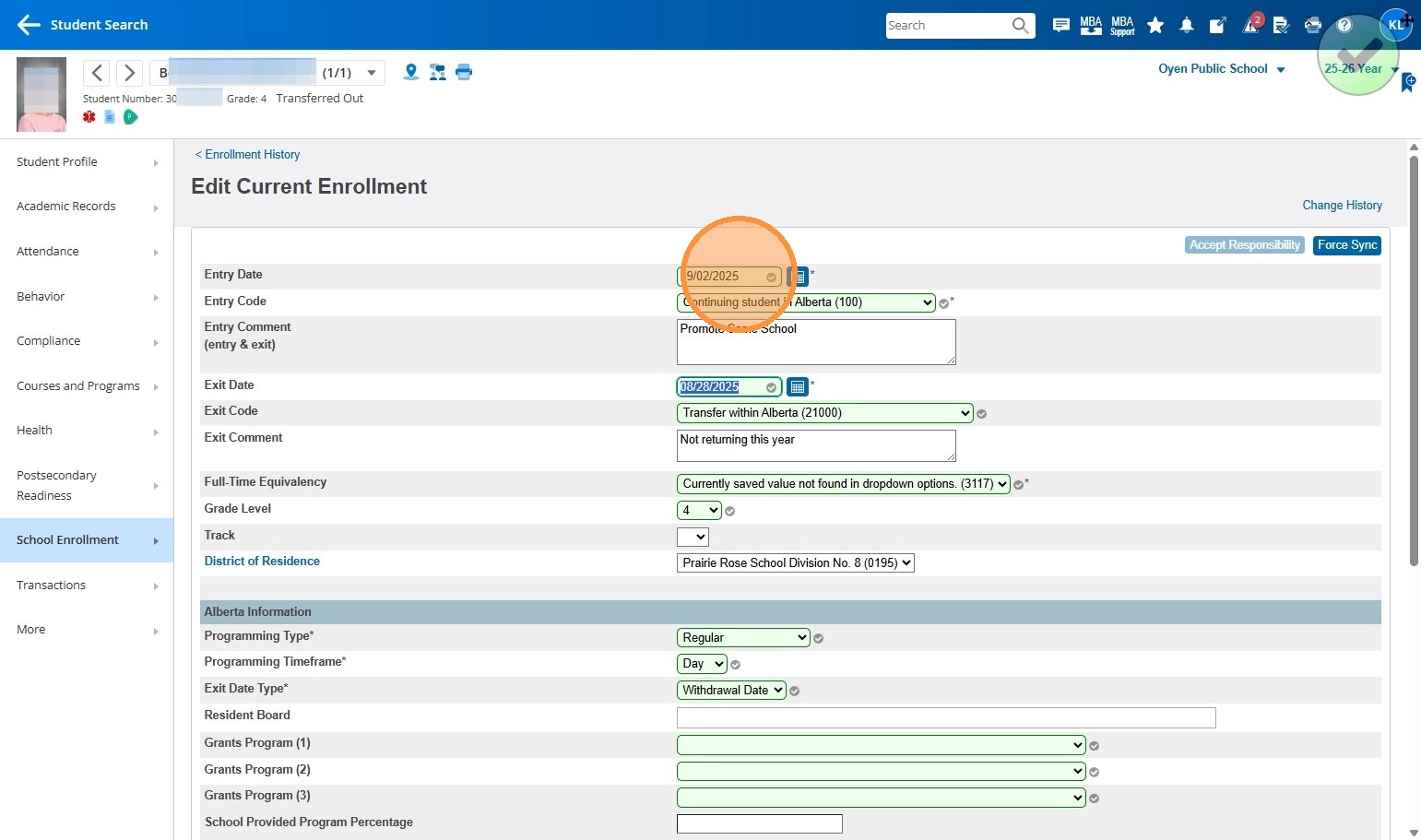
28. So make the Exit Date the same as the Entry Date
29. Click submit.
30. And then you're done. You can see the student is now transferred out.