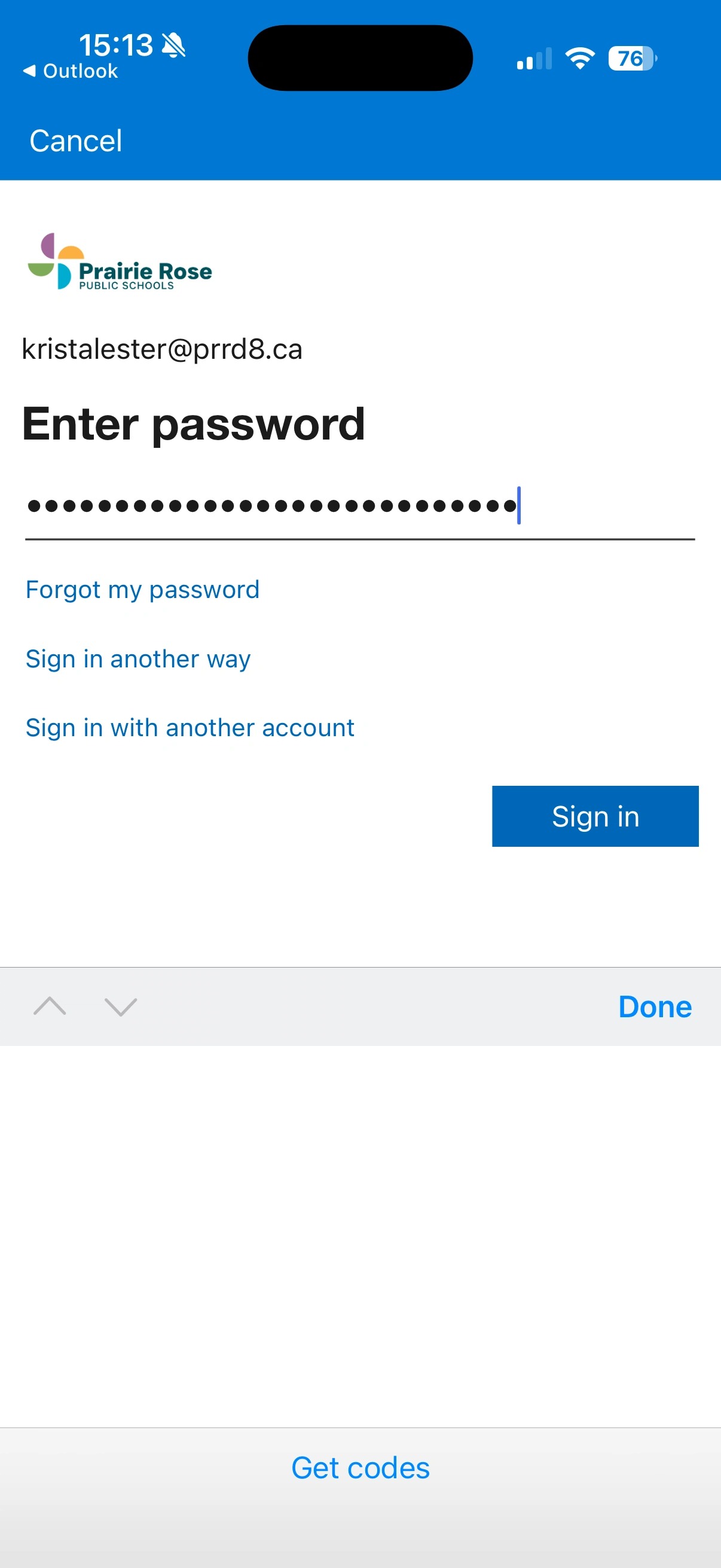
Download Microsoft Outlook to receive PRPS Emails to your Mobile Device
Download Microsoft Outlook to receive PRPS Emails to your Mobile Device
Learn how to download the Microsoft Outlook app onto your mobile device so you can access your PRPS emails on the go
Alert: Alert! This step can only be done after you have signed into your account once using a browser (can be computer/laptop/Chromebook, or your phone's mobile browser) and changed your password, and set up your Authenticator App. Please refer to either
https://helpdesk.myprps.com/KB/View/102655319-how-to-set-up-and-access-your-prps-outlook-e-mail-via-mobile-device
or https://helpdesk.myprps.com/KB/View/102655383-how-to-set-up-and-access-your-prps-outlook-e-mail-via-browser
first.
1. Open your mobile device's app store. In my example, I'm accessing the Apple App Store. If you have an Android device, you will access the Google Play Store.
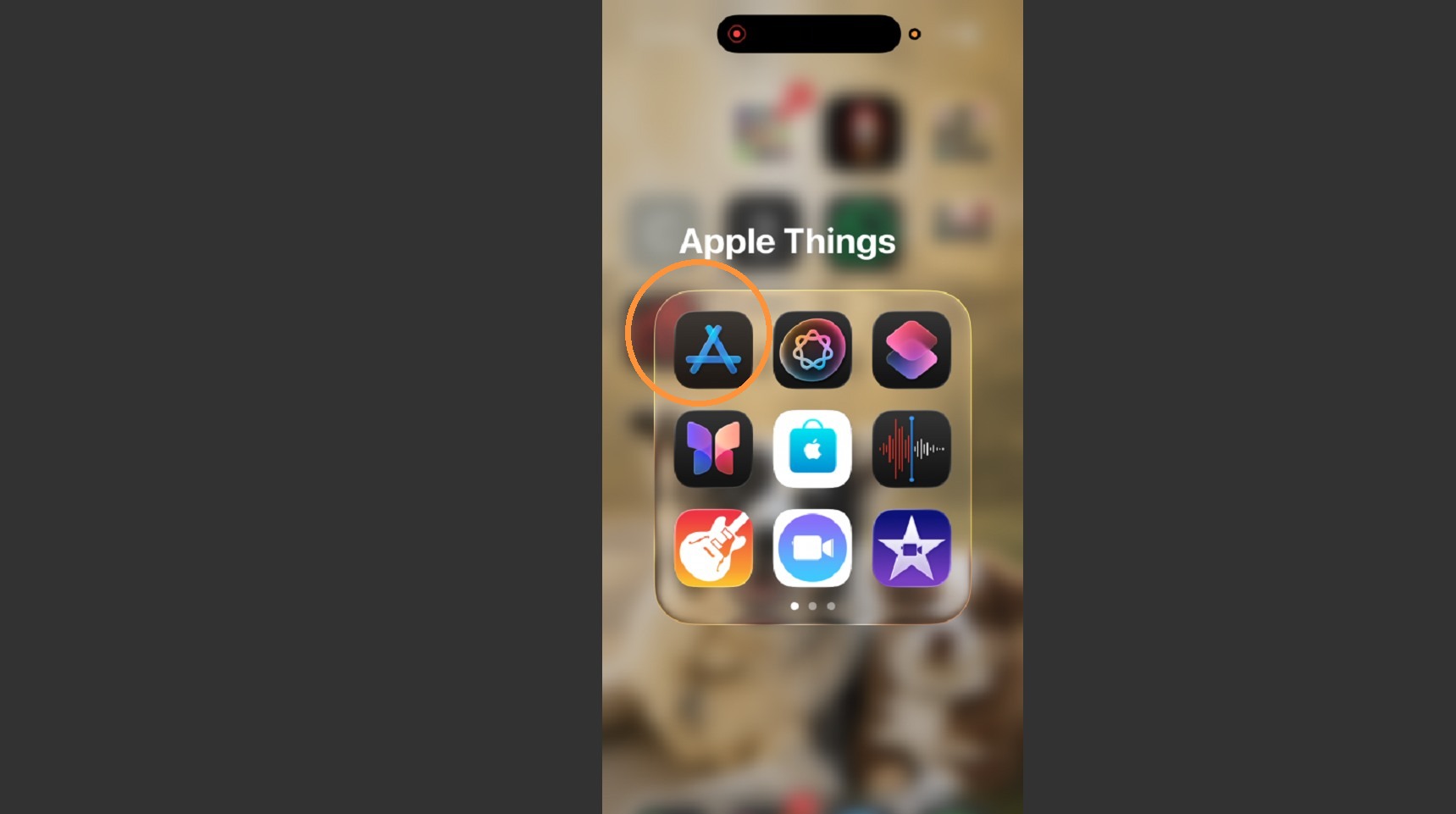
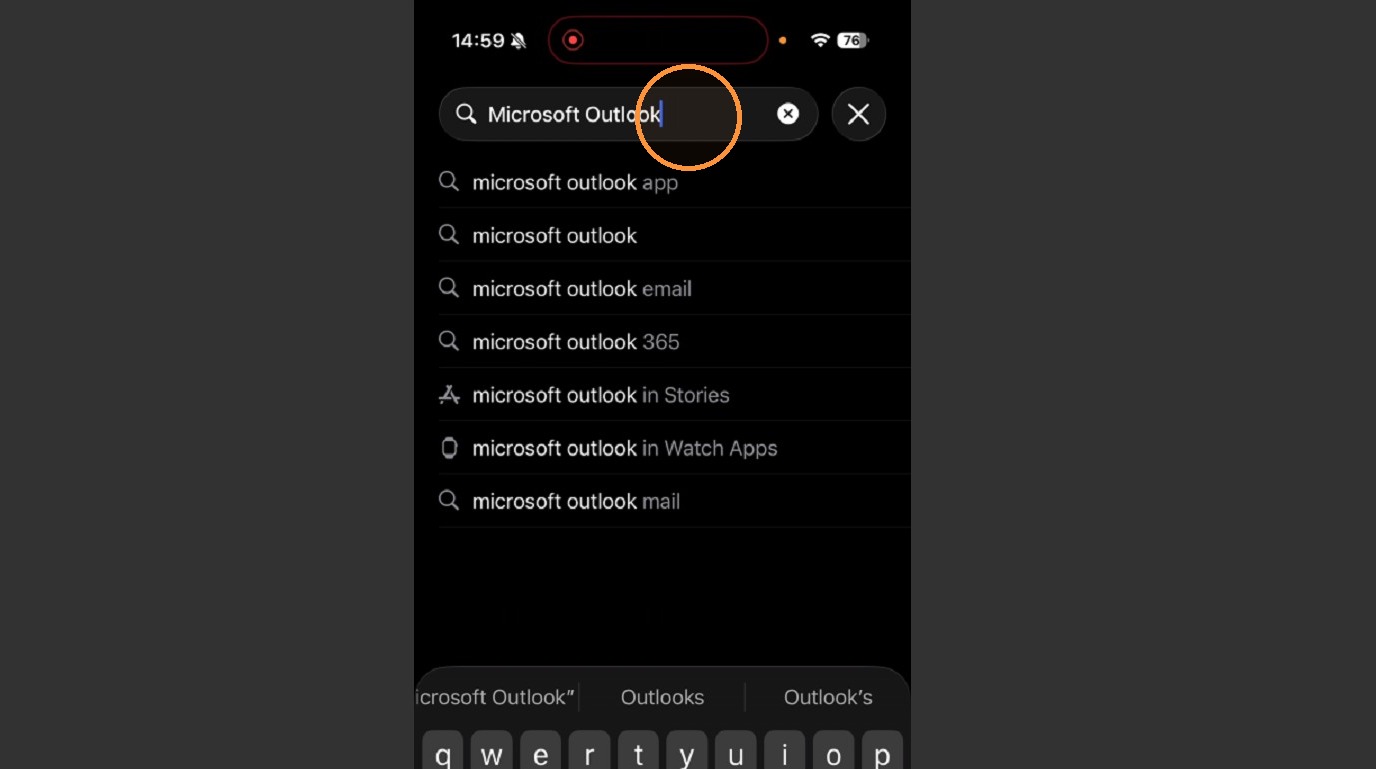
2. Search your App Store for "Microsoft Outlook". You can also use the following links:
Apple App Store: https://apps.apple.com/us/app/microsoft-authenticator/id983156458
Google Play Store: https://play.google.com/store/apps/details?id=com.azure.authenticator&pcampaignid=web_share
3. Download the Microsoft Outlook App that is from Microsoft Corporation
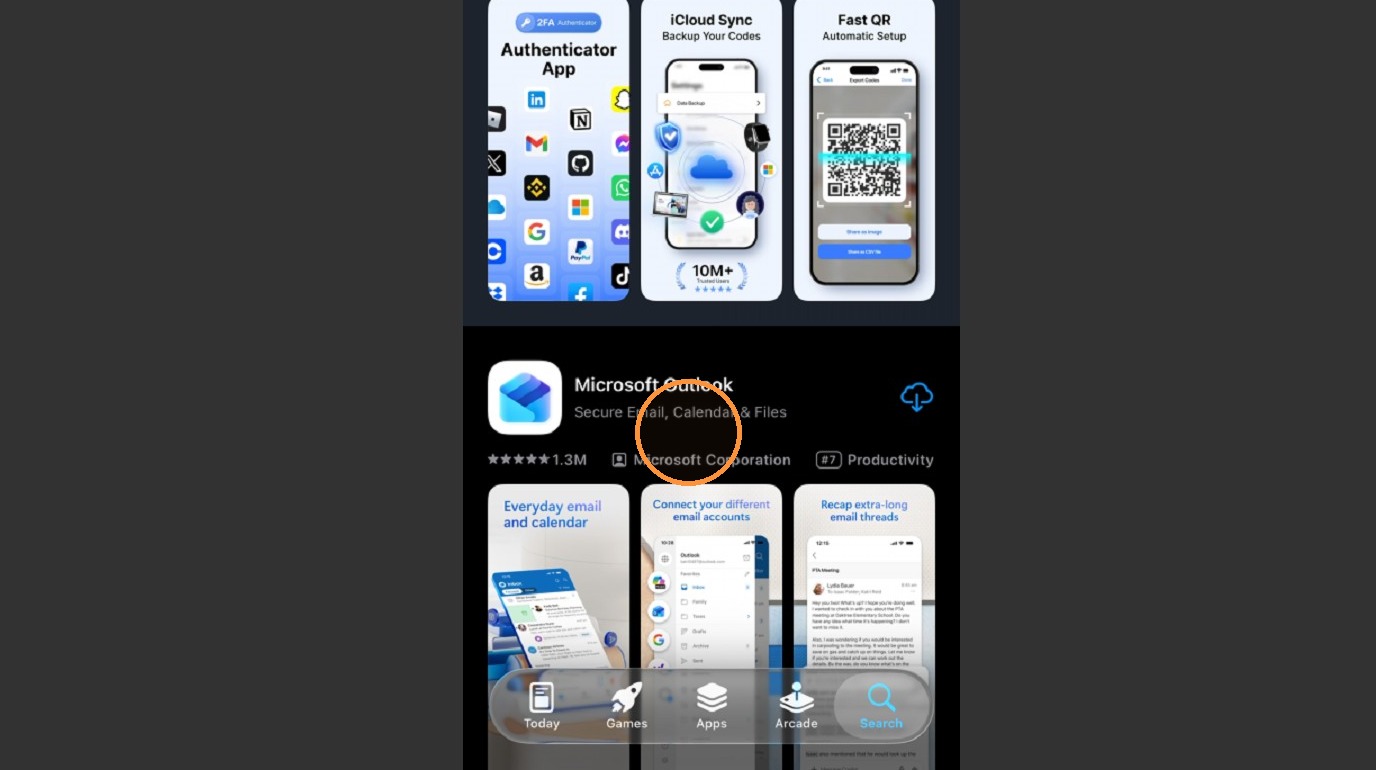
Alert: Alert! Ensure the App is the correct one from Microsoft. The top sponsored results in the App Store is a scam app. The correct app costs nothing, will never charge you and has no ads.
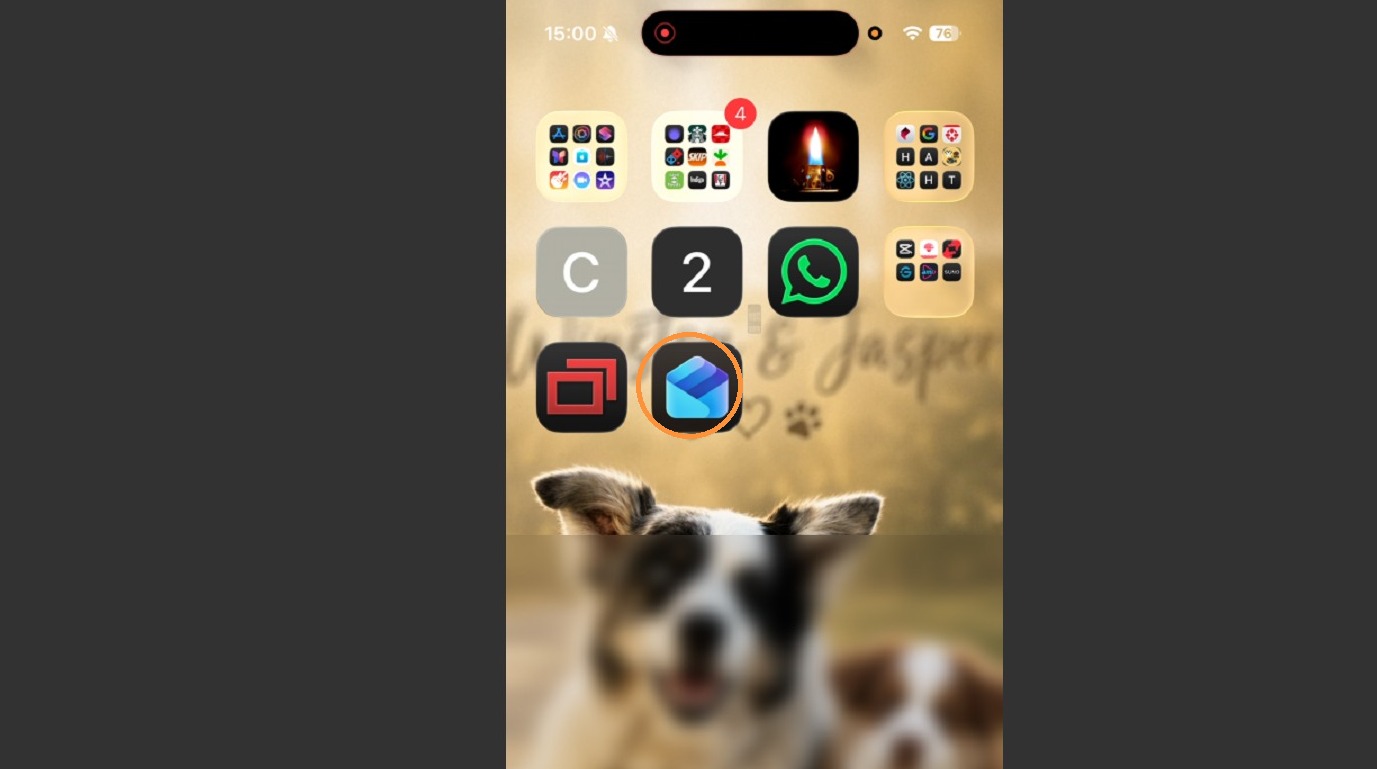
4. Once the Outlook app is downloaded, click to Open it.
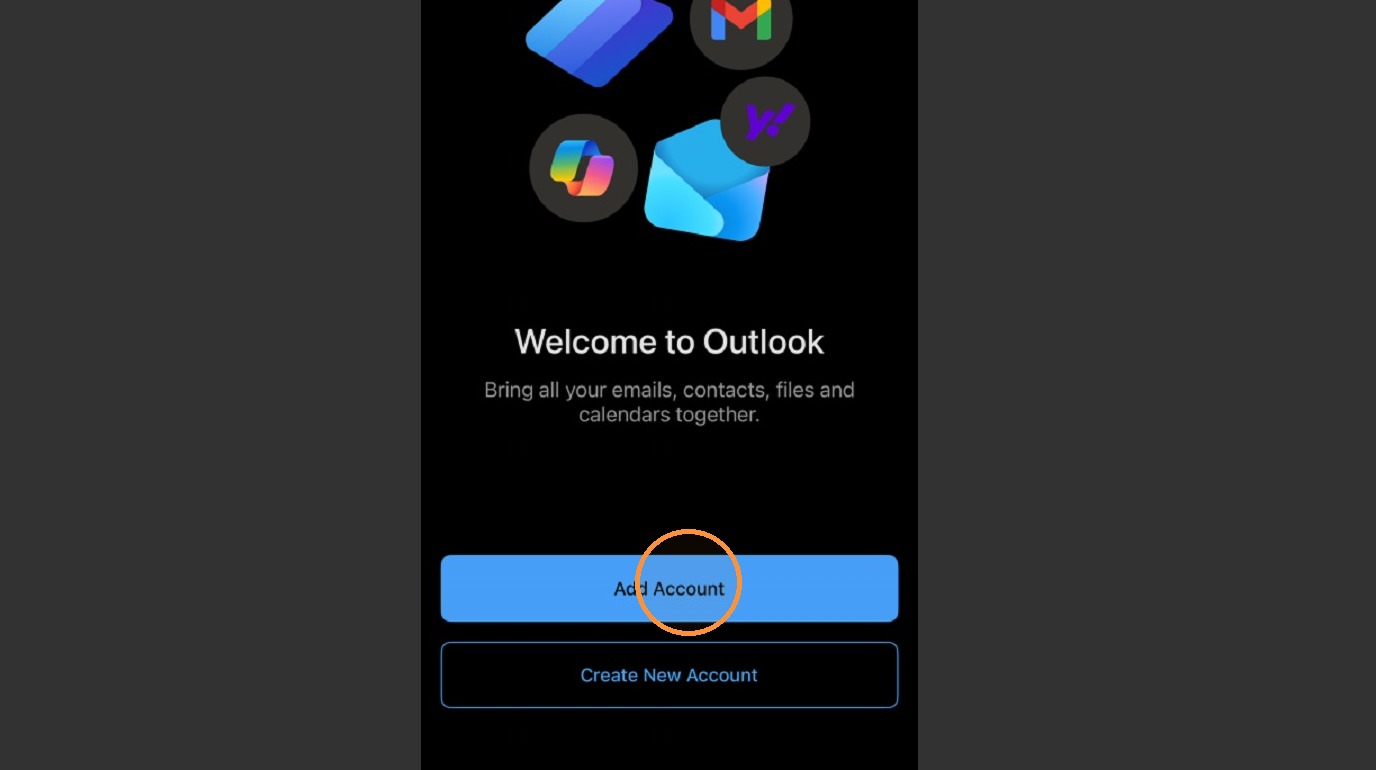
5. Click "Add Account"
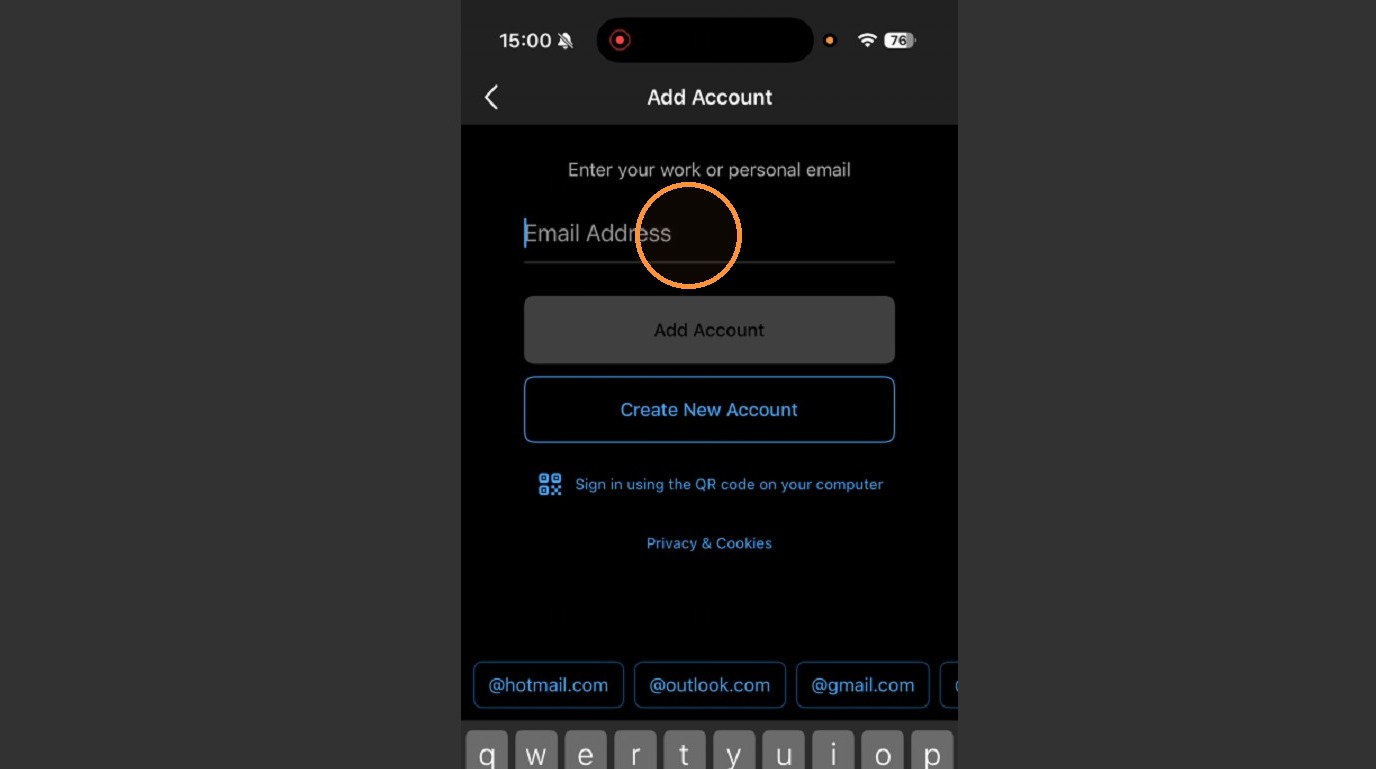
6. If prompted, choose "Work or School Account" and enter your PRPS credentials.
7. You will likely be prompted to authenticate your account with your Authenticator App.